Compressor for macOS
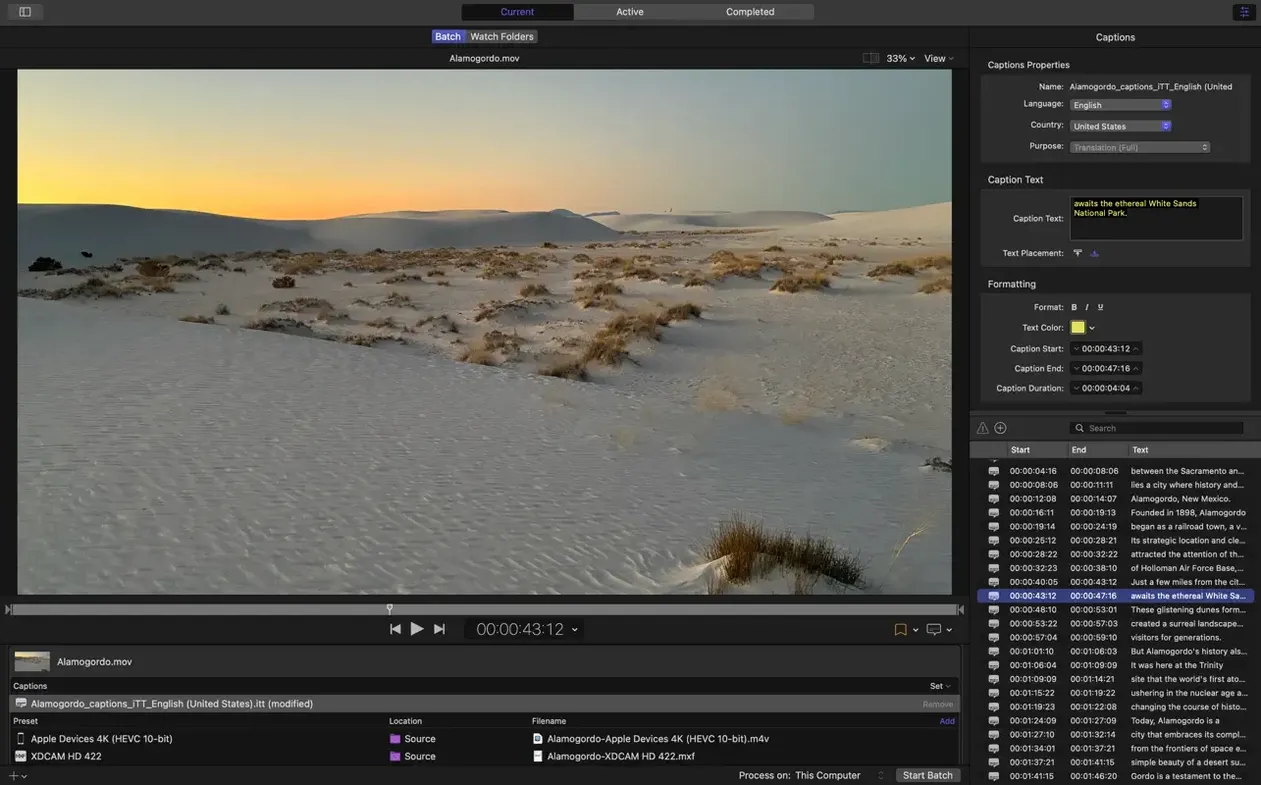
You have a finished edit in Final Cut Pro, a folder of ProRes masters, and three destinations that each want a different format. That is the problem Compressor exists for. It takes the export step off Final Cut's plate and turns it into a batch job with its own inspector, settings panel, and queue.
| What | Details |
|---|---|
| Current version | 5.3 |
| Runs on | macOS 15.6 or later, Intel and Apple silicon |
| Languages | English, German, Spanish, Simplified Chinese, French, Japanese |
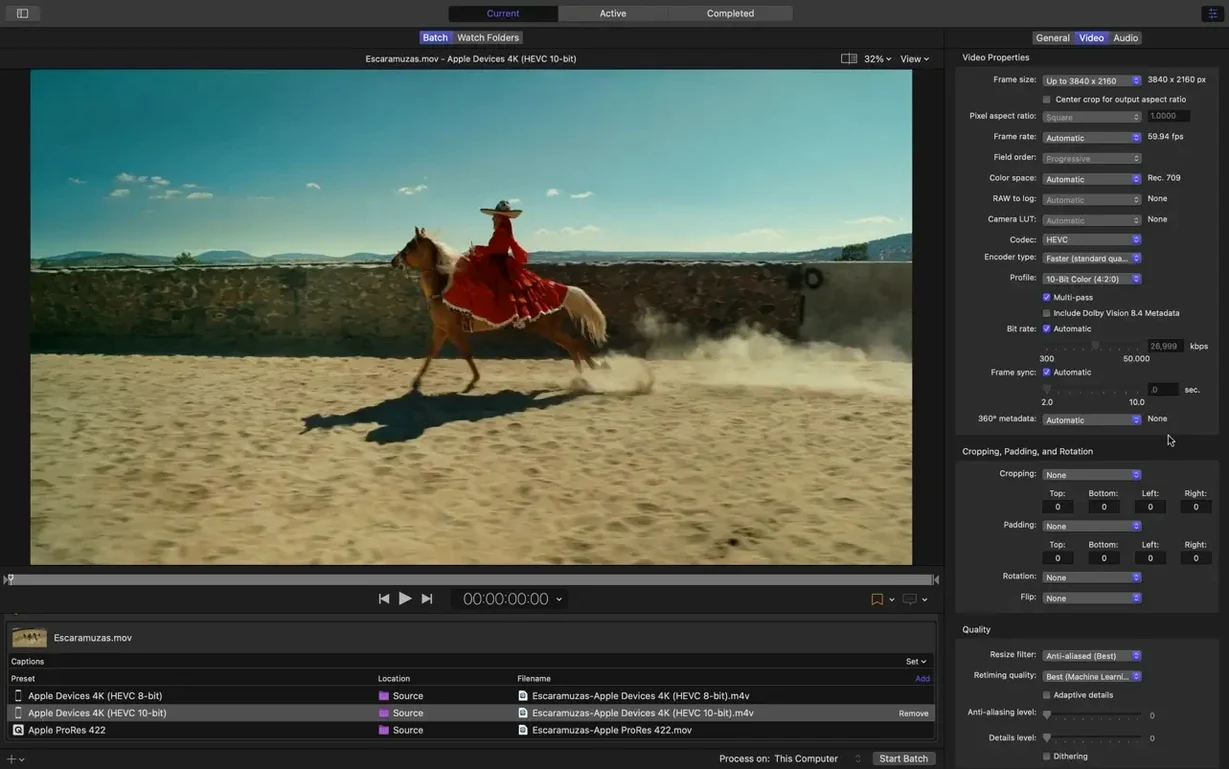
Compressor fits naturally next to Final Cut Pro and Motion because it uses the same rendering engine as both. A project you export from Final Cut gets processed through the same pipeline Compressor uses for its own batches, so what you preview matches what you deliver. The app can split work across multiple CPU cores, and on Apple silicon it also uses hardware encoders for H.264 and HEVC. That makes long 4K and stereoscopic jobs less of a waiting game. The side panel holds encoding settings while the inspector exposes audio and video properties for finer control, and distributed encoding lets other Macs on the network share the load.
Walking through a batch session
Say a client needs three things from the same master: an HDR HEVC for the archive, a 1080p H.264 with burn‑ins for review, and a 5.1 AAC‑encoded Apple device version for the sound team to check on iPads. You drop the ProRes .mov onto the batch area. Compressor reads the source, picks up its resolution, color space, and audio layout, and shows a thumbnail.
You drag the Apple Devices 4K (HEVC, HDR) setting from the side panel onto the source row. A second drag adds HD 1080p and a third adds the freshly updated Apple Device preset with the new 5.1 AAC option from version 5.3. Three rows stack under the source name, each with its own inspector. You select the review row, open the inspector, switch to the Video tab, and set a timecode burn‑in. Under Audio you confirm the downmix from the master’s 5.1 to stereo — Compressor reads the track layout and pre‑fills sensible defaults.
Before hitting Build, you open the immersive metadata viewer added in 5.3 and scrub through a 180° stereoscopic clip to check that the Apple Projected Media Profile flag sits right. The anaglyph preview kicks in so you can verify depth without putting on a headset — a small thing that saves a round‑trip to a VR device. Satisfied, you click Start Batch. The queue panel slides across; the first encode grabs the hardware HEVC encoder on the M‑series chip, and the other two jobs fan out across available cores. You set a post‑encode action on the review file to copy it to a network‑mounted screening folder and email the link.
Duplicate a preset to build a sandbox copy
A few bits hide in plain sight. Right‑click any setting in the side panel and choose Duplicate — you now have a sandbox copy to tweak without losing the factory preset. The inspector’s Geometry tab has a padding control (not just cropping) that letterboxes a 2.39:1 source into a 16:9 frame with the exact pixel margin you specify, which is handy when a platform rejects non‑standard aspect ratios.
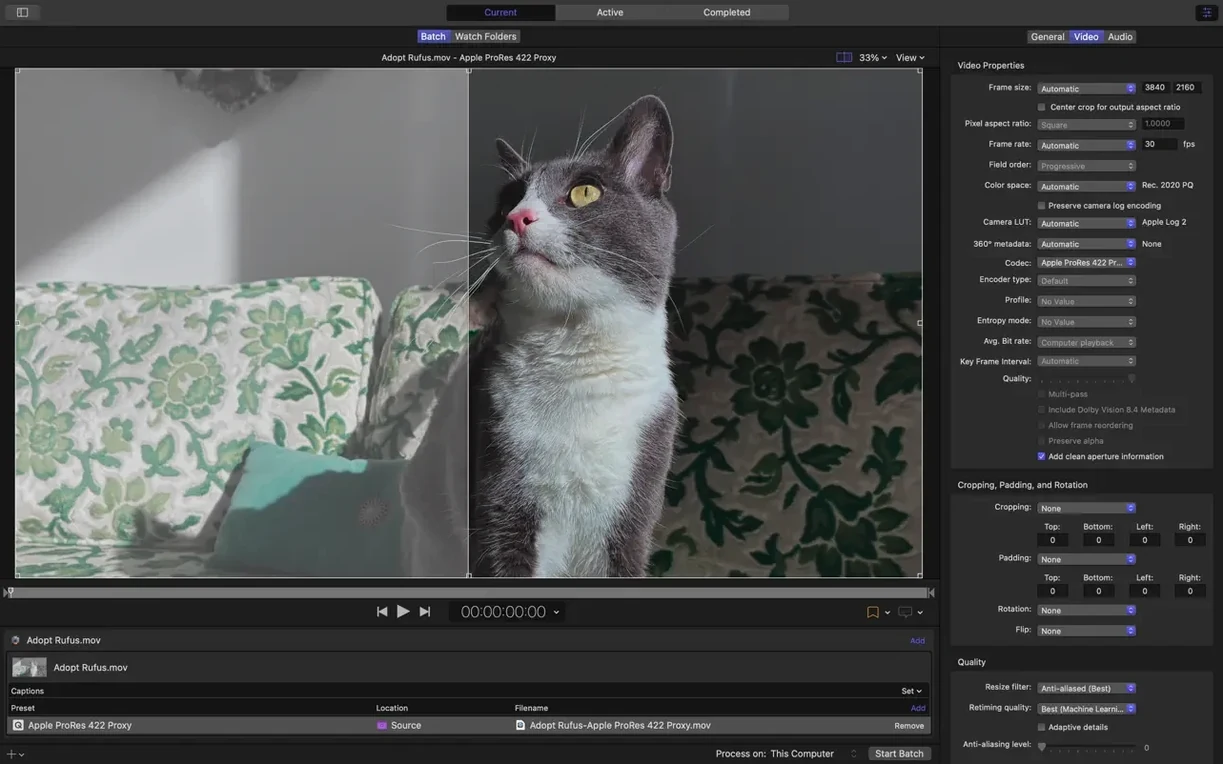
If you hold Option while dragging a setting onto a source, Compressor applies it to every source sitting in the batch — a fast way to add a consistent watermark or timecode overlay to a dozen clips. The Preview window has a split‑screen mode: pick a source frame on the left and the encoded output on the right, then scrub to compare compression artifacts at the same point in time. You can also save a custom preview frame as a .tiff for side‑by‑side inspection in another tool.
Less obvious: Compressor inherits macOS’s text‑substitution shortcuts, so typing @@client in the output filename field expands to whatever you set in System Settings, useful when naming conventions change per project. And the queue itself accepts drag‑and‑drop of other media files mid‑batch — the job list stays live while encoding.
Fitting Compressor into a wider workflow
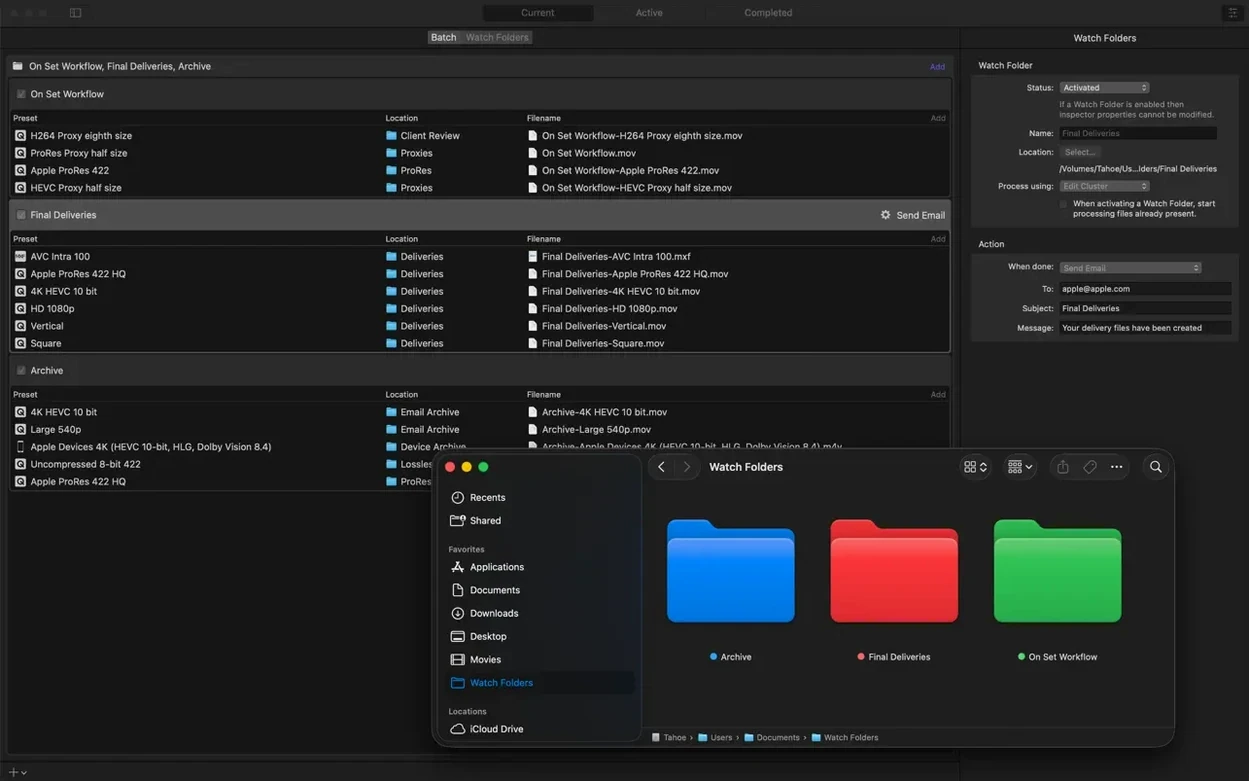
Compressor talks to Final Cut Pro through the Send to Compressor command, but it also works as a standalone hub. You can set up a watch folder on the desktop that automatically applies a preset to any file dropped there — a quick way to accept dailies from a DIT and push H.264 proxies into a shared folder without opening the app. The watch folder triggers a post‑encode action, and because those actions launch shell scripts, you can chain a curl upload or a rsync mirror right from Compressor’s queue.
Motion projects link in the same direction: save a generator or title template, and Compressor can bake it out to ProRes or HEVC while you continue working in Motion. Because the rendering engine matches, a Compressor torrent community often seeds presets that mimic broadcast delivery specs, and those drop right into the side panel as .setting files stored in ~/Library/Application Support/Compressor/. You can share them across machines by copying that folder, which makes distributed encoding setups easier to configure — every node sees the same custom presets.
Compressor also respects macOS Quick Look: tap the spacebar on a queued output while it encodes, and you get a live preview of the progress so far. On completion, the new immersive metadata viewer logs any flag mismatches in a plain‑text report you can send to a post‑production supervisor alongside the deliverables.
Where HandBrake stops and Compressor takes over
Next to HandBrake, Compressor covers a different slice of the problem. HandBrake excels at single‑file, open‑source transcoding with deep codec tuning (x264/x265), but it has no batch preset stacking, no watch folders, no distributed encoding, and no integration with Final Cut Pro or Motion. If you need an apple compressor free download to rewrap a single file, HandBrake works. If you need five outputs with different audio layouts, post‑encode scripts, and an inspector that shows timecode tracks, Compressor makes more sense.
ffWorks (a Mac front‑end to ffmpeg) is closer in spirit. It offers fine control over encoding parameters and can batch process with custom scripts. But it lacks Compressor’s preview window with split‑screen comparison, its immersive metadata viewer, and the tight Final Cut Pro handshake — you export a master, then manually feed ffWorks. Compressor 5.3 for Mac reads Final Cut’s project timeline markers and chapter points directly, which ffWorks cannot do.
Compared with Adobe Media Encoder, Compressor is leaner. Media Encoder handles a wider range of source formats (some raw camera formats, After Effects comps) and has a watch‑folder system, but its rendering engine is Adobe’s, not Apple’s — so color pipeline and ProRes encoding differ. Compressor’s hardware‑accelerated HEVC data‑rate limits on Apple silicon, added in 5.3, give predictable bitrate ceilings that Media Encoder’s hardware encoder does not expose in the same way. Media Encoder also cannot distribute to other Macs without an Adobe‑licensed render node; Compressor’s sharing is built into the app and works over Bonjour.
In practice, many editors keep two tools around. Compressor sits between Final Cut and delivery, especially when the client spec says “Apple Projected Media Profile” or “5.1 AAC.” For everything else — oddball codecs, animated GIFs, AV1 experiments — a Compressor torrent might lead to a complementary tool that broadens your format support, and the batch workflow and tight Apple ecosystem integration keep Compressor bolted to the post‑production pipeline.
- Adds an immersive metadata viewer before encoding, plus support for transcoding immersive sources without WAV files to Apple Immersive outputs.
- Adds 180° Apple Projected Media Profile output and an anaglyph preview option for stereoscopic video.
- Adds a 5.1 AAC option to Apple Device export settings.
- Adds support for HEVC data rate limits on Apple silicon devices.
- macOS 15.6 or later
- Intel or Apple silicon Mac
- 8 GB memory
- 1.2 GB available disk space
$ man compressor | grep -A2 "?"
Does Compressor 5.3 work on Apple silicon Macs?
Yes, it runs on both Intel and Apple silicon. On Apple silicon it can use hardware encoders for H.264 and HEVC, including HEVC data rate limits.
Can Compressor work with Final Cut Pro projects?
Yes, it integrates with Final Cut Pro and Motion and shares their rendering engine, so you can send projects directly for transcoding.
Comments 0
Sign in or create an account to leave a comment.
No comments yet. A codec, a slice, a machine — they appear after moderation.