DaisyDisk for macOS
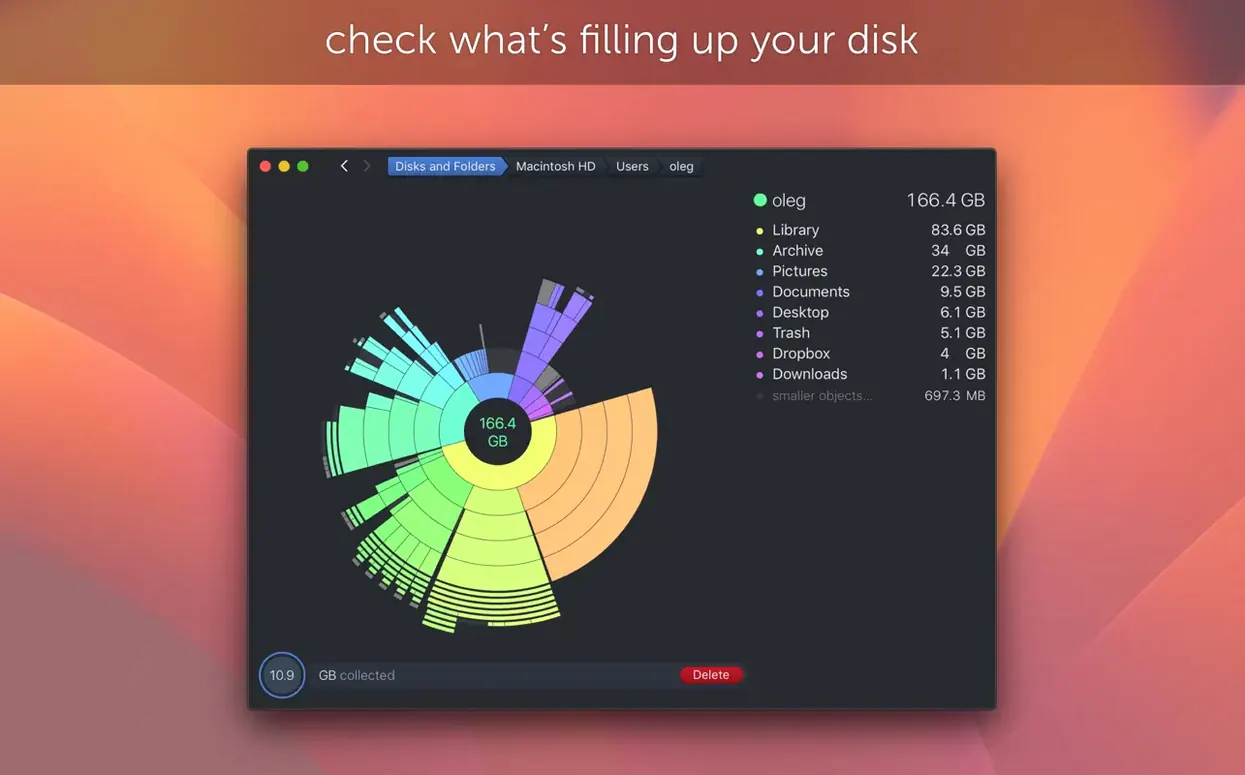
If you’ve ever stared at the storage bar in System Settings and wondered what macOS lumps into that opaque “Other” slice, DaisyDisk is the answer. It scans a volume and turns the results into a sunburst map—nested arcs where a quick glance tells you which folders are bloated. Click into any segment and the view zooms, so you can chase down a stray .dmg or a forgotten Xcode simulator image without running du by hand.
What makes it tick
| What | Detail |
|---|---|
| Current version | 4.34.2 |
| macOS requirement | 10.13 or later |
| Architecture | Apple silicon & Intel native |
| Display | Retina-ready |
The scanner reads the volume’s block map directly, which is why it can also surface space taken by APFS clones. Starting with version 4.34.2, it counts only the first occurrence of each clone toward used space—so a file duplicated by the filesystem ten times shows up once in the total, with the copy relationships noted underneath. You can scan several mounted disks in parallel, and deleting is a drag-and-drop affair straight from the map. For FAT32 and exFAT volumes, the sizing math got a fix back in 4.33.2, alongside tighter hidden-space estimation and smoothing for macOS Tahoe.
A quiet afternoon with a clogged drive
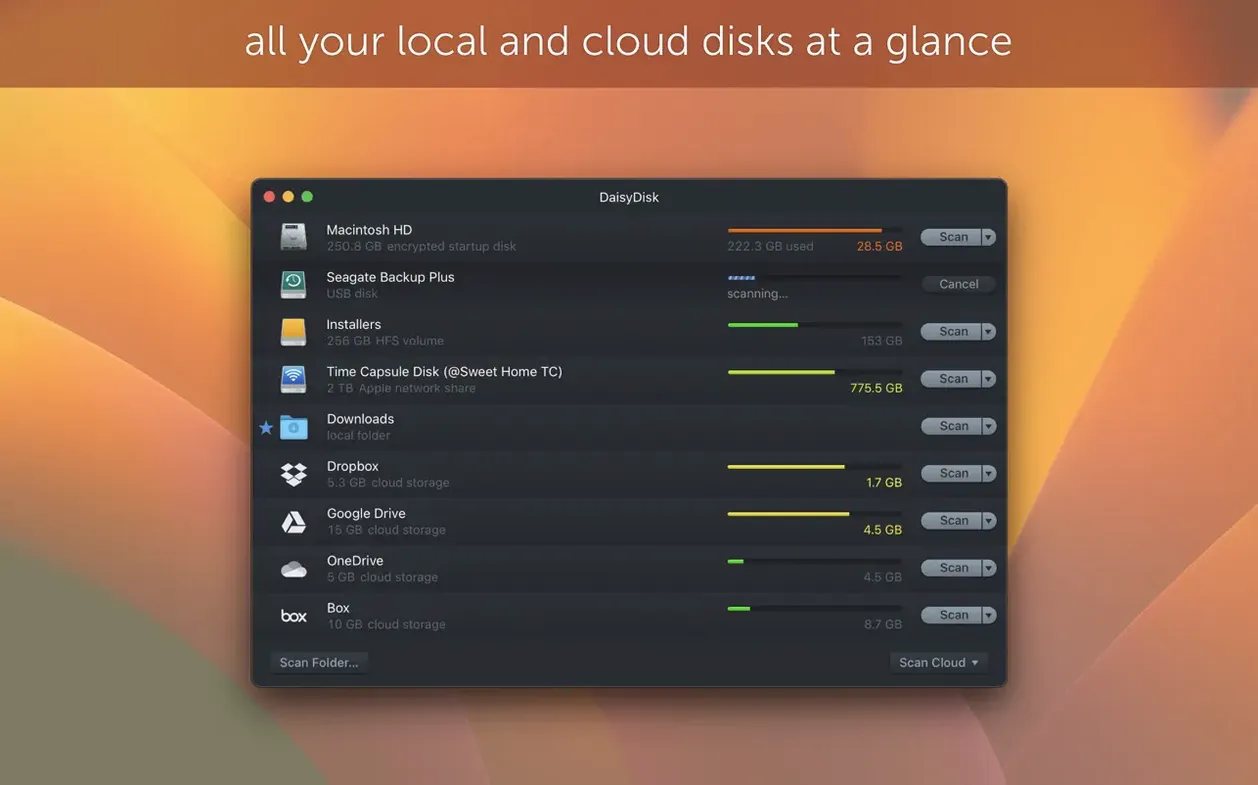
Last Tuesday I opened DaisyDisk after Xcode complained about insufficient space for a simulator runtime. The app greeted me with its disk selector—a clean panel listing the internal SSD and the external backup volume I keep on a USB‑C enclosure. I picked “Macintosh HD,” clicked Scan, and leaned back for the roughly twenty seconds it took the map to bloom.
The sunburst appeared: a ring of arcs labeled with root-level folders. Users ate most of the ring, no surprise, but a chunky yellow wedge at the edge caught my eye—System was sitting on 78 GB, far above the clean-install baseline. I clicked the wedge and the view zoomed in, redrawing the arcs for System/Library. Two more clicks landed me inside dyld shared caches and simulator runtimes I had forgotten to remove after last autumn’s beta cycle. A right‑click on the offending .dmg leftovers pushed them to the Trash, and the map recalculated in under three seconds. Ten minutes later I had freed 42 GB without once opening Terminal.
How it stacks against similar tools
DaisyDisk vs. GrandPerspective
GrandPerspective uses a treemap: rectangles sized by file footprint, color‑coded by type. It gives you the same raw data—every file gets a rectangle—but the layout changes drastically between scans, so a folder you recognized last week might move to the opposite corner today. DaisyDisk’s sunburst is deterministic; the Applications arc is always in the same angular position, which makes rescanning feel like updating a known mental model rather than learning a new puzzle. GrandPerspective also lacks the APFS clone awareness that arrived in DaisyDisk 4.34.2, so duplicated filesystems get double‑counted.
DaisyDisk vs. OmniDiskSweeper
OmniDiskSweeper lists files in a flat, sortable tree—a Finder outline with size columns. It is brutally fast for hunting the single largest file on a volume, and it doesn’t hide anything behind visual metaphors. The trade‑off is that it shows you every node, which means you scroll through thousands of tiny system files before reaching the user data you care about. DaisyDisk collapses small items into a thin “other” arc at each zoom level, so the map stays readable. For a quick “what’s my biggest folder?” question, OmniDiskSweeper wins; for understanding how space distributes across nested directories, DaisyDisk is closer to the mental picture most people actually want.
DaisyDisk vs. CleanMyMac X (disk module)
CleanMyMac X wraps a space analyzer inside a broader maintenance suite. Its scan categorizes files into buckets like “junk” and “large & old files,” then suggests batch deletions. That is helpful when you want a guided cleanup, but the categorizations can be opaque—what lands in “system junk” isn’t always inspectable before you delete. DaisyDisk shows you the raw filesystem truth without curating it into bins. For a user comfortable navigating /var and ~/Library, that directness matters. DaisyDisk also doesn’t run a background daemon, so it generates zero idle CPU wakeups between sessions.
The scanner now spots APFS clones
Version 4.34.2 landed in the summer of 2026 with a targeted bug fix, but the real shift in everyday use came with 4.34. That release taught the scanner to recognize APFS clones—the lightweight copies the filesystem makes when you duplicate a file without consuming extra blocks. Before 4.34, if you had a 2 GB file cloned five times, DaisyDisk showed 10 GB of used space. Now it counts the physical 2 GB once and annotates the clones, so your storage tally matches what diskutil reports. For anyone who keeps multiple checkouts of a large repository or duplicates virtual machine bundles, this single change stopped the “missing free space” head‑scratching that used to send people digging through hidden volumes.
Version 4.33.2 smoothed the experience for anyone running macOS Tahoe and tightened the math on FAT32 and exFAT drives. Before that fix, a thumb drive full of camera footage could show a size 15–20 % off reality—irritating if you were trying to decide whether the drive had room for one more card dump. Hidden‑space estimation also improved: the “still scanning” phase that churns through Time Machine local snapshots and purgeable space now settles on a number faster, which means the final map appears a few seconds sooner on busy volumes.
First‑day moves after installing
Download the .dmg, double‑click to mount it, and drag the app to /Applications as usual. The first time you launch, macOS might block it because of Gatekeeper; the workaround is quick—open Terminal, type sudo spctl --master-disable, press Return and enter your admin password, launch DaisyDisk once, then re‑enable Gatekeeper with sudo spctl --master-enable. You only need to do that once.
Immediately let it scan your boot volume. While the map draws, open Preferences (⌘,) and check “Show hidden space”—this surfaces purgeable data and local snapshots that normal scans skip. Also tick “Show package contents” so .app bundles and .photolibrary containers open like folders in the map instead of sitting there as opaque icons. Switch the color palette from “Mountain” to “Ocean” under the View menu if the default warm tones make it hard to distinguish adjacent arcs; the blue‑green gradient has higher contrast at the narrow edges where small folders cluster.
Run a second scan in parallel on any external drive you use regularly. DaisyDisk handles concurrent scans without bogging down, and having both maps side by side makes it easy to spot files you can offload—stuffing a 60 GB SteamLibrary folder onto an external SSD while leaving the smaller apps on the internal drive, for example.
Settings that earn their keep right away
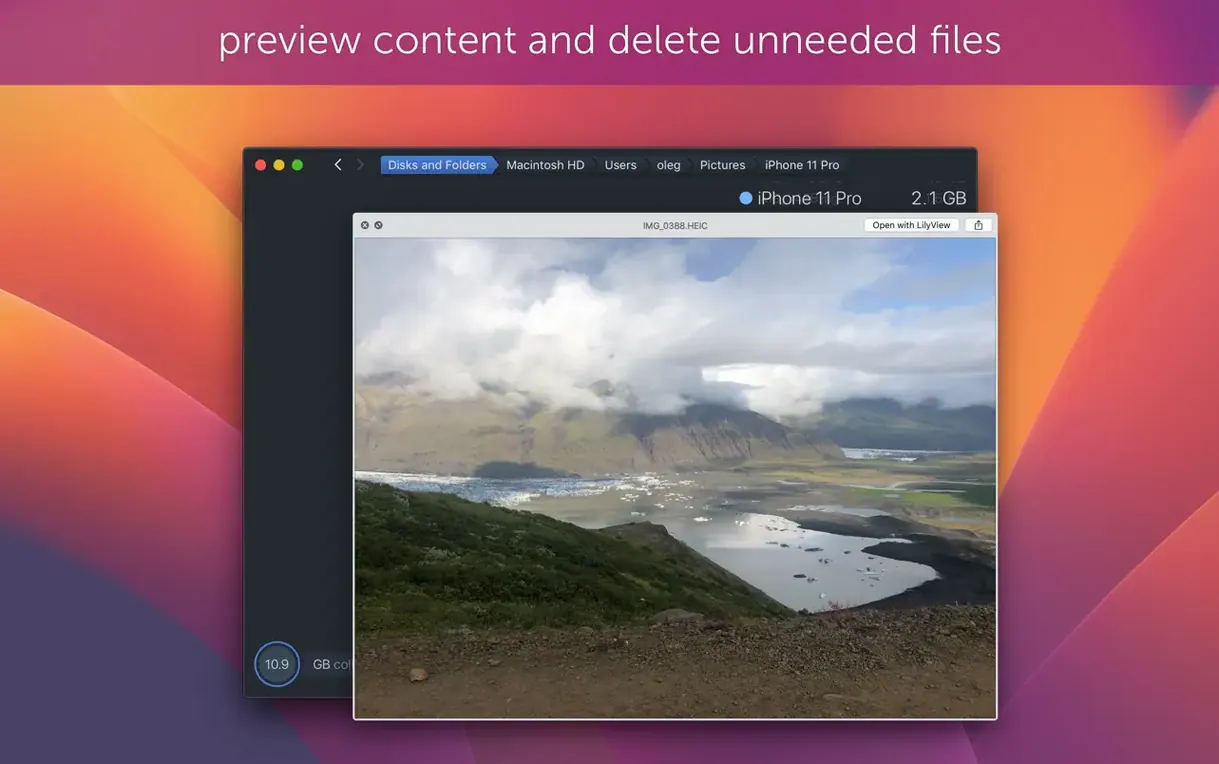
- Quick Look integration: already on by default, but confirm it works by selecting a file in the map and tapping Space. Previewing a large
logfile or an old.isobefore deleting saves you from trashing something you actually needed. - Trash safety prompt: enable the confirmation dialog in Preferences—dragging files to the Trash from the map is satisfyingly fast, and the prompt prevents a slip of the mouse from nuking a
~/Documentssubfolder you didn’t mean to touch. - Scan locked volumes separately: if you boot from an APFS volume with SIP enabled, a few system paths stay off‑limits. DaisyDisk marks them in gray. Instead of ignoring them, note the size and decide whether it is worth temporarily disabling SIP from Recovery to reclaim that space—the map shows you the number, so you can decide rationally.
- Keyboard shortcuts: learn ⌘F to jump back to the full volume view and ⌘→ / ⌘← to step through your zoom history. After a few sessions the muscle memory kicks in, and you’ll navigate the hierarchy faster than you can type
cdin Terminal.
If you grabbed a copy through less official channels—people occasionally search for a daisydisk torrent or daisydisk crack—version 4.34.2 ships with the TNT pre‑crack bundled inside the .dmg. The install flow is the same: mount, drag, and handle Gatekeeper. Some Mac torrent trackers carry older builds that lack APFS clone support, so running that DaisyDisk Mac torrent you found on a public tracker might give you a 4.32 release that double‑counts your clones and mis‑reports space on FAT32 thumb drives—just grab a newer copy instead. The build string for the current release reads 4.34.2 (4.34.2) admin in the About window; checking that digit is worth ten seconds of your time.
- Fixes a bug.
- Adds support for APFS clones—only the first occurrence of each clone is counted in used space calculations, so totals now reflect actual unique data.
- macOS 10.13 or later
- Apple silicon or Intel Mac
$ man daisydisk | grep -A2 "?"
How does DaisyDisk show the Other category?
It scans at the block level and maps everything the filesystem reports, so space that System Information labels as Other—caches, logs, backups—appears as named folders you can inspect and clean up.
What changed in the APFS clone handling?
Version 4.34.2 identifies APFS clones and counts only the first occurrence in used space totals, while still marking the duplicates so you know they exist.
Can I scan more than one drive at once?
Yes, DaisyDisk supports scanning multiple mounted disks in parallel, each in its own tab.
Comments 0
Sign in or create an account to leave a comment.
No comments yet. A codec, a slice, a machine — they appear after moderation.