dBpoweramp Music Converter for macOS
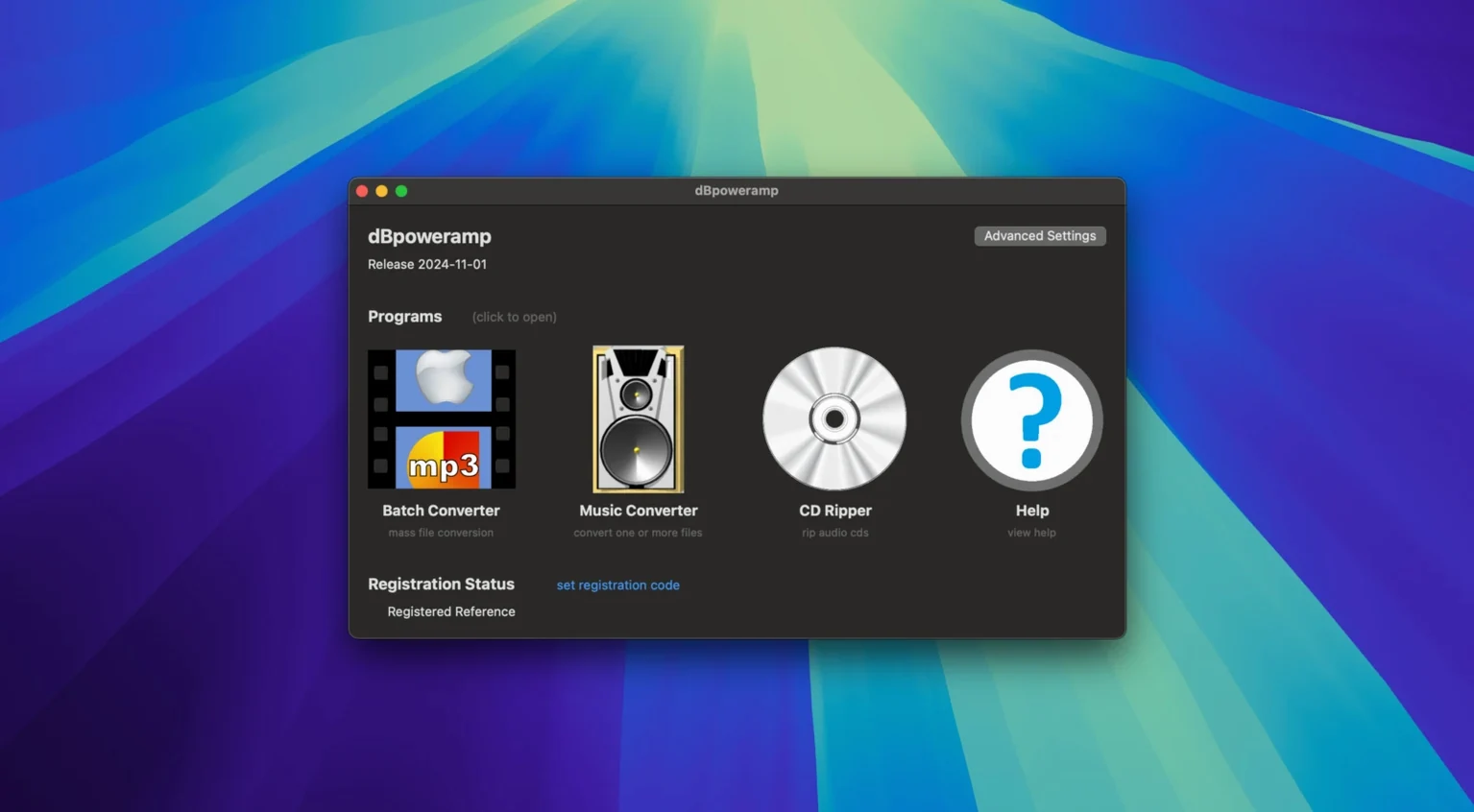
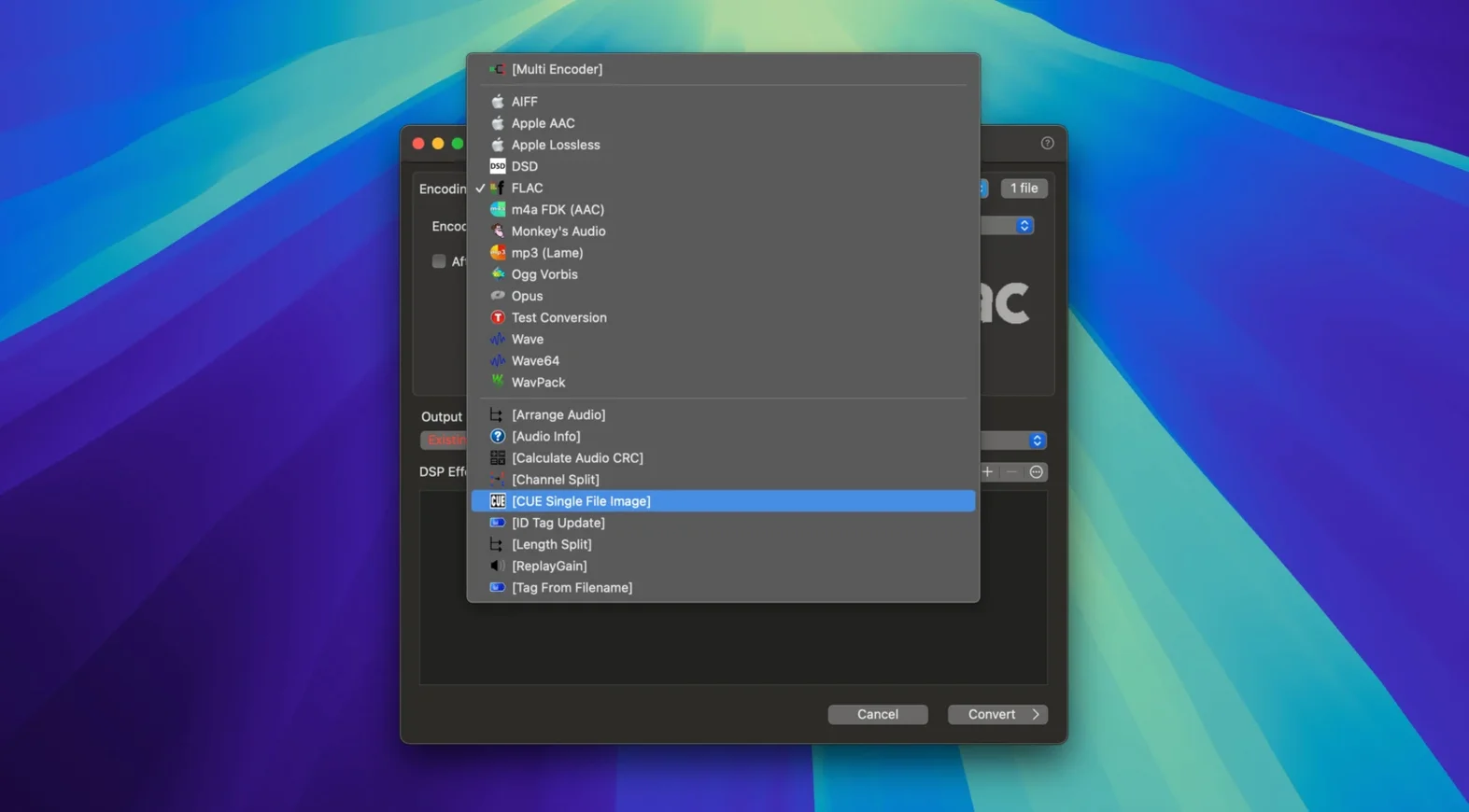
When a client sends a folder of FLACs but your editing timeline wants AIFF, or your whole library needs to move from WAV to a lossless format that actually handles metadata properly, dragging files out one by one stops being an option pretty quickly. That is the exact pain point dBpoweramp Music Converter is built for — turning large, mixed-format piles of audio into exactly what you need, without losing the metadata you spent hours getting right.
| Detail | Info |
|---|---|
| Current version | 2026.09.13 |
| Architecture | Apple Silicon, Intel 64-bit |
| Minimum OS | macOS 11 |
| Interface language | English |
The macOS version bundles a few related tools: the main Music Converter, a Batch Converter for applying a chain of actions to a whole drive, and an ID Tag Editor for fixing metadata directly. It also adds shortcuts into Apple Finder, so you can right-click a file and convert it from the context menu without launching the full interface. ID tags and embedded artwork come through the conversion intact, which removes the usual cleanup step you get with simpler encoders. On a modern Mac, it leans on multi-core encoding to push through long queues at a decent clip. If you routinely need to reformat audio en masse — and the tags matter as much as the samples — this is the kind of utility that earns its place in the toolbox.
Does it replace my current player, or sit alongside it?
Does it replace my current player, or sit alongside it?
It sits alongside. dBpoweramp Music Converter is not a media player — it does not handle playback queues, libraries or streaming. You carry on using whatever you play files with. It takes source files and writes new ones. That is the whole job.
Will it mess with my original files?
Not unless you explicitly tell it to overwrite. By default it writes converted copies alongside the originals, or into a folder you choose. The source files stay untouched. If you point the output directory at the same folder and ask for the same format, it will warn you before replacing anything. Pay attention to that dialog and you are fine.
What happens to album art and tags?
They get carried across. dBpoweramp reads the ID tags — artist, album, track number, disc number, composer, year, genre, embedded artwork — and writes them into the new file. Formats that do not support certain tag fields (like WAV) lose what they cannot hold, but the converter tells you that before it starts. In practice, moving between FLAC, ALAC, AIFF and MP3 keeps everything intact.
Can I queue up a mix of formats at once?
Yes. The Batch Converter does not care if your source folder is a jumble of FLAC, WAV, AIFF and M4A. You set one output format and it handles the rest. If you need different outputs per input, you run separate passes. For a dbpoweramp mac workflow where a client drops a messy folder and you need everything as 48 kHz AIFF by lunch, that single-pass behaviour saves a lot of clicking.
The Finder shortcut vanished after the update—what now?
The Finder shortcut vanished after the update.
Sometimes the macOS security framework resets contextual menu permissions when an app version changes. Open System Settings > Privacy & Security > Extensions > Finder Extensions and re-enable the dBpoweramp entry. A logout or Finder relaunch usually brings Convert with dBpoweramp back onto the right-click menu.
Output files are silent or play static.
Nearly always a sample rate or bit-depth mismatch between what the converter is producing and what the playback chain expects. If you have added a DSP step that forces 32-bit float output, double-check that your player handles it. QuickTime and Apple Music on older macOS releases sometimes choke on 32-bit integer WAVs. Switching the output to 24-bit or 16-bit inside the DSP settings clears it up.
The conversion queue is fast, then suddenly crawls.
Look at the source drive. If you are reading from a slow external spinning disk and writing back to it, the queue stalls when the drive's cache fills. Splitting the I/O — read from one physical volume, write to another — keeps multi-core encoding fed. On an Apple Silicon machine, the converter saturates the performance cores quickly; a single slow disk becomes the bottleneck long before the CPU does.
Tag Editor closes unexpectedly when I press Enter.
That was the exact bug squashed in version 2026.09.13. If you are on an earlier build and you hit Enter while the autocomplete dropdown is visible in the tag field, the dialog dismisses instead of accepting the suggestion. Click the suggestion with the mouse, or update to the latest build where the fix is in place.
How fast does it launch on an Apple Silicon Mac?
Launch time is nearly instant on an Apple Silicon Mac — the binary is universal and the app loads without Rosetta translation. The interface is utilitarian; no animations, no translucent panels, just a window with dropdowns and a queue list. That directness pays off when you are dropping in forty albums before coffee. Memory use stays modest. I have watched it hover around 120–180 MB while chewing through a thousand FLAC-to-ALAC conversions with ReplayGain DSP applied. It does not balloon over time, which suggests the queue processing releases buffers properly between files.
Multi-core encoding is visible in Activity Monitor. On a machine with eight performance cores, the converter spawns worker threads that keep all of them busy. A folder of 300 CD-quality WAV files transcoded to FLAC level 5 finishes in under four minutes on recent hardware. Applying heavy DSP — resampling, dithering, volume normalization — adds a linear cost per file but the parallelization holds up. The resampling improvements in the 2026.09.13 build make the SoX-based path noticeably faster; what used to be a two-pass operation now completes in a single pass without the faint high-frequency ringing some earlier resampling modes produced.
The Finder integration deserves a mention because it stays out of the way until you need it. Select three FLACs in a project folder, right-click, pick Convert with dBpoweramp, choose MP3 V0 in the popover, and the files appear next to the originals within seconds. No app window opens. That pathway handles quick one-offs without breaking your flow, and it respects the last-used output settings so you are not reconfiguring every time.
Is XLD the closest alternative in spirit?
People searching for a dbpoweramp music converter mac alternative often look at XLD, MediaHuman Audio Converter and Permute. They occupy the same general space but differ in focus.
XLD is the closest in spirit — lossless-focused, tag-aware, heavily configurable output settings. It handles obscure formats well and its Secure Ripping mode is a draw for CD collectors. Where dBpoweramp pulls ahead is Finder integration and multi-core throughput on large batches. XLD's queue processing is single-file sequential unless you manually open multiple instances. For a one-off rip-and-convert workflow, XLD is excellent. For bulk transcoding with DSP, dBpoweramp is simply faster.
MediaHuman Audio Converter is friendlier to look at and dead simple to use. Drag in files, pick a format, click start. It handles the common codecs cleanly and preserves tags. What it lacks is the DSP chain depth — no ReplayGain, no multi-stage resampling with dither control, no bit-depth conversion with selectable noise shaping. It is a good choice for someone who wants MP3s from FLACs without thinking about parameters. dBpoweramp gives you the knobs when you want them, and that matters once you need loudness-normalized output or specific sample-rate targets.
Permute is a general media converter — video, audio, images — with a polished drag-and-drop interface. Audio conversion works fine for common formats, but it is not its first language. Tag preservation is hit-or-miss with less common fields like composer or disc number, and DSP options are limited to basic format settings. If you occasionally convert a video and tack on an audio file here and there, Permute covers both worlds. If your whole workload is audio — and tags, artwork and DSP are non-negotiable — dBpoweramp is the more focused tool.
- Resampling got a quality bump — the conversion path for sample rate changes should produce cleaner results.
- Pressing Enter in the Edit Tags dialog no longer closes the window when the autocomplete popup is visible; it now correctly selects the suggestion instead.
- Fixed a spurious warning about an Intel-only component appearing on the latest macOS releases.
- macOS 11 or later
- Apple Silicon or Intel 64-bit Mac
- Interface: English
$ man dbpoweramp-music-converter | grep -A2 "?"
Does it keep my artwork and tags during conversion?
Yes — dBpoweramp Music Converter preserves both ID tags and embedded artwork when it converts between formats, so you won't lose your carefully maintained metadata.
Comments 0
Sign in or create an account to leave a comment.
No comments yet. A codec, a slice, a machine — they appear after moderation.