Drama for macOS
Drama runs on any Intel Mac that has macOS 11.5 (Big Sur) or a newer version installed. It is an x86 64-bit application, so Apple Silicon Macs run it through Rosetta 2.
| Detail | Info |
|---|---|
| Developer | PixelCut |
| Current Version | 2.1.4 |
| Architecture | Intel (x86 64-bit) |
| Interface Language | English |
| Category | Design, Animation, Prototyping |
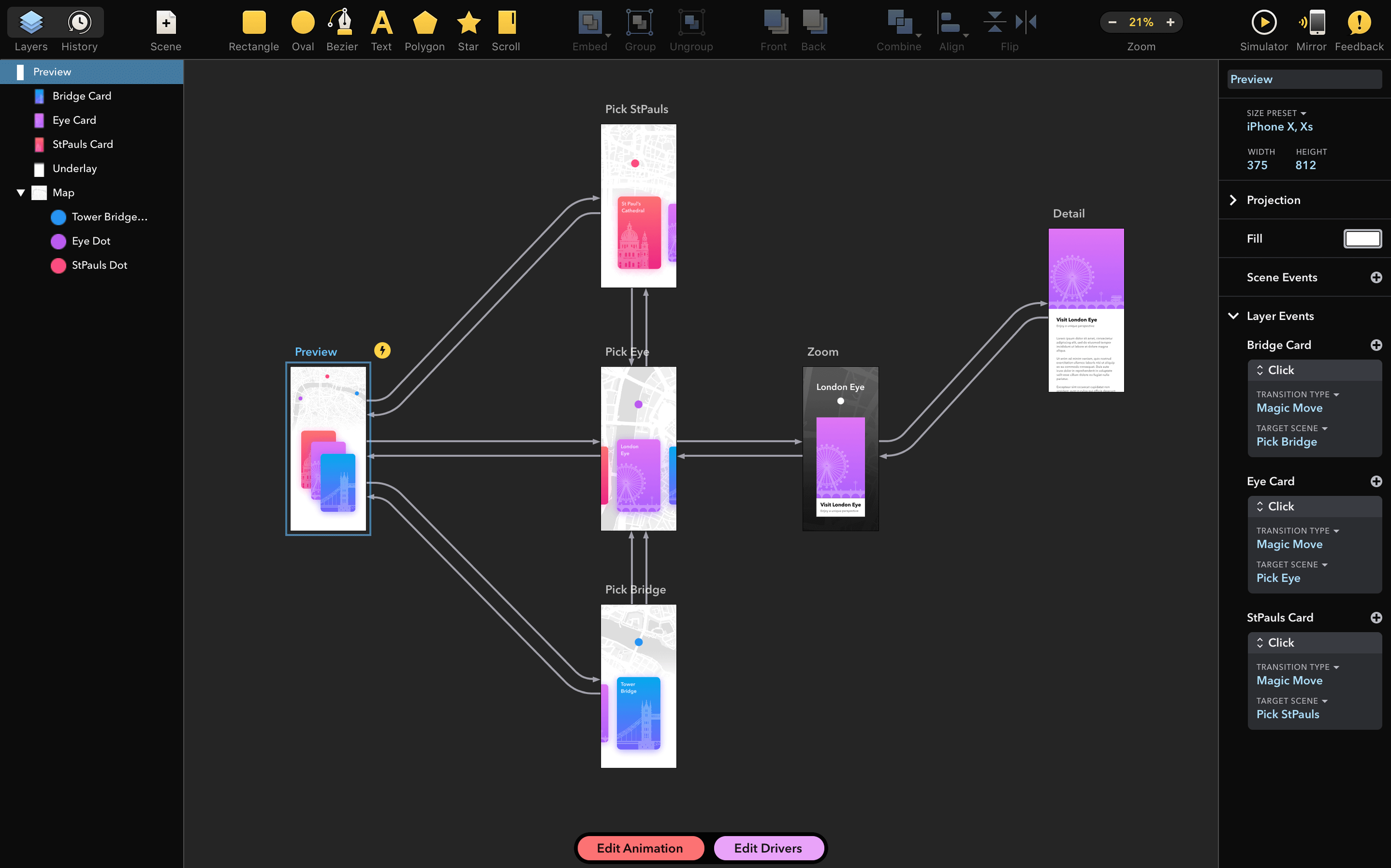
PixelCut describes Drama as a 3-in-1 tool, and that label fits. Instead of juggling separate apps for wireframes, motion tests, and high-fidelity mockups, you keep everything inside a single document. The tool is ready to use right after you drag it to the Applications folder—no plug-in activations or separate runtimes to hunt down. For UI designers who need to show how a screen transitions, or for anyone storyboarding a quick interaction, it cuts out the round-trip between a static canvas and a dedicated animation timeline.
Does it run on an M1 or M2 Mac?
One question comes up more than any other: does this run on an M1 or M2 Mac? Yes, but not natively. Drama is an x86 64-bit build, so Apple Silicon machines execute it through Rosetta 2. In practice that still means a responsive canvas and smooth timeline scrubbing, because the heavy work is vector rendering, not CPU-bound computation. If you have ever run an older Intel-only design tool under Rosetta, you know roughly what to expect.
Another common concern is Gatekeeper. The disk image ships with an Open Gatekeeper friendly helper, which is a small script that clears the quarantine attribute so macOS does not block the app on first launch. You run it once, press Enter in Terminal, and then launch Drama normally. After that, macOS treats it like any other app you dragged into Applications.
People also ask whether it replaces something like Sketch or Figma. The honest answer: it replaces the prototyping pass more than the full design pipeline. Drama is where you build the animated version of a screen flow, not necessarily where you maintain a multi-hundred-artboard design system.
Why doesn't the playhead stutter with dozens of layers?
Performance is one of the quieter strengths here. Because the canvas is vector-based and the timeline is lightweight, even documents with several dozen layers and animated properties stay responsive. Scrubbing the playhead does not trigger a full re-render of every frame; the app recomputes transforms and opacity on the fly. That makes it practical to iterate quickly, even on an older Intel MacBook.
Memory use stays modest for a design tool. A typical prototype with ten to fifteen screens and a handful of animated transitions rarely pushes the app much past a few hundred megabytes. If you work with large imported raster images, expect that number to climb, but the app does not preload unnecessary assets.
Stability is good in version 2.1.4. The release notes for this build mention a specific fix: a crash on start that was triggered by certain installed fonts. If you had a font manager with an unusual collection, earlier versions could refuse to open. That particular failure mode is gone now, which matters for designers who keep large font libraries active.
Which adjustments prevent the viewport from jumping around?
Drama does not bury you in preferences, but a few adjustments make the first hour more comfortable:
- Set the canvas zoom to fit after every selection. It keeps the viewport from jumping around while you move between artboards.
- Enable snap to pixel if you are preparing assets for a developer handoff. It prevents half-pixel edges that turn into blurry lines in production.
- Check the default easing for new animations. The default curve is fine for demos, but a slightly shorter duration often reads better in usability tests.
- Switch the timeline to seconds instead of frames if you think in real time rather than animation time.
None of these are hidden; they live in the standard preferences and canvas options. The point is to make the tool feel less like a generic animation app and more like a UI-specific workspace.
A sample workflow: animating a login screen
Say you need to show a client how a login screen responds when the user taps the password field. Start with a blank artboard at a phone-sized resolution, then drop in two text fields, a button, and a label. Select the label and open the timeline.
- Set a keyframe at 0.0s for the label's current position.
- Move the playhead to 0.4s, drag the label upward by 24 points, and add a second keyframe.
- Apply an ease-out curve to that segment so the motion lands softly.
- At 0.6s, fade in a helper text below the password field by animating opacity from 0 to 100.
- Loop the timeline and adjust the easing until the whole sequence feels like a real focus event.
When the client asks what happens if the user submits an empty form, duplicate the artboard, change the button color, and wire a click interaction to jump to that state. The whole test takes under ten minutes once you know the timeline. That is the workflow Drama is built around: not a replacement for a design system, but a fast way to prove an interaction works before anyone writes a line of code.
- Fixed a crash that could occur at launch when certain fonts were installed on the system.
- macOS 11.5 or later
- Intel processor (Apple Silicon supported via Rosetta 2)
$ man drama | grep -A2 "?"
Is Drama a universal binary for Apple Silicon?
No, Drama is an Intel x86 64-bit application. It runs on Apple Silicon Macs through Rosetta 2, so you need macOS 11.5 or later on either architecture.
Comments 0
Sign in or create an account to leave a comment.
No comments yet. A codec, a slice, a machine — they appear after moderation.