DriveDx for macOS
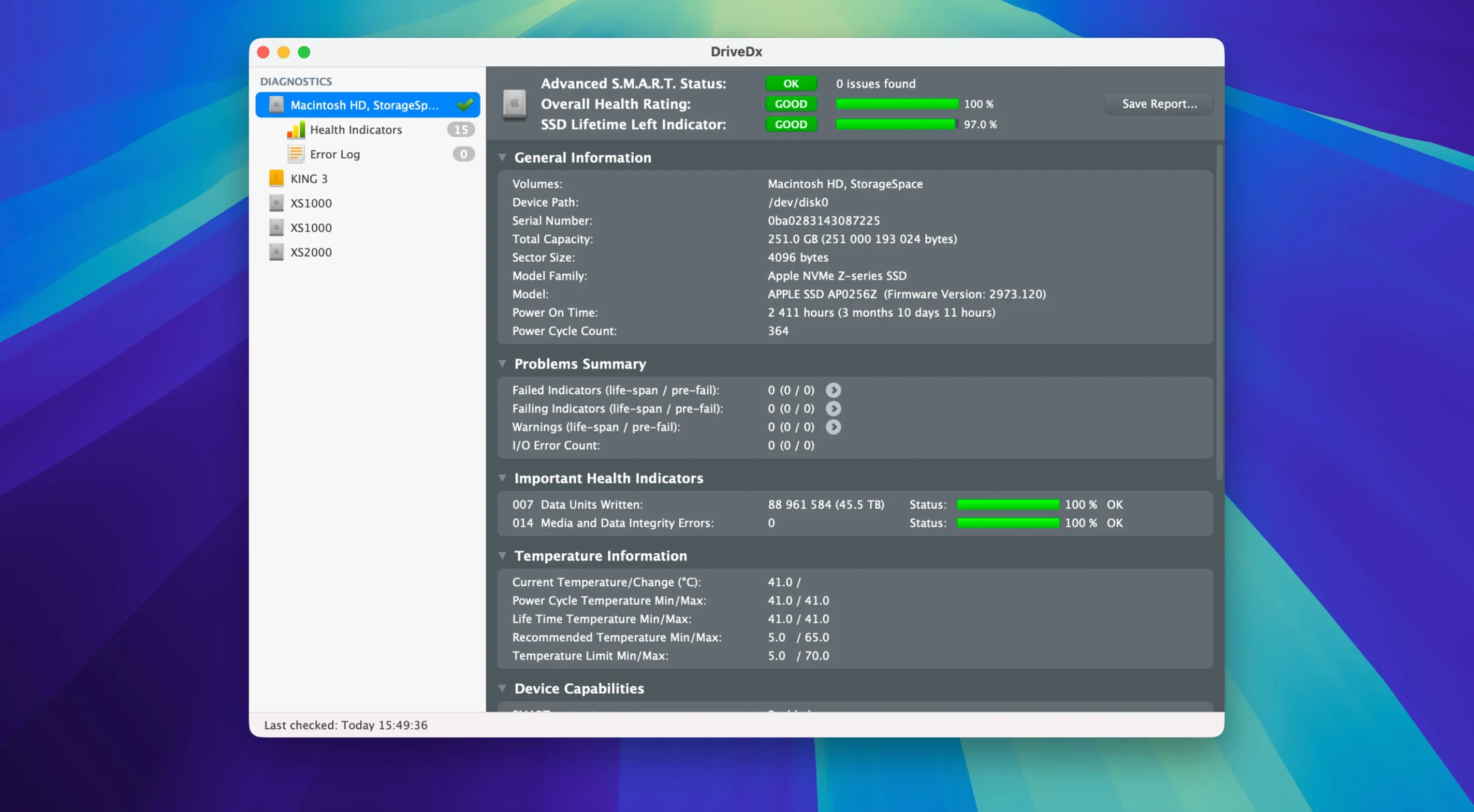
Version 1.12.1 tightens the heuristics. The diagnostic algorithms got a refresh, drive health change notification thresholds were updated, and the driver installer no longer tugs Rosetta 2 along for the ride—it’s a clean, native install on Apple Silicon now. Support for Patriot P200 SSDs is also improved, and it’s ready for macOS Sonoma.
Run a short self-test
Plug in or wake up the drive you want to check, then hit the Self-Test button. The short test scans electrical and mechanical subsystems without scanning the entire surface, so it finishes in a couple of minutes. If it returns a red flag, follow up with the full self-test to get a deeper read.
Leave it monitoring in the background
Let DriveDx sit in the menu bar for a week. It periodically checks SMART attributes and uses heuristic algorithms to spot patterns that precede failure—pending bad sectors, reallocated sectors, I/O errors, and SSD wear indicators. You’ll get a notification if a threshold trips, which is the real value over a one-off scan.
Check the raw health indicators
Open the drive details panel and scroll past the overall health bar to the attribute list. For SSDs, watch the wear leveling count and reported uncorrectable errors. For spinning disks, look at the reallocated sector count and current pending sector count. A single raw value climbing steadily tells you more than the green/yellow/red summary alone.
How DriveDx fits with other Mac tools
DriveDx doesn't replace Disk Utility—it sits one layer deeper. Disk Utility checks the file system: catalog b-trees, extent overflow files, whether fsck finds inconsistencies. DriveDx talks to the drive controller itself via SMART and its own heuristics. You want both. A drive can report perfect SMART attributes while APFS volume structures are tangled, and vice versa.
That distinction matters when you pair it with backup tools like Time Machine or Carbon Copy Cloner. A failing drive sometimes throws I/O errors before SMART thresholds trip. If you see repeated backup failures or unusually slow snapshot creation, pop open DriveDx and look at the raw error rate counters. Nine times out of ten, the drive knows something is wrong before the file system does. The notification system in 1.12.1 catches the obvious cases; your backup routine catches the edge cases.
It also plays nicely with drivedx for mac scripts if you're the sort who runs smartctl from the terminal. DriveDx surfaces the same data without making you remember the -a flag syntax, but the underlying attribute IDs map one-to-one with what smartctl spits out, so you can cross-check if you're paranoid.
A real workflow: testing a drive you just pulled from an old Mac
Say you've extracted a 2.5-inch SATA SSD from a 2015 MacBook Pro that was getting kernel panics. You drop it into a USB enclosure and plug it into your current Mac. Before you even think about formatting it, here's the sequence.
Launch DriveDx. The drive appears in the sidebar within seconds. First thing: glance at the overall health indicator. If it shows anything other than green, you already know this is a recovery job, not a repurposing job. Next, open the attribute list. For an older SSD, the two numbers to check immediately are the wear leveling count and the reallocated sector count. A wear leveling count above 90% of its rated lifetime means it's been a boot drive in heavy service; fine for a scratch disk, but don't trust it with anything you care about. Any non-zero reallocated sector count on an SSD is a yellow flag—SSDs shouldn't be remapping sectors often, and when they start, the end comes fast.
Now run a short self-test. It'll complete in under two minutes over USB 3.0. If it passes, run the full self-test overnight—it reads every logical block, which surfaces weak sectors the short test skips. If the full test passes and the attributes look clean, you can format it APFS and use it as a fast external scratch drive. If the full test fails on a specific LBA, the drive is toast for anything except maybe a read-only archive of already-backed-up data.
This whole process takes about as long as a coffee break plus an overnight unattended test, and it tells you whether you have a usable drive or a paperweight.
Why DriveDx doesn't see your external USB drive
The drive doesn't show up in the sidebar
This usually means the drive controller isn't responding to SMART queries through the USB bridge. Some cheap SATA-to-USB adapters use chipsets that don't pass SMART commands. Try a different enclosure, or if you're on a Mac Pro or a Mac mini with internal SATA, connect the drive directly. Thunderbolt enclosures almost always work; USB-C enclosures with ASMedia chipsets are hit-or-miss.
Notifications don't fire even though health is degrading
Version 1.12.1 updated the notification thresholds, so if you upgraded from an earlier release, your old preference file might be stuck on the previous sensitivity. Quit DriveDx, delete ~/Library/Preferences/com.binaryfruit.drivedx.plist, relaunch, and re-enable background monitoring. You'll lose your custom thresholds, but it clears out stale configs.
The driver installer prompts for Rosetta on an Apple Silicon Mac
This was a known issue before 1.12.1. The current build ships a universal driver installer, so if you're seeing the Rosetta prompt, you're running an older version. The download labeled 1.12.1 on this page is the fixed one—grab that and the installer should run natively.
Turning on background monitoring before you close the window
After you drag the app from the .dmg to Applications and launch it, there are three things worth doing before you close the window and forget about it.
First, turn on background monitoring. Open preferences, check "Start at login," and set the health check interval to every 60 minutes. Anything shorter won't catch problems much faster, and anything longer defeats the early-warning advantage the heuristics give you.
Second, configure notifications. The default is a banner when health state changes. I'd add an alert for "Failing" state—the popup is harder to ignore than a banner that slides away after a few seconds. If you manage multiple Macs, forward the notifications to email or a Slack webhook; DriveDx supports running a custom script on status change, so a one-line curl command does the job.
Third, take a baseline. Open every connected drive, skim the raw attribute values, and mentally note the wear leveling count and reallocated sector counts. You're not looking for problems now; you're establishing what "normal" looks like for each drive. A month later, when you check again, you'll spot a climbing reallocation count immediately instead of wondering whether it was always at 15.
A quick note if you're coming from a DriveDx Mac crack or DriveDx torrent search: the app writes kernel-level diagnostic requests, so you'll want to verify that the binary's code signature and extended attributes are intact—check with codesign -dv and spctl -a to confirm the diagnostic layer hasn't been stripped. The whole point of the tool is catching failing hardware before it eats your data, and with those checks in place you can trust it to report every SMART attribute faithfully.
What the heuristic engine actually watches
Most SMART readers stop at threshold comparisons: if attribute 5 exceeds value X, turn yellow. DriveDx's heuristics cross-reference multiple attributes and their rate of change. A drive that remapped three sectors in an hour is in worse shape than one that remapped three over six months, even if both show the same raw count. The 1.12.1 update refined these cross-checks—it now catches patterns specific to SSD write amplification spikes that older versions would have classified as normal wear. That's the difference between a utility that tells you a drive already failed and one that tells you it's about to.
- Maintenance release, ready for macOS Sonoma.
- Drive diagnostic algorithms and heuristics improved.
- Driver installer no longer requires Rosetta 2.
- Updated drive health change notification thresholds.
- Improved support for Patriot P200 SSDs.
- macOS 10.9 Mavericks or later
- Apple Silicon or Intel Mac
$ man drivedx | grep -A2 "?"
Does DriveDx work with Apple Silicon Macs?
Yes, version 1.12.1 runs natively on both Apple Silicon and Intel Macs, and the driver installer no longer requires Rosetta 2.
What kind of drive problems can DriveDx predict?
It monitors SSD wear, reallocated sectors, pending bad sectors, and I/O errors, then uses heuristic algorithms to warn you before a drive fails.
Comments 0
Sign in or create an account to leave a comment.
No comments yet. A codec, a slice, a machine — they appear after moderation.