DxO PhotoLab for macOS
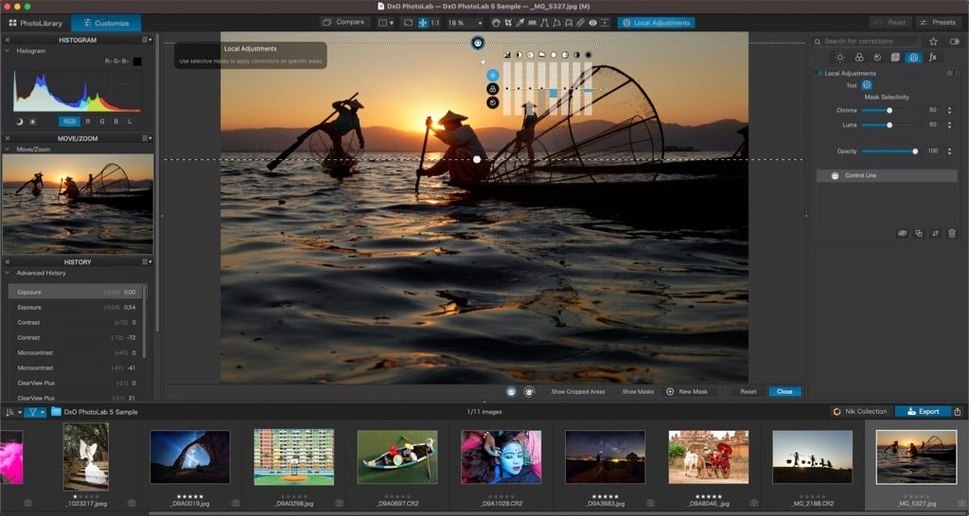
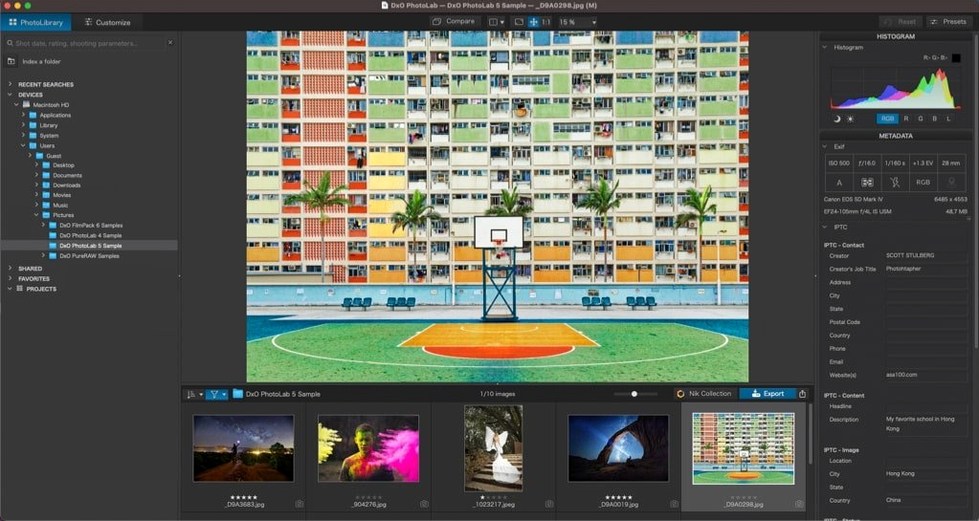
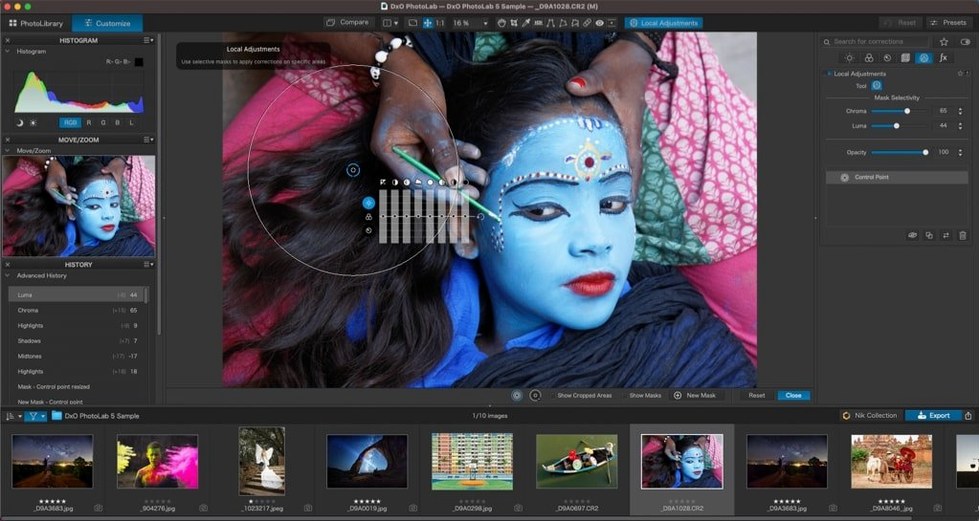
RAW files hold sensor data, not a finished picture. PhotoLab takes that flat data and turns it into an image you actually saw in the viewfinder.
RAW processing engine — DeepPRIME combines demosaicing and noise reduction in a single step, working on the raw Bayer pattern before the image is fully formed.
Optical corrections — DxO Modules carry lab measurements for over 600 camera and lens combinations, fixing distortion, vignetting, and chromatic aberration automatically.
AI Masks — point the tool at a sky, a face, or an animal and the mask snaps to the subject. Edits then stay locked to that area without brushing.
Edit synchronization — apply a look to one photo, then select other images by Subject Type to copy the adjustments across the set.
Format handling — reads RAW from more than 600 cameras plus Apple ProRAW, HEIC, and HEIF files.
How does DxO PhotoLab compare with Capture One and Lightroom Classic?
Three RAW editors, three different philosophies. Lightroom Classic is the library-first Swiss Army knife — cataloging, tethered shooting, mobile sync, printing. Capture One leans into color grading and tethering for studio work, with layers-based adjustments that feel closer to Photoshop than to a RAW converter. PhotoLab sits at the other end of the table. No catalog. No tethering. No mobile app. What it does instead is squeeze every last bit of detail and noise control out of a RAW file with less manual work than either of them.
The real split happens in noise reduction. Lightroom's AI Denoise is good, but it runs as a separate pass that creates a new DNG — a workflow interruption if you edit hundreds of shots. Capture One's noise reduction is solid but not in the same league. PhotoLab runs DeepPRIME during demosaicing, before the image becomes an RGB bitmap. The result is cleaner shadow detail with fewer artifacts, and it happens inline as you edit. No DNG sidecar, no waiting for a processing queue to finish.
For optical corrections, PhotoLab's lab-measured modules are more precise than Adobe's profile-based approach and roughly on par with Capture One's lens profiles — but DxO covers more oddball lens-body combinations. If you shoot vintage glass on a modern mirrorless body, PhotoLab is more likely to have a module for that pairing.
Where PhotoLab falls behind: asset management. There's no catalog, just a browser. Lightroom and Capture One both have full digital asset management with keywords, collections, and filtering. If organizing 80,000 images matters more than squeezing half a stop of shadow detail, PhotoLab isn't your hub. Many photographers use it as a RAW processor and export TIFFs into Lightroom or Apple Photos for organization.
Why do pros use it as a RAW front-end before Photoshop?
PhotoLab exports 16-bit TIFFs with no compression artifacts, which makes it a natural front-end processor in a multi-app pipeline. A common pattern: browse and cull in Photo Mechanic or Lightroom, process the keepers in PhotoLab, then export TIFFs for pixel-level retouching in Affinity Photo or Photoshop. The TIFF carries all the color and dynamic range, and the downstream app never touches the RAW conversion.
With Apple Photos, the flow runs the other direction. You can set PhotoLab as an external editor under Photos' editing preferences. Select an image in Photos, choose "Edit With DxO PhotoLab," and the RAW file opens in PhotoLab. When you save, the edited version appears back in the Photos library as a TIFF. It's not round-tripping — you can't re-edit the PhotoLab adjustments later — but it works for finishing shots that live in iCloud.
macOS color management stays intact. PhotoLab reads the display profile set in System Settings and honors embedded profiles on export. Wide-gamut workflows on a P3 display or an external reference monitor need no extra configuration. The app also respects macOS full-screen mode and Split View on Apple Silicon machines, though multi-monitor support is limited to one editing window.
The DxO Modules folder lives in /Library/DxO/Modules and auto-updates when new camera bodies and lenses are added. If you block network access, you can download modules manually and drop them there — useful for air-gapped editing machines in some studio setups.
What’s actually fixed in the latest maintenance build?
Version 9.10.0 is a maintenance build that fixes stability issues with batch processing on Apple Silicon and resolves a memory leak some users hit when switching between large RAW files quickly. No new features landed in this point release — it's a stability patch aimed at Mac users on macOS 14.7 and later.
The bigger changes came earlier in the PhotoLab 9 cycle. DeepPRIME XD3 arrived with support for X-Trans sensors alongside Bayer, which matters for Fujifilm shooters who previously had to use a different denoising pipeline. The AI masking engine gained subject recognition for animals — birds, in particular, get cleaner mask edges around feathers and fur than the earlier sky-and-people-only implementation. Edit synchronization got the quick-select Subject Types feature: tag one photo as "landscape with sky" and sync adjustments to every other image matching that description in the folder.
On the format side, Apple ProRAW support stopped being a separate import mode and became a first-class format — PhotoLab now reads the embedded depth map and lens correction metadata directly, rather than treating ProRAW files as generic DNGs. HEIC and HEIF support also moved from read-only to writable export, so you can process a RAW and save a 10-bit HEIF straight out of PhotoLab without a TIFF intermediate step.
A start-to-finish workflow: low-light concert shots
Say you shot a gig last night — dim venue, ISO 6400 on a full-frame body, harsh red stage lights blowing the skin tones. You have 300 RAW files on an SD card.
Step one: copy the card to a folder on the Mac. Open PhotoLab and point the built-in browser to that folder. Wait for thumbnails to render — it reads embedded JPEG previews first, so culling starts within seconds.
Step two: scroll through and flag keepers with the star rating shortcuts. For a dark room, enable the shadow-lift preview in the histogram panel so you can see faces in the thumbnails without opening each file.
Step three: open the first keeper. DxO Module loads automatically — distortion, vignetting, and lens softness corrections apply immediately. Go to the Noise Reduction panel and set DeepPRIME XD3 to around 30 on the luminance slider. The grain dissolves, but eyelashes and guitar strings stay sharp.
Step four: fix the red stage wash. Pull down the red saturation in the HSL tool, then add a local adjustment with an AI Mask set to "People." The mask snaps to the singer's face and arms. Lift the shadows slightly inside that mask to separate the performer from the dark background.
Step five: apply DxO Smart Lighting at 25-30 — enough to pull detail out of the black backdrop without haloing the stage lights. Then add ClearView at around 20 to cut through the haze machine fog.
Step six: copy adjustments from this image. Select the next dozen keepers with similar framing, use the sync tool with the Subject Type filter set to auto-match, and paste. Every shot with a person against a dark background gets the same noise reduction, mask, and Smart Lighting baseline.
Step seven: export as 16-bit TIFFs in Adobe RGB to a folder named /Concert_Edits. Those TIFFs go into Affinity Photo for final cropping and any dust-spot cleanup, then to JPEG for delivery. Total time from card insertion to 30 finished files: under an hour.
- macOS 14.7 or later
- Apple silicon or Intel Mac
$ man dxo-photolab | grep -A2 "?"
Does DxO PhotoLab use a catalog or reference files in place?
It works directly with your folder structure and stores edits in sidecar.dop files, so there is no catalog to import into.
Comments 0
Sign in or create an account to leave a comment.
No comments yet. A codec, a slice, a machine — they appear after moderation.