Dropover for macOS
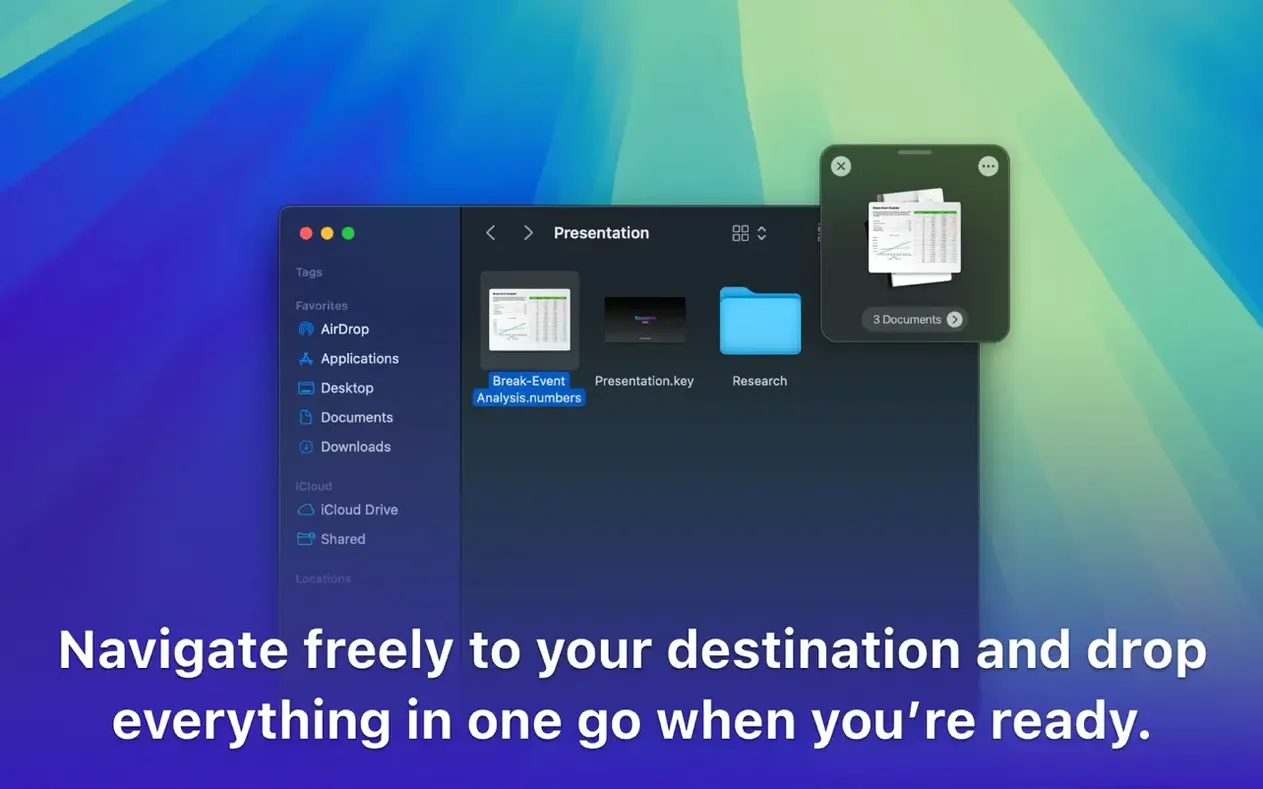
Dropover runs on any Mac with macOS 12 Monterey or later, natively on both Intel and Apple Silicon machines.
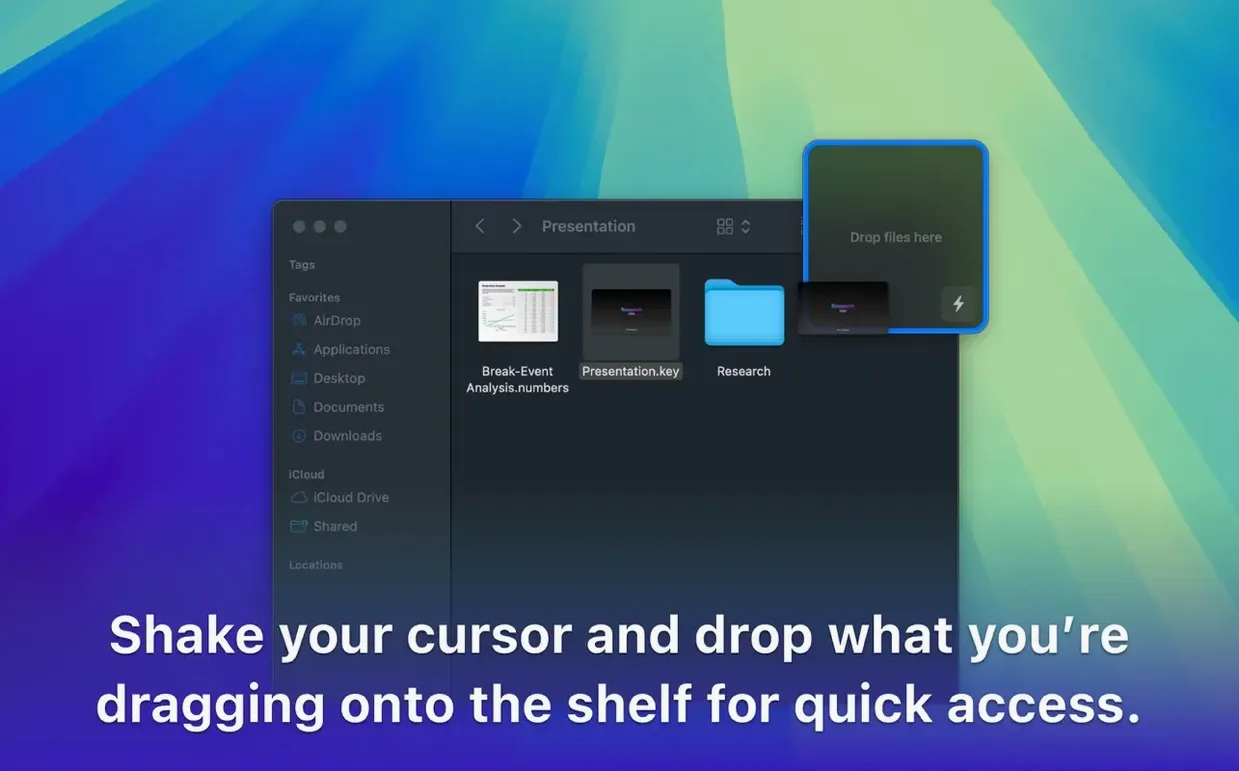
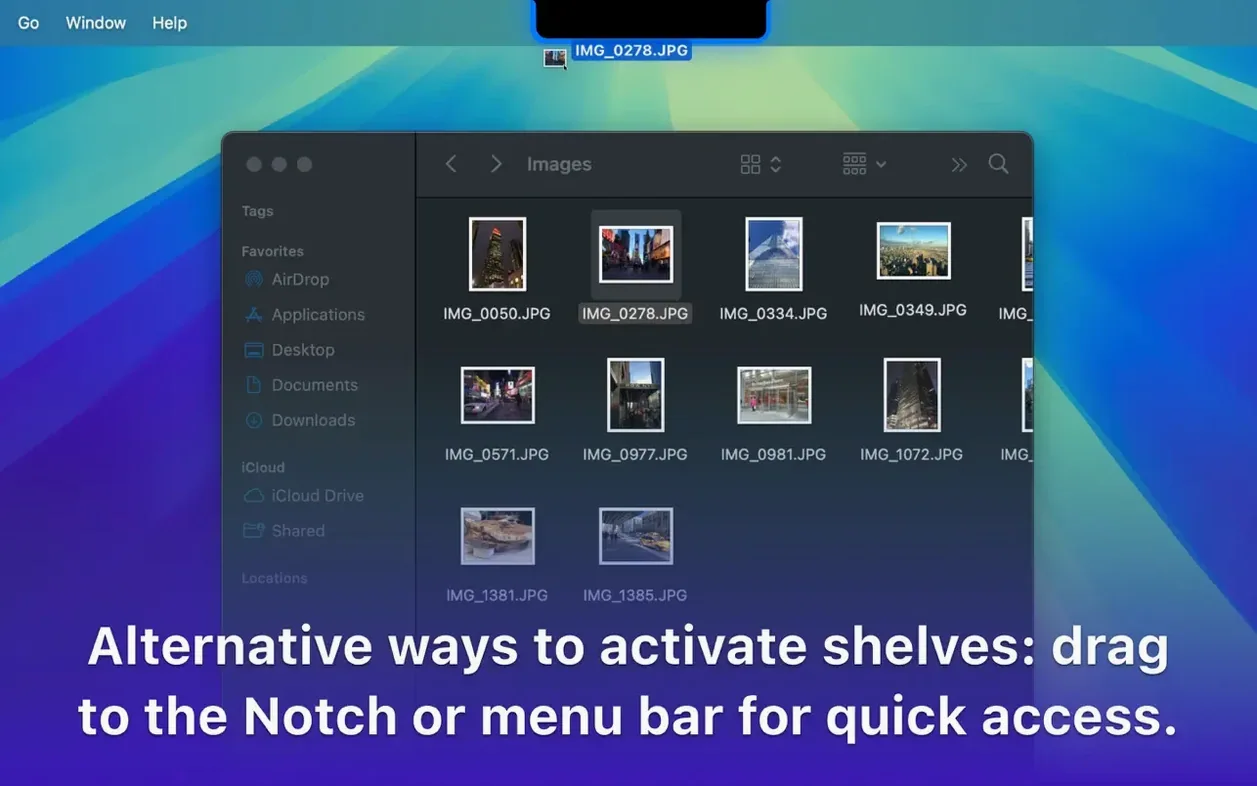
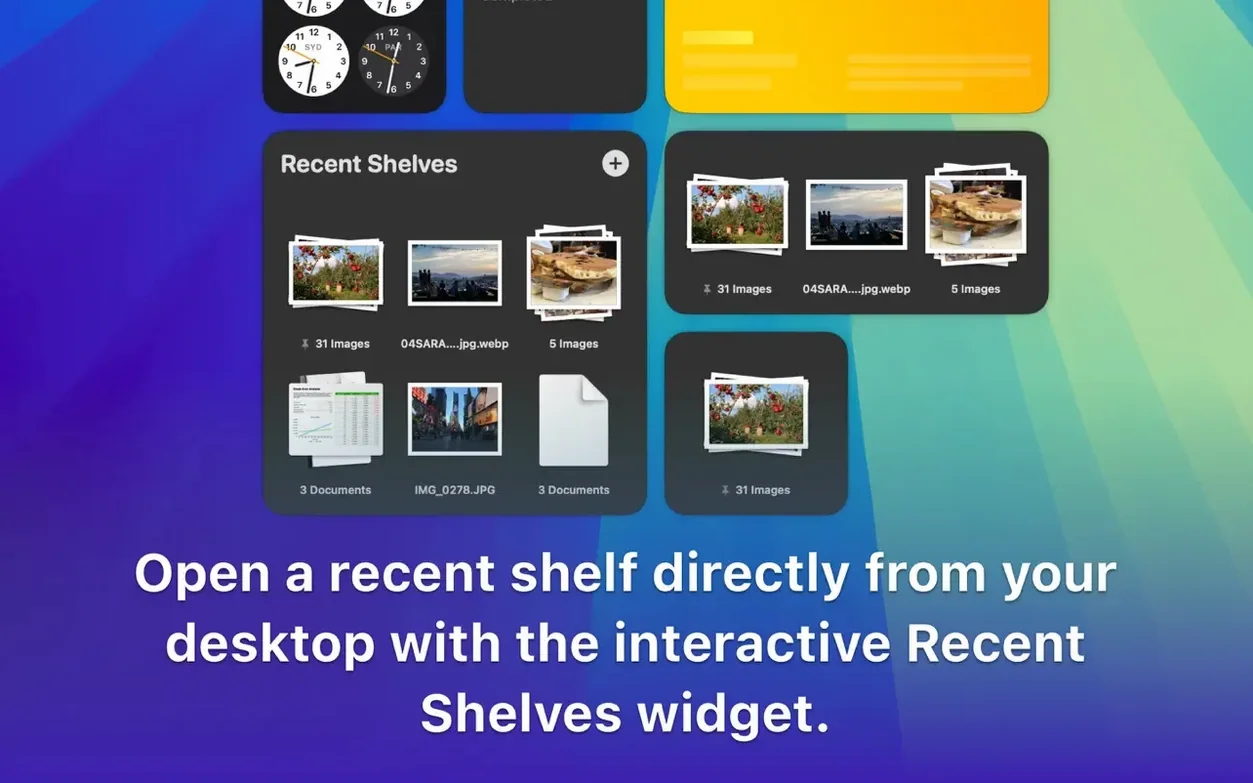
Dropover — a floating shelf that appears when you shake your cursor or drag files, holding them temporarily.
Staging area — where you group files from different folders before acting on them.
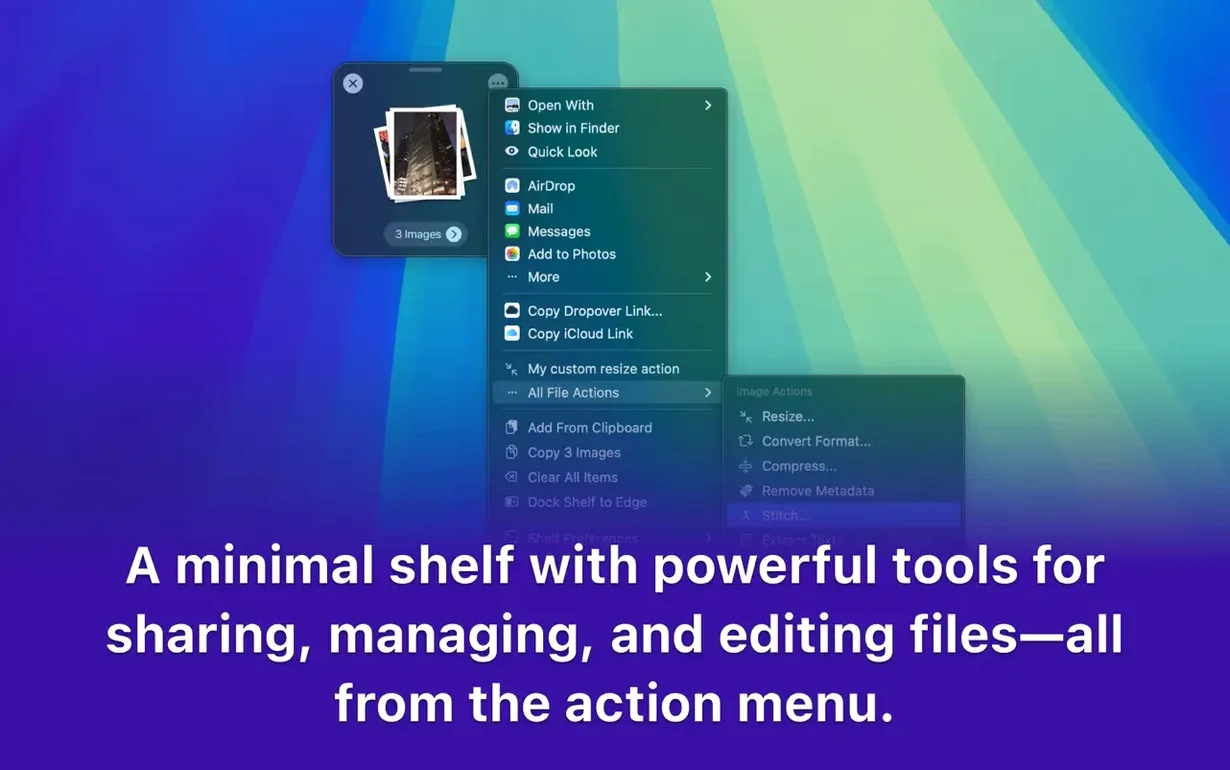
Share sheet — the system share menu; Dropover appears there so you can send shelved items directly to another app.
Finder extension — puts Dropover into right-click context menus for quick access without dragging.
Shortcuts integration — lets you build automations that hand files to the shelf or process what's already on it.
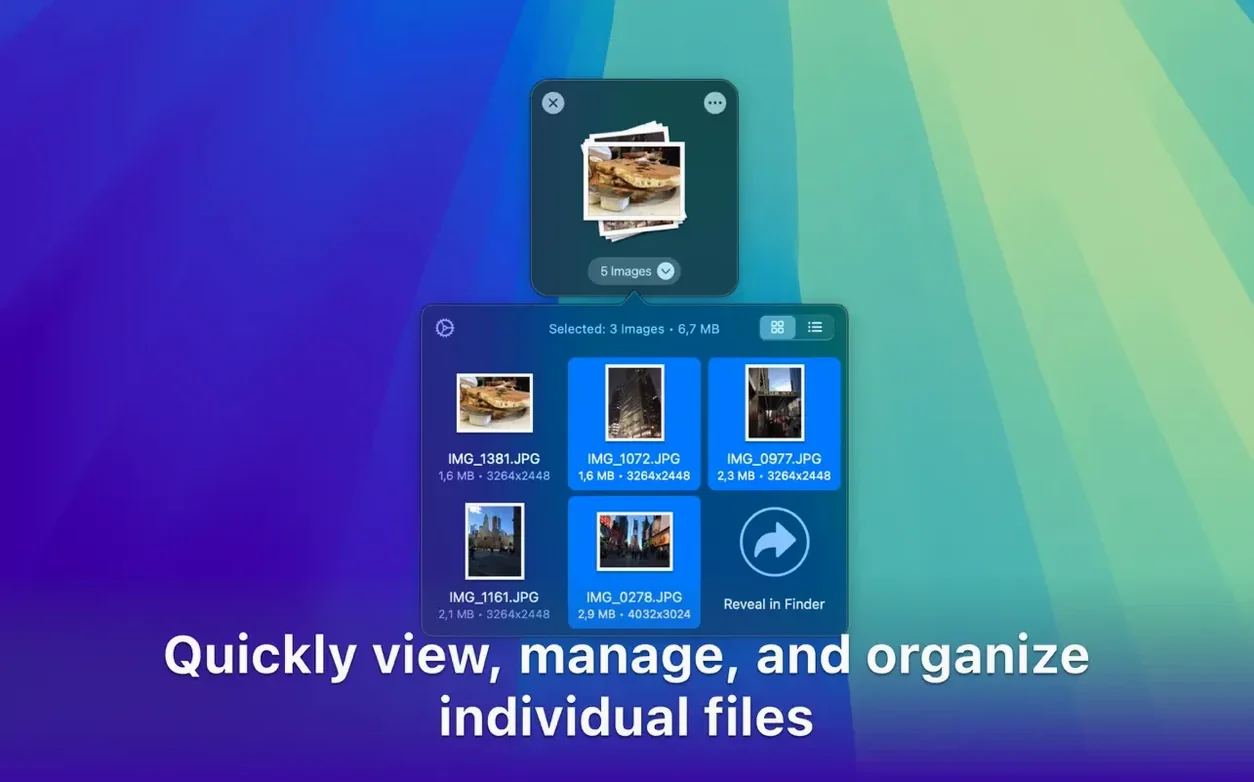
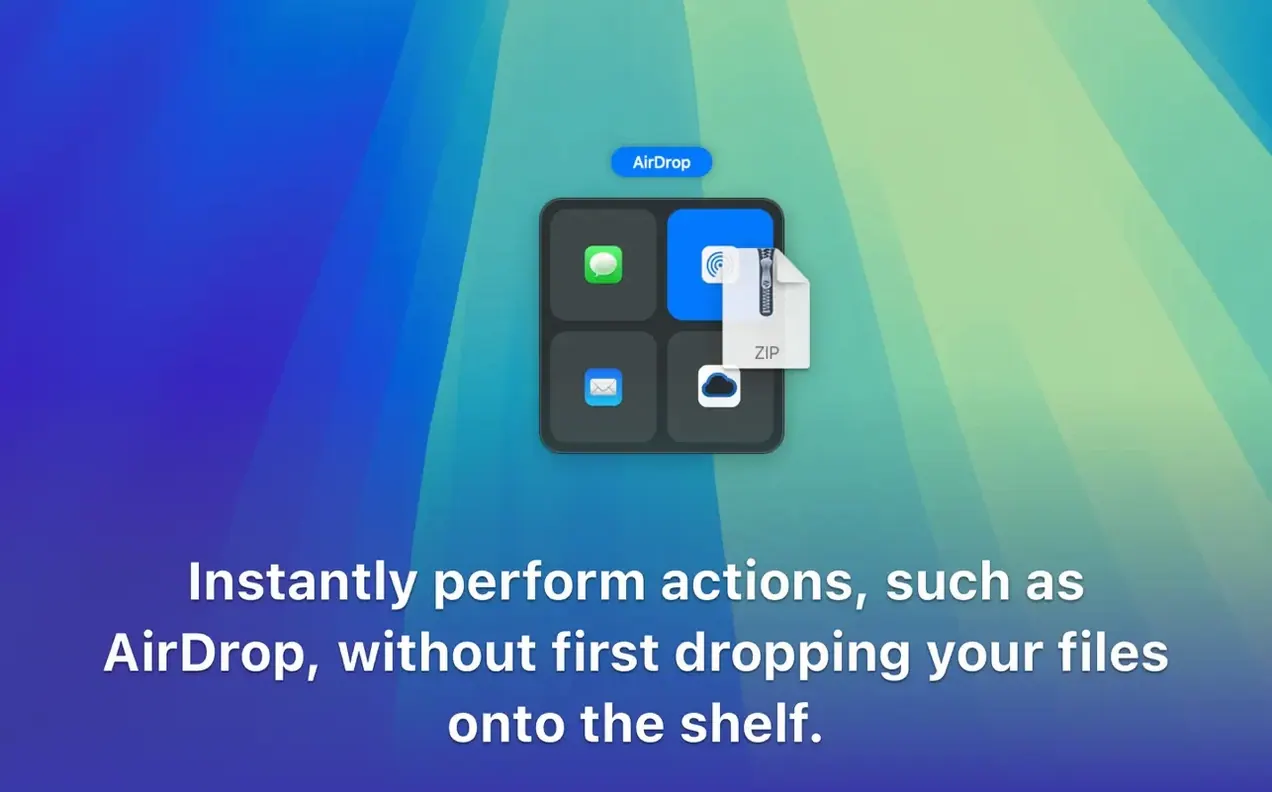
A typical workflow: drag a few images from Photos, pull a PDF out of a deeply nested folder, scoop a snippet of text, then send the whole batch to AirDrop or file a copy into a project directory. The shelf floats above all windows and even travels with you across Spaces, so you never lose your place.
The app ships as a .dmg. You mount it, drag the icon onto the Applications shortcut, and launch it from Launchpad. That's the whole setup.
Why is Yoink its closest relative?
Dropover sits somewhere between a clipboard manager and a file launcher, but the mechanic is different enough that comparisons only go so far. Yoink is the closest relative: it also gives you a temporary shelf for dragged files. The practical difference is that Yoink leans harder on a permanent side-of-screen drawer, while Dropover is more about the floating shelf that spawns wherever your cursor is. If you switch between Spaces constantly, that distinction matters more than you'd think.
Unclutter bundles a shelf with a notes area and a clipboard history. That's handy, but it's a three-in-one tool, and the shelf feels like one panel among several. Dropover does one job and keeps its interface out of the way until you need it. For someone who already has a notes app and a clipboard manager, the extra panels in Unclutter are just visual noise.
Gladys is often mentioned in the same conversation, but it behaves more like a persistent inbox for snippets, links, and images. It's closer to a shelf-shaped bookmark manager. Dropover treats everything as transient by design — items sit on the shelf until you drop them somewhere, then the shelf empties. That distinction shapes how you work: Gladys accumulates, Dropover stages.
What do beginners get wrong?
The most common mistake is treating the shelf as permanent storage. It isn't. Items stay there only until you drop them, clear them, or quit the app. If you shelve a file and expect it to be there tomorrow, you'll be disappointed. The shelf is a waypoint, not a destination.
Another stumbling block: dragging items off the shelf one at a time when you meant to move everything. To grab the whole batch, click the shelf header or use the "grab all" action rather than pulling individual thumbnails. It's obvious once you know, but plenty of people spend their first week fighting the interface.
Finally, beginners often miss that the shelf follows across Spaces and full-screen apps. If you drag something onto the shelf in one Space, then switch to a full-screen editor, the shelf is still there. That's the point — but if you didn't know it, you might assume the app lost your files.
Where has the polish quietly improved?
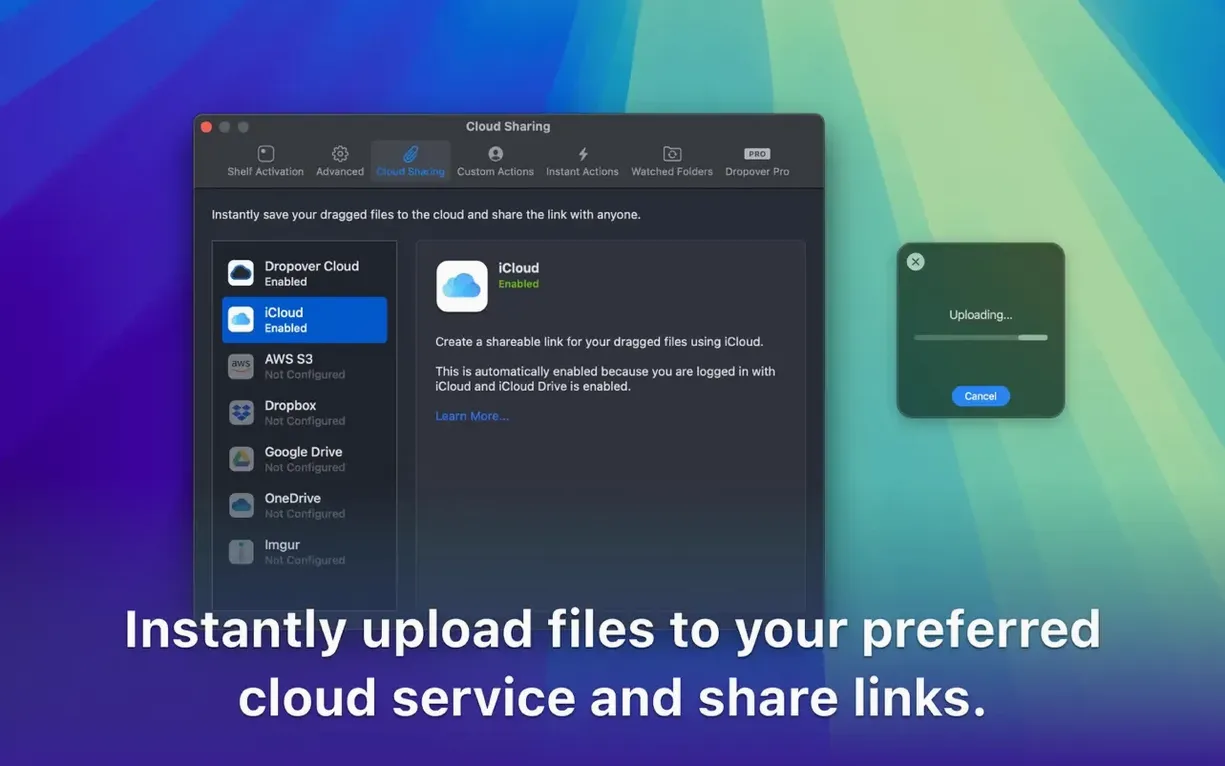
Version 5.3.0 didn't ship with public release notes, so there's no changelog to quote. What's observable in everyday use is the continued polish around context-menu and share-sheet behavior. The Finder integration has become less intrusive, and the Shortcuts actions feel more predictable than in earlier 5.x builds. If you rely on the share sheet to send shelved items into cloud services, the handoff has been the smoothest part of the experience for a while.
The architecture story is unchanged: it runs natively on Apple Silicon and Intel, and the system requirement stays at macOS 12. Nothing in 5.3.0 asks you to rethink your Mac setup.
Shake your cursor to summon it
- Cursor shake — the shelf can appear when you shake the mouse or trackpad cursor. It's the fastest way to summon it without dragging anything.
- Hotkey toggling — set a global hotkey to show or hide the shelf from anywhere, no mouse involved.
- Shelf customization — size, transparency, and screen position are adjustable. If the default floating position blocks your dock, move it to a corner.
- Right-click to shelf — with the Finder extension enabled, any file has a "Send to Dropover" option in its context menu. No dragging required.
- Archive and rename from the shelf — you can compress a batch or apply a rename before it lands anywhere, which saves a round trip through Finder.
- Cloud uploads — shelved items can be handed straight to Google Drive or Dropbox from the share sheet, which makes the shelf a decent staging point for uploads.
A dropover download is a small .dmg, and after mounting and dragging the app into Applications, the whole thing is ready. If you're looking for a tool that keeps files within arm's reach while you bounce between windows, it's one of the few utilities where the shelf concept actually earns its place.
- macOS 12 Monterey or newer
- Runs natively on Intel and Apple Silicon
$ man dropover | grep -A2 "?"
Does Dropover work between different Spaces and full-screen apps?
Yes. The shelf floats above all windows and moves with you when you switch desktops, so you can drag content between applications that live in different Spaces.
Can I use Dropover without dragging?
Yes. It appears in share sheets and right-click context menus, and you can trigger the shelf with a cursor shake instead of a drag.
Comments 0
Sign in or create an account to leave a comment.
No comments yet. A codec, a slice, a machine — they appear after moderation.