Duplicate File Finder Pro for macOS
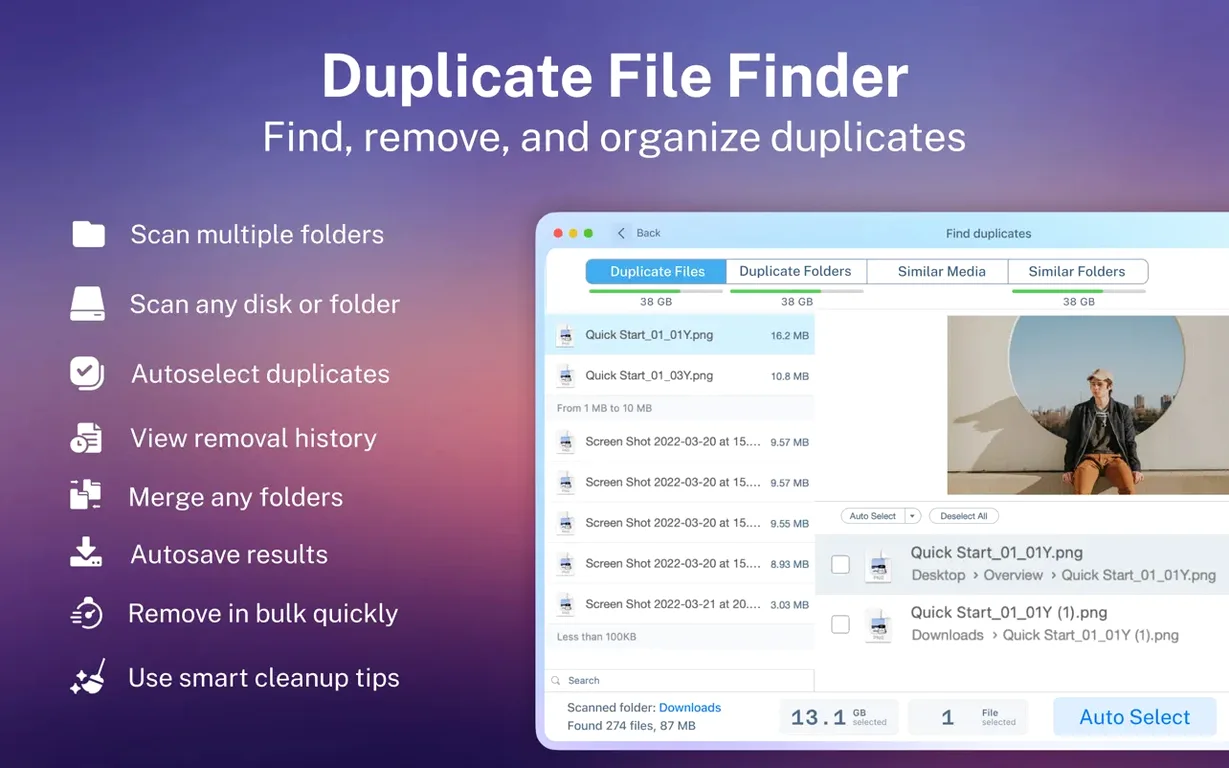
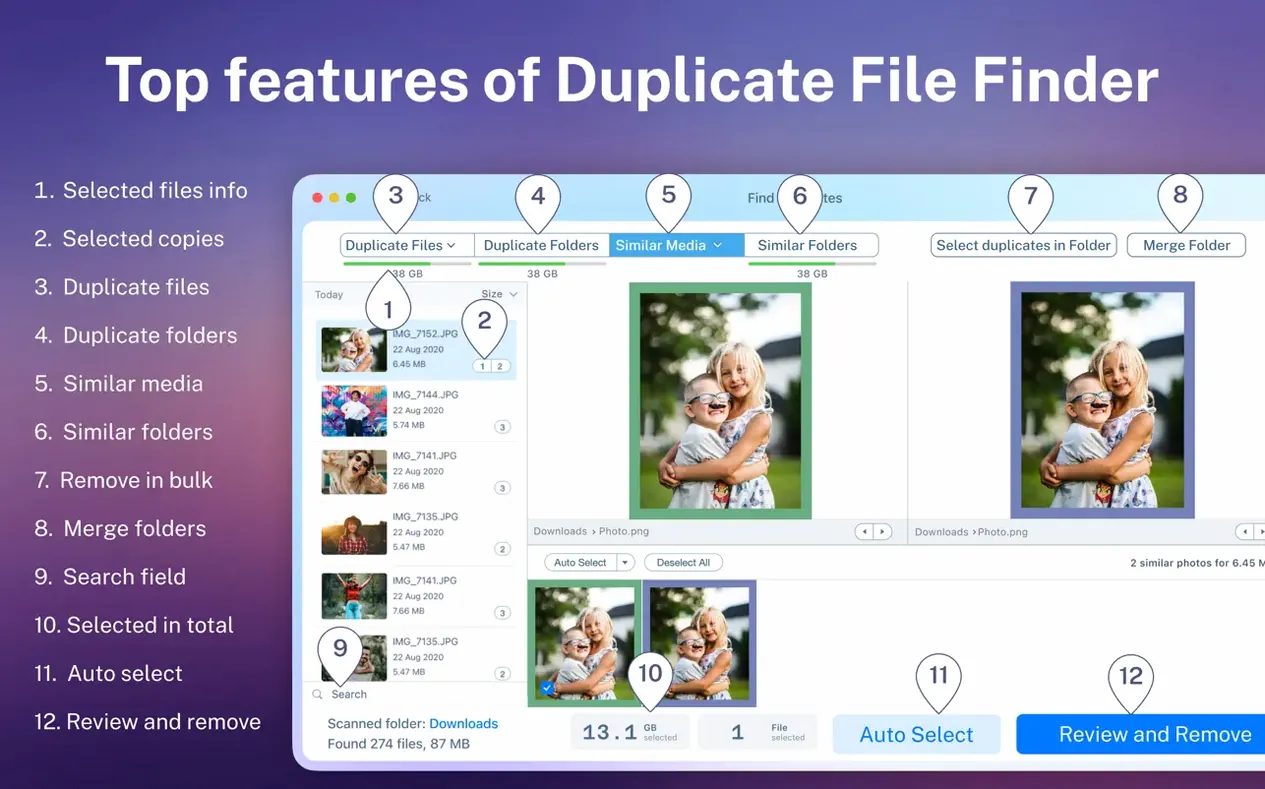
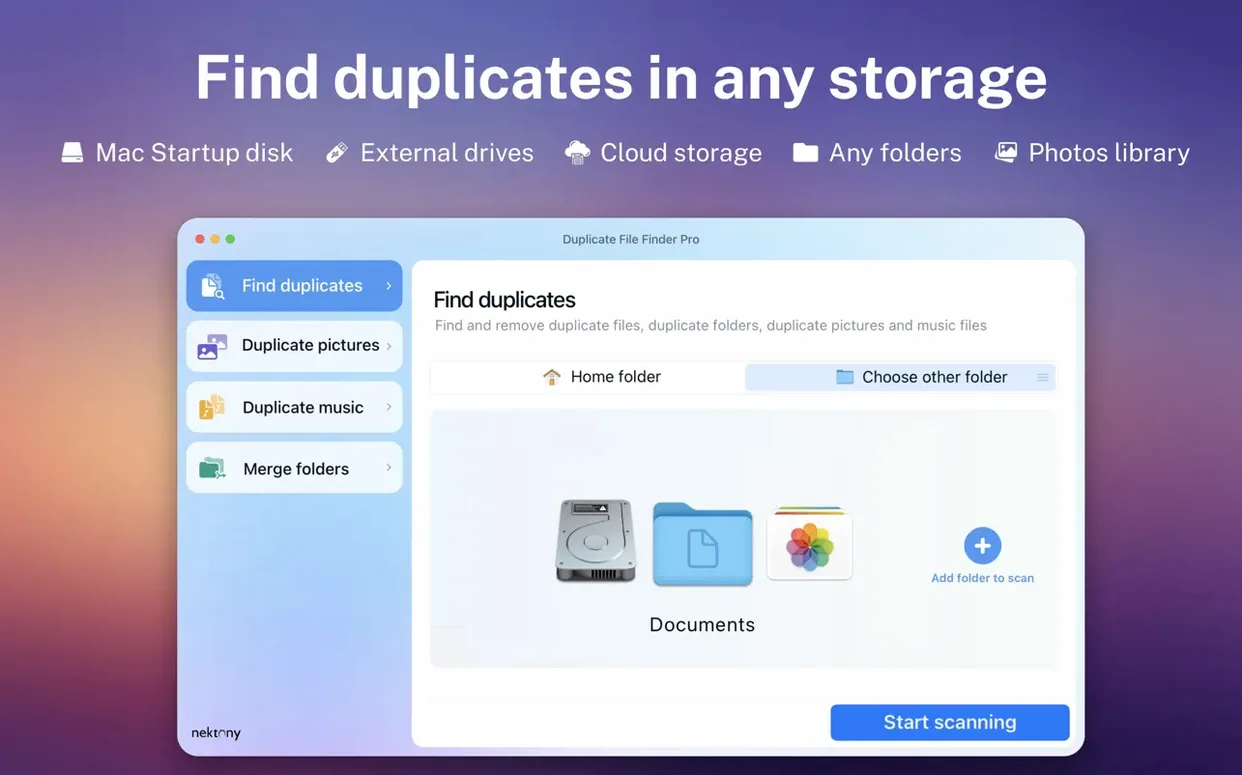
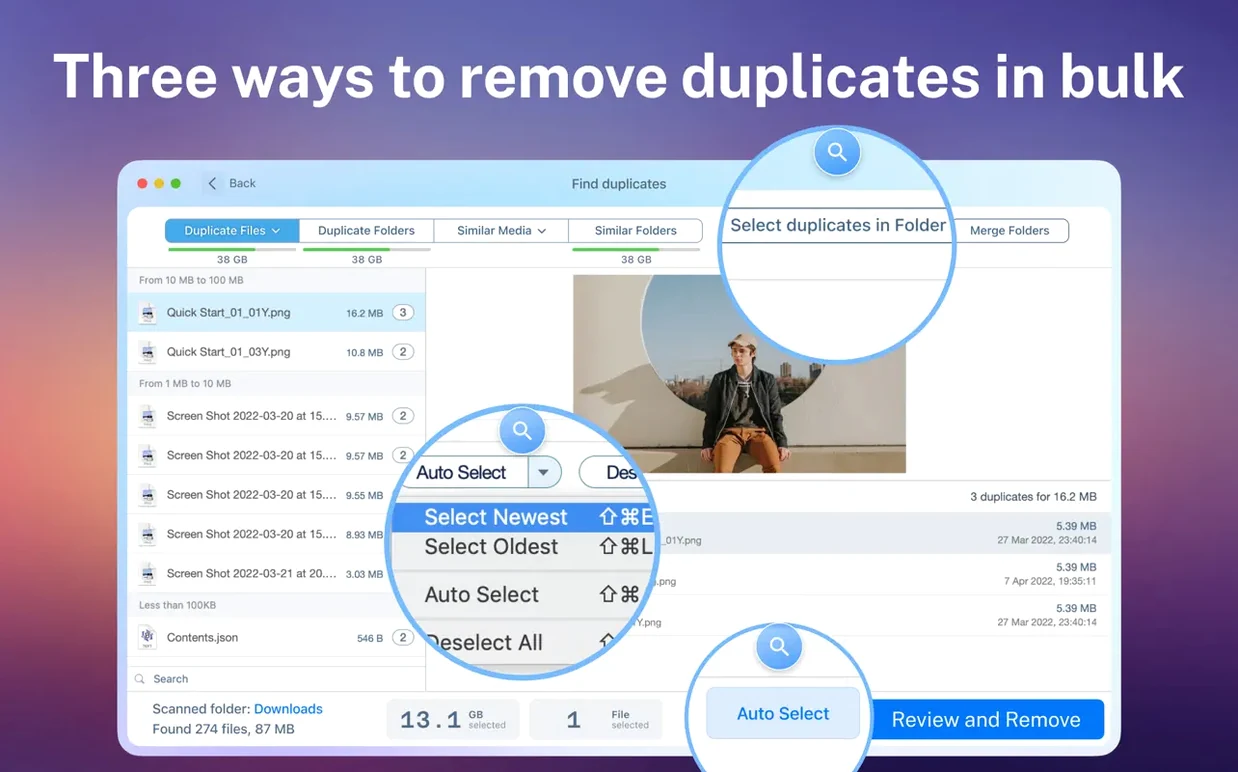
Every Mac collects clutter. Duplicate files quietly eat gigabytes, often in folders you’d never think to check manually. Duplicate File Finder Pro tackles exactly that — it scans a single folder, a whole disk, or a mix of locations, then presents a visual report you can act on in seconds.
When you first open the app, point it at a messy spot — your Downloads folder, an external hard drive, or even a network volume. The scan groups results into categories: images, music, video, archives, and documents. This categorization is the fastest way to spot what’s hogging space. A single button lets you select all duplicates inside a category without hunting through hundreds of items.
Here’s a workflow worth trying right away: scan your home folder and a connected external drive together. Once the report appears, switch to the Similar Folders view. It reveals directories that share a lot of identical content — often leftover backup fragments or old copy-paste jobs. The same logic applies to duplicate folders, which the app can flag and merge.
Mistakes happen, so there’s a built-in restore feature for files you’ve already removed. It’s a safety net that encourages bolder cleanup. No complex configuration required — the first meaningful scan takes under a minute to set up.
Why are hidden folders missing from results?
Out of the box, the app skips hidden folders. Unless you enjoy wondering why ~/Library isn’t showing up in results, flip that switch early. Open Preferences → Scan and check Scan hidden files and folders. Old caches, leftover preference panes, and duplicate framework copies often live there.
Next, set a minimum file size threshold. A 0 KB filter catches empty placeholder files, but a 1 KB minimum skips tiny metadata sidecars — .DS_Store files, zero-byte logs — that aren’t worth deleting. Find it under Scan Settings before you hit the big scan button.
Also consider disabling the “compare file names only” shortcut unless you’re in a rush. Content-based matching via checksums is slower but catches renamed copies — like a photo you’ve re-exported from Preview with a different filename. That’s where most of the real space savings live.
Tap spacebar for instant file previews
The Space bar acts as a Quick Look trigger on any file in the results list. Select an image or a PDF, tap the spacebar, and macOS previews slide in without launching another app. It’s the fastest way to verify you’re about to delete the right copy.
Right-clicking a duplicate group exposes a Select All But One option — effectively a “keep the original” command. Combined with the category tabs along the left, you can clear out an entire music library’s duplicates in three clicks: switch to the Music tab, right-click, choose Select All But One, then move the selected files to Trash.
There’s also a drag-and-drop shortcut you won’t find advertised. Instead of navigating the folder picker, you can drop any folder from a finder window directly onto the scan area — or even onto the dock icon. If you’ve been wanting to add Dropbox to Finder-style scans without digging through the folder tree, this is the quickest route.
How the merge folder feature saves more than duplicates
Most people stop at deleting duplicate files, but the Merge Folders tool addresses a messier problem: folder sprawl. When the Similar Folders scan reveals two directories with overlapping content — say, Photos_2023_backup and Photos_2023 — merging them consolidates everything into one location and removes the now-empty source folder. It’s not just about duplicates; it’s about structure.
The merge operates on a move-and-deduplicate basis. If both folders contain an identical file, only one copy survives the merge. If two files share a name but differ in content, the app flags the conflict rather than overwriting silently. That’s a detail worth trusting when you’re cleaning years of accumulated folders from external drives.
Manual control versus Gemini 2’s automated cleanup
Put it next to Gemini 2, and the philosophical split becomes obvious. Gemini leans toward automated cleanup — it wants to decide which files you keep, often based on “oldest” or “newest” heuristics. Duplicate File Finder Pro gives you a categorized grid and a preview pane, then steps out of the way. If you’re a student combing through project folders where manual review matters, the latter approach is less likely to delete a thesis draft by accident.
Against dupeGuru, the difference is interface polish and folder-level features. dupeGuru supports fuzzy matching for similar images, which Duplicate File Finder Pro doesn’t attempt — but dupeGuru’s folder management is barebones. You won’t find a merge function or a similar-folder detector there. So if your cleanup involves wrangling entire directory structures rather than individual files, the Nektony app pulls ahead.
Compared with the Finder’s built-in “group by name” workaround? No contest. The Finder doesn’t checksum files, doesn’t handle folder merging, and won’t show you a visual scan report grouped by file type. It’s a manual slog that misses renamed duplicates entirely. Any dedicated duplicate finder — this one included — replaces that workflow in seconds.
NAS scans no longer stall on spotty connections
Version 8.5.2 focused on scan reliability across network volumes. Earlier builds could stall on large NAS directories with spotty connectivity; the current version handles timeouts more gracefully and resumes folder enumeration where it left off. If you scan a home server regularly, that’s a practical improvement, not a bullet-point feature.
The scan report also received a sorting tweak: the Total Size column now correctly accounts for all copies in a duplicate group, not just a single instance. Before, a file duplicated forty times might rank below a single large file duplicated twice. Now the sort reflects actual space you’ll reclaim, which changes the order of attack dramatically when you’re low on disk space and need the biggest wins first.
Apple Silicon performance saw a quiet bump too — checksum calculations lean harder on the efficiency cores during background scans, so the UI stays snappy even when you’re crunching a terabyte of files. It’s not something the release notes shout about, but it’s noticeable when you multitask during a full-disk scan.
- macOS 10.13 or later
- Apple Silicon or Intel 64-bit processor
Comments 0
Sign in or create an account to leave a comment.
No comments yet. A codec, a slice, a machine — they appear after moderation.