
Easy New File for macOS
Students, sysadmins, and anyone who lives in the terminal but still clicks around in Finder will get the most out of this. It puts a clean little file-creation menu right where you already work.
How do you turn it on after installing?
Drop it in Applications, launch it once to register the extension, then head to System Settings > Privacy & Security > Extensions and tick the box next to Easy New File. It shows up as a Finder Extension—no background daemon, no login items.
Can it create Word, Excel, and script files out of the box?
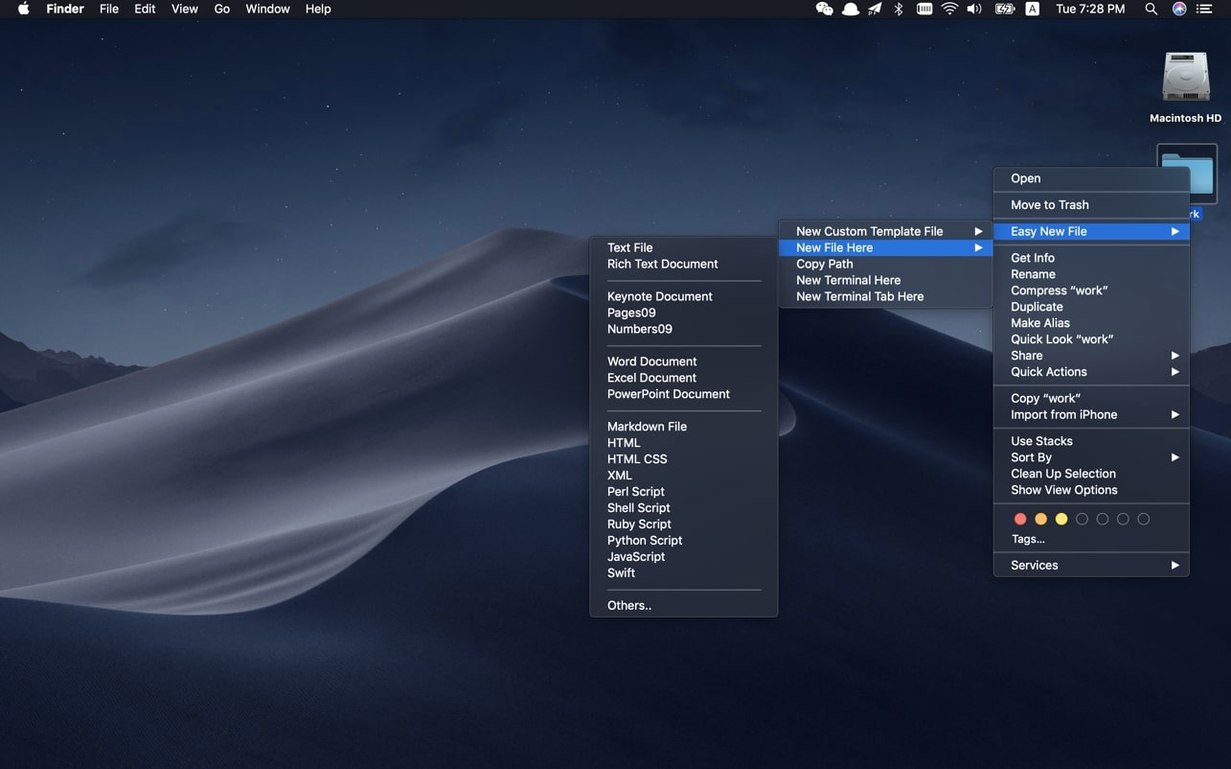
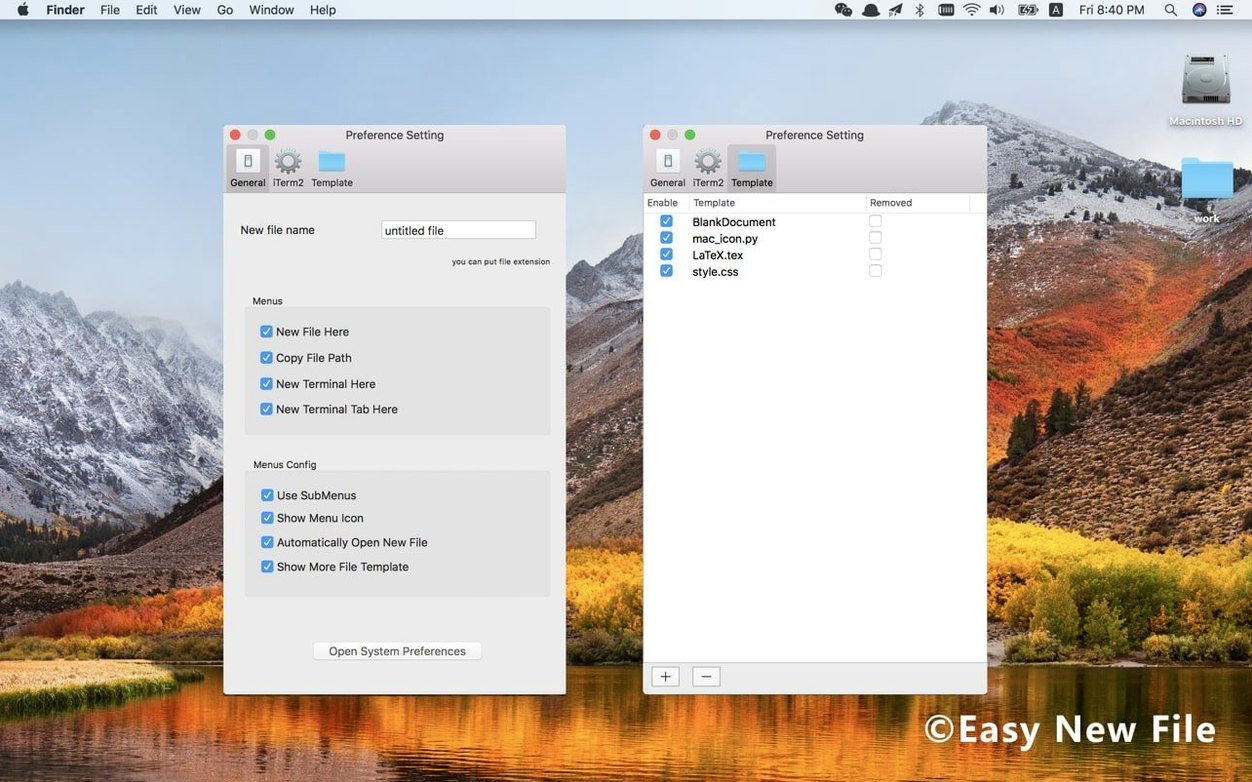
Plain text, rich text, Word, Excel, Keynote, and a handful of developer staples: Python, shell, and Swift scripts. If that list doesn't cover you, you can feed it your own templates and they appear in the same right-click menu.
What else does it add to the context menu?
Besides new files, you get a quick "Copy File Path" action. Small thing, but it saves a trip to Get Info or dragging into Terminal.
Does it live inside the Finder sandbox like other extensions?
Easy New File hooks directly into the Finder extension infrastructure macOS added back in El Capitan and has improved ever since. That means it shares the same security sandbox rules as any other Finder Sync extension—it cannot read file contents, only the names and paths of what you're working with. In practice, you'll notice it plays nicely with Quick Actions and Services: you can create a blank Python script with a right-click, then run a custom Automator Quick Action on it without leaving the folder view.
From a developer workflow perspective, the "Open Terminal Here" command is the quiet star. It calls /Applications/Utilities/Terminal.app with the current Finder directory as the working path, which is exactly what you'd otherwise do by dragging the folder proxy icon into a Terminal window. If you use iTerm2 or Warp as your daily driver, you'll still need to open those manually—the app targets the stock Terminal—but the path-copy action helps bridge that gap: copy the path, paste it after cd in whatever terminal emulator you prefer.
One thing that surprises people: templates you add for custom file types follow the same UTI rules as the built-in ones. Drop a valid .rtf or .docx into the template directory, and the extension treats it like any other document when spawning a copy in Finder. If you use file-tagging heavily in your workflow, the new files inherit no tags—they're truly blank slates—so you'll need to tag them after creation, same as with Finder's own "New Folder" command.
Did version 6.0 finally let you reorder the right-click menu?
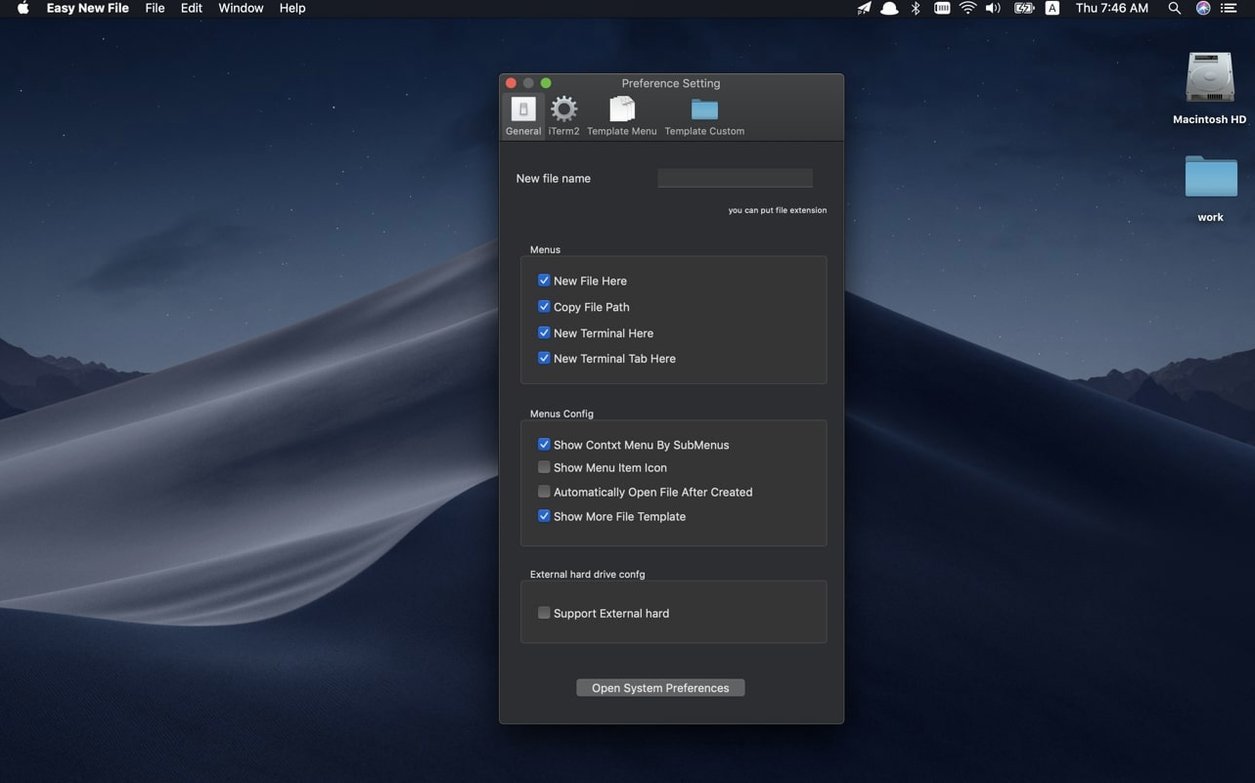
Version 6.0 reworked the preferences window and the structure of the right-click shortcuts, which matters more than it sounds. Before that refresh, the menu could get a little opinionated about the order of file types; now the ordering follows your preferences pane more faithfully, so the three templates you actually use aren't buried under ones you never touch.
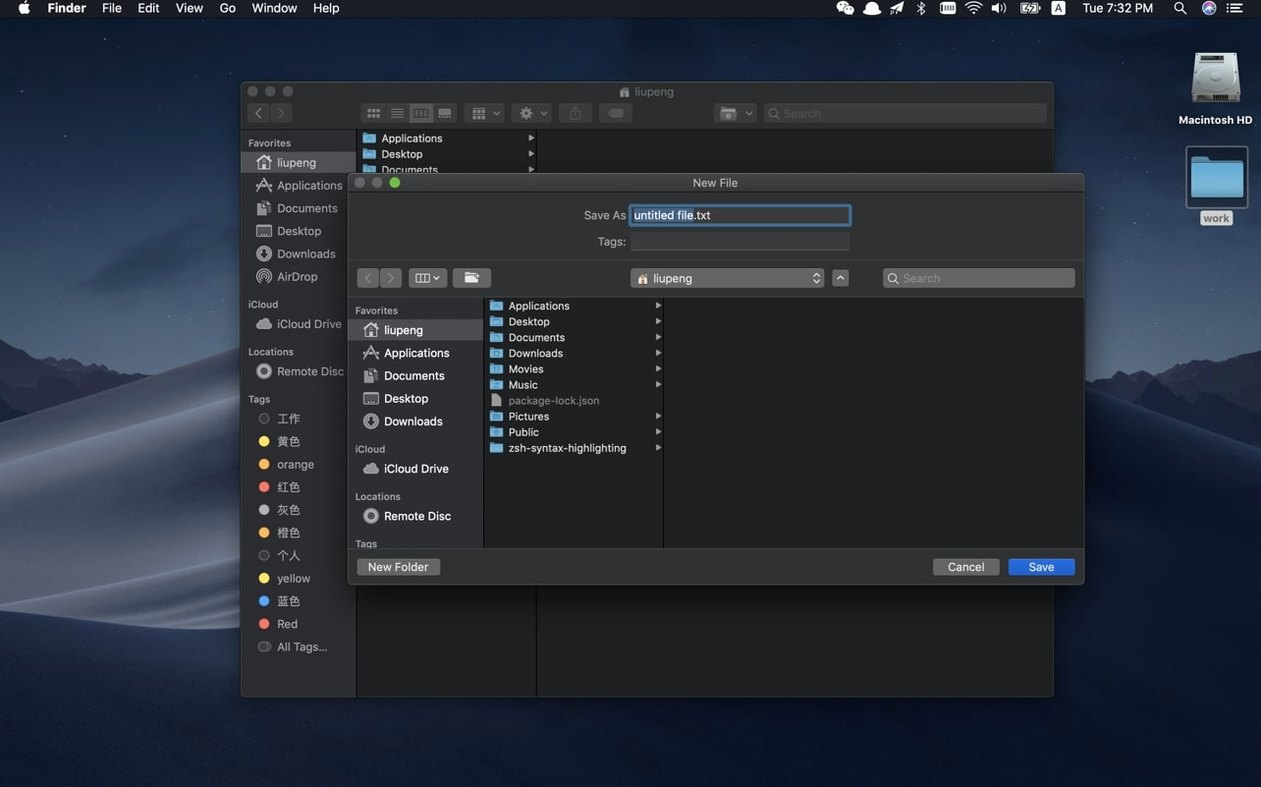
The 6.2 update fixed a genuinely annoying papercut: the save dialog not receiving focus automatically when you triggered a new file from the context menu. Anyone who creates five or six files in rapid succession knows the rhythm—right-click, name, Enter, done. When the dialog didn't grab focus, you'd type the filename and watch it vanish into whatever window was active behind it. That's gone now; the dialog pops forward as it should. The same update also tightened stability for recent macOS releases, so if you're on Ventura or Sonoma you're less likely to see the extension silently deactivate after a system update.
A task walkthrough: standing up a small Python project from Finder
Say you're starting a data-processing script for a class assignment. You want a project folder with a main.py, a requirements.txt, and a shell script to set up a virtual environment—all without touching the terminal until you're ready to code.
In Finder, navigate to your assignments directory. Right-click in the empty space, choose New File > Python Script from the Easy New File submenu. Name it main.py in the save dialog that immediately gains focus. Right-click again, pick New File > Plain Text, and save it as requirements.txt. One more right-click—New File > Shell Script—and name it setup.sh. Three files, maybe ten seconds, no touch commands.
Now right-click inside the folder and pick Open Terminal Here. The Terminal window opens with your project directory as the working directory. Run chmod +x setup.sh to make the shell script executable, then python3 -m venv venv to spin up the virtual environment. If you need to pass the path to a classmate or drop it into a LaTeX document, right-click the folder and grab Copy File Path—it lands on your clipboard as a plain POSIX path, ready to paste anywhere.
None of this is flashy. That's the point. It removes the small friction of switching contexts just to populate a directory with starter files, and that adds up when you're doing it multiple times a day.
Version 6.2 fixes a focus bug where the save dialog wouldn't come to the front when creating a file from the context menu. It also includes stability work for recent macOS releases.
- macOS 10.15 Catalina or later
- Apple Silicon and Intel 64‑bit native
Comments 0
Sign in or create an account to leave a comment.
No comments yet. A codec, a slice, a machine — they appear after moderation.