
Final Cut Pro for macOS
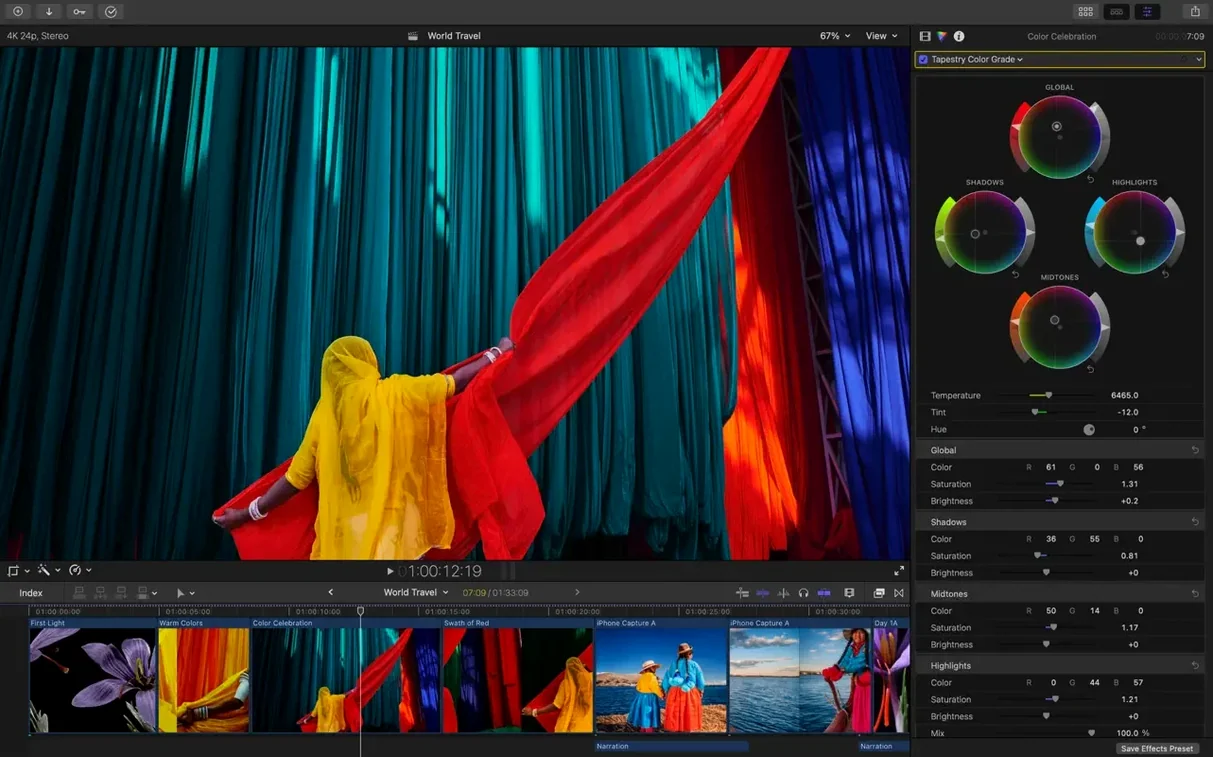
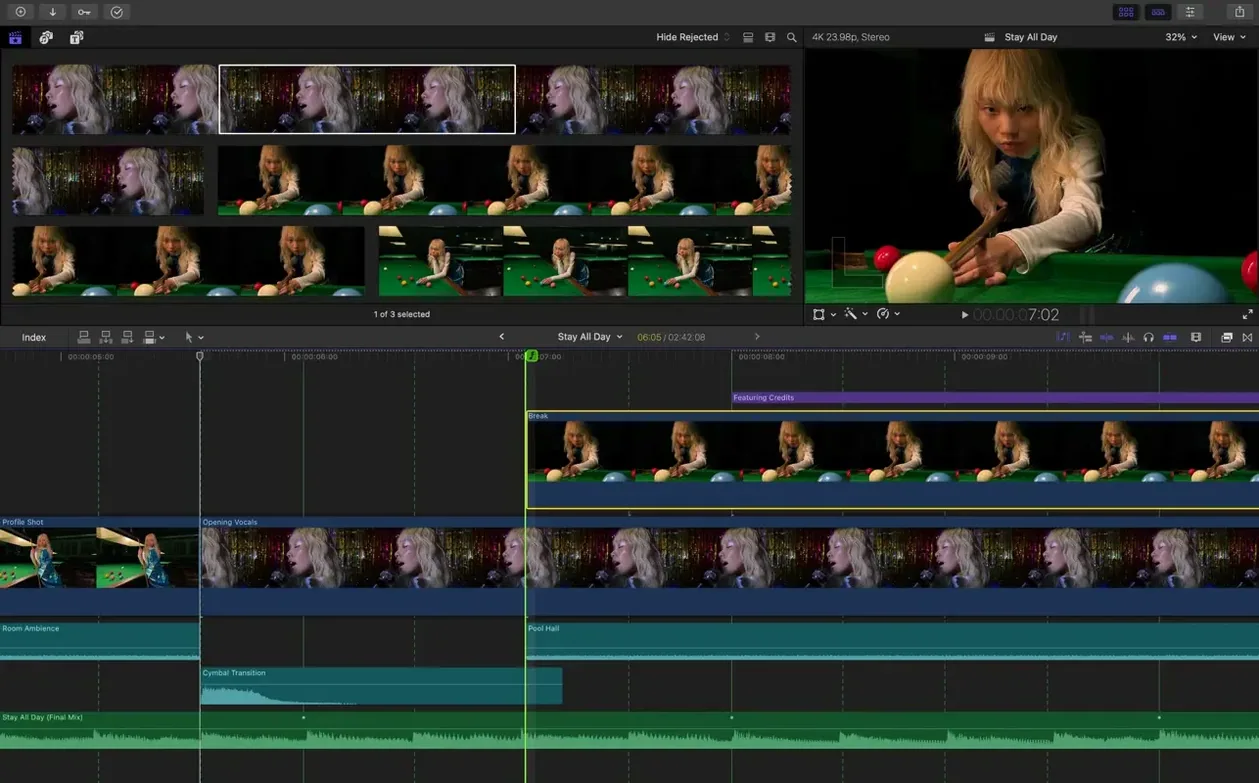
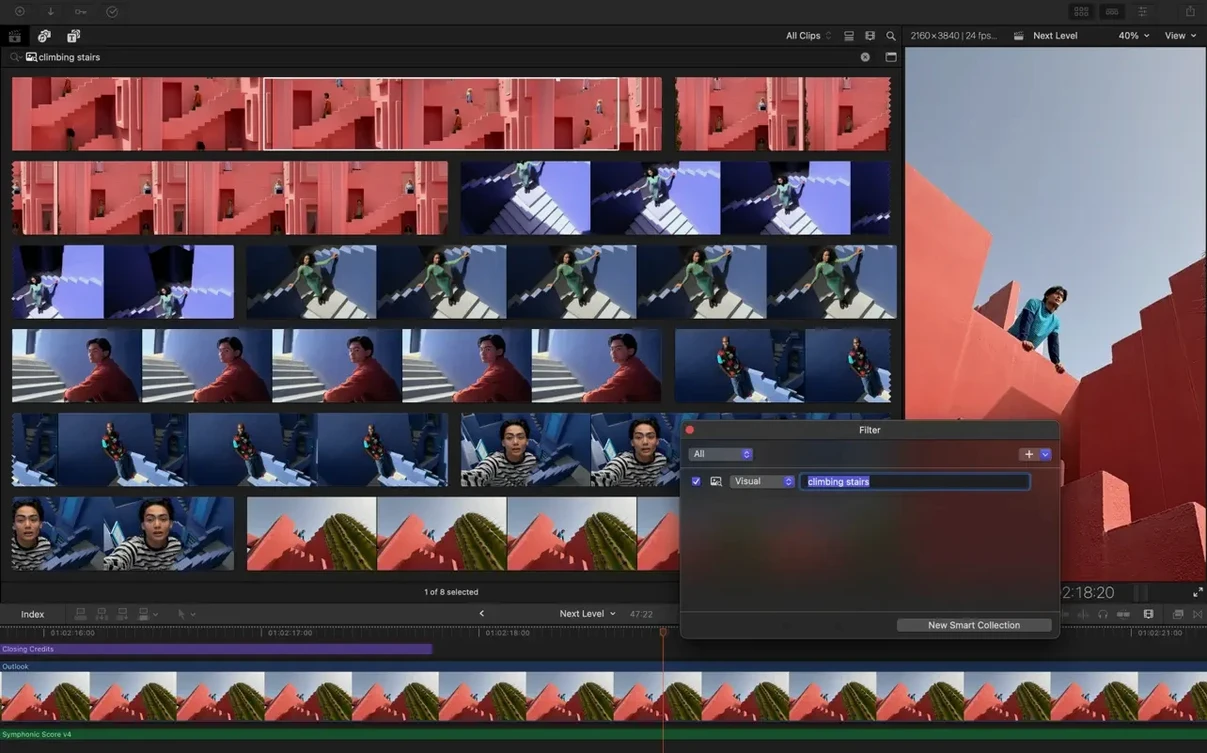
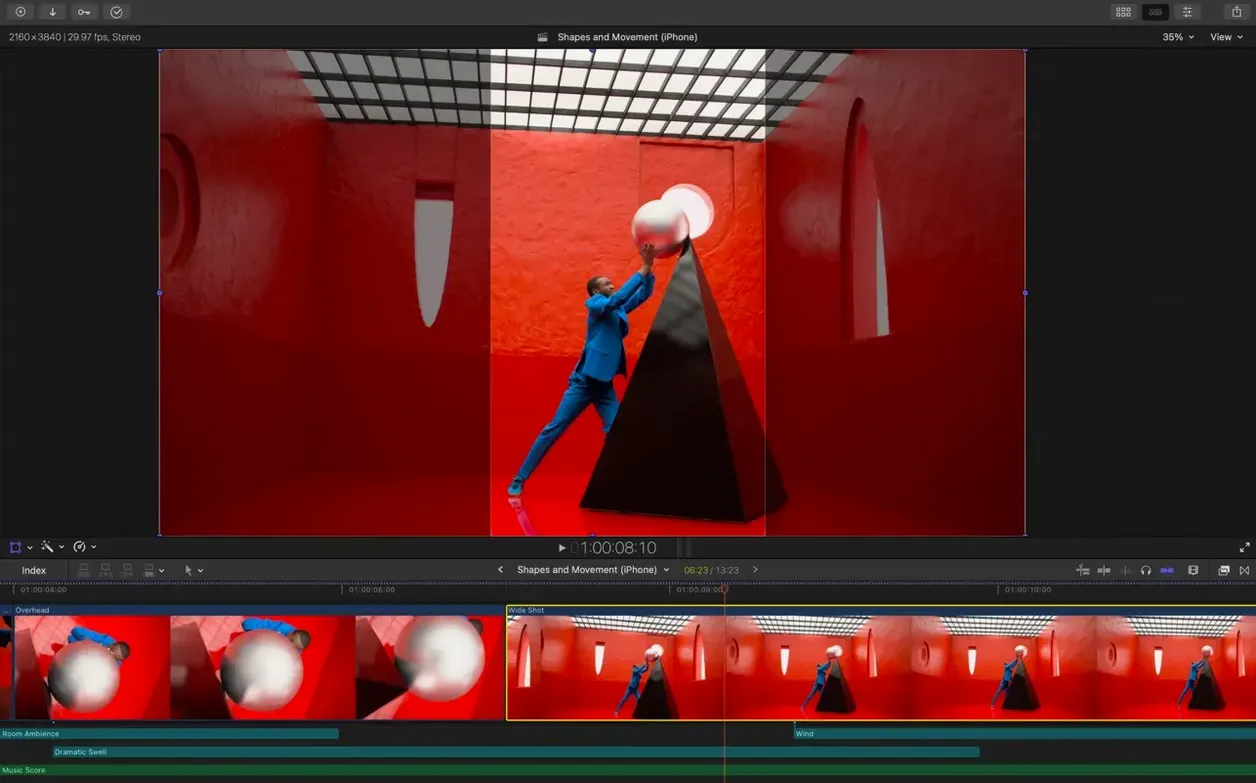
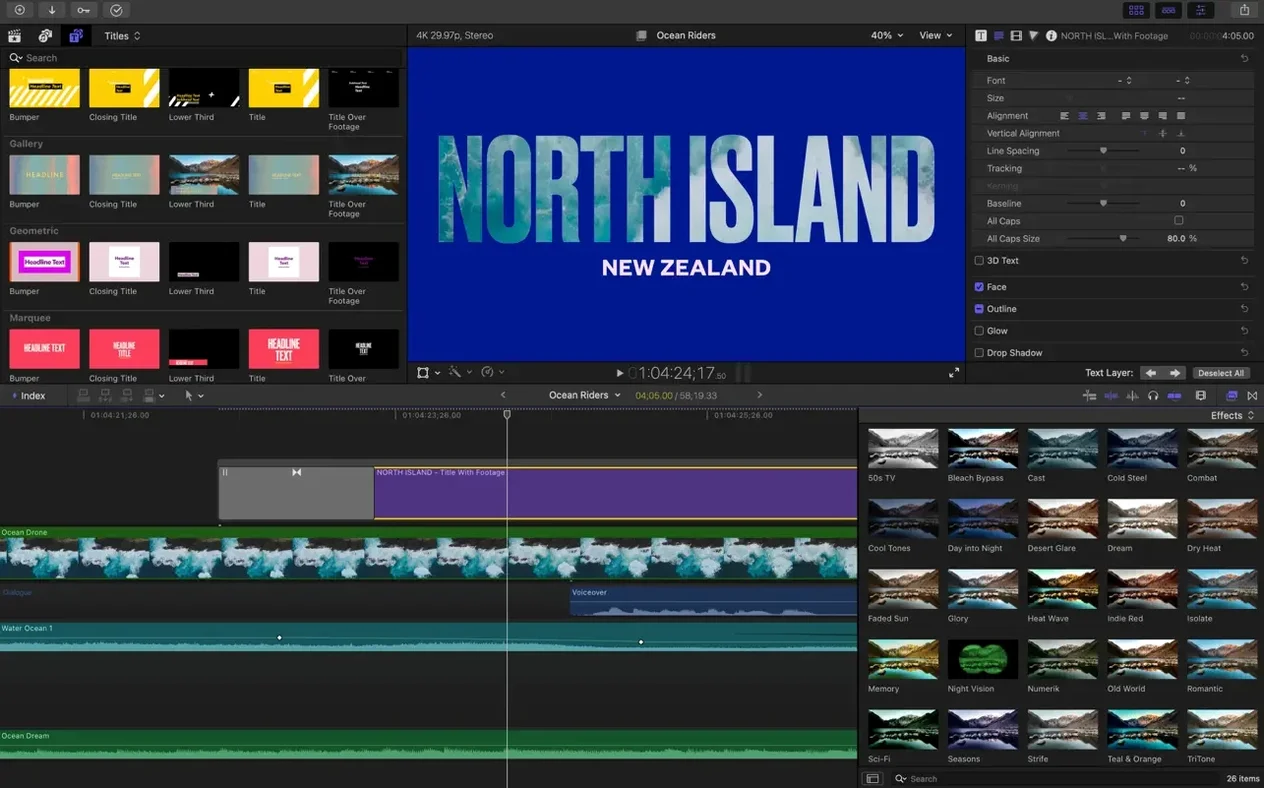
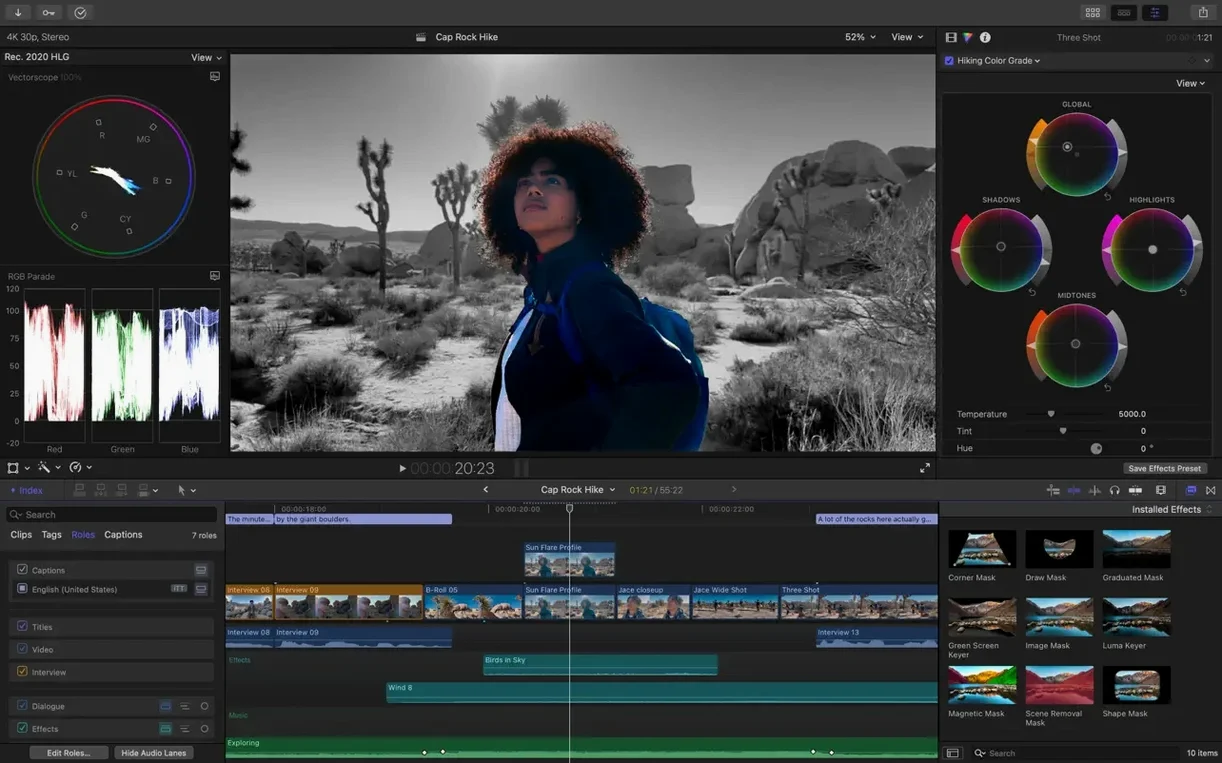
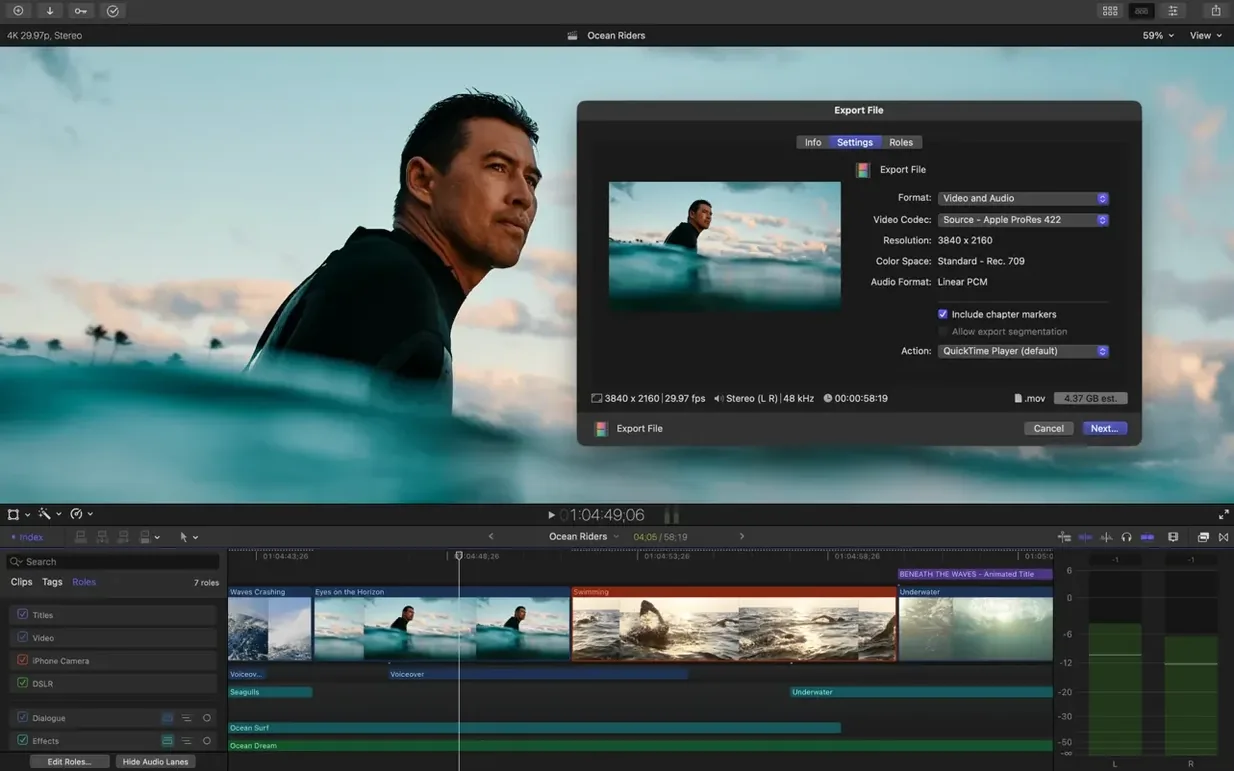
Editors who cut multicam concerts, documentary filmmakers syncing dual-system sound, and YouTubers building a library of effects all reach for the same app on macOS.
Magnetic Timeline — The primary editing interface where clips slide into place without collisions. Connected clips, audio roles, and metadata-based organization keep timelines from turning into spaghetti.
Multicam — Automatic synchronization for up to 64 camera angles using audio waveforms, timecode, or markers. Switching angles during playback feels instant on Apple silicon.
Object Tracker — Attach titles, blur, or color effects to a face or moving object. The tracker generates keyframes automatically; you adjust the result, not the process.
Smart Collections — Custom keywords applied to clip ranges, not just whole files. Combined with Smart Collections, you can pull up every close-up of a specific subject across terabytes of footage without digging through folders.
On the format side, Final Cut Pro handles ProRes, RED RAW, XAVC, AVCHD, Avid DNxHR/DNxHD, H.264, and HEVC natively. Export presets target YouTube and Vimeo directly. When paired with Motion and Compressor in Apple Creator Studio, you get a pipeline for titles, templates, and batch encoding that shares the same render engine.
How does Final Cut Pro talk to the rest of macOS?
Final Cut Pro leans on several frameworks that ship with macOS, and the integration runs deeper than most third-party editors can manage. When you import media, the app taps into AVFoundation for decoding — the same pipeline that QuickTime Player uses. That means any format macOS can preview in the Finder is fair game without installing additional codec packs. HEVC 10-bit from an iPhone, ProRes RAW from an Atomos recorder, it all lands on the timeline the same way.
iCloud and Handoff — Libraries can live on an iCloud Drive volume, though performance depends on your connection. More practical is Handoff between the Mac and iPad versions: start a rough cut on an iPad in the field, open the same library on the Mac, and the timeline, keywords, and roles carry across. The library format is shared, not translated.
Spotlight and Quick Look — Final Cut libraries are packages (folders disguised as single files), but the app registers a Spotlight importer. Search for a keyword you assigned inside Final Cut Pro, and the library appears in Finder results. Press the spacebar on a .fcpbundle file and Quick Look shows the library name, modification date, and thumbnail.
Continuity Camera — Need a quick voiceover or a reaction shot? With macOS Monterey or later, you can drop your iPhone's camera feed directly onto the timeline as a connected clip. No intermediate recording app, no AirDrop step. The clip lands with the same color space as any other import.
Accessibility and captions — The Generate Captions feature in version 12.3 writes a caption track inside the project, but macOS reads those captions system-wide. The same .fcpxml export carries caption data into Compressor for burned-in subtitles during batch encoding. VoiceOver on the Mac can read caption text during playback when you enable the accessibility overlay.
On the automation side, the app responds to AppleScript and JavaScript for Automation, though the dictionary is limited. More useful is the command-line tool fcpbundle metadata format: libraries are SQLite databases wrapped in a bundle, so a script can pull project names, clip durations, and keyword assignments without launching the GUI.
Where does Final Cut Pro sit in a working editor's toolkit?
Nobody edits in one app alone. Final Cut Pro is the assembly table, but it hands off to other tools at predictable points.
Motion — When a title template or transition is too specific for the built-in options, you round-trip to Motion. Right-click any title or generator on the timeline, choose "Open in Motion," design the thing, save, and the updated template replaces the original in-place. Motion publishes parameters you mark, so a lower third can expose the name field and the color swatch without anyone touching the project file.
Compressor — Exporting directly from Final Cut Pro uses the same encoding engine, but Compressor adds watch folders, droplet apps, and distributed processing across multiple Macs on the network. A common setup: edit in Final Cut Pro, send the project to Compressor via the Share menu, and let another Mac on the LAN chew through the ProRes master while the editor's machine starts the next project. Compressor also handles the stretch from Rec. 709 to Rec. 2020 HLG with a single preset.
Logic Pro and external DAWs — Audio roles in the timeline let you export a multitrack .aaf or a set of stems. Open those in Logic Pro (or Pro Tools, or Reaper), sweeten the mix, and bounce back. The round-trip is manual — Final Cut Pro doesn't embed an edit decision list into a DAW project — but the role-based export keeps the track names and panning intact.
Color correction suites — The XML export carries clips, grades, and metadata into DaVinci Resolve or Baselight. Final Cut Pro's own color tools are deep enough for editorial grading (color wheels, curves, HDR scopes, Match Color), but for node-based workflows and Dolby Vision trim passes, XML is the bridge. The return trip brings the graded clips back into the magnetic timeline with handles intact.
Who finds its magnetic timeline a genuine advantage?
The question isn't "who uses Final Cut Pro" — that's a long list. It's who finds the app's design philosophy a genuine advantage rather than an adjustment.
Event and wedding editors — These folks deal with multicam by default. Three cameras, a recorder, a drone. The automatic sync via audio waveforms means they drop all the angles into a multicam clip and cut as if it were a live switcher. A 90-minute ceremony with five cameras can be a single multicam clip in the browser, with the angle editor open and cuts placed on the beat during playback. The 64-angle ceiling is academic for this crowd, but the responsiveness at 8-10 angles on Apple silicon means no proxy workflow needed.
Documentary filmmakers — Keyword ranges are the killer feature here. A documentary is often built from dozens of hours of interviews and b-roll. Instead of subclipping everything into bins, the editor skims through footage, hits a shortcut to mark a range, and types a keyword: "archival WWII factory footage" or "subject talks about childhood." Smart Collections then gather every range across the library. Edit Detection in 12.3 adds another angle: if the only copy of a finished film is a rendered file, Edit Detection finds the cut points and rebuilds the project.
Social-first video teams — Smart Conform turns a 16:9 master into 9:16 or 1:1 without manual reframing. The algorithm tracks faces and keeps them in frame, and the editor adjusts only where the automatic choice misses. A single project can export a horizontal YouTube version, a square Instagram version, and a vertical TikTok version from the same timeline. The caption generation in 12.3 feeds directly into this: burned-in subtitles on the vertical export, optional sidecar captions on the horizontal one, all from one caption track inside the project.
Colorists working inside editorial — The Match Color feature in 12.3 is not a grading replacement, but it's the kind of tool that saves a conform step. When a two-camera interview shows a mismatch — one camera ran a little warm, the other is flatter — Match Color analyzes both shots and applies a correction. It's the same algorithm Apple uses in Photos, tuned for video with scene-referred color science. For editors who need to deliver a viewing copy with consistent color but no budget for a dedicated grade, this matters.
Which Mac editor grew up on a different OS?
Three editors dominate video post on macOS. Two share a common lineage; the third built its reputation on a different operating system and brought its philosophy to the Mac.
Final Cut Pro vs. DaVinci Resolve
Resolve packs an edit page, a color page, a Fairlight audio mixer, and a Fusion compositor into one download. Final Cut Pro does one thing well and hands off to Motion and Compressor for the rest. On a single monitor, Resolve's page-based interface feels coherent; on a laptop, Final Cut Pro's single-window magnetic timeline wastes fewer pixels.
Resolve's node-based color grading runs circles around Final Cut Pro's color tools when you need secondaries, qualifiers, and Dolby Vision trim controls. But many editors don't need those — they need a fast grade that matches two cameras, which Match Color handles in one click. The trade runs both ways: for editing speed and media organization, Resolve's track-based paradigm and bin system feel like a 1990s NLE next to Final Cut Pro's metadata-driven browser and magnetic timeline.
Collaboration tells a different story. Resolve's project server lets multiple users work on the same project simultaneously. Final Cut Pro offers library sharing over SMB, but it's file-level, not database-level — only one person edits at a time. For a solo editor or a one-person post pipeline, this is invisible overhead. For a facility with assistants and specialists, Resolve's model wins.
Final Cut Pro vs. Adobe Premiere Pro
Premiere Pro lives inside a Creative Cloud subscription and shares a project format with After Effects, Audition, and Media Encoder. Dynamic Link means you can drop a Premiere sequence into After Effects without rendering, and changes propagate. Final Cut Pro's equivalent is the XML round-trip to Motion, which isn't live-linked but also doesn't require a subscription to keep running.
Premiere's track-based timeline will feel familiar to anyone who learned on a traditional NLE. Tracks are physical spaces; clips sit on them; the editor manages collisions manually. Final Cut Pro's magnetic timeline collapses the track hierarchy — clips connect to a primary storyline, and the timeline manages gaps. Editors who prefer explicit control over every track often bounce off Final Cut Pro's approach. Editors who want the software to keep things tidy while they cut gravitate toward it.
On performance, the gap narrowed once Adobe shipped native Apple silicon builds. Premiere Pro plays back 8K RED footage smoothly, and Media Encoder uses the hardware encoders. But Final Cut Pro's integration with macOS — AVFoundation, Metal, Core ML for object tracking — still gives it a nimbleness on Mac hardware that Adobe's cross-platform architecture has to work harder to match.
Final Cut Pro vs. iMovie
iMovie is the on-ramp. The magnetic timeline, the keyword system, the browser layout — they all appear in iMovie first. Final Cut Pro adds the depth: roles, compound clips, precision keyframing, 360° editing, HDR scopes, multicam, object tracking, and the XML backbone that connects to Motion, Compressor, and external color suites.
The most practical difference: iMovie projects don't upgrade. You can open an iMovie library in Final Cut Pro and keep working, but the path back doesn't exist. For someone cutting family videos, iMovie is the right tool. The moment they need to stabilize a shaky drone shot, match color between two iPhones, or export a ProRes master with separate audio stems, they've outgrown it.
A typical session: cutting a three-minute promo
It's 9 a.m. The footage lives on a Thunderbolt SSD named Promo_Shoot. The editor double-clicks Final Cut Pro, creates a new library on the internal drive, and points the media import to the external SSD.
The Import window shows thumbnails for every clip. A checkbox at the top reads "Create proxy media" — checked, because the source is 6K ProRes from a RED Komodo and the editor is on a MacBook Air. A second checkbox reads "Keywords from Finder tags" — also checked, because the DIT tagged clips with scene numbers during the shoot. Five seconds after confirming, Final Cut Pro begins copying the media into the library while generating proxies in the background. The editor can start skimming immediately; the thumbnails populate as the proxies build.
Skimming is the first pass. No clips on the timeline yet — just the mouse gliding across thumbnails in the browser, watching footage play at full speed. The editor hits I and O to mark in and out points on the best takes, then presses Command-K and types "hero shots" as a keyword. A Smart Collection catches them all.
Now the timeline gets built. The editor selects a wide shot of the product, presses E to append it to the primary storyline, and the magnetic timeline accepts it. A close-up lands with W — an insert edit that pushes everything downstream. Connected clips stack above: a title card, a logo bug that stays on screen for the duration, a b-roll overlay that the editor trims by dragging its edge.
Twenty minutes in, the rough cut stands at 90 seconds — too long. The editor switches to the Position tool with P, drags clips to reorder the narrative, then switches back to the Select tool and starts trimming. The precision editor (double-click an edit point) shows both sides of the cut in a single view; the editor rolls the edit point back six frames. The magnetic timeline ripples everything to the right without a gap.
Audio needs work. The editor expands the audio lane, drags the music track's volume down to -18 dB under the voiceover, and assigns roles in the inspector: "Dialogue" for the VO, "Music" for the bed, "Effects" for the product close-up whooshes. Later, when exporting, these roles become separate stems in the final ProRes file — the client's mixer will thank them.
Color comes next. The interview clip looks cooler than the b-roll — different camera, different white balance. The editor
Final Cut Pro 12.4 CS ships with the latest fixes and improvements detailed in the developer's release notes. Check Apple's support site for the full changelog.
- macOS: 15.6 or newer
- Architecture: Apple Silicon, Intel 64‑bit
$ man final-cut-pro | grep -A2 "?"
What video formats can Final Cut Pro work with natively?
It handles ProRes, RED RAW, XAVC, AVCHD, Avid DNxHR and DNxHD, H.264, and HEVC without transcoding, and includes direct export presets for YouTube and Vimeo.
Comments 0
Sign in or create an account to leave a comment.
No comments yet. A codec, a slice, a machine — they appear after moderation.