
Folder Preview Pro for macOS
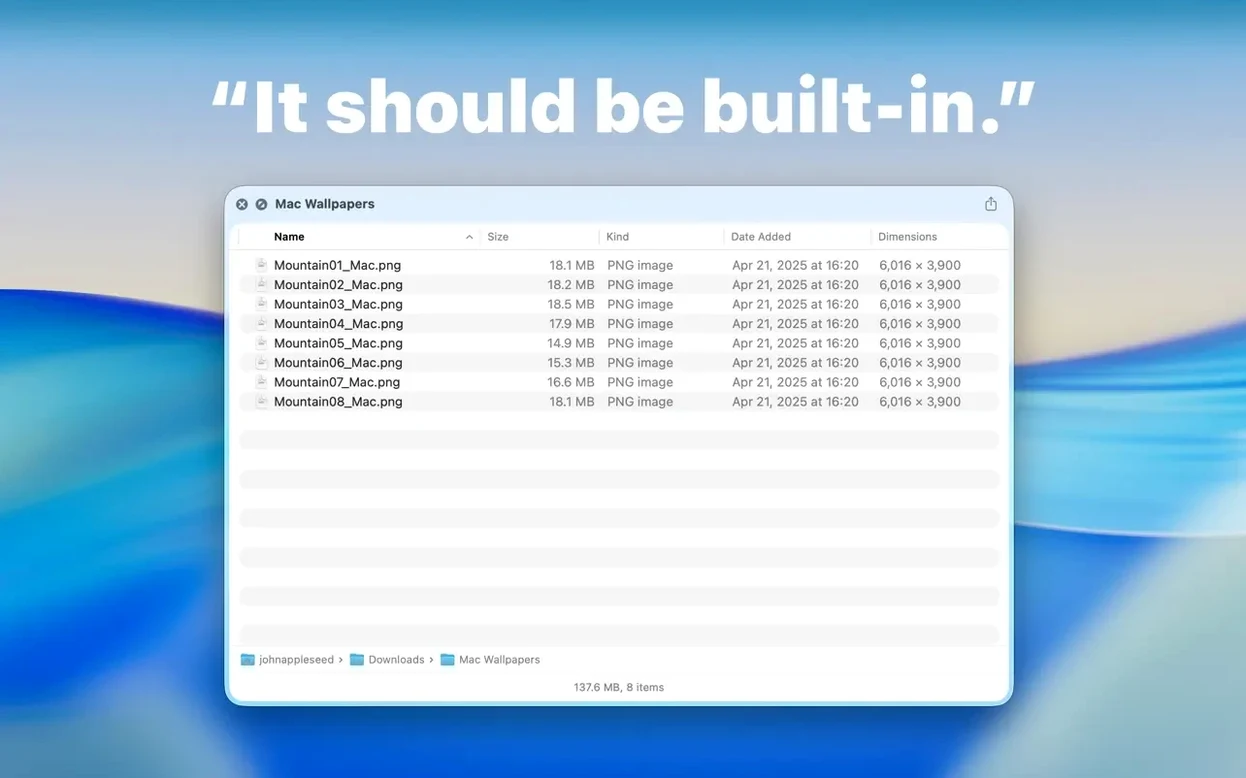
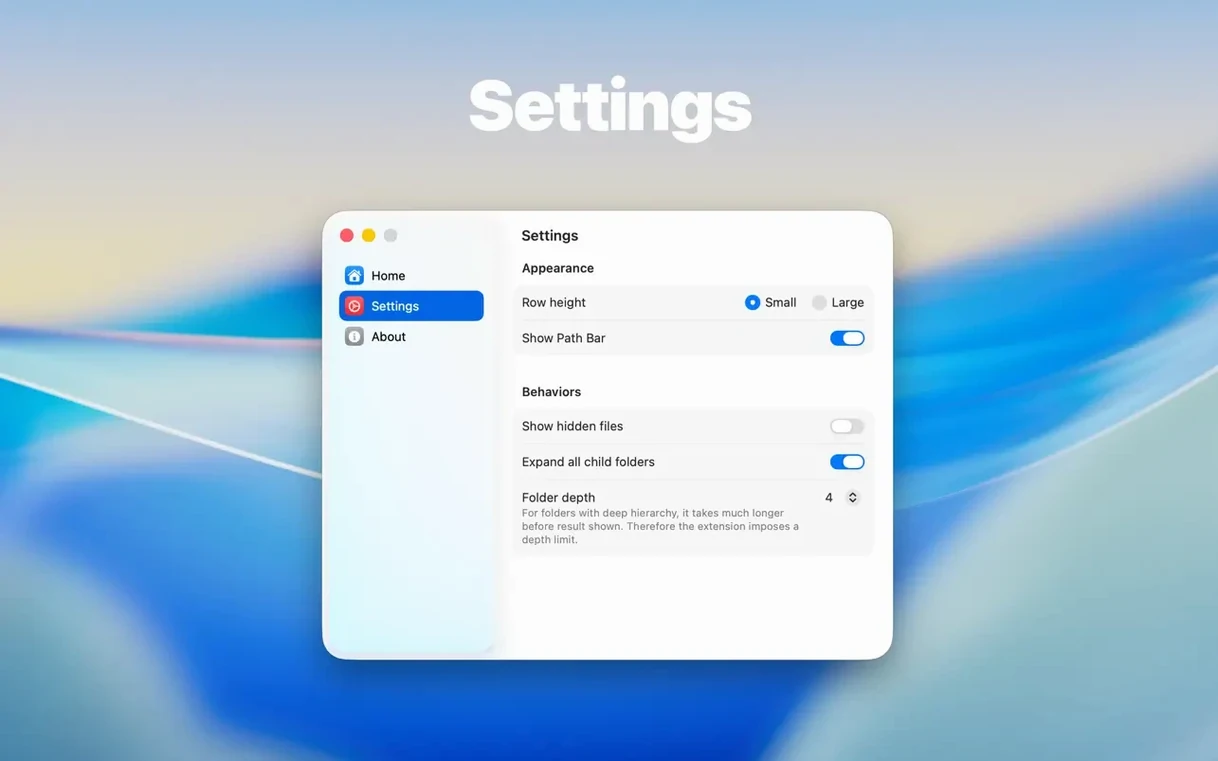
Folder Preview Pro runs on any Mac with macOS 13 or later, both Apple Silicon and Intel machines. It extends Finder's Quick Look so you can press Space (or Command-Y) on a folder and see its contents without opening it — something plain Finder won't do. The current version 3.1 refines that experience without changing the core job.
Why is there a Contents breadcrumb in the context menu now?
- A new Dual Columns view for scanning nested folder trees side by side.
- A Contents item in the context menu that lets you drill through a folder level by level, like a breadcrumb trail inside the preview.
- Dragging files out of the preview from list and icon views, so you can grab an item and drop it elsewhere without opening the folder.
- Archive size limit options raised to 5 GB and 10 GB, giving you more control when browsing large compressed folders.
At its heart, Folder Preview Pro remains a single-purpose Quick Look extension. Once enabled in System Settings, it does one thing — show you what's inside a folder before you commit to opening it. The 3.1 updates make that inspection faster and more flexible, particularly when you're navigating deep folder structures or pulling files out on the fly.
When does Finder’s column view fall short?
There are a few different approaches to folder preview on macOS. Which one fits depends on how you work.
The built-in Finder column view (Command-3) handles basic traversal well. You see folder contents inline, no Quick Look needed. It falls short when you want to inspect a single folder without shifting your whole Finder window — and it offers zero support for archive contents. If you spend most of your time in column view already, Folder Preview Pro adds a lightweight overlay for the moments you want to peek without disturbing your navigation state.
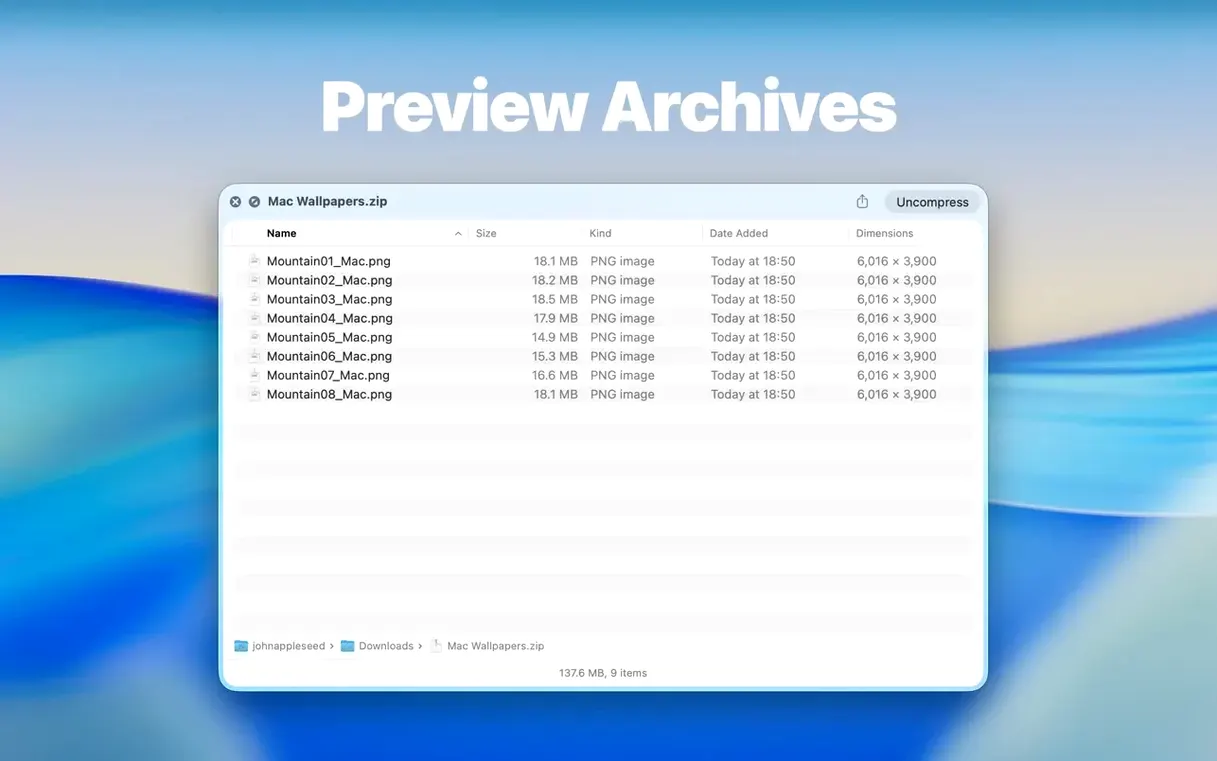
A utility like Peek takes a different path. It sits in the menu bar and gives you a popover file browser, effectively a mini-Finder. That works for quick lookups, but it's a separate interface. Folder Preview Pro stays inside the Quick Look workflow you already use — Space bar, glance, close. No extra windowing conventions to learn. Peek also doesn't touch archive internals the way version 3.1 does with ZIP, TAR, GZ, 7Z, and RAR.
For eps preview mac workflows, none of these are file-format previewers — that's a different category. What Folder Preview Pro gives you is the container-level insight: what files live inside a project folder or a downloaded archive, before you extract or open anything. If you're sorting through design assets, code repos, or compressed bundles, that's where the Dual Columns view in 3.1 starts to earn its keep.
How many ways can you open the Quick Look panel?
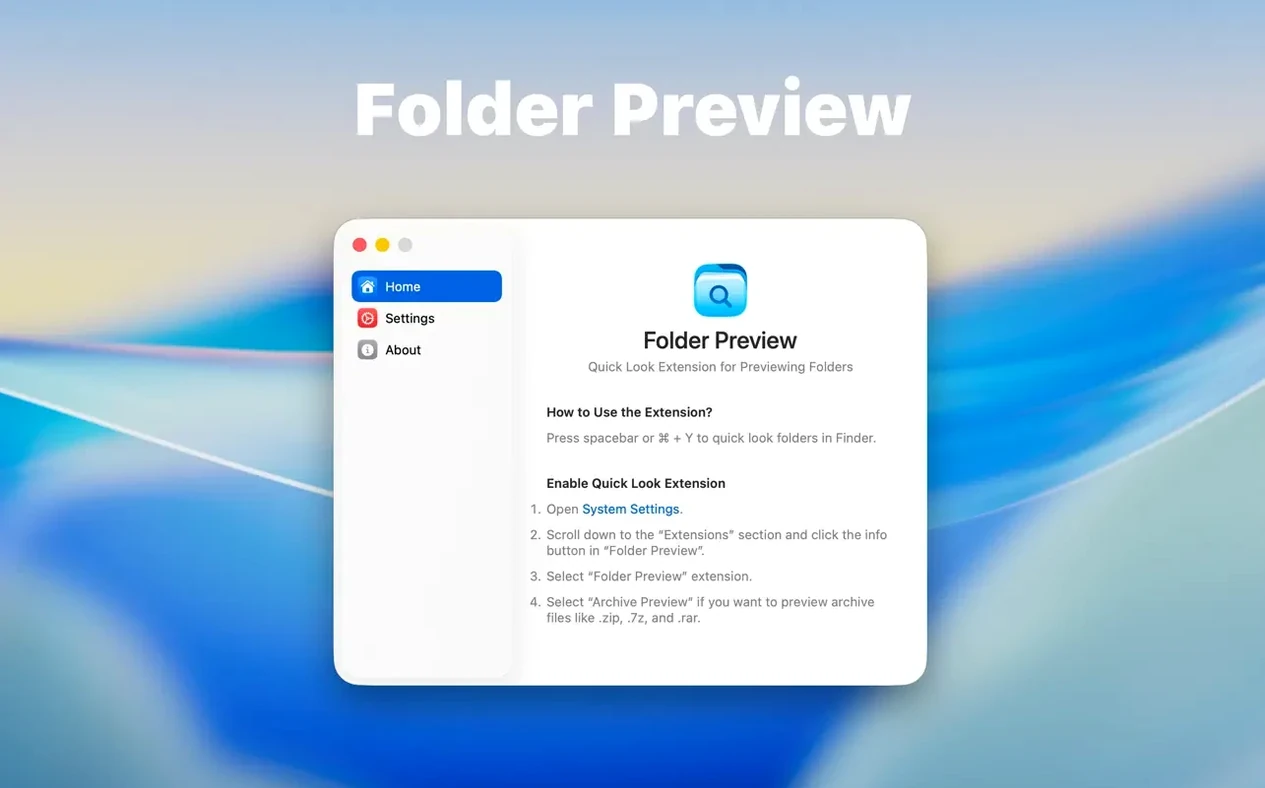
Folder Preview Pro hooks into Quick Look, so anything that triggers Quick Look can trigger it. Press Space in Finder, hit Command-Y, or use a trackpad force-click on a folder — all three paths lead to the same preview panel. That means it inherits whatever gestures and shortcuts you already have for Quick Look, no extra mapping needed.
macOS Spotlight and Finder tags still work independently. You can tag a folder, search for it, then Quick Look it to confirm the contents without breaking your search context. The extension also plays well with drag-and-drop across Spaces — once you pull a file out of the preview in list or icon view, you can drop it into an app on another desktop. Handy when your Downloads folder has a ZIP full of assets and Photoshop is waiting in fullscreen.
For archive-heavy workflows, the size limit options (now up to 10 GB) mean you can decide how deep the extension digs. A large .tar.gz won't stall the preview if you cap it. That's especially useful when you're browsing backup folders or old project archives where you only need to verify a few filenames, not index everything.
Can you peek into a zip before unzipping it?
Say I've just pulled down a project archive — something like client-assets-v3.zip — and it's sitting in my Downloads folder. I don't want to unzip it yet; I just need to check whether the latest PSDs are in there or if the designer sent the wrong batch again.
I select the ZIP in Finder and tap the Space bar. Folder Preview Pro kicks in and shows me the top-level contents: a few folders named screens, icons, and exports, plus a loose PDF. I right-click the screens folder in the preview and pick Contents from the context menu — this drills me one level deeper, showing individual PSD filenames, modified dates, and sizes. A quick glance confirms the right files are present.
I switch the view to Dual Columns. Now the left pane keeps the screens listing visible while the right pane shows me the contents of icons. I spot an SVG I need immediately. I grab it from the icon view, drag it straight out of the preview, and drop it onto a Slack message draft on my second display. I close the preview with another tap of Space. The ZIP stays untouched; no extraction, no cleanup afterwards. That entire check took under ten seconds, and I never left Finder.
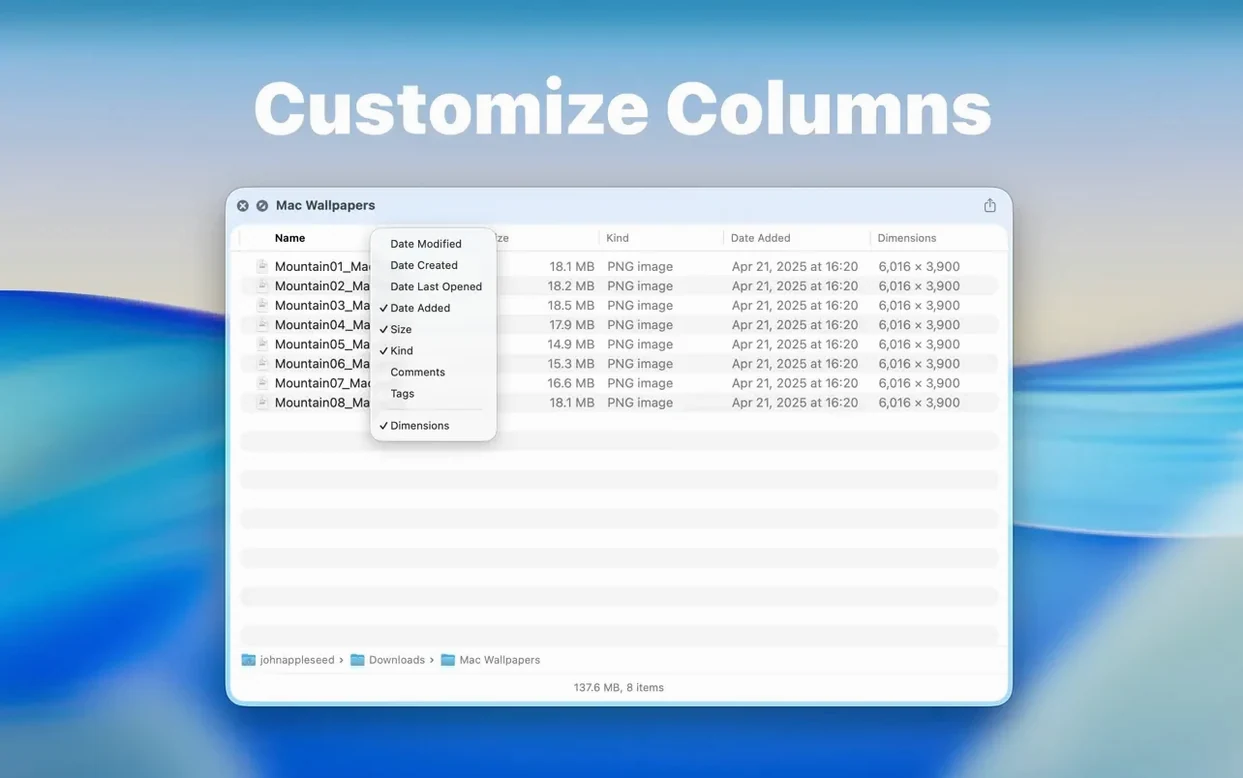
Later, I'm organizing a folder of old project directories. I Quick Look a folder named 2023-Q4 and see a mess of loose files and subfolders. I right-click the column headers inside the preview and toggle on the Size column to spot the largest items quickly. A few seconds of sorting tells me which subproject is hogging space, and I move on. No opening, no closing, no Finder tabs stacking up.
- Adds a Dual Columns view for comparing folder levels side by side.
- Adds a Contents context-menu item for level-by-level folder browsing inside the preview.
- Files can now be dragged out of the preview window from list and icon views.
- Archive size limit options extended with 5 GB and 10 GB thresholds.
- macOS 13 or later
- Apple Silicon or Intel Mac
- Quick Look enabled in System Settings
$ man folder-preview-pro | grep -A2 "?"
How do I enable Quick Look for folders after installing Folder Preview Pro?
Open System Settings, go to the Quick Look section, and make sure Folder Preview Pro is turned on. After that, selecting any folder in Finder and pressing Space will show its contents.
Comments 0
Sign in or create an account to leave a comment.
No comments yet. A codec, a slice, a machine — they appear after moderation.