
FotoMagico for macOS
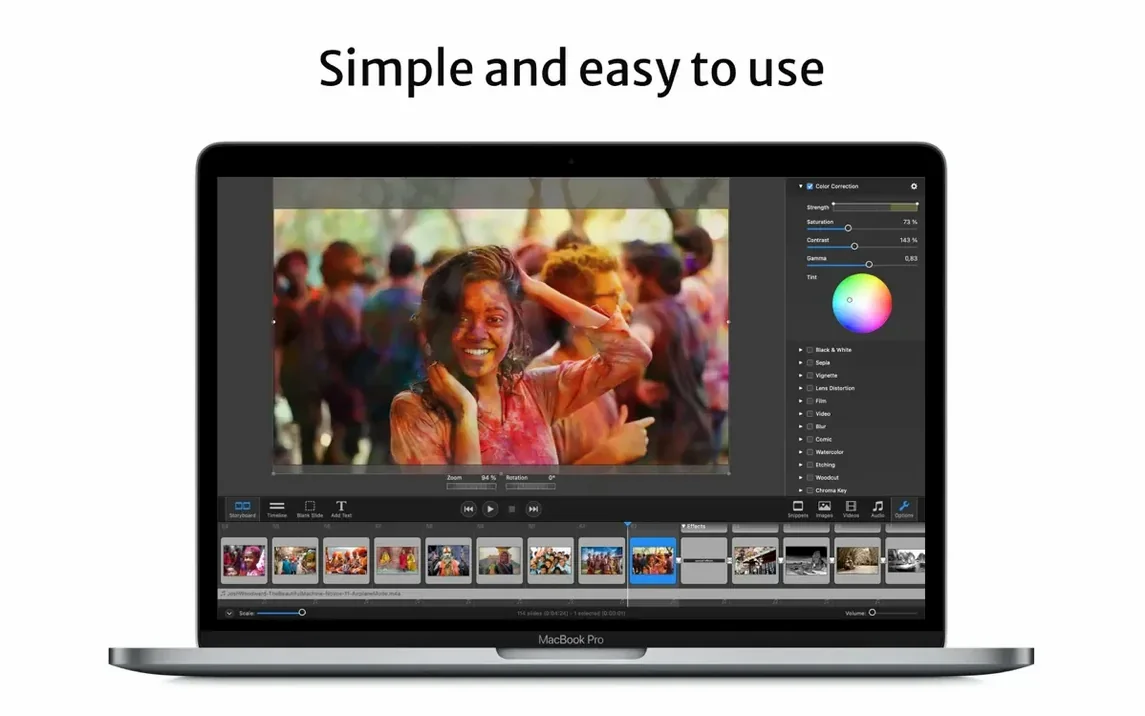
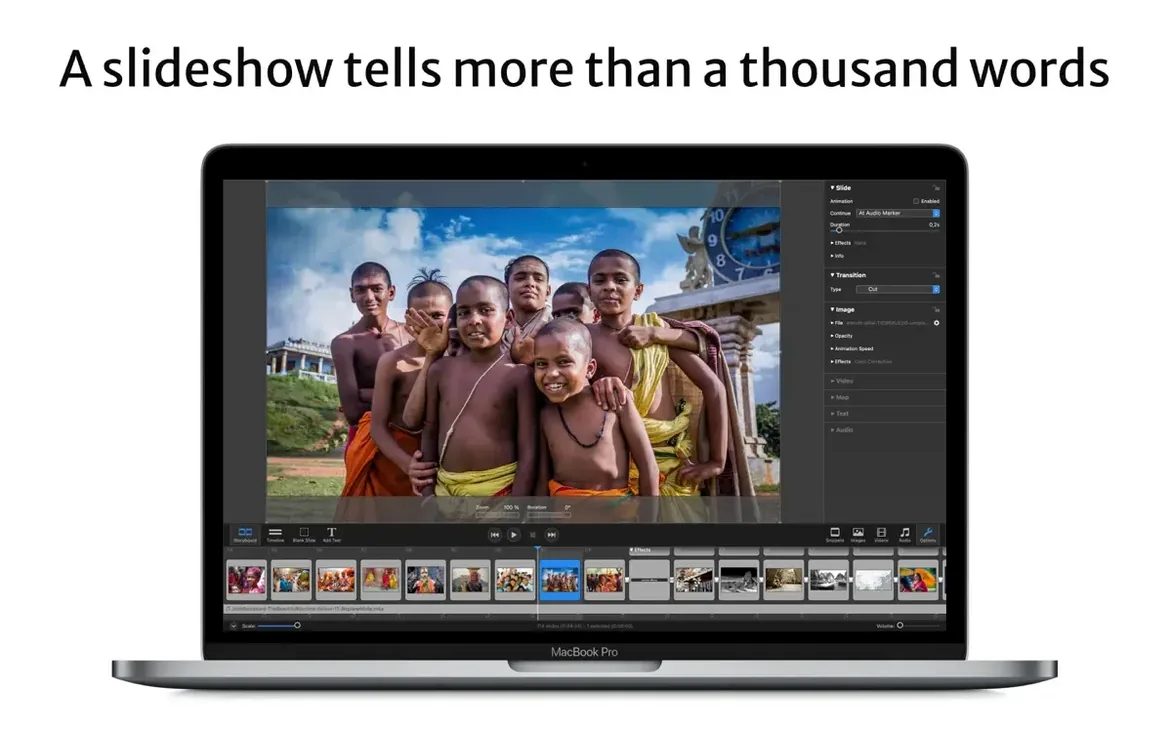
You've just imported a folder of photos from a recent trip into FotoMagico, and instead of watching a progress bar, the first slide fills your screen instantly at full resolution. That immediate, real-time playback is the core of its architecture, and it's the best place to start exploring. Forget rendering queues for a moment; here are the first concrete things to try as you learn the tool.
- Scrub through a story in real time. Drag the playhead across the Storyboard. The canvas updates without pre-rendering, letting you preview complex pans and zooms on your
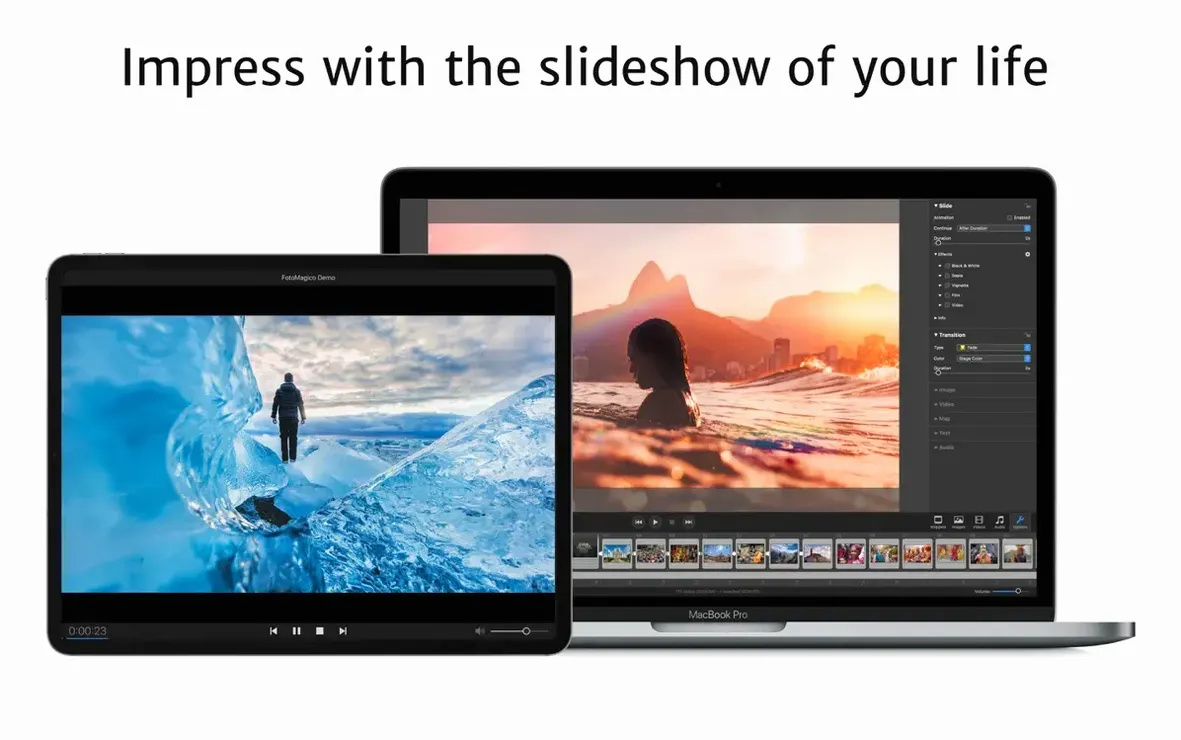
.cr3or.heicfiles instantly on Apple Silicon hardware. - Export a standalone slideshow. Build a short sequence of three slides and export it via the "Standalone Player" option. This bundles your show into a single document that plays on any Mac without FotoMagico installed, a clean way to share a high-resolution version with others.
- Create a custom screensaver. Go to the Share menu and choose "Screensaver." This compiles your slideshow directly into a
.saverbundle and installs it in~/Library/Screen Savers/with no extra steps. - Manipulate a single slide with audio. Drop a track from the built-in music addon onto one slide, then set a Ken Burns effect by defining start and end keyframes. The audio waveform appears directly on the timeline for frame-accurate syncing.
- Use the Map Assistant for a location-based story. If your images have GPS tags, add a map slide. The assistant lets you animate a route between pins, and the latest update ensures its controls are properly localized.
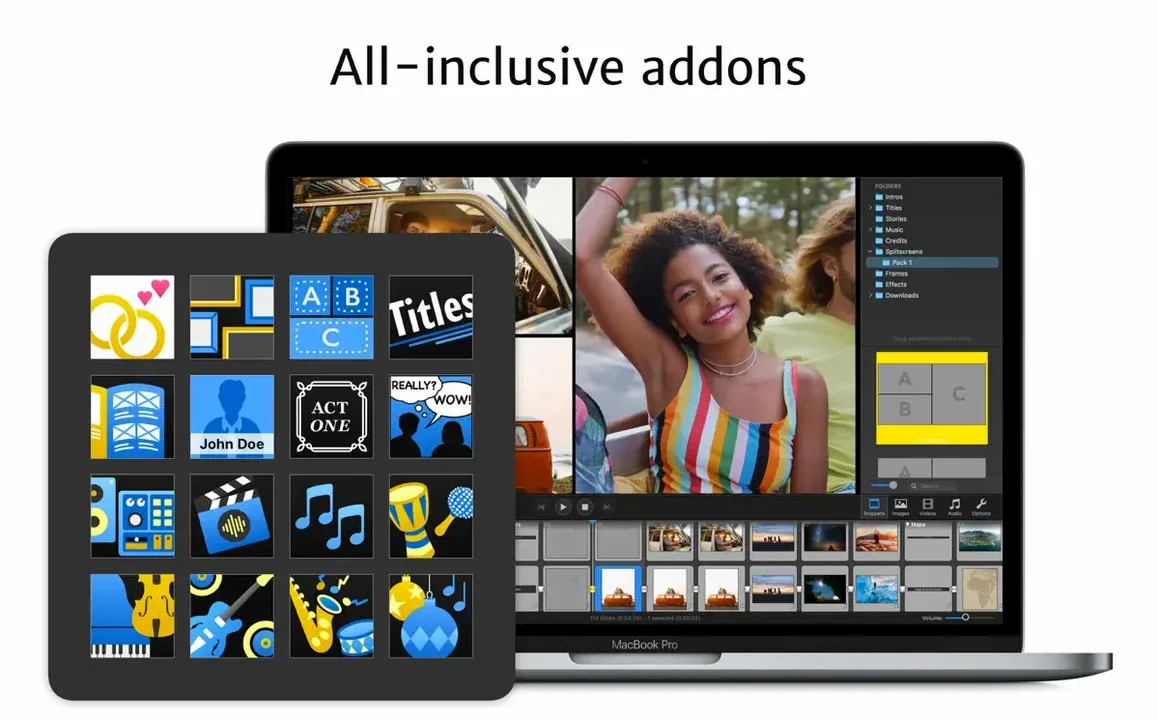
- Open the Snippets library. Instead of starting from an empty canvas, drag a visual storytelling guide from the Snippets browser. The 6.10 update improved how these templates adapt to unusual stage aspect ratios, making them a reliable starting point.
These actions bypass the export-and-check loop that defines older editors. The player and screensaver exports are particularly useful for getting a finished product out without extra encoding steps.
Same-day slideshow photographers who build live
Not every Mac user needs this level of real-time compositing, and that's fine. The people who click with it tend to fall into a few camps.
Event photographers and videographers who need same-day slideshows are the obvious fit. You can build a sequence during the car ride back from a wedding, hit the Standalone Player export, and hand the couple a USB drive with a self-contained show that requires no extra software. The instant playback means you're not waiting on a render before you can proof a complex pan across a group shot.
Presenters and lecturers who use Mac-native toolchains benefit from the Final Cut Pro plug-in. You can prepare a slideshow segment inside FotoMagico, then pull it into a larger timeline without round-tripping through a video file. The Metal-based rendering keeps everything in the GPU, so the exported .fcpxml references play smoothly inside Final Cut.
iPad-and-Mac switchers get value from the iCloud Drive project syncing. You can rough out a slideshow on an iPad during a commute, then refine timing and export the standalone version on a Mac when you're back at a desk. The project file format is identical across platforms, so nothing gets lost in translation.
Anyone still maintaining legacy media libraries—think Aperture users who never migrated to Photos—will appreciate that the Aperture plug-in still works. You can access those managed libraries directly from the media browser inside the app without exporting a batch of JPEGs first.
It now requires Sonoma and Apple Silicon
The 6.10.0 release was a maintenance cut, but it quietly reshaped the support landscape. Dropping compatibility with macOS 10.15 Catalina through macOS 13 Ventura means the app now targets only Apple Silicon and 64-bit Intel machines on Sonoma or newer. In practice, that freed the developers to rely on newer Metal features and Swift UI components without conditional code paths for older frameworks.
The most visible fix for regular users is the Snippets behavior. If you've ever dragged a storytelling guide onto a stage with a non-standard aspect ratio—say, a vertical 9:16 Instagram story preset—and watched the text boxes land awkwardly off-canvas, the 6.10 update corrects that. Snippets now match the stage aspect ratio more reliably, so the guides adapt rather than requiring manual repositioning.
The crash-on-quit bug that was patched may seem minor, but it had a practical edge: quitting the app while a Standalone Player export was still in memory could leave a half-written bundle that refused to open. That's gone now, and the export cleanup is more predictable.
Gatekeeper blocks the .dmg on first mount
Even with the real-time engine, a few friction points show up regularly.
Gatekeeper blocking the .dmg. Since the installer is distributed as a disk image outside the App Store, macOS flags it. The install notes say to mount the .dmg and run "Open Gatekeeper friendly" from Terminal. In practice, that means right-clicking the app and selecting Open from the contextual menu, or running sudo spctl --master-disable temporarily if you prefer a global override. Either way, the app launches normally after the first approval.
Stage aspect ratio mismatches. When you switch a project from a 16:9 stage to the vertical Instagram preset, existing slides don't automatically reflow. The fix is to select all affected slides, open the Stage inspector, and toggle the aspect ratio once more while holding Option. That forces a recalculation of the image placement. The updated Snippets handle this automatically for new projects, but existing slides need the manual nudge.
Audio sync drift on long sequences. The timeline shows audio waveforms with frame-level precision, but if you're building a 15-minute slideshow with a single music track, you might notice the waveform and the actual playback drift apart after scrubbing repeatedly. This is a known side effect of the real-time engine prioritizing visual frame accuracy over continuous audio phase-locking during scrubbing. The workaround: press Space to play through the drift region without scrubbing, and the sync snaps back. During export, audio timing is sample-accurate regardless.
Missing map labels after localization. The 6.10 update localized the Map Assistant controls, but if your system language is set to English while the app runs in German or French, a few map label strings might show up in English. Switching the system language to match the app's language in System Settings resolves it until a future string-table update ships. It's a cosmetic issue that doesn't affect the rendered map animations.
Version 6.11.0 has landed. The changes are laid out in the release notes over at Boinx — check there for the full breakdown.
- macOS 14 or later
- Apple Silicon or Intel 64‑bit
$ man fotomagico | grep -A2 "?"
What Mac does FotoMagico 6.10 need?
It requires a Mac with an Apple Silicon or 64-bit Intel processor running macOS 14 Sonoma or newer.
Can I watch a FotoMagico show on a computer without the app?
Yes, you can export your work as a standalone player document that runs on any Mac without the full editor installed.
Does it work on an iPad?
Yes, FotoMagico is a universal app that works on both Mac and iPad, letting you edit on either device.
Comments 0
Sign in or create an account to leave a comment.
No comments yet. A codec, a slice, a machine — they appear after moderation.