ForkLift for macOS
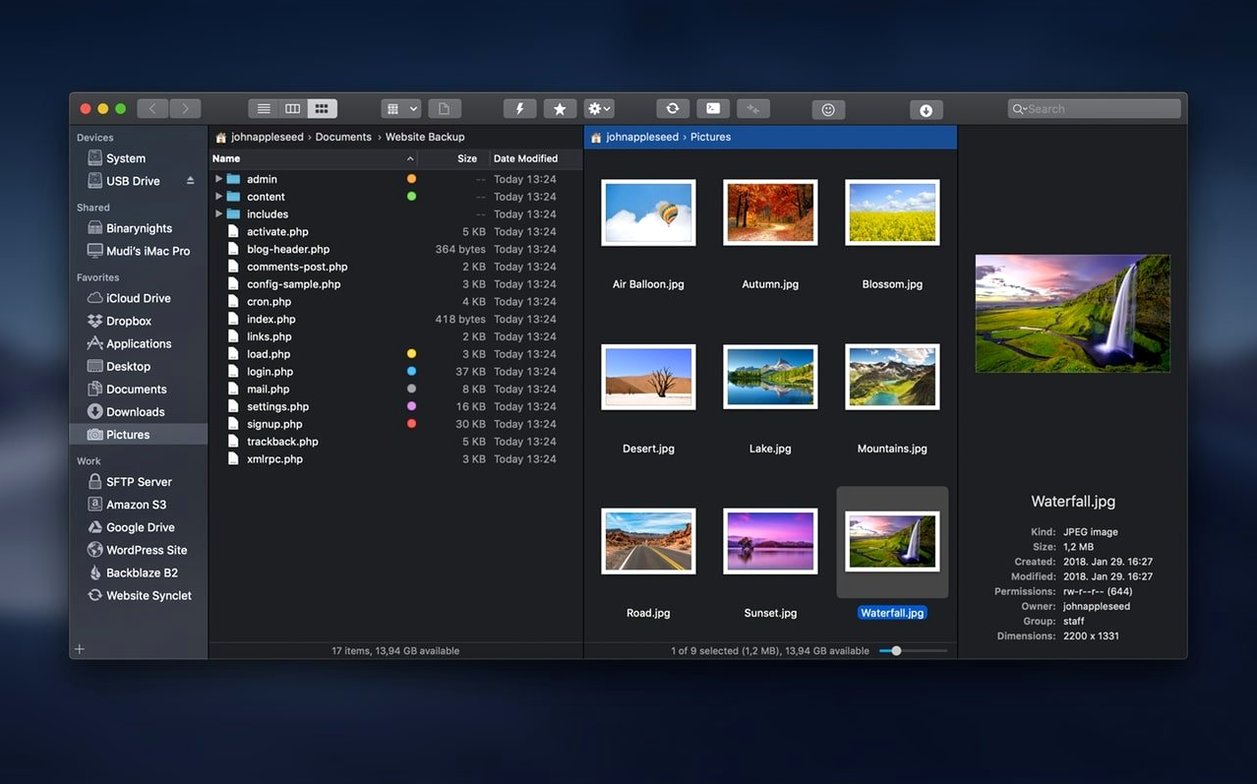
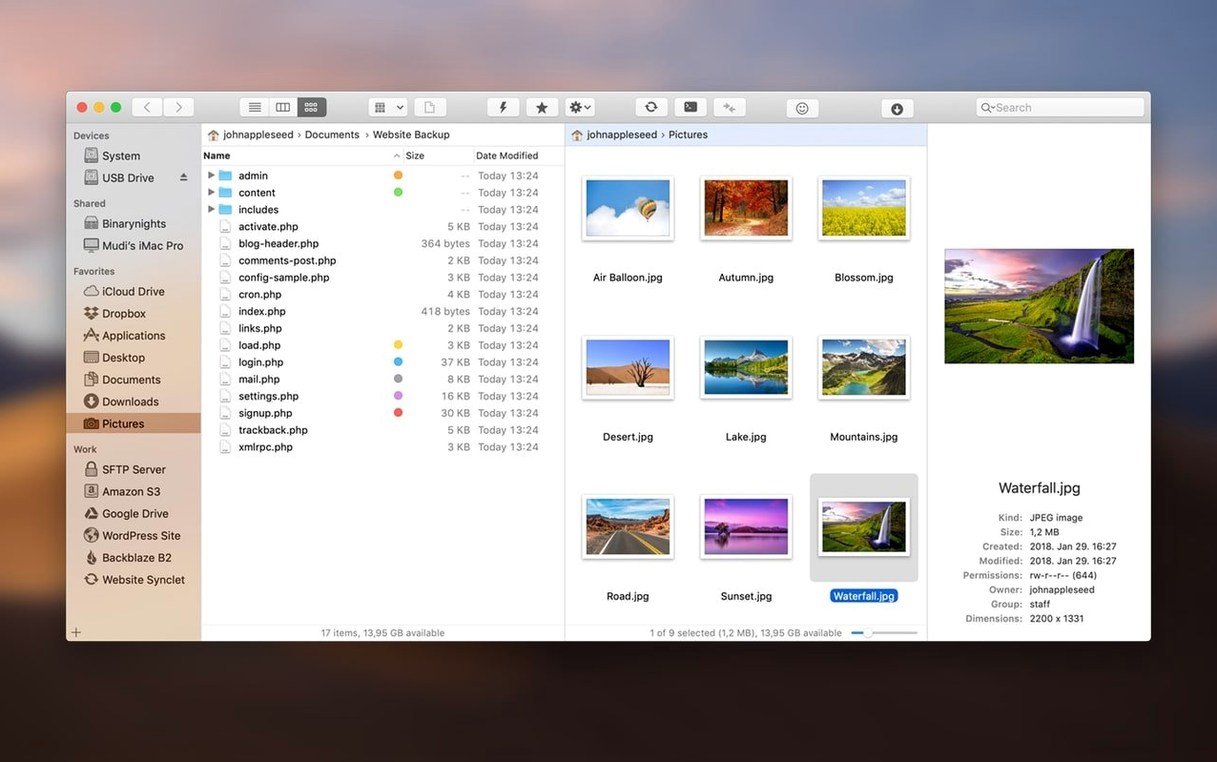
Finder on macOS is fine until you need to do two things at once. You want to compare folder contents side by side, or drag a file from a remote server straight into a local project, and suddenly you’re stacking windows and losing your place. BinaryNights’ ForkLift has spent years solving exactly that, and version 4.7.6 is a maintenance release that tidies up a couple of loose ends without rethinking the formula.
Good for
- Managing local and remote volumes in a dual-pane layout that feels native to macOS.
- Connecting to a wide range of servers — it speaks FTP, SFTP, Amazon S3, WebDAV, AFP, SMB, and NFS.
- Quick file previews. The preview pane handles photos, PDFs, and other common types without launching a separate app.
- Treating archives (
.zip,.rar, and similar) as browsable folders, so you can pull out a single file without extracting the whole thing. - Searching across local and remote drives by name, extension, file contents, or Finder tags.
Keep in mind
- This update is strictly a bug-fix release. The two patches target issues that appeared on macOS 27 Golden Gate; no new features were added.
- The app is Intel-native. It runs on Apple Silicon machines through Rosetta 2, but there is no universal binary yet.
- Interface language support is limited to English, German, and Hungarian.
Mistakes beginners make with it
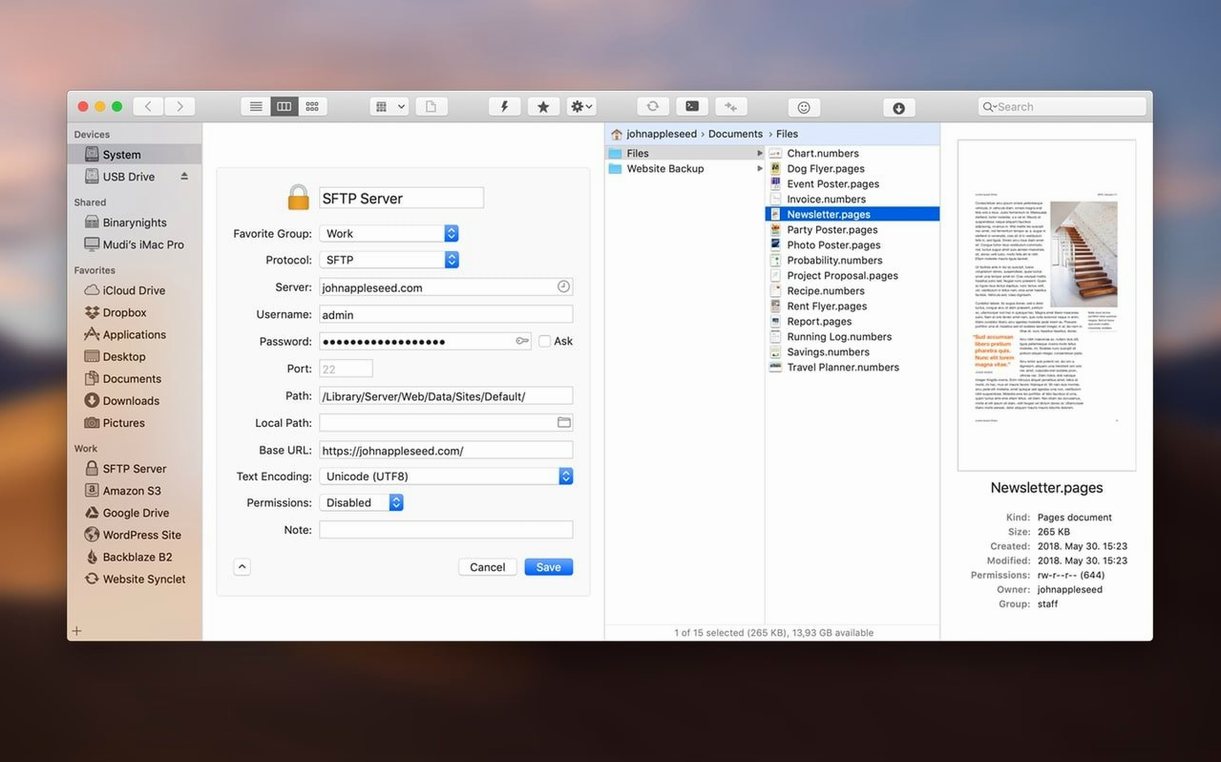
Most of the missteps I see come from people who treat ForkLift as a Finder clone with an extra pane. They never open the Favorites manager, so they type server addresses by hand every session instead of saving them once and connecting with a double-click. A saved favorite stores not just the address but the protocol, port, remote path, and even an optional local mirror folder for quick syncs later. If you skip that step, you are adding friction every single day.
Another common one: ignoring the archive browser. Someone downloads a .tar.gz from a server via ForkLift, then switches to another utility to peek inside because it never occurred to them that they can just press Space or Enter on the file right in the remote pane. ForkLift reads the contents in-place — no temp extraction folder, no cleanup afterwards. The same habit trips people up during 4k forklift video projects where media folders arrive as multi-part RAR sets and they think they need to decompress the whole bundle before checking a single clip.
A subtler beginner mistake is dragging files between panes without noticing which connection has focus. Both panes can point to different SFTP servers, or one can be an S3 bucket while the other is your local ~/Downloads. If you initiate a transfer in the wrong direction, ForkLift will dutifully push a few gigabytes to the wrong host. The toolbar shows the full path for the active pane — glance at it before you let go of the drag.
Speed, stability, and resource use in daily work
On an Intel machine running macOS 12 or later, ForkLift 4.7.6 feels compact. It launches in under two seconds cold on a 2019 MacBook Pro, and reconnects to saved servers faster than I can reposition a window. Memory use while idling with two local panes open sits around 140 MB. Add an active SFTP transfer and it climbs to roughly 180 MB, which is modest for a file manager that also caches remote directory listings.
Transfer speeds depend on the protocol, not the app. With SFTP it will max out what the remote host and your network give it, and the progress bar is honest — no sudden jumps from 30 % to done. I have left it running overnight on a forklift mac setup syncing a media library to an S3 bucket and woke up to a clean log, no stalled threads. Stability in this build feels settled; the two macOS 27 Golden Gate fixes that headline the release notes are edge-case crashes I have not reproduced, and the rest of the experience is uneventful in a good way.
Rosetta 2 translation on Apple Silicon does add a small CPU overhead, visible only when you scroll through thousand-file directories quickly. The UI remains fluid, but Activity Monitor shows the process drawing a few extra percent of CPU compared to a native ARM binary. It is not enough to matter unless you are pushing the battery on an M1 MacBook Air to its absolute limit.
A short real-world scenario
A photographer is on set, pulling RAW files from a camera card into a local folder while simultaneously uploading selects to a client’s SFTP drop. They open ForkLift in horizontal dual-pane mode: the left pane is the card reader at /Volumes/CAM1 sorted by modification date, the right pane is a saved SFTP favorite pointing to /incoming/todays-shoot. The preview pane shows a large thumbnail of the highlighted .CR3 file without opening Lightroom, so they can confirm it is the right frame before queueing the transfer. While the upload runs in the background, they rename a batch of local files using ForkLift’s multi-rename tool — appending the client code and date — and drag the renamed batch straight into a local archive for backup. No Finder windows, no separate FTP client, no context switching.
How it fits with other apps and macOS features
ForkLift does not try to wall off macOS; it leans into the system where it helps. The Open in Terminal command hands the current directory path to Terminal, iTerm, or Hyper with a single keystroke, so a workflow that needs rsync flags or ffmpeg batch processing can start in the GUI and hop to the command line without retyping paths. Drag and drop works into and out of the panes — pull a file from ForkLift into a Photoshop document or drop an attachment from Mail directly onto a remote server pane and it uploads.
Finder tags are first-class citizens. You can assign them in ForkLift and they appear in Finder instantly, or filter a local search by tag color. Spotlight metadata and Quick Look integration mean that selecting a file and pressing Space triggers the same preview engine used by Finder, complete with Markup tools for images and text selection for PDFs. The sync feature slots into backup workflows with tools like Carbon Copy Cloner or ChronoSync as a lighter, on-demand alternative: you can run a one-way mirror of a project folder to an SMB share before firing off a heavier cloning job, or use the two-way sync to resolve version conflicts between a USB drive and a network volume before the drive leaves the office.
For developers, the remote editing workflow bridges ForkLift and their preferred text editor. You can open a file directly from an SFTP pane in BBEdit, Sublime Text, or VS Code, edit it, save, and the changes are pushed back to the server silently. The app maps the remote file to a temporary local path, watches for saves, and uploads the delta. It is one of those integrations that fades into the background until you realize you have not launched a standalone SFTP client in weeks.
Version 4.7.7 ships with the latest fixes and improvements from BinaryNights. The full release notes are available on their development blog.
- macOS 12 (Monterey) or later
- Intel 64-bit
$ man forklift | grep -A2 "?"
What remote connection types does ForkLift support?
It handles FTP, SFTP, Amazon S3, AFP, WebDAV, SMB, and NFS, covering most server and NAS setups you’re likely to encounter.
Can I browse inside archives without extracting them?
Yes, ForkLift lets you open archives like.zip or .rar files and browse their contents as if they were regular folders.
What changed in version 4.7.6?
The release focuses on two fixes for issues that appeared specifically on macOS 27 Golden Gate, along with minor user-experience improvements when interacting with files.
Comments 0
Sign in or create an account to leave a comment.
No comments yet. A codec, a slice, a machine — they appear after moderation.