
FSNotes for macOS
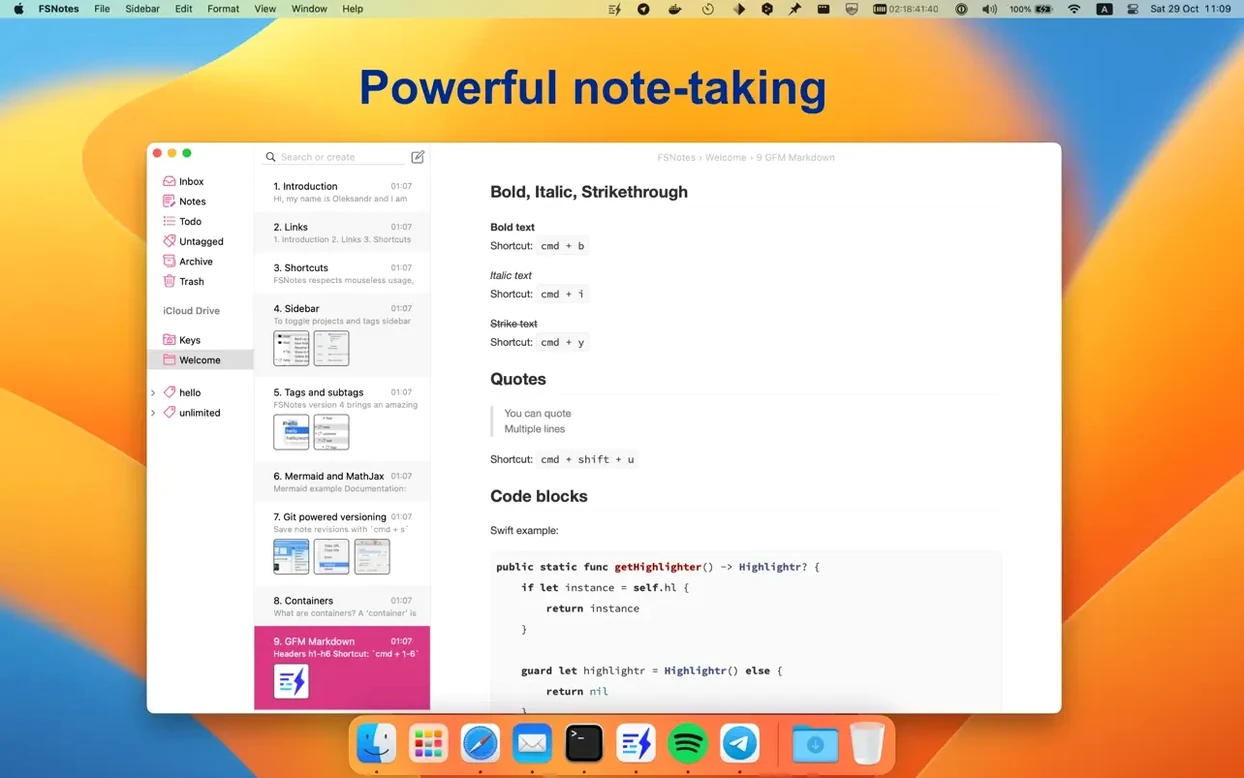
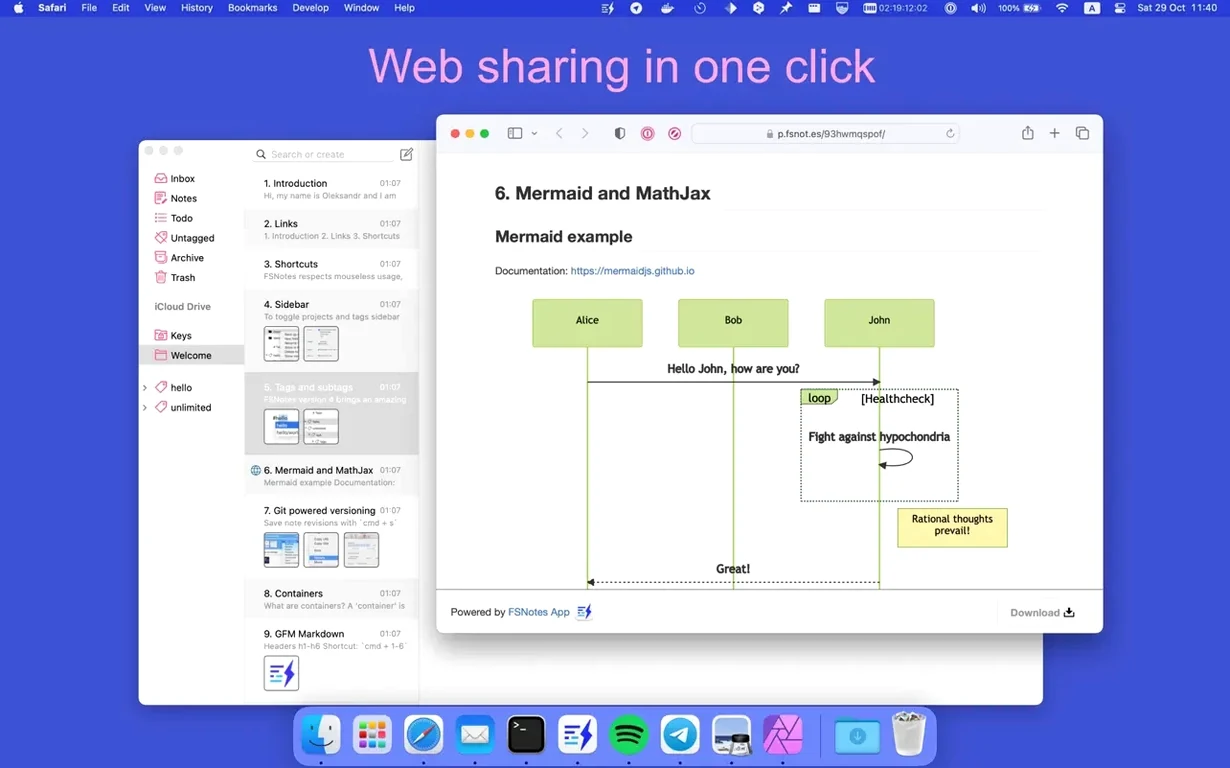
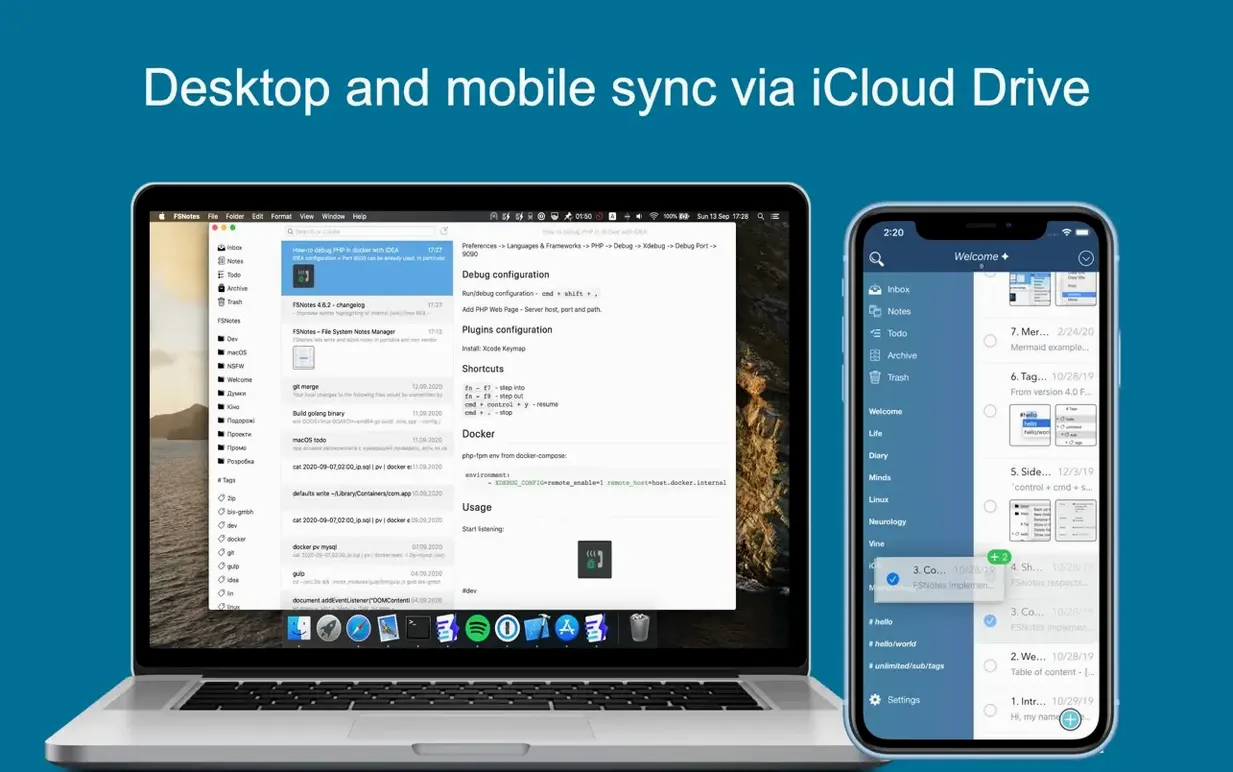
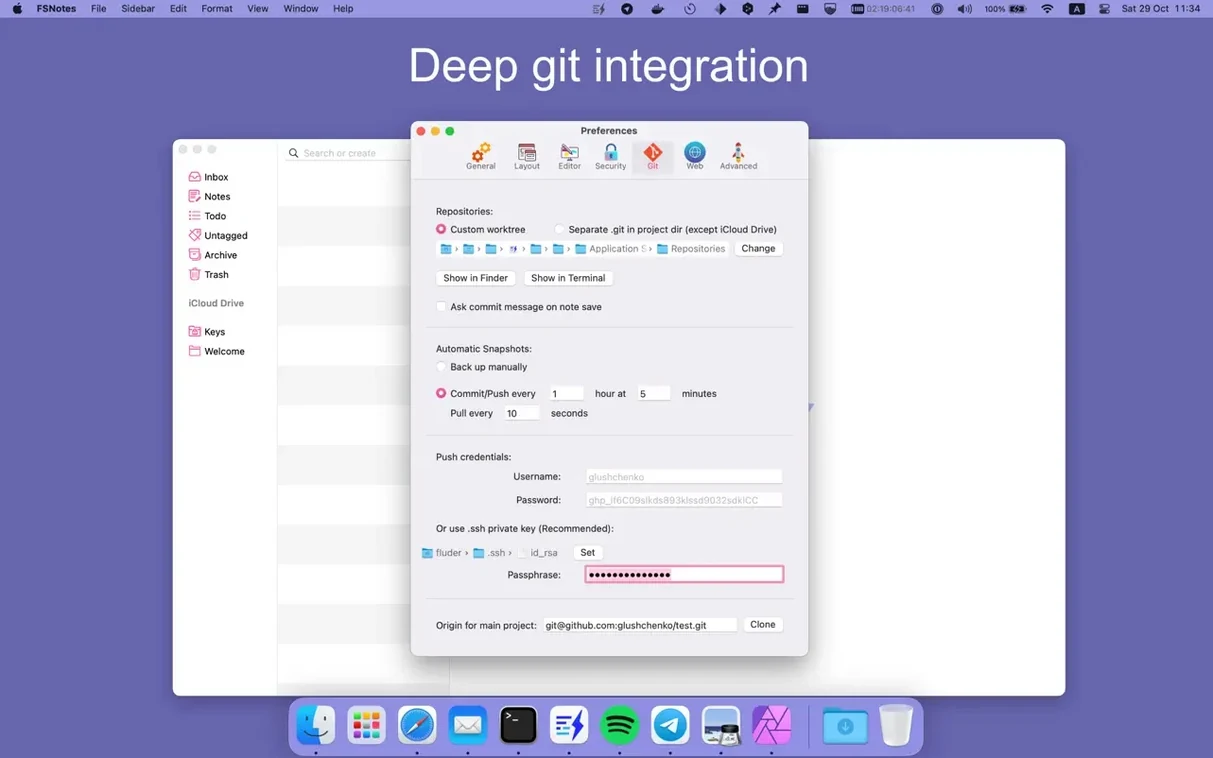
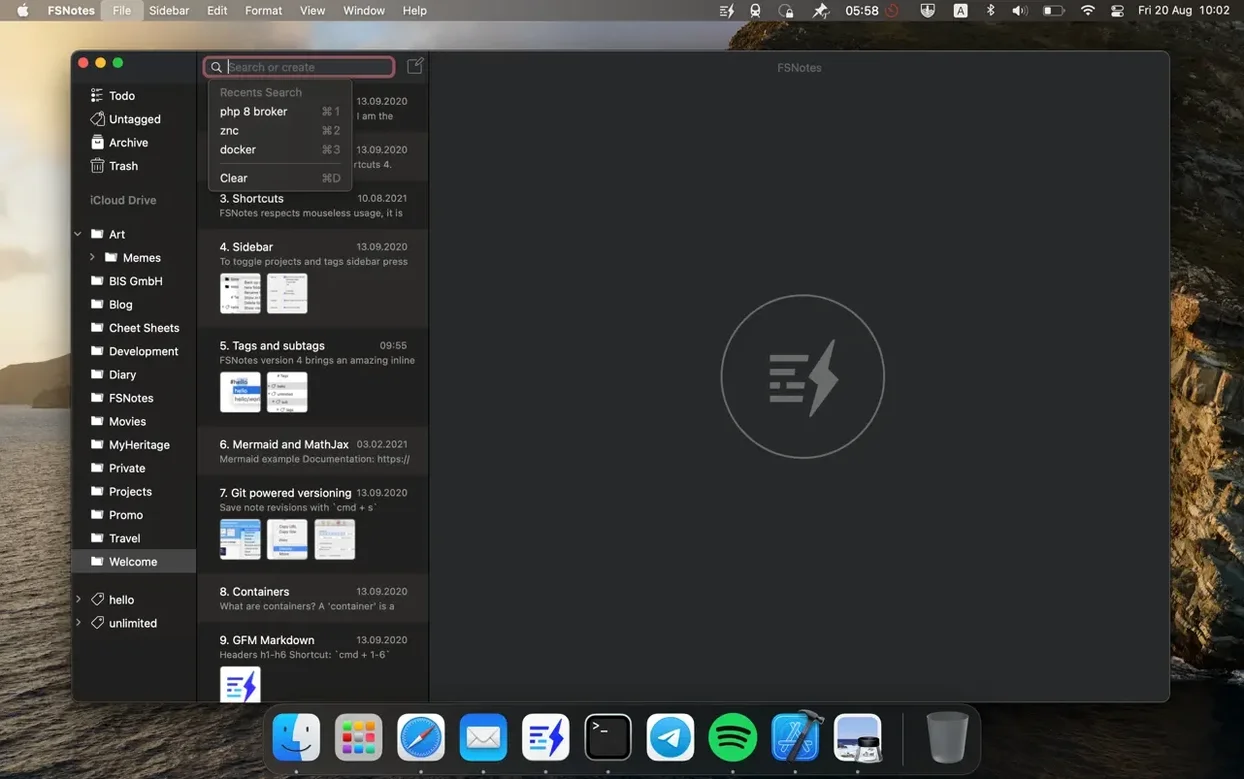
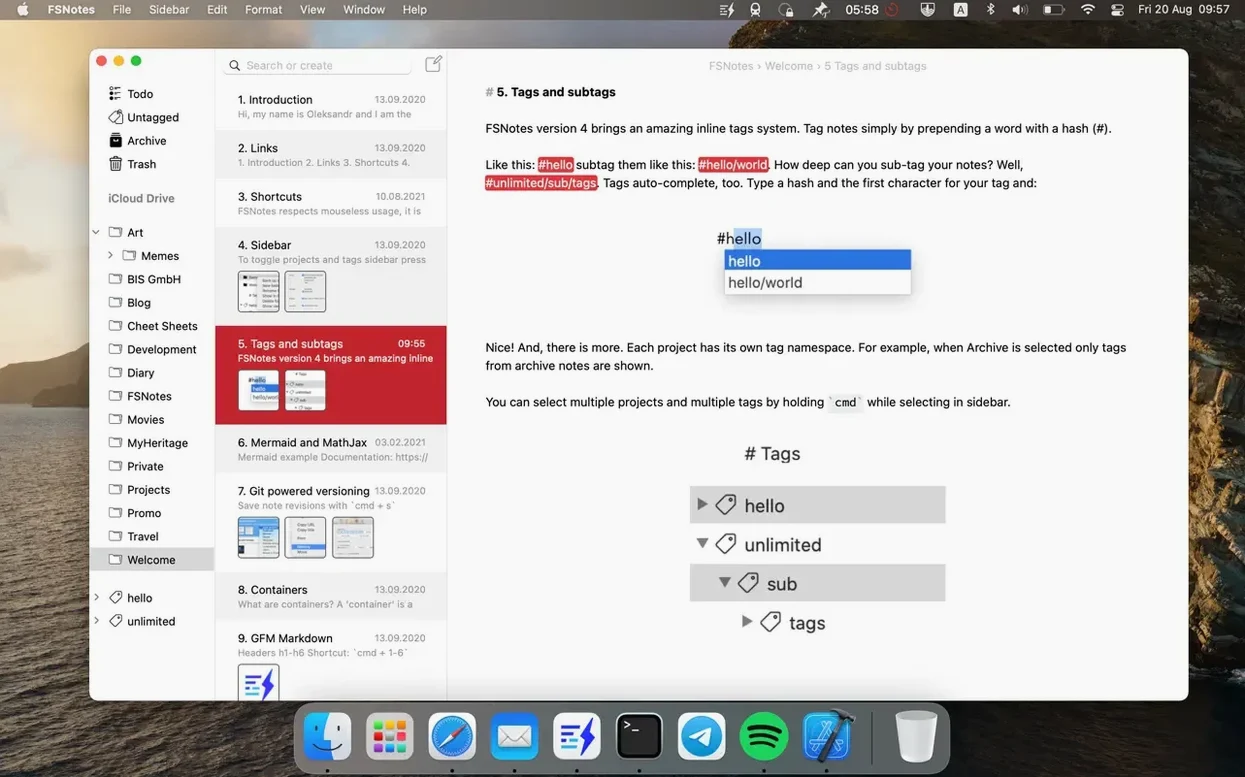
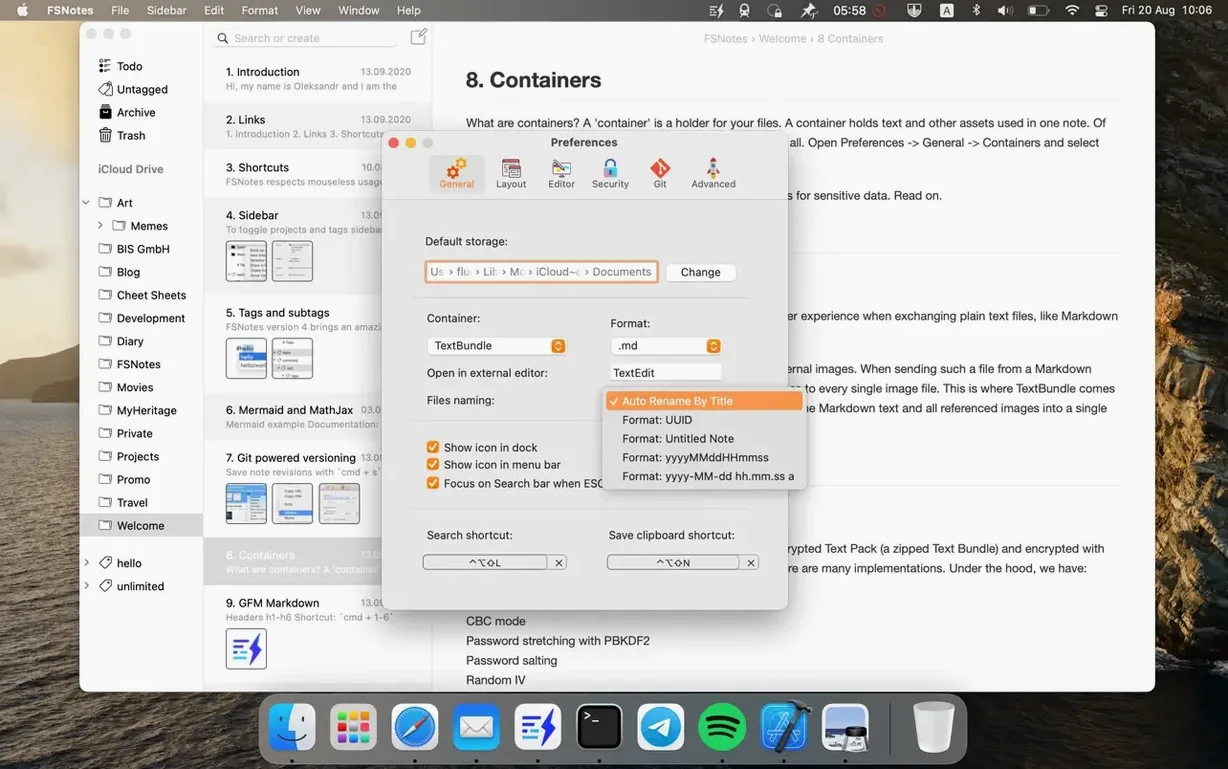
FSNotes attracts the kind of person who thinks in folders, formats, and keyboard shortcuts — developers, researchers, and writers who want their notes stored as real files, not locked inside a database. It is a plain-text notes manager for macOS that treats the file system as the source of truth.
- Capture. Hit a global shortcut and a new note opens. No database import, no proprietary format — just a
.mdor.txtfile saved to the folder you chose. - Write. The editor gives you live Markdown highlighting with syntax coloring for over 170 languages inside fenced code blocks. GitHub Flavored Markdown is supported, so tables and task lists render as you expect.
- Organize. Store notes across multiple folders — one for a project wiki, another for daily logs. No lock-in. Every file sits in the file system where other tools like
greporgitcan reach it. - Sync. iCloud synchronization keeps notes current across macOS and iOS. The app also works fully offline; your files stay on your drive.
- Find. Type into the search bar and results appear in real time inside the app, narrowing as you type. No background indexing lag.
Underneath, FSNotes is a modern reworking of speed-oriented note capture. It is open source, runs native on both Intel and Apple Silicon, and stores data as RTF, plain text, or Markdown files — no proprietary container format. That design choice means you can read and edit your notes with any text editor, even if you walk away from the app entirely.
Let’s walk through a morning with FSNotes. I keep a folder called ~/Notes/Inbox set as the default storage. A thought about a bug in a parser hits while I’m reading logs. I press ⌃⌥⌘N — the global hotkey for a new note — and a blank window appears with the cursor blinking in a fresh .md file. I type a title, a quick description, and paste the relevant error output into a fenced code block. Live highlighting kicks in immediately, so the JSON snippet inside those backticks is readable before I even save. I close the window and the note is already sitting in the folder, timestamped by the file system.
Later, I switch to the main window and hit ⌘⇧F to jump into the search field. Typing “parser” narrows the note list in real time — no waiting. I open the note in the built-in split view: Markdown preview on the right, raw source on the left. A coworker needs the stack trace, so I select the plain text, press ⌘C, and it’s on the clipboard. The whole flow — capture, search, preview, copy — happens without touching a mouse.
Where your quick-capture notes actually land
- Choose your storage folder carefully. Point FSNotes at a directory that is already inside an iCloud Drive or version-controlled path if you want redundancy. You can add multiple folders later, but the default one determines where quick-capture notes land.
- Learn two shortcuts first. The global new-note hotkey and ⌘⇧F for search cover roughly 80% of daily navigation. Assign something comfortable — the defaults are configurable in Preferences.
- Decide on a dominant format. Stick with Markdown unless you need rich text for a specific recipient.
.mdfiles are portable, and the live preview means you never have to guess what the rendered output looks like. - Test the external editor bridge early. Right-click any note and open it in your preferred editor. FSNotes watches the file and updates its internal view automatically — useful if you like writing in something like Nova or VS Code but want FSNotes for search and organization.
- Pin ruthlessly. Notes you return to every day — a running task list, a project dashboard — belong at the top. Pinned notes survive folder switching and keep the most important content one click away.
Version 7.3.6 [MAS] lands with a round of fixes and under-the-hood improvements. No new features this time — just a tighter, more stable build.
- macOS 12.4 or later
- Apple Silicon or Intel 64-bit
$ man fsnotes | grep -A2 "?"
Where does FSNotes store my notes?
FSNotes stores notes as regular files in folders you specify on your file system — no locked database. You can work with them offline and open them in any text editor.
Comments 0
Sign in or create an account to leave a comment.
No comments yet. A codec, a slice, a machine — they appear after moderation.