Gifox for macOS
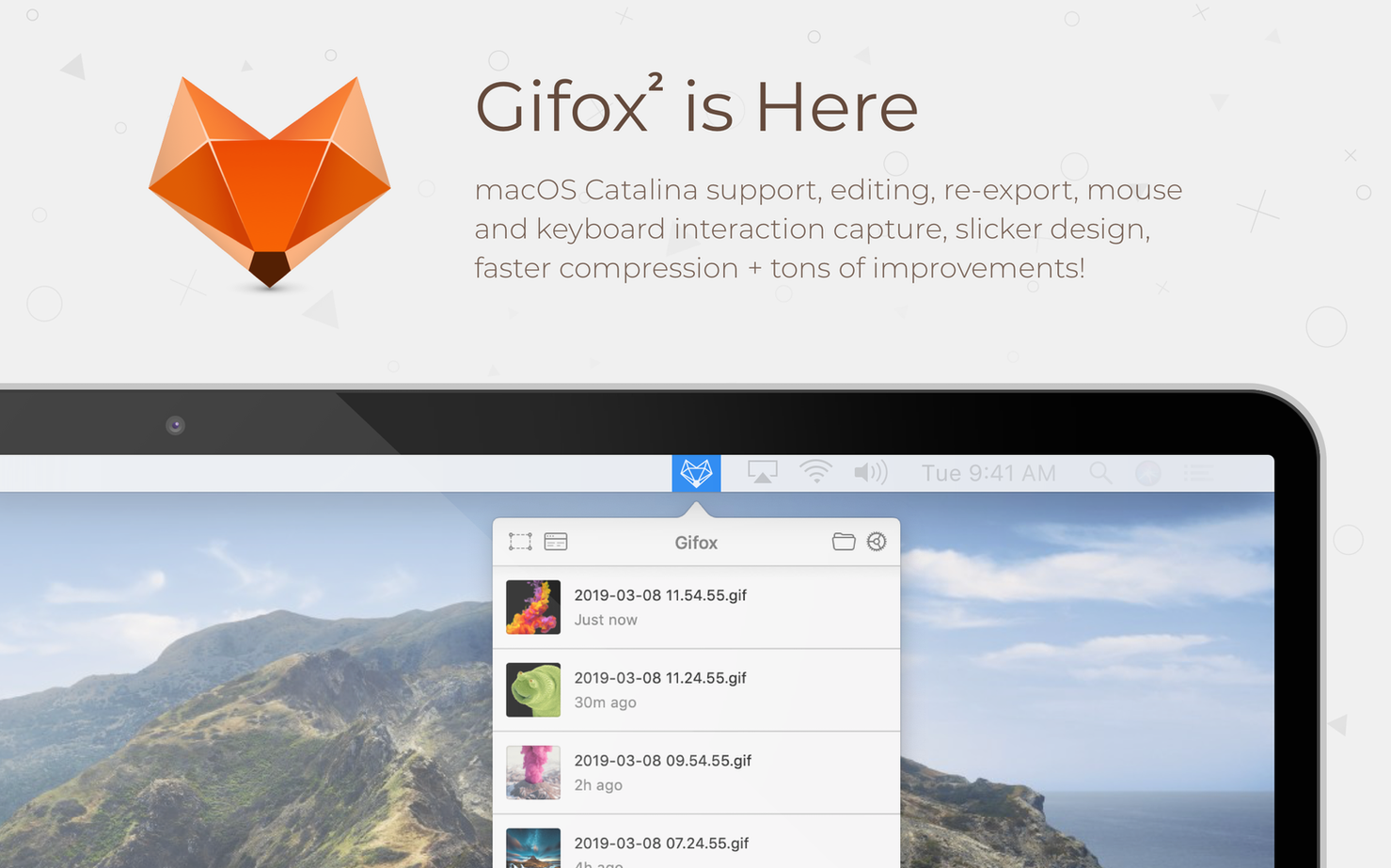
A screenshot loses the motion. A full screen recording feels heavy for a three-second demo. Gifox closes that gap—it turns what's happening on your Mac screen into a lightweight, instantly-shareable animated GIF without ever opening a timeline editor.
How does window recording work?
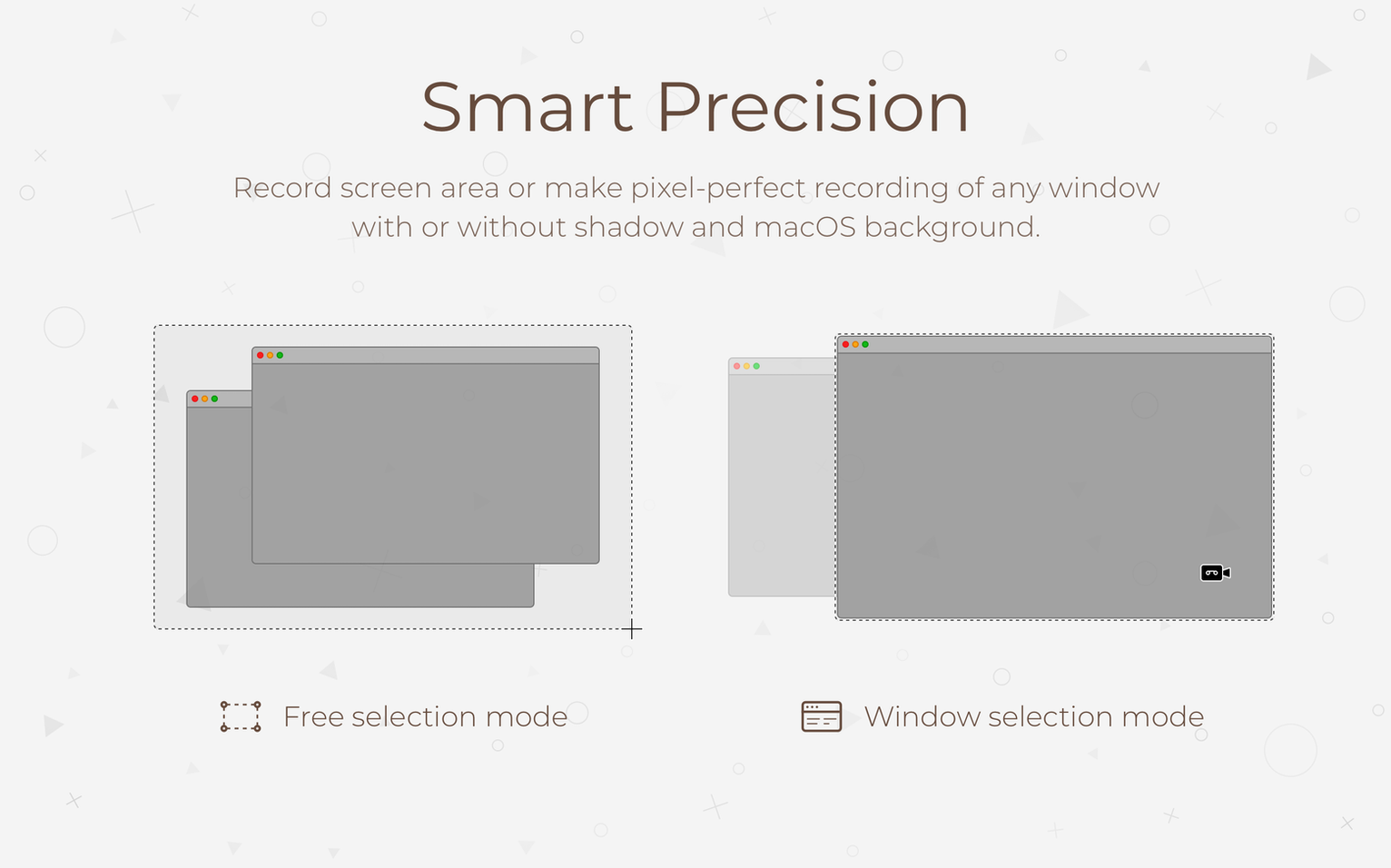
Instead of cropping a fullscreen capture afterward, you tell Gifox to record a single application window. It isolates that window from the start, so the final GIF contains exactly what you need and nothing more.
What happens after I stop recording?
The GIF lands in a recent-recordings list inside the app and appears in the menu bar for quick access. From either spot you can copy it, save it, or upload it straight to Dropbox, Google Drive, or Imgur. The app can also generate a direct link for the file.
Can I control the file size?
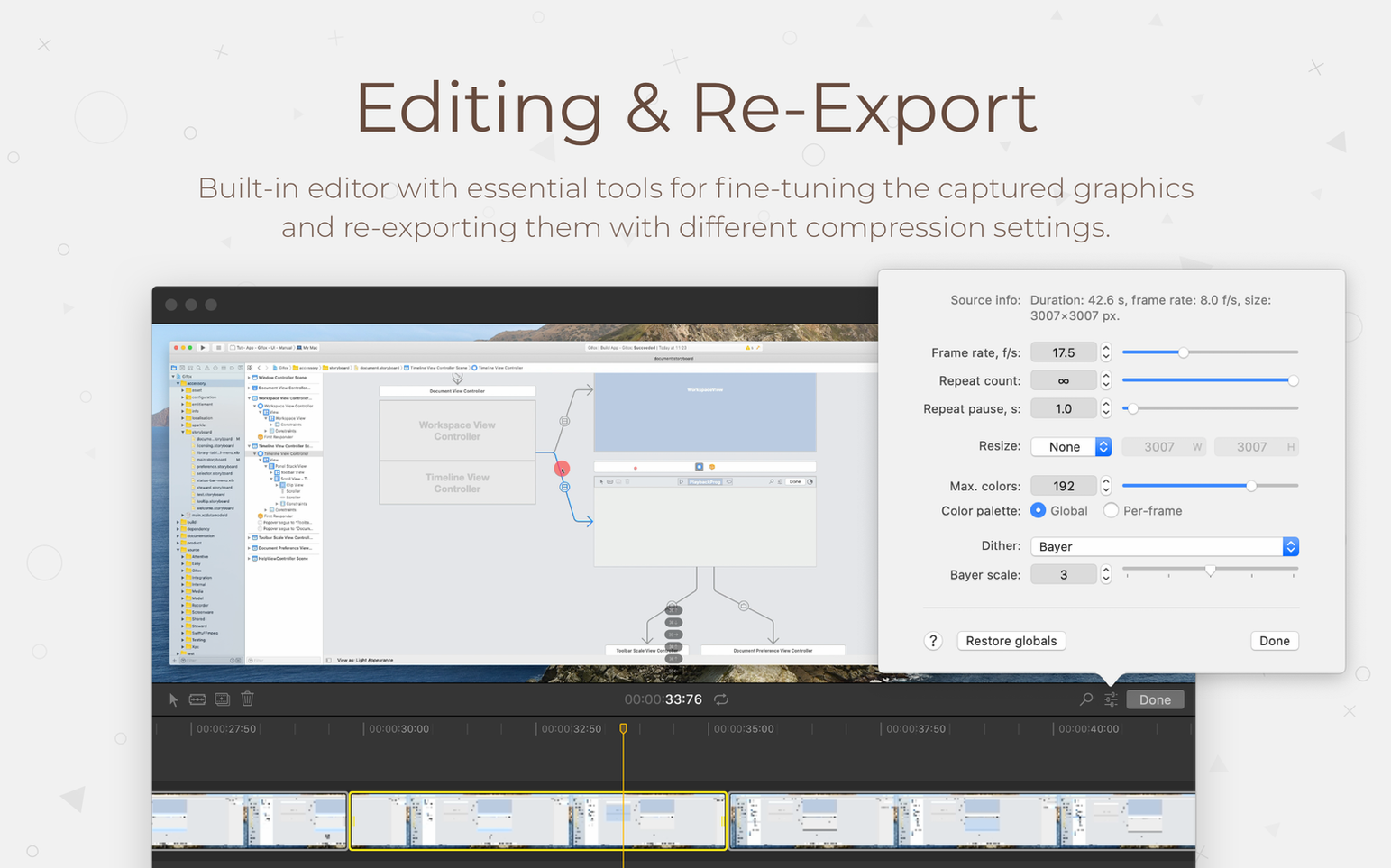
Yes. Compression settings let you trade between visual fidelity and file size. Drop the color count or frame rate, and a recording that started at several megabytes can shrink to a fraction of that—useful when you're pasting into a chat or an issue tracker.
Forgetting the window toggle records a full screen instead
Recording a window but forgetting the window capture toggle is probably the most common one. People select an app window, start recording, and then wonder why they got a full-screen rectangle instead. The screen selection menu has a dedicated window capture button—it needs to be on before you start, not during.
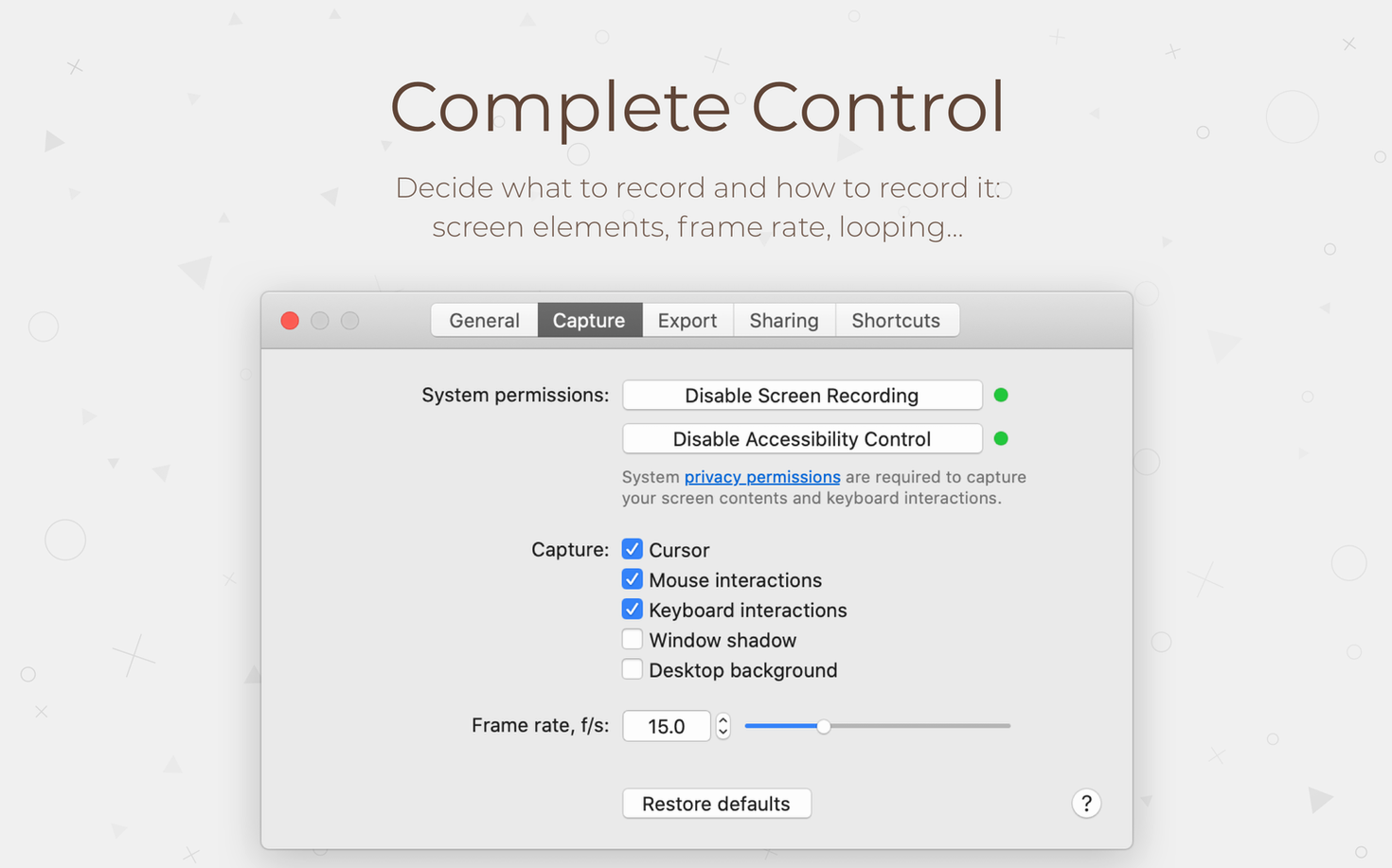
Another one: ignoring the frame rate setting altogether. A full 30 fps GIF of a code editor or a settings dialog is almost never what you want. The file balloons, and nothing in the recording moves fast enough to justify it. For bug reports and documentation, 8–10 fps is plenty and keeps the GIF small enough to drop into Slack or a ticket without hitting size limits.
Some people also assume the menu bar icon means the app is permanently eating resources. It's not. When Gifox isn't actively recording, it sits idle with a tiny memory footprint. You can toggle its Dock visibility from preferences if you prefer launching it that way—version 2.10.0 added an explicit option for that.
Nothing on screen? Check Screen Recording permission first
If you launch Gifox and nothing appears on screen, check Screen Recording permission in System Settings > Privacy & Security. The app needs it explicitly, and macOS won't always prompt on first launch. A force-quit after the initial launch—before opening it a second time—can sometimes shake the permission dialog loose. It's a quirk, not a bug in Gifox itself.
Upload quotas can trip you up if you share primarily through Imgur. The integration works smoothly, but Imgur's anonymous upload limits apply. If a Gifox for Mac cracked search brought you here, you'll find the quota belongs to the service, not the app—so you can simply switch targets to Dropbox or Google Drive, which don't have the same restrictions, when you hit the wall.
A QA engineer's morning with Gifox
A QA tester on a distributed team gets a Slack ping about a visual glitch in a login form—the error message slides in, then jumps three pixels left before settling. Words won't capture it. She opens Gifox, checks window capture in the selection menu, clicks the browser window, and records five seconds of her reproducing the bug at 10 fps. She stops, the GIF appears in the menu bar, and she drags it straight into the Jira ticket. The whole thing, from ping to filed bug, takes under a minute. No .mov file sitting in her Downloads folder, no trimming in QuickTime, no uploading through a browser. The developer on the other end opens the ticket, watches the three-pixel jump in a loop, and fixes it the same afternoon.
- Smoother animations throughout the screen selection menu.
- New quick controls for cursor visibility, interaction highlights, and window capture right in the selection overlay.
- Fresh tooltips across the interface.
- Added an option to keep the app visible in the Dock.
- Reliability improvements, performance optimizations, and bug fixes.
- macOS 10.15 Catalina or later
- Apple Silicon and Intel native
$ man gifox | grep -A2 "?"
Does Gifox record selected areas of the screen?
Yes. You can drag to select any rectangular region before recording, so the GIF captures only that portion of the display.
Where do I find my previous recordings?
Recent recordings are accessible from the Mac menu bar and from inside the app’s main window, where you can reopen them without hunting through Finder.
Comments 0
Sign in or create an account to leave a comment.
No comments yet. A codec, a slice, a machine — they appear after moderation.