Glyphs for macOS
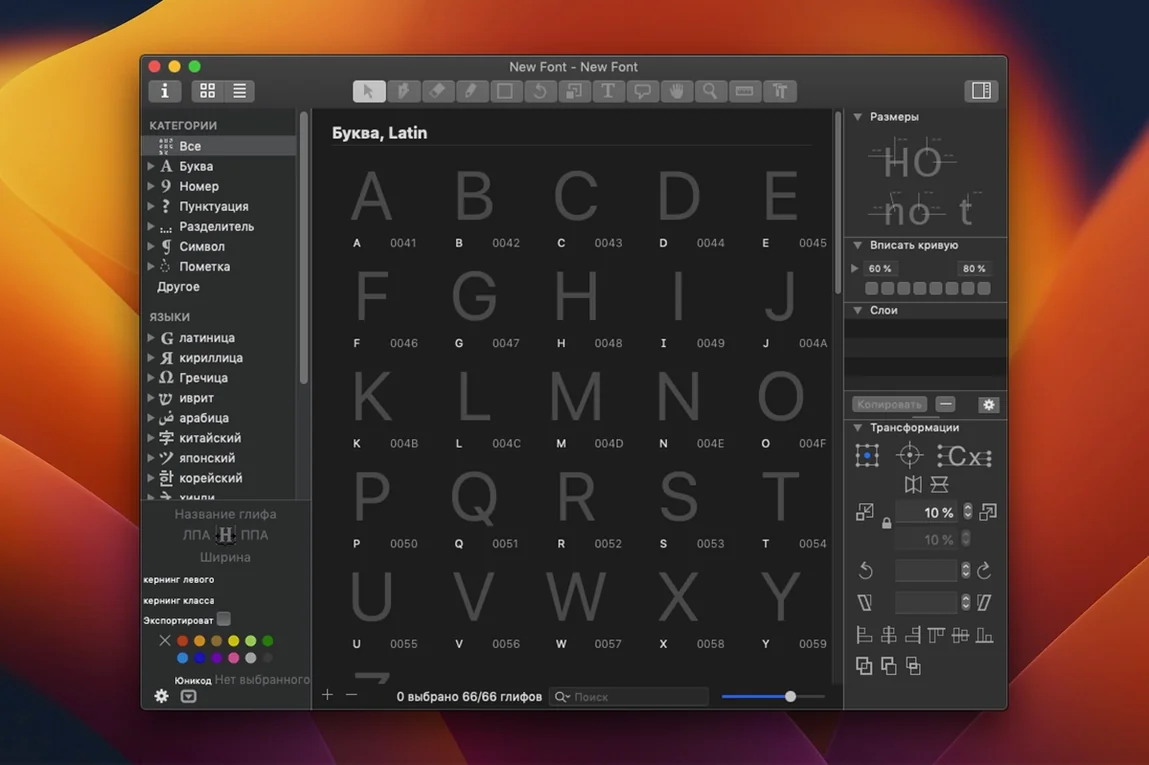
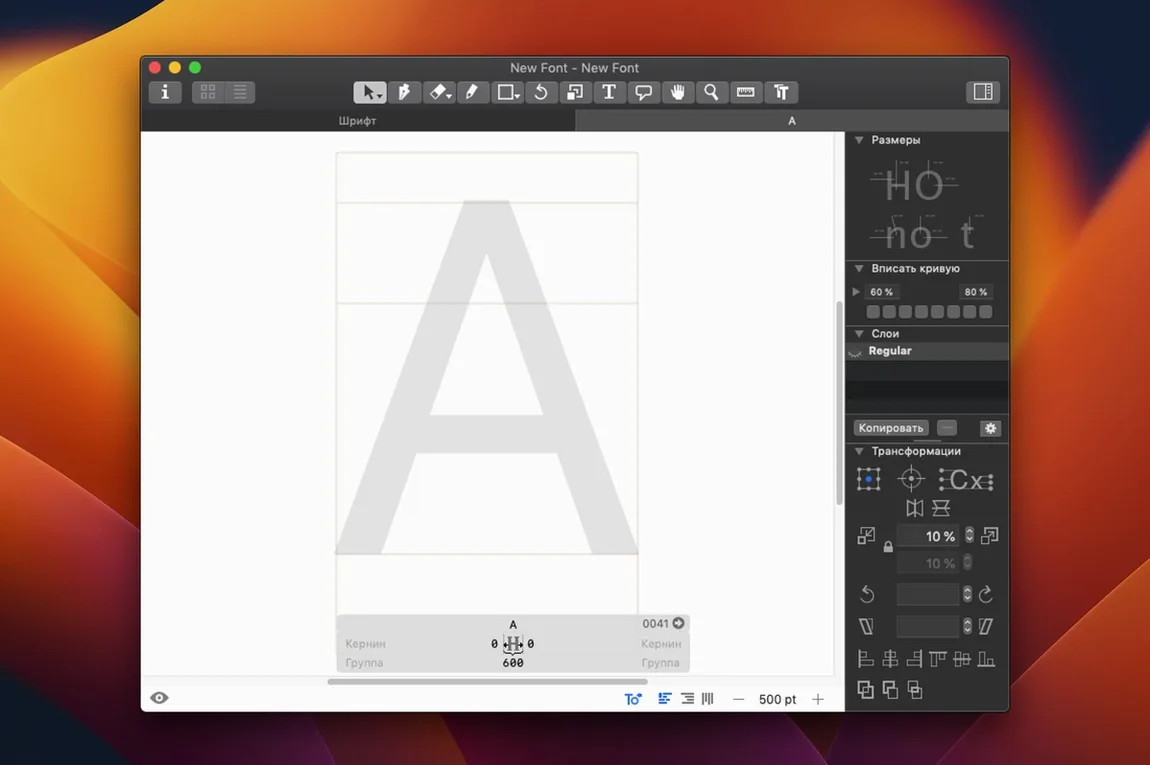
Runs on Monterey or newer, Intel and Apple Silicon
Glyphs 4.1.1 runs on any Mac with macOS 12 (Monterey) or newer. It is a universal binary with native slices for both Apple Silicon and Intel processors, so you get full performance regardless of which architecture you are on.
Edit and create fonts
Glyphs lets you draw new letterforms from scratch or open existing fonts for refinement. The workspace keeps only the interface elements relevant to the current drawing or spacing task, and it supports contextual menu text editing so you can adjust glyph names and metadata directly.
Export and extend
The app exports finished work as OpenType fonts plus PNG, SVG, PDF, and SFSymbols for icons. A built-in module interface lets you extend functionality with scripts, and the companion Glyphs Viewer streams real-time previews while you work on the source file.
Mistakes beginners make early on
One of the most frequent errors is treating the master layer as a scratchpad. New users draw their first n or o directly on the Regular master, then add a Bold master later and wonder why interpolation ripples tear the outlines apart. Start with a plan: set up masters for the extremes first, even if you only populate one weight to begin with. Another classic stumble is ignoring the vertical metrics table. You can draw the most beautiful glyphs ever seen, but if the ascender and descender values are inherited from a template you never checked, your font will sit crooked on the baseline in every browser. The third big one is skipping the .glyphs file’s custom parameter fields until export day. Hinting settings, stem widths and blue zones are all editable per-instance there, and leaving them at defaults gives you passable results that are not your results.
Scene from an icon designer’s desk
A designer building an SFSymbols companion set for a weather app already has forty outline drawings in Sketch. They drag the SVGs straight into the Font View and discover the paths import cleanly, but the default sidebearing is comically wide. By switching to the Text tool preview and typing a few sample strings, they see icons drifting apart like islands. The fix involves selecting all imported glyphs, opening the Transformations panel, and applying a batch sidebearing reduction tied to the cap height, then spending fifteen minutes adjusting a few wide symbols individually. By lunchtime the .ttf export sits in Xcode, and the preview in the SF Symbols app shows all four weights varying smoothly because the designer remembered to duplicate the Regular master as a Bold master and tweak stroke thickness before exporting.
Never overwrites system fonts
Does it overwrite system fonts? No. Glyphs works on its own project files and exports font binaries to a folder you choose. It never touches /System/Library/Fonts or /Library/Fonts unless you deliberately drag a file there yourself after export, which the app does not do automatically. The same applies to the companion Glyphs Viewer — it only previews what you currently have open.
Can I open .ufo or .ttf files directly? You can import .ufo folders and it will convert them into a .glyphs project. A compiled .ttf or .otf file opens in a limited reverse-engineering view that reconstructs outlines and metrics, but it will not give you back hinting instructions or OpenType feature code byte-for-byte. Think of it as a starting point for revision, not a round-trip format.
Is it heavier than a vector drawing app? It is more specialised but not necessarily heavier on resources. The universal binary runs natively on Apple Silicon and Intel, and the RAM footprint depends on how many masters and glyphs you have open. A modest project with three masters and six hundred glyphs uses less memory than a complex Illustrator document with the same number of artboards.
If you are searching for a glyphs 3 download to try an older release, the current version 4.1.1 is what you will find packaged now. There is no separate glyphs 3 free download channel; the latest build is what gets distributed.
First days with Glyphs: practical tips
On day one, resist the urge to draw a full alphabet. Build five glyphs — o, n, h, a and e — and test them together in the Preview area set to a paragraph of real text. This teaches you more about spacing and rhythm than a hundred isolated glyphs ever will. While you work, keep the Glyphs Viewer open on a second display or a corner of your screen; the live feedback when you nudge a node is addictive and exposes uneven curves immediately.
On day two, explore the Filter menu. The “Harmonise” filter smooths curve transitions between adjacent segments, and applying it early prevents wobbly outlines that become harder to fix once kerning is in place. Also, open the Font Info panel and verify the values under Masters: the ascender, descender, cap height and x-height numbers drive every vertical metric decision downstream. Setting them right now saves you from puzzling over clipped accents later.
By day three, try writing a tiny Python script from the Scripts menu. The bundled examples include a “Fill up with composites” routine that builds accented characters by referencing your base glyphs and combining diacritics automatically. It turns forty minutes of manual copy-paste into a single click, and it is the moment where Glyphs stops feeling like a drawing tool and starts feeling like a type factory.
The 4.2 (4202) update is available now. The release notes are up at the developer's site — head over there for the full rundown on what changed in this build.
- macOS 12 (Monterey) or later
- Apple Silicon or Intel 64-bit Mac
$ man glyphs | grep -A2 "?"
Can Glyphs export font icons for Xcode?
Yes, Glyphs can export SFSymbols, the SVG-based icon format used in Apple development alongside standard font formats and graphic files.
Comments 0
Sign in or create an account to leave a comment.
No comments yet. A codec, a slice, a machine — they appear after moderation.