GoodNotes for macOS
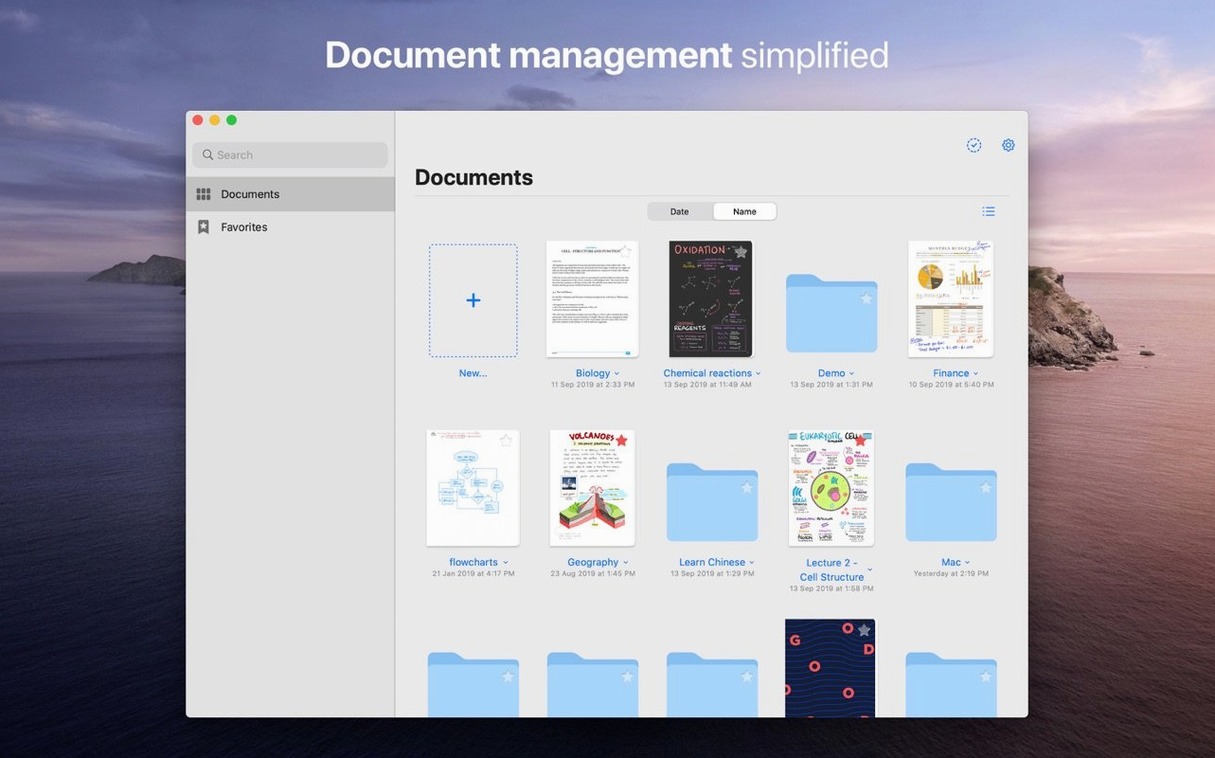
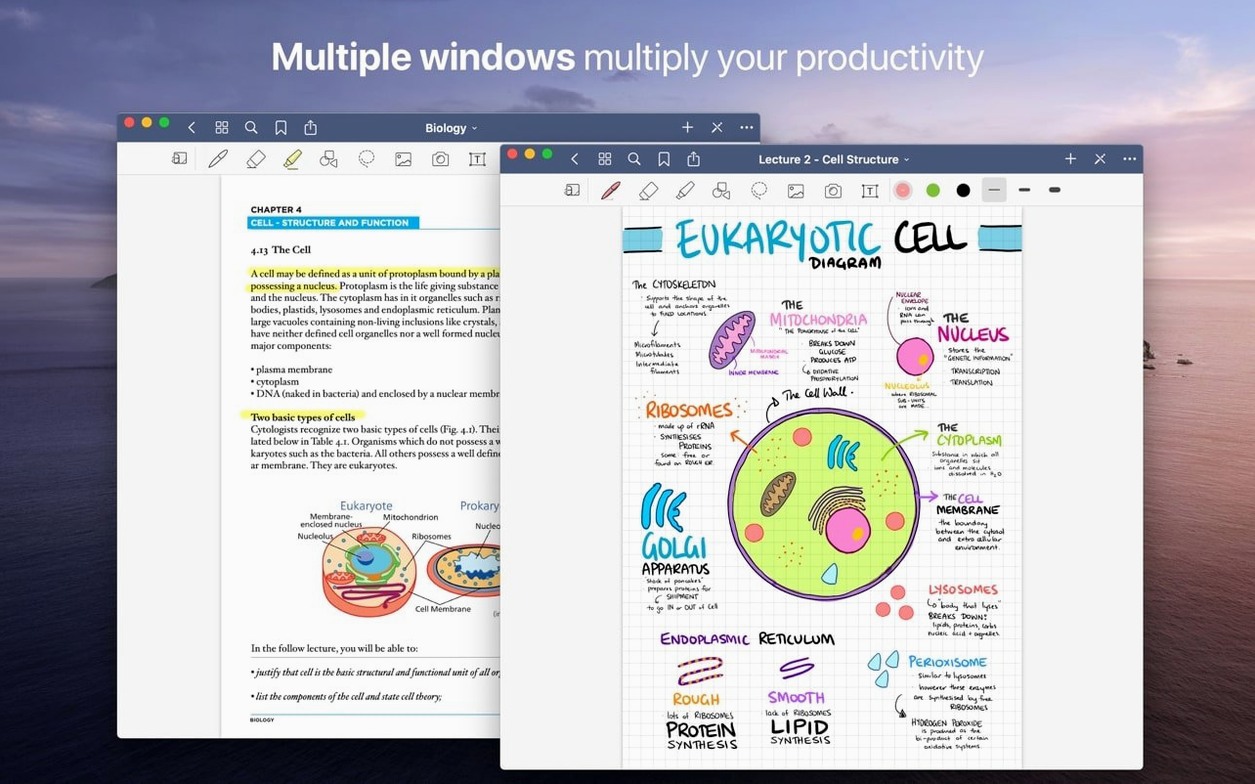
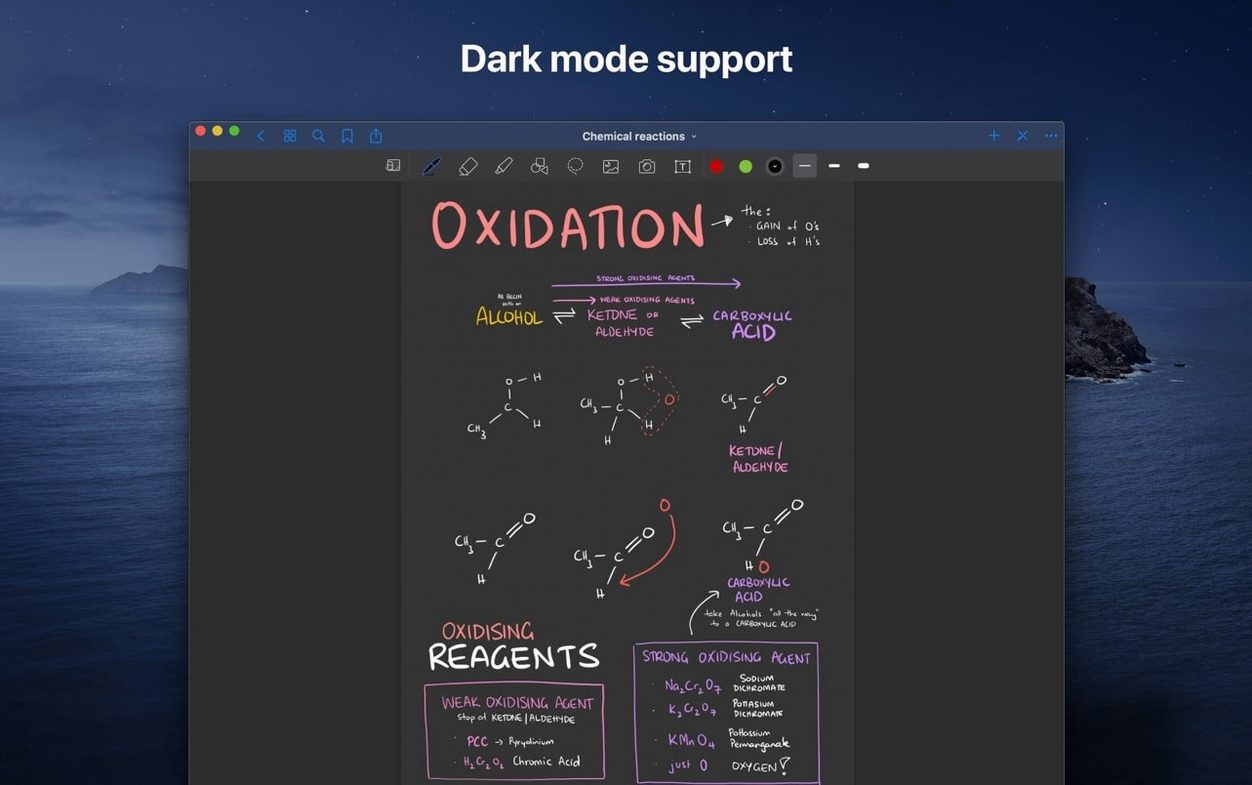
Tap the lasso tool in GoodNotes and drag around a scribbled diagram — the app lets you resize, recolor, or move just that ink, without disturbing the typed meeting notes underneath. That mix of handwriting freedom and object-level control is what makes its macOS version feel like a proper desk extension, not a port. Documents arrive by dragging a PDF or image straight from your Mac's hard drive onto a notebook, where they sit alongside text boxes and freeform drawings. A custom table of contents you build yourself clicks straight to any section inside a document, which pairs well with the folder-and-subfolder structure for organizing semesters, projects, or case files.
| Detail | Info |
|---|---|
| Current version | 5.9.8 |
| macOS requirement | 10.15 or later |
| Architecture | Intel + Apple Silicon native |
| Sync | iCloud across iPhone, iPad, Mac |
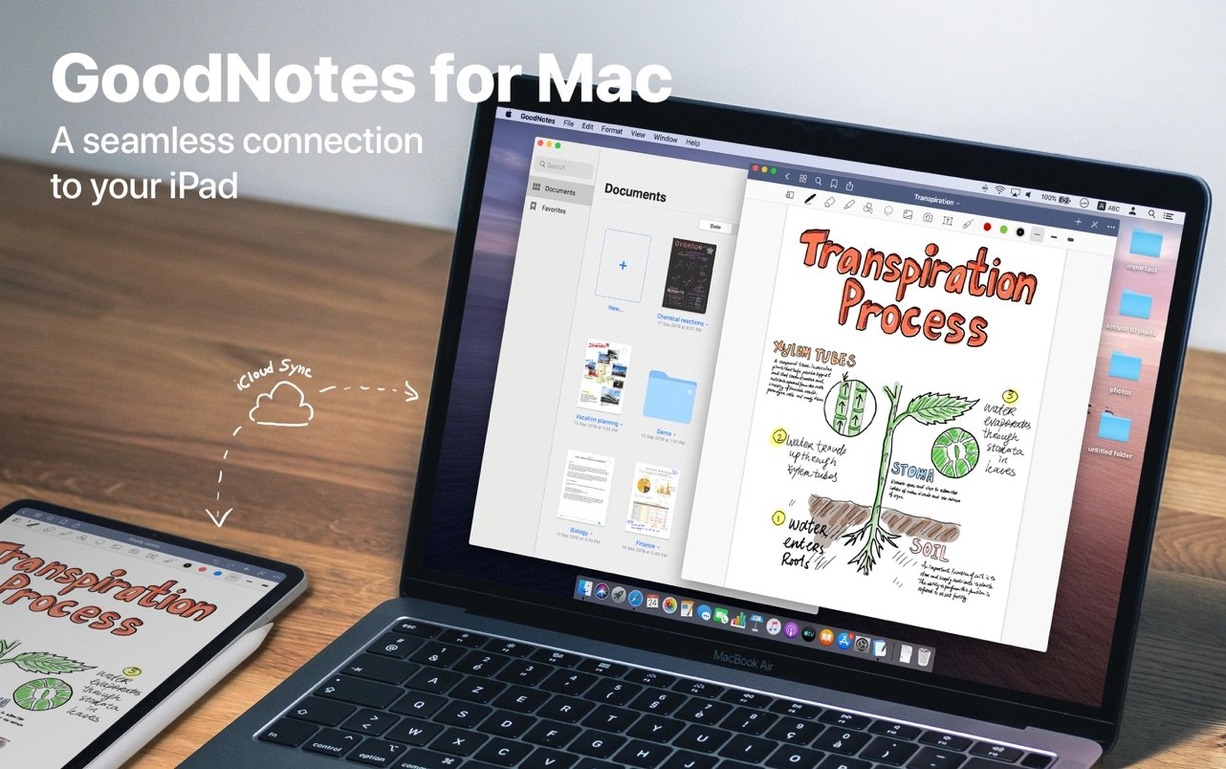
Annotation workflows slot in cleanly: import a PDF, write on it with the marker, then tell the eraser to target only marker ink so the underlying text stays untouched. When you are done, drag a page or the whole document out as a PDF. If your other tools already live in iCloud, GoodNotes syncs its notebooks silently — you close the Mac lid, pick up the iPad, and the ink is exactly where you left it.
Clickable cross-references stay live in case PDFs
Law students and attorneys annotating case PDFs get mileage here that generic PDF editors do not give them. The live hyperlinks in imported documents stay clickable, so a table of authorities or a cross-referenced exhibit keeps working inside the notebook. Couple that with the eraser mode that targets only marker ink, and you can highlight a deposition, scribble questions in the margin, then wipe the questions without bleaching the original text.
Researchers running literature reviews on Mac also fit the profile. Drop a dozen journal PDFs into a folder, build a custom table of contents that jumps to each paper's methods section, and you have a navigable bundle that syncs to the iPad for reading on the couch. Architects and designers who sketch quick shape diagrams benefit from the Shapes tool snapping rough ink into clean geometry — less fiddling than a vector app, but precise enough for a site-meeting markup.
Anyone who already splits their day between a Mac desk setup and an iPad running GoodNotes on the couch or in a lecture hall will find the iCloud sync the quiet glue. The Mac app is not a separate purchase to think about; it is the same universal license, so the notebook you start with the Pencil during a meeting appears on the desktop as soon as iCloud catches up.
A real-world session: project proposal from scratch to PDF
Imagine a freelance landscape architect named Dana. She has a site visit in the morning and a proposal due by end of day. Before heading out, she opens GoodNotes on her Mac and creates a new notebook called Riverside Proposal inside a client folder. She drags a site survey PDF from ~/Documents/Projects/Riverside/ straight onto the notebook. The pages land as full-width spreads she can scroll through later.
Back from the visit, she writes text notes on the Mac with the keyboard — bullet points about drainage and slope — then switches to the pen tool with a Wacom tablet to sketch a quick section diagram. The Shapes tool catches her rough rectangle and snaps it into a clean boundary line. She lassos a chunk of handwriting, recolors it green, and drags it closer to the typed notes. A few pages later, she builds a custom table of contents: one entry for the survey pages, one for the drainage notes, one for the plant palette. Tapping any entry in the sidebar jumps straight there.
When the proposal is ready, Dana drags the notebook icon to a Finder window on her second monitor. GoodNotes exports it as a single PDF, no export dialog needed. She attaches it to an email in Mail and closes the Mac. On the couch later that evening, she opens the same notebook on her iPad via iCloud and adds a sketch of a retaining wall detail with the Pencil. Tomorrow morning, the Mac will have that detail waiting.
iCloud account mismatch blocks notebook syncing
iCloud sync stalls or notebooks do not appear on the Mac. This is usually a mismatch between the iCloud account signed in on the Mac and the one on the iPad or iPhone. Open System Settings, tap your Apple ID at the top, and confirm it matches across devices. Next, check that iCloud Drive is enabled for GoodNotes: on the Mac, go to System Settings > Apple ID > iCloud, click "Show More Apps" or "Apps Using iCloud," and make sure GoodNotes is toggled on. On iOS, the toggle lives in Settings > [your name] > iCloud > Show All. If notebooks still refuse to sync, quitting GoodNotes on both devices and reopening forces a fresh pull from iCloud.
Handwriting imported from a scanned document looks jagged or unresponsive to the lasso. GoodNotes treats a scanned page as a flat image, not as ink strokes. The lasso tool and the stroke eraser work only on actual ink drawn inside the app. For scanned pages, you are limited to image-level annotation — text boxes, highlights with the marker tool, or drawing on top. If you need to edit the scanned ink itself, you would need to trace over it with GoodNotes' pen tool and then hide or crop the original scan layer.
Large PDF imports slow down page turning. Notebooks with multiple high-resolution architectural plans or dense textbook scans can stutter on older Intel Macs. Splitting the PDF into smaller notebooks — one per chapter or sheet — keeps individual files responsive. You can still group them inside a folder for organization without paying the performance cost of one massive notebook.
Drag-to-export produces a blank PDF. This sometimes happens when the notebook contains only images dragged from the web or Finder that have not fully rendered. Give the page a moment to display the image at full resolution, then try the drag again. If it persists, use File > Export instead of drag-and-drop; the explicit export path forces a full render pass before writing the PDF.
The eraser takes out more ink than expected. Check which eraser mode is active. The default "Erase Entire Stroke" removes a whole pen stroke if you touch any part of it. Toggle to "Erase Part of Stroke" in the eraser tool settings to nibble at ink like a real eraser. And if marker highlights keep vanishing when you meant to erase only pen notes below them, make sure "Erase Marker Ink Only" is switched off — otherwise every swipe wipes highlights first.
- macOS 10.15 or later
- Apple Silicon or Intel 64-bit
$ man goodnotes | grep -A2 "?"
Does the Mac version sync with the iPad and iPhone app?
Yes, GoodNotes 5 syncs notebooks across iPhone, iPad, and Mac using iCloud, so changes made on one device appear on the others.
Comments 0
Sign in or create an account to leave a comment.
No comments yet. A codec, a slice, a machine — they appear after moderation.