HitPaw Video Converter for macOS
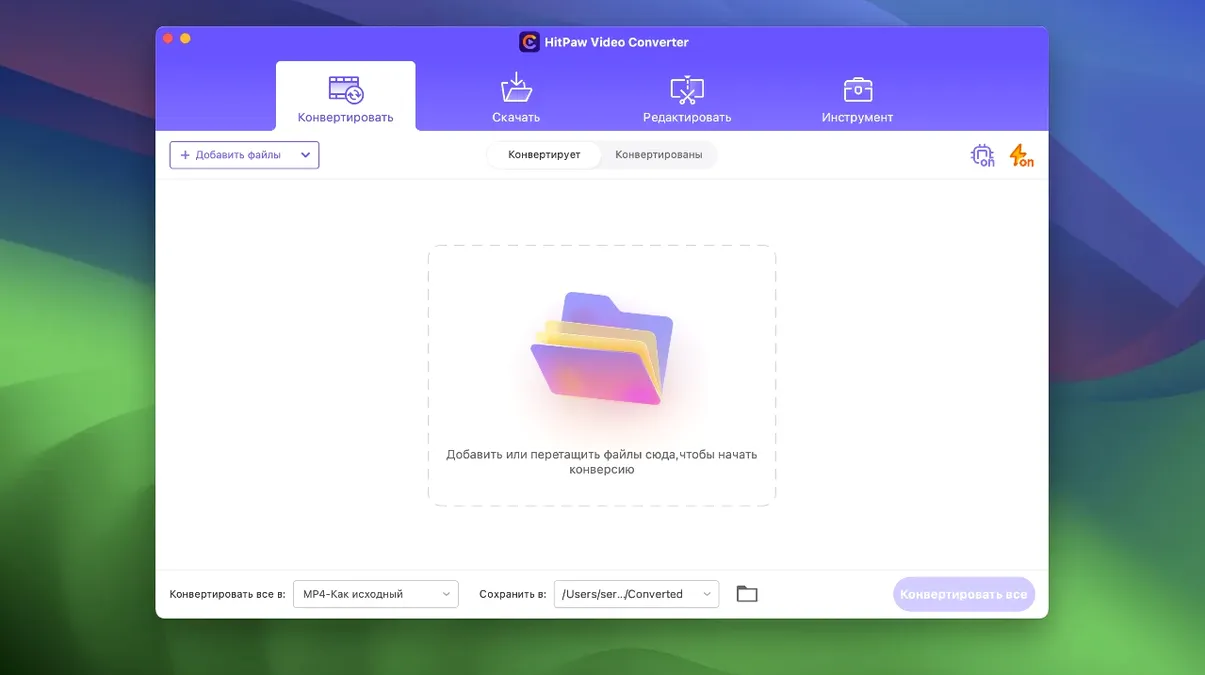
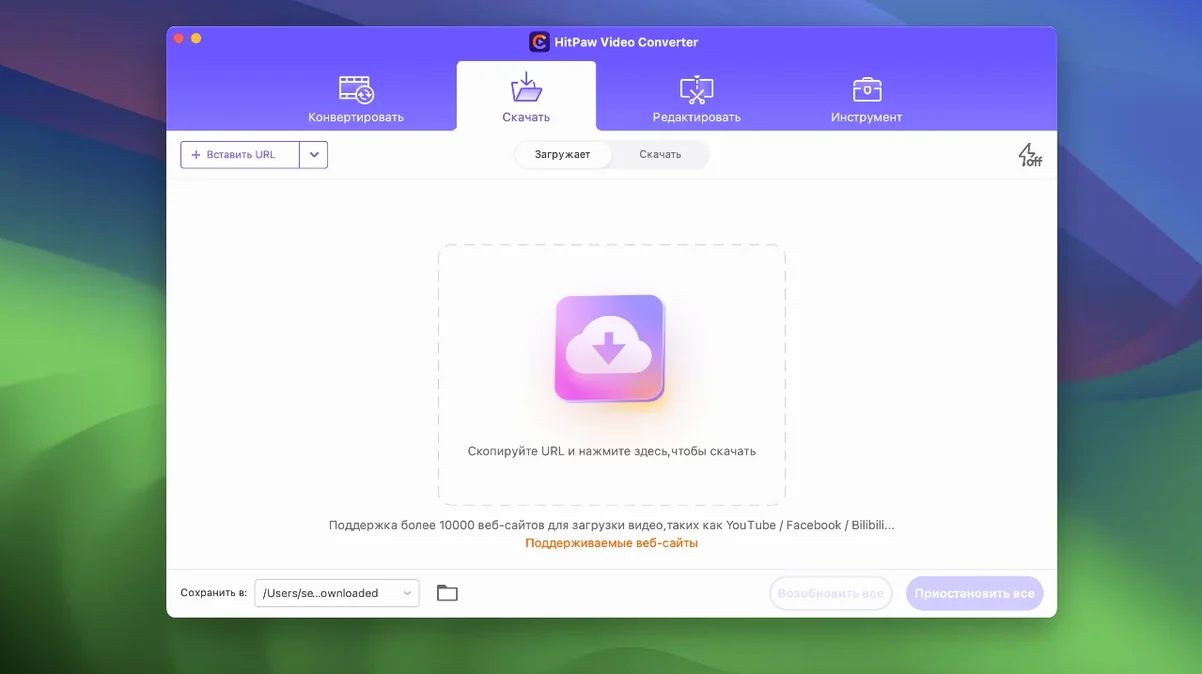
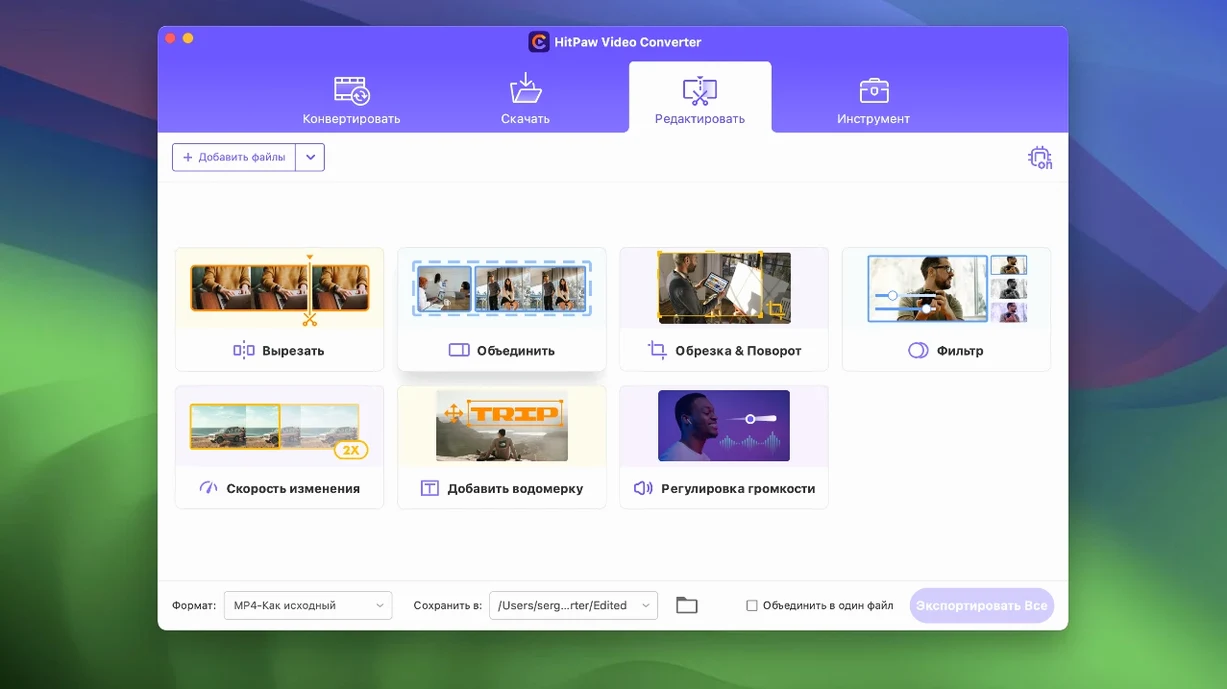
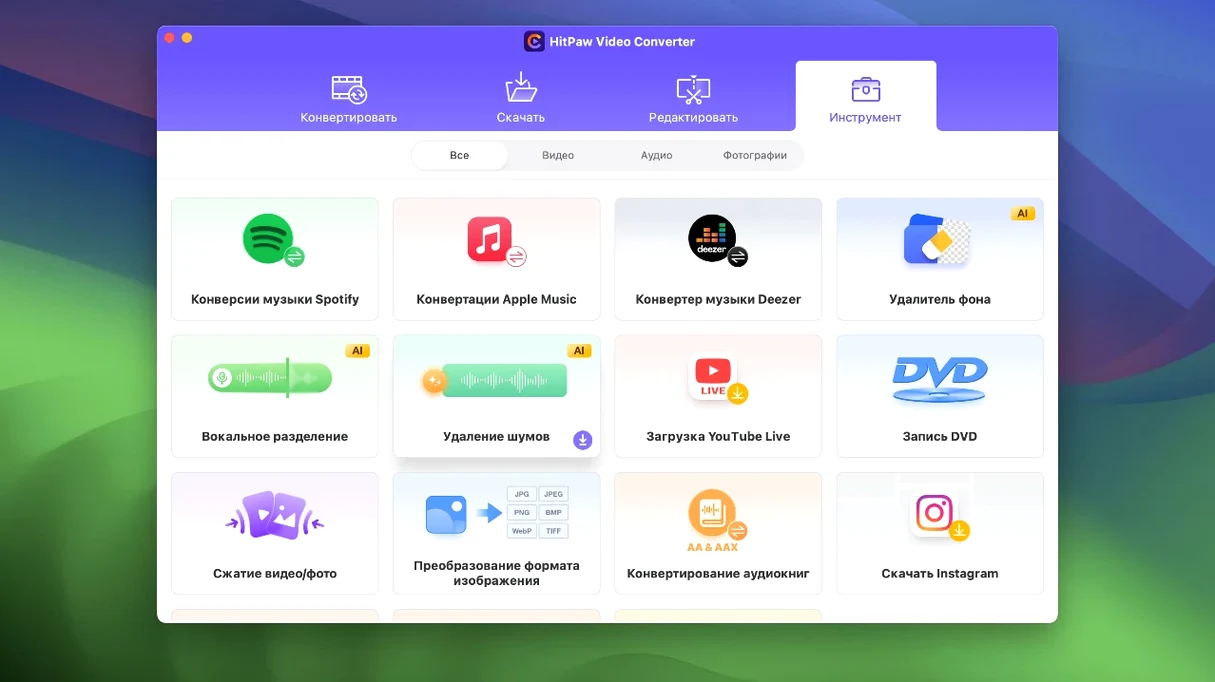
If you've used HandBrake, you know the routine: pick a source, pick a preset, hit start. HitPaw Video Converter bundles that same core conversion logic with a downloader and a trimmer behind one window. Here's how one realistic session unfolds.
Source — the input file. Grab a clip from a camera, a downloaded MP4, or an MKV someone sent you. HitPaw reads the container and shows the video and audio streams inside.
Output format — where the data lands. The app lists over 1,000 presets. For a high-quality master, you'd pick ProRes (one of the advanced codecs the Mac version supports). For a smaller upload, H.265 with an Opus audio track works well.
Trim & reframe — the edit step. Version 4.5.0 added an auto reframe toggle that analyzes motion and keeps the action centered when you crop to a new aspect ratio. The editor module display was also cleaned up in this release, so the cut points and timeline are easier to read on a laptop screen.
Compression — a slider tied to bitrate and resolution. The compression module got an optimization pass in 4.5.0, meaning the preview updates faster when you drag the quality slider before the encode.
Once you hit convert, the app hands the job to the system's media encoder. On Intel Macs running macOS 10.15 or later, it pushes the frames through the selected codec—VP9 for web use, ProRes for editing, or one of the other supported encoders. The result lands in the destination folder you set, ready to use.
When a client sends a VOB and you need an MP4 tonight
Not everyone needs a downloader, a converter, and a trimmer in the same window. The people who do tend to fall into three groups.
Freelance video editors who receive source clips in wildly different formats. One client sends a VOB rip from a DVD, another sends a phone-captured MKV with a variable frame rate, and the next project demands ProRes masters. HitPaw handles the format translation without making you juggle three separate utilities.
Music collectors pulling audio from online sources. The built-in support for Apple Music, Spotify, and Deezer means one app grabs the stream and converts it to MP3, Opus, or whatever your library prefers. You skip the step of finding a dedicated audio-only downloader.
Educators and presenters who download lecture recordings, conference talks, or tutorial videos from the web. The app reads URLs from over 10,000 sites, so a single downloader covers nearly any platform a presenter might use. After the download, the trimmer cuts out the Q&A or the intro slide without opening a full editor.
If you only convert files once a month, the breadth of the tool may feel like overkill. But if conversion and downloading are part of your weekly routine, having them share a single queue saves real time.
Why MP4 alone doesn’t guarantee a playable video
A few patterns show up in the first few sessions.
Ignoring the codec selector. The app defaults to a sensible output when you pick a container, but the container and the codec are separate things. Choosing MP4 without checking whether it's H.264 or H.265 can give you a file your editing software won't read smoothly. Open the dropdown and confirm the codec matches what your target device or timeline expects.
Downloading at the wrong resolution. Some sites serve a 1080p stream and a 4K stream as separate URLs. If the app grabs the first one it finds, you may end up with a smaller file than the source actually offers. Check the available quality options in the downloader panel before you start pulling.
Skipping the trim before the convert. Beginners often convert a full hour-long file and then trim it in a separate editor. That doubles the encoding time. Mark your in and out points in the editor module first, then run the conversion on just the segment you need. The optimized editor display in 4.5.0 makes those cut markers easier to set accurately.
Piling up the queue during a heavy compression job. Real-time preview updates while you tweak the compression slider are faster now, but the actual encode still ties up CPU cycles. Stacking five 4K conversions in the queue while you keep adjusting settings on a sixth introduces stutter in the preview. Let the heavy jobs finish, then tweak.
Turning an MKV, an M4A and a phone clip into one episode
A podcast producer receives three files for an upcoming episode: a video interview recorded as an MKV with an oddball VP9 stream, a separate audio track submitted as an M4A from the guest's phone, and a short intro clip a designer sent as a MOV with ProRes. The producer needs everything in a single MP4 with H.264 video and AAC audio for the hosting platform.
She drags the MKV into HitPaw, selects MP4 / H.264 + AAC from the format list, and trims the first 15 seconds of pre-roll silence. The M4A joins the queue with an audio-only conversion to AAC, matching the target bitrate of the video file. The MOV intro gets the auto reframe toggle from version 4.5.0 applied because the designer framed it for a square aspect ratio and the podcast platform wants 16:9 — the centered motion tracking keeps the speaker in frame during the reframe. All three jobs run sequentially, and the output folder holds three platform-ready files in under twenty minutes.
- Compression module optimized for faster preview updates when adjusting quality.
- Editor module display refined for clearer timeline and cut-point visibility.
- Auto reframe feature added—detects motion and keeps the subject centered during aspect-ratio changes.
- macOS 10.15 or later
- Intel processor
$ man hitpaw-video-converter | grep -A2 "?"
Which advanced codecs does the Mac version support?
It handles VP9, ProRes, and Opus among others, so you can encode for web distribution, video editing, or high-efficiency audio.
Can it process audio-only files from streaming services?
Yes, the app includes dedicated modules for converting tracks from Apple Music, Spotify, and Deezer to standard formats.
Comments 0
Sign in or create an account to leave a comment.
No comments yet. A codec, a slice, a machine — they appear after moderation.