iExplorer for macOS
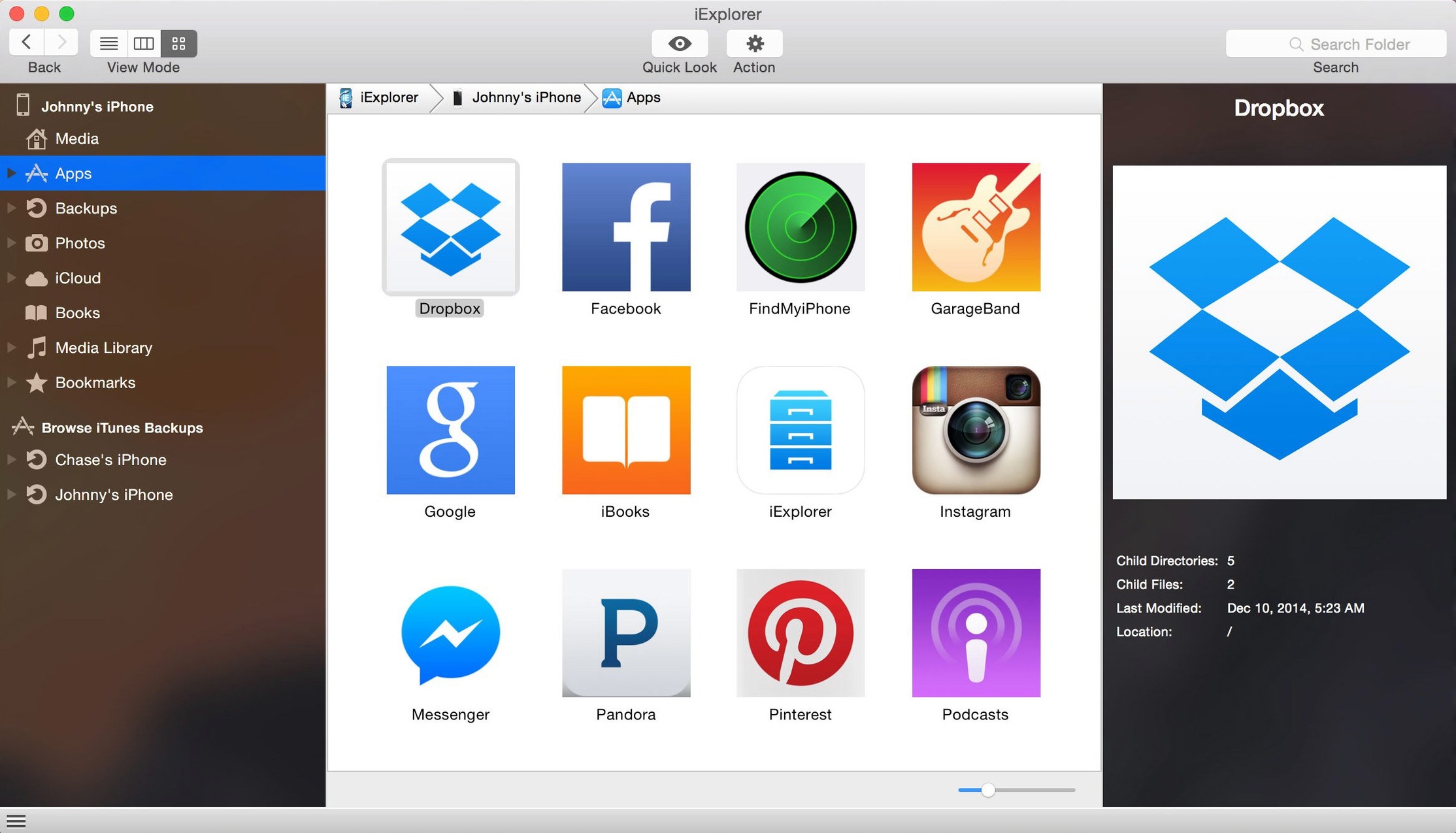
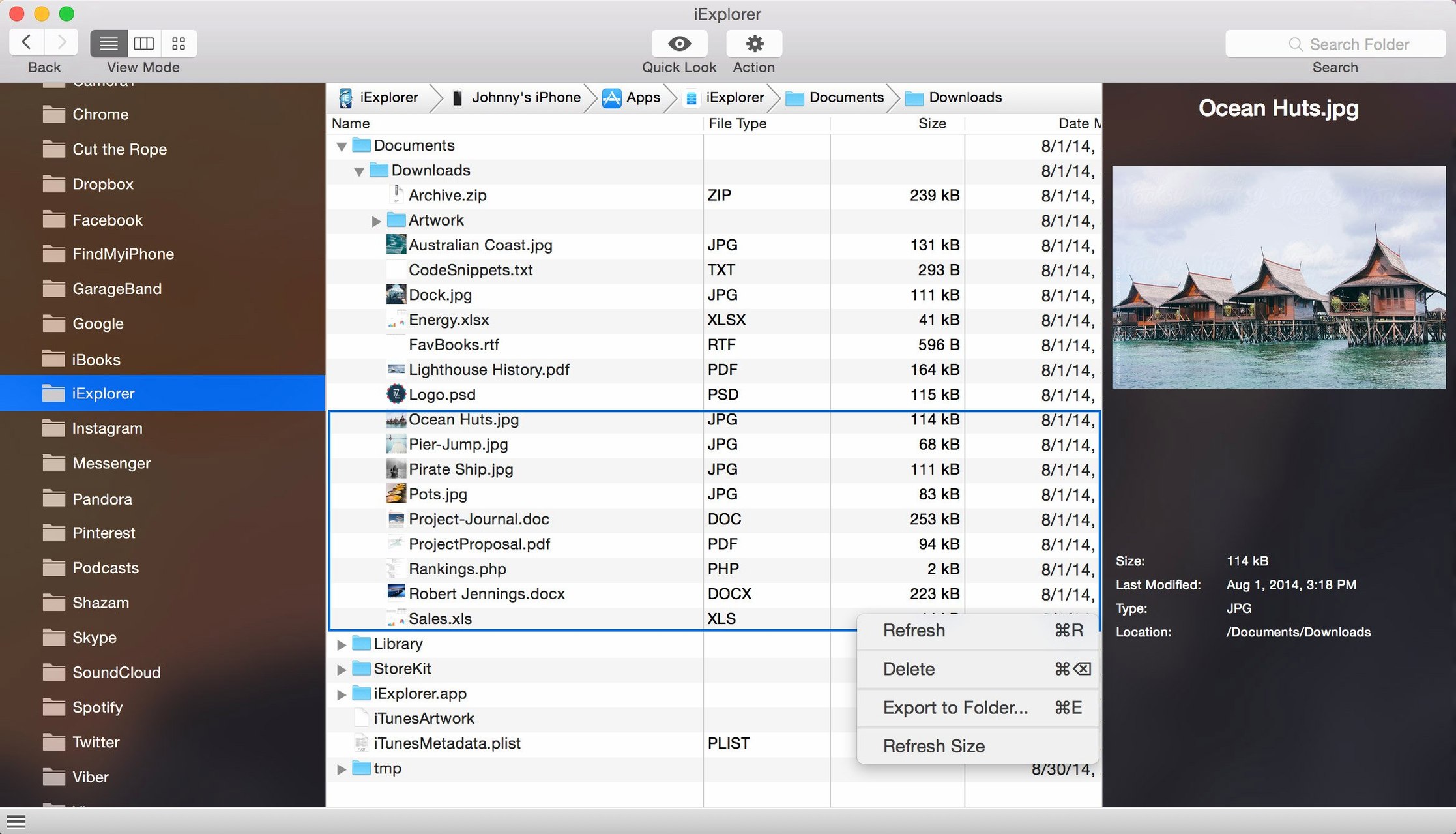
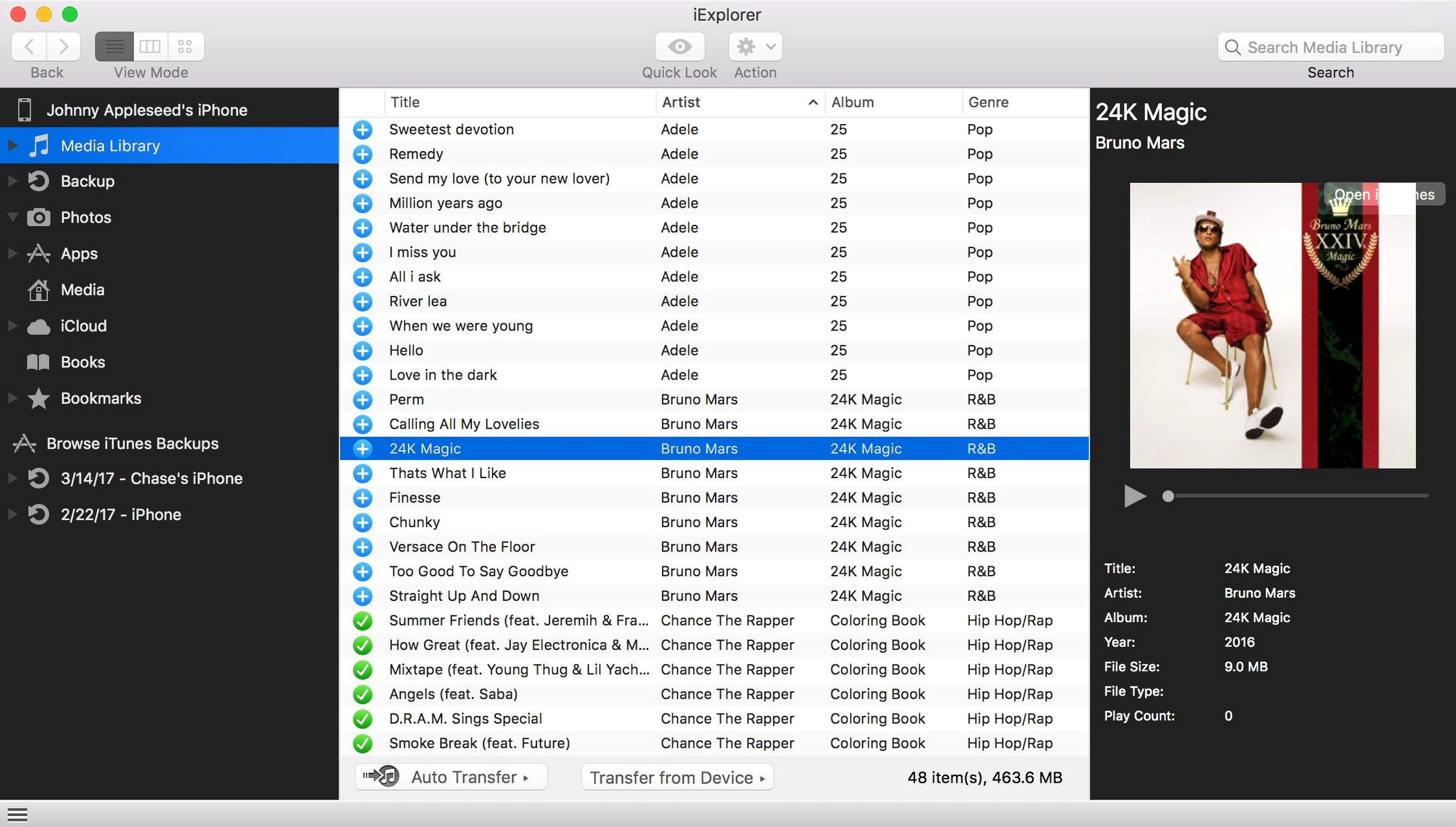
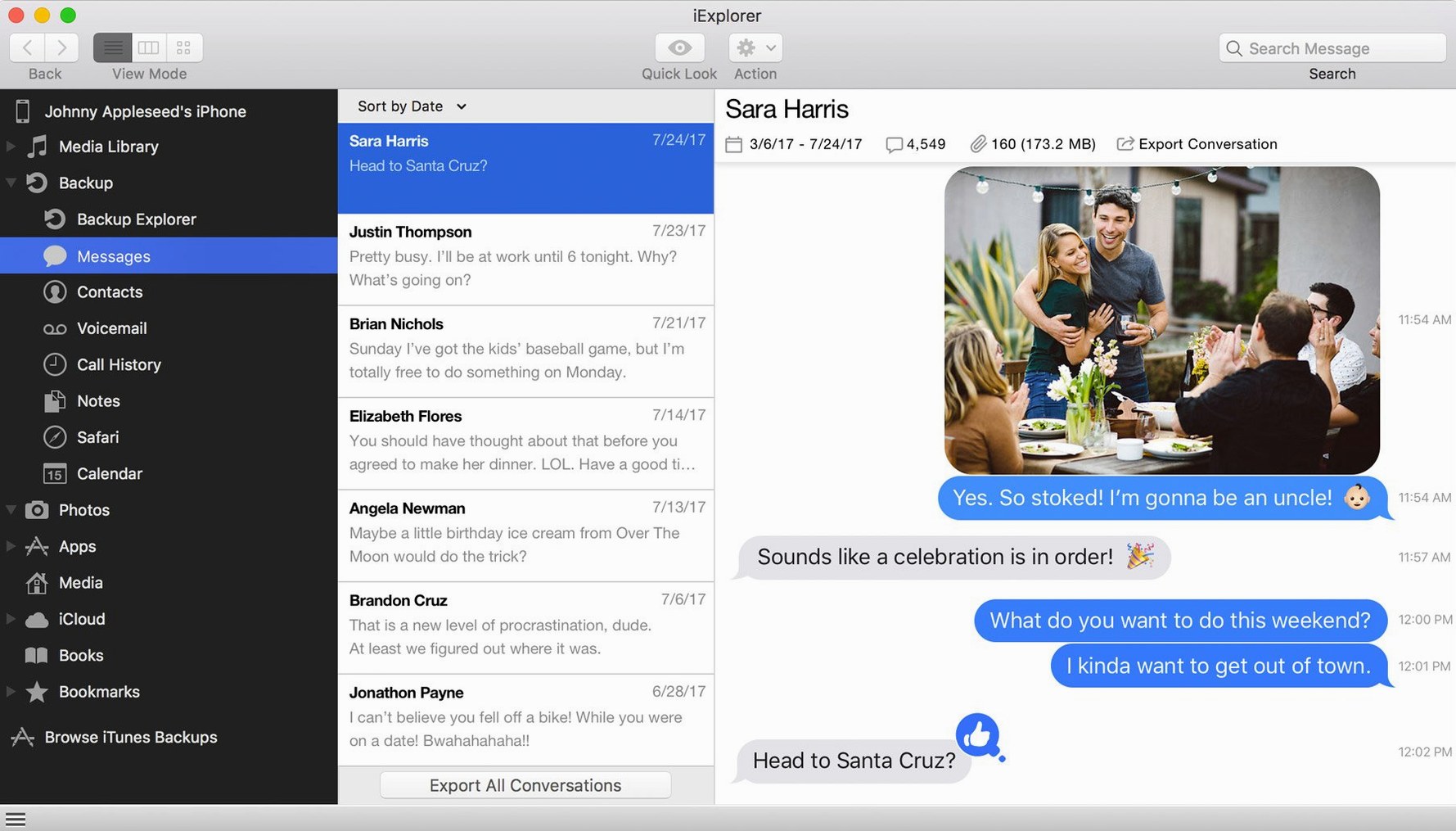
Disk mounting is the feature that flips the mental model. Instead of syncing through iTunes, iExplorer presents the device as a volume in Finder. You open it, see a folder tree, and drag files out.
Mount your iPhone as a disk on the desktop
- Mount the device as a disk. Connect your iPhone or iPad, launch iExplorer, and click Mount as Disk. A new volume appears on the desktop. Browse it like a USB drive — app folders, media directories, everything the system exposes.
- Pull photos and messages. Switch to the media library view. Select a photo album or a message thread, then export. Messages come out as
.pdfor plain text, photos in their original format. No compression, no conversion unless you ask for it. - Dig into app data. The Apps section shows each app's bundle container — icons, documents, caches. Useful for pulling a game's save file or grabbing a doc an app stored in its private sandbox.
- Export contacts and call history. In the data tab, contacts, notes, and call logs are listed in flat tables. Select all, choose a format, and write them to a folder. Good for making a plain backup outside an iTunes archive.
These four steps cover most of what iExplorer does. Once you've pulled what you need, the backup tool under Backup can snapshot the whole device, but the real value is in targeted exports you control file by file.
What a field researcher does with it
Imagine a botanist who spends four days in a national park. Her iPhone is the only camera, notebook, and voice recorder she carries. By Friday she has 600 photos of plant specimens, 40 voice memos with location notes, and a scattering of text files she wrote in a plain-text editor app. Back at the Mac, iExplorer lets her pull exactly that week's material without touching the rest of the camera roll or syncing the whole device. She mounts the iPhone as a disk, opens the voice memo app's folder, and copies the .m4a files straight to a project directory named fieldwork_2025-03. Photos she grabs by date range from the media library, skipping the first two days that were personal snapshots. The text files come from the app's sandbox — tiny .txt files that iTunes would never show her. The whole extraction takes under ten minutes, and she's left with a clean folder tree ready for her lab notes, no duplicates, no cloud upload step.
Does it open faster than iTunes wakes up?
On an Intel Mac running macOS 12, iExplorer 4.6.0 opens in about four seconds cold, under two warm. Device detection after a USB connection takes three to five seconds — faster than iTunes wakes up. RAM usage idles around 120 MB with a device mounted, creeping toward 200 MB when exporting a large message thread with attachments. Not trivial, but reasonable for a utility that's reading a live SQLite-backed message database over USB.
Stability is fine as long as you respect one rule: don't unplug the device mid-transfer. The app doesn't always recover gracefully from an interrupted export, and a force-quit is sometimes needed. During a batch export of 1,200 photos, the progress bar remained responsive and the export finished without a single corrupted file. Exporting a long iMessage thread to PDF with embedded images took longer — around 90 seconds for a conversation with 400 messages and 50 photos — but the result was a well-formatted single PDF with image attachments placed inline. That's slower than a simple file copy, but the rendering work is noticeable.
CPU use during exports is mostly single-threaded. A large photo export will saturate one core while the rest of the system stays usable. On a 2018 Mac mini, dragging 2 GB of photos off an iPhone 8 averaged 42 MB/s over USB-A, limited by the Lightning bus rather than the app itself. For small app-data files — preference plists, SQLite databases under 10 MB — transfers are effectively instant.
Why photo exports stopped working on iOS 16
The headline item in 4.6.0 is iOS 16 compatibility. In practical terms, that means the app no longer fails to read the media library on a device running iOS 16, a problem that broke photo exports for users who upgraded their iPhones early. The fix is quiet but critical: without it, the media tab would show an empty list or throw a connection error. Disk mounting and app-data browsing were unaffected in prior versions; the compatibility gap was specific to the media database schema that changed under iOS 16.
Nothing else in the feature set shifted. The interface is unchanged from 4.5.x — same layout, same icon set, same export options. The TNT release wraps the standard binary, so the install flow stays the same: mount the .dmg, run the Gatekeeper-friendly opener, and drag to /Applications. No new preference panes, no added export formats, no changed keyboard shortcuts. For anyone who held off updating their iPhone because iExplorer was mission-critical, 4.6.0 removes that ceiling.
Workflow: extracting a single conversation for a legal document request
A freelancer gets an email from a client: "We need the full iMessage thread between you and the project manager from last August, exported as PDF, by end of day." Here's the step-by-step using iExplorer 4.6.0 as the sole tool:
- Connect the iPhone via USB. Wait for iExplorer to recognize it — the device name appears in the left sidebar within a few seconds.
- Click Messages in the sidebar. The app reads the on-device
chat.dband populates a conversation list, sorted by most recent activity. - Scroll or search for the project manager's name. Select the conversation. A preview of the message history loads in the main pane, with timestamps and attachment thumbnails.
- Check the date range. Messages from August should be visible by scrolling up. If the thread is long, narrow the export later — iExplorer exports the entire conversation by default.
- Click Export Conversation. Choose
PDF with attachmentsfrom the format dropdown. Pick a destination folder — the Desktop is fine for a one-off request. - Rename the output file to something the client will recognize, like
thread_jensen_aug2024.pdf. The export runs; a progress bar shows message count and image rendering progress. - Open the PDF in Preview to verify. Messages are laid out in chronological order with sender labels, timestamps, and any photos or screenshots embedded at full resolution. Text is selectable and searchable.
- Attach the PDF to the reply email. Done.
The same workflow works for exporting as plain text, CSV, or an .html file if the recipient prefers a browser-readable format. For anyone searching out an iexplorer full setup that handles message exports without clipping or format loss, this path covers the real-world need — no iTunes backup extraction, no cloud login, just a direct pull from the device's message store.
- Improved compatibility with iOS 16.
- macOS 10.10 or later
- Intel 64-bit processor
- iTunes installed
Comments 0
Sign in or create an account to leave a comment.
No comments yet. A codec, a slice, a machine — they appear after moderation.