iShot Pro-ScreenShot Recording for macOS
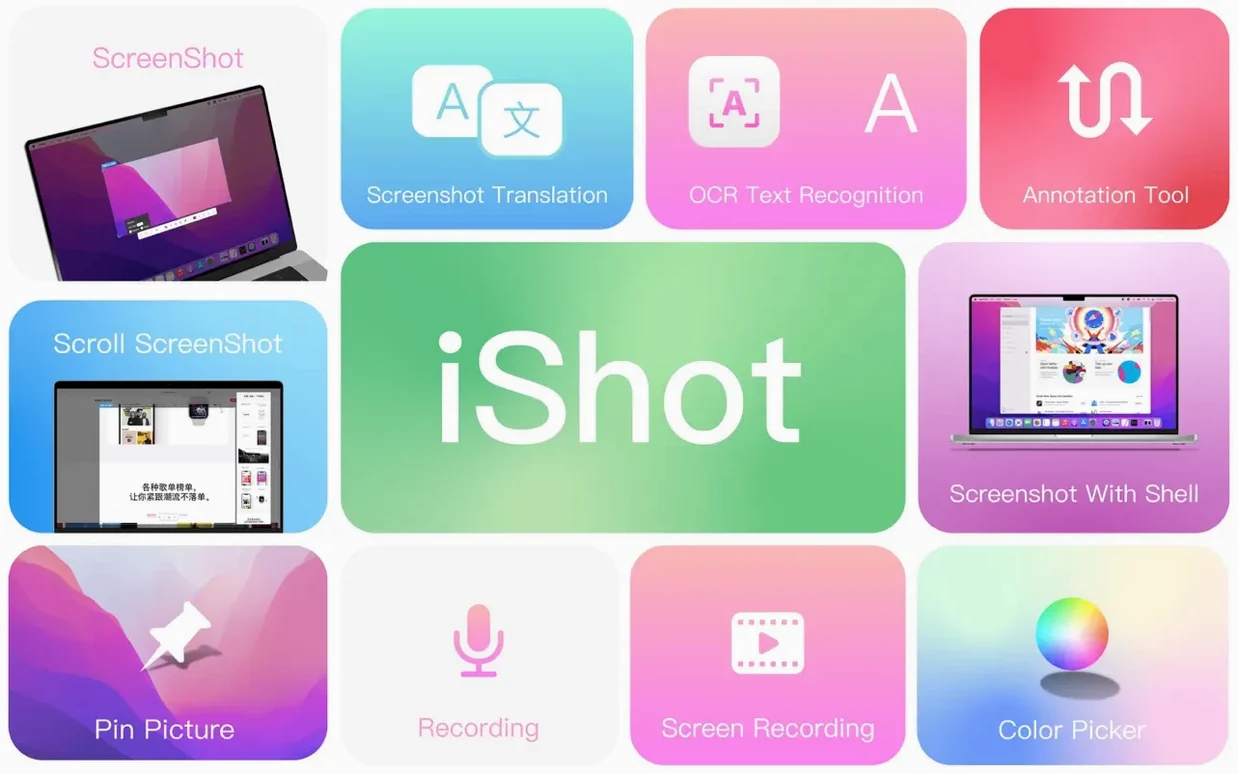
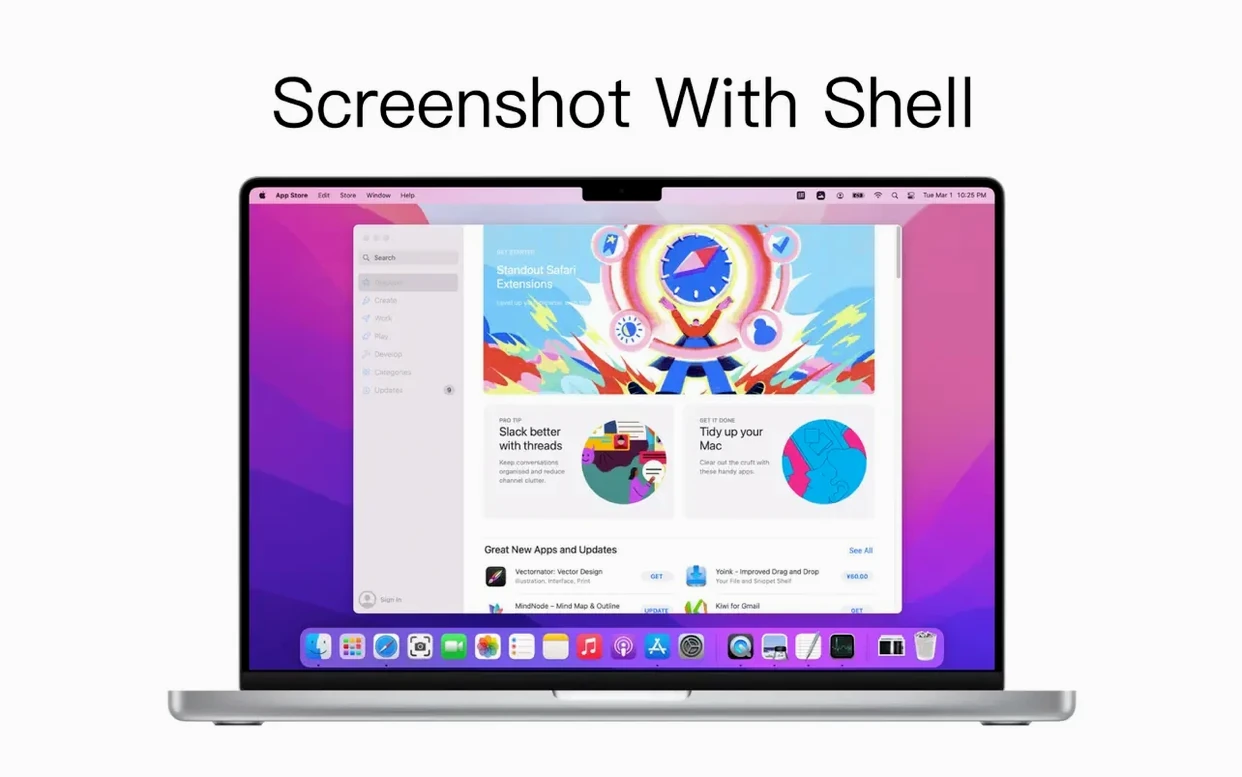
iShot Pro runs on any Mac with macOS 10.15 (Catalina) or later, and ships as a universal binary with native support for both Intel and Apple Silicon processors. It extends the system’s built-in capture tools with a collection of utilities aimed at specific post-capture tasks.
| Detail | Info |
|---|---|
| Current Version | 2.6.9 |
| Architecture | Universal (Intel & Apple Silicon) |
| Languages | English, Simplified Chinese |
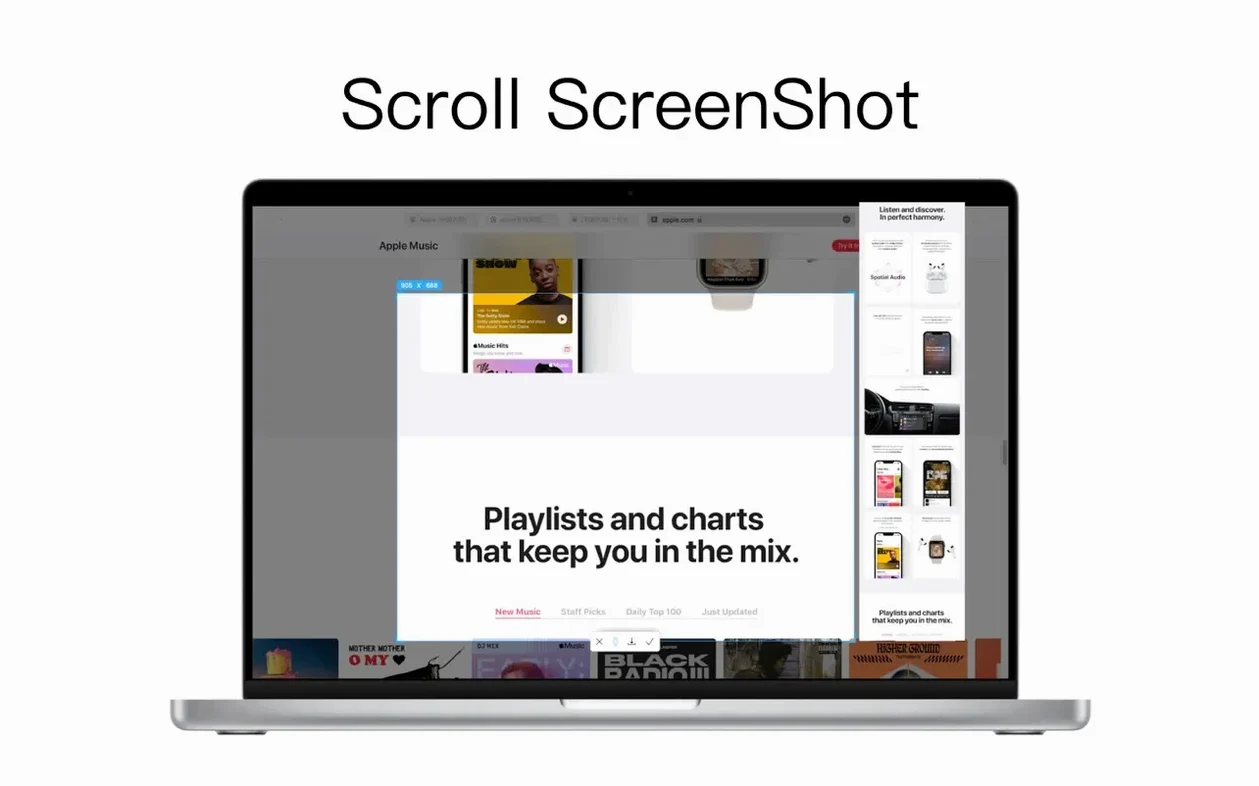
The capture behavior goes beyond the basics. You can grab the window directly under the cursor without clicking to activate it first—useful when you don’t want to disturb a stack of overlapping panels. A dedicated shortcut lets you recapture the exact same area you selected last, which saves time when you’re iterating on a UI element or monitoring a changing data region. For tall content, the long scrolling capture stitches together a single image from a window or webpage while you scroll.
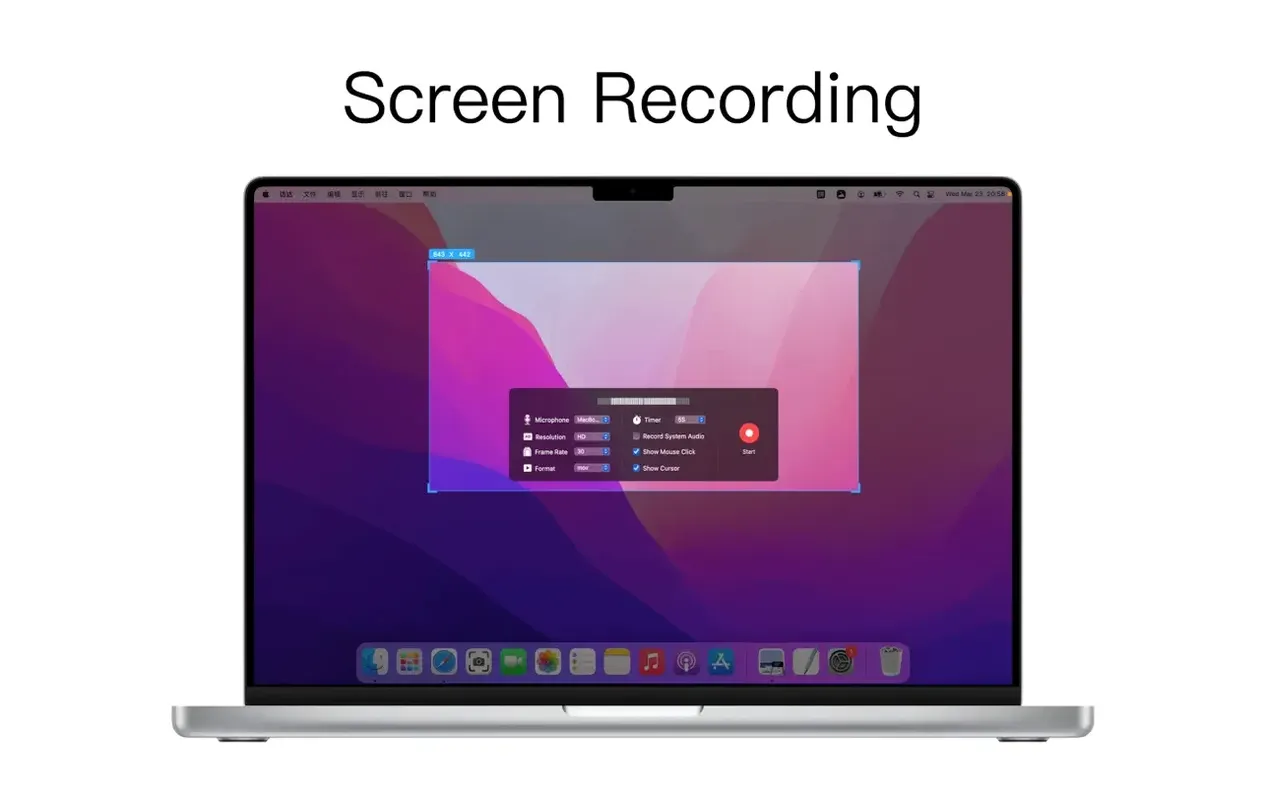
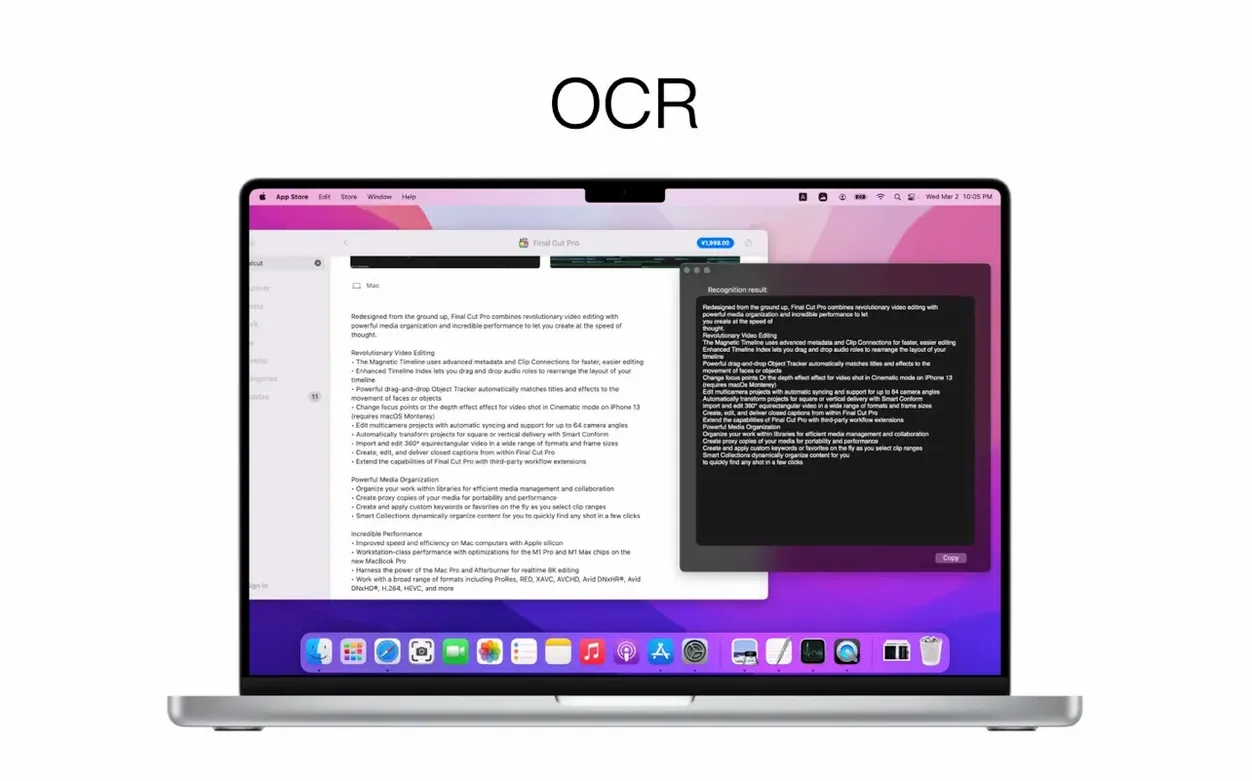
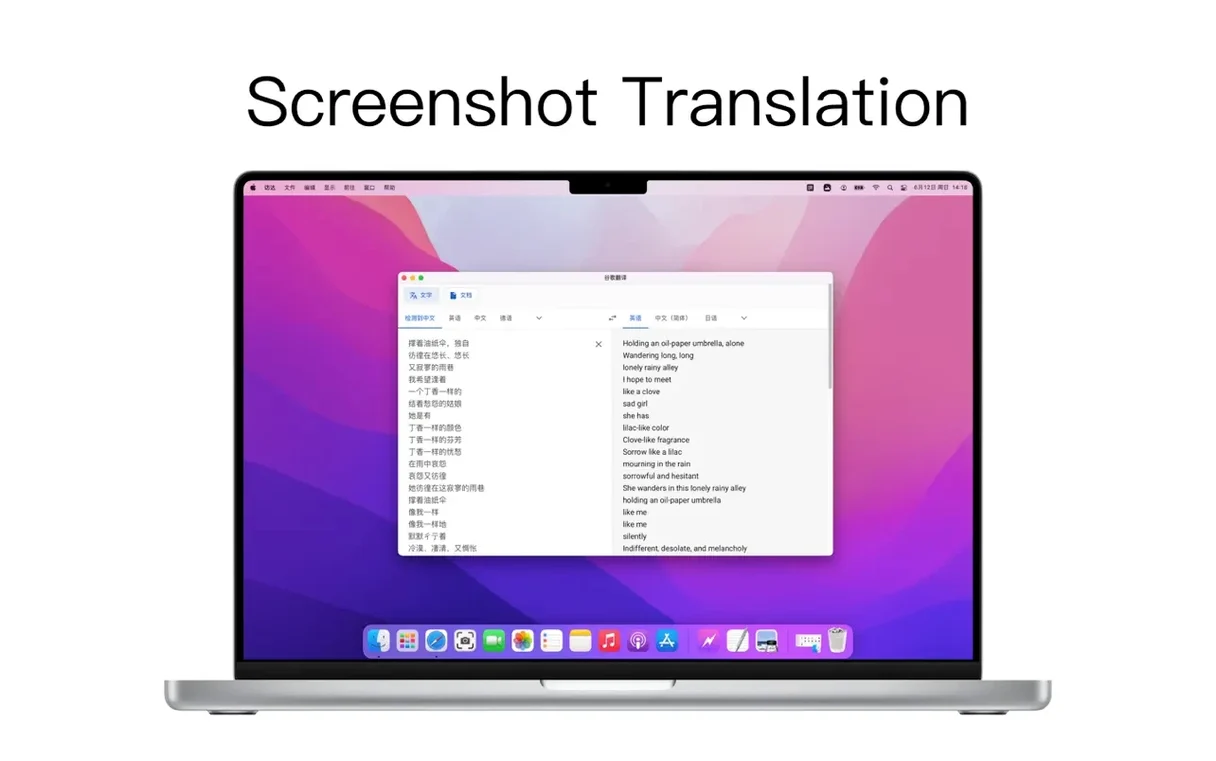
On the output side, the app saves stills as JPG, PNG, or TIFF. The OCR engine works on a selected region of a screenshot and can also recognize QR codes within that area. Once text is recognized, you can pipe it straight into a translation step without switching tools. The color picker is another standalone utility: as you move the cursor, it displays the color name and lets you copy the RGB and HEX values directly to the clipboard. Screen recording is handled with selectable resolution and frame rate targets, plus HD and SD quality presets.
Why CleanShot X aims for sharing while iShot Pro bundles editor and OCR
Each of these apps targets the gap Apple left between Shift-Cmd-5 and a full design tool. CleanShot X is the closest competitor in ambition—it also bundles scrolling capture, recording, and annotation—but it leans harder into a polished workflow for sharing via its own cloud links. iShot Pro puts more utilities inside the capture bar itself, like the color picker and inline OCR-to-translation, which CleanShot handles through separate overlay windows instead.
Shottr is a lightweight champion for pixel-level work: it measures distances on screen and does a clean scrolling capture, but it skips video recording and translation entirely. If your day involves a lot of measuring UI elements, Shottr wins; if you need to record a quick walkthrough and pull text from a frame without leaving the tool, iShot Pro covers more ground. Snipaste, originally a Windows favorite, brought its pin-to-screen trick to macOS. That feature—pasting a screenshot as a floating, always-on-top reference—is something iShot Pro doesn’t do. On the flip side, Snipaste lacks built-in recording, so the two apps solve different halves of the same problem.
What tends to trip people up
The most common snag is the long scrolling capture stopping partway down a page. This usually happens when the window’s scroll behavior isn’t standard—for instance, a custom-drawn list inside an Electron app. The workaround is to split the capture into two runs or switch to a windowed view that uses the system scroll wheel more predictably.
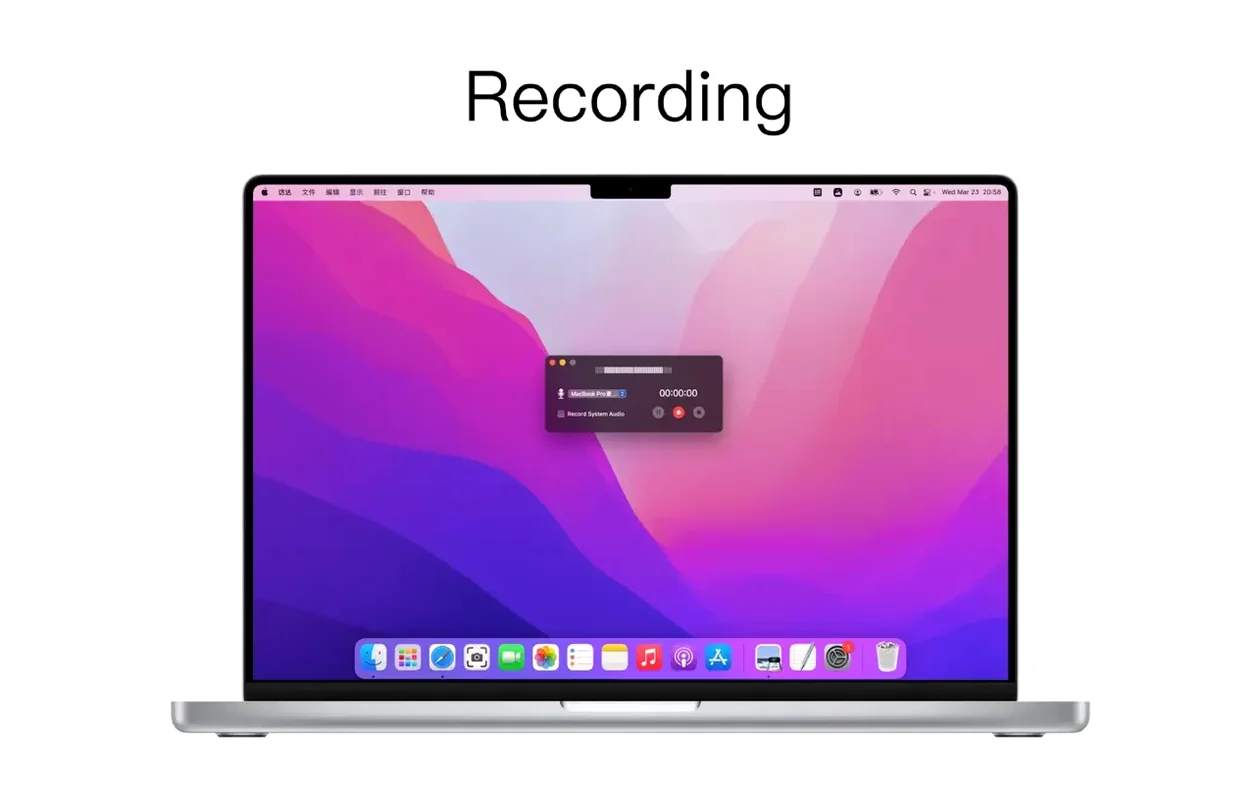
Another point of confusion is the system audio capture during recording. On macOS, internal audio routing requires a kernel extension or a virtual device; iShot Pro handles it through a helper component that gets installed on first use. If you tick the “record system audio” option and hear nothing in the output, open the app’s preferences, remove the audio driver, and reinstall it from the same panel. A relaunch of the app afterwards settles most cases.
OCR quality depends heavily on the resolution of the captured region. Grabbing a tiny, compressed thumbnail of a document will produce garbled results. For clean text extraction, capture at the highest resolution available, and make sure the region isn’t scaled down by the HD/SD preset before the OCR step fires.
How the shell mockup preserves your window’s real corner radius and shadow
The shell-screenshot feature isn’t just decoration. When you add the Mac shell mockup to a window capture, the resulting PNG includes a subtle drop shadow and the window’s own corner radius intact, which means you can drop the image straight into documentation without adjusting the background or borders manually.
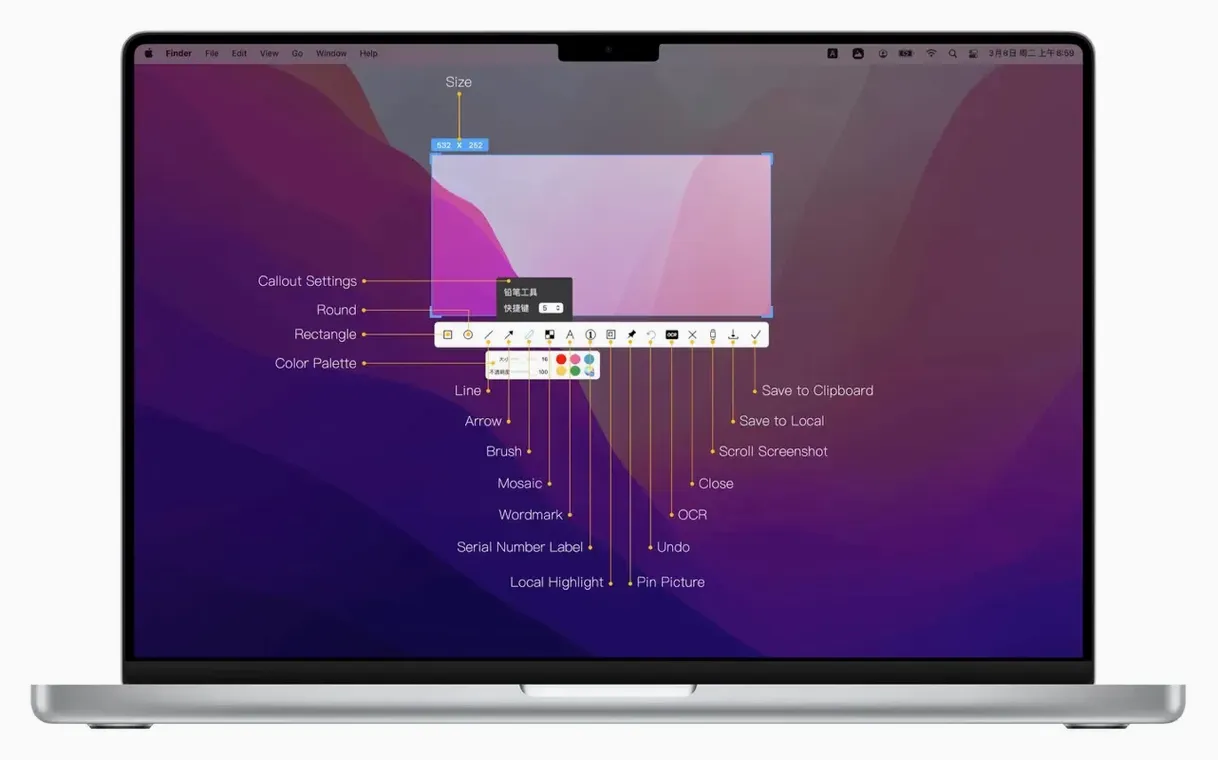
Annotation tools remember their last-used state across sessions. If you set the arrow tool to a specific line weight and color today, that setting persists next time you launch the app. The serial-number label tool auto-increments with each click—handy when you’re marking up a numbered list of steps on a screenshot.
In the color picker, holding the Option key while hovering locks the magnifier temporarily so you can nudge the cursor to exactly the right pixel before copying the hex value. The app also decodes QR codes directly from the OCR region selector, no separate module needed, which means you can pull a link from a screenshot without touching your phone.
- macOS 10.15 (Catalina) or later
- Apple Silicon or Intel 64-bit Mac
$ man ishot-pro-screenshot-recording | grep -A2 "?"
What image formats can iShot Pro save screenshots in?
It can save still screenshots in JPG, PNG, and TIFF formats through the standard save dialog.
Comments 0
Sign in or create an account to leave a comment.
No comments yet. A codec, a slice, a machine — they appear after moderation.