Jump Desktop for macOS
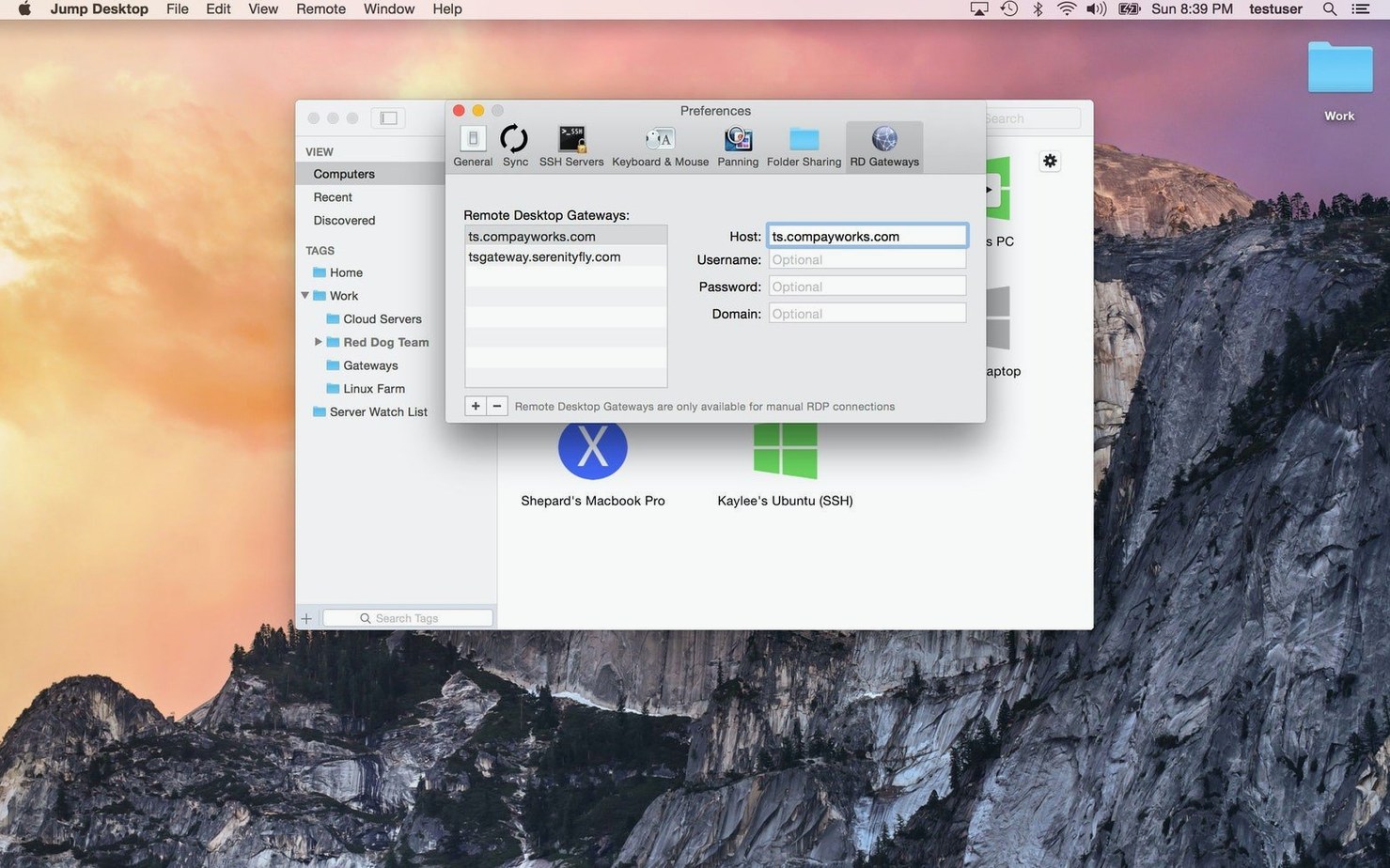
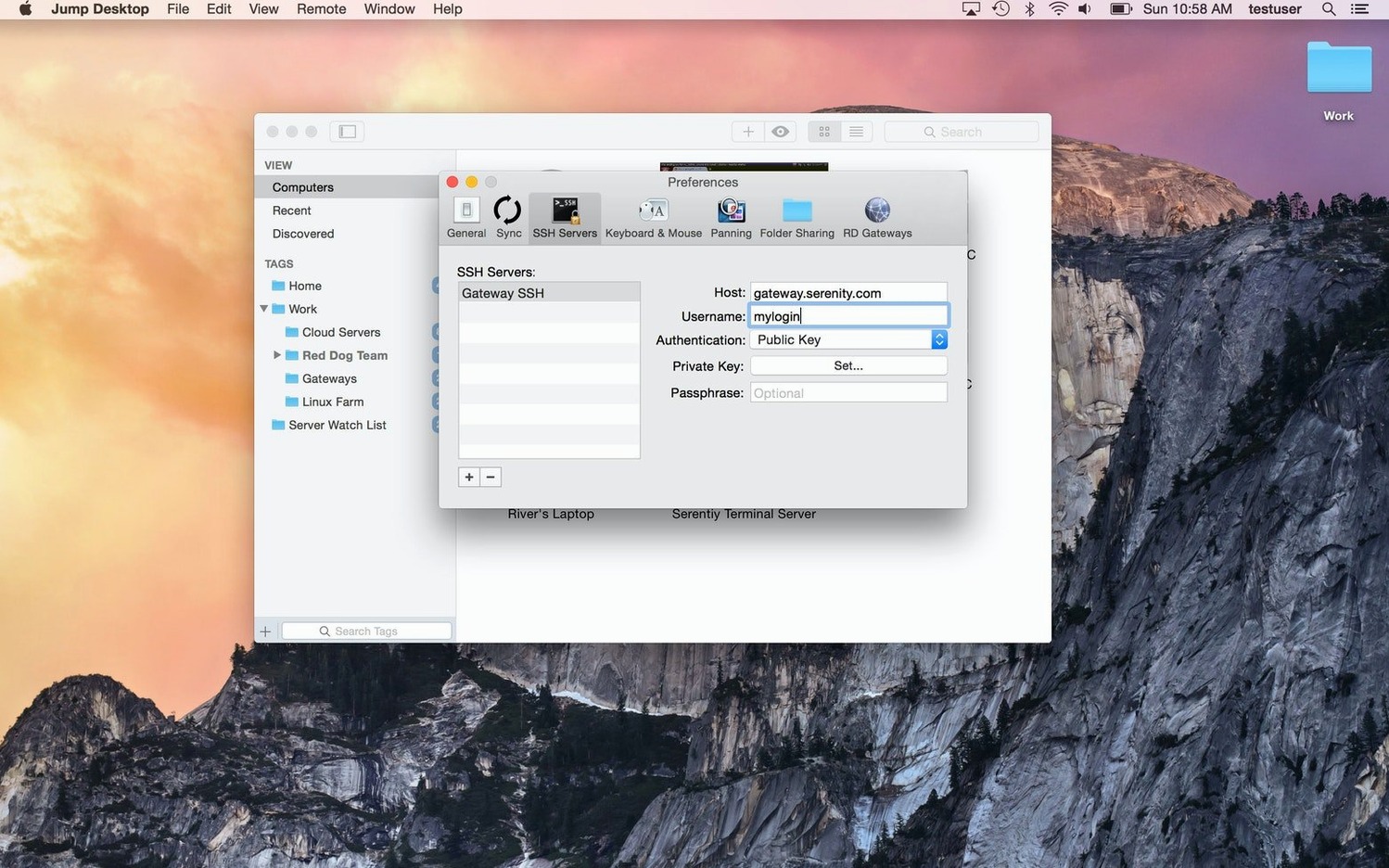
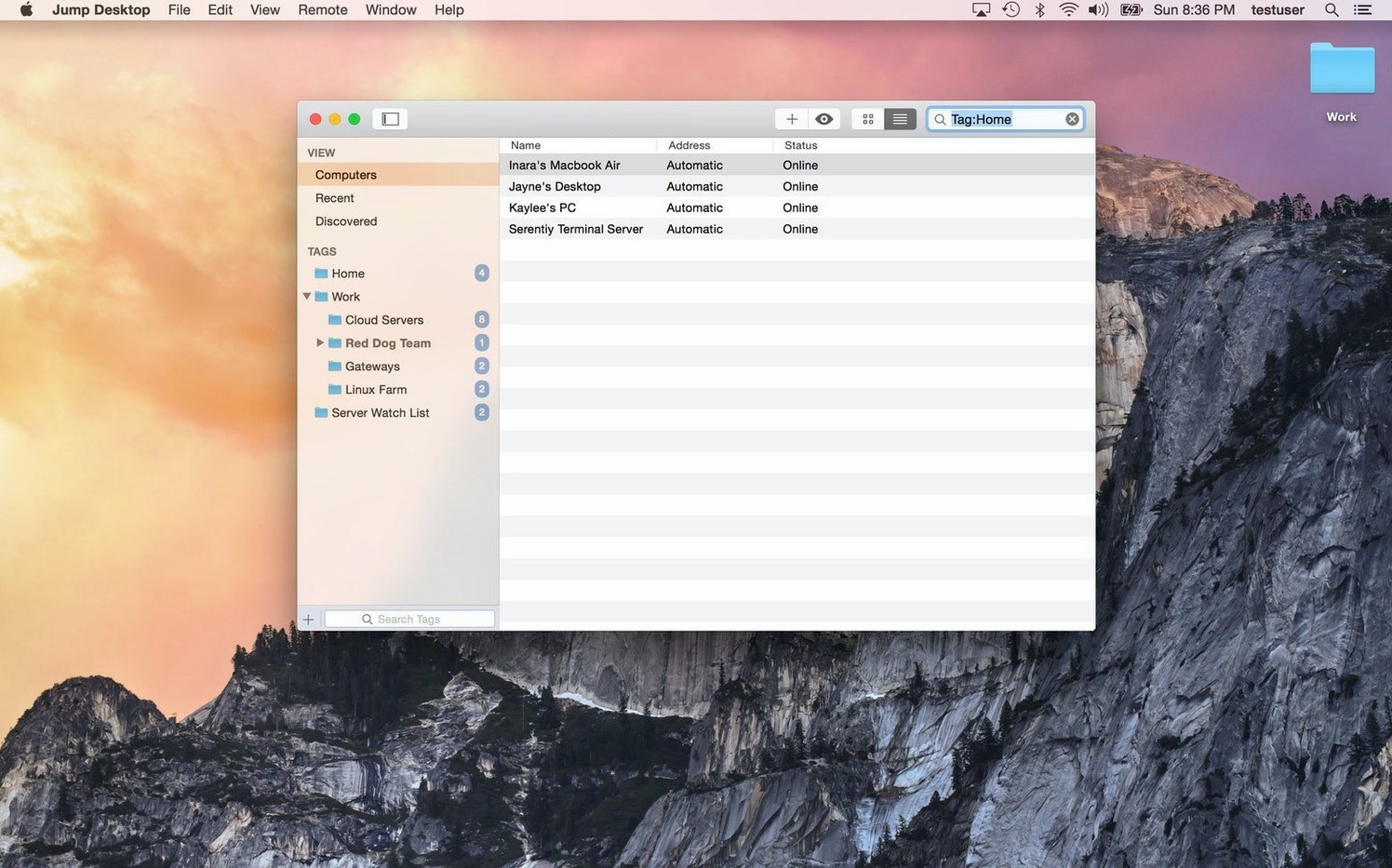
Fluid Remote Desktop is the protocol that really sets it apart. Instead of just shoving pixels across the network, it understands window edges, text fields and scrollable areas, so the remote machine feels local in ways RDP and VNC simply cannot match. Jump Desktop handles those older protocols too, making it a single client for connecting back to your home Mac, a work PC or any VNC server. Here is where its design pays off:
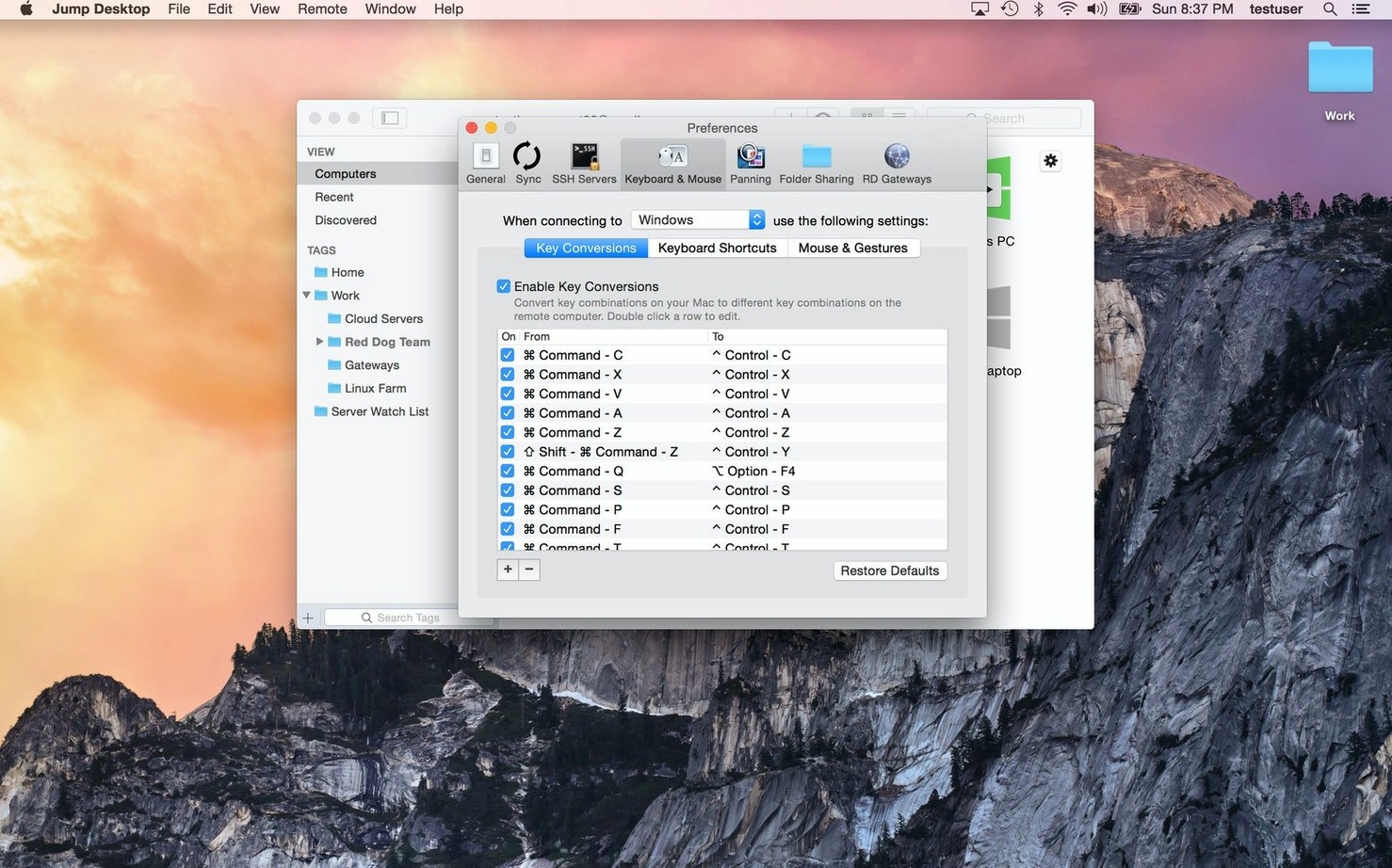
- Keyboard remapping that actually works. You can re-bind Mac modifier keys to their Windows equivalents so muscle memory does not betray you mid-session.
- Account-free or account-simple setup. Sign in with a Google account or any email address — the companion host component quietly handles the NAT traversal on the target machine.
- File access baked in. You can send and receive data between your local device and the remote computer without setting up separate cloud storage or shared folders.
- Plain VNC fallback. When the host is a Linux box or a machine without the companion installed, it doubles as a clean, no-nonsense VNC client.
The companion host piece means you are not stuck configuring routers manually. Install it on the Mac or PC you want to reach, and the connection is ready whenever the machine is awake.
A typical session starts with the Jump Desktop.app icon already living in your Dock. You click it, and the connection list appears — more like a Finder window than a remote-access utility. Each machine you have ever touched sits there as a tile, complete with a live-ish thumbnail if the host is awake. Double-click the tile for your office Mac, and Fluid Remote Desktop negotiates the session in under two seconds. The remote screen scales to fit your local display, but you can drag a corner of the window to resize it freely, and the remote OS re-flows without a jarring resolution switch.
You open a Terminal window on the remote Mac and type a long command. The text appears with zero perceptible lag — Fluid is not compressing frames blindly; it is telling your local client "draw these exact glyphs at these coordinates" and letting the GPU handle the rest. Scrolling through a log file feels like a native NSTableView, not a stuttering video stream. When you need a file from the remote machine, you open the sidebar, browse the remote ~/Documents/Projects folder, and drag a .blend file straight onto your local desktop. No separate SFTP client, no mounting shares — the transfer runs in-band over the same encrypted connection you are already using.
Connecting to a headless Windows render node
Suppose you run a small render farm at home: one Mac Studio where you model, and a Windows box in the basement that handles overnight Cycles renders. The Windows machine has no monitor, no keyboard — just power, Ethernet, and Jump Desktop Connect installed as a service. Here is the workflow from start to finish.
- Wake the node. Your router already forwarded the WoL packet; you skip that step and open Jump Desktop on the Mac. The Windows tile shows a green dot — Connect is running.
- Log in over RDP. You select the connection profile you built earlier (RDP, port 3389, 2560×1440, audio disabled, clipboard sharing on) and hit Connect. The Windows login screen appears.
- Remap the keyboard on the fly. Your Cmd key acts as Win; Option sends Alt. You tap Cmd-R and muscle memory opens the Run dialog instead of the Windows Start menu. Perfect.
- Drag the scene file across. You open the Jump Desktop sidebar, navigate to
\\render-node\Scenes— already shared via SMB but accessible through Jump's file browser in case the share fails — and drop the updatedscene-v12.blendonto the remote desktop. - Queue the job. A double-click launches Blender on the remote machine. You set the output path, press F12 to test one frame, then queue the full animation. The session stays open; you can check progress tiles in real time without the interface degrading into blocky compression artifacts.
- Disconnect cleanly. You close the window. The remote session stays logged in, Blender keeps rendering, and you go to bed. Tomorrow morning the
.exrsequence is sitting in the output folder, ready to pull back.
What makes this practical day after day is that Jump Desktop handles RDP and Fluid sessions in the same interface. You never switch between clients or remember which machine uses which protocol. The connection list abstracts all of that away.
The ARM slice and Intel slice now live in one .app bundle
Version 10.15.28 ships as a universal binary — ARM and Intel slices sit in the same .app bundle, so the installer does not care whether you are on an M3 MacBook Air or an old Intel iMac. The practical upshot is lower CPU draw during long RDP sessions: Apple Silicon machines no longer run translated x86 code for the network stack, which means less fan noise and more battery left after a full afternoon of remote work.
The Gatekeeper experience shifted slightly in the current build. Mount the .dmg, and macOS throws the usual unidentified-developer warning. The install steps are straightforward: open Terminal, type the bypass command, press Enter, drag the app to /Applications, and launch. Once it runs, macOS caches the approval and you never see the warning again for that version.
An IT support tech's morning
Mara works helpdesk for a mid-size creative agency. Her MacBook Air is her only machine, but she supports twenty designers — half on Macs, half on Windows workstations. She keeps a folder of Jump Desktop connection files organized by department: Design-Mac-Pro.local.jump, Accounts-Dell-01.rdp, and so on.
Monday morning, a designer calls: "My fonts are broken in InDesign, and I have a deadline at noon." Mara opens Jump Desktop, double-clicks the designer's Mac tile, and Fluid connects in under a second. She watches the screen exactly as the designer sees it — corrupted font cache dialogs popping up. She opens Terminal remotely, runs atsutil commands to flush the font caches, quits and relaunches InDesign, and confirms the fix. Total time: four minutes. The designer never left her chair.
Right as she closes that session, a Slack notification pings: the accounting team's Windows file server stopped sharing its printer queue. She clicks the RDP tile for SRV-FILE-02, logs in, restarts the Print Spooler service, and tests a print job from Notepad. Done. Two different protocols, two different operating systems, one application. The whole morning fits in a single window list, and Mara's local Mac never broke a sweat.
Jump Desktop 10 is a major update that brings it closer to feeling like you're sitting right at the host machine. The headline feature is support for up to 480 fps — leave Framerate on Auto and it'll track your screen's refresh rate, so games, smooth scrolling and fast motion stay crisp on high-refresh-rate displays. Hardware encoding is here too: switch Codec to Hardware for sharper detail at the same bandwidth, lower CPU load on the host, and longer battery life on your Mac.
Virtual display handling gets a serious upgrade. You can now save and switch between presets with exact resolution, scale and refresh rate, and the new Keep After Disconnect option leaves those displays alive on the host between sessions. USB device redirection lets you plug a device into your desk and have it show up on a Windows or Mac host, and game controller support means the controller in your hands controls the game on the remote machine.
For creative work, Input Trail shows stylus and mouse strokes immediately on high-latency connections, while Color Passthrough delivers the host's colors unprocessed to your calibrated display. Everyday refinements include back/forward mouse button support, trackpad pinch-to-zoom, and more reliable CJK text composition.
Fixes and improvements: Fluid sessions now respect the macOS input source shortcut (Control+Space switches your Mac's input source instead of sending the keystroke to the host — turn the shortcut off in macOS to send the keys through). Wake-on-LAN sends fewer wake packets. Automatic reconnects no longer wake a host you'd put to sleep or shut down. Crashes on quitting Jump Desktop, and on every launch when a saved computer had no name, are fixed. The mouse wheel notch issue on Mac hosts — where Option+scroll would zoom a video editing timeline all the way in — is resolved. Switching between saved presets with the same number of virtual displays now places session windows in the saved arrangement correctly. USB redirection works with devices like color grading control panels that previously failed. RDP fixes include custom resolution handling, full-screen display swapping that misplaced the Windows taskbar, and connections to older Windows versions. The Eisu and Kana keys on Japanese keyboards now work in Fluid sessions. Security updates are included.
- macOS 11 or later
- Apple Silicon or Intel 64-bit
$ man jump-desktop | grep -A2 "?"
Can Jump Desktop connect to a Windows PC from a Mac?
Yes. It connects to PCs using its Fluid protocol or standard RDP, with keyboard shortcuts you can remap so the Mac layout translates cleanly to Windows.
Comments 0
Sign in or create an account to leave a comment.
No comments yet. A codec, a slice, a machine — they appear after moderation.