Keyboard Maestro for macOS
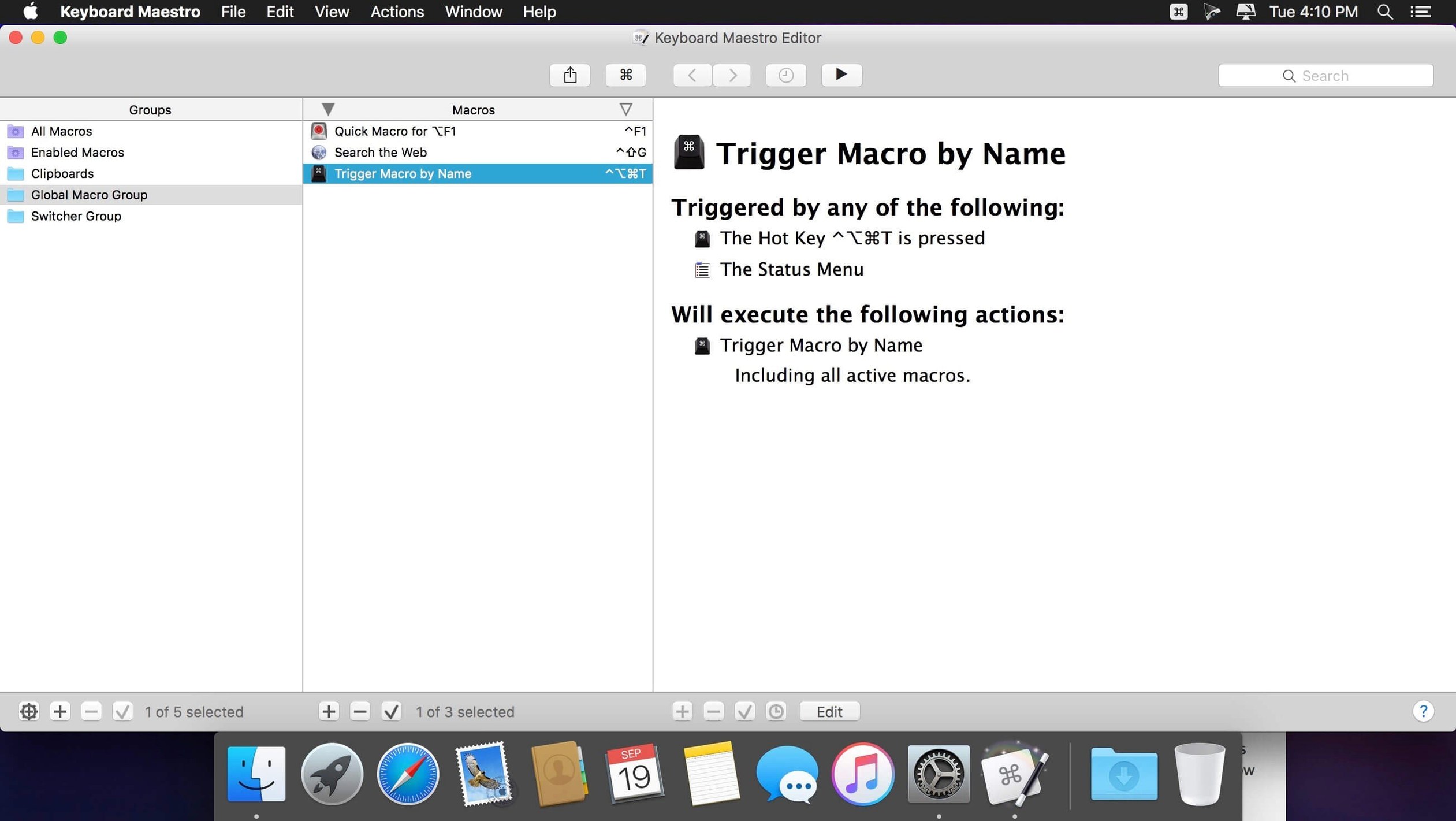
The Macro Debugger window now carries tool tips, a small change in the 11.0.4 release that makes stepping through a tangled set of conditionals feel less like reading raw source. That kind of refinement matters once you move past simple text expansion and start building macros that branch on window titles or image state.
Branching on what the screen actually shows
An OCR Condition backed by Apple Text Recognition lets a macro decide its path based on words in an image or an unselectable interface element. Combine that with the updated Switch/Case display—which now marks which branch would execute right now—and debugging a visually triggered workflow stops being guesswork.
Trigger chains that watch for a search highlight
Version 11.0.4 fixed a bug with search highlighting triggers, the kind of trigger you wire up when a specific phrase appears highlighted in a browser or PDF. That fix matters because a missed highlight trigger silently breaks a chain of actions that might include rearranging windows and pasting a formatted clipboard result.
Flow control that loops until a condition flips
Loop actions paired with flow control are where the macro engine earns its keep. A loop can wait on a window title change, iterate through clipboard rows, or keep checking an OCR region until a button appears—no scripting required, just actions dropped into a sequence that already understands if/else and repeat semantics.
What a translator’s morning actually looks like
A freelance translator receives a folder of twenty scanned contracts every Monday. Each page needs the header cropped off, the text OCR’d, the raw output cleaned of line breaks, and the result pasted into a CAT tool. By hand, that is forty minutes of repetitive clicking. Here is what the same morning looks like with one macro: drop the folder onto a watched hot folder, the macro opens each image, runs the OCR action, filters the clipboard through a series of text replacements that strip hard returns and fix common recognition errors, then pastes the clean text into a new document and saves it as .txt next to the original scan. The translator makes coffee while the loop runs.
How many repetitions before a workflow deserves a shortcut?
Keyboard Maestro clicks hardest for anyone who regularly performs the same sequence of actions more than twice. That covers a lot of ground:
- Developers who juggle terminal windows, code snippets, and deployment scripts. One shortcut can switch to a project folder in Terminal, pull the latest commit, open three specific files, and arrange the editor and browser side by side.
- Designers and photo editors who export assets at multiple resolutions. A macro can open an image, resize it to six preset dimensions, apply a watermark, and save each version to a dated folder—no Photoshop scripting required.
- Writers and editors who submit to publications with fussy formatting rules. A single hotkey can strip double spaces, convert smart quotes to straight quotes, apply house style for em-dashes, and wrap the result in the required markup.
- Researchers collecting citations from PDFs. Highlight text, trigger the macro, and the selection lands in a running bibliography file with the source title appended from the frontmost window name.
- Anyone doing data entry into web forms that lack an import button. Keyboard Maestro can click specific fields, paste from a spreadsheet row, and tab to the next entry—looping until the data runs out.
The common thread is not technical skill. It is having a workflow where the steps are predictable enough to describe out loud. If you can explain the sequence to a colleague, you can build a macro that does it.
Where to find the conflict palette and other tucked-away tools
Some of the most useful pieces sit tucked in menus where a quick skim of the action list does not reach them:
- Conflict palette. When two macros share the same trigger, Keyboard Maestro shows a floating palette letting you pick which one runs. It sounds minor until you map several macros to the same
ableton shortcut keyboardconvention and need to choose on the fly. - Macro groups that activate only in specific applications. You can scope a whole folder of macros to Firefox, and they will not fire anywhere else. That keeps the global shortcut namespace clean without micromanaging every trigger.
- Named clipboard filters. The clipboard history holds more than plain text. You can save a filter that strips styling from anything copied, and another that preserves rich text for pasting into Mail. Both show up as distinct entries in the clipboard switcher.
- Typed string triggers inside specific fields. A text expansion like
;addrcan expand to a full address only when the cursor is in a form field whose name matches a pattern. Outside that context, the same string does nothing. - The search field in the action chooser. Press
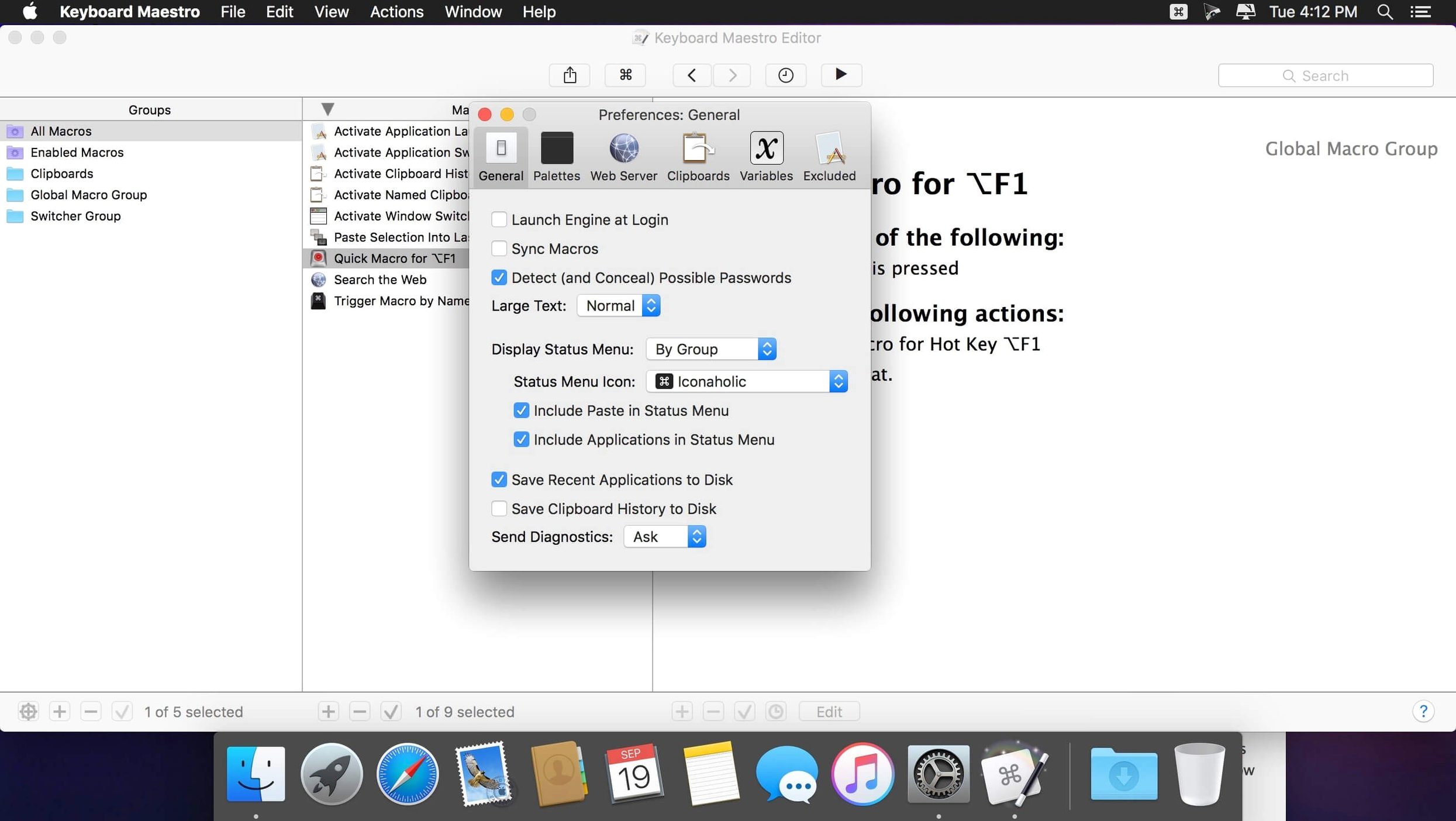
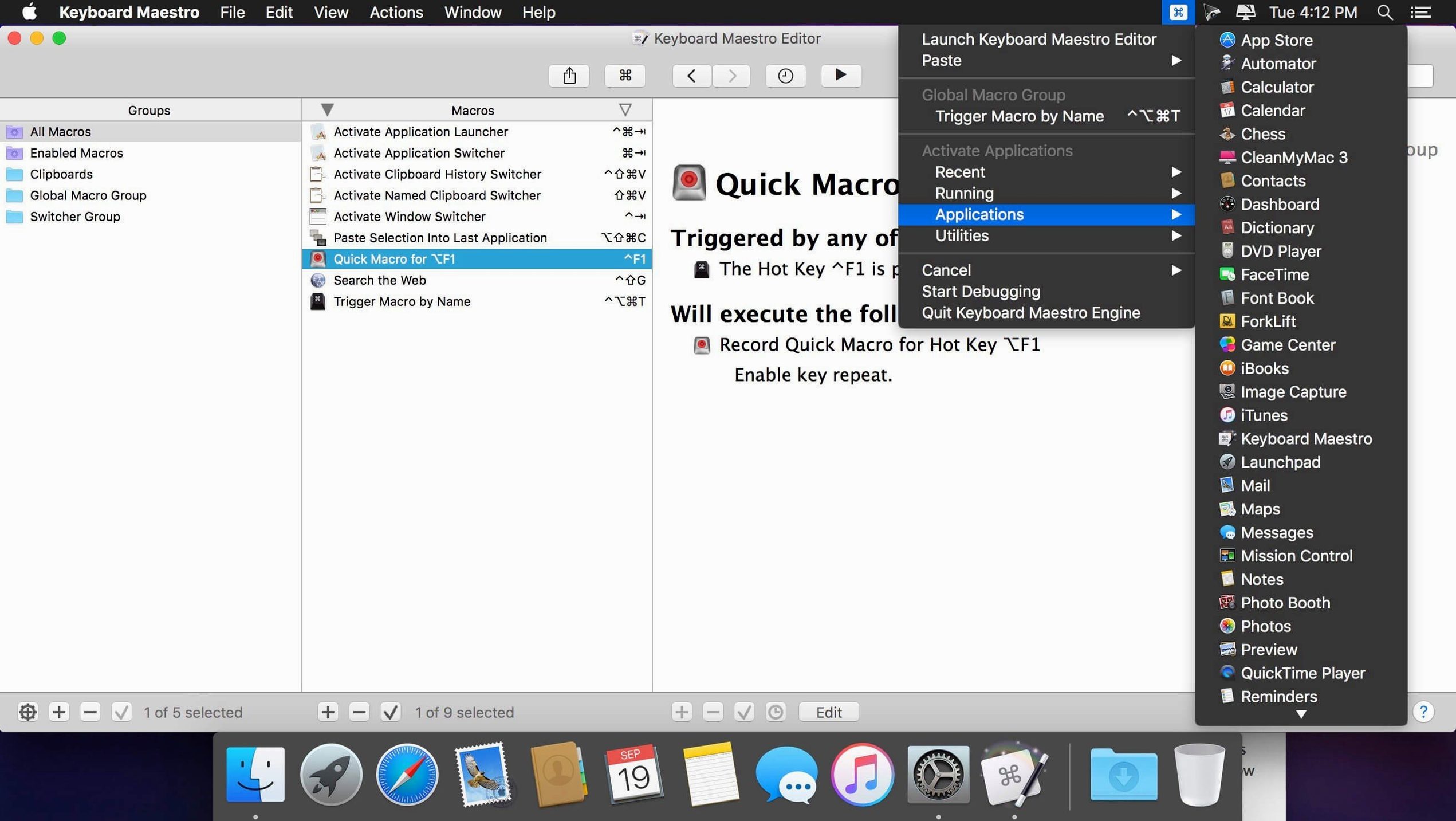
Cmd-Shift-Ainside the editor and start typing; the list filters instantly. It is faster than browsing categories once you know the action name you need. - Temporary pause from the menu bar. The status menu lets you disable Keyboard Maestro entirely with one click—useful when a game or a full-screen app grabs every keystroke and you do not want macros interfering.
Why treat AppleScript and shell scripts as building blocks, not rivals
Keyboard Maestro does not try to replace AppleScript, Shortcuts, or shell scripting. It connects them. An action can run an AppleScript snippet and capture the result into a variable, then pass that variable to a shell script that calls curl, then take the JSON response and hand it to a text-processing action. Shortcuts from the Monterey-and-later Mac can be triggered as part of a macro, pulling Shortcuts into workflows that also involve window management and clipboard filtering—two things Shortcuts still handles awkwardly on macOS.
Clipboard integration runs deep. The clipboard history swapper plays nicely with dedicated clipboard managers, but it also works standalone. A macro can copy three separate pieces of text in sequence, store each to a named variable, then paste them into different fields of a web form using found-image clicks. The system clipboard never loses its place because Keyboard Maestro holds the intermediate copies internally.
For music production setups where an ableton shortcut keyboard arrangement already exists, Keyboard Maestro can sit one layer above the DAW. A single global hotkey can switch the audio interface output, launch Live, open a template set, and position the mixer on a second display—then step out of the way while Live handles its own key mappings.
Window management actions pair with the native macOS window snapping introduced in Sequoia. A macro can move a window to the left half of the screen via the built-in action, then trigger Mission Control to show all windows of the current app, then arrow-key to the next one. It fills gaps that Apple leaves between its own features.
Web automation uses browser-specific hooks rather than simulated keystrokes. A macro can find a Safari tab by title, focus it, and execute JavaScript directly in the page context. For Chrome and Firefox, the same result comes through AppleScript bridges. Form-filling actions can target fields by name or placeholder text, which holds up better across site redesigns than coordinate-based clicking.
- Switch/Case actions now display which entries are true or would execute, making conditional branching visible at a glance.
- OCR Condition adds support for Apple Text Recognition.
- Tool tips added throughout the Macro Debugger window.
- Fixed an issue where search highlighting triggers would not fire correctly.
- macOS 10.13 or later
- Apple Silicon and Intel native
$ man keyboard-maestro | grep -A2 "?"
Can Keyboard Maestro trigger macros from a keyboard shortcut?
Yes, keyboard shortcuts are one of the primary trigger types, alongside time schedules, window focus changes, and other system events.
Does it support conditional logic and loops?
It includes full flow control withif/else conditions, Switch/Case branching, and loop actions that can iterate based on counters, clipboard content, or external conditions.
What image recognition capabilities does it have?
Version 11.0.4 supports Apple Text Recognition for OCR conditions, allowing a macro to read text from images and use it in decision-making or variable assignment.
Comments 0
Sign in or create an account to leave a comment.
No comments yet. A codec, a slice, a machine — they appear after moderation.