
LanScan for macOS
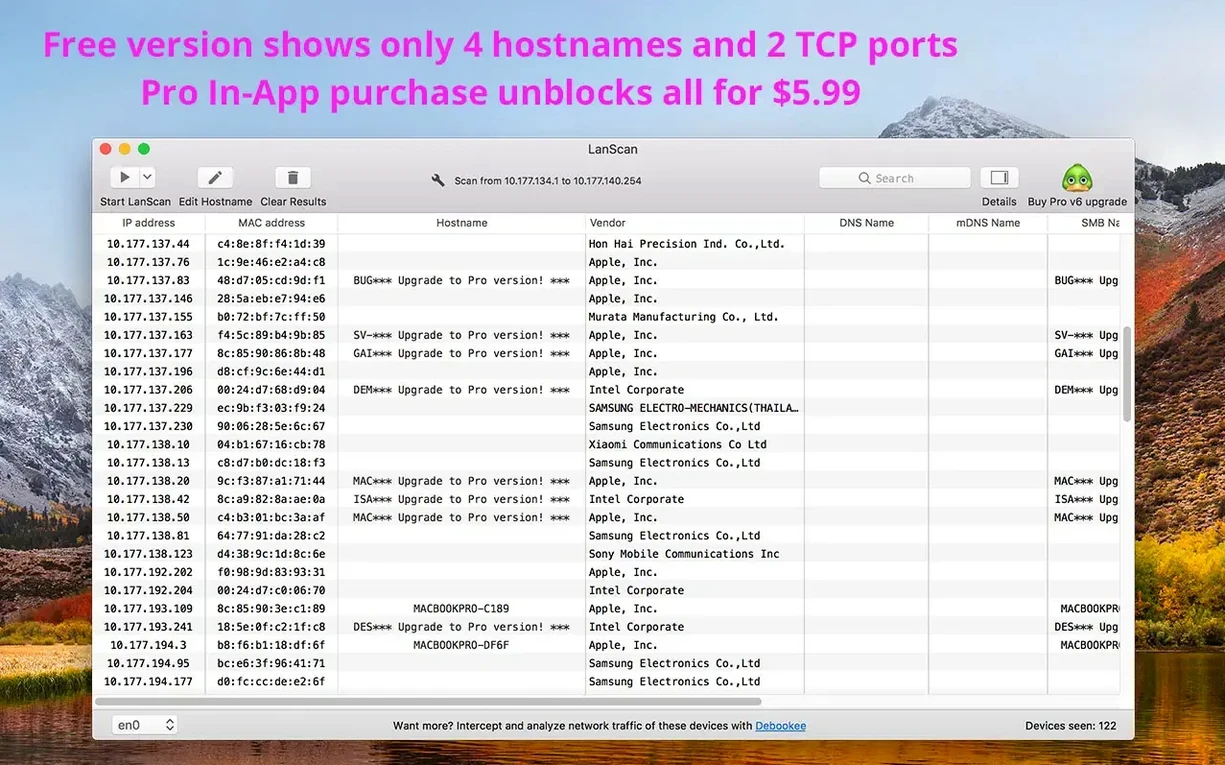
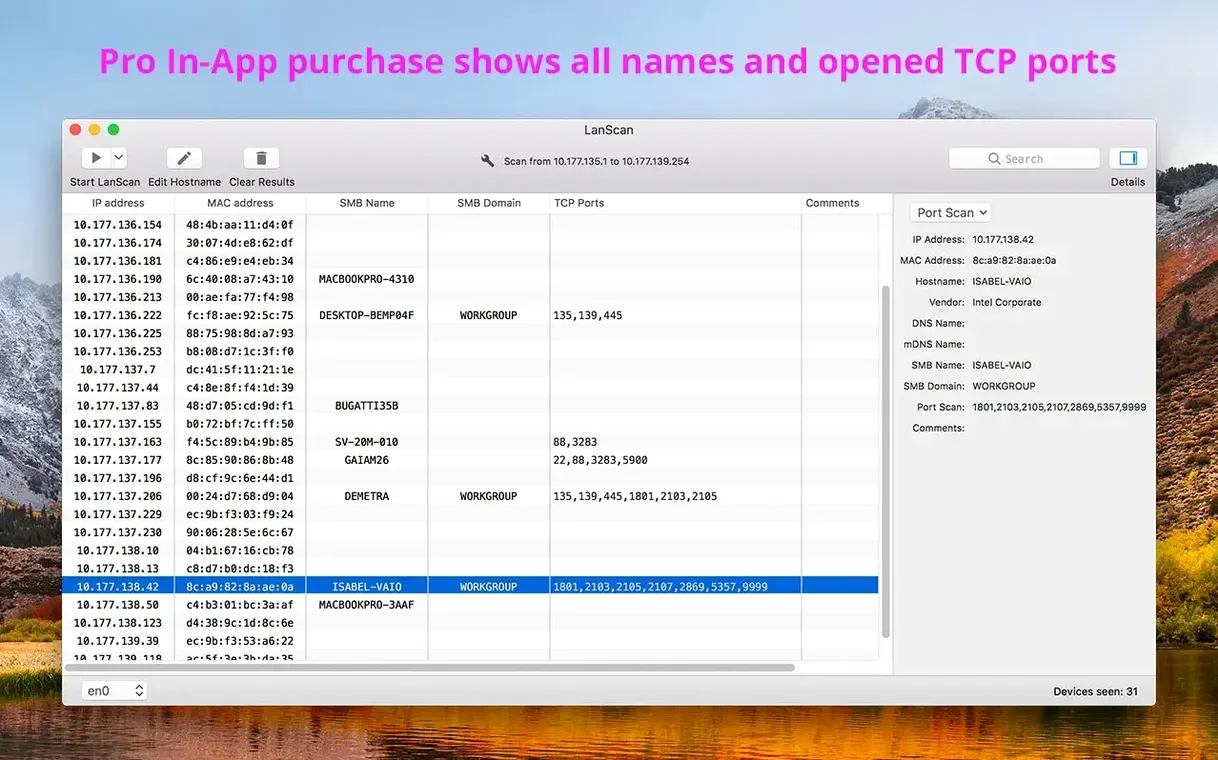
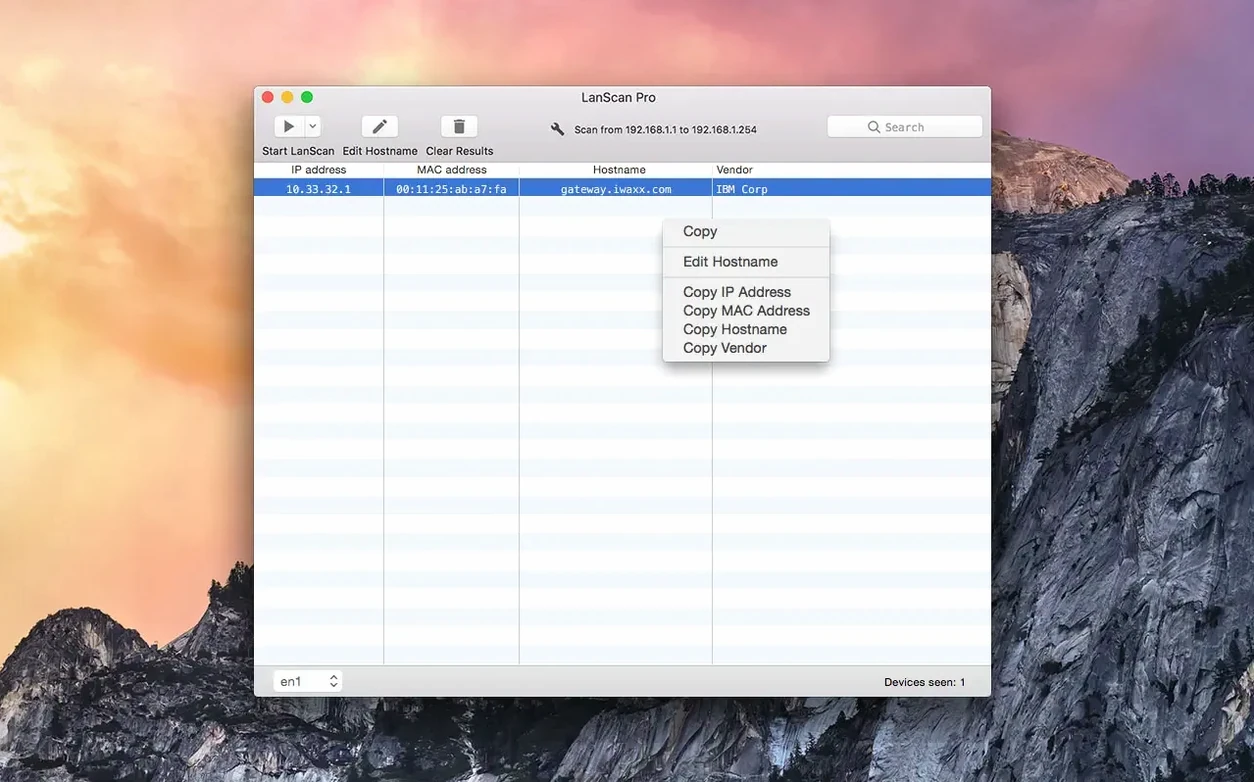
You suspect a device is squatting on a static IP, or you just need a fast head count of everything awake on the subnet — that's the problem LanScan solves without ceremony.
How fast is a plain IPv4 sweep?
Scan type — The toolbar starts you with a simple choice: IPv4, IPv6, or both. If you are on a typical home or office LAN, the IPv4 scan gives you results in seconds because it iterates through the subnet mask your Mac already knows. IPv6 mode listens for neighbor advertisements, so it takes a fixed duration but catches devices that never answer a ping.
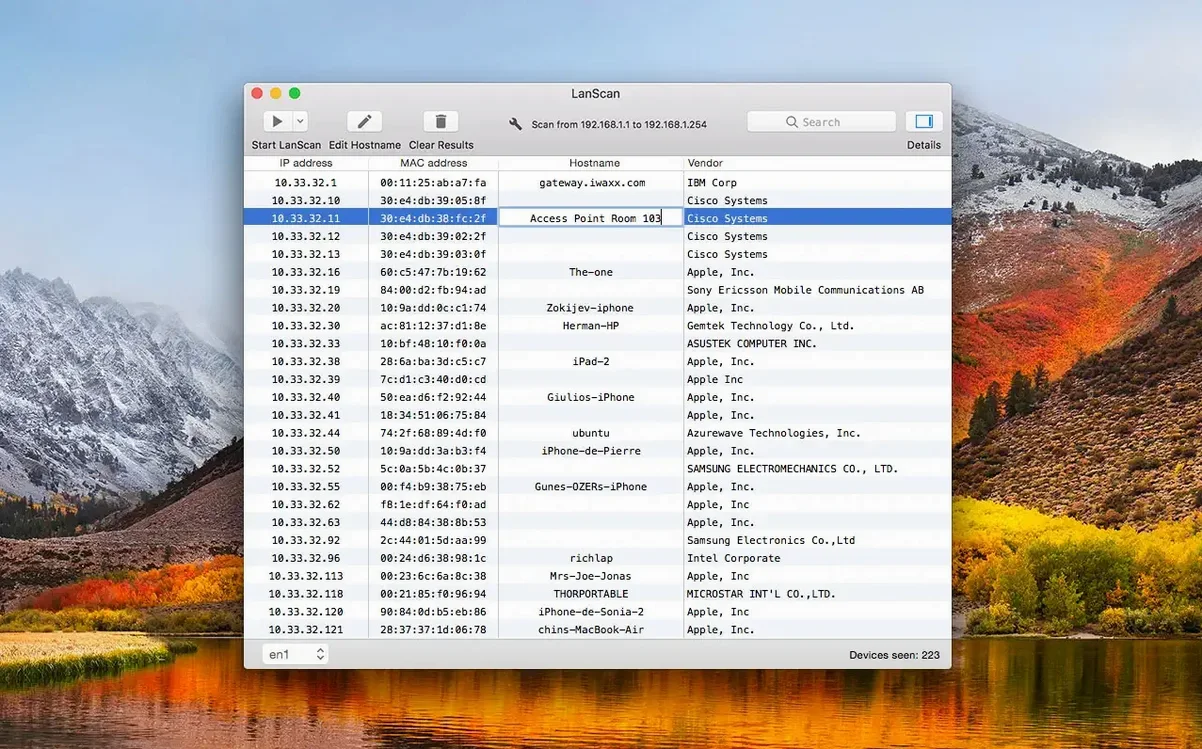
Host name resolution — By default, LanScan queries DNS, mDNS (Bonjour), and SMB in parallel. If a device doesn't resolve, double-click its host name cell and type your own label. That manual edit sticks across scans and exports, which is useful for headless gear like microcontrollers or IP cameras.
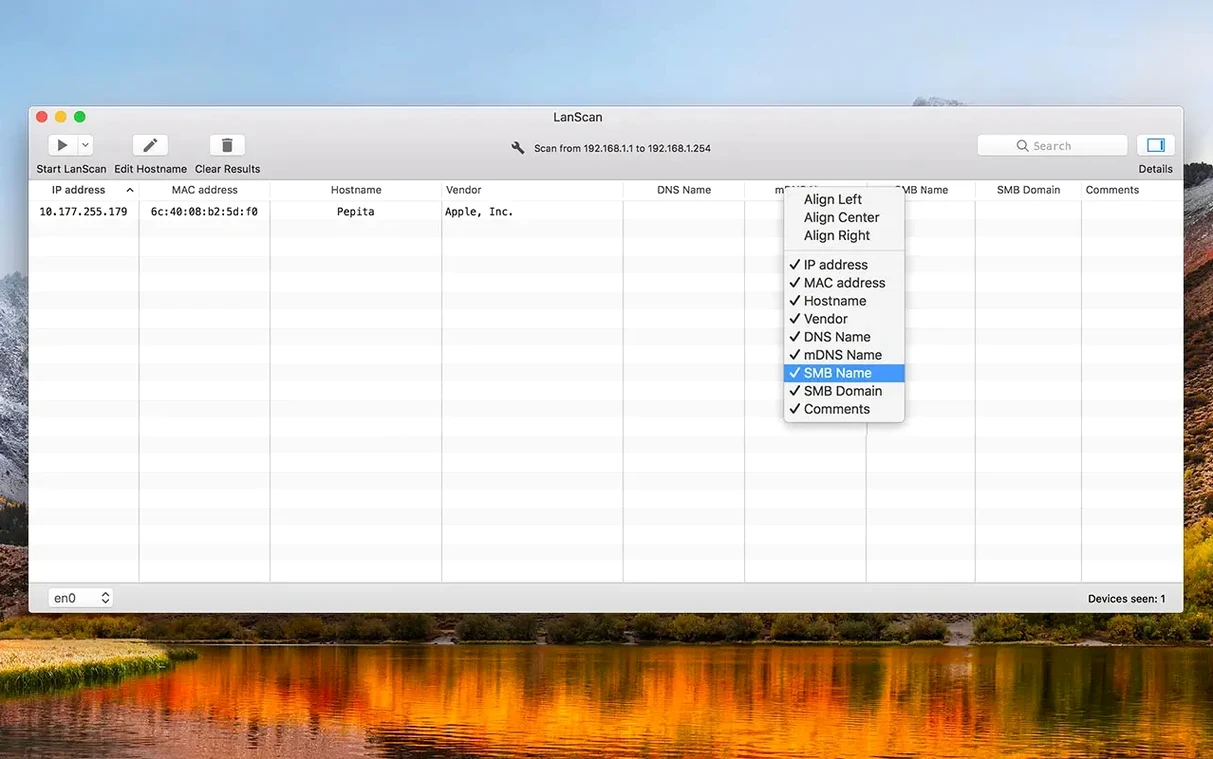
Columns and comments — Right-click the column header row to hide or show fields you don't need. The Comment column is free-form; I use it for rack locations and switch-port numbers. Each column's width can be aligned individually from the same context menu, so a long SMB domain string doesn't force every other column wide.
Export — File > Export gives you a CSV with whatever columns are visible. No hard device limit, so scanning a /16 won't truncate the table.
LanScan vs similar Mac network scanners
Two apps that come up in the same conversation are Angry IP Scanner and NetWorker. Angry IP Scanner is cross-platform Java, lightweight, and fast for pure IP enumeration — but it doesn't speak mDNS or SMB for hostname resolution on a Mac, so you get IPs and MACs with no friendly names unless you set up your own DNS. NetWorker adds a live bandwidth graph and a menu-bar widget, which is handy if you want constant visual feedback. Where LanScan pulls ahead is IPv6 neighbor discovery and the ability to juggle DNS, mDNS, and SMB queries in a single scan pass. NetWorker can't touch IPv6, and Angry IP Scanner's IPv6 support is experimental at best. If your network is dual-stack or you manage mixed-device environments where Bonjour names matter, LanScan earns its spot.
Another comparison is the built-in arp -a you can run in Terminal. It's instant and costs nothing, but it only shows the ARP table — devices your Mac hasn't talked to recently won't appear, there is no vendor lookup, and IPv6 is completely absent. LanScan actively probes the subnet rather than reading a cache, so you get a current picture, not a stale one.
Which default scan type fits your network?
After you grab the lanscan dmg and drop the app into Applications, spend ten minutes on configuration before your first real scan. The payoff is a setup that matches how you think about your network.
- Pick your default scan type. Open Preferences and set the startup scan mode to match what you use most. If you run a dual-stack network, leave it on IPv4+IPv6 so you never miss a device that only speaks one protocol.
- Register custom vendors. The built-in OUI database covers commercial hardware, but your custom gear — Raspberry Pis, ESP32 boards, development VMs — shows up as "Unknown." Go to the Vendor Editor (Cmd-Shift-V) and add entries for the MAC prefixes you own or see often. One afternoon of data entry saves squinting at raw MAC addresses for months.
- Build a URL template. If your switches, printers, or IPMI interfaces have web dashboards, set a custom URL pattern in Preferences. Highlight a device row and hit Cmd-U to open its management page in your browser. The URL can reference
${ip},${mac}, and${hostname}tokens. - Decide on a comment convention. Pick a format — maybe "Rack3-U12" or "VLAN20-AP" — and fill in comments as you identify devices. Exported CSVs become far more useful when you can sort by that column later.
Snags you might bump into
Scan returns fewer devices than expected
The most common cause is a firewall on the Mac itself. If you use Little Snitch, LuLu, or the built-in macOS application firewall, they can block the ARP and ICMP traffic LanScan needs. Temporarily disable them as a test. Less obvious: some VPN clients install virtual interfaces with odd routing tables. Check the interface selector in the toolbar — LanScan may be bound to a VPN tunnel adapter instead of your Ethernet or Wi-Fi interface. Switch it manually and rescan.
macOS prompts for permission on every launch
LanScan needs "Access to local network" permission, which macOS gates behind a privacy prompt. If you dismissed it once, the setting lives in System Settings > Privacy & Security > Local Network. Toggle LanScan on there. If the app still prompts, delete the entry, quit the app, and relaunch so the dialog reappears correctly.
Host names not resolving in public range scans
ARP doesn't work across subnets, so LanScan falls back to Ping, SMB, and mDNS for public IP ranges. If none of those protocols can reach the target, you get an IP and a MAC vendor but no name. For remote subnets where you control the DNS, add a reverse lookup zone — LanScan queries whatever DNS servers your Mac is configured to use. For Windows machines on the far side, ensure SMB (port 445) isn't blocked by an intervening firewall, because that's how the SMB name query reaches them.
MAC vendor shows "Unknown" for well-known gear
The OUI database ships inside the app bundle and updates with each version. If a device manufactured in the last year shows no vendor, it may use a newer MAC prefix not yet in that snapshot. You can add it yourself in the Vendor Editor, or check whether a newer lanscan mac download update has refreshed the database. iwaxx tends to bundle OUI updates in point releases.
Why one scan replaces separate discovery tools
IT generalists in small-to-medium offices get the most mileage because they wear multiple hats and can't afford a dedicated discovery tool per protocol. One scan shows them printers (mDNS), Windows workstations (SMB), managed switches (vendor from MAC), and that rogue Raspberry Pi someone plugged into a meeting-room port. The CSV export means they can hand a device inventory to a colleague in spreadsheet form without extra steps.
Home-lab builders running Proxmox, ESXi, or a stack of containers benefit from the unlimited device count and dual-stack scanning. When a VM pulls a DHCP address and you forgot to note which MAC it got, LanScan finds it in seconds. The custom comment field becomes a de facto asset tag for services: "pihole-primary," "nginx-reverse-proxy," "zigbee-bridge."
Field technicians who walk into unfamiliar networks appreciate that no pre-configuration is needed. LanScan auto-detects the active interface and subnet, so plugging an Ethernet cable into a client's switch and hitting Scan gives a clean device list without asking for a gateway, subnet mask, or DNS suffix. The ability to open a custom URL per device means one click from a printer's entry to its embedded web server for configuration changes.
Casual home users who just want to check whether a neighbor is borrowing their Wi-Fi can absolutely use LanScan, but they will leave most of its features untouched. The app works fine for a one-button scan to count connected devices, though a simpler tool might feel less cluttered for that single task.
- macOS 12 or later
- Apple Silicon or Intel 64-bit
$ man lanscan | grep -A2 "?"
Does LanScan handle both IPv4 and IPv6 on Apple Silicon Macs?
Yes, it runs natively on ARM and 64-bit Intel Macs, scanning IPv4 subnets and listening for IPv6 neighbor advertisements in a single session.
Can I save the list of discovered devices?
You can export the current results to a CSV file, including any custom host names and comments you've added.
Comments 0
Sign in or create an account to leave a comment.
No comments yet. A codec, a slice, a machine — they appear after moderation.