LightBurn for macOS
LightBurn 2.0 drops support for anything older than macOS 11. The current 2.0.05 DMG ships as an Intel 64-bit binary, so owners of M1/M2 Macs will need Rosetta 2 installed—the app is not yet Apple Silicon native. If you are still on macOS 10.13 through 10.15, you are stuck with the 1.x line.
What exactly does LightBurn do?
It is a design-to-cut application that talks directly to laser cutters. You get a built-in vector editor for creating and editing shapes, plus image tools that handle vectorization, masking and edge enhancement before sending a job to the hardware.
Who is it meant for?
The tool scales from a hobbyist engraving coasters in a garage to a production shop running rotary axes and overhead cameras. The same interface covers both ends of that spectrum.
What extra hardware does it talk to?
Drag in an SVG and it lands at the laser home position
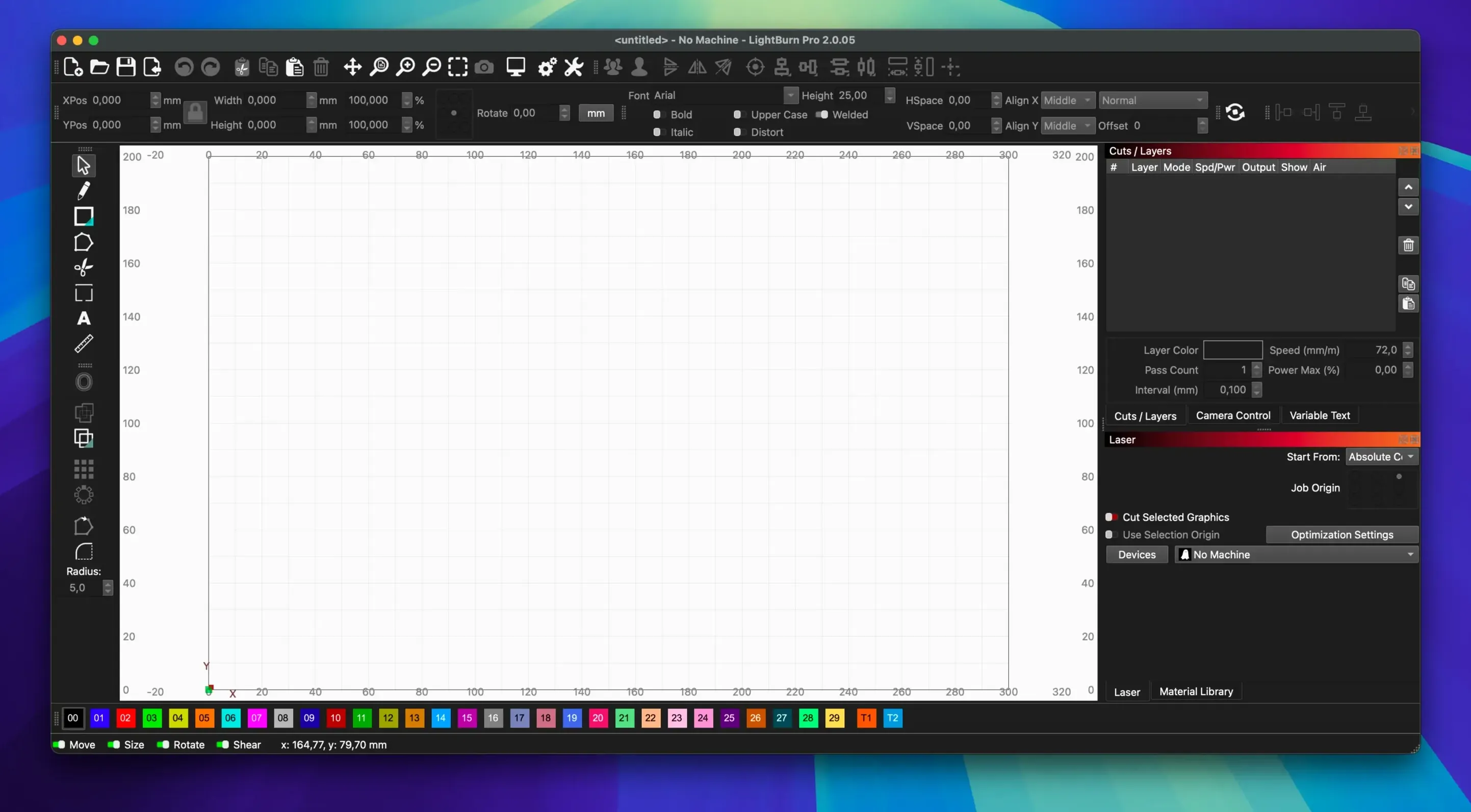
A morning with LightBurn usually starts like this. You open a fresh workspace, drag in an SVG from your design folder, and the file lands exactly where your laser's home position sits. No hunting through import dialogs that guess wrong about coordinate systems. The artwork appears on a dark grid that you can set to match your machine's physical bed size—an underappreciated touch that prevents you from designing something that does not fit the honeycomb.
You tap F to frame the job. The laser head traces a bounding rectangle at low power so you can see whether the plywood sheet has wandered out of position. Then you assign a layer colour, punch in speed and power from a material preset you saved last month, and hit Start. From import to cutting takes under two minutes when the material is already dialled in. That flow—import, frame, preset, go—becomes muscle memory quickly.
On an Intel MacBook Pro from 2019 the interface stays responsive even with a complex DXF containing a few thousand nodes. The raster preview renders at full resolution without the beachball that plagues some Electron-based tools. Memory sits around 400 MB during normal use, climbing toward 800 MB when you stack multiple large bitmaps with dithering applied. For a single-purpose design tool, those numbers leave room for a browser and music without swap pressure.
Three extra Dock bounces on launch, then native-feeling edits
Running the 2.0.05 Intel binary through Rosetta 2 on an M1 machine carries a small translation penalty on launch—roughly three extra bounces in the Dock—but once the window is open, redraws and node edits feel native. You only notice the translation layer when running the interval-based dithering preview on a 20-megapixel photo; that takes a beat longer than it would on bare metal.
Crashes are rare in this build. The 2.0.05 release specifically fixed a crash when importing SVG files containing ungrouped DEF shapes, which bit anyone pulling artwork from older CorelDRAW exports. The other two fixes in this version—window title bar placement with stored offsets and rotary jogging direction in CCW mode—suggest the developers are paying attention to the kind of edge cases that shops encounter after hundreds of hours of use. A rotary axis jogging the wrong way mid-job is the sort of thing that ruins expensive stock, and that bug is now squashed.
One stability note worth knowing: if you leave a job paused for more than about fifteen minutes while connected over USB, some Ruida controllers will drop the handshake. LightBurn does not always recover gracefully from that state. The workaround is to save your project before pausing and be prepared to reconnect the device. It is not a crash so much as a hardware timeout that the software could handle more gracefully.
Double-click a path to add a node at that exact spot
The Edit Nodes toolbar that arrived with version 2.0 hides a few tricks. Double-clicking anywhere on a path adds a node at that exact spot. Holding Option while dragging a node handle breaks the symmetry of the Bézier curve, which is standard vector-editor behaviour but never advertised in the manual. Right-clicking a node offers a context menu where Smooth and Corner are faster than reaching for the toolbar every time.
The material library deserves more attention than it gets. You can add a new material, dial in five different layer settings with distinct speeds and power levels, and save it as a named preset that travels with your preferences file. The file lives at ~/Library/Application Support/LightBurn/material.db—backing it up means you never lose a year of fine-tuned settings. Copying that file to another Mac transfers your entire material library, which is not obvious from the interface but has saved at least one small shop from re-entering fifty presets after a machine swap.
Another hidden shortcut: Ctrl+Shift+V pastes a shape at its original coordinates rather than centering it on the current view. When you are aligning artwork across multiple files that share a common origin point, that keystroke eliminates a lot of nudging. The Tab key rotates through overlapping shapes in selection order, which matters when boolean operations are about to combine the wrong two objects.
If you are working with a downloaded lightburn mac full package, the preference file location is identical to the standard install—the application does not scatter configuration across odd paths. Anyone searching for a lightburn mac crack or lightburn crack for mac will find that some builds include modified preferences, so checking that the material database loads cleanly and verifying device profiles against known-good values is a smart first step. A clean material.db backup is cheap insurance regardless of where the binary came from.
The laser head won’t home itself before every job
The most common error is assuming that the laser head homes automatically before every job. It does not. If you power on the machine, move the head by hand to check alignment, and forget to press Home in the Move window, the job will start from wherever the head happens to be sitting. On a diode laser that means a ruined workpiece at best and a head crash into a clamp at worst.
Another classic: setting power as a percentage on a controller that expects PWM values in the 0–1000 range. LightBurn shows the unit in the layer settings, but it is easy to overlook when switching between a GRBL diode laser and a CO₂ machine. 10% on a diode might be 100 on a Ruida, and mixing them up means either a faint ghost line or a fire hazard. Check the device profile before importing settings from a friend's setup.
Beginners also tend to leave Overscanning turned off for engraving jobs. Without it, the laser snaps to a dead stop and reverses instantly on each scan line, which overheats the tube and leaves burn marks at the edges. Turning on a 2–3 mm overscan cools the edges of the engraving and hides the turnaround artefact. The checkbox lives in the advanced layer settings and is set per-layer, not globally—so you need to enable it for every engraving layer separately.
Rotary setup trips people up too. Entering the diameter when the controller expects the circumference, or forgetting to enable the rotary in the device settings before homing, leads to distorted engravings and sometimes a wrapped cable. Always jog-test the rotary from the Move window before running a job on a tumbler you care about.
Drop a photo of a warped live-edge slab onto the workspace
Small-batch production shops benefit the most. Someone making twenty custom cutting boards a week lives inside the material library and the camera alignment tools. The ability to drop a phone photo of a warped live-edge slab onto the workspace, align artwork visually, and send it to a camera-equipped laser turns a fifteen-minute manual registration into a thirty-second operation. That workflow alone justifies the software for anyone doing irregular-stock engraving.
Educational makerspaces and university fab labs are another sweet spot. One machine, dozens of users with varying skill levels, and a shared material library that prevents someone from accidentally setting 100% power on 3 mm birch plywood. The interface is flat enough that a student with one afternoon of training can import an Illustrator file, assign a preset, and cut without understanding G-code. Instructors can lock down device settings behind a password so students cannot reconfigure the homing speed or swap the coordinate system.
Hobbyists who own diode lasers and started with web-based tools eventually hit a wall on raster engraving quality. LightBurn's interval-based dithering and per-layer power curves produce photographic engravings that browser-based controllers cannot match. The jump from a grayscale preview that looks like a blocky mess to a dialled-in Jarvis dither on basswood is the moment where the software pays for itself in saved material. If you found this page via a search for torrent lightburn or lightburn mac torrent, you are probably at that exact transition point—outgrowing a free tool and curious about what a dedicated application can do.
Architects and exhibit designers who use LightBurn purely as a 2D layout tool, without ever connecting a laser, represent a quieter user group. They draw panel cut lists with the vector tools, export DXF files for CNC routers, and treat the application as a lightweight CAD package that happens to understand kerf compensation. The boolean weld and offset tools handle the kind of tab-and-slot joinery that parametric CAD packages overcomplicate for flat-pack designs.
Beyond the laser itself, LightBurn supports rotary attachments for cylindrical engraving and camera systems that help align artwork on oddly shaped stock.
- Fixes a crash triggered by SVG files with ungrouped DEF shapes during import.
- Corrects rotary jogging direction when the controller is set to CCW mode.
- Repairs window title bar placement after stored offsets get out of sync.
- macOS 11 or later (LightBurn 2.0 series)
- Intel 64-bit processor or Apple Silicon with Rosetta 2
- Interface language: English
$ man lightburn | grep -A2 "?"
Can LightBurn open SVG files safely now?
Version 2.0.05 fixes a crash that occurred when importing SVG files containing ungrouped DEF shapes, so that particular import path is stable again.
Comments 0
Sign in or create an account to leave a comment.
No comments yet. A codec, a slice, a machine — they appear after moderation.