Lunar Pro for macOS
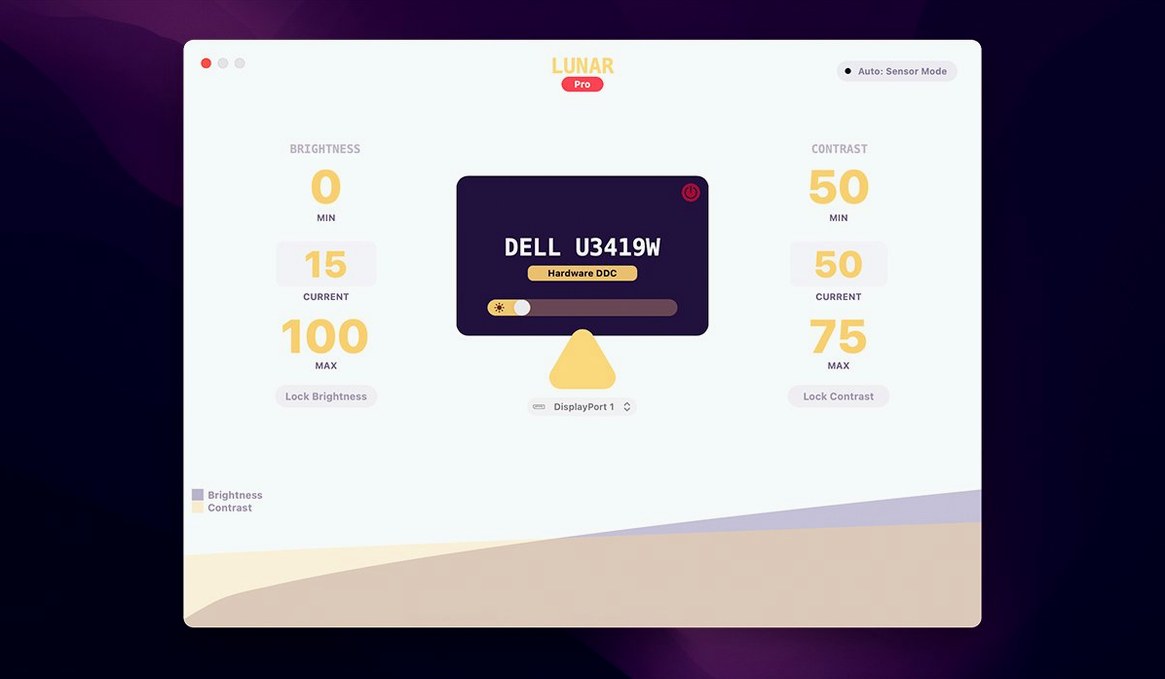
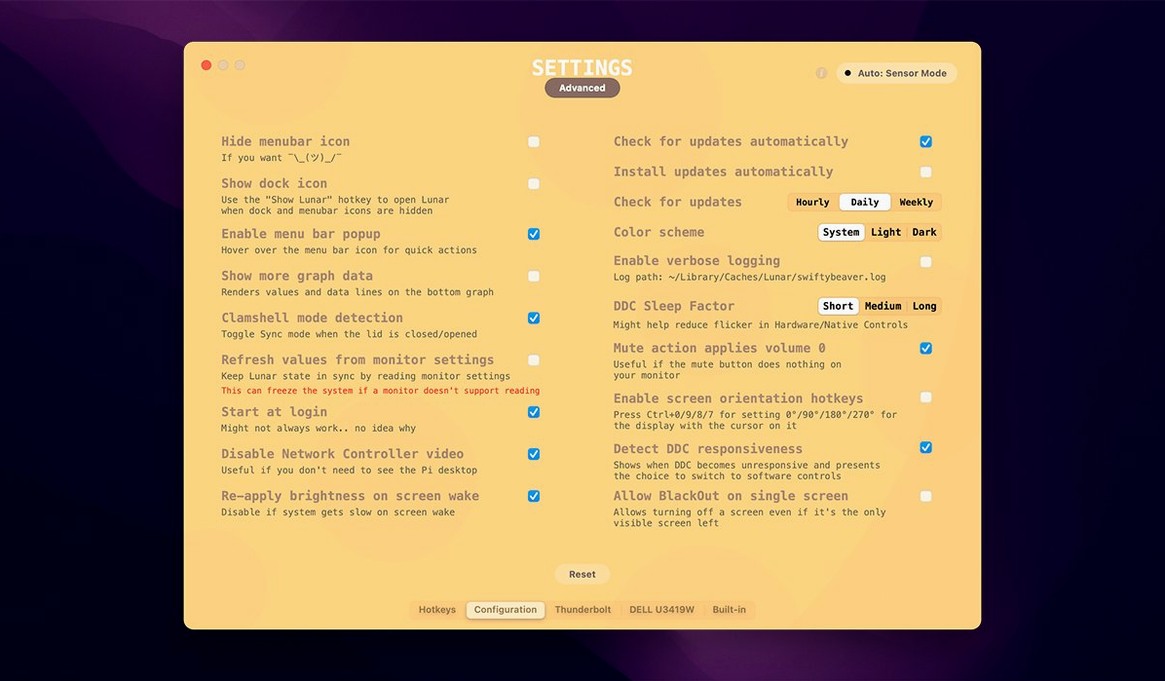
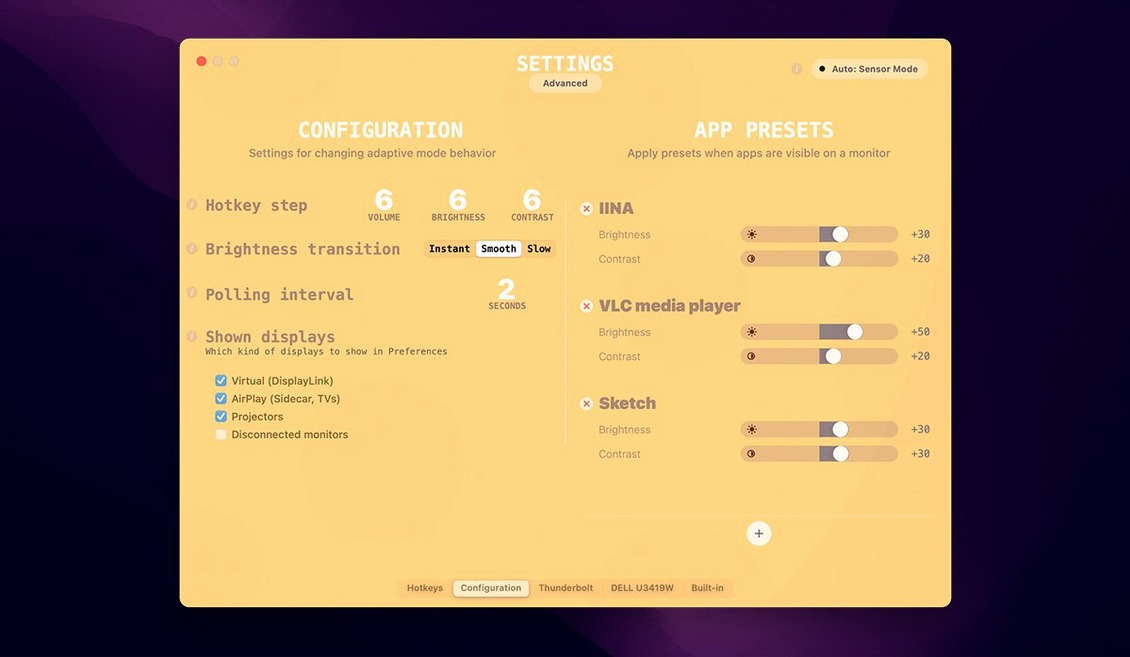
Lunar Pro runs on any Mac with Apple Silicon or a 64-bit Intel processor, as long as you’re on macOS 11 or later. The app takes the adaptive brightness behavior built into MacBooks and iMacs and extends it outward — to any external display connected to your machine. Instead of digging through clunky monitor OSD menus, you get the same smooth, automatic adjustments for brightness and contrast that you’re used to on the internal screen.
- Syncs external monitor brightness and contrast with the ambient light sensor
- Works alongside Night Shift and True Tone so color shifts don’t fight each other
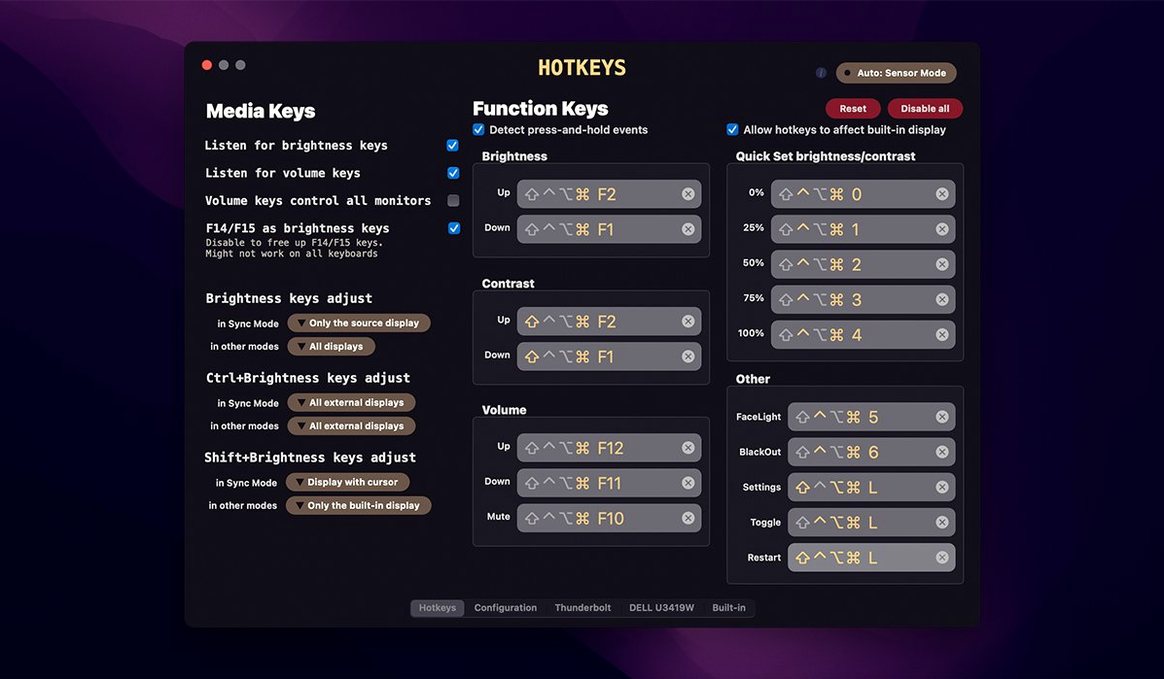
- Lets you set manual brightness and contrast via keyboard hotkeys
- Includes an app exclusion list — useful for photo editors or video work that needs a fixed luminance
- Controls contrast independently, which the built-in macOS brightness keys never touch on external displays
The result is a setup where all your screens feel like they belong to the same system. If you run multiple external monitors, or one external next to a MacBook display, Lunar Pro keeps the lighting coherent across every panel without you needing to babysit sliders.
Why set per-display brightness floors for aging screens?
A few of Lunar Pro's most useful behaviors sit just outside the main view. The per-display settings panel, for example, lets you set different minimum and maximum brightness values for each monitor. That matters more than it sounds: an older Dell panel and a newer LG often have very different native luminance ranges, so the same sensor reading needs different mappings per screen. Lunar Pro handles that without extra configuration.
Keyboard control extends beyond a single global hotkey. You can bind separate shortcuts for brightness up, brightness down, contrast up, and contrast down, which means a small external keyboard without media keys can still drive everything. The exclusion list also accepts individual apps rather than whole categories, so you can keep Final Cut Pro at full output while Safari and Xcode continue adapting normally.
One detail worth knowing: when you work with f.lux, Lunar Pro stays compatible as long as you avoid gamma-based or software-only control paths. Using hardware DDC for brightness keeps the two from stepping on each other. The same applies to Night Shift and True Tone — Lunar Pro does not try to override what macOS already does on the internal display.
Where does it pull ahead of MonitorControl?
MonitorControl covers some of the same ground, with DDC-based brightness for external displays and a menu bar slider. The difference shows up in adaptive behavior: Lunar Pro's sensor-driven and location-based adjustments are more granular, and contrast control is a first-class feature rather than an afterthought. If you only need a manual slider, MonitorControl is simpler. If you want the external monitor to respond to the room the way the MacBook screen already does, Lunar Pro goes further.
BetterDisplay approaches external display management from the resolution and virtual-display side, adding brightness controls as part of a larger toolkit. It creates dummy displays and handles HiDPI overrides — useful for mirroring or streaming setups — but the adaptive brightness layer is less central. Lunar Pro is the more focused choice when luminance, not display topology, is the problem.
For a manual utility, Brightness Slider gives you a basic menu bar control and not much else. No sensor input, no contrast channel, no per-app exclusions. It works, but it stops where Lunar Pro's core features begin. Some people search around for a lunar pro torrent mac to try the adaptive side without committing first — the disk image and drag-to-Applications flow make it easy to test on a spare external monitor.
What smoothed out the sensor jumps between rooms?
Version 6.9.6 keeps the app on Apple Silicon and 64-bit Intel Macs without adding new system requirements. In daily use, the most noticeable refinements have been around sensor stability: fewer sudden brightness jumps when you move a MacBook between rooms with very different lighting, and smoother transitions on monitors with slower DDC response times.
The per-display settings interface also got a bit more predictable. Earlier versions sometimes reset custom minimum and maximum values after a display slept and woke; recent builds hold those values across sleep cycles, which removes one of the more common annoyances in a multi-monitor setup. The exclusion list remains one of the quiet strengths — adding an app takes a few seconds, and the change applies immediately without restarting the display.
- macOS 11 or later
- Apple Silicon or 64-bit Intel processor
$ man lunar-pro | grep -A2 "?"
Does Lunar Pro work with my Mac’s ambient light sensor?
Yes — it reads the same sensor data macOS uses for the internal display and applies it to your external monitors, so brightness and contrast adjust together.
Comments 0
Sign in or create an account to leave a comment.
No comments yet. A codec, a slice, a machine — they appear after moderation.