MacBooster for macOS
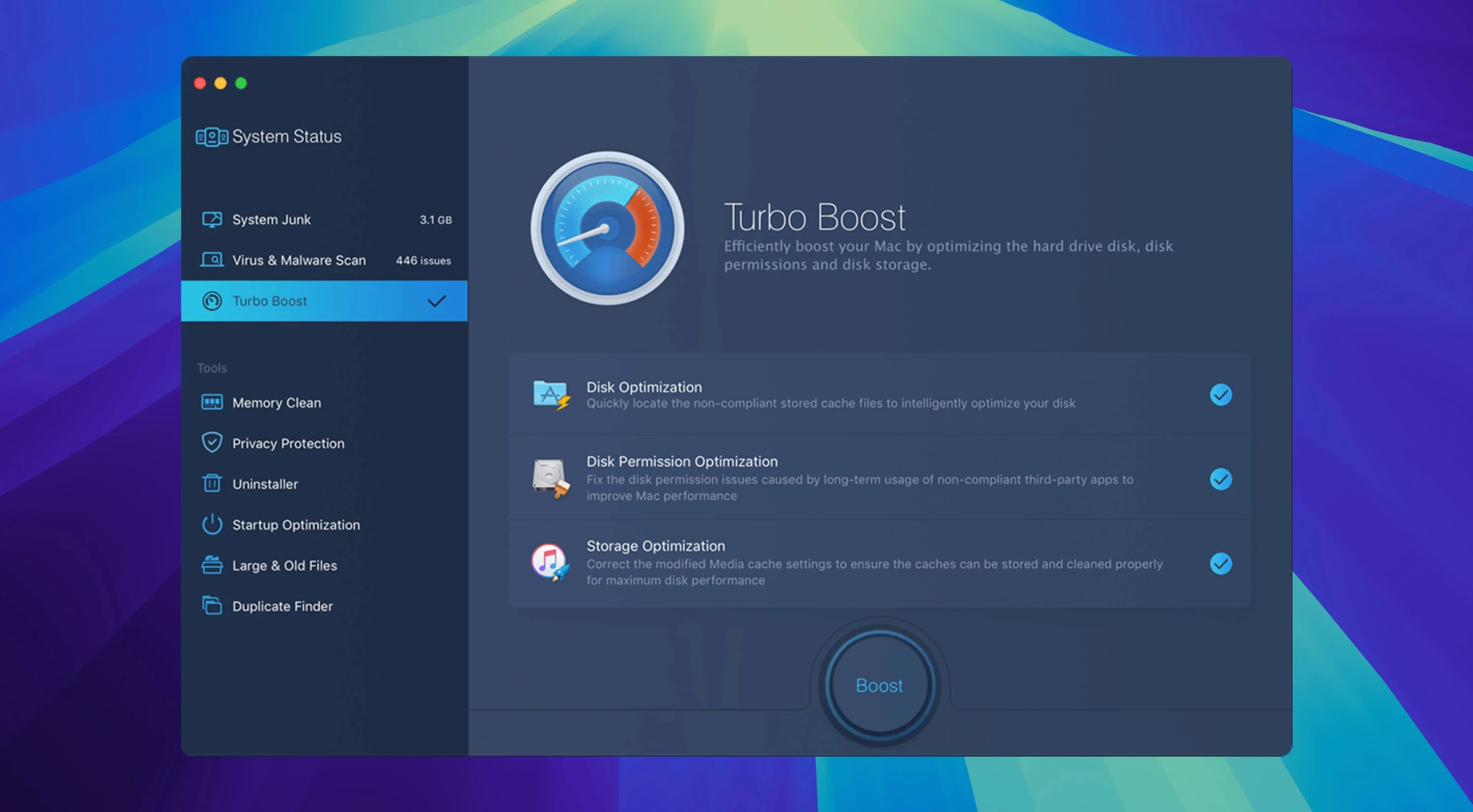
Twenty. That's how many distinct categories of junk files MacBooster 8 targets on a scan—system caches, old iOS backups, leftover language packs, broken login items, and the usual suspects hiding in ~/Library/Caches. It's a Mac OS system utility from IObit that wraps seven separate maintenance jobs into a single native app for Apple Silicon and Intel Macs.
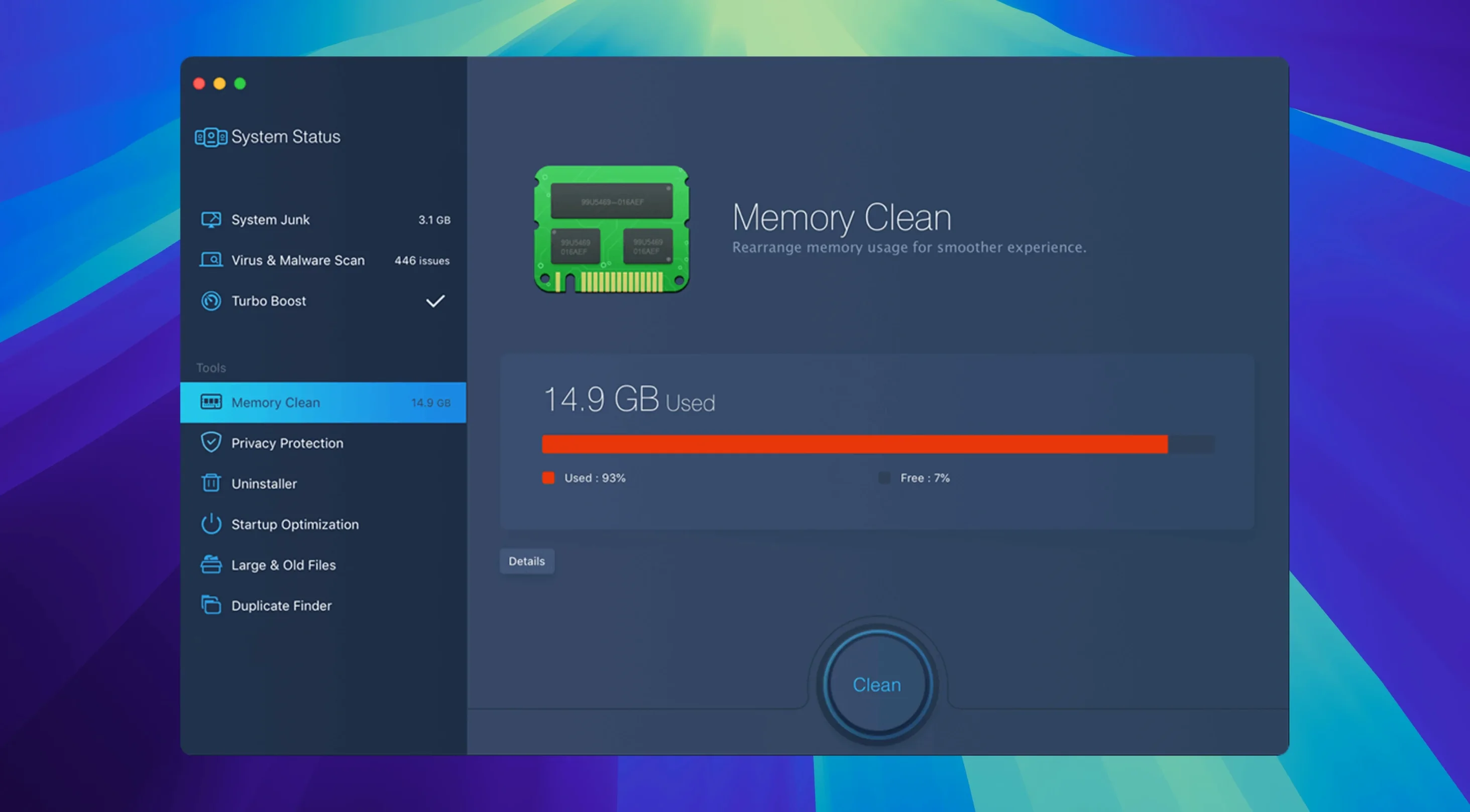
The malware scanner operates alongside the cleaner, hunting for adware, browser hijackers, and what the developer simply labels 'viruses.' It works orthogonally to the privacy tools, which handle browsing traces, recent item lists, and saved chat logs. Meanwhile, the disk optimization routines defragment free space and repair permissions—a classic combo aimed at squeezing more throughput from an aging spinning drive, though the file structure cleanup still matters on APFS volumes.
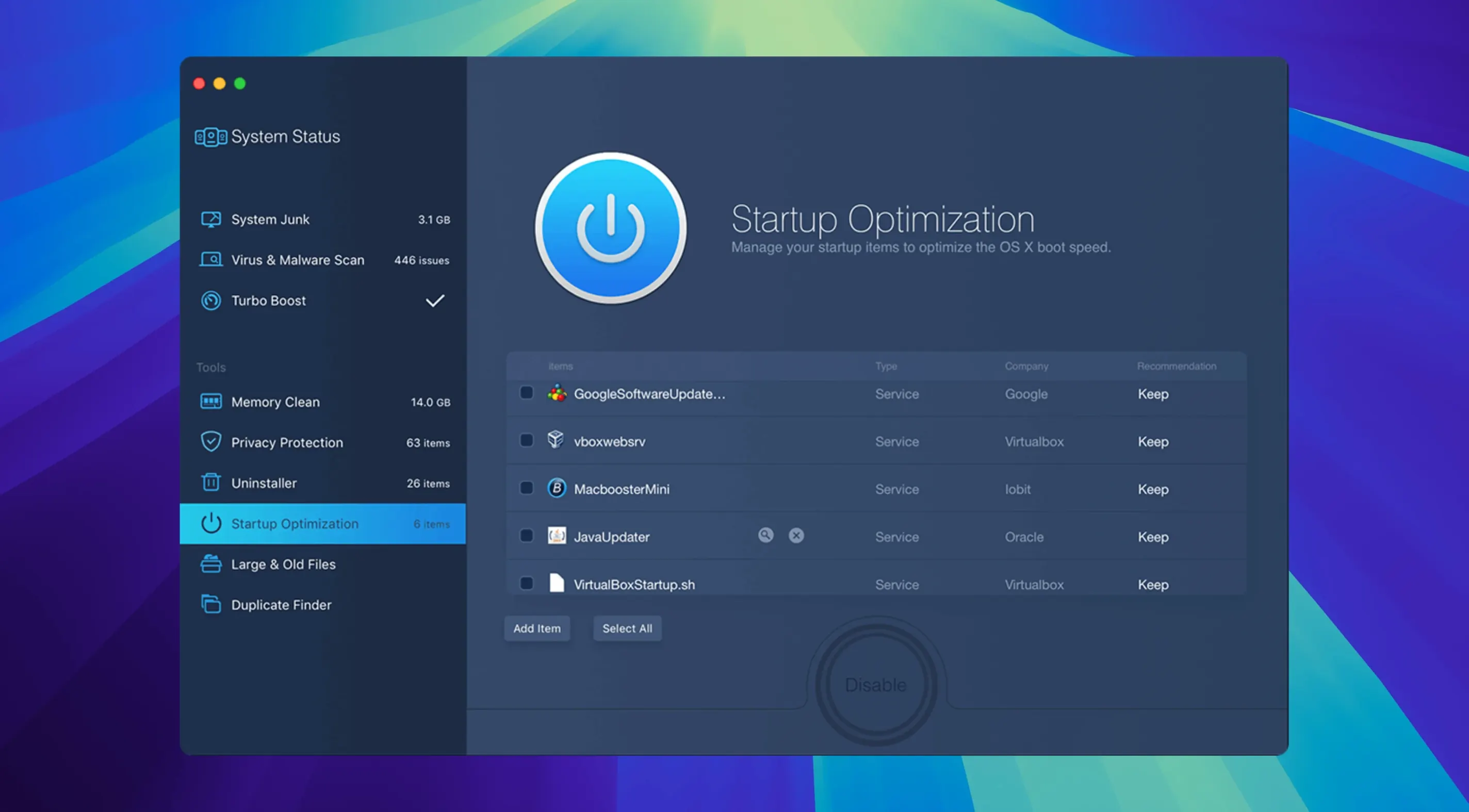
The uninstaller digs deeper than dragging an .app bundle to the Trash, catching leftover .plist preferences and supporting daemons in /Library/LaunchAgents. You also get a duplicate file finder that compares checksums rather than just filenames, a large-file locator for clearing out bulky downloads, and a startup optimizer that flags launch daemons and login items that slow down the boot sequence.
All fourteen interface languages—from Russian and Japanese to Brazilian Portuguese and Simplified Chinese—ship in the bundle, so the full feature set is accessible regardless of your system locale.
How does MacBooster compare with similar Mac cleaners?
Stack MacBooster 8 next to CleanMyMac X and the difference in philosophy becomes obvious fast. CleanMyMac leans into a guided, almost conversational flow—its scans end with a friendly summary and a big blue button. MacBooster spreads its seven tools across a more traditional utility dashboard and lets you pick a lane: system junk, malware, privacy, or performance. If you prefer a single panel where everything happens in sequence, CleanMyMac might feel more fluid. If you want to jump straight to the duplicate finder without sitting through a full system scan first, MacBooster's layout saves clicks.
Onyx is the other comparison that comes up in forums. It's free, it's powerful, and it exposes parameters most users never touch—kernel cache rebuilds, Spotlight index erasure, and raw launchd plist validation. The trade-off is that Onyx feels like a technician's tool. MacBooster wraps similar maintenance tasks in labeled buttons with plain-language descriptions, which makes it approachable without requiring you to know what a dyld shared cache actually stores. For deep parameter tweaking, Onyx wins. For scanning, fixing, and moving on, MacBooster covers the same ground faster.
Then there's MacCleaner Pro from Nektony, which splits its feature set across a family of smaller apps. That modular approach is clever if you only need one or two functions, but it fragments the experience. MacBooster keeps everything inside a single window, and the malware scanner in particular gives it an edge—MacCleaner Pro doesn't include one. If basic security checks matter alongside cleanup, macbooster 8 pro bundles both without asking you to install a second tool.
Double-click a scan result to open its path in Finder
A few shortcuts in the interface aren't advertised on the main screen. Double-click any item in a scan result list, and MacBooster reveals its path in Finder with ⌘R-style behavior—useful when you spot a multi-gigabyte cache folder and want to check what app generated it before deleting. The duplicate finder's checksum comparison is another quiet detail: unlike filename-only scanners, it won't flag two identically named photos as duplicates unless the file content actually matches.
The startup optimizer includes a load-time column measured in seconds, so you're not guessing which launch agent is dragging down the login sequence. Hovering over an entry shows the full path to the .plist file, helpful for tracking down leftovers from apps you uninstalled months ago. In the privacy module, the browser cleanup spans Safari, Chrome, and Firefox profiles simultaneously—no switching between panes per browser. And the large-file finder's size slider lets you set a minimum threshold, so you're not scrolling past hundreds of tiny preference files when hunting for a forgotten 40 GB VM image.
Can it rescue a 128 GB MacBook Air choking on system junk?
Mac users who keep their machines for four or five years get the most mileage here. On an older Intel MacBook Air with a 128 GB SSD, the accumulated system junk—iOS software update downloads, Xcode simulator caches, and orphaned Homebrew build artifacts—can easily eat 15 to 20 GB. MacBooster's twenty-category junk scan surfaces those in one pass, and the disk optimization's free-space defragmentation helps APFS volumes that have seen heavy write amplification over years of small-file churn.
Freelancers and students who install and remove creative tools frequently (Adobe Creative Cloud components, Blender, large audio plug-in suites) benefit from the uninstaller's daemon and .plist cleanup. Dragging an app to the Trash leaves launch agents intact, and over a year of trial installs those pile up. The duplicate finder also saves time for photographers and designers who keep multiple working copies of asset folders across external drives—the checksum comparison catches true duplicates regardless of naming conventions.
Users who want a single utility rather than a maintenance toolkit collection—brew scripts, a separate malware scanner, a manual launchctl routine—will appreciate having all seven tools in one app. It's not aimed at command-line purists who script their own cleanup; it's built for someone who wants to run a scan, read plain-language results, and click fix.
Untick Xcode caches in preferences if you're not a developer
The default scan selects all twenty junk categories, which is thorough but can take a while on larger drives. Open the preferences panel and uncheck categories you know you don't need rescanned every time—Xcode caches if you're not a developer, or old iOS backups if you've already archived those manually. This trims scan time noticeably on subsequent passes.
The privacy module defaults to clearing all browser data, including saved passwords. If you rely on Safari's autofill for logins, switch that toggle off before running your first privacy sweep. Re-entering credentials across every site isn't a fun way to spend an afternoon. The duplicate finder's default similarity threshold is conservative; bump it to a stricter setting if you want only byte-identical files flagged and prefer to handle near-duplicates manually.
In the startup optimizer, the app highlights items it considers safe to disable, but it's worth cross-checking entries you don't recognize against a quick web search—some audio interface drivers and cloud sync agents register under obscure labels. Disabling them won't break macOS, but you might lose functionality you rely on. Finally, head to the app's scheduling preferences if you want weekly scans to run without manual intervention; it's off by default, and turning it on means you'll get a status notification instead of forgetting to check for months.
- macOS 11.5 or later
- Apple Silicon or Intel 64-bit processor
- 70 MB or more of free disk space
$ man macbooster | grep -A2 "?"
Does MacBooster 8 run natively on Apple Silicon?
Yes, the binary is universal, containing botharm64 and x86_64 slices so it runs without Rosetta on M1, M2, and M3 Macs.
What does the hard disk optimization actually do?
It repairs disk permissions, scans for directory structure errors, and defragments free space to reduce file fragmentation, which can improve read/write performance on HFS+ and APFS volumes.
How is the duplicate finder different from a Finder search?
Instead of matching only filenames, it compares SHA-1 file checksums to identify true duplicates, even when the files have different names.
Comments 0
Sign in or create an account to leave a comment.
No comments yet. A codec, a slice, a machine — they appear after moderation.