Lungo for macOS
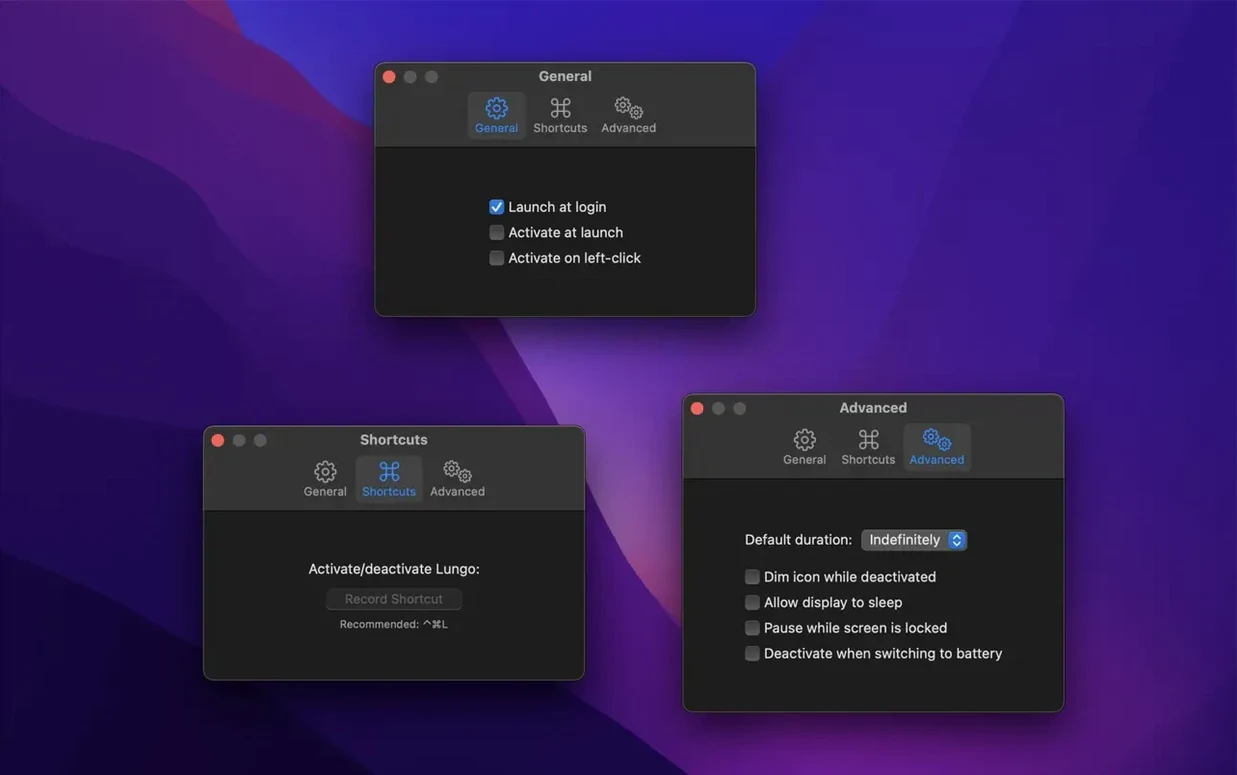
Version 2.8.3 ships bug fixes for the MAS build. The workflow is one step, really:
- Click Lungo’s coffee-cup icon in the menu bar.
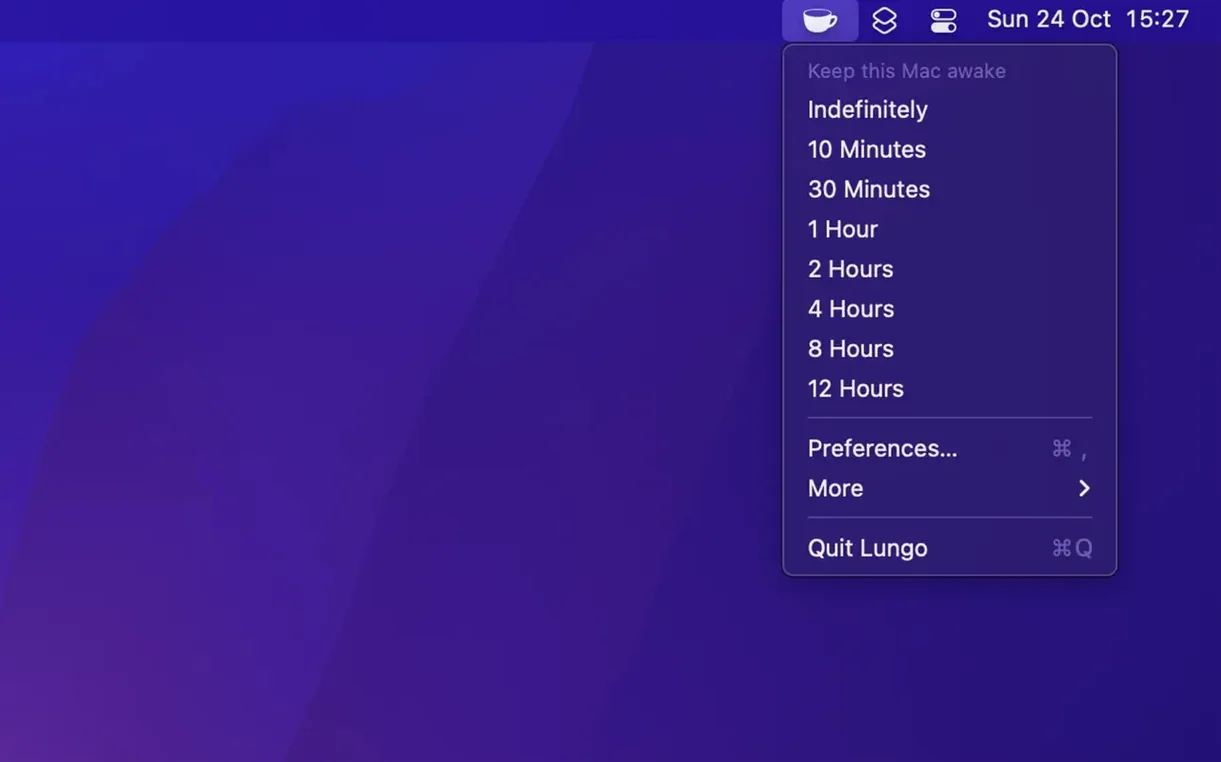
That’s it. Your Mac stays awake and the display stays bright until you click the icon again. Right-click the icon and you can pick a specific duration—10 minutes, 30 minutes, a couple of hours, or indefinitely. It’s the quickest way to override macOS energy settings without digging into System Settings.
Lungo sits next to tools like f.lux or Nightfall that adjust screen warmth, but it solves the opposite problem: when you actively need the screen to stay on—reading a long document, watching a dashboard, or keeping a render visible. It doesn’t touch your scheduled sleep settings; it just pauses them for a chosen window.
What’s easy to miss?
Most people click the icon and move on, but a few small touches make Lungo feel tighter than a bare toggle. Right-clicking the cup icon opens a duration menu, and if you hold Option while clicking the menu bar icon, the app activates immediately with your last-used duration—no submenu needed. Left-click behaviour is configurable; you can set a single click to default to 30 minutes instead of “indefinitely” so you never accidentally leave the screen burning overnight.
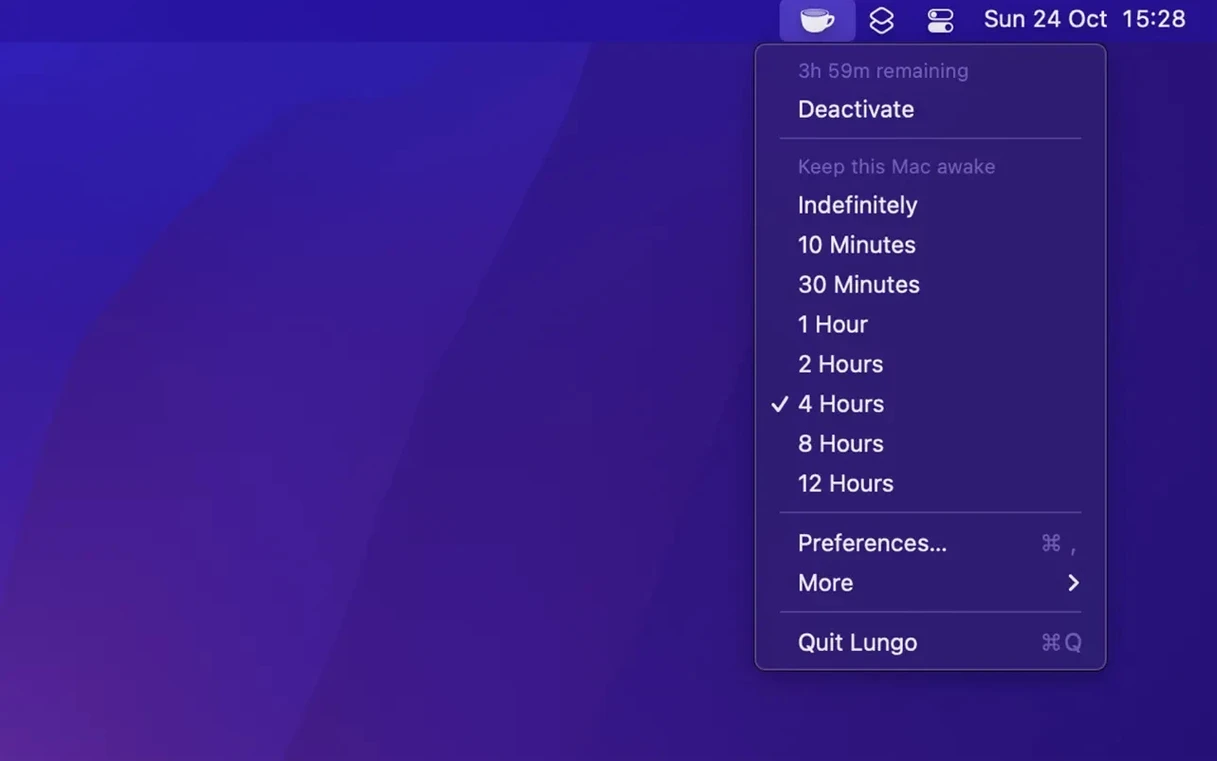
The timer in the menu bar lives alongside other menu bar icons, and Lungo stays compact. When active, the coffee cup fills, and a checkmark appears next to the chosen duration. If you set 10 minutes, the icon counts down visually—subtle but glanceable. The app also respects macOS Focus modes; it won’t flash notifications or bounce in the Dock because it doesn’t have a Dock icon at all. It’s a pure menu bar utility, and lungo even exposes an optional URL scheme for automation (Launcher, Shortcuts, shell scripts).
Idles under 12 MB of RAM with zero CPU
On an Apple Silicon Mac, Lungo idles under 12 MB of RAM and draws zero CPU when it isn’t actively scheduling a sleep override. The mechanism it uses—a standard IOPMAssertion call—is the same API that video players and presentation apps invoke, so the system treats it as a legitimate activity, not a hack. There’s no kernel extension, no background daemon, and nothing left behind in /Library/LaunchAgents. Quit the app, and your normal Energy Saver preferences snap back instantly.
Launch latency is negligible; the app appears in the menu bar before you finish clicking it in /Applications. I’ve watched it survive macOS version upgrades from Sequoia onward without breaking its login-item registration—something that trips up heavier utilities. For anyone who grabbed lungo mac builds to keep a MacBook Pro awake during long ffmpeg encodes or Docker builds, the app’s stability is the main selling point: it does one thing and doesn’t drift.
Scenario: the dashboard watcher
A network operations analyst keeps a Grafana dashboard open on a secondary display during a 12-hour on-call shift. The Mac is set to dim the display after 5 minutes on battery policy, but the dashboard needs to stay visible. Rather than rewriting the system energy profile, the analyst right-clicks Lungo, selects Indefinitely, and drags the dashboard window to the external monitor. The internal screen is dimmed manually with brightness keys; Lungo only keeps the system awake—it doesn’t force both displays to full brightness. When the shift ends, a single click on the filled coffee cup restores normal sleep behaviour. No plist edits, no caffeinate in Terminal, no forgotten setting that drains the battery the next morning.
The same pattern works for a developer who runs download lungo 1.1.1 for mac as a throwback search and realizes the current version is a single-purpose replacement for the old caffeinate -d alias they used to keep in .zshrc. Lungo takes less mental overhead: one icon, one click, one predictable outcome. For anyone who keeps a lungo mac torrent on a USB stick for air-gapped machines, the app is a self-contained .app bundle with no external dependencies—just copy it and it runs.
- Bug fixes for the Mac App Store build.
- macOS 26 or later
- Apple Silicon or Intel 64-bit
$ man lungo | grep -A2 "?"
Does Lungo prevent the screen saver from starting?
Yes, when Lungo is active it stops the display from dimming and prevents the screen saver from kicking in.
What’s the difference between Lungo and the ‘caffeinate’ Terminal command?
Lungo is a persistent menu bar toggle with a UI for choosing durations, whilecaffeinate is a command-line tool that runs for a set time or until you quit the Terminal process.
Comments 0
Sign in or create an account to leave a comment.
No comments yet. A codec, a slice, a machine — they appear after moderation.