
Little Snitch for macOS
Every app on your Mac wants to phone home. Some of that traffic is essential — a browser fetching a page, a mail client checking for new messages. Plenty of it is not. Telemetry, analytics, background updaters pinging servers you never agreed to share data with. Without a tool to expose that chatter, you are flying blind about what leaves your machine.
First things to set up
- Switch to Silent Mode for the first hour. Rather than dismissing a firehose of connection alerts, let Little Snitch observe your normal workflow. Silent Mode builds a baseline of rules without interrupting you, then you review and lock things down afterward.
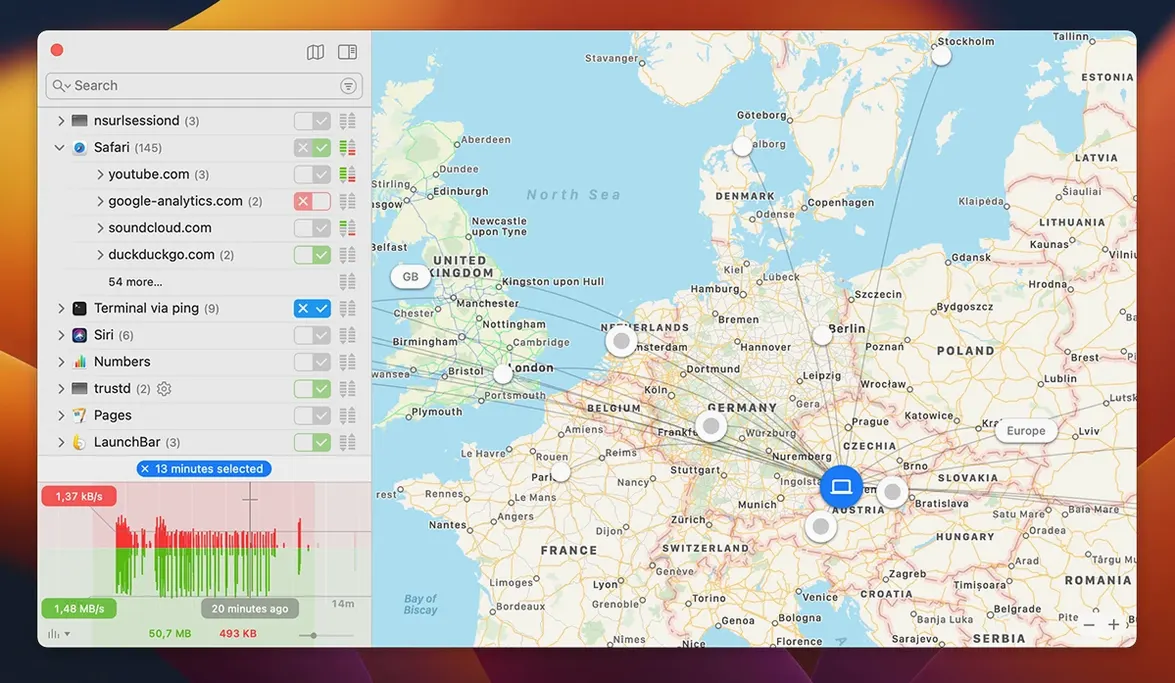
- Open the Network Monitor and sort by traffic volume. The world map is a nice visual, but the app-and-server list tells you what matters immediately. Click the volume column header to surface the noisiest processes. You will often find a helper daemon you did not realize was running.
- Create a rule group for your browser. Browsers connect to hundreds of domains during a session. Instead of approving each one individually, set up a domain-based rule that allows your browser to reach any server on ports 80 and 443, then block the oddballs as they appear.
What the filtering engine actually watches
Version 6.5 moves away from the old kernel-extension approach entirely. The new filtering engine operates in userspace, which means fewer kernel panics and a cleaner install on modern macOS versions. It also stops relying on hostnames for inbound connection decisions — a change that eliminates a whole class of spoofing tricks. Every outbound attempt still triggers a rule evaluation, and once you make a choice, Little Snitch remembers it and applies the same logic automatically. An experimental NAT64 implementation (RFC 6052) is included for networks that translate IPv6 to IPv4, and the app now monitors bundle integrity while programs run, so a tampered-with binary cannot silently slip past your existing rules.
Why the first alert flood is actually a good sign
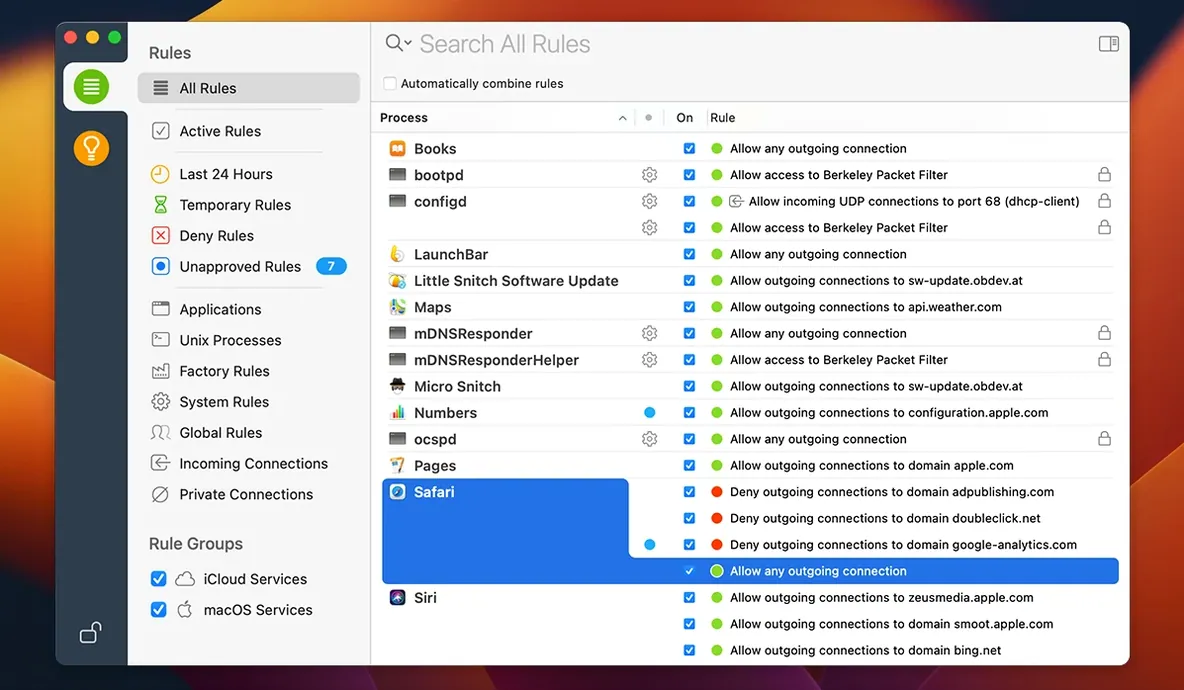
One complaint that surfaces regularly is the sheer volume of alerts right after installation. That is not a bug — Little Snitch is doing exactly what you asked it to do by monitoring every outbound connection. The fix is not uninstalling. The fix is a deliberate approach to the first session. Switch to Silent Mode, let it observe for a few hours, then carve out a quiet half-hour to review the accumulated rules list under Little Snitch Rules in the sidebar. Approve the obvious stuff, deny the snoopers, and your alert rate drops to near zero.
Another head-scratcher: an app you already approved suddenly starts getting blocked again. Nine times out of ten, the application bundle was updated and its code signature changed. Version 6.5 addresses this with bundle integrity monitoring, but if you are on a version that predates that feature, the firewall sees a different binary and treats it as a new program. The workaround is to open the rules list, search for the app name, and delete the stale rule. Next time it connects, Little Snitch will prompt you fresh.
A subtler issue involves encrypted DNS. If you use DNS-over-HTTPS or DNS-over-TLS and notice connection failures after installing, check whether Little Snitch is intercepting DNS traffic before your encrypted resolver can handle it. The improved encrypted DNS handling in 6.5 reduces this friction, but you may still need to add an explicit allow rule for your DNS provider's IP addresses. The Network Monitor's server list makes it easy to spot which DNS endpoints are being flagged.
Letting it learn your routine before locking things down
Day one is about observation, not enforcement. After that initial Silent Mode pass, spend day two in Alert Mode but with a lightweight workload — email, browsing known sites, a few trusted apps. This gives you manageable alert batches where each decision is straightforward.
- Use the Suggestions pane before creating rules from scratch. Little Snitch notices expired temporary rules and offers them under Suggestions > Expired. If you allowed a connection "once" last week and now need it permanently, convert it there rather than waiting for a new alert.
- Group rules by purpose, not by app. A rule group called "Web Access" that covers Safari, Firefox and any RSS reader is easier to audit than three separate per-app rule sets. If you later decide to block all browsers from reaching a particular analytics domain, one edit catches them all.
- Schedule a weekly Network Monitor review. The hourly traffic history graph is one of those features that quietly becomes indispensable. A spike at 3 a.m. from an app you never use is worth investigating. It is often a scheduled update check — but occasionally it is something you want to shut down permanently.
Developers, researchers, and the curious minds who thrive with it
The obvious answer is the security-conscious crowd, but that undersells the tool. The people who extract the most value from Little Snitch tend to fall into three camps.
Developers shipping network code. If you write anything that opens a socket, being able to watch exactly which endpoints your software contacts — and how often — is a debugging superpower. The command-line interface lets you script rule changes and pull traffic data into build pipelines without ever clicking through the GUI.
Users on metered or slow connections. A background process burning through a capped mobile hotspot is infuriating. Sort the Network Monitor by traffic volume, identify the culprit, and block it. That one action has saved people from overage charges more times than any tutorial can count.
Anyone running creative or professional software. Adobe apps, CAD tools, video editors — these programs are notoriously chatty. They phone home for license checks, font sync, cloud storage, usage analytics, and half a dozen other reasons. Little Snitch gives you a per-app breakdown so you can decide which connections are necessary for your workflow and which are just noise.
The 'approve everything' panic that haunts you later
The most common beginner move is approving everything during the first alert storm just to make the pop-ups stop. A week later, the rules list is a graveyard of "Allow" decisions for domains and ports the user never consciously evaluated. If you catch yourself doing this, reset the rules entirely and start over with Silent Mode. There is no shame in a second attempt — the tool is useless if it is just rubber-stamping every connection.
Another frequent error: blocking Apple system services too aggressively. Processes like trustd, nsurlsessiond and rapportd handle certificate validation, iCloud syncing and Handoff features. Denying them outright can break functionality in ways that are not immediately obvious. When in doubt about a system process, allow it temporarily and research what it does before making the rule permanent.
Beginners also overlook the profile-based rule management. If you work from a coffee shop on Tuesdays and from home the rest of the week, you can create separate network profiles with different rule strictness. The public Wi-Fi profile might block everything except a VPN tunnel, while the home profile is more permissive. Setting this up takes fifteen minutes and pays off every time you connect to an untrusted network.
Finally, ignoring the command-line interface because "I prefer the GUI" leaves a lot of power on the table. The little snitch CLI can dump your current rule set, apply configuration changes, and integrate with shell scripts for automated monitoring. Even a simple cron job that logs the top five traffic consumers to a file each morning gives you long-term visibility that the graphical Network Monitor does not surface on its own.
- Added compatibility with macOS 27 Golden Gate.
- Monitors app bundle integrity while the app is running, catching tampered binaries that would otherwise reuse existing allow rules.
- Added an experimental NAT64 (RFC 6052) implementation for networks translating IPv6 addresses to IPv4.
- Improved handling of encrypted DNS traffic.
- macOS 14 or later
- Intel or Apple Silicon Mac
- Interface languages: English, German
Comments 0
Sign in or create an account to leave a comment.
No comments yet. A codec, a slice, a machine — they appear after moderation.