LaunchOS for macOS
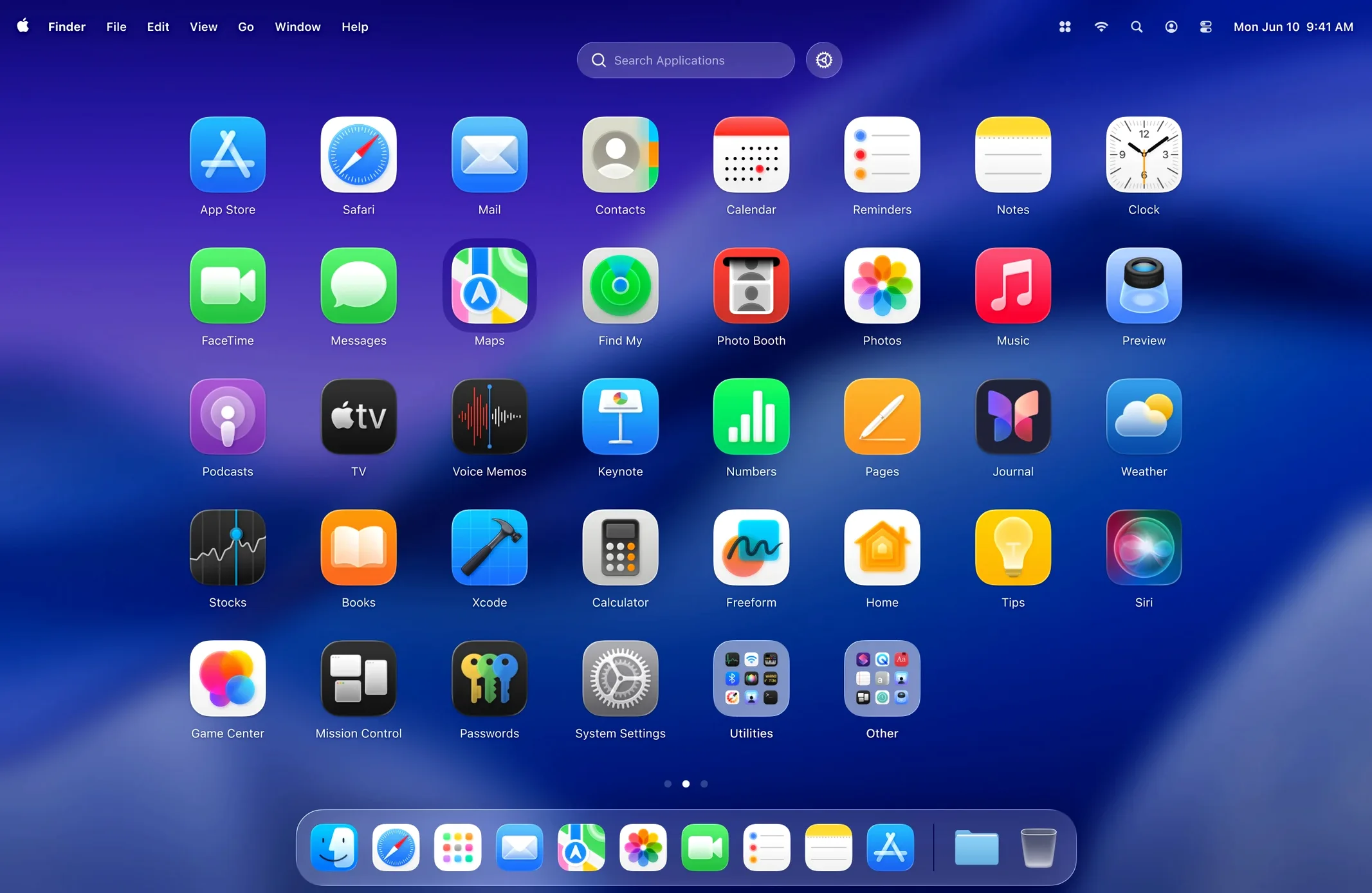
People who spend more time curating their app collections than they’d like to admit tend to notice Launchpad’s limitations first. What if you could hide that never-used utility, set a denser grid, and actually uninstall apps from the same screen?
Arrange your app grid your way
The grid size isn’t fixed anymore. You set the column and row count that fits your screen and your brain, then drag things where they belong.
Hide what you don’t need to see
Some apps are launch-only — you never need to browse them. LaunchOS lets you remove selected apps from view without touching /Applications.
Uninstall from the launcher itself
Long-press or right-click an icon and you can send the app to the Trash. That’s the big addition in version 2.1.0, alongside a Restart command tucked into the status bar and context menus.
Which three defaults to tweak for your display size
After the first .dmg drag-and-drop, the defaults are sensible, but three things deserve immediate attention if you want to stop thinking about the tool and just use it.
First, the grid. The default spacing assumes a 13-inch display. On a Studio Display or an external 4K monitor, you'll want denser columns. Open preferences and set the column count to at least 8; rows can go to 6 on taller panels. The app recalculates icon sizes to match, so nothing looks stretched.
Second, the keyboard shortcut. LaunchOS ships with ⌃⌥⌘L, but that's three modifiers you won't enjoy pressing. Remap it to a single Hot Corner from System Settings, or bind it to F4 — the key Apple's Launchpad used. The preference pane accepts single keystrokes, not just combos.
Third, the hidden-app list. Go through every icon you never click from a grid: setup assistants, uninstallers, font managers that launch with a document. Right-click and pick Hide from LaunchOS. You can unhide them later from the preferences panel — nothing gets deleted, it just stops showing them in the launcher.
When .dmg files and documents won’t drop onto the grid
"It doesn't launch when I press the shortcut"
macOS 26's security framework sometimes intercepts global keyboard shortcuts the first time an app registers them. Open System Settings > Privacy & Security > Input Monitoring and toggle LaunchOS on. The shortcut will work immediately afterward — no restart needed.
"Some apps don't appear in the grid at all"
LaunchOS scans /Applications and ~/Applications by default. If you keep apps inside a subfolder — say, /Applications/Utilities — they won't show unless you add that path manually. Preferences has an Additional folders section; drag the folder there and the scan runs on the spot.
"The Liquid Glass effect flickers on an external display"
This is a macOS compositor issue that shows up with variable-refresh-rate monitors. The quick fix is to disable the Liquid Glass translucency in LaunchOS's Appearance pane. You keep the blur, lose the animated refraction, and the flicker stops. AMD GPU Macs see it more than M-series ones.
Anna’s hunt for DaVinci Resolve across two Pro Display XDRs
Anna edits video on a Mac Studio with two Pro Display XDRs. Her /Applications folder holds 140 apps, but she launches maybe 20 of them regularly. Before LaunchOS, she'd swipe through five Launchpad pages hunting for DaVinci Resolve, often overshooting and launching Photos by mistake.
She set a 12×8 grid — all her daily apps now fit on a single screen with no scrolling. Utilities like Activity Monitor and Disk Utility stay hidden. She bound LaunchOS to a Hot Corner on the right display's bottom edge, so a flick of her Wacom pen opens the grid without leaving the timeline. When a beta build of Resolve started crashing, she long-pressed the icon and trashed it right there, then reinstalled a stable version. The whole workflow — launch, uninstall, reorganize — now happens in one place, not across Finder, Launchpad, and a third-party uninstaller.
Why dragging to the Trash works but dragging in doesn’t
The most common one is treating LaunchOS as a Finder replacement. It isn't. Dragging an app icon to the Trash from inside LaunchOS works, but dragging a .dmg or a document onto the grid does nothing — the launcher ignores non-app bundles. New users sometimes expect it to open files, and that's not what it's designed for.
Another early stumble: hiding system apps without realizing you might need them later. Hiding Console or Terminal makes sense until you're troubleshooting and can't remember their exact names to launch via Spotlight. The solution is to keep a small "Utilities" page — just drag those apps to a separate screen in the grid — rather than hiding them outright. You can still reach them visually, but they don't clutter your main view.
A third mistake involves the uninstall feature. Long-pressing and choosing Uninstall sends the .app bundle to the Trash, but it won't touch preference files in ~/Library/Preferences, caches in ~/Library/Caches, or container folders in ~/Library/Containers. Beginners sometimes assume it's a complete removal tool. It's not — it does exactly what dragging an app from Finder to Trash does, just faster and from the launcher. For deep cleaning, you still need something like AppCleaner.
Hide the apps you never launch first, then use it normally
On day one, resist the urge to organize everything at once. LaunchOS becomes useful faster if you spend ten minutes hiding the apps you never launch, then use it normally for a few days. The apps you actually reach for will become obvious, and you can drag them into logical groups later — Adobe suite on one page, audio tools on another, browsers and communication apps up front.
If you're coming from Apple's Launchpad, assign LaunchOS to the same trackpad gesture. Open System Settings > Trackpad > More Gestures and set Pinch with thumb and three fingers to LaunchOS instead of Launchpad. The muscle memory transfers immediately — your fingers already know the gesture, and now it opens something better.
For Macs running macOS 26's Liquid Glass system-wide, the app's own Liquid Glass toggle in Appearance preferences can be switched off independently of the system setting. If you find the translucent grid distracting during fast app switching, turn it off here. The grid stays flat and opaque while the rest of macOS keeps the effect. It's a small performance win on Intel Macs, too — the compositor does less work per frame.
Finally, if you're looking for a launcher that feels like the original but lets you actually control what appears, you might have stumbled across macOS LaunchOS while searching for a Launchpad replacement. This is that tool. Some people dig around for a LaunchOS crack or LaunchOS torrent when they first hear about it, and the downloaded disk image from the developer's site is just as straightforward — no activation, no serial, no nonsense. Just drag the app into place and it works.
- App uninstallation with long-press and right-click triggers.
- Restart command added to the status bar menu and right-click context menu.
- macOS 26 or later
- Apple Silicon or 64‑bit Intel Mac
$ man launchos | grep -A2 "?"
Does LaunchOS replace the Dock or just Launchpad?
It replaces the Launchpad workflow specifically. You still use the Dock, Finder, and Spotlight alongside it — LaunchOS just steps in when you want a grid-based app launcher with more control.
What trigger gestures does LaunchOS support?
It responds to the same trackpad and Magic Mouse gestures macOS reserves for Launchpad, so your muscle memory carries over without relearning anything.
Comments 0
Sign in or create an account to leave a comment.
No comments yet. A codec, a slice, a machine — they appear after moderation.