
Lasso for macOS
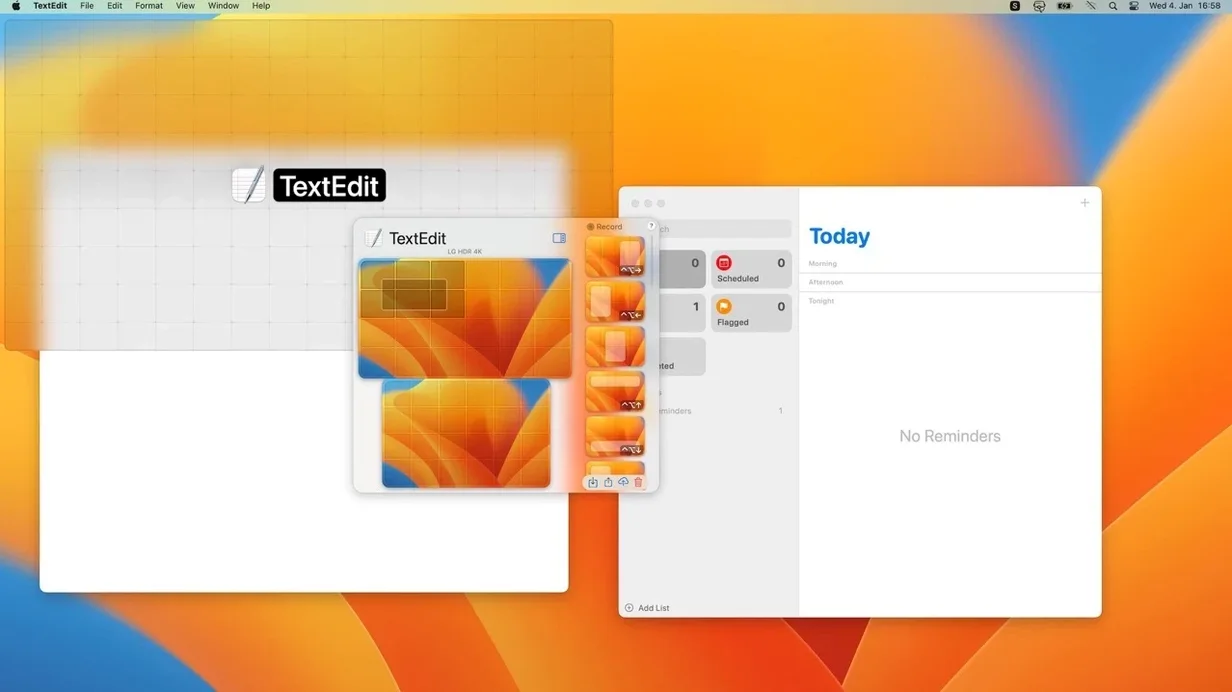
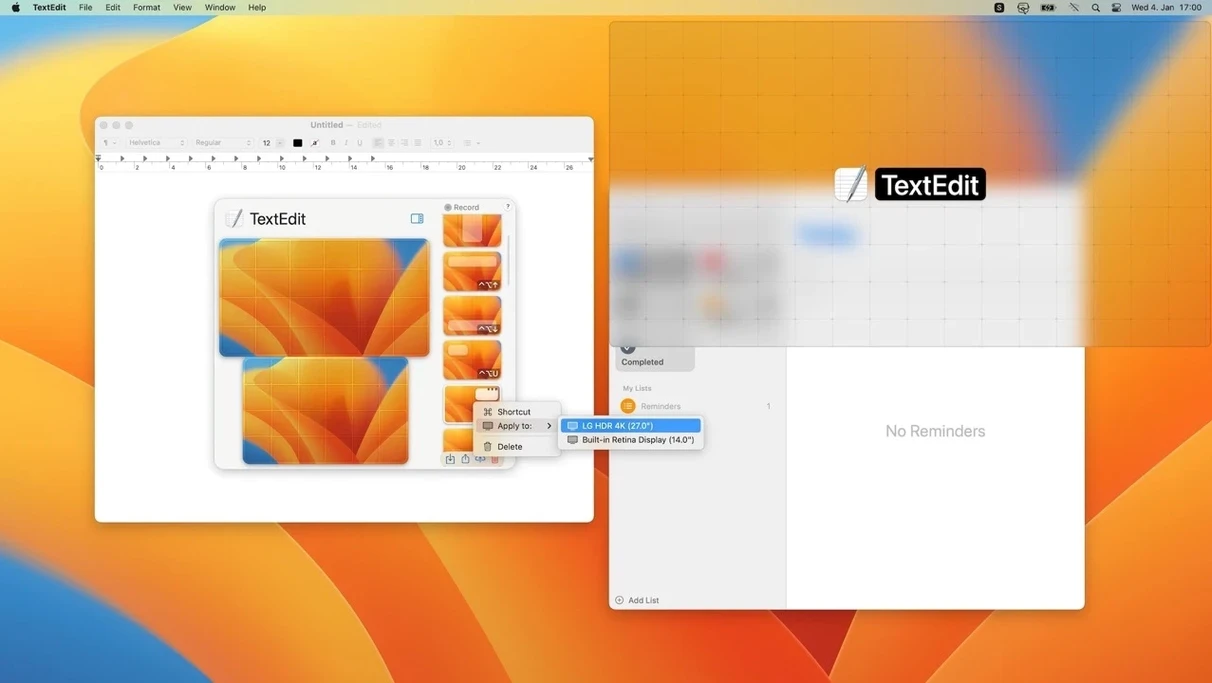
You grab a window, drag it toward the edge of your screen, and nothing useful happens. Lasso fixes that. It is a native window manager that lets you move and resize windows directly with the mouse, snapping them into a grid or a custom layout without memorizing a cheat sheet of keyboard shortcuts. It runs on any Mac with macOS 12 or later and works natively on both Intel and Apple Silicon machines.
- Drag windows against a customizable grid for fast, precise placement.
- Build and save your own window layouts; export them as
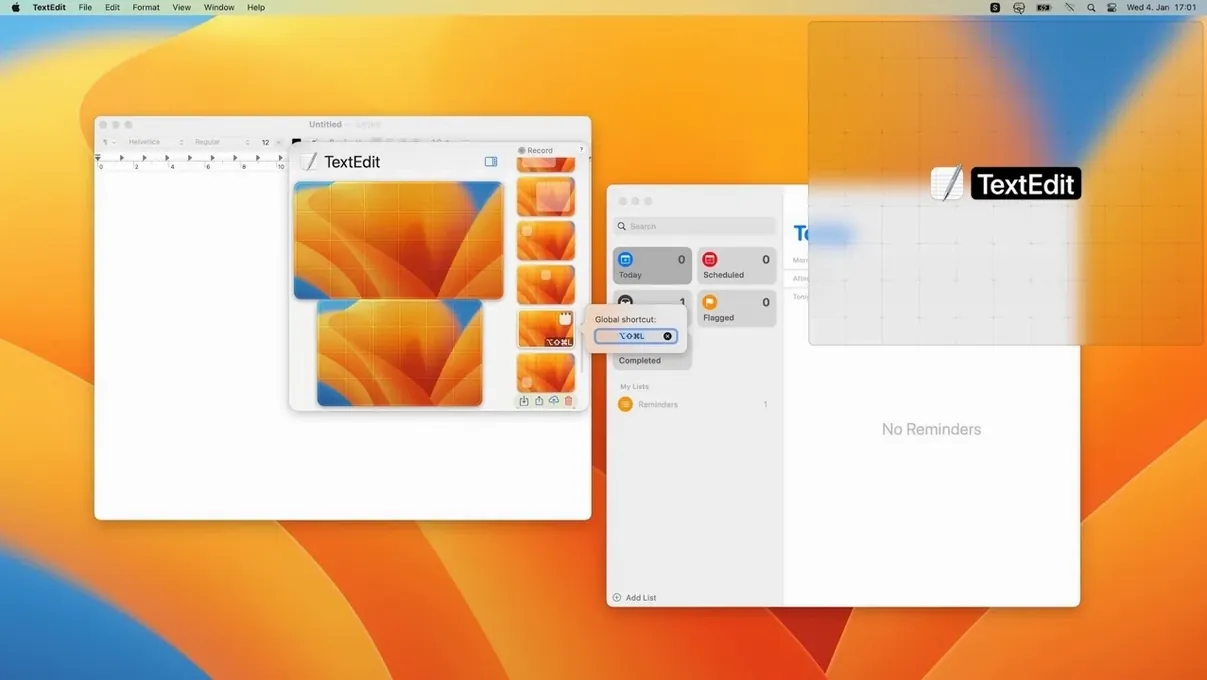
.lassofiles to share, or import someone else’s setup. - Use global keyboard shortcuts as a fallback—the 1.8.0 update even lets the same shortcut shove a window to the next display when applied again.
- Sync your settings across machines with iCloud.
- Switch the interface between English, German, and Ukrainian.
It’s a focused utility. The grid gives you zones when you need speed, and the custom layouts are there for the handful of arrangements you actually use every day. No panels, no floating docks—just a modifier key held while you drag, and the window lands exactly where you want it.
Why won't my modifier drag work at first?
A common snag right after install: you hold the modifier key, drag a window, and macOS still treats it like an ordinary drag. Nine times out of ten, Lasso hasn't been granted Accessibility permissions yet. Open System Settings → Privacy & Security → Accessibility and toggle Lasso on. The installer usually prompts for this, but it's easy to skip past it. If the toggle is already on and modifier drags still fail, flip it off, quit Lasso, relaunch it, and flip it back on. That forces a fresh permission handshake.
Another hiccup: some apps (especially those built with Electron or older cross-platform frameworks) don't always respond to the grid snap on the first drag. Dragging a little more slowly across a zone boundary usually wakes them up. It's not a Lasso bug—it's the window server being stubborn about repainting.
For people who found Lasso through a lasso torrent mac search and unpacked a .dmg without reading the included text file: the activation instructions are inside the disk image. Skipping them leaves you with a timer ticking, so don't toss that DMG until you've poked through it.
Layouts that won't import
Custom layouts export as .lasso files, but dragging one onto the menu bar icon and seeing nothing happen is frustrating. The usual culprit is a version mismatch. Layouts saved from a newer build sometimes carry an extra key or two that 1.8.2 fix doesn't recognize. The quick workaround: open System Settings, navigate to Lasso's iCloud sync pane, and toggle "Sync layouts" off and on. That nudges the app to re-index its layout store. If the file still won't take, open ~/Library/Application Support/Lasso/ and drop the .lasso file directly into the Layouts folder, then restart Lasso. It'll parse it on launch.
Set grid proportions to match your go-to window sizes
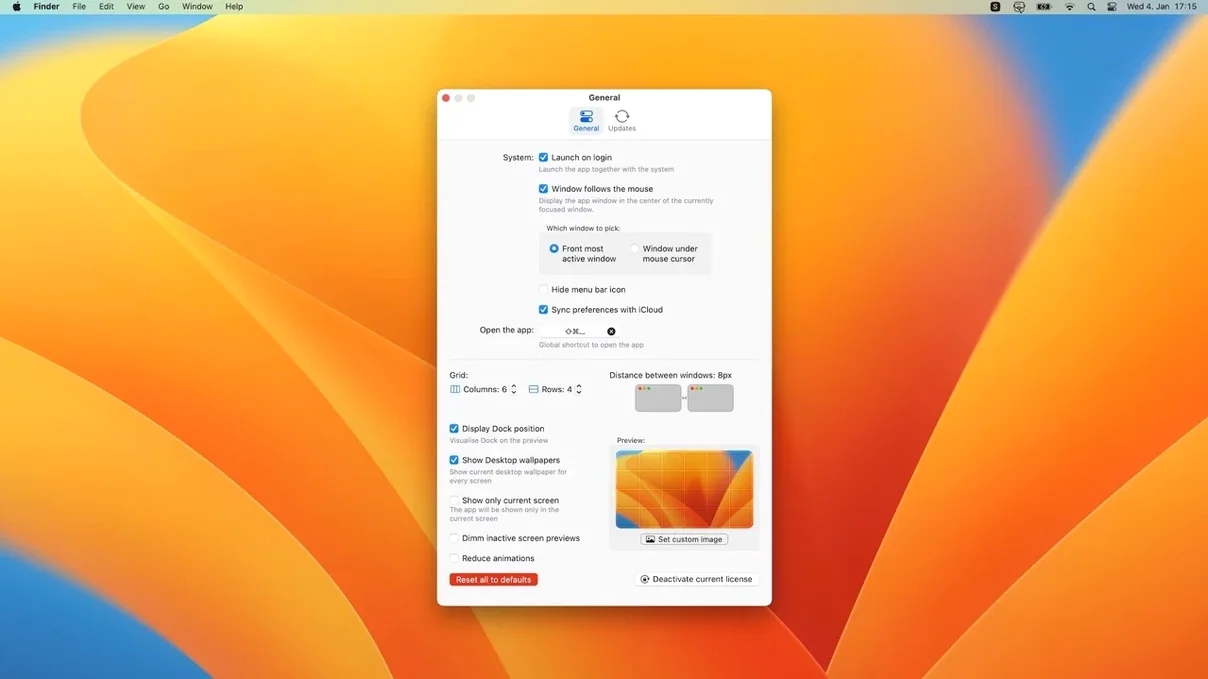
Before you build a single custom layout, spend ten minutes tuning the grid. Open Lasso's preferences and size the grid columns and rows to match your most-used window proportions. If you always keep a browser at two-thirds width and a terminal at one-third, make those columns reflect that. The grid is the part you'll touch unconsciously all day—getting it right now saves a hundred micro-adjustments later.
Next, pick your modifier key carefully. The default is Control, but if you use Control for anything else (terminal users, I'm looking at you), switch it to Option or Command+Option. Test it inside apps you use heavily: some IDEs eat certain modifier combinations before Lasso ever sees them.
If you're using multiple monitors, assign one global shortcut to the "move to next display" action immediately. The 1.8.0 behavior—where pressing the same shortcut again cycles the window to the next display—only works if you've bound it. Without that binding, dragging windows between screens means a long mouse travel.
Drag into a grid-cell corner for quarter-step snapping
Lasso's grid snap works in quarter-steps if you drag into a corner of a grid cell. Most people discover the column and row snapping in the first hour, but corner snapping hides until you deliberately aim for an intersection. It's the fastest way to quadrant a widescreen monitor with four windows.
Right-click the menu bar icon to reach the layout list without opening preferences. That same menu lets you switch layouts with two clicks—useful when you dock and undock a MacBook from an external display throughout the day. The menu bar icon can be hidden entirely in Lasso's settings if you prefer a completely clean bar; the app keeps running and your shortcuts still fire.
If you're running a lasso macos setup where the app seems to forget its permissions after a macOS point update, that's a known macOS security quirk, not a Lasso problem. Re-grant Accessibility access as described above, and it sticks.
Finally, the iCloud sync covers settings and layouts, but not the grid dimensions themselves. Those live locally. If you want the same grid on two Macs, set it up manually on both or copy the preference file at ~/Library/Preferences/com.sapozhnik.Lasso.plist across machines. It's a small manual step, but once done, the experience is identical on both desks.
- macOS 12 or later
- Intel or Apple Silicon Mac
$ man lasso | grep -A2 "?"
How does Lasso let me move a window to another screen?
With Lasso's global shortcuts, applying the same shortcut again pushes the active window to the next connected display, a behavior introduced in version 1.8.0.
Comments 0
Sign in or create an account to leave a comment.
No comments yet. A codec, a slice, a machine — they appear after moderation.