
Mountain Duck for macOS
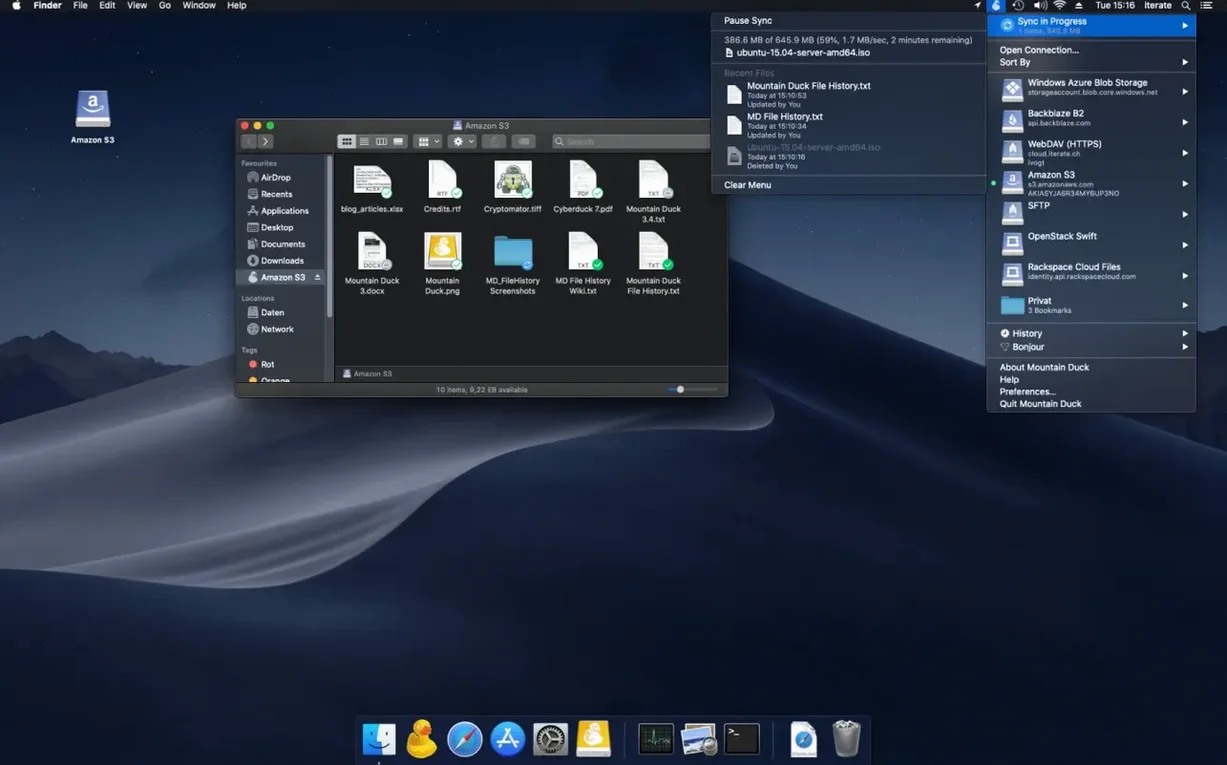
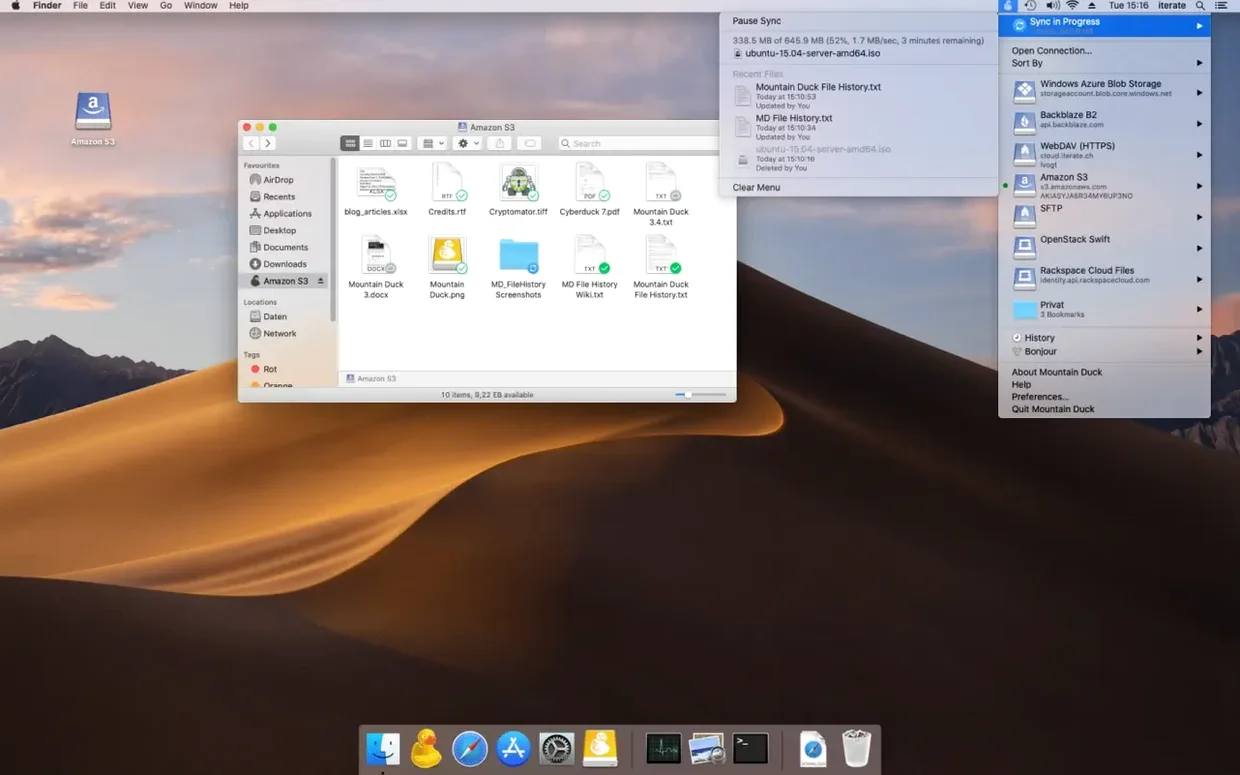
Mountain Duck is a menubar utility that mounts remote storage — cloud drives, SFTP, SMB shares — as a standard disk volume in Finder, so you can open server files directly in any Mac application without syncing everything first.
| Detail | Info |
|---|---|
| Current version | 5.3.2 |
| macOS requirement | macOS 13 or later |
| Architecture | Apple Silicon and Intel 64-bit native |
| Connection types | SMB, SFTP, WebDAV, and major cloud providers |
Version 5 adds Integrated Connect Mode, which changes how local storage works. You can pin specific files and folders to stay offline on your Mac, while everything else appears as a placeholder and downloads on demand through Smart Synchronization when you open it. Unused files stay on the server rather than eating local space. Changes you make upload in the background whenever a connection is available, and a new storage-independent file versioning system keeps snapshots as you work. For sensitive data, the app supports encryption at rest with compatible Cryptomator vaults. If you already use Cyberduck, bookmarks are shared between both apps automatically.
Renaming a folder inside an S3 bucket copies and deletes every object
Mounting an S3 bucket and treating it like an external SSD is the most common one. Object storage has no real directory tree — each slash in a key is just a character — so renaming a folder actually copies every object with a new prefix and deletes the originals. That can get expensive on buckets with millions of objects. On SMB shares, people sometimes open a large file directly from the mounted volume in a heavy editor, then wonder why saving takes forever. The file lives on the remote server; every save is a full write over the network.
Another misstep: forgetting to pin files before boarding a flight. Smart Synchronization caches files when you open them, but only the ones you actually double-click. If you planned to edit a batch of raw photos offline and never opened them first, they will not be there. Pinning the project folder from the Finder context menu ahead of time avoids that scramble.
Beginners also tend to ignore the Cryptomator interoperability. Dropping plaintext files into a bucket and later deciding to encrypt means re-uploading everything into a vault. If encryption is even a maybe, create the vault first.
Finally, if Cyberduck is installed, bookmarks are shared. People sometimes edit a bookmark in Cyberduck expecting Mountain Duck to pick it up instantly — it does, but the running connection might need a disconnect and reconnect cycle to notice the change.
Working with an SFTP server end‑to‑end
Here is a concrete workflow for a web developer who edits files on a staging server and wants them available in VS Code.
- Click the Mountain Duck menubar icon, choose New Bookmark.
- Select SFTP from the protocol dropdown. Fill in the server hostname, your username, and the path to the site root — something like
/var/www/staging. - On the Advanced tab, set the transfer to binary mode. If the server uses key-based auth, point it at your private key — usually at
~/.ssh/id_ed25519. - Close the dialog. A volume appears in Finder and on the desktop, named after the bookmark.
- Open VS Code. Use File → Open Folder and navigate to
/Volumes/your-bookmark-name/. The remote tree loads as if it were local. - Edit a CSS file and save. Mountain Duck uploads the change in the background. The staging site reflects it immediately.
- Before a long train ride, right‑click the
assetsfolder in Finder and choose Keep Offline. The files download fully. You can edit them offline, and changes sync the moment you reconnect. - When the session is done, eject the volume from the Finder sidebar. The SSH connection closes cleanly.
Where its SFTP and SMB support pulls ahead of Expandrive
Expandrive also mounts cloud storage as a Finder volume, but it leans more heavily toward a polished GUI for consumer cloud accounts — Google Drive, Dropbox, OneDrive. Mountain Duck goes deeper on developer protocols: SFTP with key‑based auth, SMB from version 5 onward, WebDAV, and direct S3-compatible endpoints. Expandrive does not share bookmarks with a sibling transfer client; Mountain Duck and Cyberduck do.
CloudMounter is another menubar mount utility with similar provider support on paper. The difference shows in offline behavior. CloudMounter can mark files for offline use, but the versioning and Cryptomator integration are not native to the same degree. Mountain Duck treats Cryptomator vaults as a first‑class storage option during bookmark setup, not as a separate encryption step after mounting.
For a user who lives in the terminal, none of these replace sshfs or rclone mount. But Mountain Duck wins on Finder integration — file locks, Quick Look previews, and the ability to set default apps per file type on a remote volume all work without extra configuration, which rclone mount on macOS still struggles with depending on the backend.
Option‑click to copy a clean server path instead of a /Volumes/ mount point
- Copy the current path from Finder. With a Mountain Duck volume open, right‑click any file, hold Option, and choose Copy "filename" as Pathname. The result is a clean server path, not the
/Volumes/mount point. - Quick Look on remote files. Select a file on an S3 or SFTP volume and press the space bar. macOS downloads a temporary copy and previews it without opening an application. The file stays cached for later use only if you actually edit it.
- Menubar bandwidth indicator. The icon shows a tiny upload or download arrow during transfers. If you click the menubar item while a sync is running, you get a live transfer speed readout and a list of in‑progress files. Useful for spotting a stuck upload on a flaky connection.
- Hidden preference for mount location. By default, volumes appear in
/Volumes, but a terminal command lets you set a custom mount root inside your home folder. This helps with scripts that expect a path without spaces and avoids cluttering the standard/Volumesdirectory. - Drag‑and‑drop bookmark export. You can drag a bookmark entry from the Mountain Duck window to a Finder folder. It saves as a
.duckfile, which is a signed property list Cyberduck can also open. Useful for sharing connection details with a team — just send the file over a secure channel. - Integrated Connect Mode indicator. In version 5, a small cloud icon with a checkmark appears next to pinned folders in Finder. It is easy to miss, but it confirms at a glance which folders are guaranteed to work offline without opening each one to check.
- macOS 13 or later
- Apple Silicon or Intel 64-bit Mac
$ man mountain-duck | grep -A2 "?"
Can I keep files available when I'm offline?
Yes. Version 5 lets you mark selected files and folders to stay stored offline on your computer, while other content caches only when opened.
Does it work with the same bookmarks as Cyberduck?
It does. If Cyberduck is installed, Mountain Duck shares bookmarks with it automatically so you don't have to set up connections twice.
Comments 0
Sign in or create an account to leave a comment.
No comments yet. A codec, a slice, a machine — they appear after moderation.