
Movist Pro for macOS
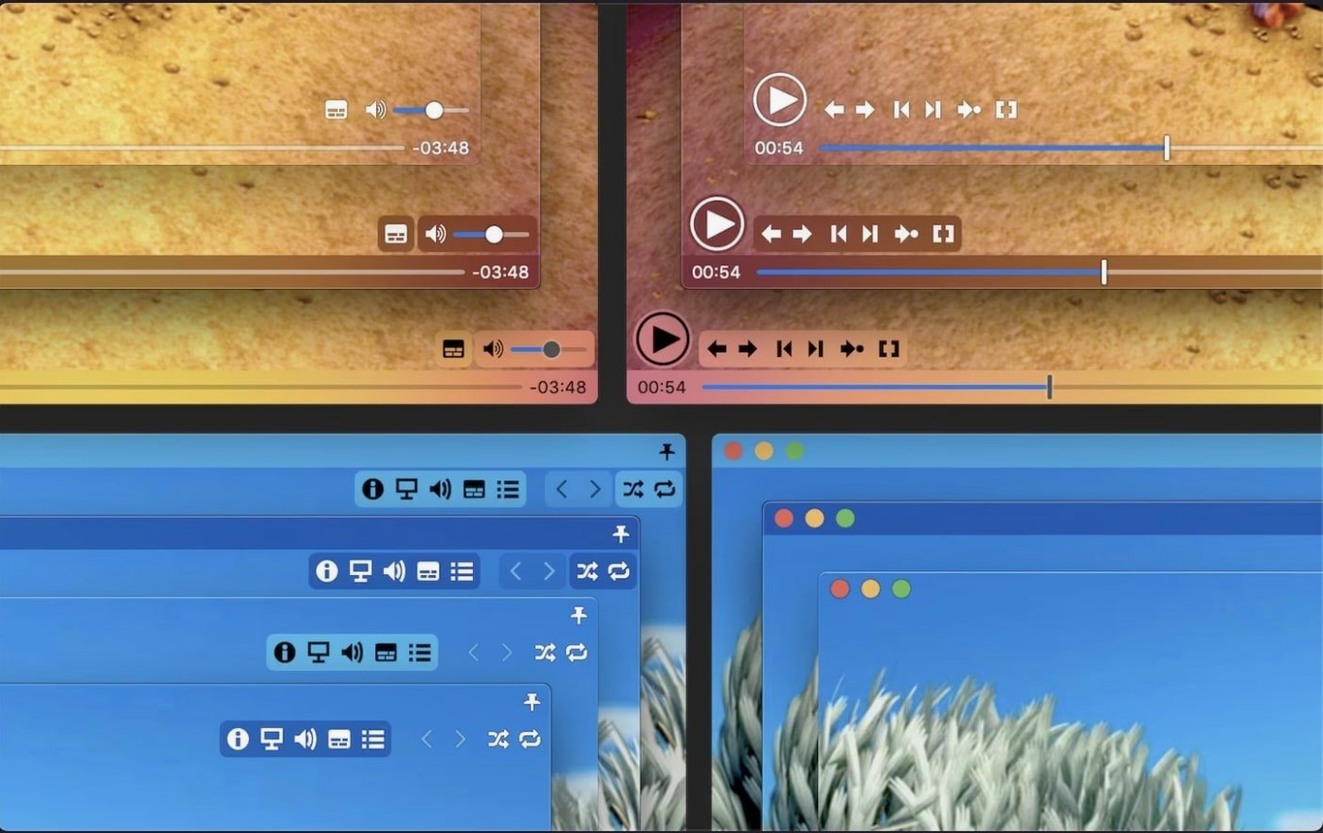
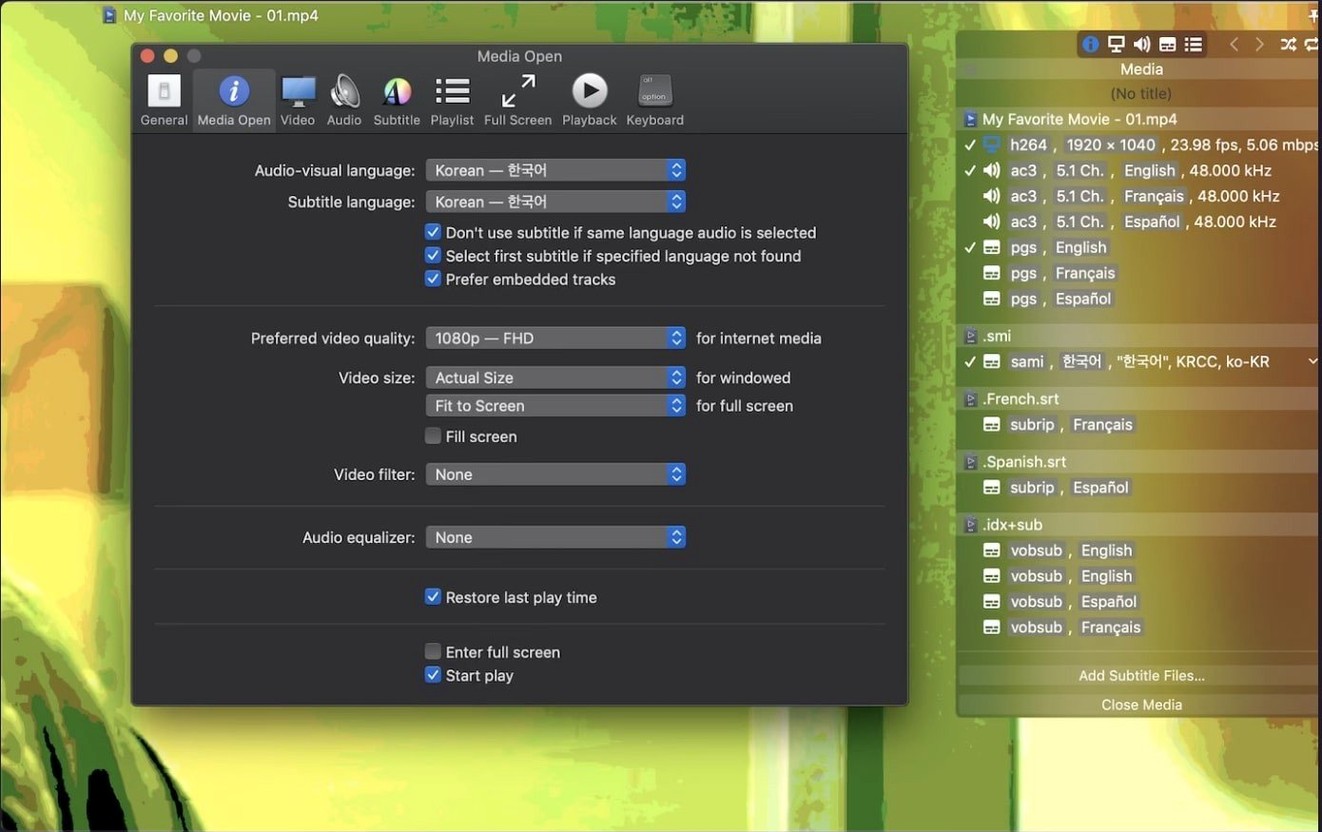
Movist Pro is a Mac video player that sits on top of both QuickTime and FFmpeg, giving you broad format compatibility without sacrificing the system-level playback tricks QuickTime knows best.
The first thing to explore is its windowing behavior. Out of the box it runs in single-window mode, but you can switch to a multi-document layout if you prefer each file in its own space. While you are poking around the preferences, toggle on sandboxed app mode if you want macOS to lock the player down tighter — useful when you are opening files from less-trusted sources.
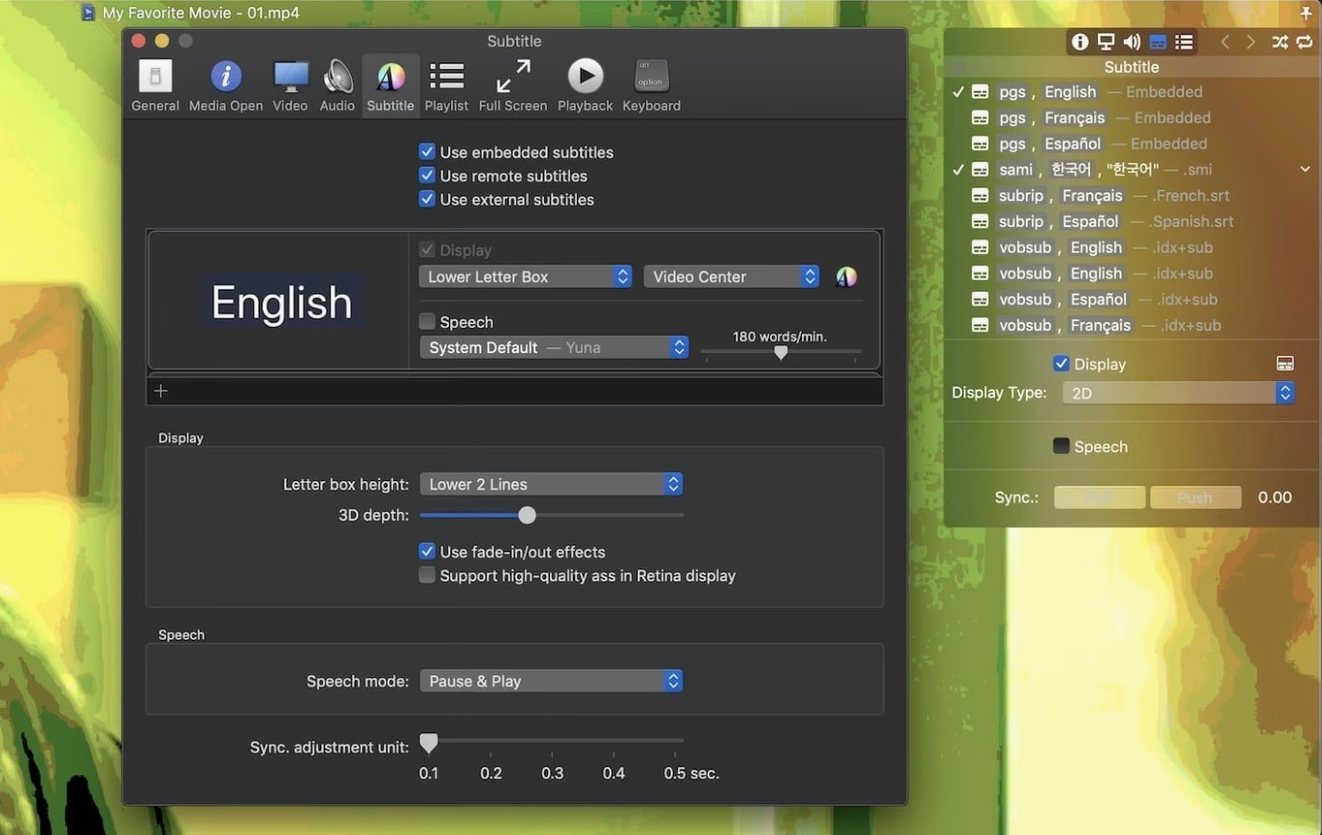
Next, load a playlist and try the shuffle and repeat controls. The playlist panel handles .m3u and .m3u8 files, so you can import existing lists or build one from scratch and save it for later. For subtitle enthusiasts, the fully customizable display is worth a few minutes of tweaking: set the font, outline weight, and position, then test it against a file with multiple subtitle tracks. The automatic encoding detection usually gets it right, and the Letter Box mode keeps captions readable on ultra-wide displays by placing them in the black bar below the picture.
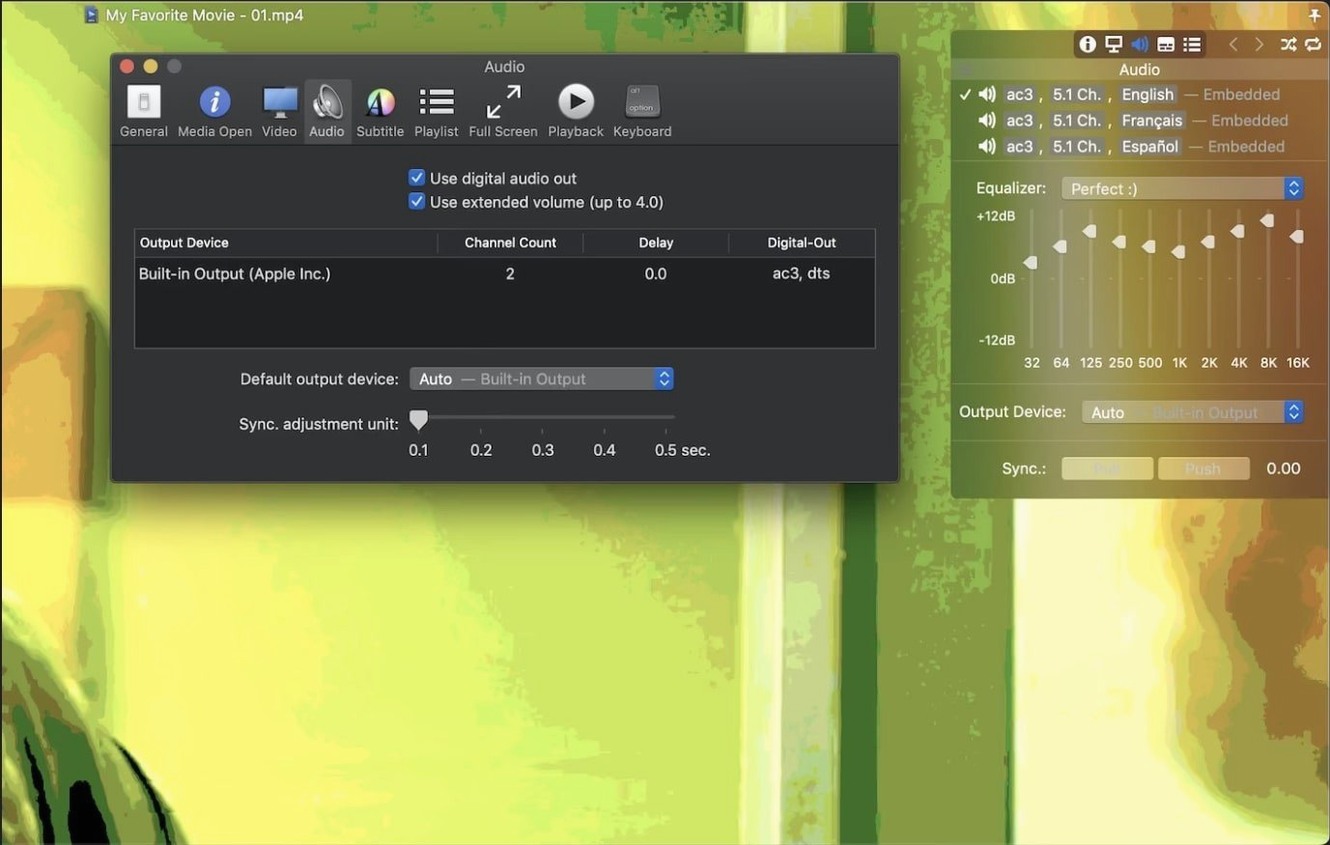
If you have an HDR display, turn on HDR tone mapping and open a 10-bit HEVC file — the hardware acceleration path for H.264 and H.265/HEVC keeps the CPU load low while the tone mapper handles the color transform. On the audio side, the S/PDIF digital output option routes a bitstream straight to an external DAC or receiver when you need untouched passthrough.
An editor assembling a rough cut
Imagine a video editor who just received a drive full of dailies — a mix of ProRes LT, a few H.265 10-bit clips from a B-cam, and a folder of .srt files with scene notes attached. She does not want to import everything into the NLE just to skim for the takes she needs. She drags the whole folder onto Movist Pro, and the playlist autocompletion kicks in: the app spots episode numbering in the filenames and lines up each clip with its matching subtitle file. A quick pass at 1.5× speed with the sync-adjust hotkeys lets her flag the clips worth pulling into the timeline, all without touching the editing suite. For anyone who triages media before the real work begins, that kind of lightweight preview pipeline cuts an hour of waiting down to fifteen minutes of watching.
Questions that come up before installing
Does it replace IINA or VLC, or sit alongside them?
It can replace either, but most people keep more than one player around. Movist Pro’s edge is the dual-engine setup — QuickTime for system-optimized playback of Apple-friendly codecs, FFmpeg for the oddball formats. If you already have IINA handling your mpv configs, you might let Movist Pro become the go-to for anything with complex subtitle setups or HDR tone mapping, where the UI gives you faster sliders than editing a config file by hand.
Is the sandboxed mode actually useful?
It is situational. When you are opening a video from a shared network folder or a USB stick that has been passed around, sandboxed mode restricts the app’s file-system access to only what you explicitly open. It is not a security guarantee — no single setting is — but it is a sensible checkbox to leave on if you regularly deal with files from outside your own machine.
Will it choke on compressed subtitle archives?
No, and that is one of the quiet strengths. Drop a .zip or .rar full of .ass or .srt files into the same folder as the video, and the player reads them directly without unpacking. For series binges where each episode ships with a compressed subtitle pack, that saves a lot of manual extraction.
Settings worth changing first
Open preferences, head to the playback tab, and set the default audio output device to your S/PDIF interface if you use one — otherwise it falls back to the system default and you lose the passthrough path. Next, bump the subtitle font rendering to a heavier outline weight and drop the window shadow from the default value; the defaults are readable on a Retina display but can look thin on a scaled 1440p external monitor. While you are there, disable the “resume playback from last position” toggle if you preview a lot of short clips — it is handy for feature-length viewing but annoying when every five-second test file starts at the wrong frame.
Finally, switch the playlist behavior from “append” to “replace” if you tend to open folders one at a time. The default append mode piles every opened file into the same list, which is great for building a marathon queue but confusing when you expected the old contents to clear.
Who gets the most out of Movist Pro
Subtitle translators and quality-checkers get a disproportionately large benefit. The unlimited simultaneous subtitle display means you can load a reference translation, the original-language script, and a timing template all at once, then nudge the sync offset while comparing them line by line. The Letter Box mode keeps every track legible without overlapping the picture, and the automatic encoding detection spares you the trial-and-error of guessing whether a file is EUC-KR or UTF-8.
Home theater users with an external DAC or receiver also find a lot to like. The S/PDIF digital output and the hardware-accelerated H.265 path together mean you can feed a 4K HDR rip to a projector, let the tone mapper handle the color, and send the audio bitstream untouched to the receiver — all on a passively cooled MacBook Air without the fans spinning up. If you have been searching for a movist pro for mac player that does not force you to choose between QuickTime’s hardware integration and FFmpeg’s format reach, this is the niche it fills.
Casual viewers who only double-click an .mp4 once a week will probably not notice the difference from the built-in QuickTime Player. But anyone who regularly wrangles multi-track MKVs, compressed subtitle archives, or HDR content will find that the dual-engine design removes a dozen small annoyances that other players treat as edge cases.
- macOS 11 or later
- Apple Silicon or Intel 64-bit
Comments 0
Sign in or create an account to leave a comment.
No comments yet. A codec, a slice, a machine — they appear after moderation.