
MouseBoost Pro for macOS
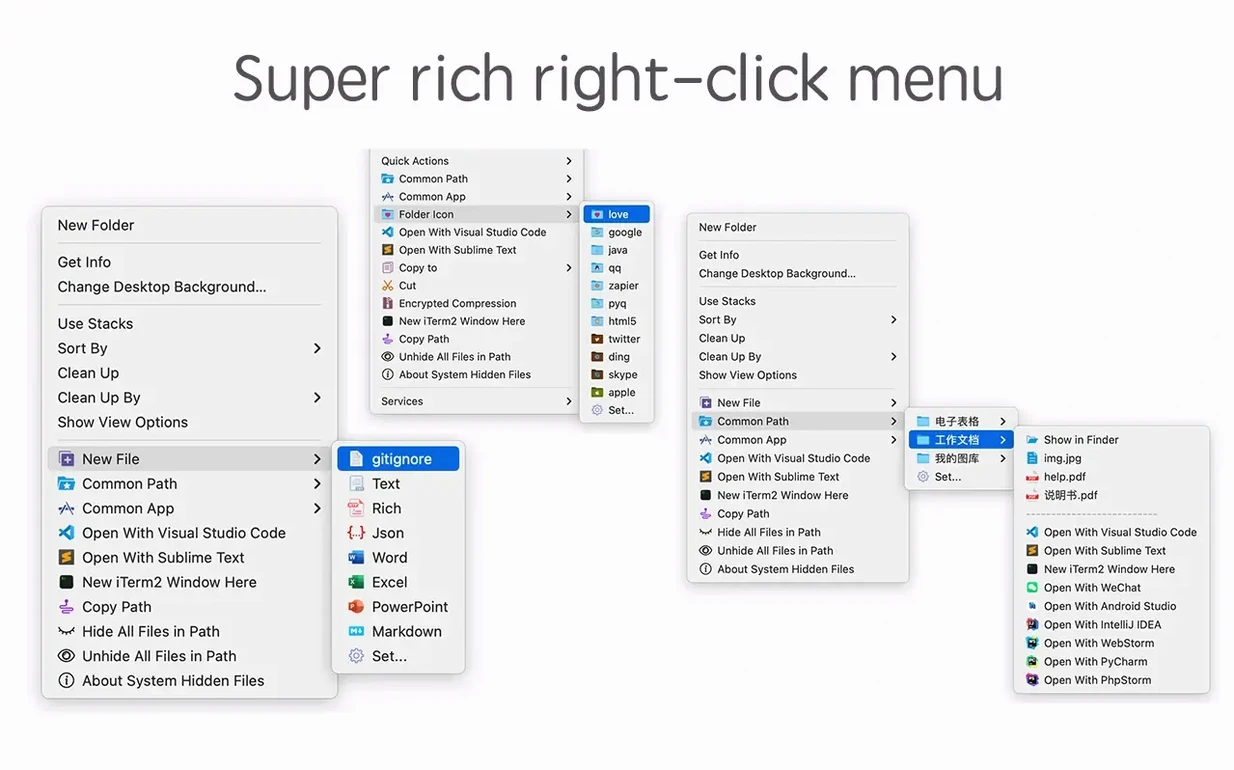
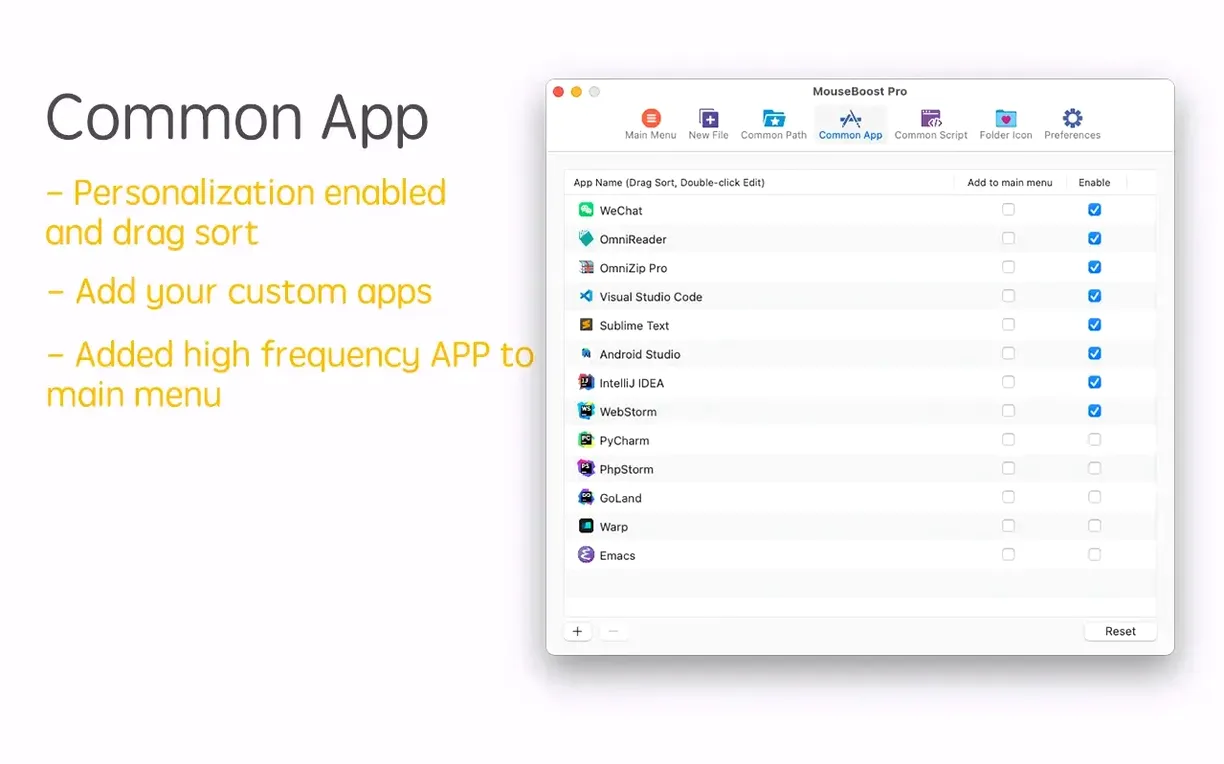
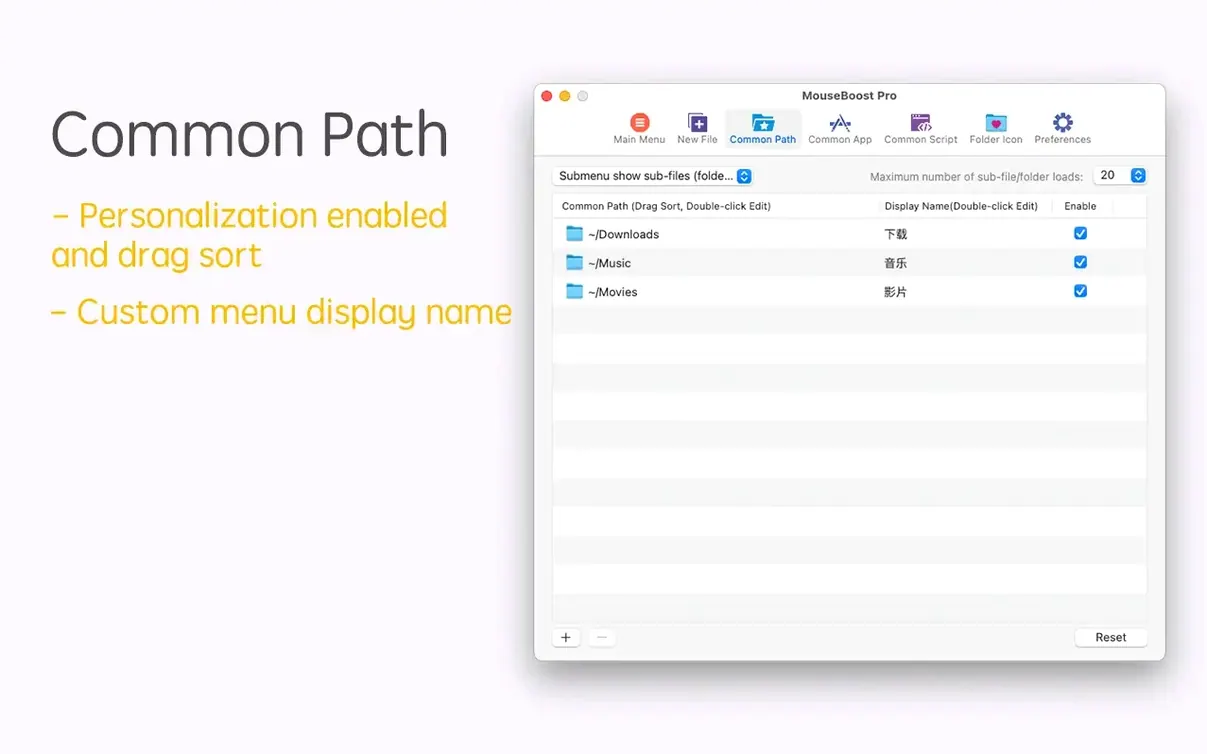
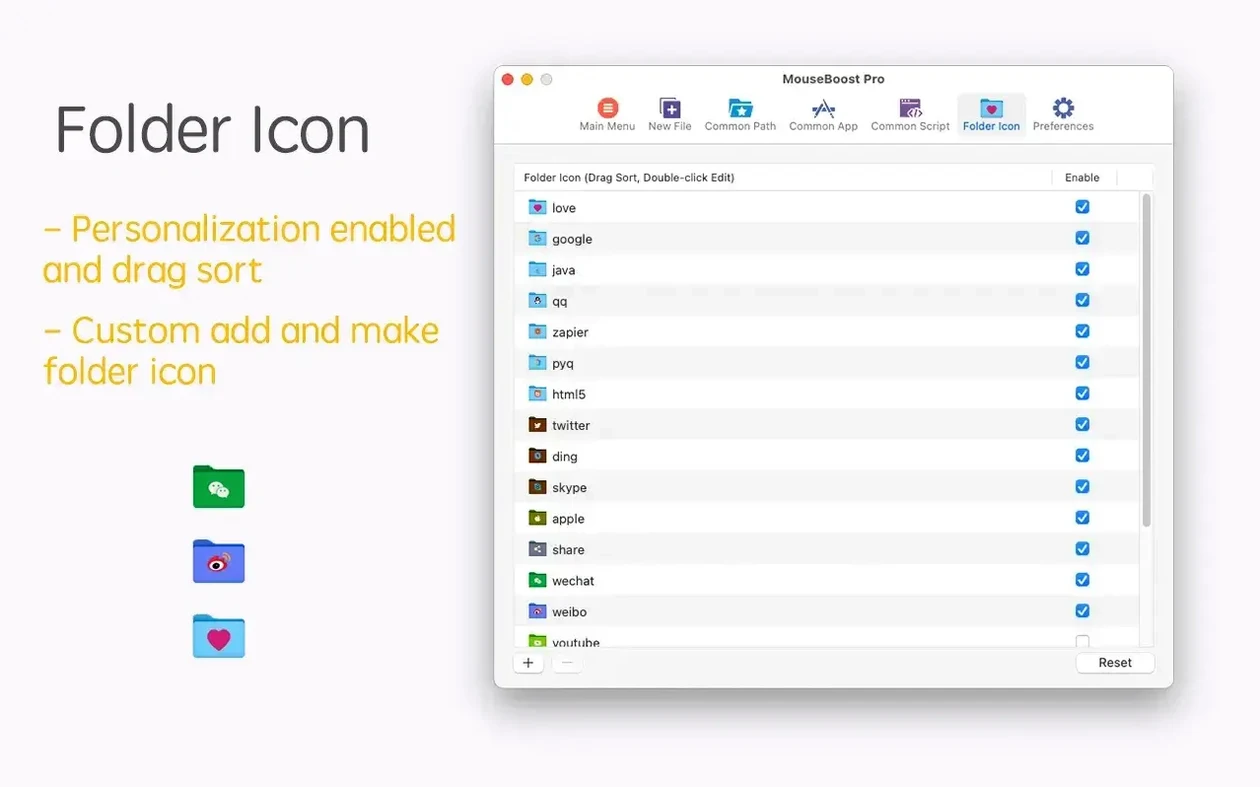
You Control-click a folder on your desktop, and instead of the usual sparse macOS menu, a list of custom actions appears. Two clicks later, that folder is open in iTerm2, sitting exactly in that directory, and a compressed copy is already on its way to a project archive. That is the kind of macOS integration MouseBoost Pro aims for — not replacing Finder, but filling in the gaps Apple left in the right-click menu.
Over 30 Finder right-click actions without a keyboard shortcut in sight
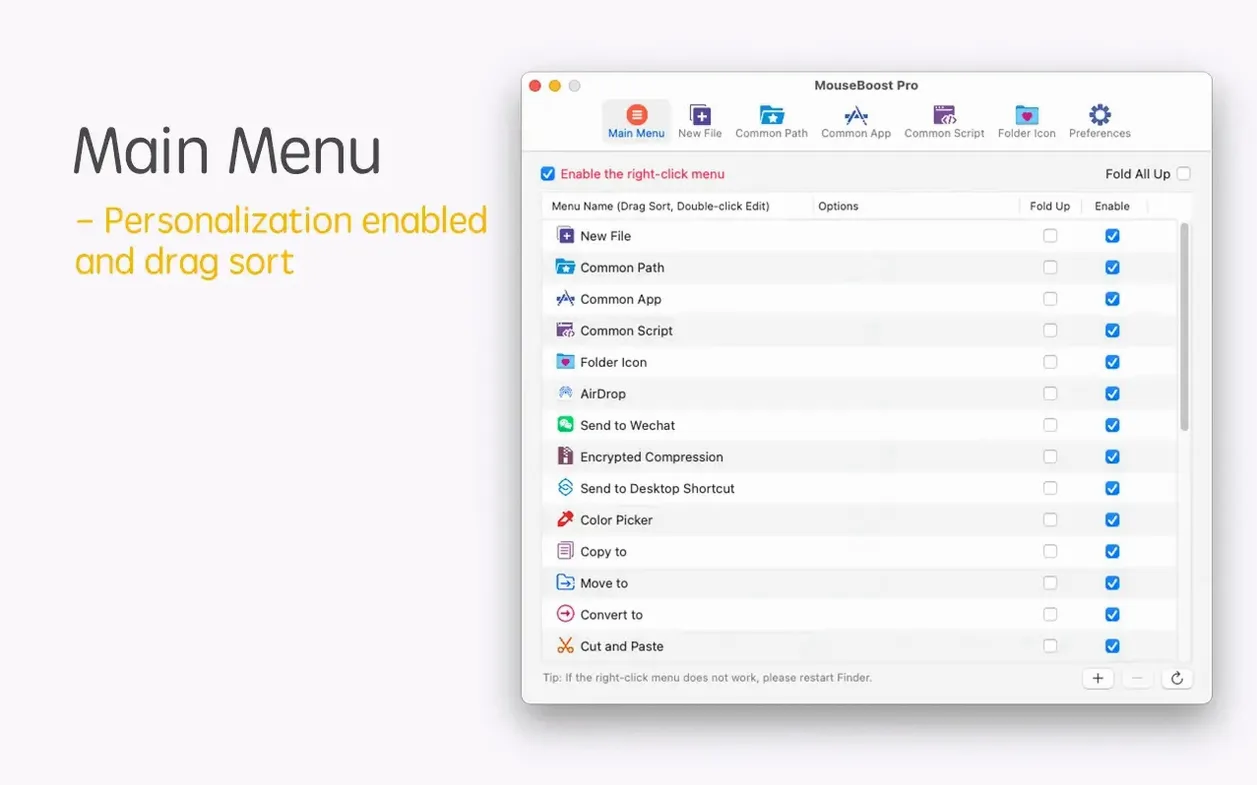
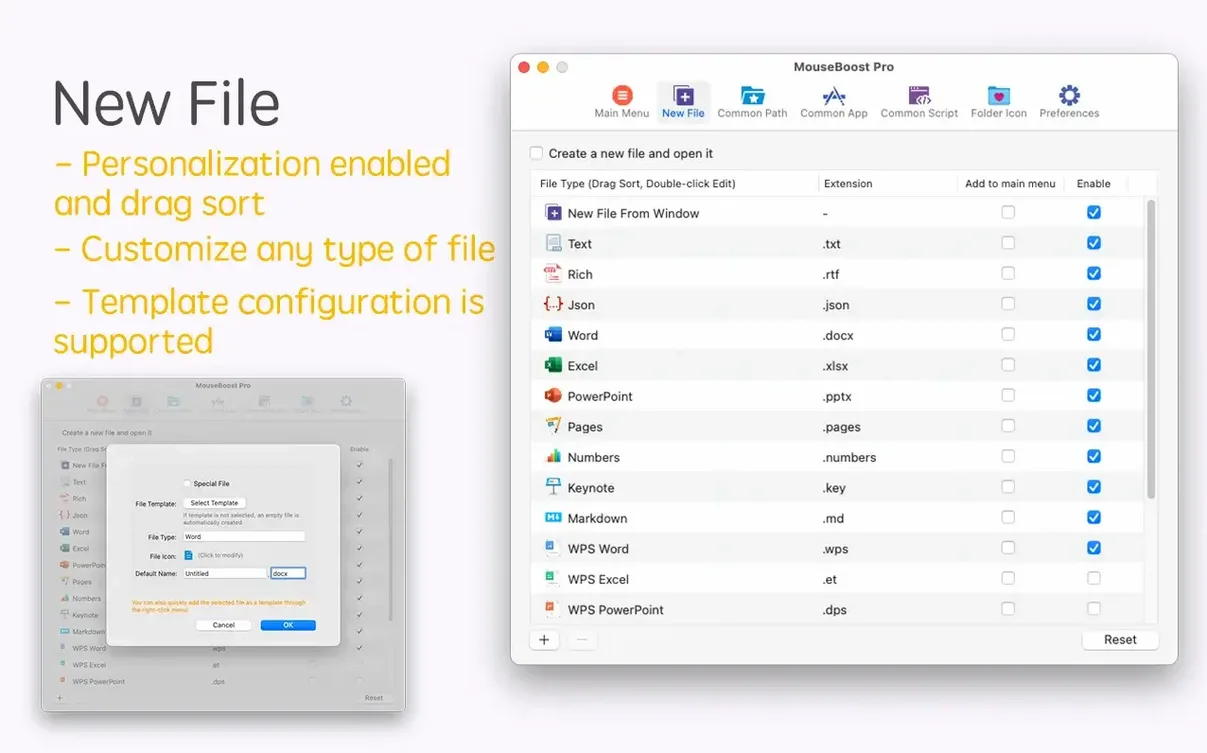
Think of the right-click menu as a command palette that is always one gesture away. MouseBoost Pro adds over 30 small utilities directly into that Finder context menu. You can move, copy, or permanently delete files without touching the keyboard. It can open a favorite folder instantly, or launch a Terminal session in iTerm2 already pointed at the current directory. The whole menu structure can be reordered and customized, so the actions you actually use sit at the top. For batch file work, it complements a dedicated renamer by putting quick rename-from-list or text-insertion operations right where the files are.
How it handles the technical side
The app runs as a native binary on both Apple Silicon and 64-bit Intel Macs, all the way back to macOS 10.11. It hooks into Finder via Apple’s extension API, which means the menu additions show up in every Finder window and on the desktop without needing a separate utility running in the menu bar. The interface is in English, and the preference pane lets you decide which of the 30-plus tools actually appear, keeping the menu lean when you need it to be.
Flattening Photoshop layers and converting images from a folder right-click
Say you are pulling together assets for a client presentation. The folder holds a mix of Sketch files, exported PNGs, a few stray SVGs, and a couple of layered Photoshop documents you need to flatten. You Control-click the folder itself and jump straight to Open in VSCode — one click, and the entire directory tree is in your editor sidebar. While you are there, you realize the PNGs could use consistent naming. You select the batch, right-click, and pick the rename action. The panel lets you insert “_v2” right before the extension and pull a rename list from a text file you prepared earlier. Done.
Next, you need to send a zipped subset to a collaborator. You highlight four files, Control-click, and choose encrypted compression. A password prompt appears, and a .zip lands on the desktop. No opening a separate archiver, no dragging files into a window. Then you copy the full path of the zip with the Copy Path action and paste it into an email. You also drop a frequently-used “Client_Assets” folder into the favorites list so it is one right-click away for the rest of the project. The folder icon looks generic, so you swap it to a branded one through the Change Folder Icon item — no manual .icns file wrangling.
Before you wrap up, a quick check: you right-click the main project folder, calculate SHA256 on the zip, and paste the hash into a shared note for verification later. The whole session never left Finder.
iTerm2 and VSCode launchers right inside your Finder menu
MouseBoost Pro vs. iBoysoft MagicMenu. MagicMenu also extends the Finder right-click menu, but it leans more toward file creation templates and quick access to system locations. MouseBoost Pro pushes further into developer-friendly territory with the iTerm2, VSCode, Sublime Text, and Emacs launchers, plus the path-copying and hash calculations. If your daily work involves a terminal and a code editor, mouseboost pro maps more directly to that workflow. MagicMenu feels more general-purpose; MouseBoost Pro feels like a toolbox that knows about /usr/bin.
MouseBoost Pro vs. FinderPop. FinderPop is an old favorite for putting a customizable launcher into the context menu, but it has not seen the same level of active development and its look can feel dated on recent macOS versions. MouseBoost Pro benefits from being a current, maintained app — version 5.2.8 added folder tree previews and OCR copy, showing the developer is still iterating. FinderPop gives you a launcher; mouseboost pro mac gives you a launcher plus file operations, compression, and batch renaming all in one menu.
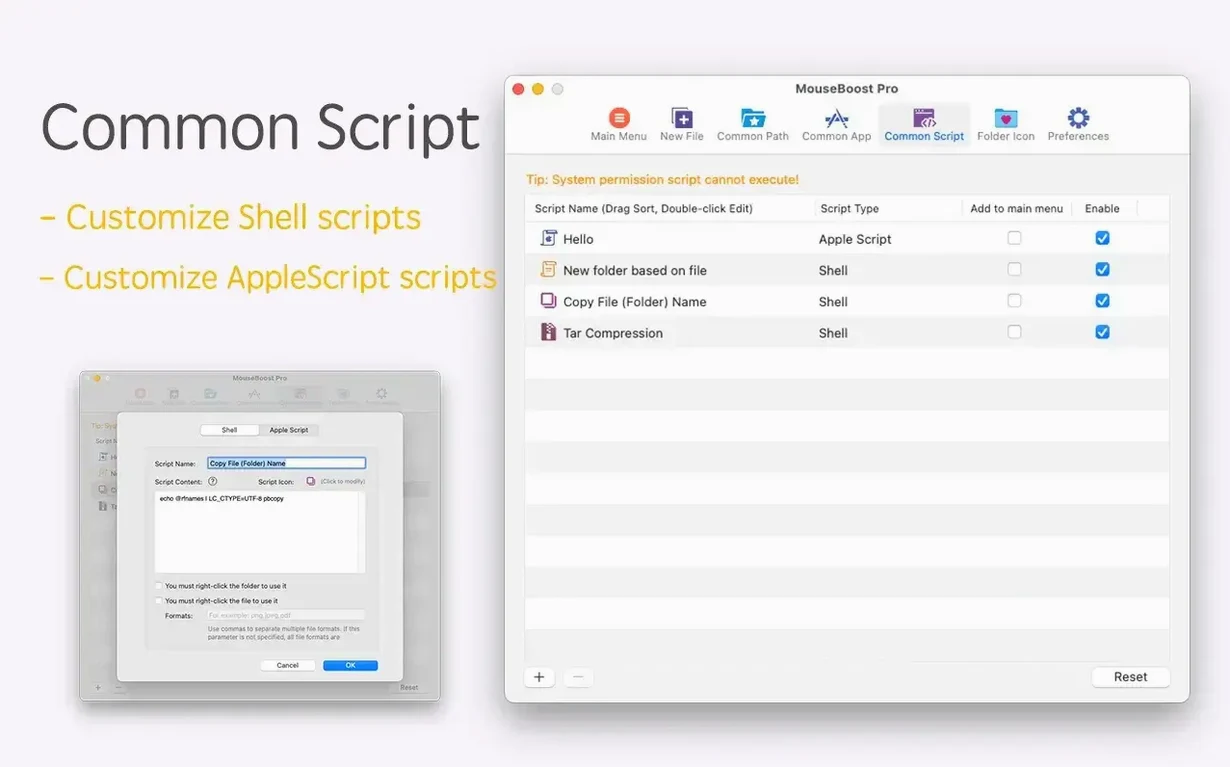
MouseBoost Pro vs. built-in Finder + Automator. You can approximate some of these actions with Automator services, but they scatter across the Services submenu and lack a unified preference pane. MouseBoost Pro consolidates everything into a single, sorted list you control from one settings window, and actions like “permanent delete” or “calculate SHA1” are ready to go without scripting.
Snags you might run into and how to sort them
The menu does not appear after installation
On newer macOS versions, Apple requires explicit approval for Finder extensions. Go to System Settings → Privacy & Security → Extensions → Finder Extensions and make sure MouseBoost Pro is ticked. If it is already enabled but missing, toggle it off, wait a moment, and toggle it back on. A Finder relaunch — Command-Option-Escape, select Finder, click Relaunch — usually completes the fix.
“Open Gatekeeper friendly” step fails silently
If the Terminal command from the install disk image does not seem to do anything, open Terminal manually, type a single space, then drag the Gatekeeper friendly script file from the mounted .dmg into the Terminal window and press Return. The script needs that direct invocation to receive the correct permissions on some security-hardened setups.
The menu feels too cluttered
Thirty-plus items is a lot. Open MouseBoost Pro’s preferences and uncheck everything you do not use daily. You can always re-enable an item later. The sort order is draggable, so push your top five actions — say, Copy Path, Open in iTerm2, and Permanent Delete — to the top. The menu becomes muscle memory fast when only the relevant entries show.
Batch rename does not find the files I expect
The rename tool operates on whatever you selected in Finder. If you are inside a folder, make sure you have actually highlighted the files rather than just having the folder open. A common slip is selecting the folder itself and wondering why the rename panel lists only one item. Select the contents first, then right-click.
Version 5.3.0 [MAS] brings a handful of thoughtful edits for anyone who right-clicks their way through the day:
- Image stitching gets a grid. You can now arrange stitched images in a grid layout, set how many appear per row, and add or remove images on the fly.
- Pinned screenshots gain mouse-wheel zoom. Scroll to scale a pinned shot up or down right where it sits on your screen.
- AVIF support lands, SVG conversion tightens up. The app now reads and writes AVIF images. A bug that stretched SVG aspect ratios during conversion has been fixed.
- macOS 27 polish. Interface rendering and overall compatibility with the latest macOS have been improved.
- macOS 12.3 or later
- Apple Silicon or Intel 64-bit
$ man mouseboost-pro | grep -A2 "?"
Does it work on Apple Silicon Macs?
Yes, MouseBoost Pro includes a native ARM binary and also supports 64-bit Intel Macs.
Can I reorder the right-click menu items?
Yes, the app supports full user sorting of all menus so you can put your most-used actions at the top.
Which macOS versions are supported?
It requires macOS 10.11 or later, covering a wide range of older and current Macs.
Comments 0
Sign in or create an account to leave a comment.
No comments yet. A codec, a slice, a machine — they appear after moderation.