Movavi Screen Recorder for macOS
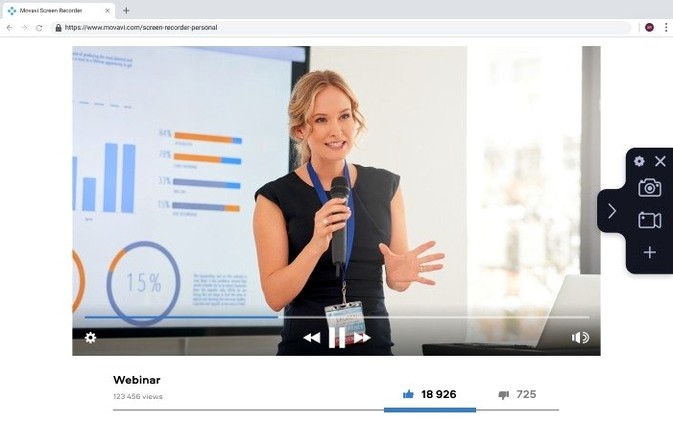
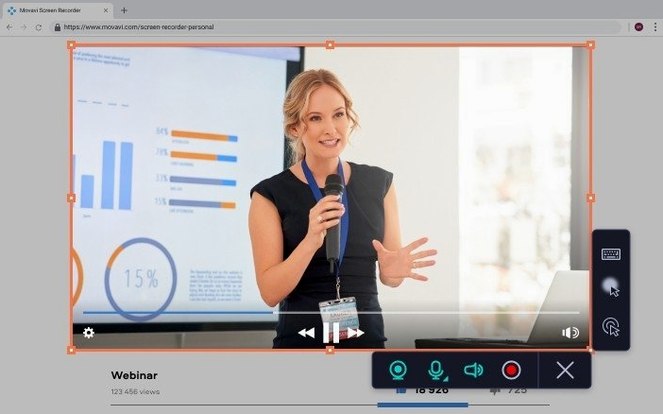
Movavi Screen Recorder is a Mac application for capturing your screen, system audio, microphone, and webcam feed, either together or as separate video streams. It's built for anyone who needs to create a tutorial, grab a video call, or save a streaming clip without juggling multiple tools.
The interface keeps things straightforward. You select the capture area, choose your audio inputs, and toggle the webcam on or off. One detail I appreciate is the ability to save recordings as GIF animations—handy for quick demos or bug reports where a full video file would be overkill. You can set a recording duration limit so captures stop automatically, or use the scheduler to start recording at a specific date and time without being at your desk.
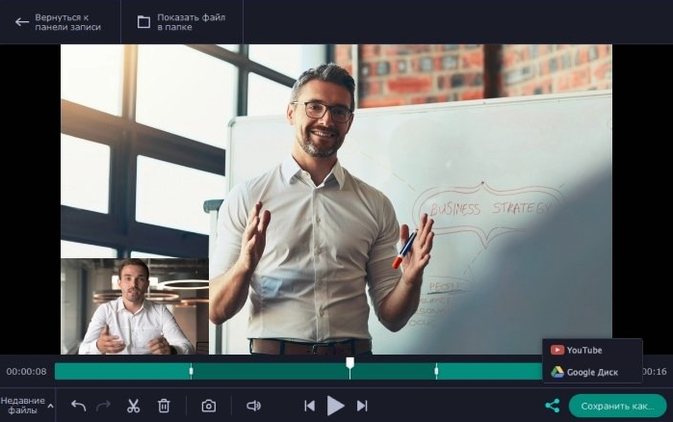
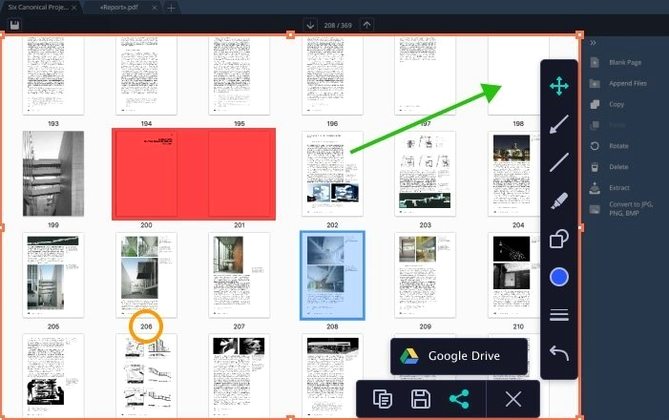
Once you stop a recording, there's a basic screenshot editor available before you export. For sharing, the app can upload directly to Google Drive or YouTube, cutting out the step of finding the file in Finder and dragging it into a browser.
On the technical side, version 23.1.1 runs natively on Intel Macs and supports multitrack recording, which gives you more flexibility in post if you plan to edit the footage in another application. It's functional rather than flashy, and focuses on covering the recording scenarios most people actually need.
Imagine a hobbyist musician who's just finished restoring an old 8 track tape recorder. It sounds warm and wobbly and glorious, and they want to capture the audio output while simultaneously filming their hands on the faders to post a short demo online. They don't need a full production suite—just a way to grab the screen showing an audio visualizer, pull in the live mic narration, and maybe overlay a small webcam shot in the corner for a quick intro.
They open Movavi Screen Recorder, set the capture area to just the visualizer window, select the USB audio interface as the sound source, enable the webcam, and hit record. Three minutes later they stop the capture, trim the dead air at the start using the built-in editor, and export a single video file ready for sharing. That's the workflow this app slots into neatly: fast captures where setting up a timeline and tracks in a full video editor would slow things down.
Why do trainers swear by the cursor click effects?
Technical trainers and software educators tend to benefit first. The cursor click effects and on-screen keyboard press display turn a plain screen recording into something self-explanatory, without requiring extra annotation passes. If you're building a library of short how-to clips, those two features alone save repetitive explaining.
Support teams and QA testers often need to grab quick bug reports. The GIF export format turns a 15-second screen capture into a tiny file you can drop straight into a ticket or chat message. Combine that with the duration limiter and you eliminate the risk of accidentally recording half an hour of desktop emptiness.
Remote workers who record video updates or async standups can use the webcam overlay to maintain some face-to-face feel, while content creators who stream on platforms like YouTube benefit from the direct upload option—no Finder hunt required.
Which hotkey tweaks prevent first-week headaches?
After mounting the .dmg and completing the install, spend ten minutes configuring things before your first real recording. It makes the next week smoother.
- Customize the hotkeys. The defaults work, but mapping start/stop to a key combination you won't accidentally hit during a demo prevents frustration. I recommend something like
Control-Option-Command-Rthat no other app claims. - Test your audio routing. Record a 15-second clip with system sound, then one with the microphone, then both together. Play each back with headphones. Nothing derails a tutorial faster than discovering your voice track is silent or the system audio is distorted after a 20-minute take.
- Set a default save location. The app saves recordings to a predictable folder. Point it somewhere you'll remember, or create a dedicated
~/ScreenRecordingsdirectory so captures don't scatter across your desktop. - Experiment with the scheduler once. Schedule a 30-second test recording two minutes in the future, then step away. Confirming that the scheduler wakes the app and stops on time gives you confidence for the day you need to capture a live webinar while you're in another meeting.
- Check the webcam overlay placement. Drag the webcam preview to a corner that doesn't cover important UI elements in the apps you typically record. The position persists across sessions, so you set it once.
Did the multitrack recording finally settle into a groove?
Version 23.1.1 landed with a modest changelog—minor improvements and bug fixes—but those kinds of updates often smooth out the small friction points that accumulate across recording sessions. In everyday terms, the multitrack recording introduced in earlier releases has settled into a more reliable state, meaning fewer dropped frames when capturing both screen and webcam streams simultaneously on older Intel hardware.
One practical shift for regular users is that the app now handles system audio capture with fewer edge cases on recent macOS builds. If you'd previously wrestled with audio drivers or workarounds to grab internal sound, the 23.x line made that path more straightforward. Combined with the scheduling feature, you can set a capture for a specific time, walk away, and trust that the file will be waiting—something earlier builds occasionally fumbled when the Mac entered sleep state.
For anyone who upgraded from a version predating the direct upload integration, the YouTube and Google Drive export options removed a repetitive step from the sharing workflow. It's a small thing, but skipping the manual upload saves a surprising number of clicks when you publish screen recordings multiple times a week.
- Version 23.1.1 ships with minor performance improvements and bug fixes.
- macOS 10.13 or later
- Intel processor
$ man movavi-screen-recorder | grep -A2 "?"
Can Movavi Screen Recorder capture my webcam and screen at the same time?
Yes, it can record multiple video streams simultaneously, including your screen, webcam footage, and microphone audio in a single session.
Comments 0
Sign in or create an account to leave a comment.
No comments yet. A codec, a slice, a machine — they appear after moderation.