Mp3tag for macOS
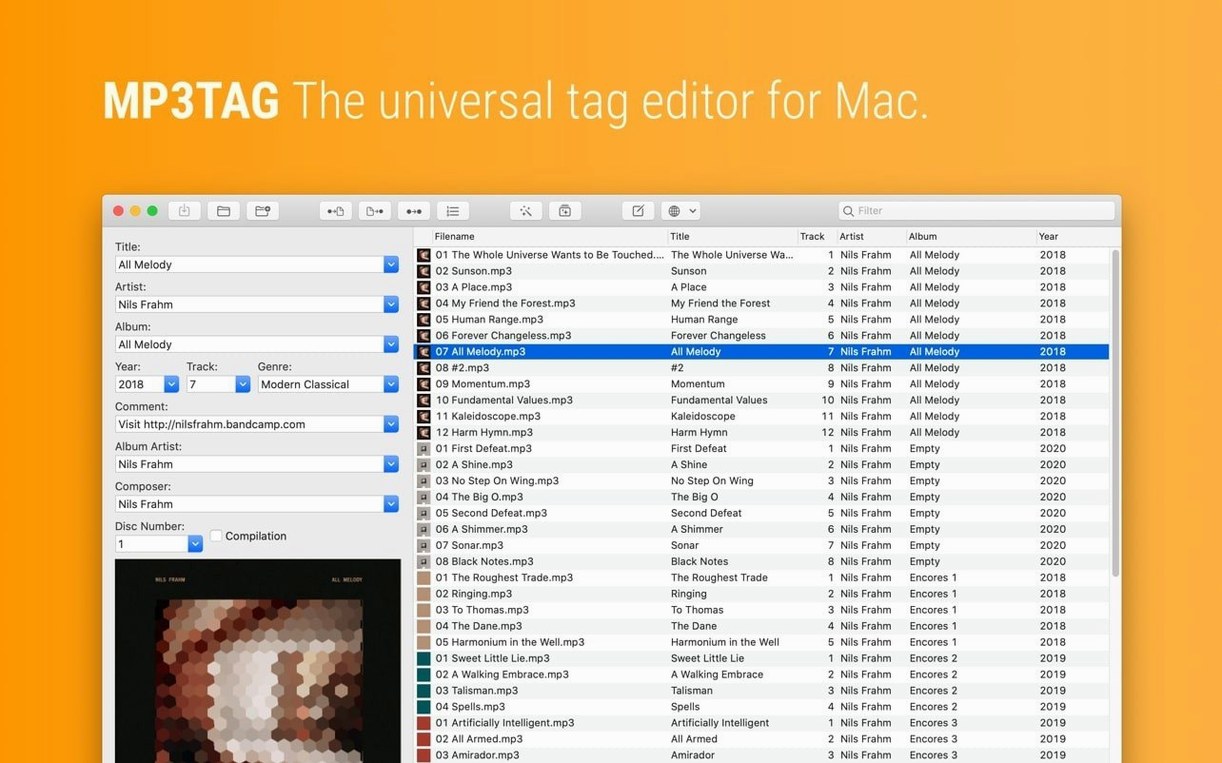
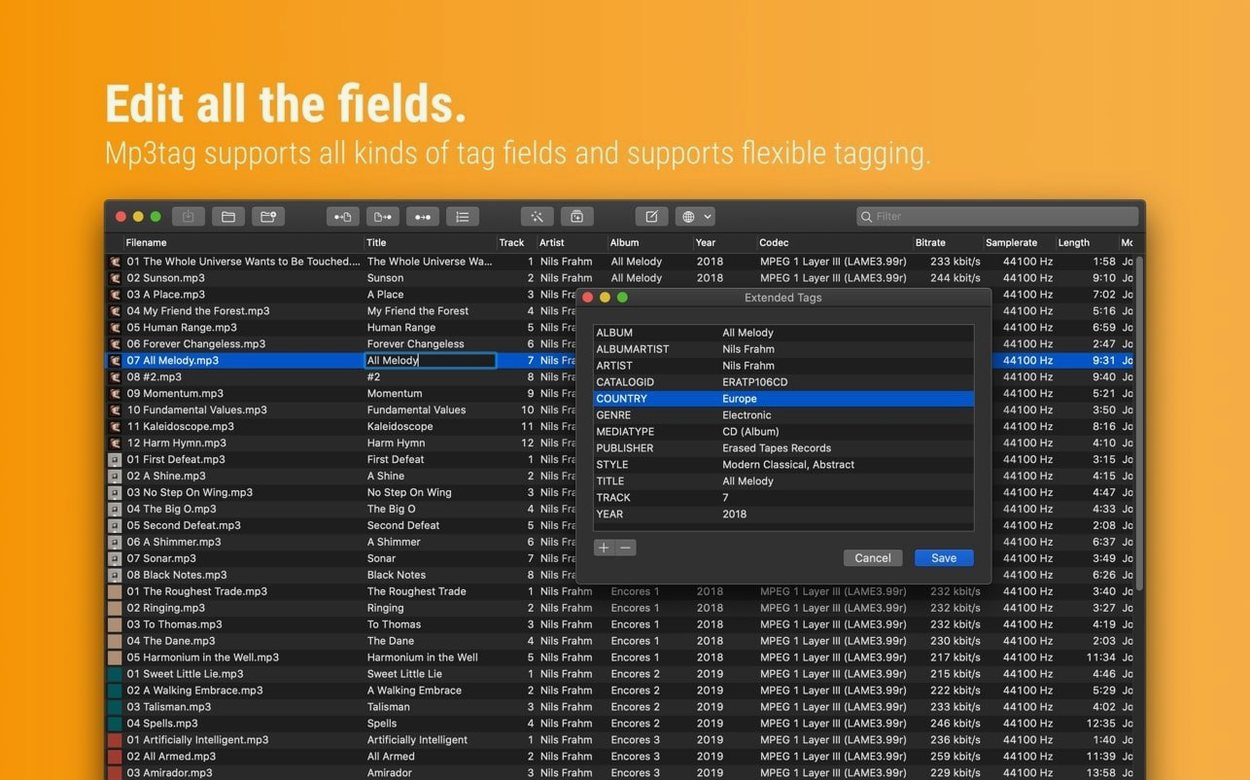
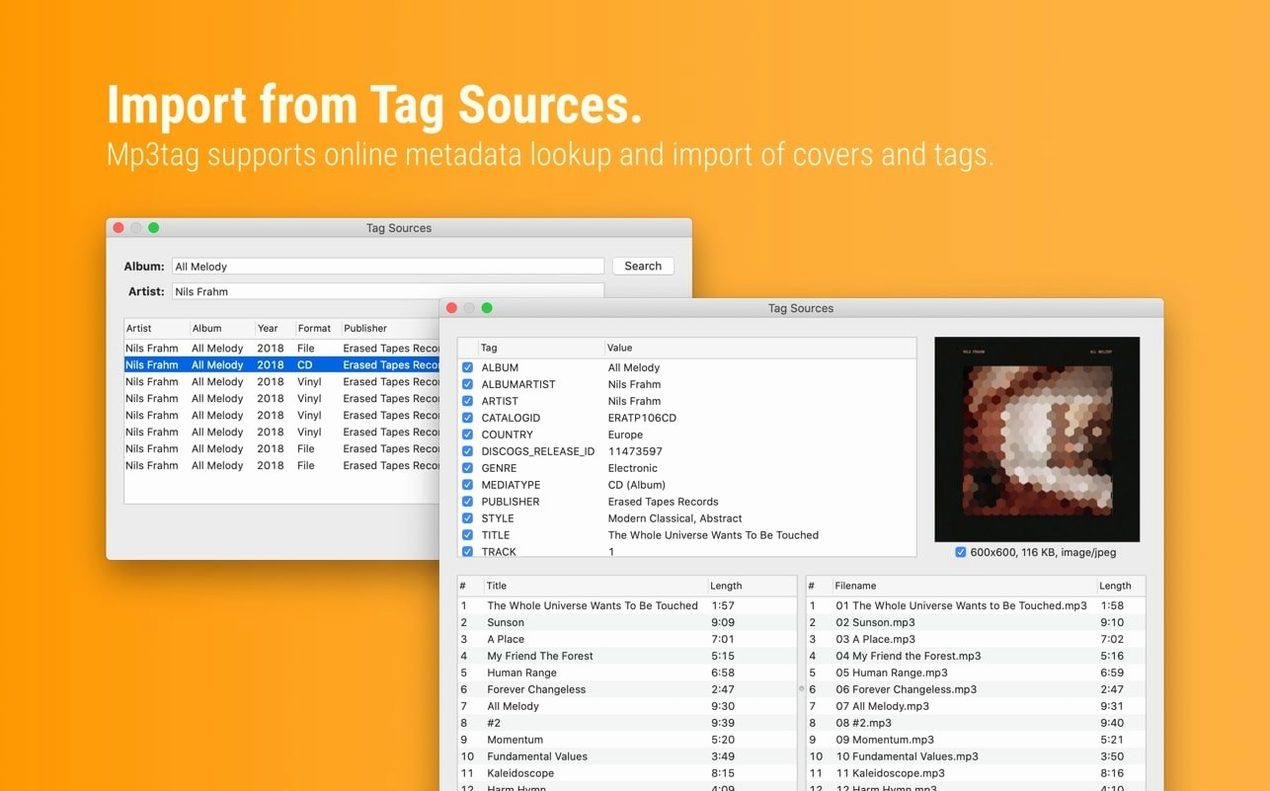
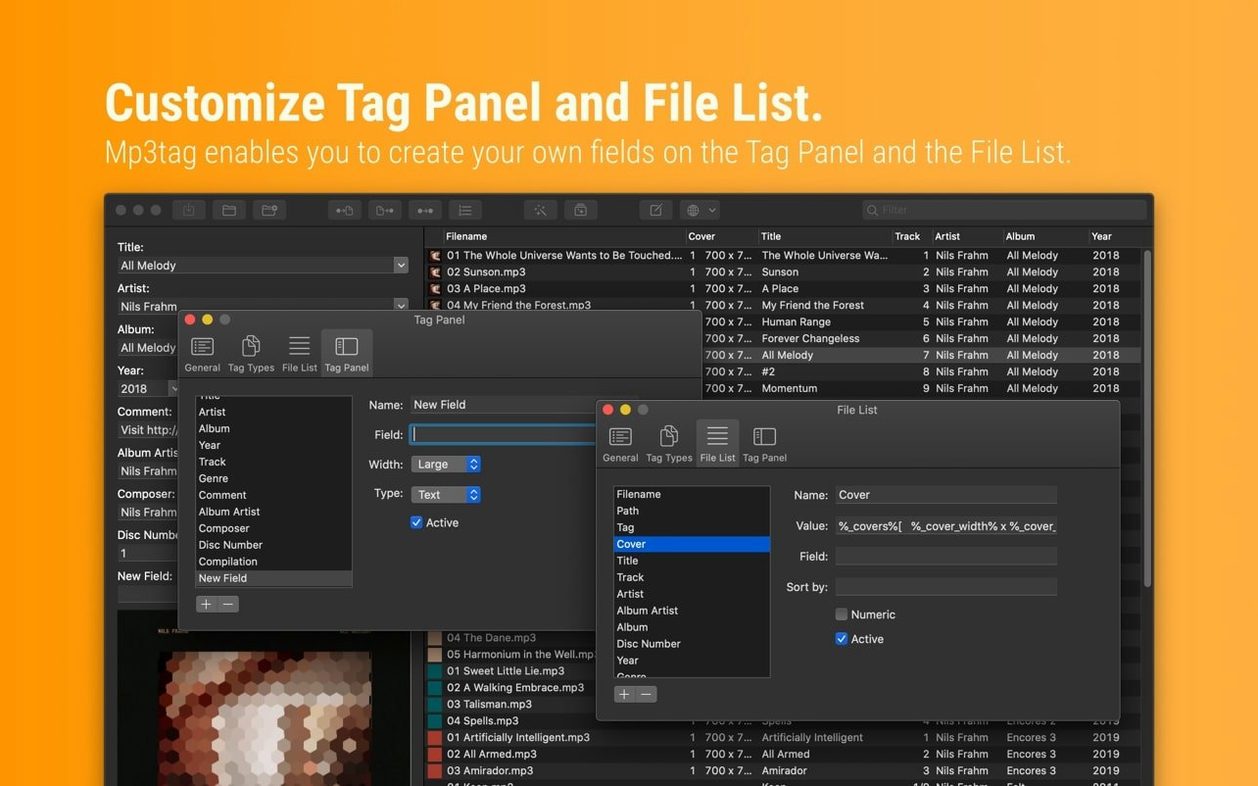
Version 1.14.1 lands with a handful of fixes that tighten up the tagging workflow—crashes when adding action groups on macOS 27 are gone, unsaved Tag Panel edits no longer get lost when you jump to Cover Search or run an action, and decimal BPM values in MP4 files now write as integers instead of being silently discarded. Those bug fixes keep the editor predictable, which matters when you’re cleaning up a messy library. Here’s what makes the tool tick.
- Tag panel with batch muscle. Edit metadata across thousands of files at once. The panel shows all tags present in the selection, so you can fix inconsistent artist names or add a common album title without touching each track individually.
- Discogs and MusicBrainz lookup. Highlight a handful of files, hit a tag source, and pull artist, title, tracklist, and cover art straight from the web. Both services are built in—no plugin wrangling required.
- Cover art resizing on write. Embedded artwork can balloon a file. Mp3tag lets you cap the maximum pixel dimensions and choose JPEG or PNG output right from the cover settings, so you control how much space the image eats inside the tag.
- Action groups for repeated chores. String together tag-field formatting, case conversion, file renaming, and export steps into a single action group. Run it on a new batch of files with one click instead of repeating half a dozen manual commands.
- Format coverage that spans a collection. Beyond the obvious MP3 and MP4, the app reads and writes FLAC, OGG, OPUS, AIF, DSF, MPC, and WAV. That covers compressed, lossless, and DSD studio formats in one editor.
How I turn a single DJ set WAV and a tracklist into a tagged album
You come back from a gig with a single WAV file and a tracklist scribbled in a text file. The goal is one neatly tagged album that a media player or library manager displays correctly. Here’s the step-by-step routine I use.
Drag the WAV into Mp3tag. It shows up as one lonely row with empty fields. Open the Tag Panel on the left—right now it’s blank except for the filename. Before touching tags, I set the cover art first, because pulling artwork from Discogs later will overwrite any manual cover edits. Select the file, head to Tag Sources → MusicBrainz, and search by artist name plus a few words from the set title. MusicBrainz returns the release; I click through to confirm the tracklist matches, then let it populate artist, album, year, and cover art. The image lands in the file immediately.
Now the manual part. The WAV is one long file, so the tracklist from MusicBrainz doesn’t map to individual tracks—I’m tagging the whole recording as a single album. In the Tag Panel I type the album title, set the track number to 1/1, and add a comment like “Live at Basement, Feb 2025.” The genre field gets something specific: Techno or Deep House, not a vague placeholder. I hit ⌘S to save.
Next, renaming. The original filename is something useless like ZOOM0016.WAV. I select the file, open Convert → Tag - Filename, and use the format string %artist% - %album%. Mp3tag previews the result. I confirm, and the file gets a readable name instantly. Finally, I check the cover art size. Under Mp3tag → Settings → Tag Panel, I’ve capped cover dimensions at 1200 px and set output to JPEG. If the pulled artwork is larger, Mp3tag resamples it on the next save. I press ⌘S once more, and the WAV is ready for any player.
Why I cap cover art at 1200 px right after installing
Out of the box, Mp3tag makes a few choices worth revisiting. I adjust these four things immediately after the first launch.
Cover art dimensions and format. In Settings → Tag Panel, set a maximum width and height—1200 px works for most library software without bloating files. Choose JPEG at 90% quality. PNG covers in FLAC files can triple the file size for no visual gain.
Default tag sources. Mp3tag ships with Discogs and MusicBrainz enabled, but neither is pre-configured with a preferred release country or format. In Settings → Tag Sources, I set MusicBrainz to prefer “Official” releases and Discogs to search by barcode or catalog number when available. This cuts down on picking the correct release from a list of fifteen variants.
Filename format strings. The default rename patterns are basic. I create a custom format string for albums: %track% - %title% and one for compilations: %track%. %artist% - %title%. These live in the Convert → Tag - Filename dropdown once saved.
Undo depth. The default undo limit is low. Under Settings → General, I bump it to 50 actions. When you’re experimenting with a regex replace across 3,000 files, a deep undo stack is cheap insurance.
How fast does it load 10,000 FLAC files on Apple Silicon?
On an Apple Silicon Mac, Mp3tag launches cold in under two seconds. The interface is drawn with native AppKit controls—no Electron sluggishness, no browser-devtools memory footprint. I’ve thrown folders with 10,000 FLAC files at it; the file list populates in about half a second, and scrolling stays smooth. Filtering by typing in the quick-filter bar narrows results on every keystroke without visible lag.
RAM usage sits around 120–180 MB with a few thousand files loaded. That’s modest for a metadata editor—many media players burn more memory just idling. CPU spikes during batch operations are brief: applying an action group that formats tags, renames files, and resizes cover art across 500 tracks finishes in roughly 8–12 seconds, with the CPU ramping up for the cover resize pass and dropping back to idle afterward.
Stability in version 1.14.1 is solid. The crash when adding action groups on macOS 27 is fixed, and I haven’t triggered a single hang during normal tagging, tag-source lookup, or export workflows. The only quirk I notice: if you leave the Tag Panel open while very rapidly switching between files with the arrow keys, the panel occasionally takes a beat to refresh the field values. It’s cosmetic—no data is lost—but worth knowing if you’re a fast keyboard navigator.
Disk I/O is sequential and well-behaved. Mp3tag reads and writes tags in passes, not in a constant churn. If you point it at files on an external spinning drive, the first read pass is limited by the drive’s seek speed, but the app doesn’t thrash the disk. After the initial scan, subsequent saves touch only modified files.
What people search for before downloading the disk image
Does it handle FLAC and MP3 equally well, or is it really an MP3 tool that happens to open other formats?
FLAC support is first-class. Vorbis Comments, embedded pictures, and all standard fields map cleanly into the Tag Panel. The same batch actions, tag sources, and rename patterns work on FLAC that work on MP3. I’ve used it to retag a library of 2,000 hi-res FLAC albums, and the only format-specific difference is that FLAC doesn’t use ID3v2 frames—Mp3tag abstracts that away so you don’t have to think about container differences.
Where do I get the installer, and does it work on Apple Silicon?
The developer distributes Mp3tag as a disk image. Searching for mp3tag dmg surfaces it quickly. The universal binary runs natively on both Intel and Apple Silicon Macs—no Rosetta translation needed. The disk image mounts cleanly, and the app drags into /Applications like any standard Mac program.
Can I really rename thousands of files based on tags without messing up?
Yes, and the preview is the safety net. Every rename operation shows a before-and-after list before anything touches the filesystem. If the preview looks wrong—maybe a slash in the artist name that would create a subdirectory—you cancel, fix the tag, and try again. Mp3tag also strips characters that are illegal in macOS filenames automatically. I’ve renamed 15,000-track libraries in one pass with zero errors.
Is the build from the disk image fully functional without a license?
The disk image available through typical mp3tag mac torrent sources or direct download gives you the current build. Once mounted and copied to Applications, the editor is fully functional. People often search for mp3tag torrent or mp3tag mac crack when they want to evaluate whether the batch workflow fits their library before reorganizing everything—a good approach is to confirm the build runs stably on your macOS version and architecture. Version 1.14.1 targets macOS 10.14 and up, so even older machines are covered.
It’s the kind of tool that slots into a ripping or library-cleanup routine and stays there because it doesn’t fight the formats you actually own.
- Fixed a crash on macOS 27 when adding action groups in the Actions Groups window.
- Cover changes made in the Tag Panel are no longer discarded if you open Extended Tags before saving.
- Unsaved Tag Panel edits are now preserved when using Cover Search, Tag Sources, Converters, Auto-Numbering, or Actions before hitting save.
- Decimal BPM values are correctly truncated to integers when writing MP4 tags.
- macOS 10.14 or later
- Intel (64-bit) or Apple Silicon Mac
$ man mp3tag | grep -A2 "?"
Which audio formats can Mp3tag edit on the Mac?
It writes metadata to MP3, MP4, M4V, FLAC, OGG, OPUS, AIF, DSF, MPC, and WAV files.
Comments 0
Sign in or create an account to leave a comment.
No comments yet. A codec, a slice, a machine — they appear after moderation.