Nitro PDF Pro for macOS
Version 13.3.1 still runs on Mojave — meaning a 2018 MacBook Air can launch it without a forced OS upgrade. That backward compatibility is rarer than it should be in 2024.
Preserving columns and layout when you copy rich text
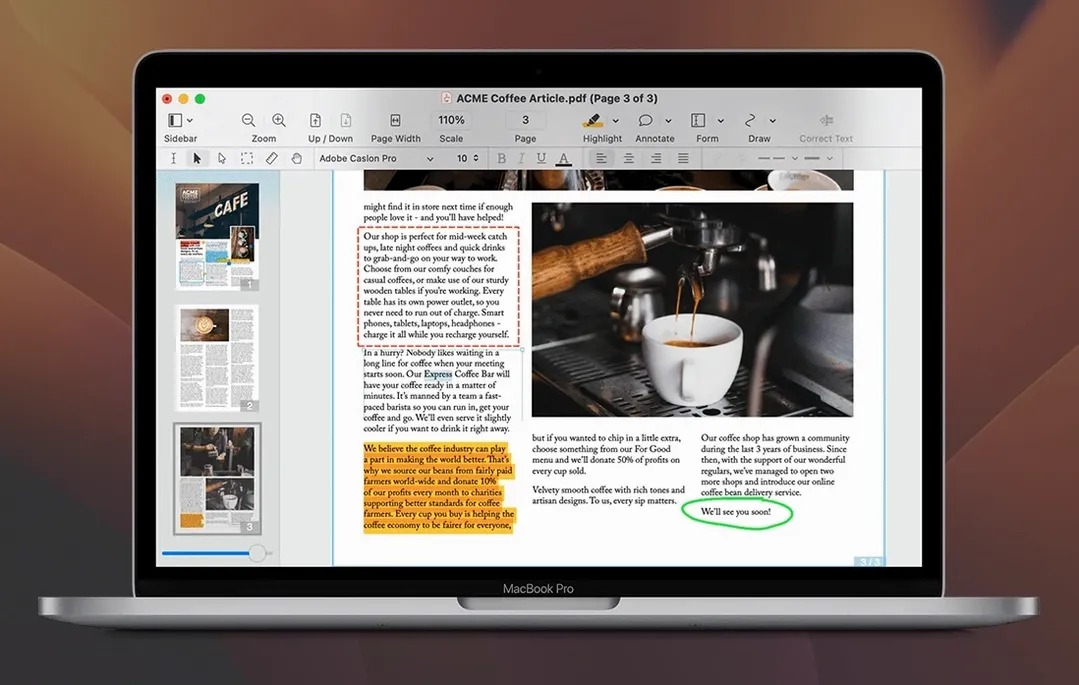
Nitro PDF Pro sits in the practical middle ground between a lightweight reader and a full document-production suite. It edits text inside a PDF without mangling the surrounding layout, preserves columns when copying rich text, and handles scanned pages through its built-in OCR engine. Redaction actually removes the underlying content, not just a black rectangle drawn on top. For anyone assembling paperwork, it can merge related files into a single PDF portfolio and attach supporting documents that stay embedded in the file.
What goes on inside the file
The app writes standard PDF data, so annotations and signatures you add show up correctly in Apple Preview and Acrobat Reader. Batch processing runs across multiple files — useful for stamping headers, footers, or watermarks onto a folder of invoices at once. Form tools let you fill existing fields or build new ones from scratch, and the signature handling supports both typed and drawn marks stored in the document. It is not trying to be a layout engine; it is trying to leave the original structure alone while giving you more levers to pull than Preview ever did.
Fluid annotation vs. form-building depth against PDF Expert
Put Nitro PDF Pro next to PDF Expert, and the personality split shows up quickly. PDF Expert leans hard into smooth scrolling and a reading-first interface — annotating feels fluid, but its form-building and batch tools are thinner. Nitro swings the other way: it treats the PDF more like a document you might need to dismantle and reassemble, which matters when you are pulling attachments out of a portfolio or running OCR across a thirty-page scan before exporting to Word.
Adobe Acrobat Pro is the 800-pound comparison point. It wins on prepress controls, color separation previews, and some enterprise compliance checkboxes. Nitro does not chase that end of the pool. What it does instead is load faster on Apple Silicon, avoid the Creative Cloud background services, and keep the toolset focused on the editing-and-forms workflow that most people actually hit daily. If Acrobat feels like an aircraft cockpit, Nitro feels like a well-organized toolbox.
Then there is PDFpen, now rebranded under Nitro's own umbrella — the two share DNA, but Nitro PDF Pro pulls ahead with its audio annotation recording, portfolio merging, and website-to-PDF conversion. Those are niche features until the day you need them, and then they are the reason you installed the app in the first place.
A real workflow: turning a scanned contract into a signed, searchable PDF
Imagine a five-page paper contract arrives as a phone-photo scan — slightly rotated, not searchable, missing a signature field on page four. Here is the path through Nitro PDF Pro, start to finish.
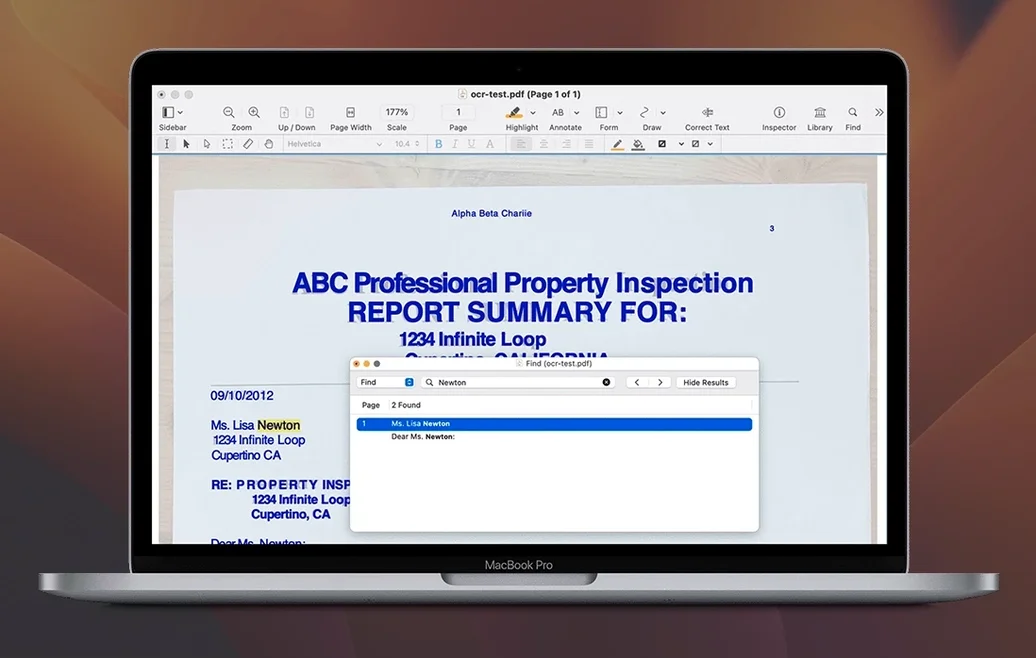
Open the file. The OCR engine kicks in either automatically or from the Document menu; pick the document language first if it is not English, because the recognition quality drops hard when the wrong language set is selected. Once the text layer is embedded, hit ⌘F and search for a clause keyword to confirm the OCR caught everything — crooked pages sometimes trip on the gutter and need a re-run after straightening with the rotate tool.
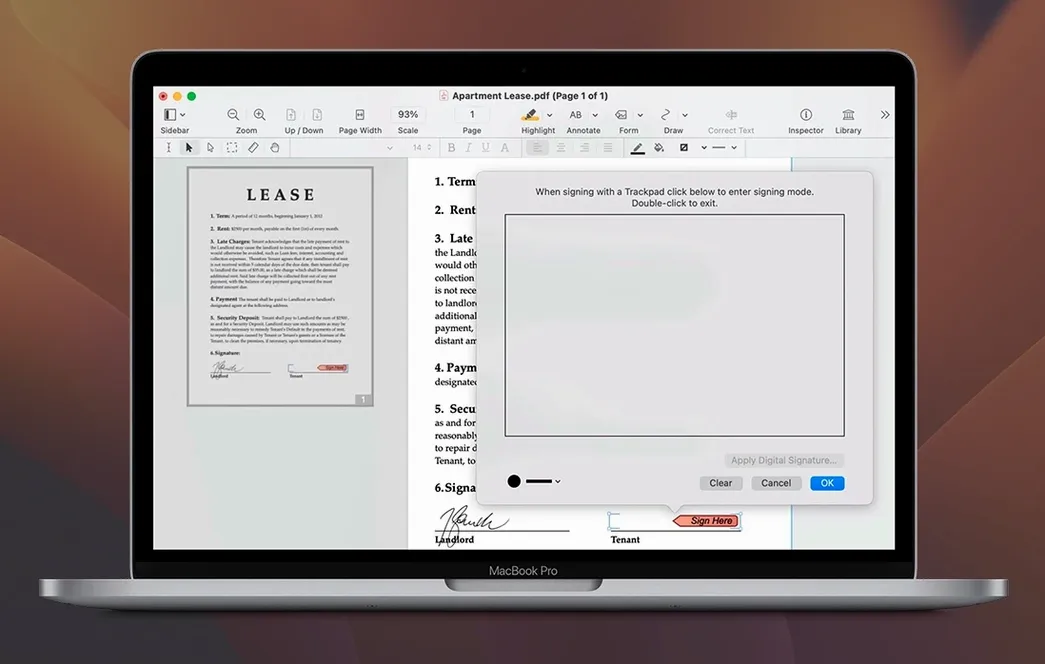
Next, the signature. Switch to the form tool and drag a signature field onto page four. You can assign it a name that will appear in any form-reading software downstream. If you already have a stored signature, drop it in; if not, the app lets you draw or type one and saves it inside the document without an external image file dependency.
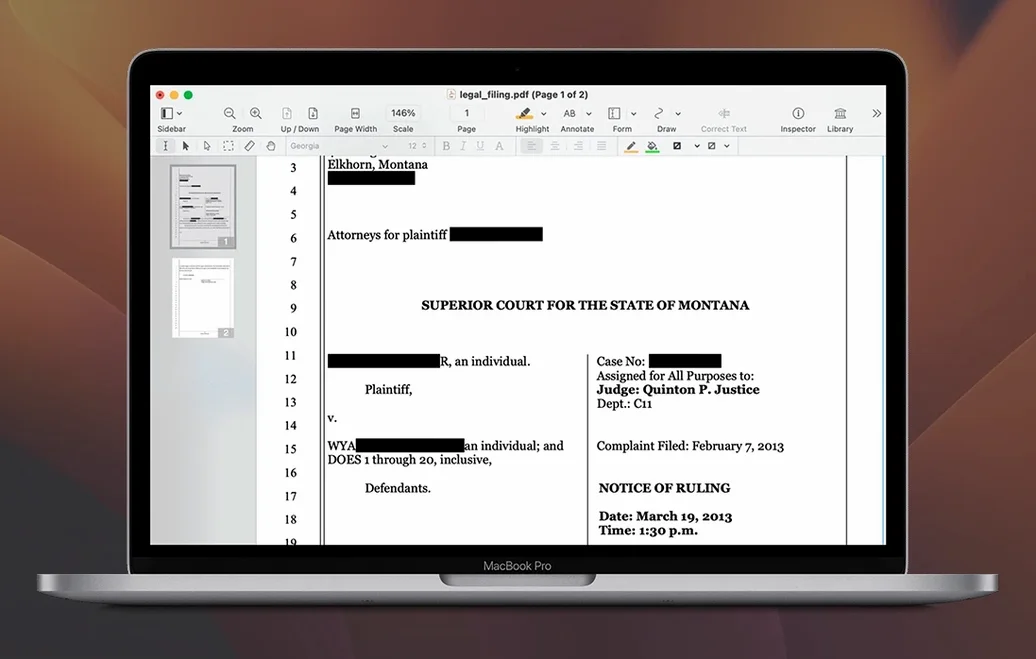
Before sending it back, run redaction across any personal identifiers that the other party does not need to keep. Select the text or area, apply the redaction, and save — the underlying data is gone, not just covered. Finally, export a flattened copy via File → Export so the recipient cannot accidentally move the signature block. The whole loop takes under four minutes once you know where the tools live.
Bypassing the Gatekeeper block after your first launch
When you drag the app from the mounted .dmg into /Applications and launch it the first time, Gatekeeper may block it depending on your security settings. The Terminal bypass mentioned in the install notes is straightforward: paste the command, press Enter, and the app opens normally thereafter. Do this once and macOS stops asking.
Give the OCR engine a test run on a deliberately bad scan early — something with skewed text or a coffee-stain shadow — so you learn what it can recover and what it cannot. That calibration will save you from trusting it blindly on a rush job later. Also, open a multi-page PDF and check the sidebar view modes; the table-of-contents panel only populates if the source document has heading structure, but the page-thumbnail strip is the faster navigation aid for most work.
If you receive PDFs with embedded file attachments (spreadsheets, images, supplementary terms), open the attachments panel on day one just to confirm you can see and extract them. Plenty of users miss that panel entirely for weeks, then wonder why a vendor's "attached quote" never showed up.
Adding a second OCR language before accented characters break
Open preferences and look at the OCR tab first. The default output language often defaults to English; if you handle bilingual documents, add the second language now so recognition does not silently mangle accented characters or non-Latin scripts. While you are there, check the downsampling setting — OCR at 300 dpi is the sweet spot for accuracy versus file bloat on most office scanners.
Under General, switch the default page view to single-page continuous if you do a lot of scrolling through long documents. The factory setting of single-page gaps breaks reading flow on widescreen displays. Also, enable the setting that restores the last session's open files — losing a day's worth of open tabs to an accidental ⌘Q is a frustration you only need to experience once.
Finally, in the Forms preferences, set the highlight color for form fields to something visible against both white and off-white backgrounds. The pale default blue washes out on scanned pages and you will miss required fields before printing. A mid-tone orange or green works better across the range of paper colors that land on your desk.
- macOS 10.14 Mojave or later
- Intel or Apple Silicon Mac
- 1 GB RAM minimum
- Up to 2 GB free disk space
- Display resolution 1280×800 or higher
- Interface language: English
$ man nitro-pdf-pro | grep -A2 "?"
Can Nitro PDF Pro handle scanned documents?
Yes. It includes an OCR engine that recognizes text in scanned pages so you can search, copy, and edit the content.
Does it run on Apple Silicon Macs?
Yes, it runs natively on both Intel and Apple Silicon hardware, supporting macOS 10.14 Mojave and later.
Can I use it to redact confidential information?
Yes. The redaction tool removes the underlying text and images from the PDF, not just a visual overlay, so the data cannot be recovered by copying and pasting.
Comments 0
Sign in or create an account to leave a comment.
No comments yet. A codec, a slice, a machine — they appear after moderation.