Nook X for macOS


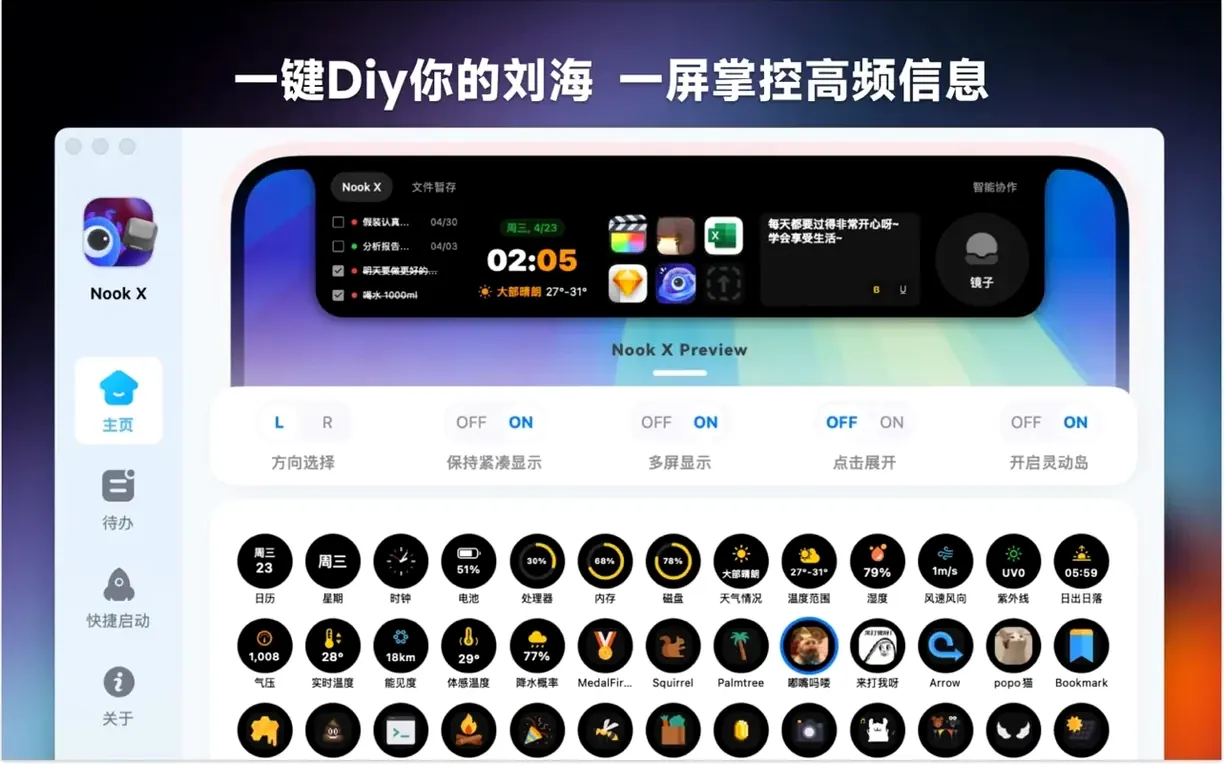
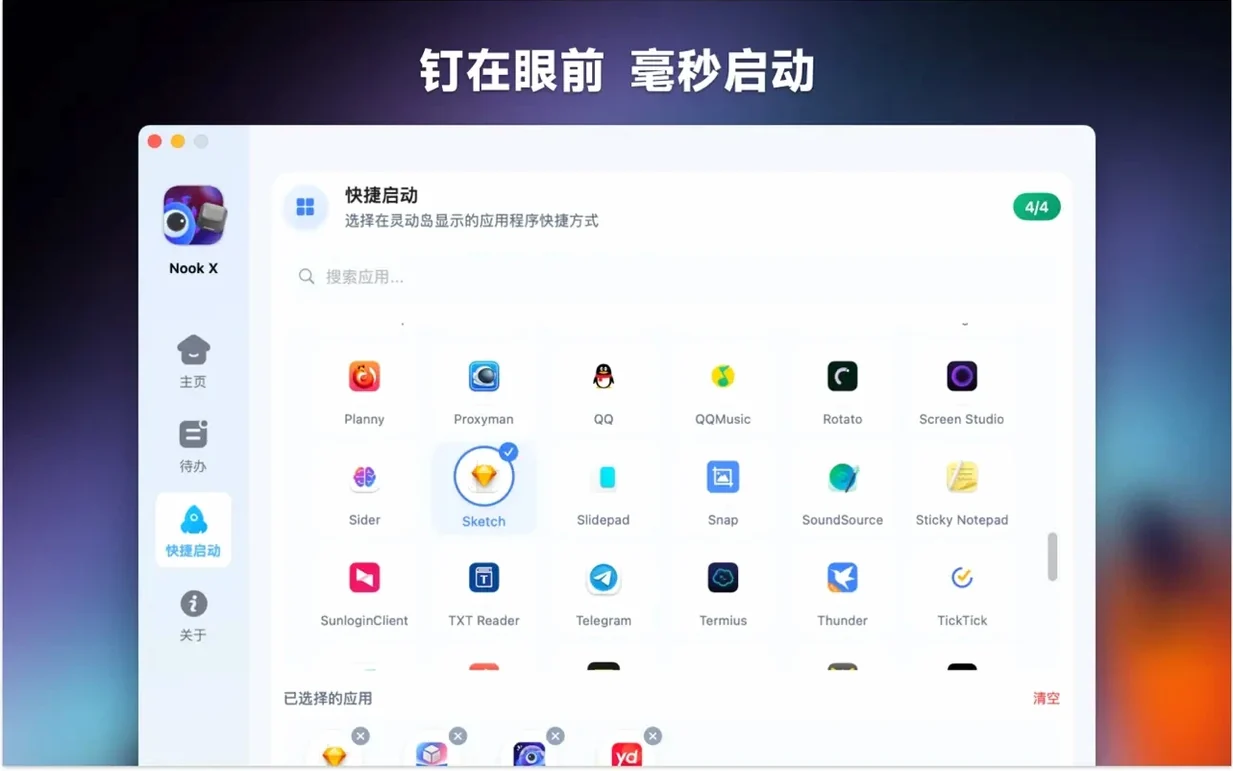
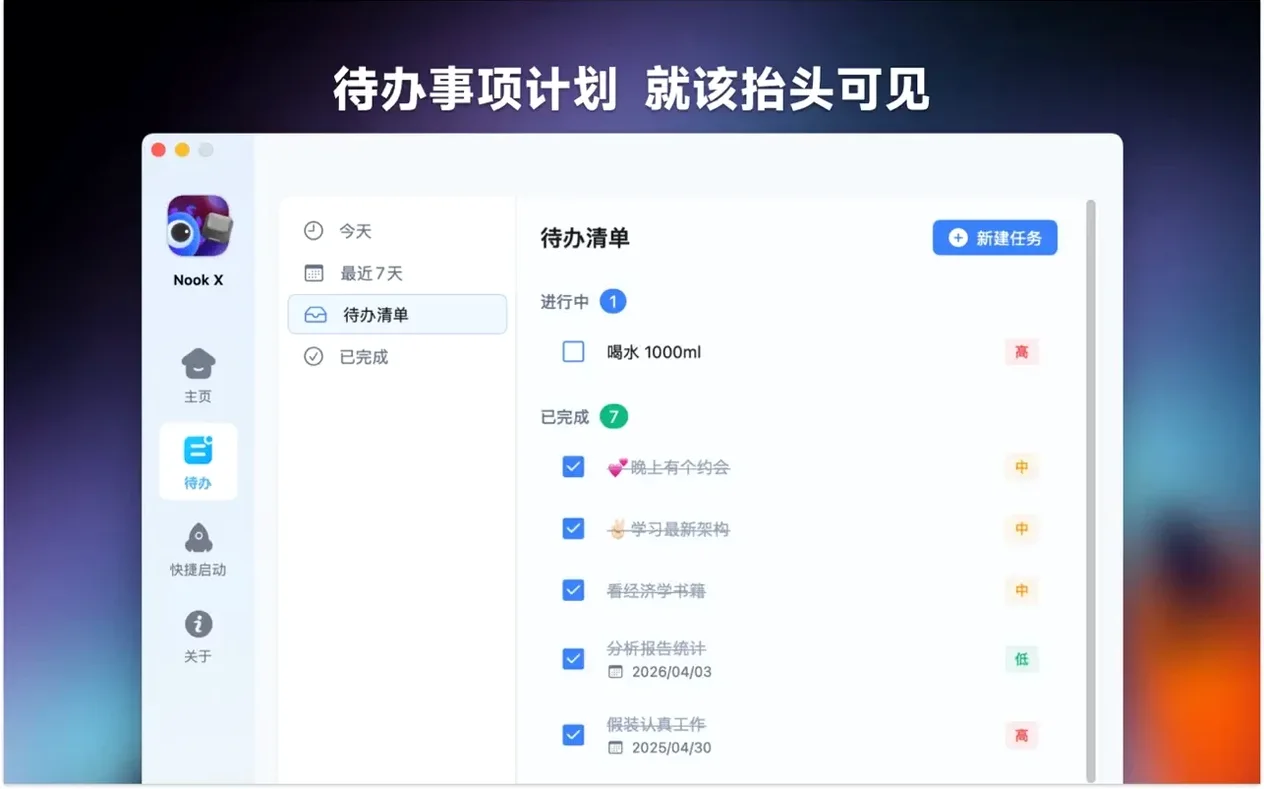
Fourteen interface languages ship in the current build, from Russian and Vietnamese to Korean and Brazilian Portuguese. Nook X is a macOS utility that lives in the notch area and pulls three separate tools into one place: a task manager, a music player with song lyrics, and an AI chat panel.
Three tools Nook X kept exactly the same—and the one detail I still love
The core structure has not changed. You still get to-do lists with reminders and priorities, a player that shows lyrics for the current track, and an assistant that can answer questions, translate text, or generate ideas. One detail I like from an implementation standpoint: tasks can be created directly from a chat exchange, so a conversation can turn into a reminder without switching contexts. The app remains a native build for both Apple Silicon and Intel 64-bit Macs, with macOS 13 as the floor.
Why this build has zero new features and no reason to hold off installing
Version 2026.09.15 is a maintenance release. There are no new features, no format changes, and no architecture shifts in this build. If you are already running the previous version, nothing about your workflow needs to change. If you are installing fresh, you get the same three-tool layout that has defined Nook X: tasks, lyrics, and AI chat sharing one notch-based interface.
Lyrics not showing? It’s probably the metadata tag mismatch
The player refusing to show lyrics for a track that definitely has them is the number one complaint I hear. Nine times out of ten the metadata tagging is the culprit. Nook X pulls lyrics using the embedded song title and artist fields, not the file name. If your audio files came from a source that left those fields blank or filled them with junk, the lyrics panel stays empty. Open the file in any tag editor, verify the Title and Artist tags are populated correctly, and restart playback.
Another point of friction is the notch placement itself. On a MacBook with a camera housing, Nook X positions its interface around that hardware cutout. If you use a display with a different notch geometry or no notch at all, the app still renders its panel at the top center of the screen. On a standard rectangular display this can look like a floating bar with no visual anchor. The fix is in the app preferences under Position Offset — you can nudge the panel horizontally until it sits where you want it. It is a one-time adjustment.
Voice input not responding usually traces back to the microphone permission dialog that macOS shows on first launch. If you clicked through it too quickly, the app has no access. Head to System Settings → Privacy & Security → Microphone and flip the toggle for Nook X. Restart the app and the voice button in the AI chat panel should work immediately.
The one AI assistant default I override in the first five minutes
Out of the box Nook X makes a few choices I would override in the first five minutes. The most impactful one is the default chat model behavior. The AI assistant ships with a balanced setting that tries to be concise, but if you use it for coding questions or technical explanations — which, given the audience here, seems likely — switch the response style to Detailed. The difference in depth is noticeable on multi-step problems.
Second, the task panel defaults to showing all priorities in one flat list. I prefer enabling Group by Priority from the view options. It splits tasks into High, Medium, and Low sections with thin separators, and tasks created from chat automatically inherit the priority of their parent conversation unless you override it. That last part is not obvious from the interface, but it saves re-categorizing later.
Third, the karaoke mode in the lyrics panel has a default scroll speed that some people find too aggressive for slower ballads. There is a Lyrics Scroll Rate slider tucked in the playback section of preferences. Dropping it to about 40% of the default feels right for most vocal-heavy tracks while still keeping the highlight on the current line.
Ignoring the chat-to-task pipeline is the most costly early habit
The most common one I see is treating the task manager like a standalone to-do app and ignoring the chat-to-task pipeline. That pipeline is the reason the two features share an interface. If you type a reminder idea into the chat panel and the assistant confirms it, you can highlight the relevant sentence and use the shortcut ⌘T to spawn a task. Beginners tend to switch panels, retype the task manually, and miss the automatic link back to the conversation context. That link stays attached — clicking the task later reopens the exact chat exchange that created it.
Another early mistake: assuming the music player handles streaming services. It does not. The player works with local audio files only — think .mp3, .flac, .aac, .wav, and a handful of less common formats. Dragging a Spotify link or an Apple Music URL into the window does nothing. Point it at a folder of local files instead, or drop individual tracks onto the player panel.
Some users also expect the lyrics search feature to work across their whole library instantly. The search box in the lyrics panel queries the currently loaded track first, then falls back to an online lookup if the local metadata comes up empty. That fallback requires an active internet connection and takes a beat. If you want offline-only behavior, there is a toggle for that in preferences, but it limits searches to whatever is already embedded in the file tags.
Building a small task list from chat teaches you ⌘T persistence
Spend the first session building a small task list from chat, even if the tasks are trivial. The muscle memory for ⌘T and the way context links persist only really clicks after you have done it five or six times with your own data. Create a few nonsense reminders from a conversation about lunch, delete them, then create real ones. It takes ten minutes and the workflow becomes second nature.
Set up one dedicated audio folder and drag it onto the player panel on day one. The app does not index your entire drive automatically, and pointing it at a giant directory tree can make the initial scan take longer than expected. Start with a small folder of twenty or thirty tracks, verify the lyrics panel behaves as you expect, then expand the watched folder incrementally.
If you use a MacBook and care about battery, check the Idle Behavior setting. The default keeps the AI chat model partially warm in the background so responses feel instant. Setting it to Sleep on idle drops the assistant into a low-power state after five minutes of inactivity. The first query after idle takes about two seconds longer, but the battery difference over a full workday is real on Apple Silicon laptops.
Comparing Nook X to single-purpose apps means taking it one feature at a time
Placing Nook X next to other Mac utilities is trickier than it sounds because it stitches three functions together. Most comparisons end up being one-feature-at-a-time, so I will take that approach.
Versus a standalone task app like Todoist for Mac: Todoist wins on pure task management depth — natural language date parsing, project hierarchies, collaborative shared lists — but it lives in its own window and does not touch music or AI chat. Nook X trades depth for integration. If your tasks often originate from a chat session, Nook X removes the copy-paste step entirely. If you manage a team or need Gantt-chart-style project views, it is the wrong tool.
Versus a lyrics utility like Musixmatch for Mac: Musixmatch is a dedicated lyrics app with a larger catalog, synced translations, and community-contributed timestamps for karaoke. It also connects to streaming services. Nook X does not match that catalog size or streaming support, but it bundles lyrics alongside your own local files and ties them to the same interface as your tasks. For someone who listens to local albums while working through a to-do list, the single-panel setup is less distracting than juggling two apps.
Versus a general AI chat client like MacGPT: MacGPT focuses entirely on the chat experience, with support for multiple API backends, conversation branching, and prompt templates. Nook X does one AI chat surface with voice input and the task-creation shortcut. It is simpler, less configurable on the AI side, but the tight coupling with the task panel is something a standalone chat client does not offer. If the AI chat is your primary activity, a dedicated client gives you more knobs to turn. If the chat is a supporting player to your task list and music, Nook X keeps everything within a single click.
The unifying theme across these comparisons is that Nook X is not the best at any one of its three features in isolation. The value proposition is that you do not need to switch apps to go from listening to a track, to looking up its lyrics, to asking the assistant something, to turning the answer into a task. Whether that trade-off works depends on how often those transitions happen in your day.
Version 2026.10.24 is out with the developer's latest fixes and improvements.
- macOS 13 or later
- Apple Silicon or Intel 64-bit
$ man nook-x | grep -A2 "?"
Does Nook X run on older Intel Macs?
Yes. The app supports both Apple Silicon and Intel 64-bit Macs, as long as the system runs macOS 13 or later.
Comments 0
Sign in or create an account to leave a comment.
No comments yet. A codec, a slice, a machine — they appear after moderation.