OmniGraffle Pro for macOS
Version 7.26 shipped with two practical changes. It now requires macOS 14 or later, dropping support for older systems, and it improved compatibility with macOS Golden Gate 27. The update is a clean break — if your Mac runs Ventura, you stay on the previous release.
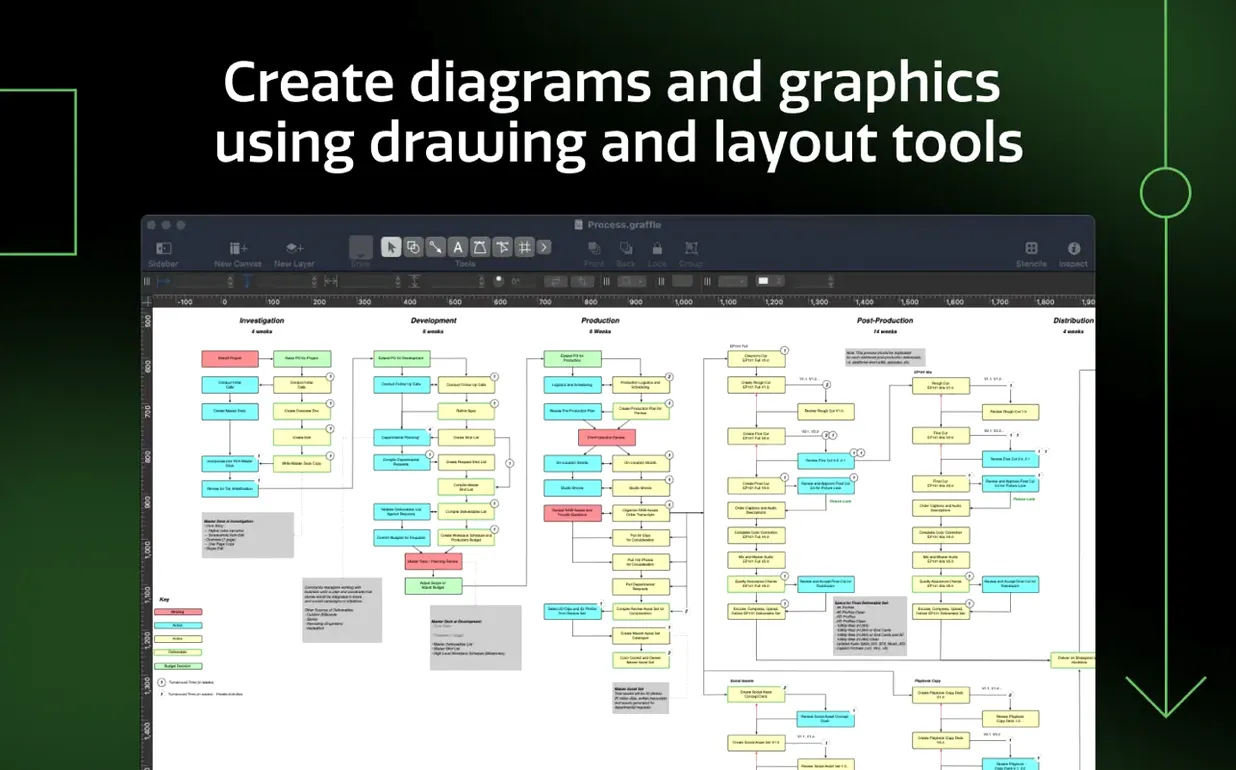
Generate an Xcode class map from an .xcodeproj file
- Generate an Xcode project diagram. Point it at an
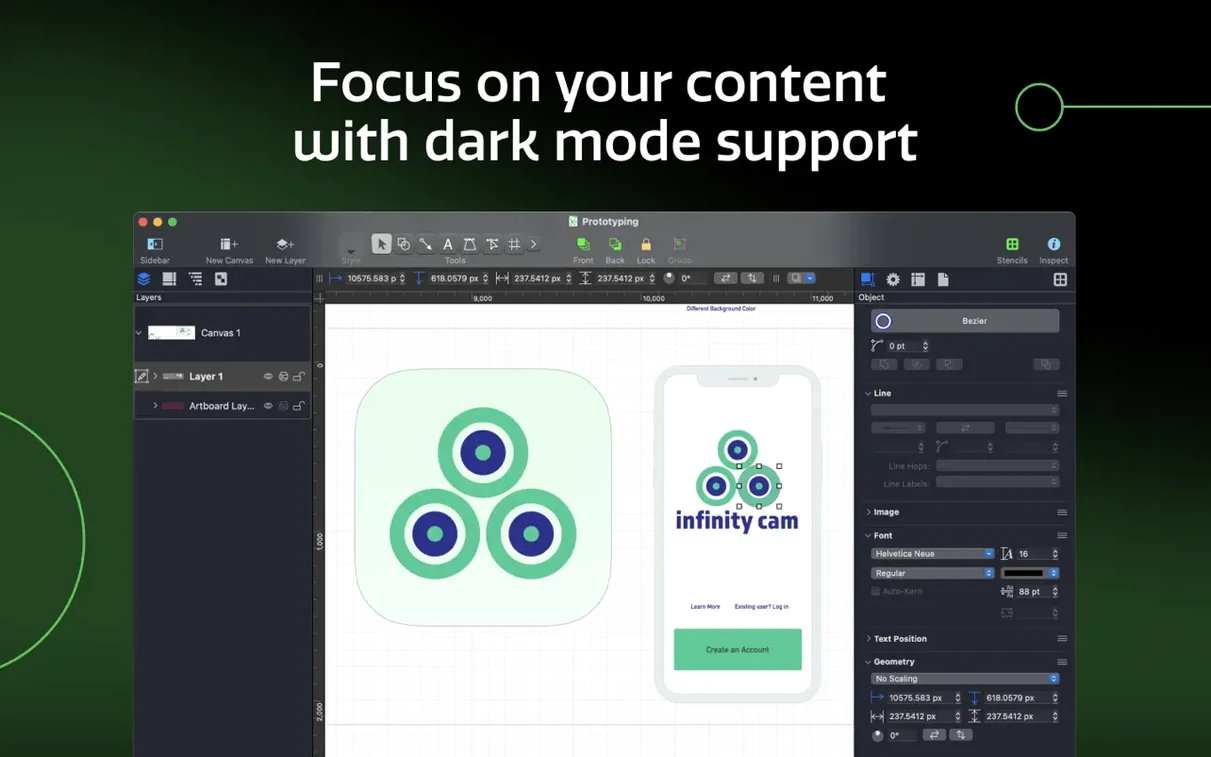
.xcodeprojfile and the app builds a class-hierarchy or dependency map automatically. It saves hours of manual layout when you need to explain a codebase to someone else. - Convert text into shapes. Type a label, right-click, and turn the characters into editable Bézier paths. Useful when you want a custom wordmark inside a diagram without leaving the canvas.
- Export a Visio VDX. If you work with Windows colleagues, send them an editable Visio document straight from the File menu. The Pro edition writes
.vdxnatively. - Group shapes into tables. Add rows and columns to a group — the shapes stay aligned when you resize, and the sidebar inspector lets you tweak cell padding and stroke weight.
What the Pro edition adds
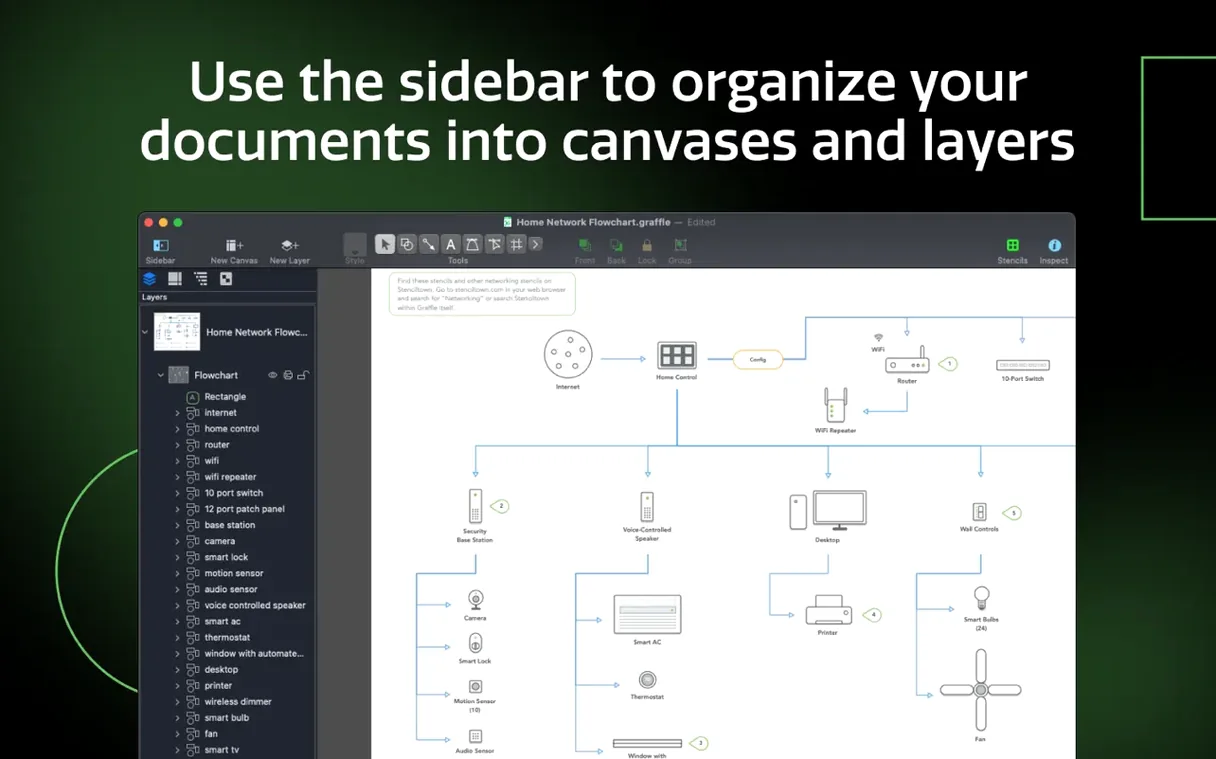
The standard app handles simple diagrams well. Pro unlocks artboards for multi-canvas documents, a layers sidebar that works like a graphics editor, and export to Photoshop PSD. The text engine also supports converting fonts to outlines before export, so diagrams look identical on machines that don't have your typefaces installed.
Why shared layers beat copy-pasting across canvases
The single most common one is ignoring the shared layers panel. New users often copy-paste a background or a logo across ten canvases, then have to update every instance manually when the client changes their mind. If you place those elements on a shared layer once, edits propagate to every canvas that uses it. It is the same mental model as master slides in Keynote, and the Pro edition treats it as a first-class feature.
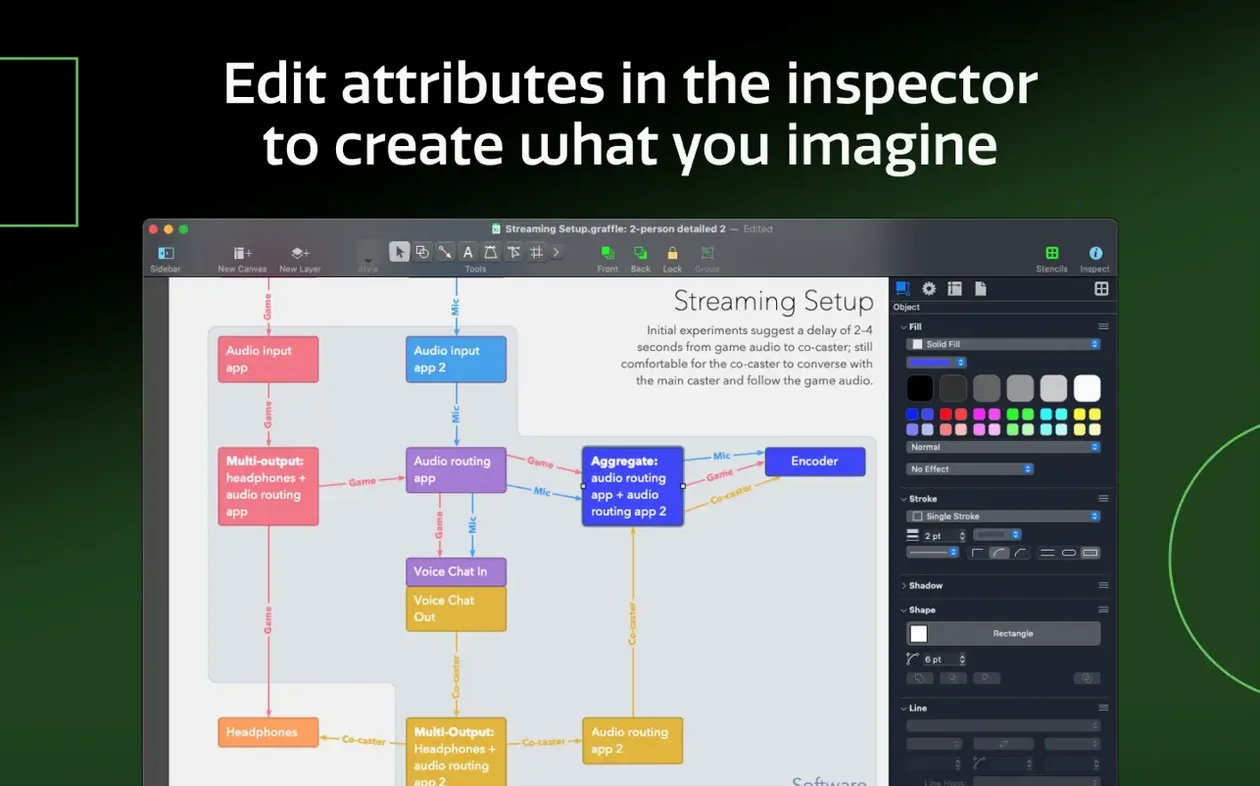
Another trap is treating lines as decoration instead of connecting them to shapes. Grab the connection tool — tiny blue arrows appear on hover — and attach line endpoints to shape magnets. The line recalculates its path when you move either shape. Beginners who draw loose Bézier segments with the pencil tool lose that automatic reflow.
A subtler mistake: using the default document scale for everything. Under Canvas inspector > Scale you can set a drawing to 1 cm = 10 px for a floor plan, or 1 pt = 1 px for a retina wireframe. OmniGraffle reads the scale when you add a grid, so measurements in the ruler bar match real-world units. Skipping this step makes grids feel decorative rather than functional.
Fixing scrambled Visio imports with missing fills
Visio import looks scrambled. An imported .vsd sometimes arrives with disconnected lines or missing fills. First, check whether the original Visio document used third-party stencils — those rarely survive the trip. Second, open the Selection inspector and verify that imported shapes sit on the expected layer. VSD files often stash elements on locked hidden layers, and unlocking them in the sidebar restores the diagram to what you saw in Visio.
Text-to-shape conversion flattens incorrectly. OmniGraffle outlines the glyph geometry, but the result depends on the font’s hinting data. If a converted character looks blobby, undo, select the text, bump the point size by 20–30%, convert, then scale the shape back down. The extra resolution gives the Bézier algorithm cleaner outlines to trace.
Artboards resize all at once. If you drag the edge of one artboard and the others jump to match, you have the “same size” toggle enabled in the artboard sidebar. Switch it off when you need mixed dimensions — a wide landscape board for a workflow overview next to a square board for an icon grid.
Shortcuts and conveniences you might miss
- Hold Option while resizing to scale from the center instead of the corner. Combine it with Shift to keep the aspect ratio locked. Works on shapes, groups, and artboards.
- Middle-click a stencil in the stencil library to place it exactly at the center of your current view, no drag-and-drop needed. Keeps your cursor in the work area.
- Drag a color swatch onto a shape’s stroke. Most people drop it on the fill area of the style inspector. Dropping it directly onto the stroke ring in the inspector palette sets the stroke color in one motion.
- Use the Table tool’s “Distribute” command. When you have an uneven table grid, right-click the header column and choose Distribute Rows Evenly. Beats manual nudging by a mile, and the command respects the current cell padding values.
- Export shared keyboard shortcut sets. Under OmniGraffle > Keyboard Shortcuts, export your custom mapping as a
.ogsksfile. Colleagues can import it — handy when a team adopts the same shortcut convention for stencil placement or layer toggling.
One workflow detail that sneaks past even experienced users: you can drop an OmniGraffle diagram into Xcode’s asset catalog as a PDF vector, and it stays editable. Double-click the asset later, and the app relaunches the original canvas. This is a small bridge between diagram work and interface implementation that avoids the usual export-edit-export loop when you spot a layout mismatch during development.
- Improved compatibility with macOS Golden Gate 27.
- Now requires macOS 14 or newer; support for older macOS versions has been dropped.
- macOS 14 or later
- Apple Silicon or Intel Mac
$ man omnigraffle-pro | grep -A2 "?"
Can OmniGraffle Pro open Microsoft Visio files?
It can export to Visio VDX format, though native Visio import isn't part of the feature set listed for version 7.26.
Comments 0
Sign in or create an account to leave a comment.
No comments yet. A codec, a slice, a machine — they appear after moderation.