ON1 Photo RAW for macOS
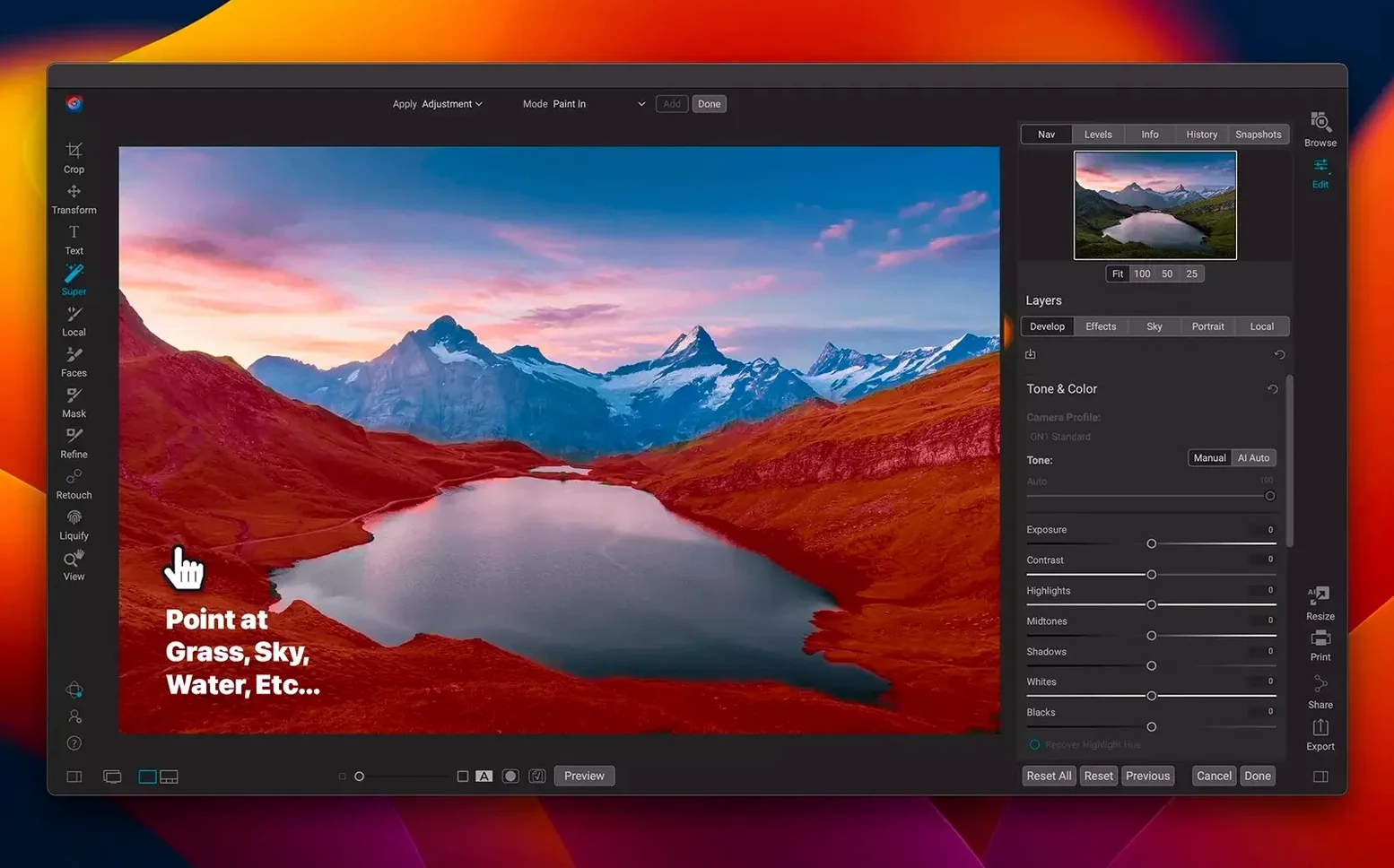
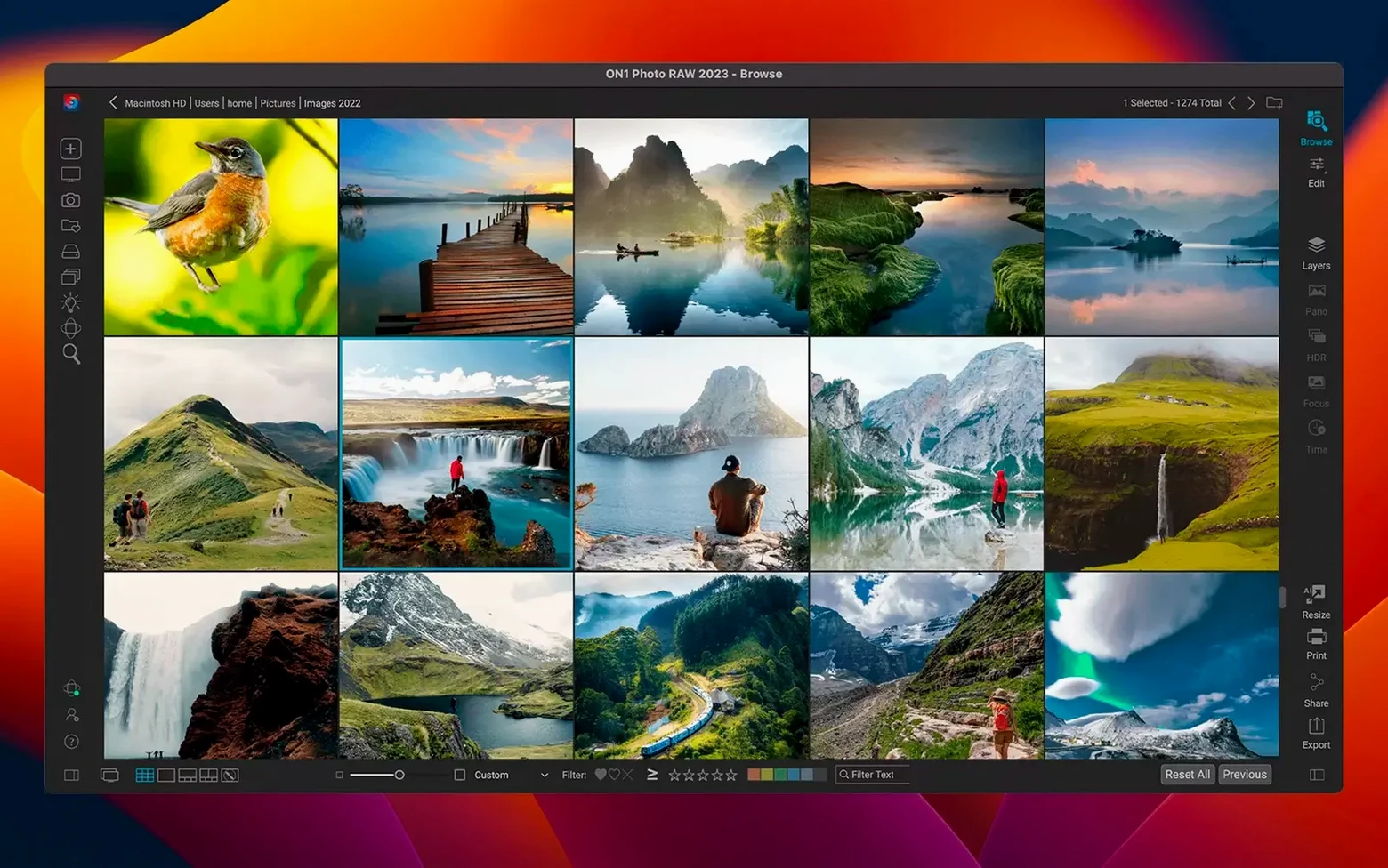
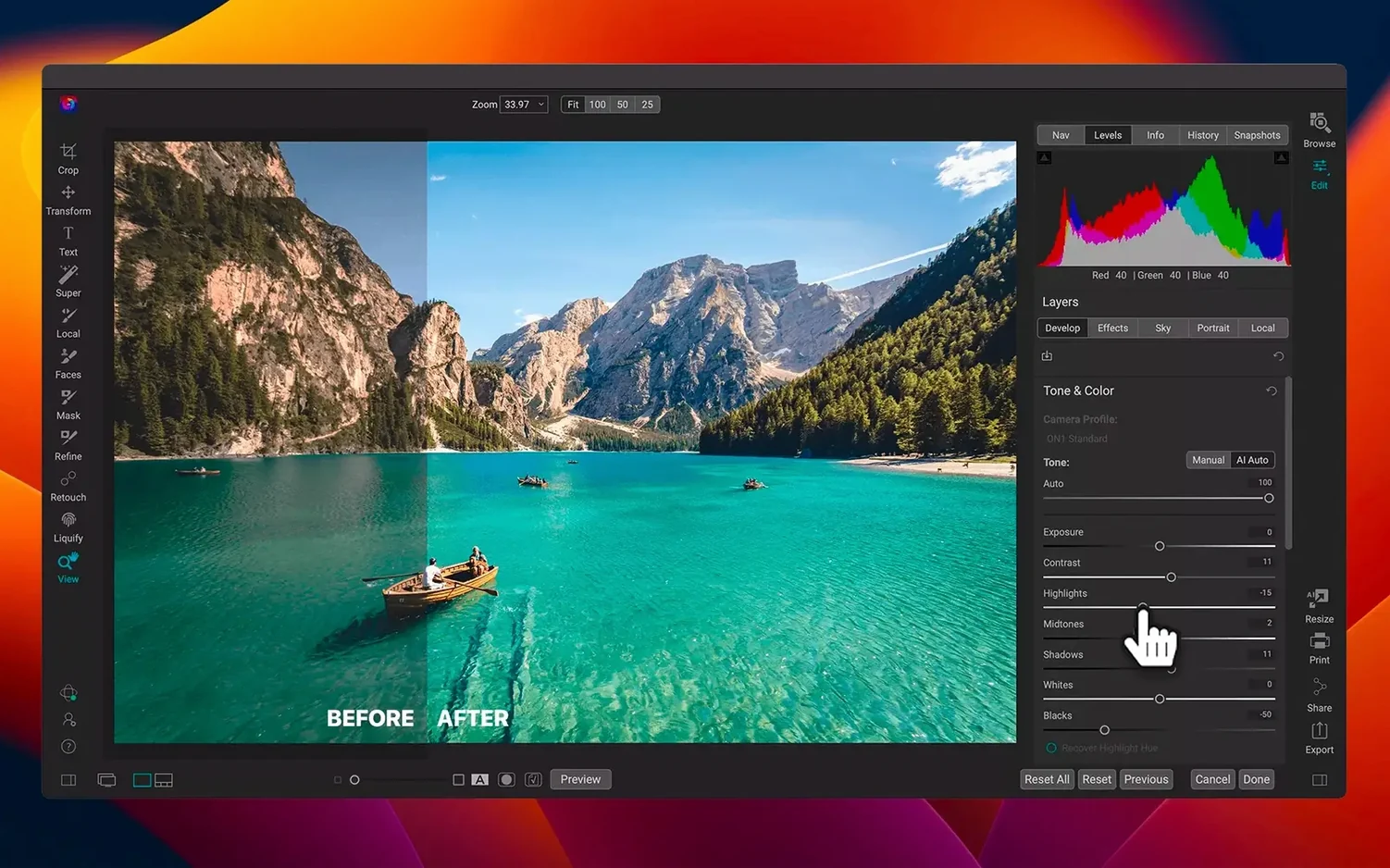
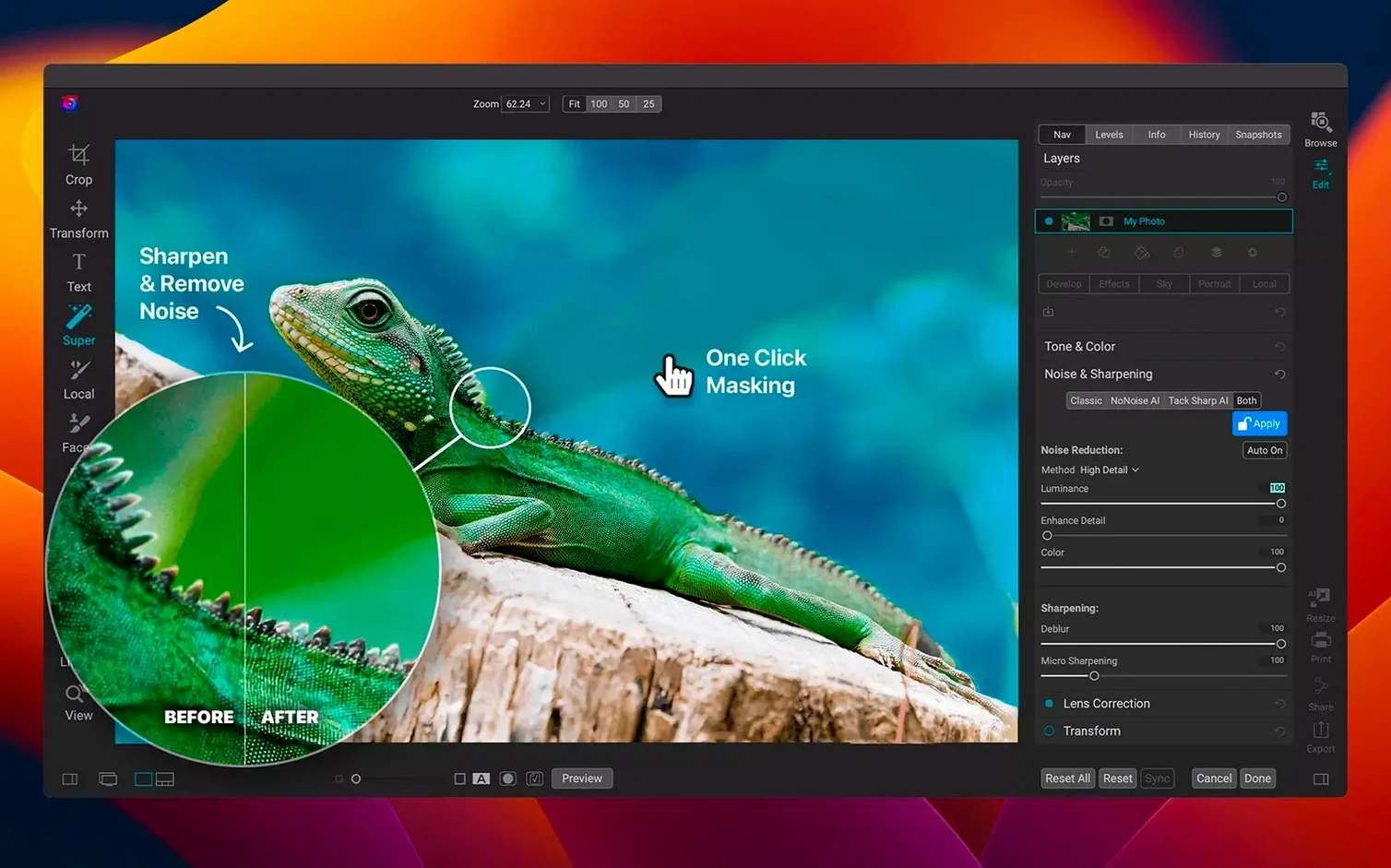
Photographers who want to keep their editing and file management inside a single application will find ON1 Photo RAW fits that workflow. It combines browsing and cataloging tools with a RAW developer and a layered editor, so you never have to round-trip between separate apps.
What does the layered editor let you do?
You can stack multiple photos, text, and adjustments as layers with their own opacity and blend modes. It works with the same RAW data the rest of the app uses, so a layer can be a developed RAW file without baking in changes first.
Edits never touch your original sensor data
The built-in RAW processor decodes sensor data before the editing stage, applying demosaicing, lens corrections, and noise reduction on the fly. Edits stay non-destructive because the original file is never altered.
What kind of effects can you apply?
An effects module ships with the app, stacking filters like glow, HDR look, and black-and-white conversion. You control them through a preset system that lets you save and reuse combinations across different projects.
Tap Q to reveal exactly where your mask lands
ON1 Photo RAW packs quite a few shortcuts that aren't obvious on a first pass. The Quick Mask toggle lives under the Q key — tap it during any brush operation to see exactly where your mask is landing, then tap again to return to the image. In Browse, hitting / jumps the cursor straight to the search field without clicking around. And if you right-click any slider in the Develop or Effects panels, a context menu offers Reset Slider and Copy Slider Value — handy when you're matching looks across a batch.
Catalog folders support drag-and-drop from the Finder. Drop a folder onto the left sidebar and ON1 indexes it in place; no import dialog required. The filmstrip at the bottom of Edit view accepts images dragged directly from the Browse grid too, so you can queue up a sequence of shots without leaving the module.
Deleting a photo here wipes it from your disk
The most common one is treating the Browse module like a file browser and deleting photos from disk thinking they are only removing them from the catalog. By default, deleting an image inside ON1 Photo RAW sends the file to the system Trash. Beginners expecting a catalog-only removal learn this the hard way. Press Delete and read the dialog carefully — it tells you what is about to happen.
Another trap: stacking effects without checking the opacity of each filter layer in the Effects module. Four filters at 100% rarely look better than two dialed back to blend. New users sometimes crank every slider in Develop before touching the Tone Curve or Color Balance tabs, which often solve the problem in one move. Start broad, then refine.
Finally, people ignore the Proofing button in the toolbar. Editing with it disabled means your screen profile, not the output intent, drives what you see. If you print or export for a specific color space, toggle proofing on early.
Point the scratch disk to your fastest SSD
Open Preferences before you import a single file. Under General, enable Save edit history with file so sidecar .on1 files travel with your RAWs. Under System, point the scratch disk to your fastest SSD — ON1 uses it for previews and the undo stack, and an external spinning drive will slow every brush stroke.
In the Browse tab, set thumbnail size to taste and switch the default sort to Capture Date (newest first) if you shoot chronologically. The catalog grows fast; turning off Generate previews for subfolders stops it from chewing through terabytes the moment you add a parent directory.
For color, open the Display section and confirm the monitor profile ON1 detects is the one you calibrated. If it picks a generic display profile, gradients band and skin tones shift. Fix it here, not in Develop.
A sample workflow: culling and editing a portrait session
Imagine returning from a shoot with 300 frames in a folder called 2026-05-11_Studio. Connect the drive, open ON1 Photo RAW, and drag that folder onto the catalog sidebar. The app indexes it in place — no moving or copying. Switch to Browse, set the sort to Capture Date, and start the first pass with the arrow keys. A quick 1 star marks any frame with sharp focus and decent expression; 0 stars for the discards. Hit Cmd-1 to filter to one-star keepers only.
With maybe forty shots left, pick the strongest ten and rate them 3 stars. Right-click one and choose Edit in Develop. Work top to bottom in the Develop panel: lens correction on, a gentle white balance tweak if needed, then pull Highlights down until the forehead stops clipping. Open the Tone Curve and lift the midtones with a single point around the center. Add a subtle vignette from the Effects tab.
Here is where ON1 Photo RAW saves time: with that edit still active, hold Cmd and select the other nine three-star shots in the filmstrip. Click Sync, check the adjustments you want to copy — White Balance, Tone, Lens Correction — and apply. All ten frames now share the same base look. From there, jump into each portrait individually for local brush work: a little dodging under the eyes, a touch of sharpening on the iris. Export the finals as 16-bit TIFFs with the Export dialog, and the sidecar .on1 files keep every edit non-destructive for later revisits.
If you are exploring ON1 Photo RAW for the first time, that folder-drag-to-catalog step alone cuts out the import bottleneck most organizers force on you. The more you lean into the keyboard shortcuts and sync behavior, the more the app feels like a fast darkroom instead of a file manager wearing an editor's coat.
- Filters in the effects module and the editor now preview and apply with less delay.
- New lens profiles extend automatic distortion and vignetting correction to more camera and lens combinations.
- macOS 13 Ventura or later
- Apple Silicon or Intel 64-bit processor
$ man on1-photo-raw | grep -A2 "?"
Is ON1 Photo RAW a standalone application?
Yes, it runs independently without requiring any other host software.
What macOS versions are supported?
It requires macOS 13 Ventura or later and runs natively on both Apple Silicon and Intel 64-bit Macs.
What languages is the interface available in?
The UI supports Russian, English, German, Spanish, Italian, Traditional Chinese, Korean, Dutch, Portuguese, French, and Japanese.
Comments 0
Sign in or create an account to leave a comment.
No comments yet. A codec, a slice, a machine — they appear after moderation.