OmniReader Pro for macOS
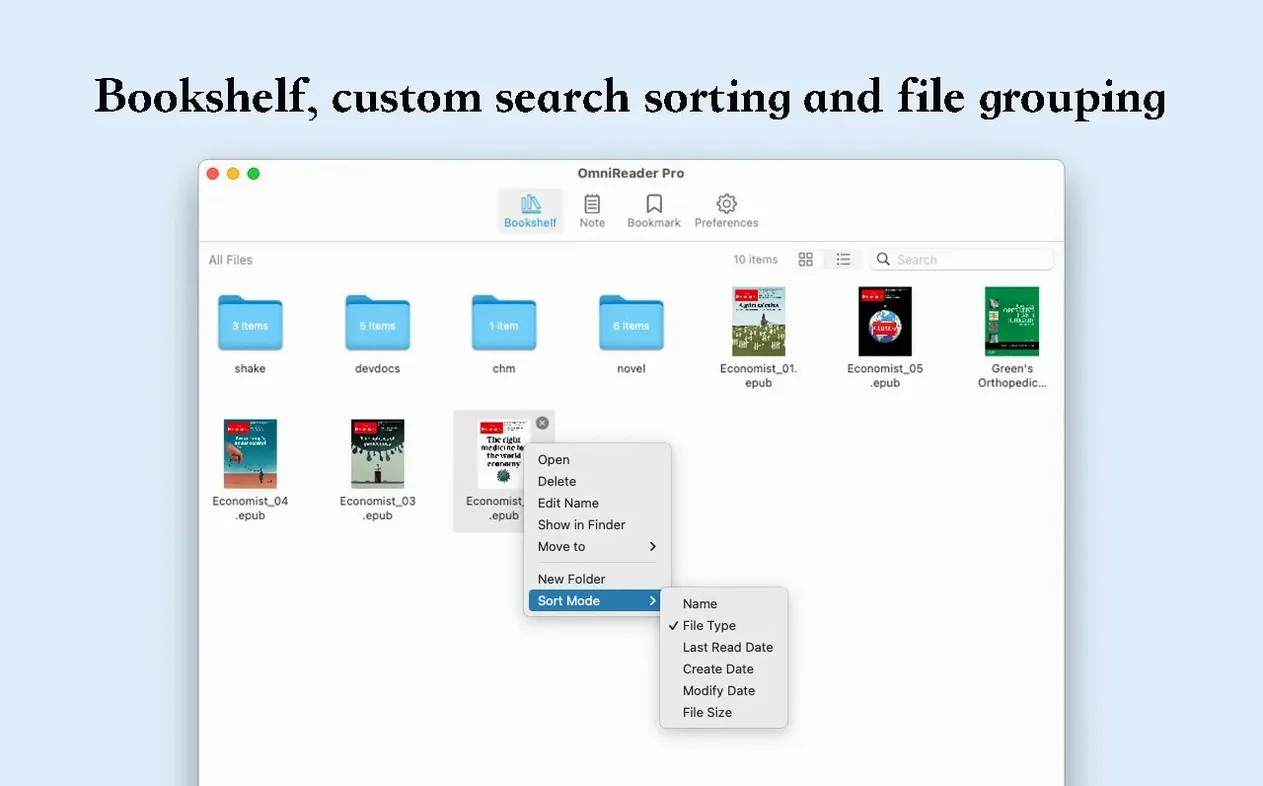
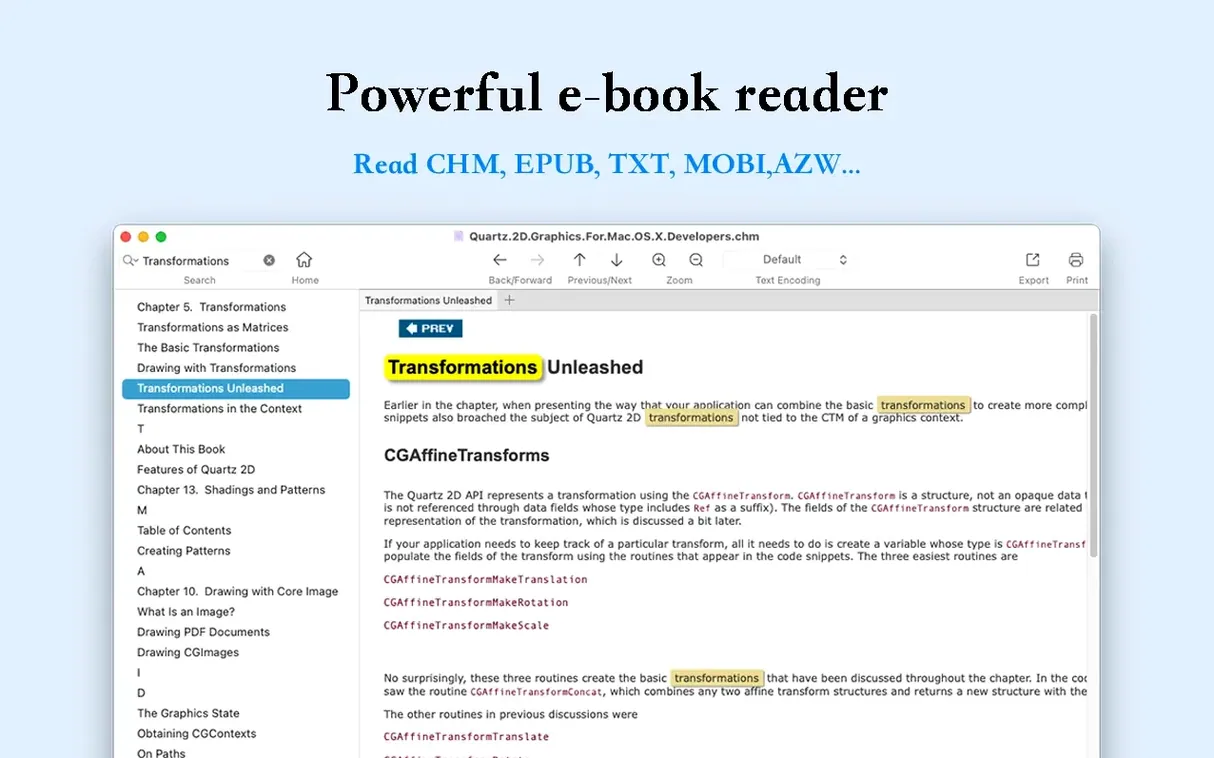
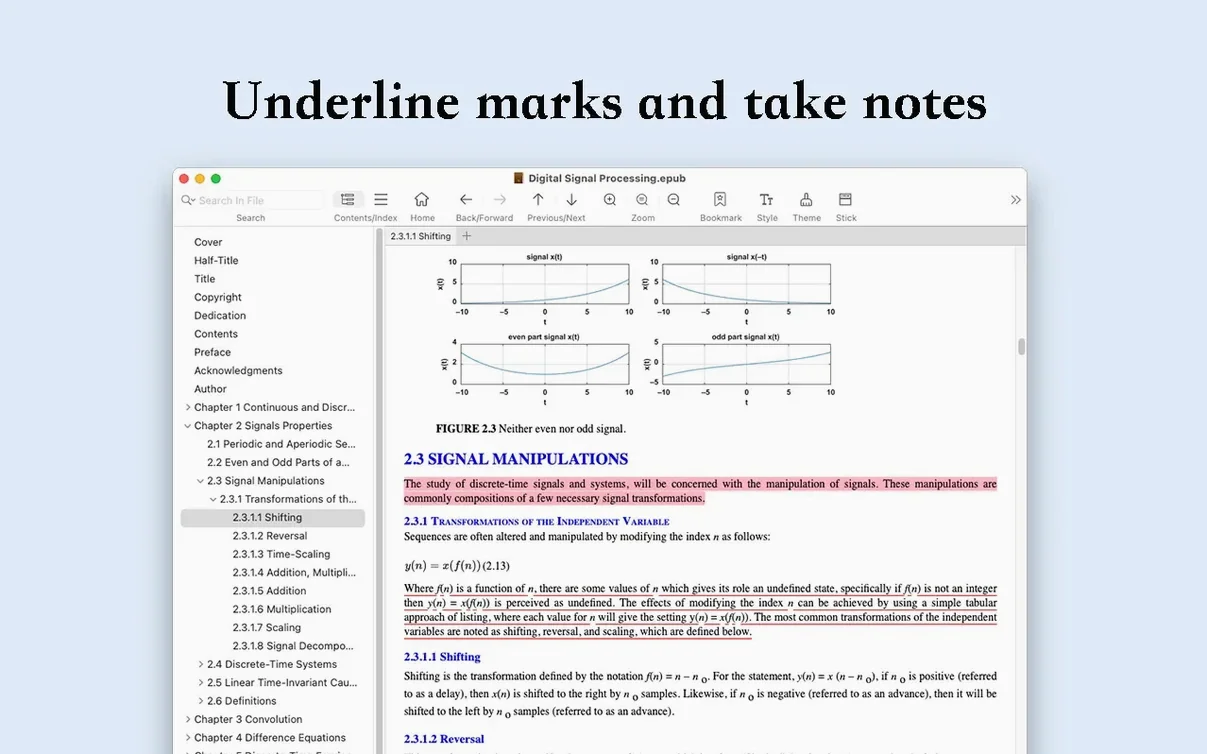
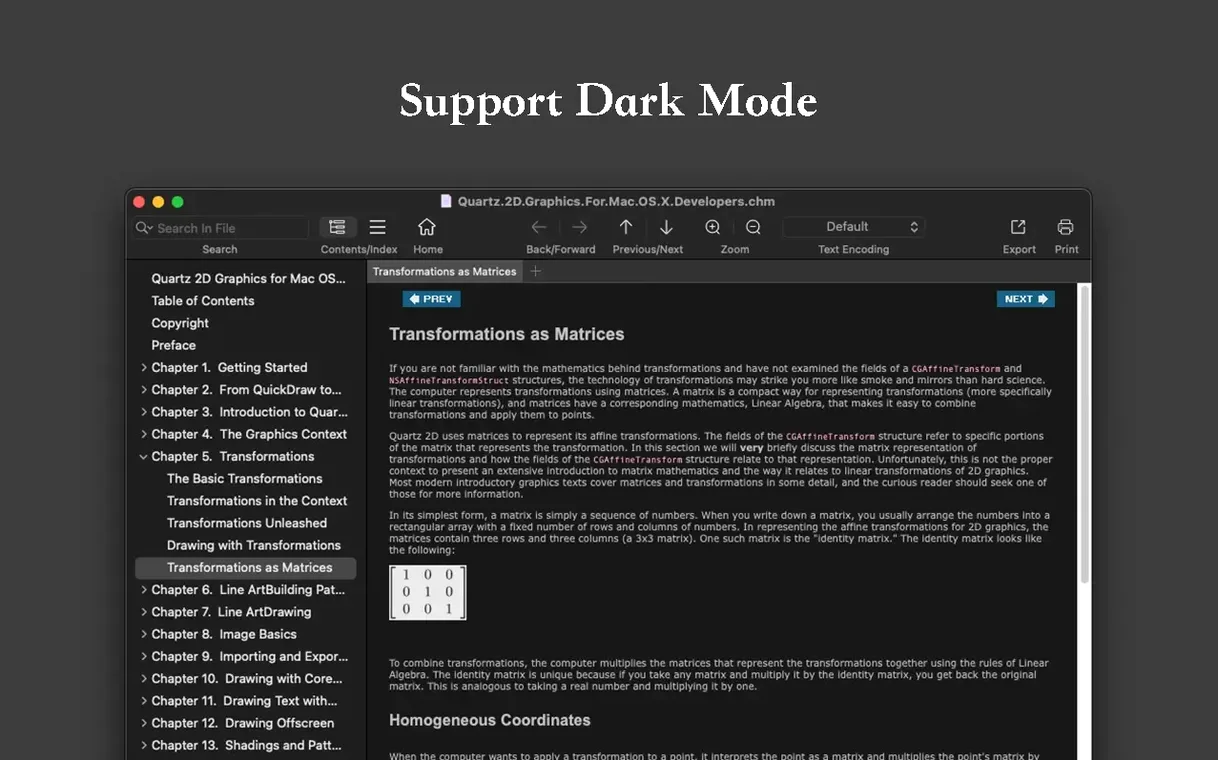
Three formats, one search box. OmniReader Pro opens EPUB, CHM, and Kindle files without converting them first, and its full-text search reaches across every book you've added.
- Import a messy file. Drag in a CHM with garbled chapter titles. The encoding options under the View menu let you switch between UTF-8, GBK, and legacy code pages until the text renders correctly.
- Run a full-text search. Type a term and OmniReader lists every match in the library, not just the current chapter. Each hit highlights in context, so you can jump straight to the passage.
- Move through your history. The forward and back buttons track your path across books and chapters. Follow a cross-reference, then step back exactly where you were.
- Export the result. Any book or document can be written out as EPUB or PDF from the File menu. The export keeps the structure intact, not just the raw text.
This is the workflow that matters after the first week: find, read, trace, extract. OmniReader Pro keeps those four moves close to the surface instead of burying them in menus.
Encoding, Kindle files, and Gatekeeper hiccups
Most problems come down to encoding, Kindle file types, or Gatekeeper on first launch. Here's what actually works.
Garbled text in CHM files
CHM files compiled for the Chinese-language web often default to GBK or GB18030. If your chapter titles and body text appear as a mess of accented Latin characters, open the View menu and cycle through the available encodings. GBK almost always fixes it; if not, try UTF-16. The setting sticks per file, so you only do it once for each book.
Kindle files that refuse to open
OmniReader handles Kindle formats, but it has limits. The older MOBI and AZW containers work without issue. KFX — the format Amazon moved to a few years ago — is a different beast: if you're pulling files directly from a modern Kindle device and they have a .kfx extension, the app won't parse them. The workaround is straightforward: use older AZW3 files if you have them archived, or export via Calibre first to EPUB. Once the file is in EPUB or classic MOBI, OmniReader processes it normally.
The app won't open on first launch
Since version 3.4.4 ships outside the Mac App Store as a disk image, macOS flags it. Mount the .dmg, but do not double-click the app yet. Open Terminal and run:
xattr -cr /Volumes/OmniReader\ Pro/OmniReader\ Pro.appNow drag the app into /Applications as usual. It launches without the unidentified-developer warning. This is standard for any unsigned Mac software and not specific to OmniReader.
Researchers and technical manual archivists gain the most
Not every reader needs three format engines under a single window. The people who gain the most from OmniReader Pro tend to fall into specific patterns.
Researchers working with archived documentation. Technical manuals and reference libraries from the early 2000s often exist only as CHM files. Microsoft's own documentation, embedded help systems, and Chinese-language technical compilations all used Compiled HTML Help as their distribution format. A researcher who needs to search across fifty CHM volumes about a microcontroller family gets a single search index here, not fifty separate windows.
Language learners working with parallel texts. The encoding flexibility matters when you're pulling books from different sources. A Chinese-language EPUB from one publisher might use UTF-8; a CHM grammar reference from another might use GBK. OmniReader renders both correctly in the same library, and the full-text search crosses the language boundary without complaint.
People who annotate by exporting. The export-to-EPUB and extract-all-images features suit a workflow where you pull material out of the reader and into a note-taking system. Mark up a PDF export in Preview or Skim, or pull every diagram from a technical book into a folder with one menu command. The reader itself stays lean; the heavy work happens in other tools.
What should I check before installing?
Does it handle PDF files as well?
Not as a native format. OmniReader Pro focuses on EPUB, CHM, and Kindle containers. You can export any open book to PDF via the File menu — that conversion pipeline exists — but the app is not a PDF reader. If your library is mostly PDFs, you'll still want Preview or a dedicated PDF tool alongside this.
DMG build versus Mac App Store listing
The build available as the .dmg at version 3.4.4 is functionally the same app as the Mac App Store listing (currently showing 3.4.5, a minor increment). The core EPUB, CHM, and Kindle engines are identical. The difference is distribution channel, nothing more. The direct download includes the same English and Simplified Chinese localizations.
Can I trust the search with a large library?
Full-text search indexes titles and body content across all added books. Performance depends more on individual file size than library count. A hundred normal-length EPUBs won't slow it down. A single 200 MB CHM with embedded binaries might take a few seconds on the first index. After that, results appear as you type, with the highlight positioning itself in the text pane on selection.
- macOS 10.13 or later
- Apple Silicon and Intel 64-bit native
$ man omnireader-pro | grep -A2 "?"
Does OmniReader Pro open Kindle files on a Mac?
Yes. OmniReader Pro opens Kindle files, EPUB, and CHM directly, with full-text search across all of them.
Comments 0
Sign in or create an account to leave a comment.
No comments yet. A codec, a slice, a machine — they appear after moderation.