One Switch for macOS
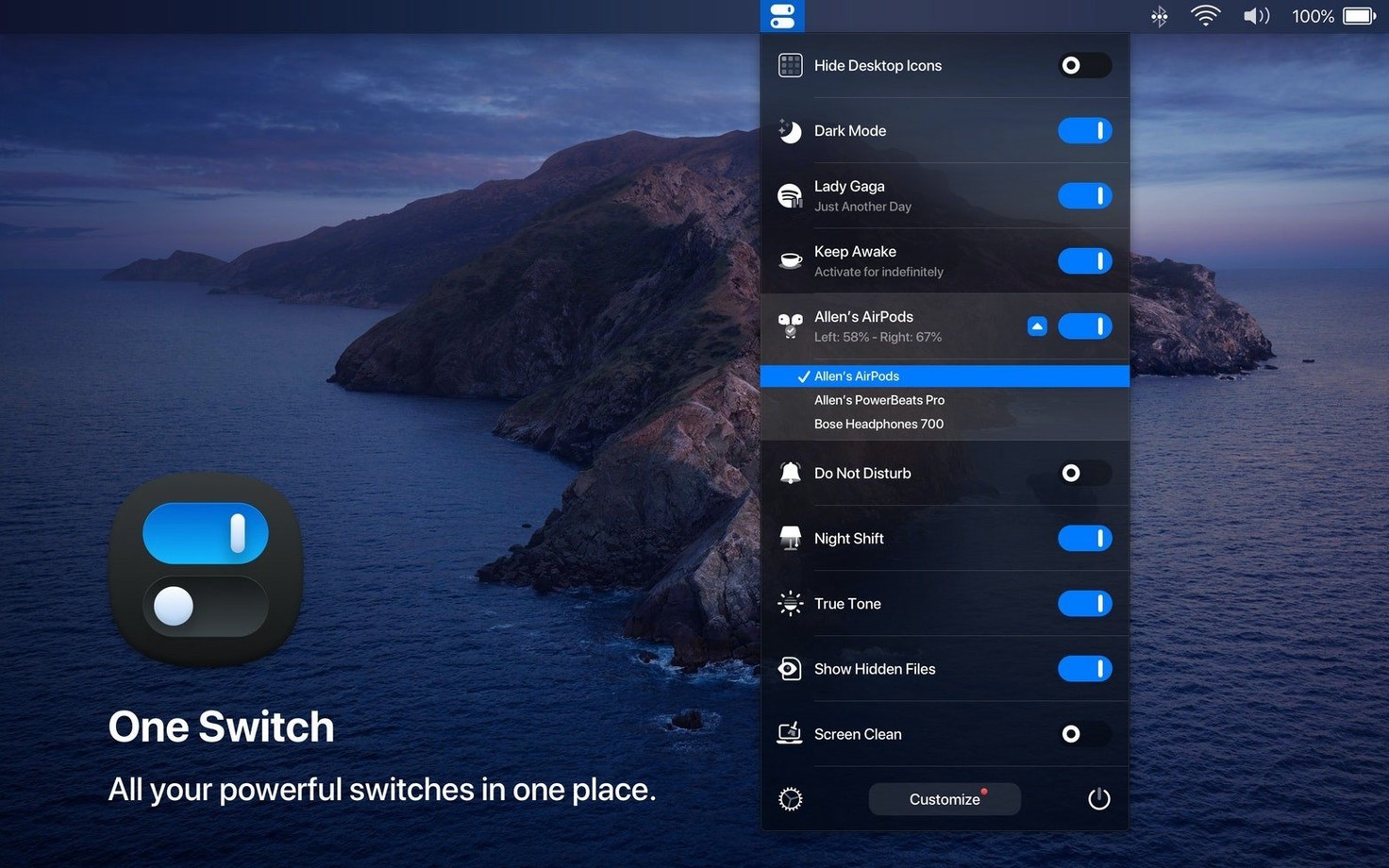
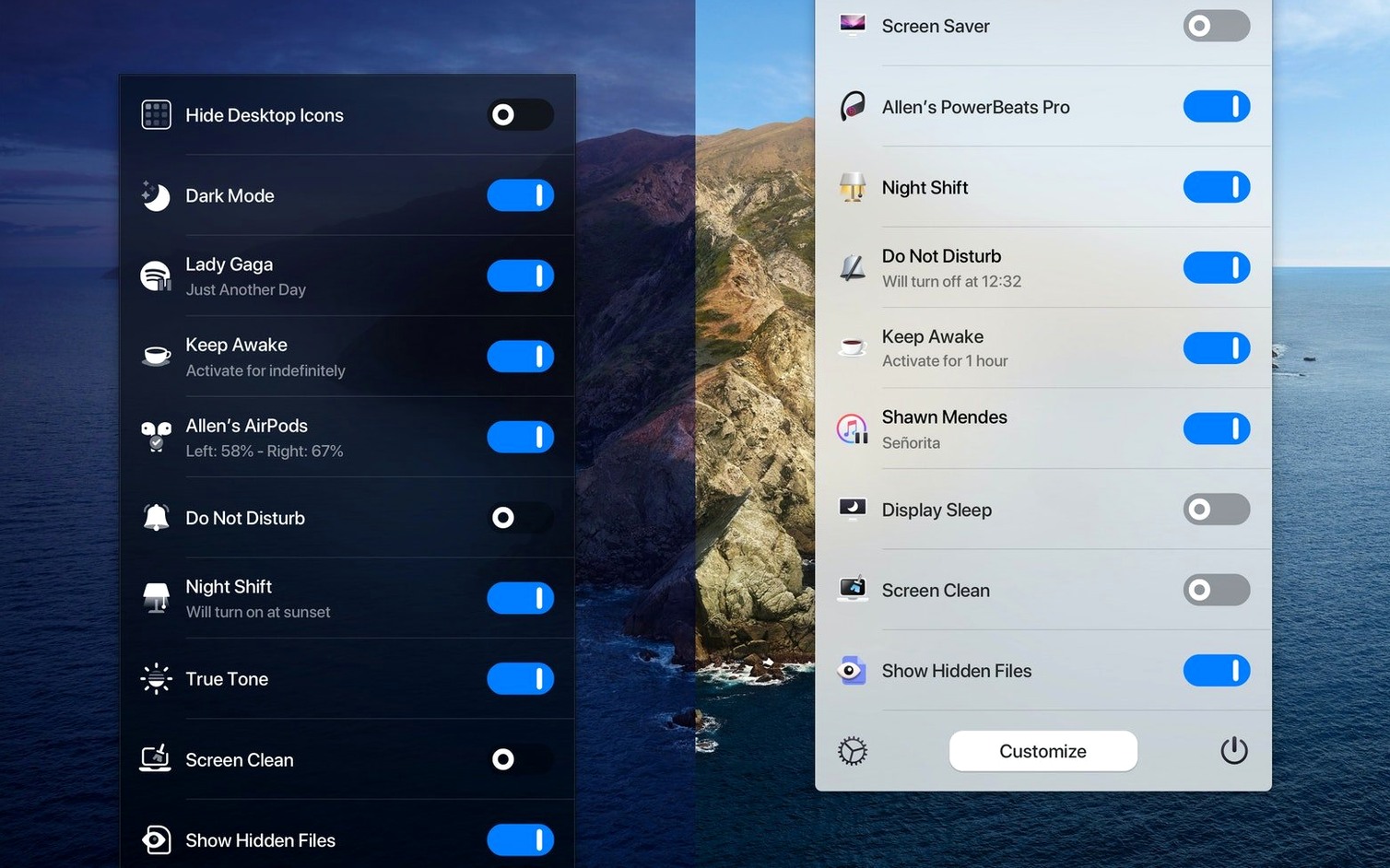
If you have ever used a Stream Deck for simple desktop toggles, One Switch feels like the software-only equivalent — a compact strip of switches that lives in your menu bar. It does not try to be a full automation tool. It is a 16 position rotary switch for your Mac's everyday settings, with each position wired to something specific: Dark Mode, Do Not Disturb, hiding desktop icons, connecting AirPods, and a few others. The mental model is dead simple. Flip a switch, something happens.
Flicking Dark Mode without opening System Settings
- Anyone who toggles Dark Mode on and off multiple times a day and hates digging through System Settings.
- Keeping a clean desktop for screenshots or presentations — the Hide Desktop Icons switch is surprisingly useful.
- Quickly starting the screen saver when you step away from the desk.
- Automating Light and Dark appearance changes on a schedule without writing a Shortcut.
- Running up to seven switches simultaneously from the menu bar.
A focused utility, not a macro launcher
- Version 1.35.4 keeps the scope narrow — it is a focused utility, not a general macro launcher.
- Requires macOS 10.15 Catalina or later; runs natively on both Intel and Apple Silicon.
- The interface is currently listed in English, though the latest update brought multilingual support for several other languages.
Which toggles do you actually reach for twice a day?
When you launch One Switch for the first time, the temptation is to enable all seven slots immediately. Resist that. Open preferences and think about which settings you actually change more than twice a day. For most people, Dark Mode and Do Not Disturb earn their spot right away. Hide Desktop Icons is another strong candidate — especially if you record screencasts or share your screen during calls. The AirPods switch makes sense if you move between a Mac and an iPhone regularly and hate the Bluetooth menu dance. Less obvious: the Screen Saver switch. If you already use a hot corner for that, you do not need both, so leave the slot free for something else.
One switch that takes a few days to appreciate is the automatic Dark Mode scheduling. Unlike the built-in macOS auto appearance, the One Switch schedule shows you exactly what time it will flip. You set it once in preferences, and the menu bar icon gives you a visual reminder that the schedule is active. During the first week, check the timing — the default 8 a.m. and sunset split works for many, but if you work late in a dim room you may want to push the dark-mode kick-in earlier.
Coffee, a Mac wake, and your switch strip ready at 7:45 a.m.
You sit down at your desk at 7:45 a.m. with coffee. The Mac wakes, and the menu bar shows your configured switches in a compact row. Dark Mode is off because the schedule flipped it to Light at 7:00. Desktop icons are visible — you worked on a presentation last night and had them hidden, so you toggle that switch back to show them. One click.
Mid-morning, a colleague pings you for a quick screen-share session. You click the Hide Desktop Icons switch — the .dmg files, random screenshots, and a folder called “Sort Later” vanish instantly. The desktop is a clean gradient. After the call ends, you toggle icons back on. The whole operation takes three seconds and zero System Settings windows.
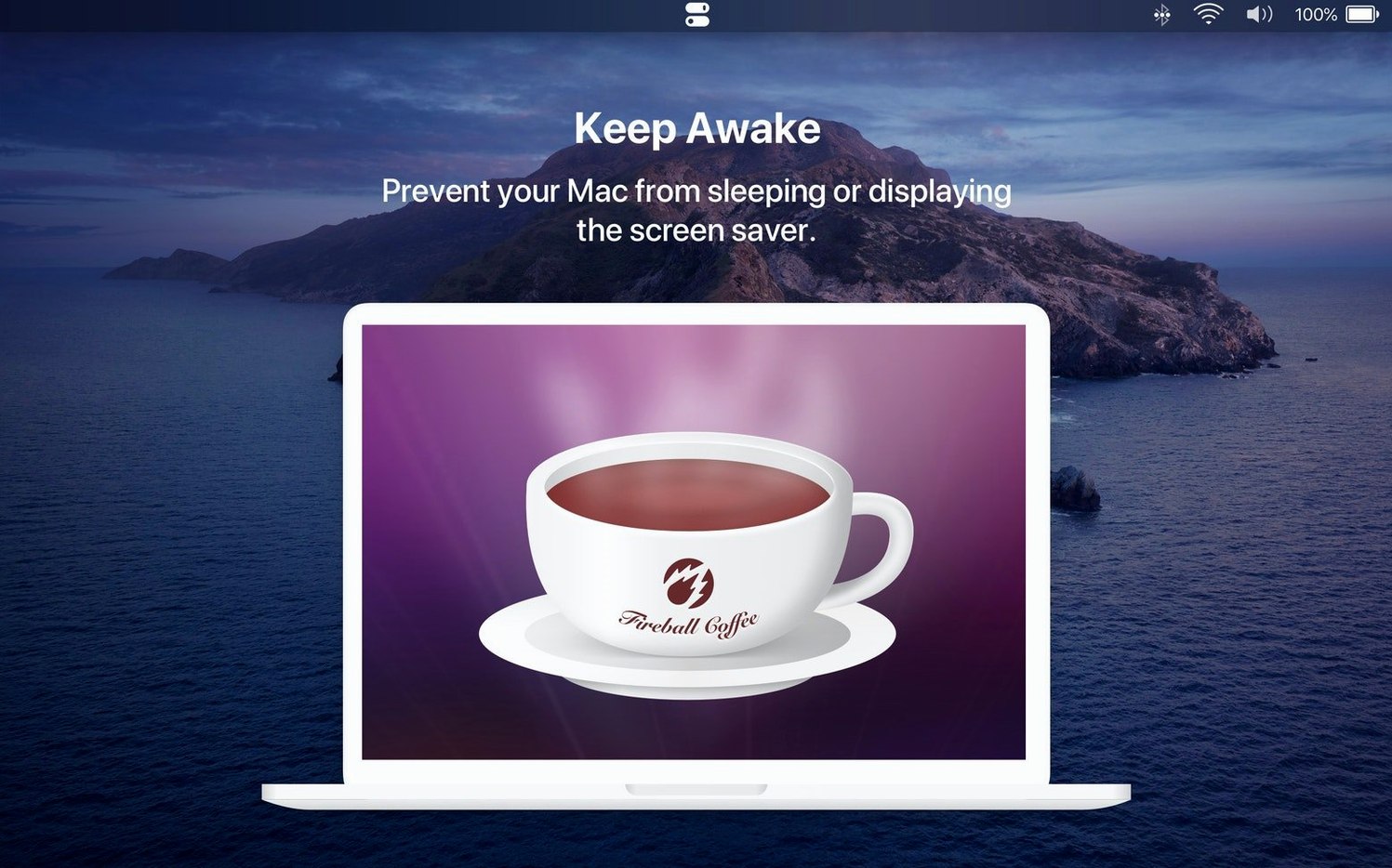
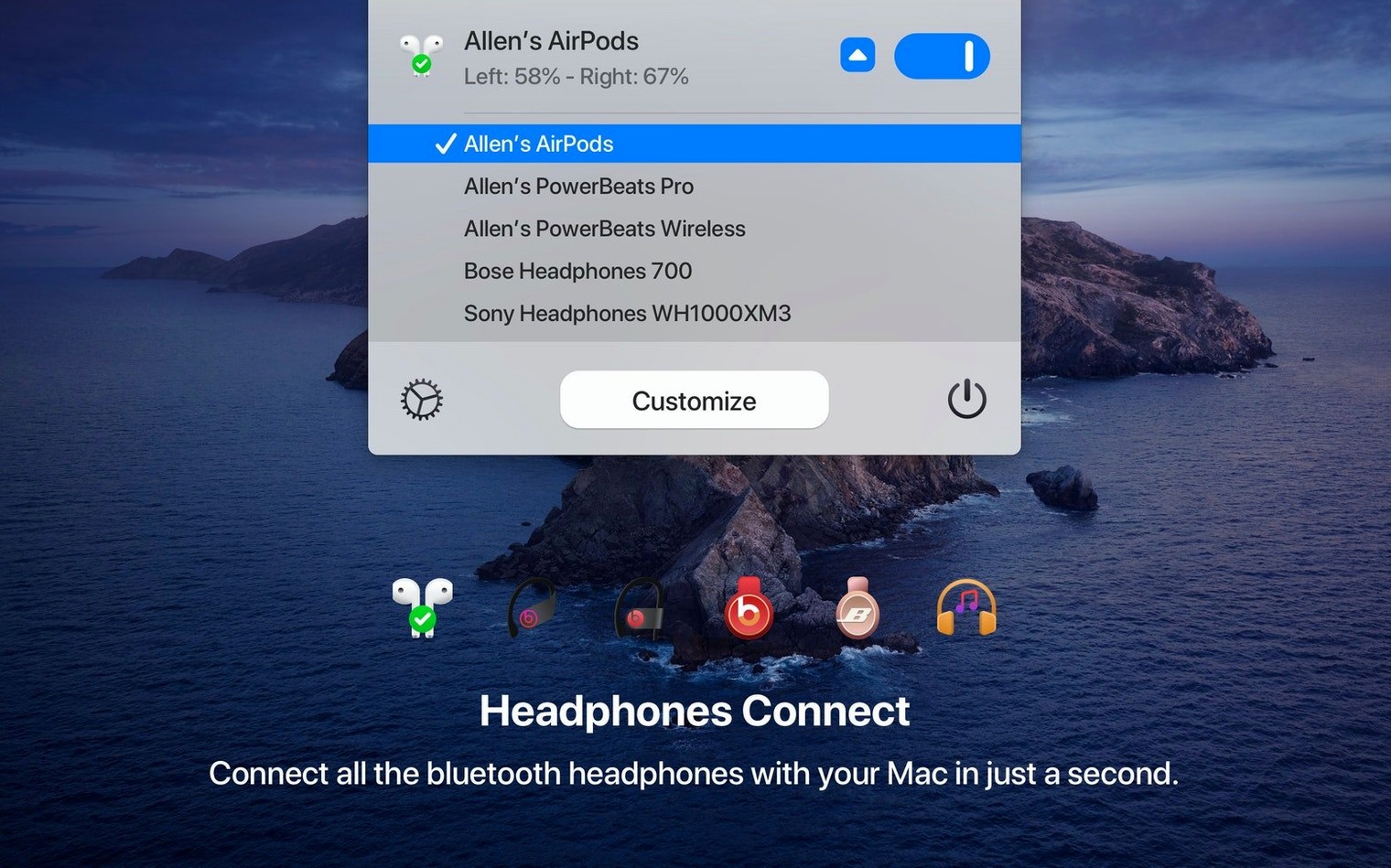
Around lunch, you put on headphones and want to switch audio from the MacBook speakers. You click the AirPods switch in the menu bar; the Mac connects to them, and audio moves over. No Bluetooth menu, no clicking through device lists. Later in the afternoon, when you step away for a call, you flip the Screen Saver switch to lock the screen visibly without sleeping the machine — useful if something is rendering in the background. When you return, a keypress dismisses it and all your apps are still running, unslept.
By evening, the scheduled Dark Mode switch has already flipped the appearance to dark. You did not think about it once. That is the whole point.
Real-world scenario: the remote presenter
Imagine someone who presents design work over Zoom three or four times a week. Before One Switch, the pre-call ritual looked like this: open System Settings, toggle appearance to Dark Mode so the shared window pops against a dark canvas, right-click the desktop and hide icons from a context menu, then turn on Do Not Disturb from Notification Center so Slack badges do not bounce onto the screen mid-critique. After the call, reverse all three steps. Each one required a different corner of macOS.
With One Switch set up, the same person clicks three menu bar toggles in under two seconds. The switches give haptic feedback through the trackpad click, so there is no doubt about state. The presenter can even configure one switch to trigger the screen saver between meetings as a visual privacy lock. The time saved per day is small — maybe two or three minutes — but the cognitive relief is larger. You stop thinking about how to control the environment and just control it.
Why a full strip of icons hides the one you need
Enabling all seven slots on day one. A full strip of icons looks busy and makes it harder to spot the switch you actually need. Start with three or four. You can always add more once muscle memory kicks in.
Forgetting the schedule overrides manual toggles. If you have scheduled Dark Mode and you manually flip the switch at 2 p.m., the schedule will still fire at its next set time and override your choice. That is by design, but it catches people off guard. Pay attention to the small indicator that shows whether a schedule is active for a given switch.
Treating it as a general automation tool. One Switch does one thing — toggle predefined system states — and it does not pretend otherwise. You cannot add custom scripts, open files, or chain actions. Some users expect one switch mac app behavior to extend further, but the developer has kept the scope deliberately tight. If you need macros, look at other tools; if you want fast system toggles, this is the right tool.
Not dragging the app properly during setup. The download comes as a .dmg. Mount it, drag the app icon into the Applications folder alias, then launch from Launchpad. If you run it straight from the mounted disk image, it works for that session but vanishes after a restart. It is the oldest macOS install mistake in the book, and it still happens.
- Added multilingual support: German, Italian, Japanese, Korean, Portuguese, Russian, and Spanish are now available alongside English.
- macOS 10.15 Catalina or later
- Intel or Apple Silicon Mac
$ man one-switch | grep -A2 "?"
What switches does One Switch include?
It gives you quick access to Dark Mode, Do Not Disturb, AirPods connection, screen saver activation, desktop icon visibility, and automatic Light/Dark switching on a schedule.
How many switches can run at once?
You can have up to seven switches active simultaneously in the menu bar.
Comments 0
Sign in or create an account to leave a comment.
No comments yet. A codec, a slice, a machine — they appear after moderation.