NotchNook for macOS
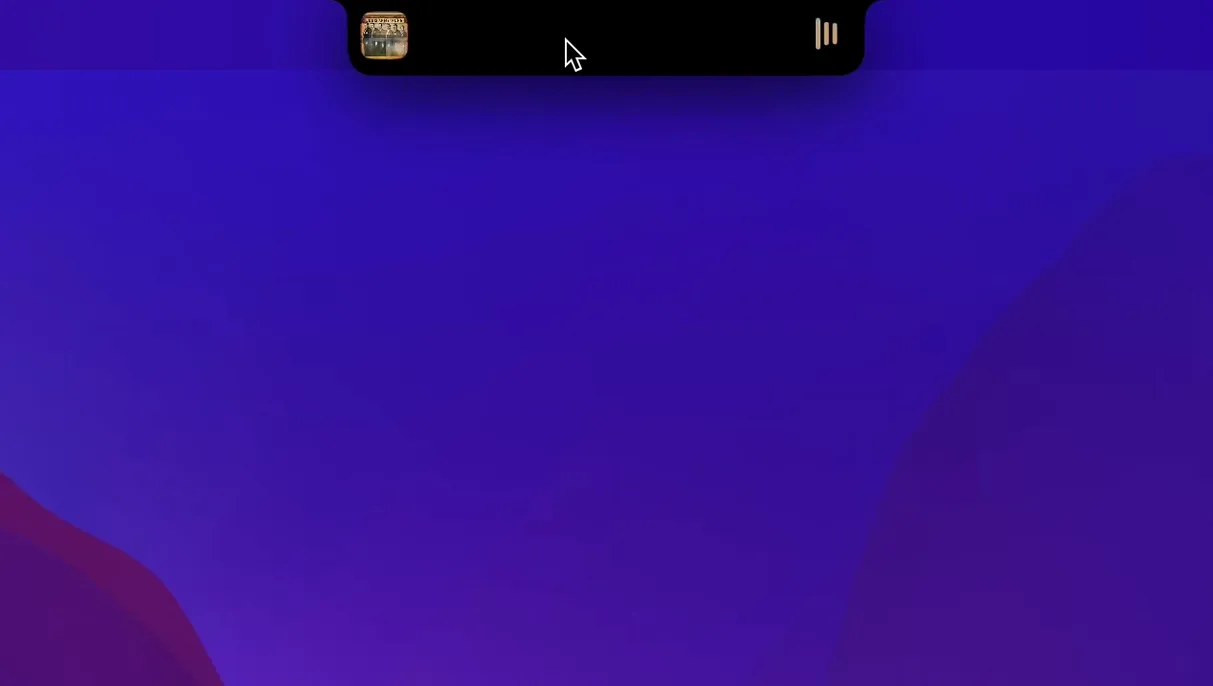
You’re listening to a playlist in Apple Music, a calendar reminder pops up, and you glance at the menu bar to check the time. NotchNook makes that strip of screen around the MacBook notch actually do something instead of just sitting there. A flick of the cursor expands a small panel with the track name, playback buttons, and a compact calendar view — no need to open a separate app window for quick interactions.
It slots in alongside whatever you’re working with. The music controls talk directly to the system’s Now Playing, so it works with Apple Music, Spotify, and anything that feeds metadata there. The calendar widget pulls from your default calendar app, giving you a week-at-a-glance right where your eyes already land.
Underneath, lo.cafe ships a single universal binary — ARM and x86_64 — so it runs natively on Apple silicon and older Intel MacBook Pro models alike. It targets macOS 14.6 and uses the system’s Live Activities framework in spirit, though it’s built as a standalone panel rather than a lock-screen widget. The interface is localized into 26 languages, from Arabic to Swedish, which is rare for a utility this specific.
It’s not a menu-bar replacement or a full launcher, and it doesn’t try to be. Think of it as an extension of glanceable information into a piece of hardware that Apple left somewhat inert.
MacBook multitaskers who switch apps constantly notice the dead notch space
MacBook owners who live in multiple apps at once notice the difference fastest. If your day involves switching between a code editor, Slack, a browser, and Spotify, the notch area is dead space you glance past hundreds of times. NotchNook turns that glance into usable information without a keyboard shortcut or a dock click.
People who attend a lot of meetings benefit from the calendar widget specifically. A flick of the cursor shows the next few days while you’re still in the Zoom call — no need to break focus by opening Calendar.app. Similarly, if you work with background audio — coding to lo-fi, writing to ambient, designing to a podcast — the playback controls save you from hunting for the Music or Spotify window.
It’s less useful if you use an external display as your primary screen most of the day; the notch interaction only works on the built-in MacBook panel. Also, if your workflow is heavily keyboard-driven and you rarely touch the trackpad for navigation, the mouse-over mechanic might feel like a detour. The app doesn’t add keyboard shortcuts for its panel, so it rewards cursor comfort.
Tuesday morning: moving the cursor toward the subtly wider notch
Say it’s Tuesday morning. You unlock a 14-inch MacBook Pro, and the menu bar loads normally — except the notch area now sits slightly wider, with a subtle visual hint that something lives there.
You move the cursor toward the notch. NotchNook detects proximity and expands a dark panel that drops just below the camera housing. The Now Playing section shows the track you paused last night — a Khruangbin album in Apple Music. You click the play button right inside the panel; playback resumes in the background. No dock icon bounced, no window surfaced.
Mid-morning, you wonder about Thursday’s schedule. You mouse up again. Below the music row, the calendar widget shows a compact week grid. Thursday has two dots — one for a stand-up, one for a dentist appointment. You click the day, and a small popover lists the events with times. You note the dentist time, then click away. The panel retracts.
During lunch, a file you downloaded earlier needs quick access. You open NotchNook’s file shelf — a temporary holding area for dragged files. You’d dropped a PDF there after downloading it from Slack. You drag it from the shelf directly into an email compose window in Mail. It works like a tiny, notch-bound staging area.
By evening, a notification from a HomeKit sensor appears briefly in the notch expansion: a motion alert. NotchNook surfaces it as a Live Activities-style notification, then dismisses it after a few seconds. You didn’t need to unlock your phone or open the Home app. The whole day, the notch was doing something.
The panel latency drop on Apple silicon that made proximity feel snappier
Version 1.6.2 fix arrived as a stability release first and a feature tweak second. The biggest practical shift was a reduction in panel latency on Apple silicon machines — the proximity detection felt snappier, less prone to missing a cursor hover when the system was under load.
Earlier builds had occasional issues where the calendar widget would show stale data after waking from sleep; the 1.6.2 update addressed that by refreshing the calendar source on display wake. For Intel users, lo.cafe tightened up the animation frames when the panel expanded, which made the motion feel less jittery on older integrated GPUs.
The file shelf behavior also matured. In early versions, files dragged to the shelf would lose their original names if the source app closed. The current build preserves metadata more reliably, which matters if you’re staging multiple files across a work session. Nothing radically new was added — 1.6.2 was a polish pass, and everyday use feels smoother because of it.
Why macOS asks for accessibility permissions the moment you launch it
After dragging the app from the .dmg into /Applications, launch it once from Launchpad. macOS will ask for accessibility permissions the first time — NotchNook needs those to detect cursor proximity and to draw its panel over the menu bar area. Grant it in System Settings → Privacy & Security → Accessibility.
Spend the first hour just using your Mac normally. Don’t force yourself to mouse up to the notch — let the behavior become reflexive. You’ll notice the panel when you naturally reach for the menu bar clock or the battery indicator. That organic discovery builds the habit better than trying to remember a new workflow.
Set up the file shelf early. Drag two or three frequently used files there — a project brief, a PDF invoice, a screenshot you keep referencing — and see if you actually retrieve them from the notch during the day. Some people love it; others forget it exists. If it doesn’t stick, you can ignore the shelf feature without it getting in the way.
Check your calendar permissions. If the widget shows blank days, open System Settings → Privacy & Security → Calendars and confirm NotchNook is toggled on. The same applies to notifications if you want the Live Activities-style alerts — those run through the system notification center, and NotchNook needs approval to mirror them.
On an Intel MacBook Pro, you might notice slightly higher CPU use during panel expansion animations. It’s minor — a brief spike on the efficiency cores — but if you’re on battery and watching every watt, you can reduce the animation duration in the app’s preferences. On Apple silicon, the power draw is negligible, so leave everything at defaults and enjoy the responsiveness.
- macOS 14 (Sonoma) or later
- Apple Silicon or Intel 64-bit Mac
$ man notchnook | grep -A2 "?"
Does NotchNook work on Macs without a notch?
Yes, it also runs on notched MacBook Pro models with both Apple silicon and Intel processors (macOS 14.6 and later), though the experience centers on the camera housing area.
Which music apps do the controls support?
The controls hook into macOS Now Playing, so Apple Music, Spotify, and similar apps that publish track info to the system work right away.
Comments 0
Sign in or create an account to leave a comment.
No comments yet. A codec, a slice, a machine — they appear after moderation.