Parallels Desktop for macOS
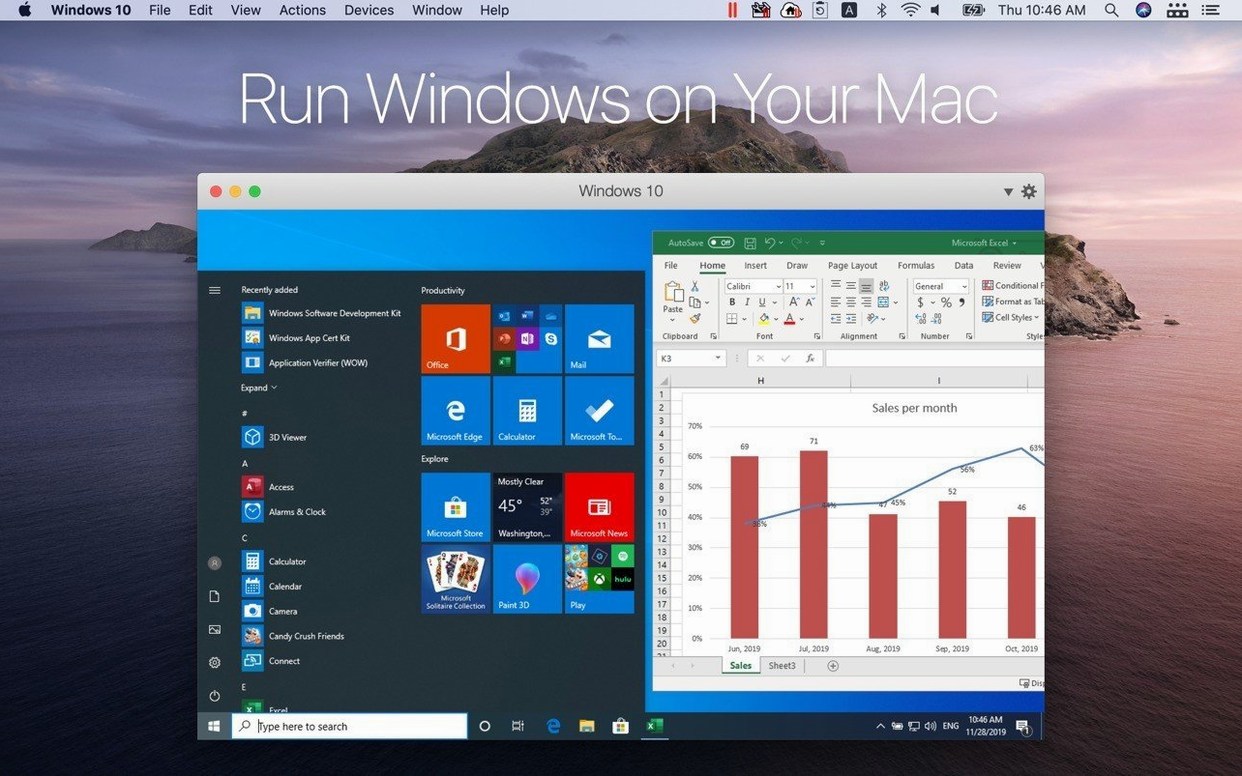
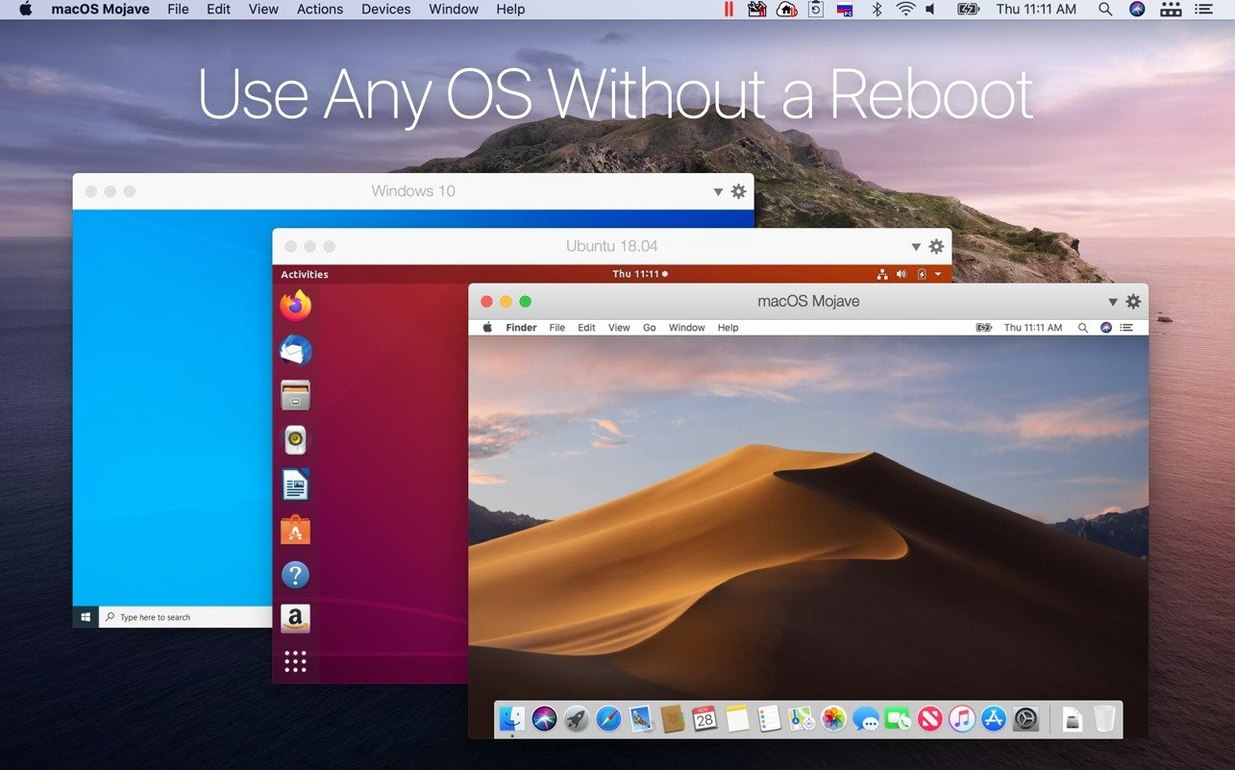
Coherence mode is where the hypervisor gets out of the way entirely. Here’s a glossary of the architecture an experienced user actually cares about.
Apple Silicon native — No Rosetta 2 translation in the virtualization stack itself; the hypervisor uses Apple’s own framework, so CPU-bound guest operations run without an extra compatibility layer.
ARM SystemReady SR 3.1 (VE band) — A certification that means the virtual environment follows Arm’s base boot and security requirements. In practice, standard ARM64 ISO images boot without custom kernel parameters.
x86_64 emulation — The addition for Ubuntu 26.04 LTS x86_64 in this build. Parallels emulates a full x86 CPU in software, letting you run Intel-compiled Linux binaries inside an ARM host. Latency-bound workloads will feel it, but command-line tools and lightweight GUIs are usable.
Coherence — The Windows desktop and Start menu disappear; each Windows app gets its own window on the macOS desktop, complete with its own Dock icon. The guest’s window server is still rendering behind the scenes, but the compositor hides it.
Shared folders — A paravirtualized filesystem driver mounted inside the guest. Drag-and-drop across OS boundaries goes through a user-space agent that translates pasteboard types and file paths.
Where the abstraction leaks and assumptions collide
I see the same handful of missteps in the lab and on forums. They aren't failures of intellect — just points where the abstraction leaks and assumptions collide.
Underprovisioning RAM from day one
The installer suggests a default memory allocation that looks generous until you launch a few browser tabs inside the guest. macOS already uses aggressive file caching; if you assign only 4 GB to a Windows 11 VM, the guest starts paging almost immediately. The host doesn't warn you — it just slows down. Beginners often blame Parallels for being "sluggish" when the guest is thrashing its own virtual disk. A good rule of thumb for a Windows 11 ARM guest: give it at least 8 GB if you plan to run anything beyond Notepad.
Confusing suspend with shut down
Closing the VM window suspends the guest to a memory snapshot stored on disk. That snapshot can grow to several gigabytes. A user who suspends a VM every day for weeks without ever shutting down will eventually find a hidden .mem file eating 20 GB of SSD space. More importantly, suspended VMs don't apply Windows updates properly. I've watched people accumulate three months of pending cumulative updates because they never performed a clean restart inside the guest.
Installing the x86 Windows ISO on Apple Silicon
This one is common enough to deserve its own heading. Parallels on ARM Macs runs ARM guest operating systems natively. The x86_64 emulation added for certain Linux distributions does not extend to Windows. Trying to boot an x86 Windows installer results in a cryptic error, and the user spends an afternoon hunting for a fix that does not exist. You need the Windows on ARM image — not the standard x64 ISO from Microsoft's consumer download page.
Mapping too many shared folders with write access
Mapping your entire /Users/ directory into Windows is tempting. It also means ransomware or a buggy Windows application can reach every document, photo, and project file on your Mac. Beginners treat shared folders like a convenience feature rather than a trust boundary. I recommend mapping a single dedicated folder — something like ~/Parallels-Shared — and keeping write access scoped to that directory.
Ignoring the virtual disk format
The default disk image is expanding: it starts small and grows as the guest writes data. That saves space initially, but it fragments over time. A student who sets up a VM, installs a large IDE, deletes it, installs another, and repeats the cycle will see the virtual disk balloon well beyond what the guest actually uses. Running the "Reclaim" function inside the VM configuration — or converting to a pre-allocated disk if you know your storage needs upfront — avoids the surprise of a 100 GB .hds file containing 45 GB of actual data.
The few remaining players and their distinct personalities
There aren't many players left in macOS virtualization, but the ones that remain have distinct personalities. Here's how Parallels Desktop sits alongside them.
Parallels Desktop vs. VMware Fusion
Fusion shares the same hypervisor foundation — both products use Apple's Hypervisor.framework on Apple Silicon — but they diverge sharply in user experience. Fusion feels like an enterprise tool that happened to get a free personal-use license; its interface assumes you know what a .vmwarevm bundle contains. Parallels invests heavily in the integration layer: Coherence mode, the Shared Profile feature that maps macOS Desktop and Documents folders into Windows automatically, and the USB device passthrough wizard are all miles ahead. Where Fusion catches up is in multi-hypervisor environments — if you also maintain ESXi hosts, Fusion's compatibility with vSphere disk formats and OVF templates makes it the natural companion. For the person who just wants to run a Windows accounting app without thinking about virtual hardware, Parallels is the smoother path.
Parallels Desktop vs. UTM
UTM is open-source, built on QEMU, and remarkably capable for a zero-cost tool. It does something Parallels cannot: emulate architectures beyond x86_64, including PowerPC and SPARC, which matters for retrocomputing and niche embedded development. The trade-off is speed and polish. UTM's graphics acceleration is software-rendered unless you manually configure virtio-gpu and live with the artifacts. There's no equivalent of Coherence mode, no clipboard sync out of the box, and shared folders require manual Samba configuration. Developers who need a disposable Linux ARM VM and already live in the terminal will find UTM sufficient. Anyone who needs Windows applications to feel native on macOS will notice the gap within ten minutes.
Parallels Desktop vs. CrossOver
CrossOver isn't a hypervisor — it translates Windows API calls directly to macOS using Wine, without running a Windows kernel. That means no Windows licence, no virtual disk, near-zero RAM overhead per application, and no VM to boot. The downside is compatibility. Applications that rely on kernel-mode drivers, certain .NET Framework versions, or DirectX 12 features will fail. CrossOver works beautifully for a curated list of games and productivity apps; Parallels runs everything the ARM version of Windows supports because there's an actual Windows kernel handling the system calls. Many users end up running both: CrossOver for a few lightweight Windows utilities that launch instantly, Parallels for the heavy application that needs the full environment.
What questions do people ask before installing?
Windows runs unactivated, but personalization locks and a watermark appears
Yes, though the enforcement is gentler than it used to be. Windows on ARM boots and runs without activation, but Microsoft disables personalization settings and places a watermark in the corner of the desktop. Functionally, unactivated Windows runs your applications without restrictions. The activation requirement hasn't changed — you still need a valid licence for long-term use — but the setup wizard in Parallels doesn't block you at the licence-key screen the way it once did. Many users install first and sort out licensing later.
"Will it drain my MacBook battery?"
A running VM consumes CPU cycles proportional to what the guest is doing. An idle Windows desktop with no background services polling the network sits at under 2% CPU on the host and has negligible battery impact. Running a Windows build toolchain that pegs four efficiency cores at 100% will drain the battery roughly as fast as a native macOS compile of the same intensity. The heavier cost is memory pressure — if the VM pushes total system memory usage into the yellow zone, macOS compensates with compressed memory and swap, both of which cost energy. Keeping the VM's RAM allocation modest and closing it when you're on battery makes the difference.
"Can I move my old Boot Camp partition across?"
Not in this version. Parallels Desktop 27 removed Boot Camp support alongside Intel Mac support. On older Intel hardware, earlier Parallels releases could import a Boot Camp partition directly, turning it into a VM that booted from the physical Windows installation. With the move to Apple Silicon and version 27, that path is gone. Your migration options are a fresh Windows on ARM installation or converting the old Boot Camp disk to a virtual machine file using a tool on an Intel Mac first, then transferring the result — but that VM won't run on an Apple Silicon host anyway.
"What about games and GPU-heavy apps?"
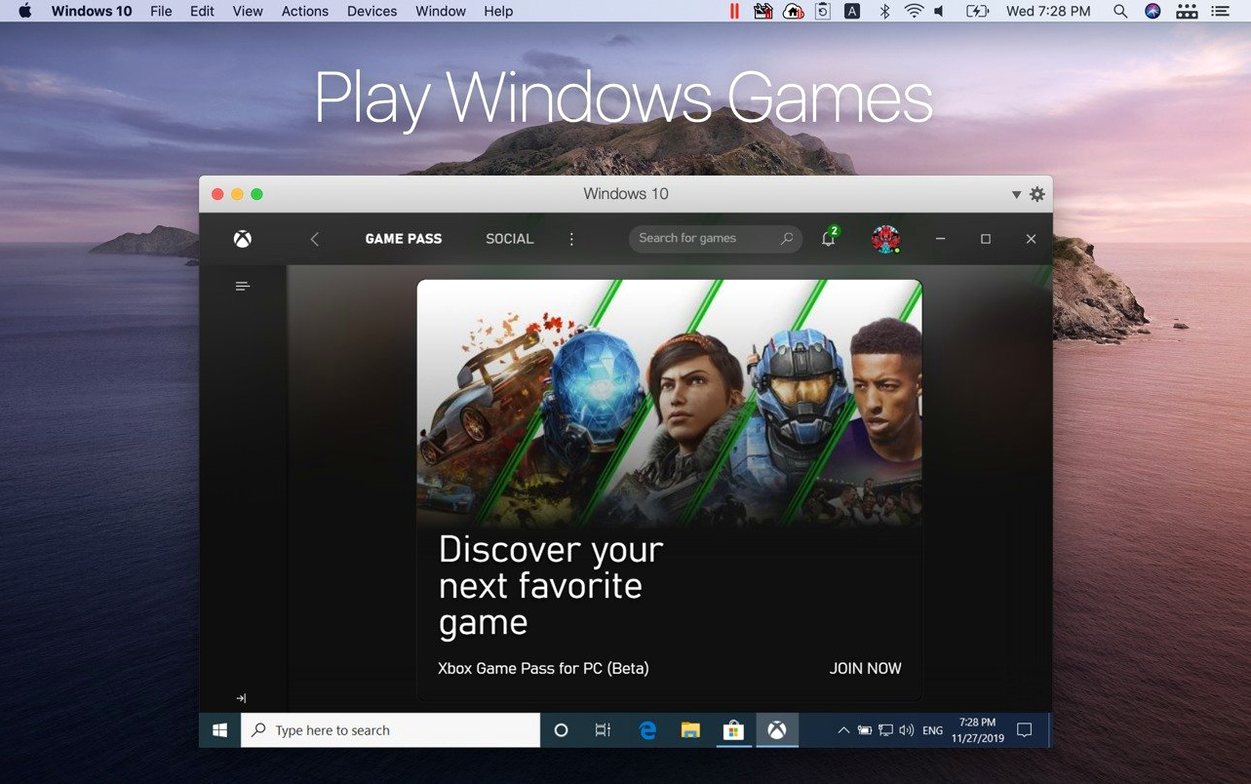
Parallels provides a paravirtualized graphics driver that translates DirectX 11 calls to Metal. DirectX 12 support is limited and title-dependent. Games that target DirectX 11 at moderate settings — think esports titles and strategy games — run surprisingly well. AAA games pushing high polygon counts at 4K will not match Boot Camp performance because there's no physical GPU passthrough. The virtual GPU is a software device backed by the host's Metal capabilities. For professional 3D applications, the same constraint applies: viewport performance is adequate for CAD and DCC work, but GPU compute via CUDA isn't available at all, since there's no NVIDIA hardware to target.
When your daily workflow has a non-negotiable dependency on another OS
The product spans enough use cases that almost anyone could use it. The people who should are those whose daily workflow has a specific, non-negotiable dependency on another operating system.
Developers targeting Windows toolchains — If you write software that builds with Visual Studio, tests against SQL Server, or packages with Windows Installer XML, Parallels gives you the actual target environment. The integration goes further: Visual Studio inside Coherence mode behaves like a Mac app, and the shared folders let you keep source code in your macOS home directory while compiling against Windows SDKs. ARM SystemReady SR 3.1 certification also means you can run CI-like Linux environments with standard boot media.
Business users locked into Windows-only line-of-business apps — Accounting packages, industry-specific CRM clients, older ERP front-ends — the kind of software that will never get a macOS port. Coherence mode hides the Windows desktop so completely that the accounting app just sits in the Dock next to Mail. The copy-paste integration means moving a VAT number from a macOS spreadsheet into the Windows application works exactly the way a non-technical user expects it to.
QA engineers and support staff — Testing a website against Edge on Windows? Reproducing a customer bug report that only manifests on a specific Windows build? Parallels lets you snapshot a VM state, test, and revert. The snapshot mechanism is fast enough to make iterative testing practical, and you can maintain multiple VM configurations — Windows 11, Ubuntu 26.04 LTS, Debian 13.6 — without juggling physical machines.
Students in mixed-OS curricula — A computer science student whose coursework spans a macOS-native Python environment and a Windows-only circuit simulation tool doesn't need two laptops. The VM approach keeps the toolchains isolated: a broken Windows driver update doesn't touch the macOS side, and a macOS beta install doesn't risk losing access to the simulation software due the night before a deadline.
The user who gains the least is the person who wants a Windows gaming machine. The virtual GPU is capable, but it isn't a substitute for dedicated hardware. If gaming is the primary reason you're considering Parallels, set expectations accordingly.
Adjustments that make the VM feel tighter and more predictable
The defaults are sensible for an initial boot, but a few adjustments make the VM feel tighter and more predictable.
CPU and memory allocation
Open the VM configuration — Hardware → CPU & Memory — and switch from automatic to manual. The automatic setting tends to over-allocate CPU cores (which can starve macOS background tasks) and under-allocate memory for modern Windows builds. For a Mac with 16 GB of RAM, setting the VM to 8 GB and 4 cores leaves macOS breathing room while keeping the guest responsive. On a 32 GB machine, 16 GB and 6 cores is a comfortable midpoint.
Graphics: "Scaled" instead of "Best for Retina"
By default, Parallels tries to match the Mac's native Retina resolution inside the guest. Windows handles HiDPI scaling inconsistently across applications. Switching the VM's graphics setting to "Scaled" and picking a lower resolution — 1920×1200 or 1680×1050 — often produces sharper text in legacy Windows apps and reduces the GPU memory footprint. You can also disable "Use full resolution for Retina display" in the same panel to stop the guest from rendering pixels you can't see.
Shared folders: scope them explicitly
The default configuration shares your entire Desktop, Documents, and Downloads folders with the guest. In Options → Sharing → Shared Folders, remove the broad mappings and add a single custom folder. This isolates the guest's write access without breaking the drag-and-drop convenience — the user-space agent still handles file transfers between unmapped locations when you drag a file from Finder into a Windows app window.
Startup and shutdown behavior
Under Options → Startup and Shutdown, change "When closing the window" from "Suspend" to "Shut down" if you're someone who closes the VM and walks away for days. The suspend file won't accumulate, Windows Update will run on the next boot, and the virtual disk stays cleaner over time. If you open and close the VM multiple times a day, keep suspend enabled — the boot-time savings are real — but commit to a full shutdown once a week.
Optimization for the guest's actual role
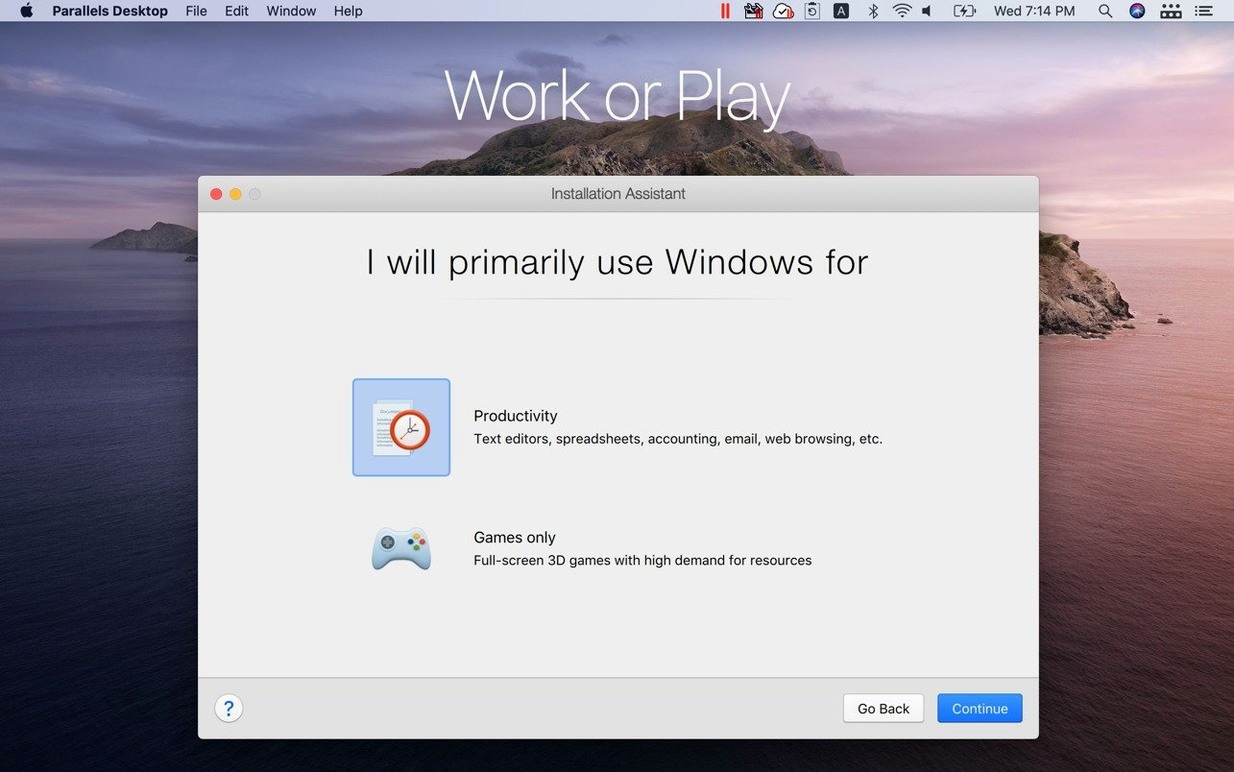
The "General" tab includes a profile selector: Productivity, Gaming, Development, and so on. Switching this changes several hidden defaults under one label — memory pressure behavior, graphics acceleration mode, CPU scheduling priority. Setting it to "Development" when you're running a Linux toolchain disables animations and aesthetic effects that eat GPU cycles. Setting it to "Productivity" for a Windows office VM prioritizes responsiveness for short bursts of activity. The differences are subtle but cumulative over a workday.
Version 27.0.3-58680 ships with the developer’s latest fixes and stability improvements. The full breakdown lives in the official Parallels knowledge base.
- macOS 26 or later
- Apple Silicon Mac
$ man parallels-desktop | grep -A2 "?"
Does Parallels Desktop 27 still support Boot Camp?
No. The update notes for version 27 confirm that support for Boot Camp was removed entirely.
Comments 0
Sign in or create an account to leave a comment.
No comments yet. A codec, a slice, a machine — they appear after moderation.