PDF Reader Pro for macOS
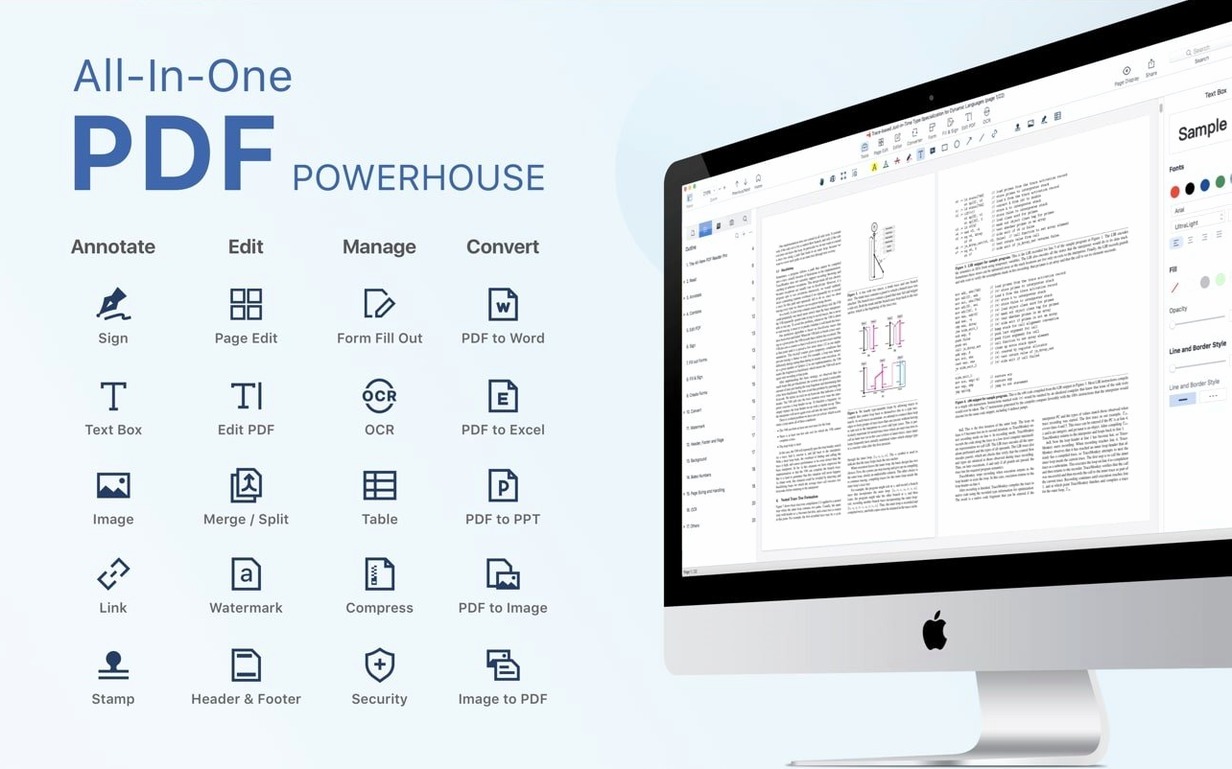
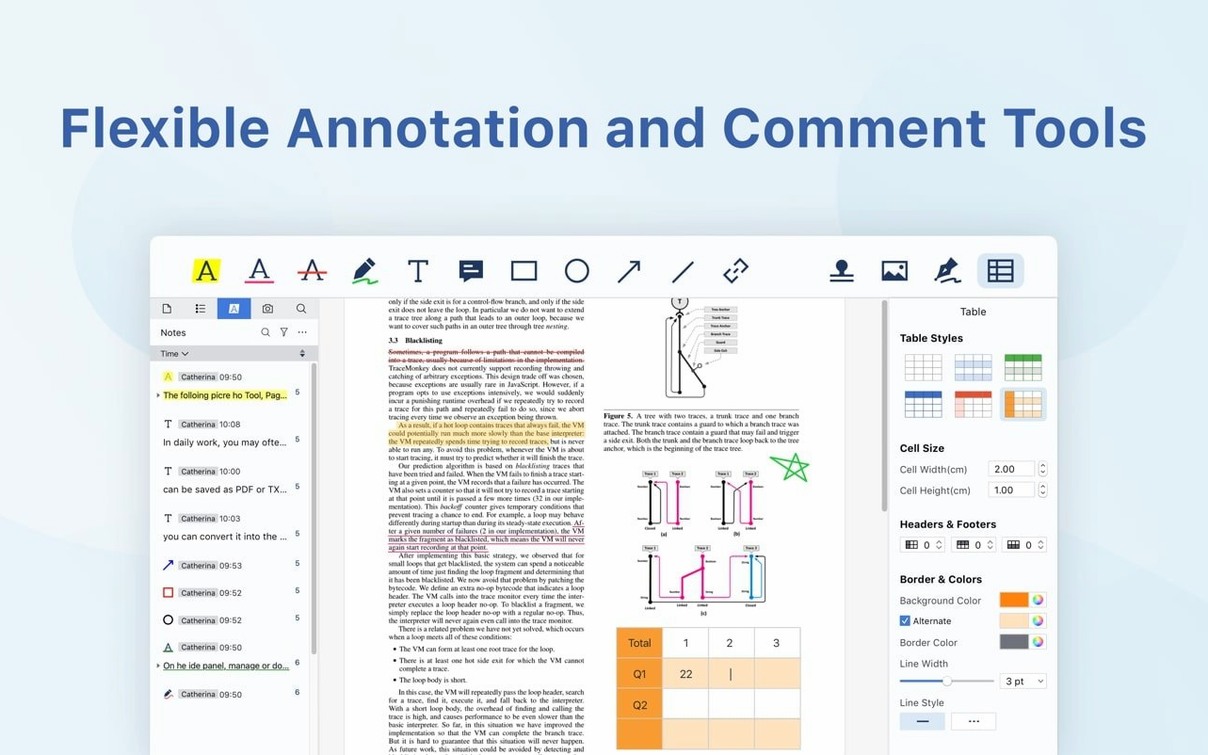
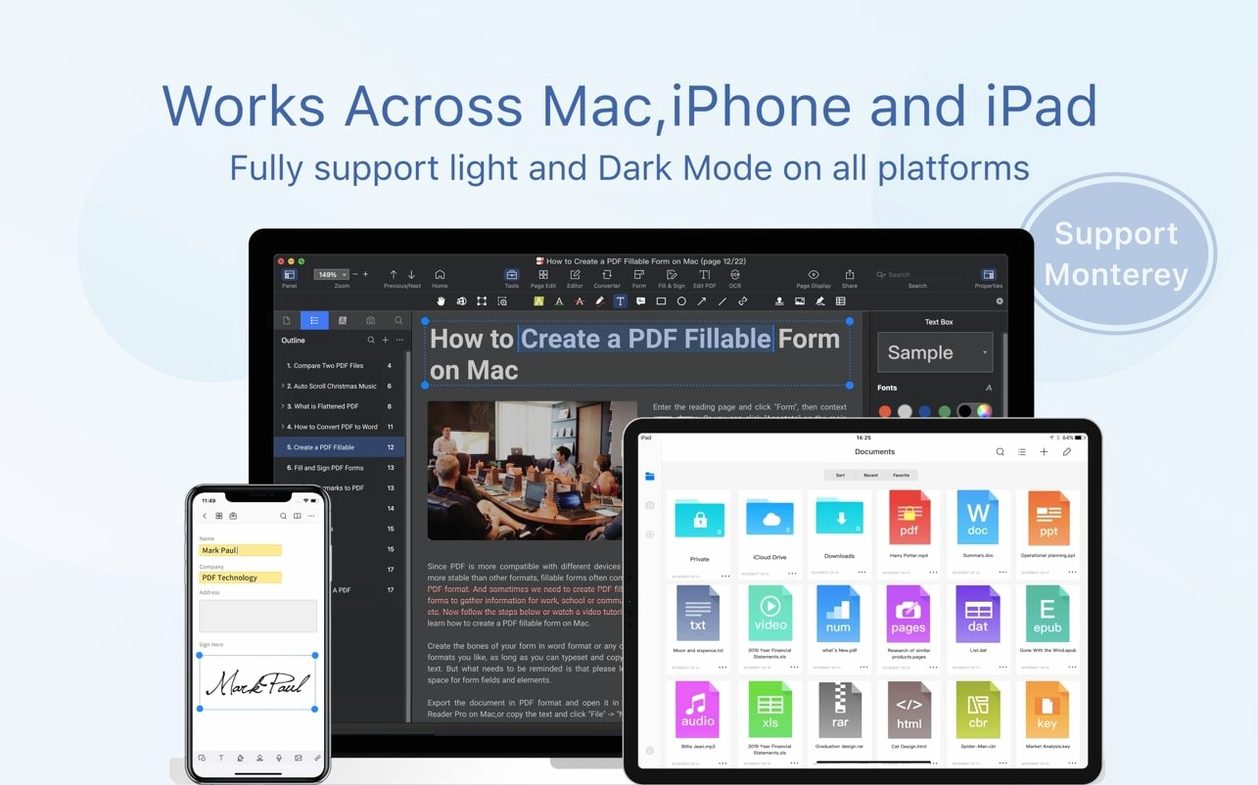
This version lands with a quiet but meaningful shift: the interface has been reworked for a cleaner information hierarchy. Toolbars consolidate actions that used to be spread across multiple panels, and the rendering engine handles large vector-heavy documents with less hesitation during zoom and scroll. For anyone who lives inside annotated PDFs, the reduction in visual noise makes a real difference during long review sessions.
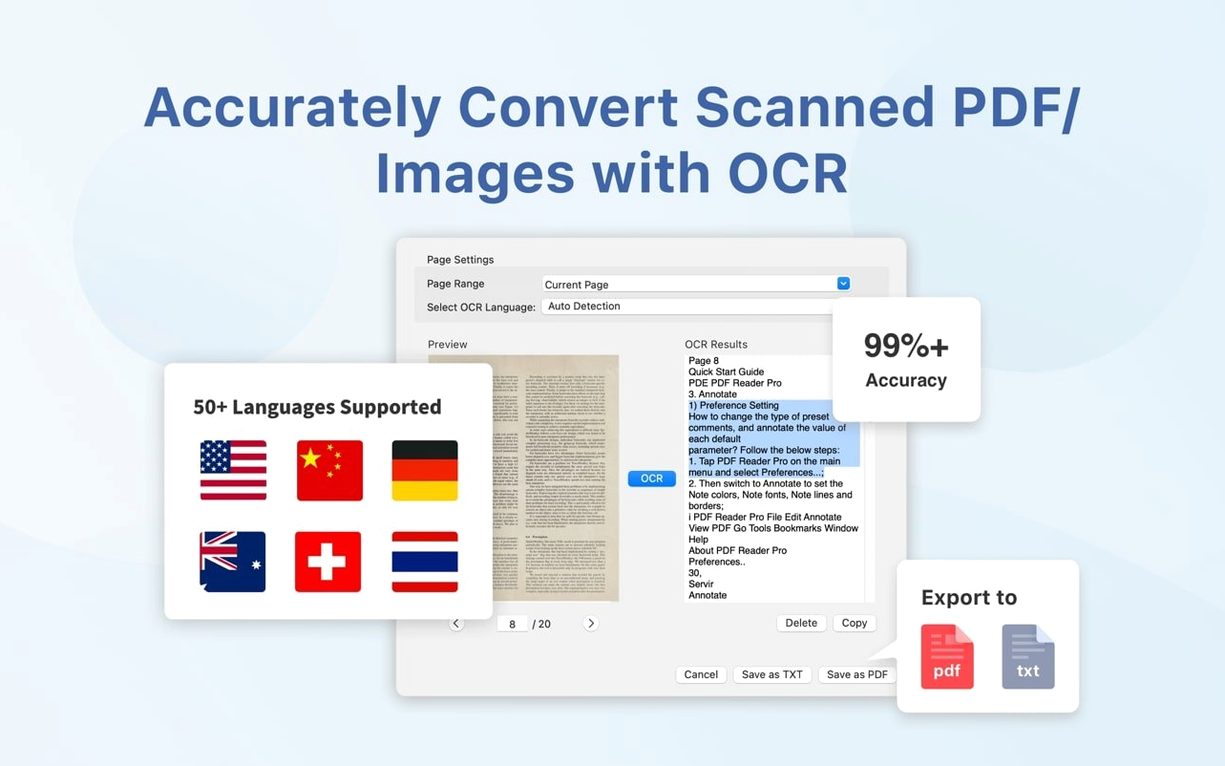
Text recognition is local, not cloud-dependent, so the recognition pass runs without a network hop. That matters when you are pulling text from a scanned contract or a photographed document and want it searchable inside the app immediately. Once recognized, the text layer sits on top of the original image, and you can select, copy, or redact it directly.
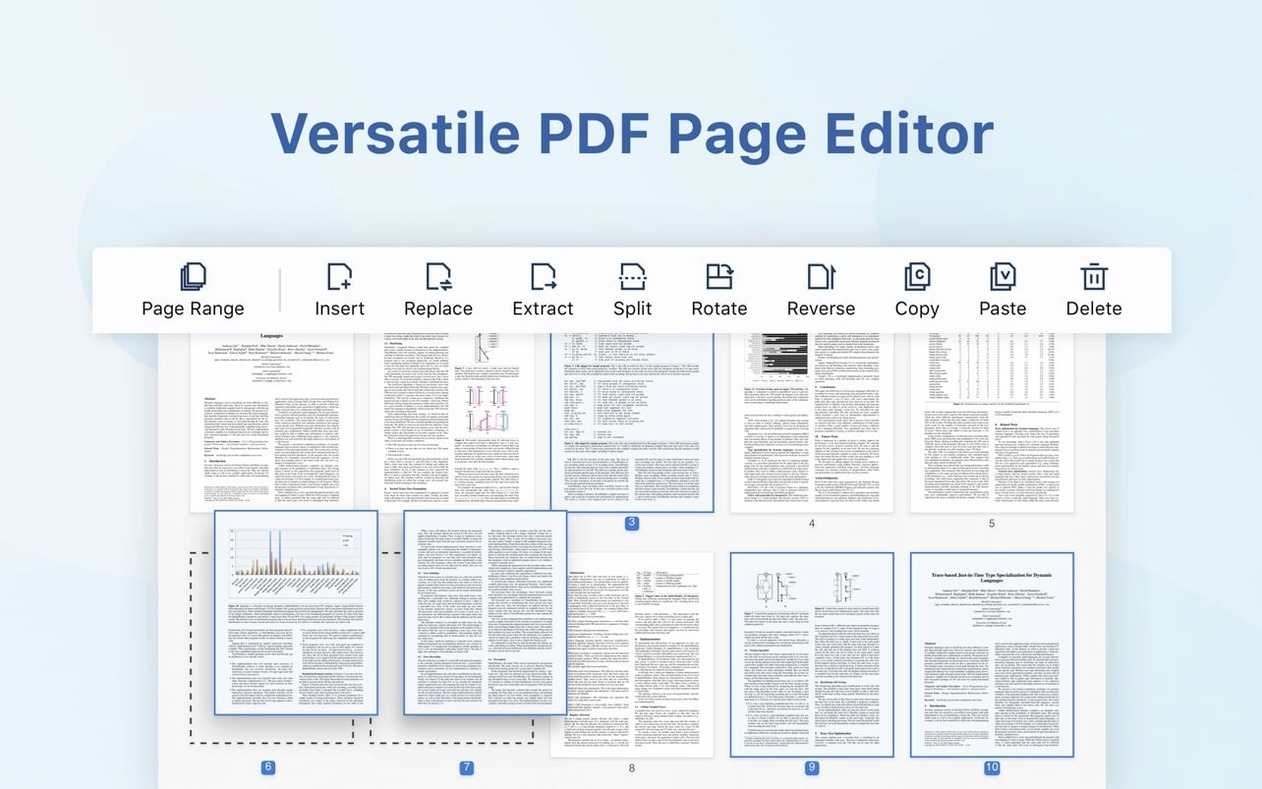
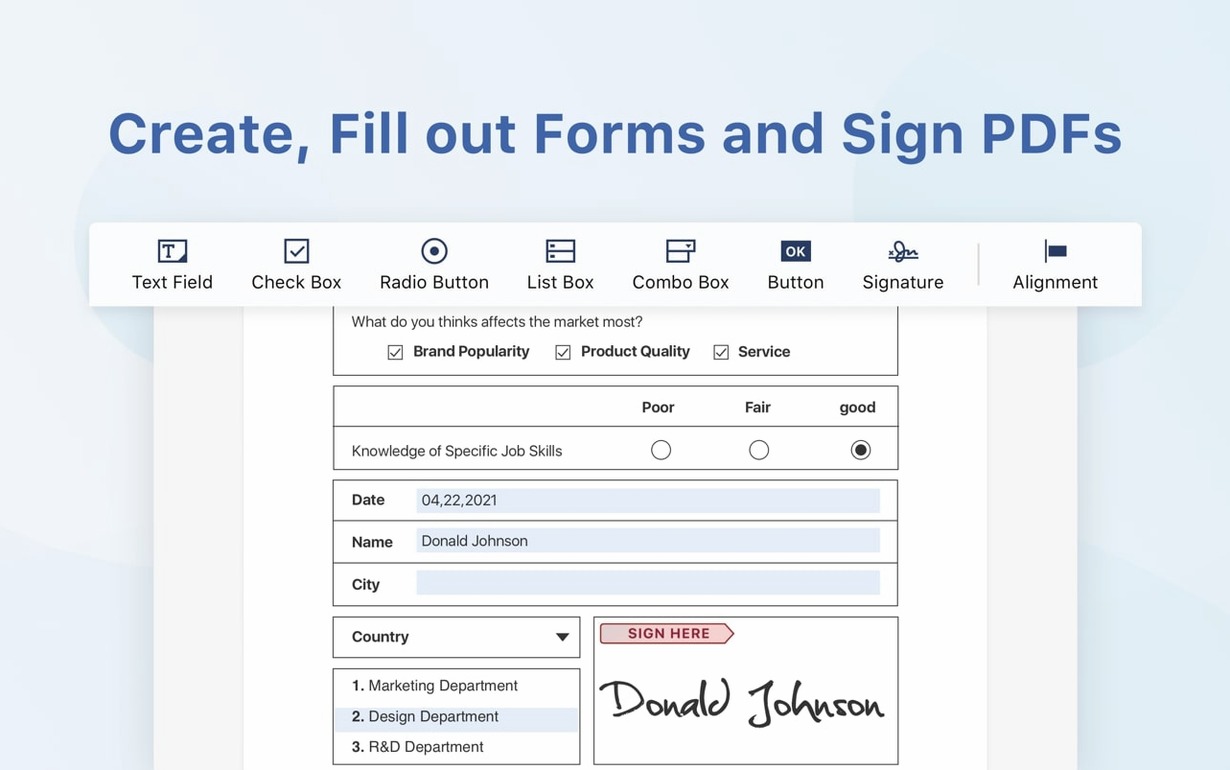
Page-level operations go beyond simple extract-and-delete. You can insert pages from another .pdf file without leaving the thumbnail strip, split a document by page ranges, and merge multiple files into one. The merge dialog preserves the source file order and does not flatten annotations or form fields unless you explicitly choose a print-ready output. For form-heavy workflows, the app recognizes interactive fields and lets you fill, save, and sign without converting to a static image first.
Presentation mode turns any open document into a full-screen slide deck, complete with page transitions and a laser-pointer tool. It is a small feature that changes how you might use the app if you present design drafts or reports directly from the source file instead of exporting to a slide format. Dropbox sync keeps your library consistent across machines, and the localization covers eleven interface languages, which helps in multilingual teams.
A proofreader's afternoon
Imagine a freelance proofreader working through a 140-page thesis draft sent as a scanned PDF. The student wants tracked changes and margin notes, not a flat marked-up printout, and they need a clean Word export afterwards so their supervisor can comment further. This user does not care about presentation mode or forms — what matters is how fast the recognition runs on a batch of pages and whether the annotations survive the export.
They open the document, let the local OCR pass complete across all pages, then switch to the annotate toolbar. Highlighting ambiguous phrasing takes a single drag; sticky notes attach to paragraphs with the keyboard shortcut. Before exporting, they run a quick split to extract just chapters three and five for a separate reviewer, then convert the marked-up master file to .docx. The entire round trip — scanned input to annotated, editable Word output — happens inside one app without rasterizing the comments into baked-in ink.
A lighter Mac footprint than Acrobat — no background updater or Creative Cloud
Set beside Adobe Acrobat, PDF Reader Pro occupies a lighter footprint — no background updater services, no Creative Cloud tie-in. Acrobat still leads on preflight tools and complex form scripting, but for annotation density and page manipulation on a MacBook Air, PDF Reader Pro feels less like a port and more like a native citizen. The rendering difference shows most clearly when you scrub through a document with hundreds of vector shapes: the redraw stays smooth where Acrobat occasionally flashes a grey placeholder.
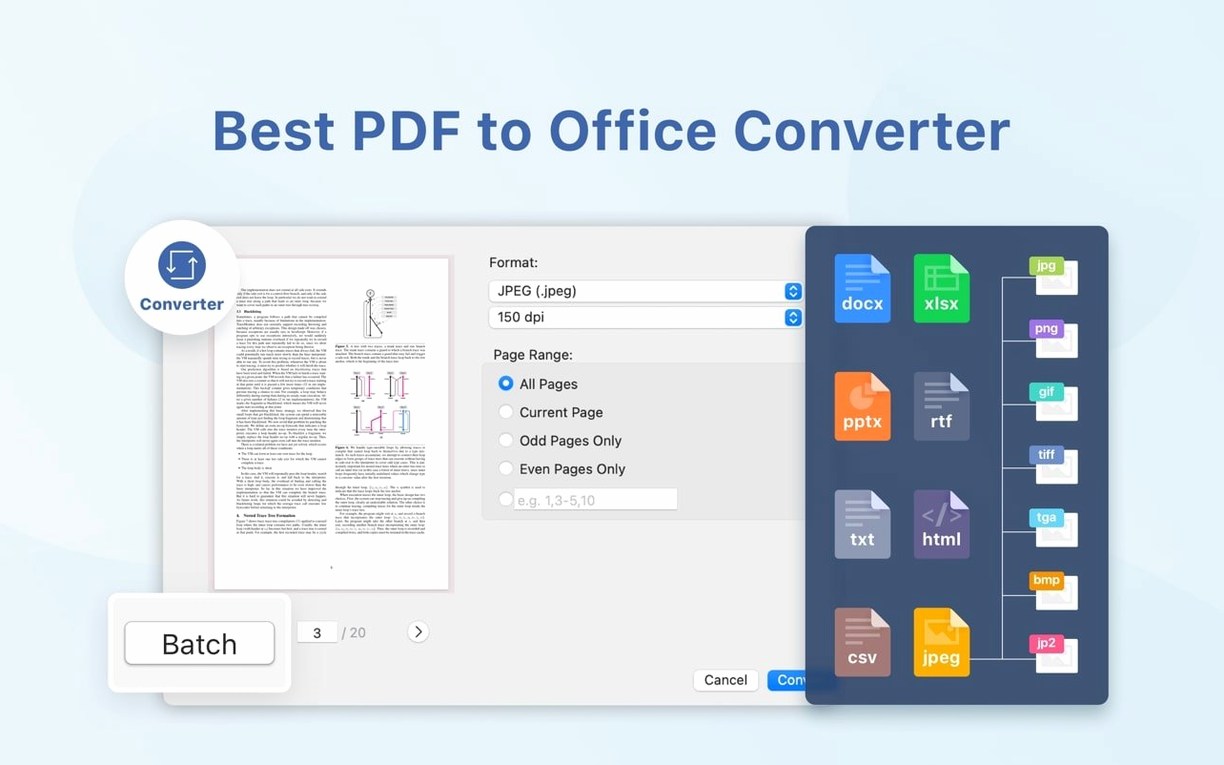
Compared to PDF Expert, the conversion pipeline here reaches further. PDF Expert handles .docx export well, but PDF Reader Pro adds PowerPoint, HTML, CSV, and image sequence output without routing through an intermediate service. The trade-off is that PDF Expert's reading-mode view still feels more polished for pure consumption — fewer toolbar distractions, a lighter chroma. If you mostly read and lightly annotate, PDF Expert wins on atmosphere. If you regularly need to pull data out of PDFs into different formats, PDF Reader Pro gives you more exit doors.
Skim — the open-source stalwart — remains unmatched for academic note-taking workflows that rely on AppleScript and BibTeX integration. PDF Reader Pro does not try to compete there; it is aiming at the broader office-tool role where signing, form filling, and format conversion sit alongside annotation.
Opening the app, dragging in supplier invoices, and running your first OCR pass
You mount the .dmg, drag the app into /Applications, and the Gatekeeper workaround runs once in Terminal. After launch, the window opens on a blank workspace.
Drag in three supplier invoices — two are searchable PDFs generated from accounting software, one is a phone photo of a printed form. The OCR panel recognizes the photographed invoice in about four seconds, and the extracted text highlights in place so you can verify it against the original image before trusting the search index. You bookmark each invoice with a short label: ACME-Q1, PartsCo-Feb, Handwritten-receipt. The bookmarks appear in a sidebar list, clickable for instant navigation.
Now you merge the three into one file for the monthly reconciliation. The merge dialog respects the order in the thumbnail strip — drag to reorder before confirming. The output is a single .pdf with all bookmarks preserved under a collapsible tree. You fill in the cost-center codes on the interactive fields of the first two invoices, then use the signature tool to sign off on the handwritten receipt. Finally, you export just the summary page as a PNG for Slack and save the merged bundle to a Dropbox folder that syncs to the bookkeeper's machine.
The session takes under ten minutes, and the only external tool involved was Finder for the initial drag.
Why that scanned PDF still isn’t searchable after you import it
The most common early mistake is assuming the OCR pass happens automatically on import. It does not — you need to open the OCR panel and trigger it per document or page range. People open a scanned PDF, see that text selection does not work, and assume the file is corrupted when the recognition simply has not been invoked yet.
Another frequent stumble: dragging pages between documents without realizing that annotations stay with their source page unless you explicitly flatten first. A user merges two annotated drafts, deletes the originals, and then wonders why the comments are missing from the combined file — they were never carried over because the merge pulled only the base pages. The fix is to flatten annotations (making them part of the page content) before merging, or to keep the source files until the merge result is verified.
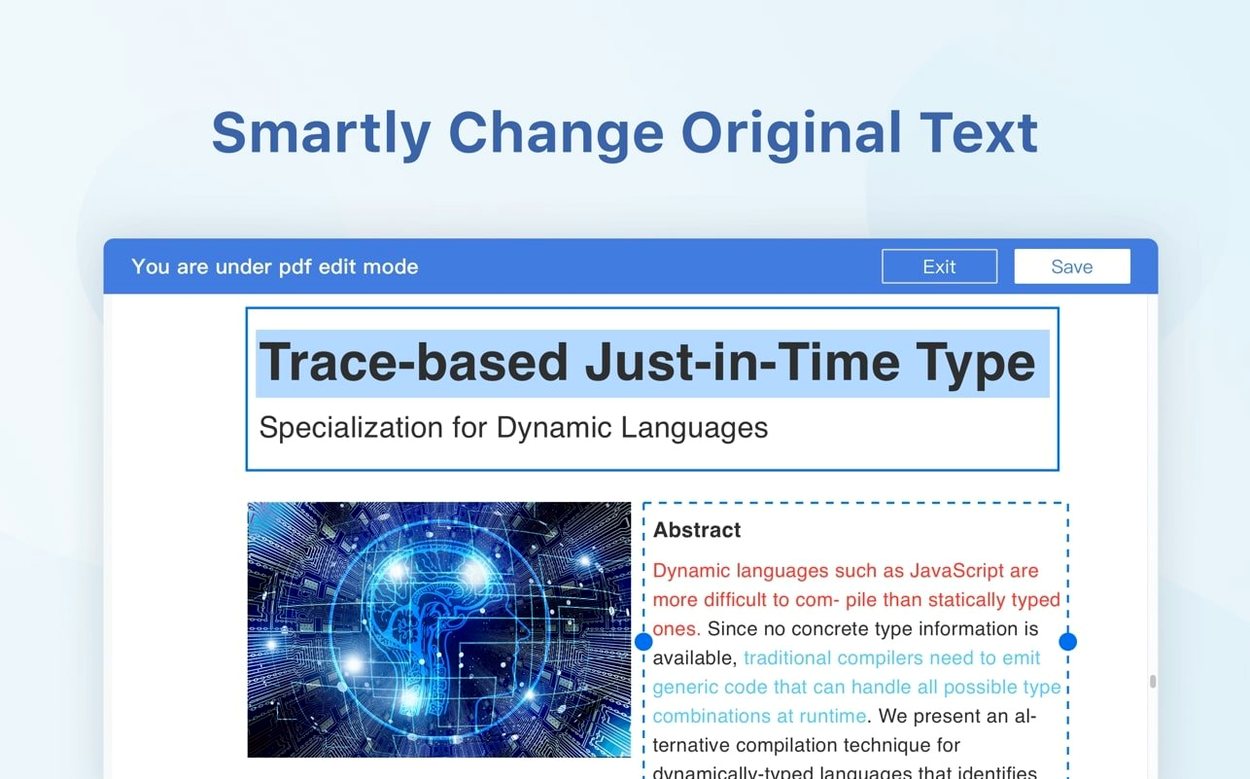
The export-to-Word pathway also causes confusion when people expect a pixel-perfect layout. Heavily formatted PDFs with multi-column text and custom fonts will reflow in Word — the conversion engine reconstructs the document structure, it does not snapshot it. Setting realistic expectations before exporting saves a lot of puzzled scrolling through a reformatted .docx.
- macOS 11 or later
- Apple Silicon & Intel 64-bit native
$ man pdf-reader-pro | grep -A2 "?"
Does PDF Reader Pro handle scanned documents?
Yes, it includes on-device text recognition that makes scanned pages searchable and selectable without sending files to a remote server.
Can I split a PDF into separate files inside the app?
You can split by page ranges directly from the thumbnail view, and the resulting files keep their annotations and form fields intact.
Does it work with form filling and signatures?
It recognizes interactive form fields so you can fill, sign, and save a document while preserving its editable structure.
Comments 0
Sign in or create an account to leave a comment.
No comments yet. A codec, a slice, a machine — they appear after moderation.