
Photo Mechanic for macOS
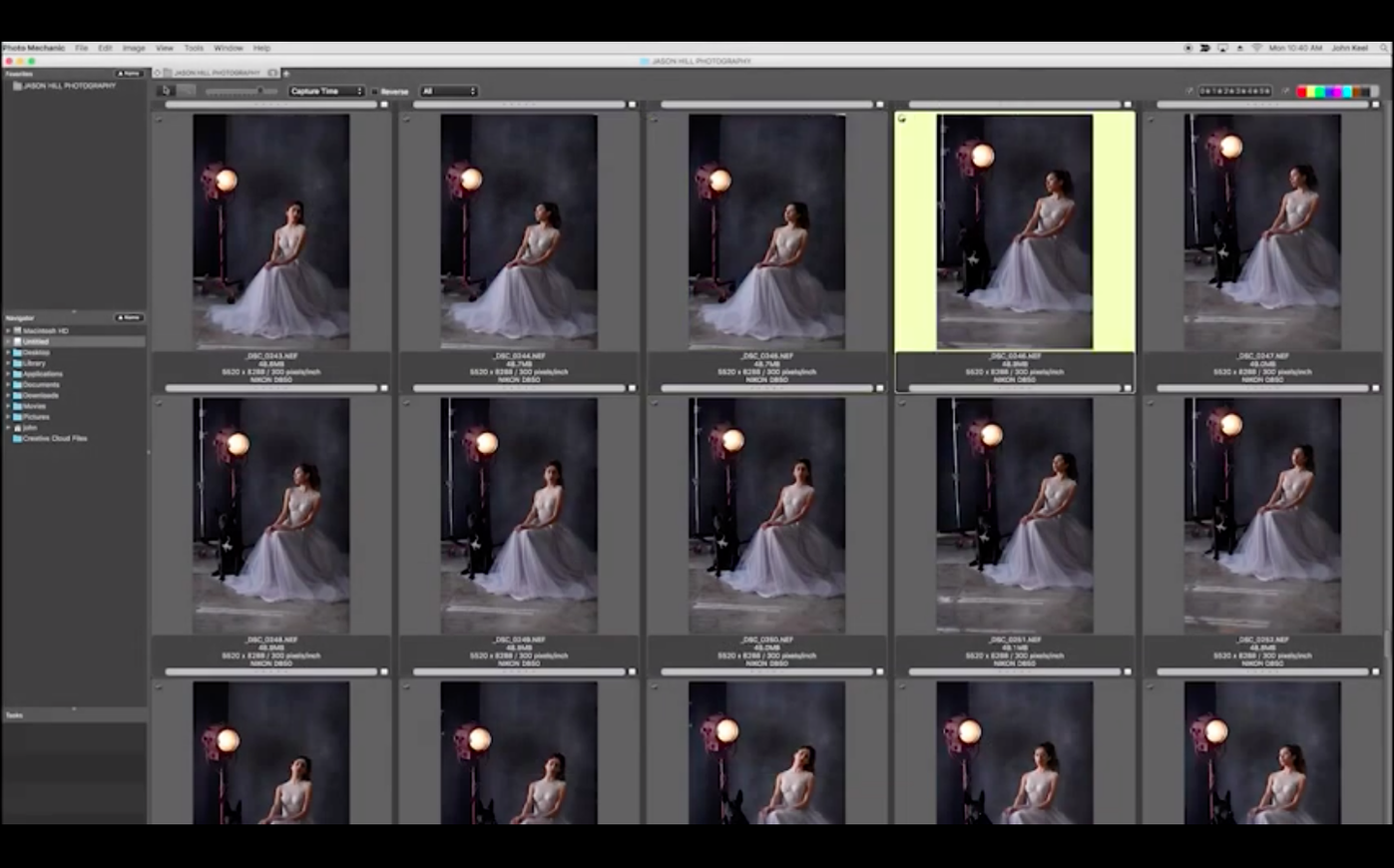
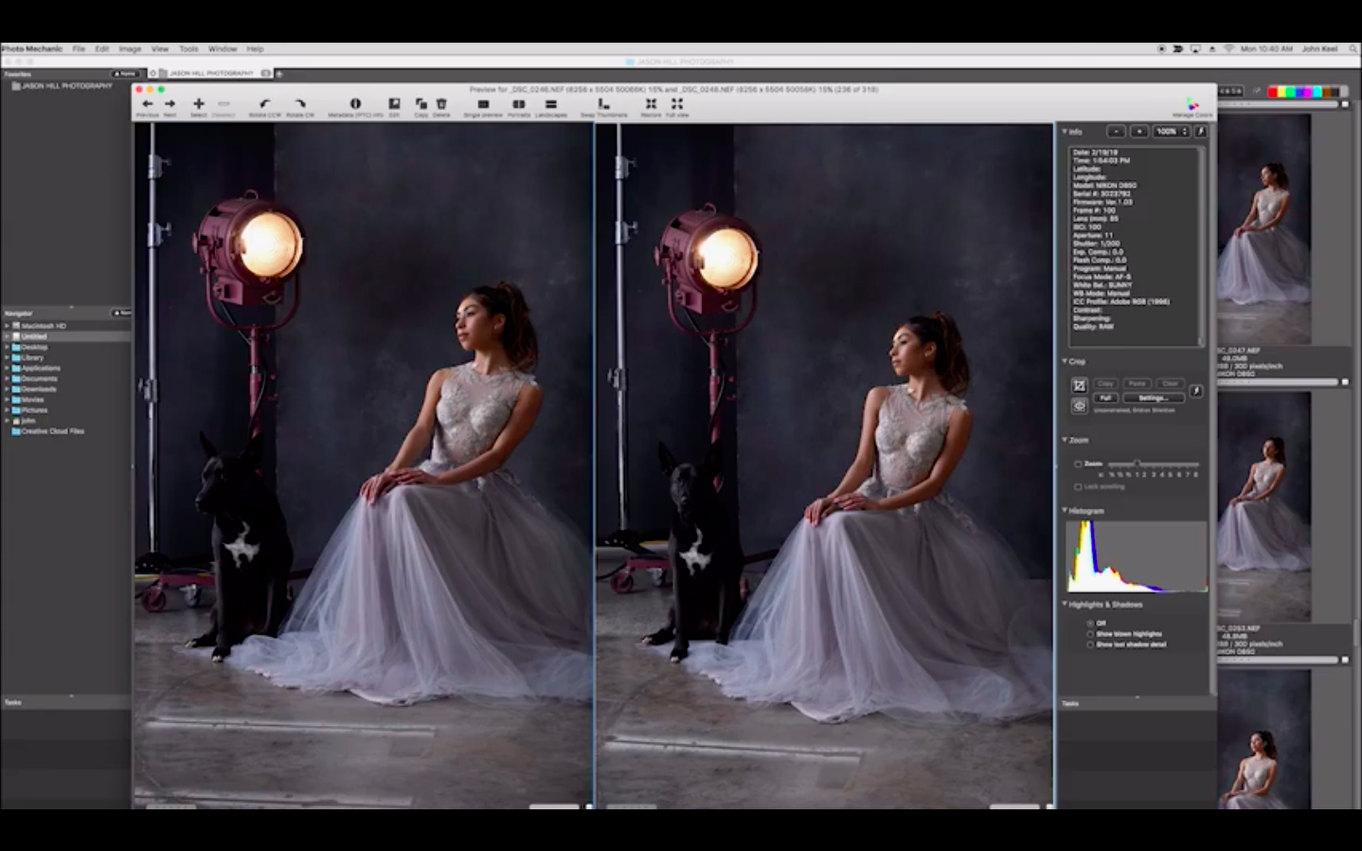
Working photographers and volume shooters reach for it when Lightroom feels too slow. The core promise is speed: flipping through raw files as fast as your fingers can hit the arrow key.
Apple Silicon native — the app runs as a single binary on M-series Macs, no Rosetta 2 translation needed.
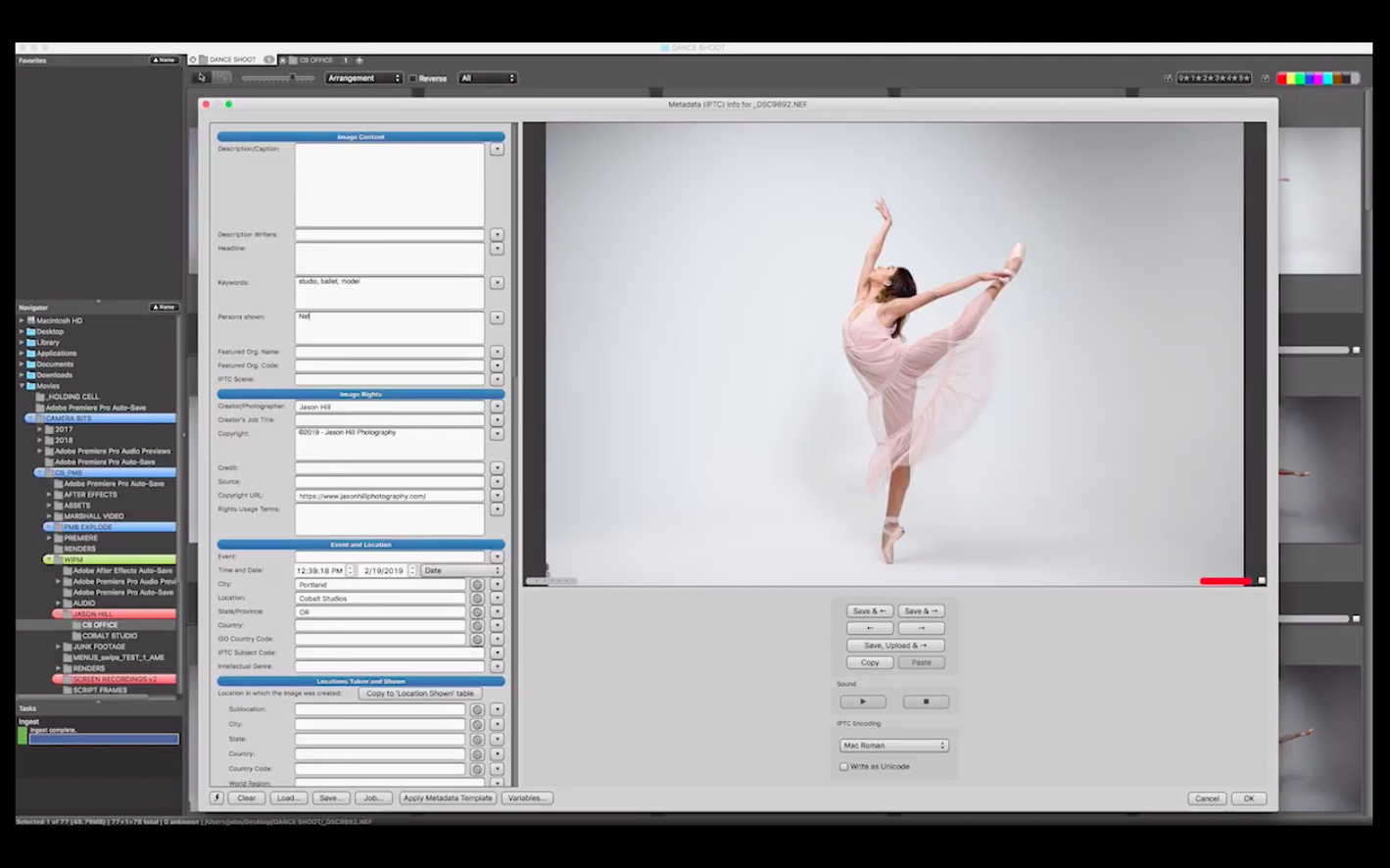
Ingest & organize — copy cards directly to dated folders, rename with variables, apply IPTC templates on the fly. Everything is pre-cached so browsing is instant.
Metadata wrangling — adjust capture times in batches, import GPS logs and stamp coordinates onto files, write keywords and captions that stick. Star ratings, color labels and tags are stored in industry-standard XMP sidecars or embedded where the format allows.
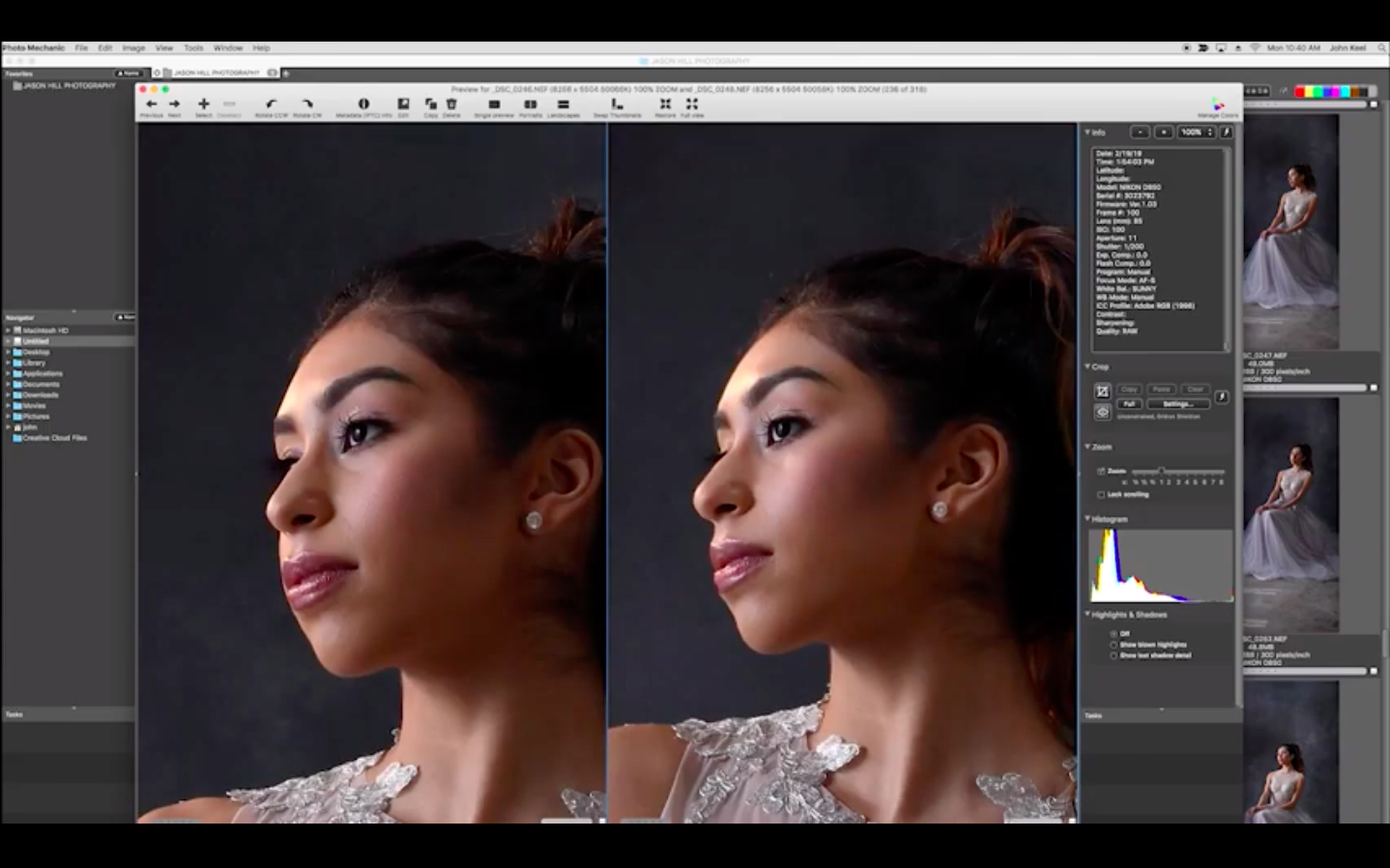
Full-screen review — zoom to 100% with a single click to check critical focus, then mark keepers and rejects before you ever touch a raw processor.
Output hooks — resize and email selects straight from the contact sheet, or send layouts to a printer with custom margins and headers. It doesn't edit pixels; it hands cleanly tagged files to your editor of choice.
The sibling product Photo Mechanic Plus layers a catalog database on top of this same browsing engine for those who need persistent collections.
Is it faster than Bridge for the initial raw cull?
Photographers often size up Photo Mechanic against a handful of other tools. The comparison usually hinges on what kind of work comes before the raw processor.
Adobe Bridge — Bridge is free with a Creative Cloud subscription and handles a broad range of file types beyond stills, including video, Illustrator documents, and InDesign layouts. It previews raw files through Camera Raw, which means you see the same rendering you would get in Lightroom or Photoshop. The trade-off is speed. Bridge builds previews on the fly and can feel sluggish when you browse a card with thousands of raw files. Photo Mechanic renders the embedded JPEG preview inside the raw container, so scrolling is nearly instantaneous. If you need to cull 2,000 frames from a wedding and tag them with client metadata before importing into Lightroom, Photo Mechanic cuts the wait. Bridge is the polyglot; Photo Mechanic is the specialist.
XnView MP — XnView MP reads almost every format ever invented and includes batch conversion, basic editing, and a built-in catalog. It is cross-platform and lightweight. Where Photo Mechanic pulls ahead is the ingest workflow. The variable-based renaming during card copying, the live IPTC template application, and the code replacement features in Photo Mechanic are purpose-built for working press photographers and event shooters. XnView MP does many things competently; Photo Mechanic does a narrower set of things relentlessly fast.
FastRawViewer — If your sole concern is evaluating raw exposure and sharpness before import, FastRawViewer deserves a look. It shows the actual raw histogram, detects blown highlights per channel, and displays raw data without the camera's JPEG tuning baked in. Photo Mechanic works from the embedded preview, which reflects the camera's picture style. That is not worse or better; it is a different philosophy. FastRawViewer is a raw evaluation tool first; Photo Mechanic is an organizing, metadata, and throughput engine. Many shooters use both in sequence.
None of these alternatives match the sheer editing throughput Photo Mechanic offers when you need to tag, caption, rename, and deliver a large shoot before the deadline clock runs out.
Will it let me crop or adjust my raw files?
Does it edit pixels? No. Photo Mechanic does not have adjustment sliders, cropping tools, or cloning brushes. It reads and writes metadata, renames files, and hands them off. Think of it as the triage nurse, not the surgeon.
Where does it store my ratings and keywords? For proprietary raw formats, ratings, color labels, tags, and IPTC metadata are written to XMP sidecar files by default. For DNG, JPEG, and TIFF files, the app writes metadata directly into the file header when the format permits. Either way, Adobe applications and most other raw processors read the same XMP data, so your star ratings appear in Lightroom and Bridge.
Can it import a Lightroom catalog? Photo Mechanic (the base application) does not use a catalog. It browses folders on disk. Photo Mechanic Plus adds catalog capabilities, and it can import metadata from Lightroom catalogs into its own database. The base app simply reads whatever XMP is already sitting next to your files.
Does it handle the raw format from my camera? Camera Bits maintains a regularly updated raw support list that tracks new camera models. The app reads the embedded JPEG preview inside raw files; it does not raw-convert the sensor data. If your camera embeds a full-resolution preview, Photo Mechanic can display it and zoom to 100%. Check the developer's list for the specifics on your body, but the coverage is broad.
Why do wedding photographers rely on a five‑second cull-to‑caption loop?
The people who feel the difference are the ones who shoot volume under time pressure.
Event and wedding photographers come home with cards holding thousands of frames. They need to cull, tag selects, and apply a consistent IPTC template — often before the couple's reception ends if same-day slideshows are part of the contract. Ingest with folder-per-date and a client name variable, color-code the keepers, and export resized JPEGs; the entire chain runs from the contact sheet without ever opening a second application.
Press and agency photographers live inside the IPTC fields. Caption, byline, credit, copyright, location — all filled from a template while the card copies. Code replacement turns shorthand like \wed\ into "Smith-Jones Wedding, June 2025" on the fly, so the caption is ready before the file finishes transferring. FTP upload hooks built into the app mean the desk gets the picture while the assignment is still unfolding.
Studio portrait photographers who shoot tethered or bulk-rename client proofs find the batch renaming engine surprisingly deep. String variables pull from EXIF dates, camera serial numbers, or custom fields, so a folder of proofs emerges with filenames the client can actually read.
Photo enthusiasts with large libraries who do not want a catalog-based workflow also gravitate here. If your archive lives in a well-named folder tree on an external drive, Photo Mechanic browses it directly with no import step. Searching by filename, date, or EXIF field is immediate across any folder you point it at.
Why does the zoom look soft on my raw files?
Zoomed view looks soft. This almost always comes down to the embedded preview size. Some cameras embed a small JPEG preview inside the raw file — often a quarter-resolution thumbnail — to save card space. Photo Mechanic zooms that preview, not the raw sensor data. The fix is to change the camera's embedded-preview setting to full size if the body supports it. For frames already shot, a quick pass through a converter that updates the embedded preview resolves it. Alternatively, switch to the raw processor for critical focus checks and let Photo Mechanic handle the fast culling.
Star ratings disappear in another app. Photo Mechanic writes ratings to XMP according to the IPTC standard. Some applications read legacy EXIF rating fields instead. If ratings go missing, open the Photo Mechanic preferences and under IPTC/XMP check that the "Write IPTC as Unicode" and "Add embedded IPTC" options match what the downstream application expects. Toggling "Synchronize XMP with IPTC" often fixes the handoff.
Contact sheet is blank for a known folder. The quickest check is the file-type filter at the bottom of the window. If it is set to "Photos Only" and the folder contains a raw format that is too new, the files won't appear. Switch the filter to "All Files" and update to the latest build; Camera Bits ships raw-format updates in incremental releases.
Ingest stalls or misses files. A card reader that disconnects briefly during copying can trip the ingest. Unmount the card properly, reseat the reader, and try again. In the Ingest dialog, under "Filter Files," confirm you haven't accidentally restricted the copy to a single file type or date range. The "Copy only new photos" checkbox also skips any file already in the destination folder, which is usually what you want but can look like a missed batch if you forget it is on.
Interface text is tiny on a high-DPI display. Photo Mechanic does not use macOS-native font scaling for every UI element. The toolbar and contact sheet labels have their own size controls in the Appearance preferences. Bump up the contact sheet thumbnail label point size and increase the toolbar icon size there.
How Photo Mechanic fits with other apps and macOS features
The app treats the filesystem as the source of truth. That makes it play naturally with macOS in ways catalog-first applications sometimes don't.
Drag and drop to external editors. You can assign any application as an external editor in the preferences. Right-click a photo on the contact sheet, choose your editor, and Photo Mechanic hands off the file path. When you save from the editor, Photo Mechanic detects the updated timestamp and refreshes the thumbnail. This works with Photoshop, Affinity Photo, Pixelmator Pro, and even command-line tools wrapped in Automator scripts.
Spotlight and Finder tags. Photo Mechanic color labels map to macOS Finder tags if you enable the option. A green-tagged keeper in Photo Mechanic appears with a green dot in Finder and becomes searchable with Spotlight's tag filters. It is a small bridge, but it keeps the organizational system consistent when you browse files outside the app.
Automator and AppleScript. The application exposes a limited AppleScript dictionary, enough to trigger ingest, apply IPTC templates, and export images. Wrap it in a Folder Action and you can set up a watch folder that renames and captions any image dropped into it. It is not deeply scriptable the way Capture One is, but the hooks cover the most repetitive tasks.
Integration with raw processors. A common workflow is culling in Photo Mechanic, then opening the tagged keepers directly in Capture One or Lightroom. In Lightroom, use the "Synchronize Folder" command on the folder Photo Mechanic wrote to; the star ratings and color labels appear. With Capture One, point a session to the same folder, and the metadata reads straight from the XMP sidecars. Photo Mechanic does not talk to Capture One's catalog, but sessions work cleanly.
Shortcuts and Share menu. On macOS 13 and later, you can drop a Shortcut into the export pipeline. After resizing, let a Shortcut apply a watermark overlay or upload to a cloud service. The app does not integrate deeply with the system Share menu, but exported JPEGs land in a destination folder that Shortcuts, Hazel, or a shell script can watch and act on.
- macOS: 13 Ventura or later
- Architecture: Apple Silicon (native)
$ man photo-mechanic | grep -A2 "?"
Can Photo Mechanic edit a photo's date and time?
Yes. You can adjust the capture date and time for individual photos or whole batches through the Adjust Capture Dates and Times dialog.
Does it embed GPS coordinates into photos?
It can import GPS log files and apply coordinates to images that were shot during the same time window, writing the location into the file's EXIF or XMP metadata.
What's the difference between Photo Mechanic and Photo Mechanic Plus?
Photo Mechanic is a fast browser and metadata tool for folder-based workflows, while Photo Mechanic Plus adds a searchable catalog database for managing very large, multi-drive photo archives.
Comments 0
Sign in or create an account to leave a comment.
No comments yet. A codec, a slice, a machine — they appear after moderation.