PhotoScape X Pro for macOS
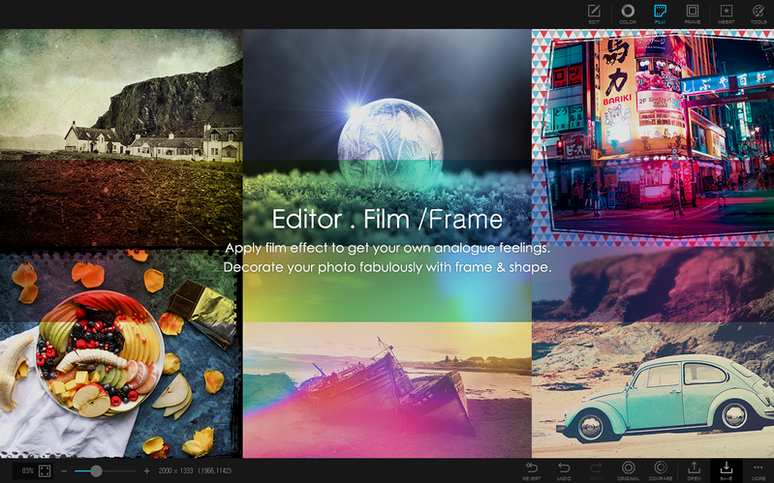
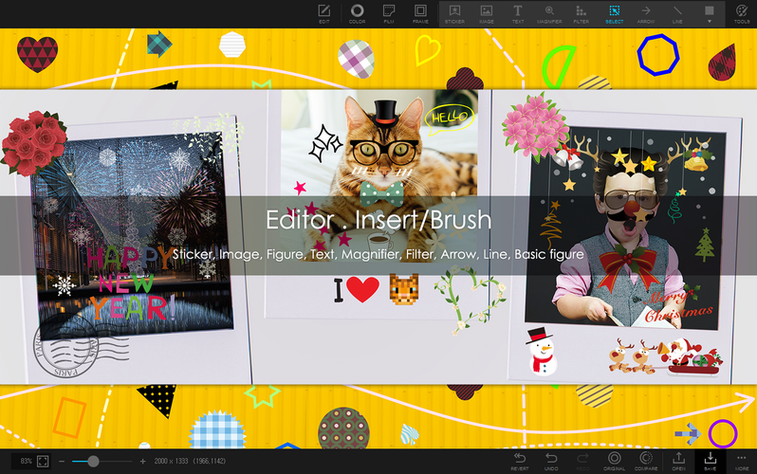
You just dragged a folder of vacation shots into PhotoScape X Pro. The browser fills with thumbnails, and the loupe view lets you check focus with a single click. Before you get lost in the 1000+ filters, the app has a handful of tools that feel immediately useful — the kind you reach for on day one.
Start with these five moves
- Combine two photos into one. Select a pair of landscape shots and stitch them horizontally. No canvas math required — the app calculates dimensions and places them side by side in a single
.jpg. - Pull a clean silhouette with the Magic Eraser. Click once on a background and watch it drop away. For trickier edges, switch to the brush or lasso. The result saves with transparency intact.
- Build a quick collage. Pick a grid template, drop in four or five photos, and adjust spacing. The collage tool handles alignment while you tweak the layout.
- Animate a short GIF. Select a burst of frames, set the delay, and export. Useful for turning a sequence of stills into a looping demo or reaction clip.
- Batch convert a folder. Point the batch tool at a directory of
.pngfiles, choose JPEG at 85% quality, and let it run. You can also batch resize and rename in the same pass.
Where the deeper tools live
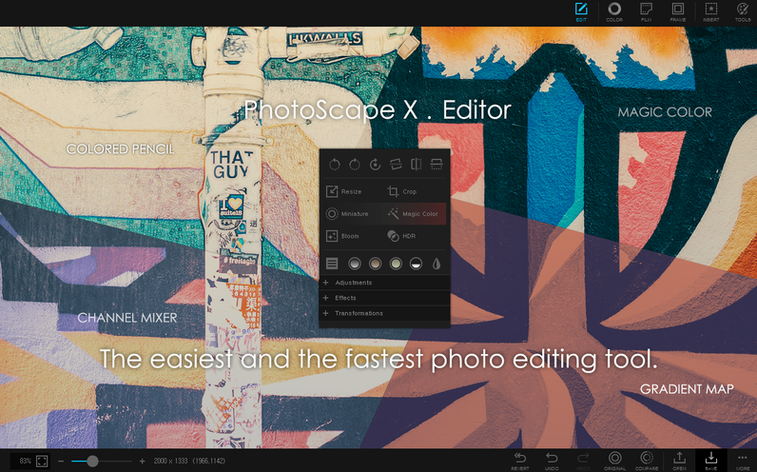
Once you have those basics under your fingers, the editor opens up. Focus stacking and HDR merging sit alongside the filter library. Frames, objects, and brushes layer on top of your image without flattening until you export. The whole app runs natively on Apple Silicon, so processing a batch of RAWs or rendering a multi-layer collage stays responsive. The browser also handles video and audio files — flagging, rating, and lossless rotation all work directly in the loupe view before you ever open the editor.
How do you cull a messy folder fast?
Day one, point the browser at your messiest folder — the one with duplicate frames, blurry test shots, and files named IMG_4723.CR2. Tap the spacebar for fullscreen loupe view and move through every shot with the arrow keys, flagging keepers as you go. On day two, select all the flagged files and open the batch tool. Resize the long edge to 2400 pixels, rename to project-raw- plus a three-digit sequence, and convert to JPEG. You now have a clean working set. Day three, pull three of those into the collage tool, drop a frame around the result, and add one of the 240+ shapes as a subtle watermark before exporting. You have gone from chaos to a finished composition without leaving the app.
Why launch it from Apple Photos or Lightroom?
PhotoScape X Pro does not try to replace your library manager, and that is actually a strength. Keep Apple Photos or Lightroom as your catalog, then right-click any image and choose Open With > PhotoScape X Pro for fast edits the host app cannot do. The batch tool is especially useful here: export a set of TIFFs from your raw developer, run them through the resizer and renamer, then pull the output into a presentation or upload queue. The color picker copies hex and RGB values straight to the pasteboard, so dropping a sampled color into a web stylesheet or design mockup takes two clicks. For screen captures, the built‑in tool saves directly to a folder you specify — fewer trips through Shift-Command-4 when you are documenting a UI bug or grabbing reference frames for a GIF.
Workflow: turn a product shoot into web-ready images
Imagine you shot a dozen frames of a ceramic mug on a white background. The lighting shifted slightly between frames, and the tripod was not locked down perfectly. Here is how to get from raw files to a clean product page in one sitting.
- Open the shoot folder in the browser. Flag the sharpest frame of each angle using the loupe to check focus at 100%.
- Select all flagged files and open the HDR merge tool on any bracket sets you shot. The app aligns and blends them without sending you to an external editor.
- Open the merged result in the editor. Grab the Magic Eraser and click the off-white background. For shadow areas near the mug base, switch to the brush tool with a small radius and paint out the remaining pixels.
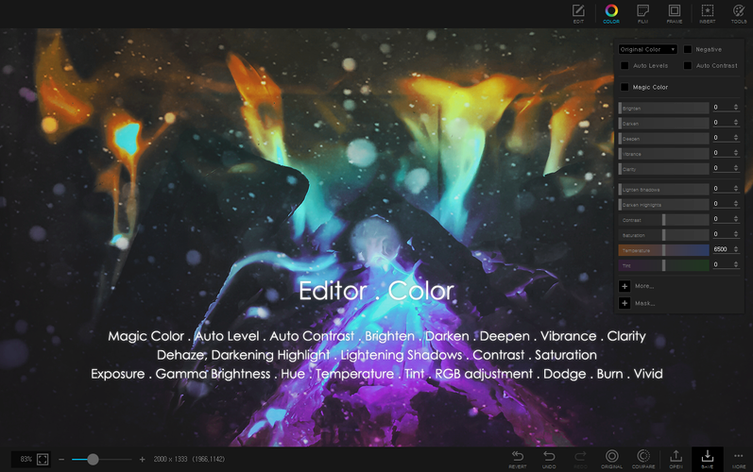
- Apply a subtle brightness curve and one of the sharpening filters from the 1000+ library. Add a thin frame — one of the 290+ included — to give each image a consistent border.
- When all angles are edited, feed them into the batch tool. Convert to JPEG at 90% quality, resize to 800 pixels wide, and rename with the pattern
mug-white-plus a sequential number. - Use the Combine tool to stitch a front and side view vertically into a single comparison image for the product listing.
- If the listing needs a looping detail shot, select a sequence of close-up frames and build an animated GIF with a 0.3-second delay.
Every step — from culling and HDR merge to background removal, batch export, and GIF creation — happens inside PhotoScape X Pro. The native Apple Silicon build keeps the round‑trip fast, even with full‑resolution merges. And when someone asks for a Photoshop file, you already have clean, transparent PNGs with consistent naming ready to hand off.
- Build 4.3 ships as a fix release.
- macOS 13 Ventura or later
- Apple Silicon Mac
Comments 0
Sign in or create an account to leave a comment.
No comments yet. A codec, a slice, a machine — they appear after moderation.