Pixea Plus for macOS
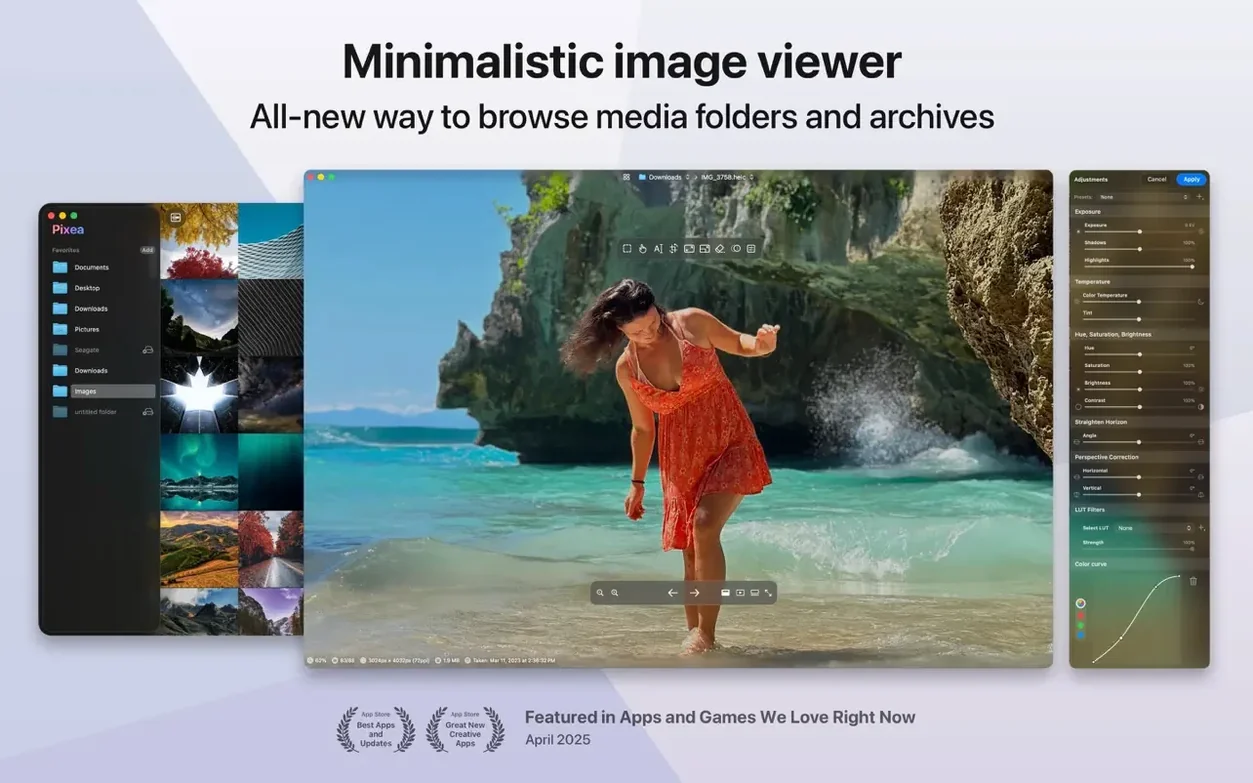
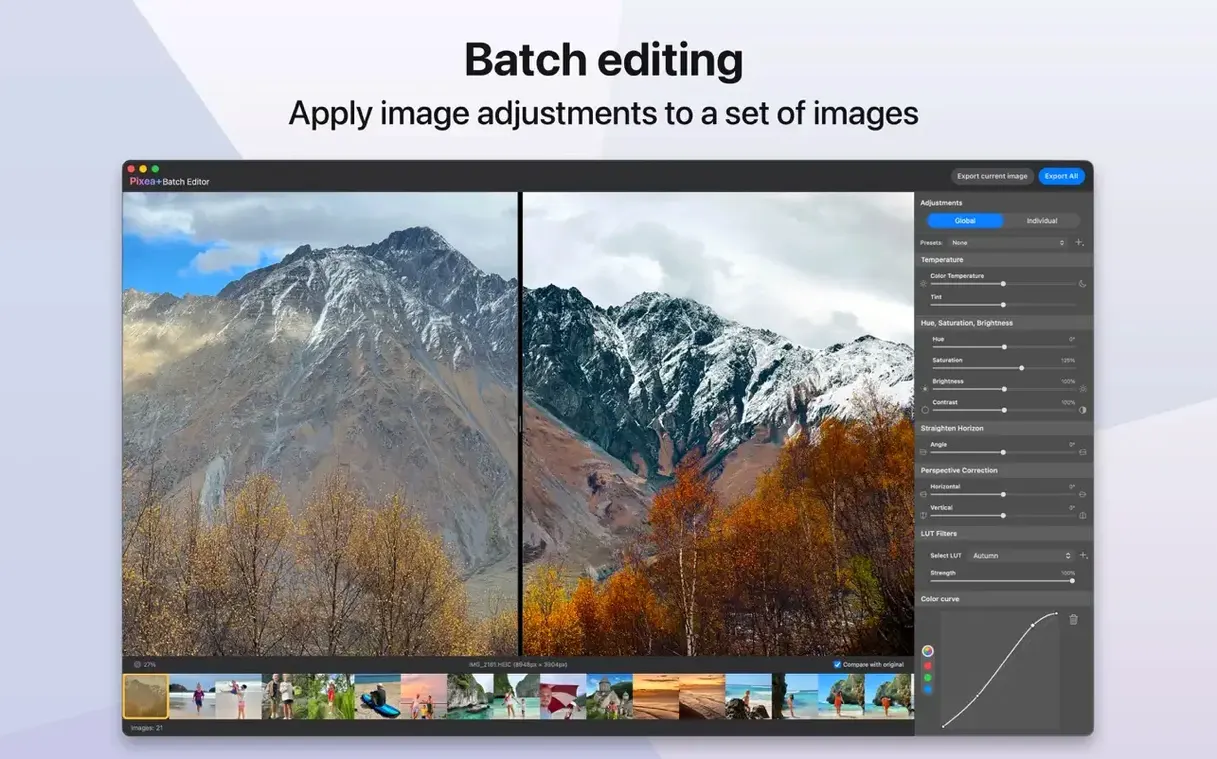
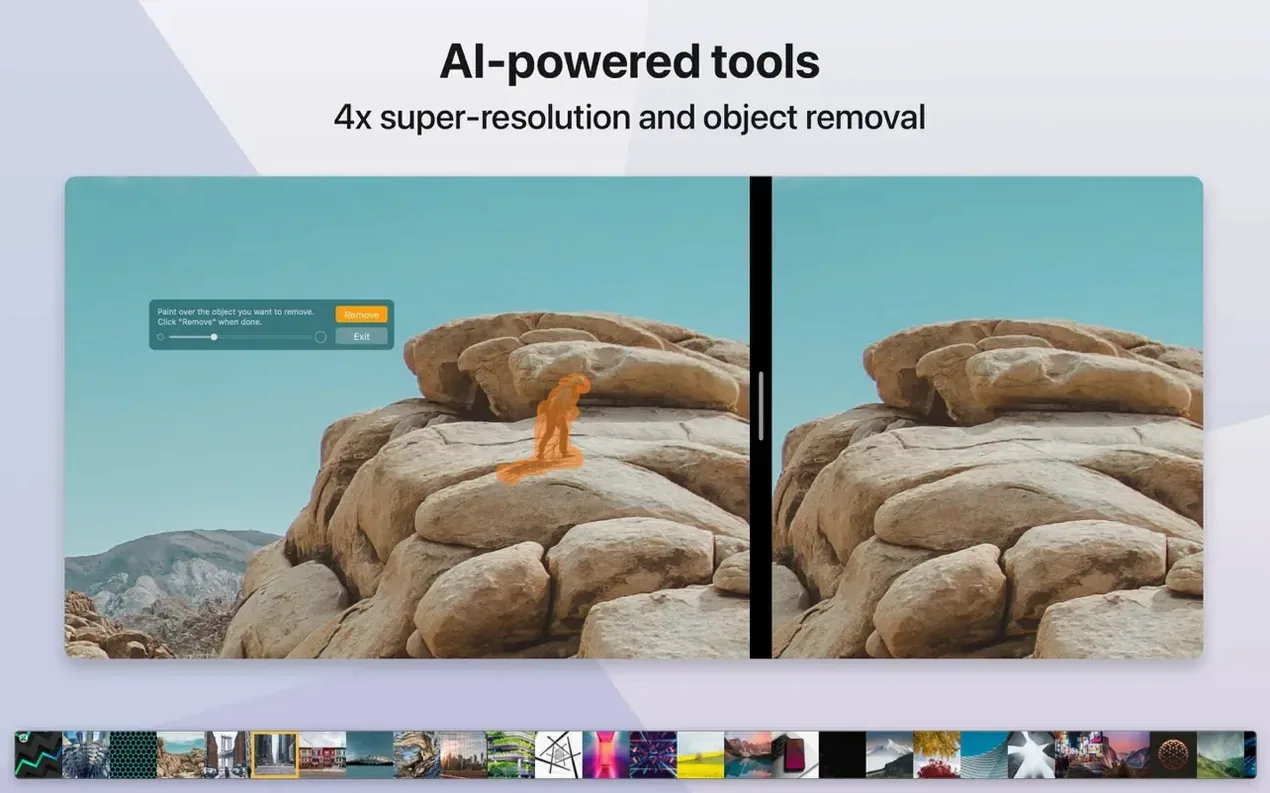
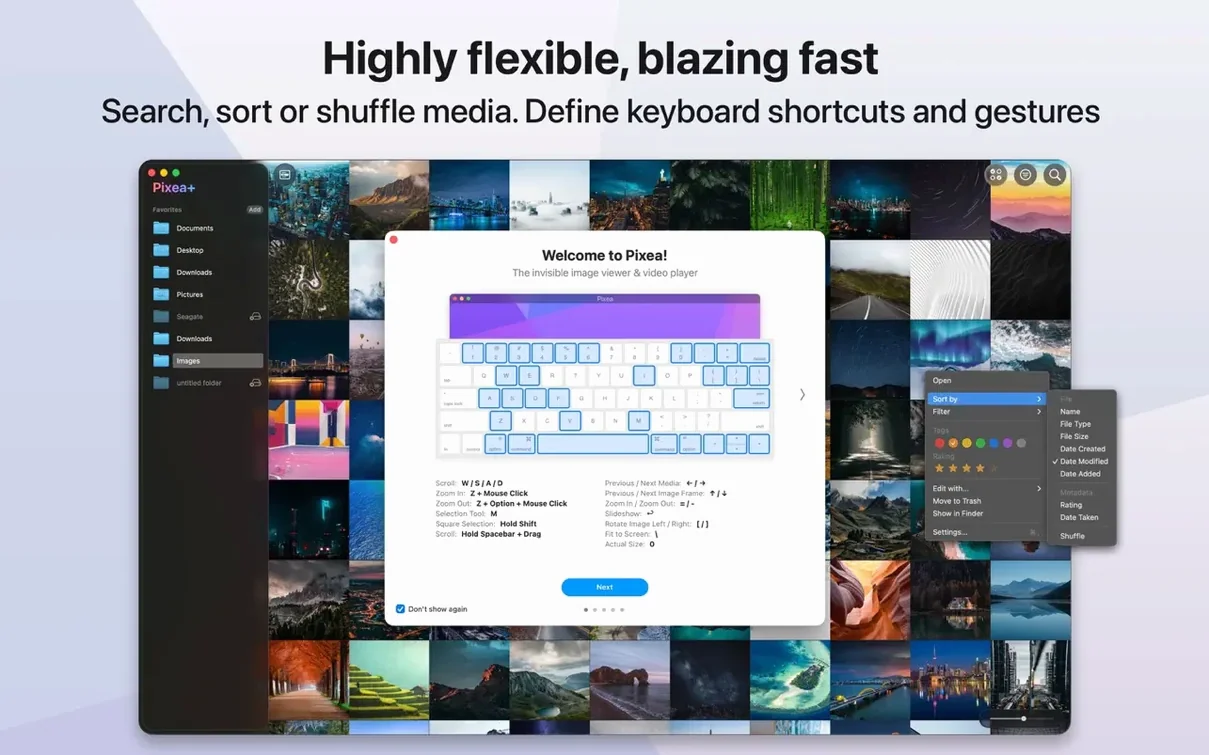
Pixea Plus suits anyone who needs to look at an image and make a quick correction without launching a lumbering photo library app. It prioritizes the file you have right in front of you over cataloging everything on your drive, which makes it feel fast and uncluttered on macOS 11 and later.
The interface stays out of the way. You get a dark, minimal frame around your image and a small set of controls for essential operations—flip, rotate, and the newly added masking tools. Navigation relies on keyboard shortcuts and responsive trackpad gestures, so moving between images in a folder becomes a quick flick rather than a menu hunt.
One detail that sets it apart is how it handles archives. You can open a .zip file directly and browse the images inside without extracting anything to disk. For anyone sorting through downloaded asset packs or client deliveries, that skips a whole step.
The editor keeps things practical. Version 8.3.0 introduced an undo/redo stack, so you can step back through crops and adjustments without fear of losing the original. It also added a native Pixea Image format, which suggests the developer is thinking about project portability, though the real draw remains how cleanly it handles your existing JPEGs and PNGs.
How does a designer actually use it during a handoff?
Picture a freelance web designer at 11 p.m., receiving a final asset pack from a client. The deliverables.zip lands with 180 images mixed across JPEG, PNG, and a few stray PSD mockups. Dragging that archive straight into Pixea Plus means no double-clicking into folders and no piling up extracted junk on the desktop. They flip through the JPEGs with the right arrow key, check a PSD layout without Photoshop, and spot a logo file that needs a quick horizontal flip before sending it to the developer. Two keystrokes later it is done. The whole triage takes under four minutes, and the archive stays untouched on disk.
Why does staring at a blank window happen?
The most common slip is treating Pixea Plus like a file organizer. It is not a library app, and it does not scan your drive to build a catalog. New users sometimes open the app, stare at a blank window, and assume something is broken because no photos appear. You need to drag an image, a folder, or a .zip onto the window—or use File → Open. The app works file-first, not library-first.
Another beginner stumble is forgetting that masks sit on top of the image but do not bake in until you export. Somebody might create an exposure mask, close the file, reopen the JPEG, and wonder where the adjustment went. Saving to the Pixea Image format preserves that layer. If you only save back to JPEG, the mask is discarded.
The third mistake is ignoring the undo stack. Version 8.3 brought proper undo and redo, and it is the safety net that lets you experiment with the new masking tools without duplicating files. Beginners coming from simpler viewers often do not reach for ⌘Z here, but it works across flips, rotations, and mask adjustments.
Zoom behavior, background shade, or info overlay?
Open the preferences pane right after your first launch. Three things matter immediately:
- Default zoom behavior. Decide whether you want images to fit the window or display at actual size on open. Pixel-pushers checking sharpness will want actual size; everyone else tends to prefer fit-to-window.
- Background brightness. The dark interface is comfortable for long sessions, but you can lighten the matte behind images if you are comparing against a white web page. Look for the background slider.
- Trackpad sensitivity for swipe gestures. The default works well, but if you find yourself overshooting images inside a packed folder, reducing the scroll speed prevents that skipping-two-files-ahead frustration.
None of these are buried. The prefs window is small and the options are genuinely minimal, so you can dial things in inside a minute.
What common snags do people hit and how do you sort them out?
Snag: a RAW file looks flat or too dark. Pixea Plus reads RAW files from Leica, Sony, Olympus, Minolta, Nikon, Fuji, Canon, and Hasselblad cameras, but the initial render uses a neutral baseline. There is no automatic profile application the way Lightroom does it. The fix is to adjust exposure and contrast with the basic sliders or drop a broad exposure mask on the image, then save to the Pixea Image format to keep the edit non-destructive.
Snag: HEIC files from an iPhone do not open. This usually happens on a Mac that has not been restarted in a while after a system update. HEIC support relies on macOS codecs, and occasionally a pending update leaves the codec unregistered. A reboot clears it. If the problem persists, drag the HEIC into a test folder and open it from there rather than from an iCloud-synced location—sometimes the syncing daemon locks the file.
Snag: keyboard shortcuts stop responding after switching from another app. A known quirk on some Apple Silicon Macs. Click anywhere on the Pixea Plus window to return focus, then shortcuts resume immediately. This is not a crash, just a focus-stealing behavior that the developer has acknowledged.
Snag: a .zip archive shows only some images. Pixea Plus reads the archive index sequentially. If the ZIP was created with a non-standard compression method or contains nested archives, it may skip those entries. The workaround is to extract the stubborn archive with the built-in Archive Utility once, then open the resulting folder in Pixea Plus. For standard deflate-compressed zips, it handles every image format it normally supports.
Version 8.4.0 [MAS] brings a fresh batch of image adjustment tools and a handful of practical refinements. The big addition is a Reshape tool for local geometry tweaks — useful for subtle perspective nudges without a full crop. There's also a new spatial dehaze adjustment (depth-based adjustments and standard dehaze), plus a Clarity slider. Brilliance got a tune-up, and the printing dialog now handles auto-rotate, scaling, and images-per-sheet options directly. The Copy to Clipboard command gains an extra mode: you can choose between maximizing compatibility or preserving HDR statistics and headroom. A scattering of UI/UX polish and bug fixes rounds out the release.
- macOS 11 or later
- Apple Silicon and Intel 64-bit (universal binary)
$ man pixea-plus | grep -A2 "?"
Can Pixea Plus view images inside ZIP files?
Yes, it opens ZIP archives directly and lets you browse the contained images without extracting the archive to your drive first.
Comments 0
Sign in or create an account to leave a comment.
No comments yet. A codec, a slice, a machine — they appear after moderation.