PlistEdit Pro for macOS
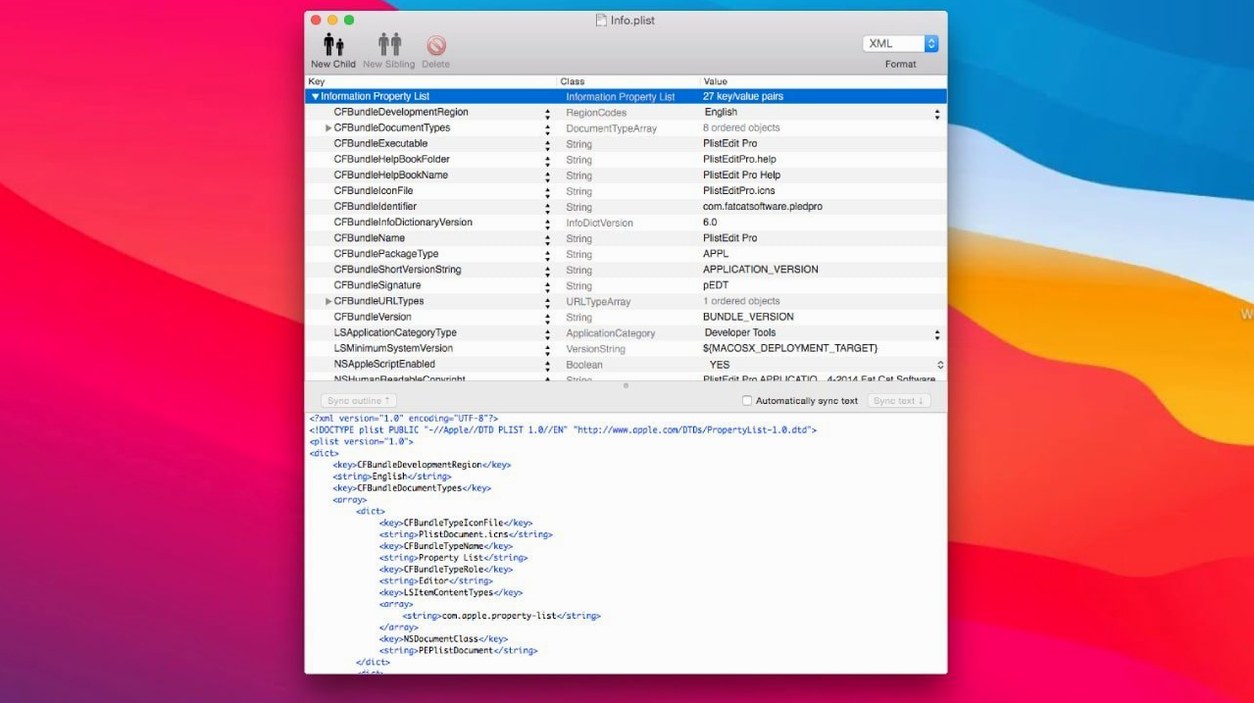
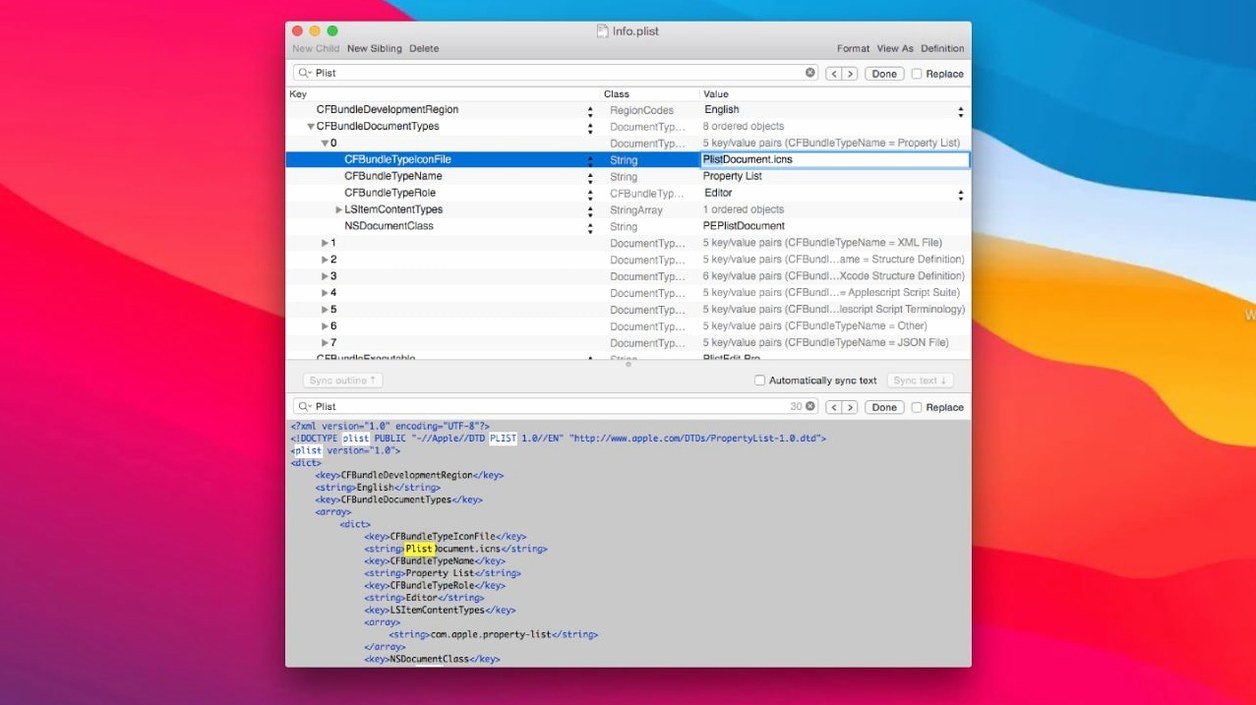
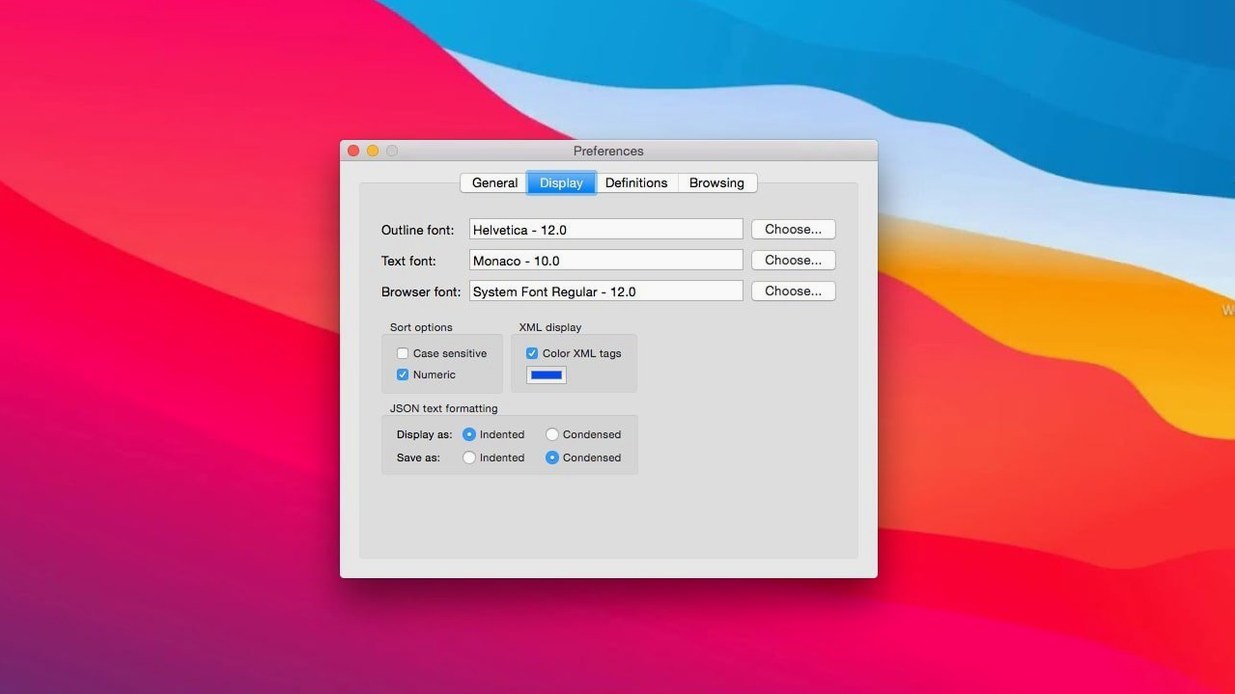
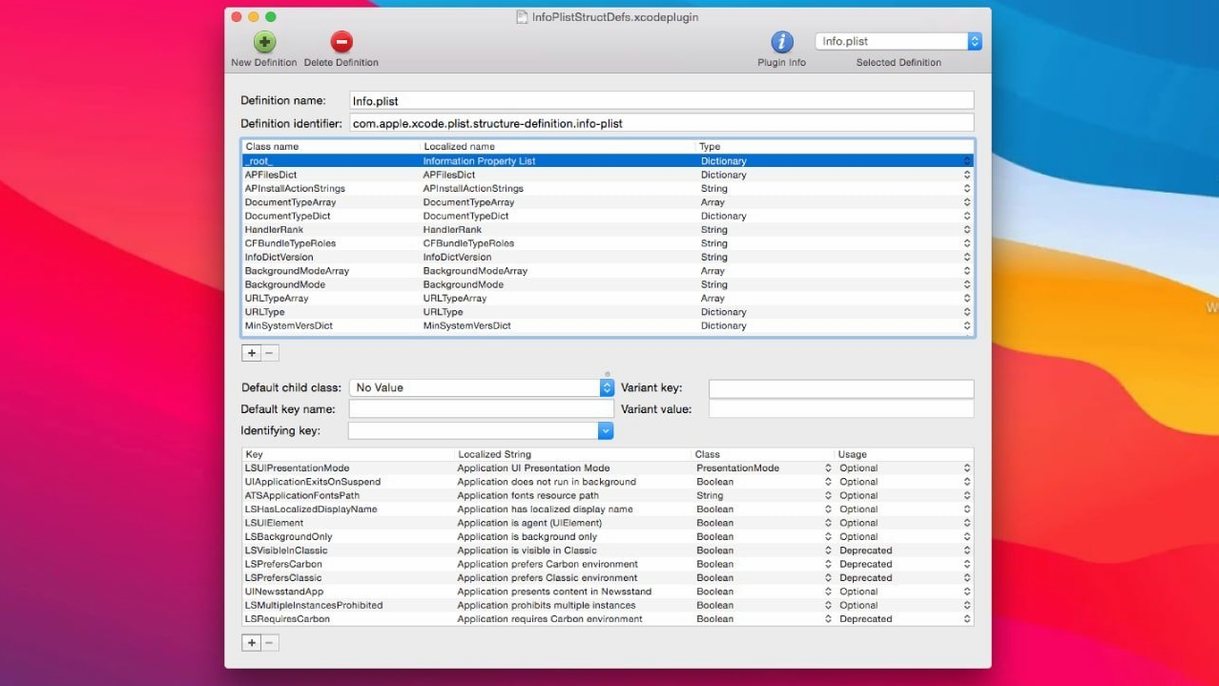
PlistEdit Pro runs on any Mac with macOS 14 (Sonoma) or newer, as a universal binary that loads natively on both Intel and Apple Silicon machines. It opens .plist and .json files in a structured editor built for people who read and write these formats every day — Mac and iOS developers, mostly, but also anyone who needs to inspect a preference file without guessing at the syntax.
What the current version, 1.10.0, brings while keeping the tool's familiar shape:
- The interface elements were updated for macOS Tahoe, so buttons, tables, and inspectors match the system look.
- Preferences browser checkboxes moved into a tidy toolbar menu instead of sitting in a separate sheet.
- The “Ask to revert when file changes on disk” option now lives in a small popover, clearing a little clutter from the preferences window.
- Full-text search still works across an entire folder of plist files — point it at a directory and it digs through every file for a key or value.
- Copy and paste for property list data handles whole subtrees, not just single values, preserving the node structure.
- Multi-level undo, find and replace, font customization, and structure definitions for standard plist files all remain unchanged from earlier releases.
The editor hasn't changed its core behavior. It still loads a dedicated preferences browser for macOS preference plists, still supports JSON side-by-side with Apple's property list format, and still lets you tweak the display font to something comfortable for long sessions. The Tahoe-era fit and finish updates mainly touch the chrome around the editing area.
Toggling form visibility from the toolbar menu
Version 1.10.0 doesn't rewrite the editor's behavior, but the interface adjustments do change how a few everyday actions feel. The toolbar menu that now holds the preferences browser checkboxes means you toggle visibility options without opening an extra panel — less window management when you're hopping between a plist you're editing and the system preferences you're referencing. The popover for the file-revert option is similarly about reducing friction: instead of digging into a preferences tab, you set the behavior right where the notification appears.
Practically, these are small quality-of-life moves. If you keep the preferences browser open while adjusting a daemon's plist, the toolbar menu saves a click or two. If you work with files that get touched by other processes (launchd job definitions, for instance), the popover puts the revert decision closer to the interruption. Nothing about the parsing engine, the outline view, or the search behavior shifted — the update was about trimming interface weight, not rethinking the tool.
Opening SIP-protected system plists read-only
One recurring headache with any plist editor is the file permissions dance. System plists inside /System/Library are protected by SIP, and PlistEdit Pro can't override that — it'll open them read-only if it can open them at all. The fix is straightforward: copy the file to a writable location, edit it there, then move it back with sudo in Terminal. User-level plists under ~/Library/Preferences don't have this problem.
Another common snag involves the plain text view and the outline view getting out of sync after an external change. If you've got a plist open and another tool writes to the same file, the "Ask to revert" popover mentioned in the 1.10.0 notes is your friend — but it only appears if you've left that option enabled. If you dismissed it and the outline looks stale, closing and reopening the file forces a fresh parse.
JSON editing can trip up users who expect plist-like behavior. The structure definitions that help with standard Apple plists don't apply to JSON, so the outline won't label known keys the way it does for an Info.plist. You still get full outline navigation and drag-and-drop reordering, but the semantic hints are absent. If you're mixing formats in a project, keep mental track of which pane you're in — the editor handles both, but it doesn't pretend JSON is a property list.
Seeing the tree with folder-wide search and AppleScript
PlistEdit Pro slots into a developer workflow at the point where you need to see the tree, not just the text. Xcode's own plist editor is fine for Info.plist tweaks, but it doesn't give you folder-wide search or AppleScript automation. That's where the pledit command-line tool earns its keep — shell scripts can call it to modify plists programmatically, which pairs well with build scripts that stamp version numbers or toggle feature flags before packaging.
AppleScript support hooks into the broader macOS automation layer. You can drive PlistEdit Pro from Automator, from a Shortcut (via the "Run AppleScript" action), or from your own scripts that need to read or write preference values in bulk. For example, a script that resets a suite of app preferences during testing can iterate through a list of plist paths and write known-good defaults without opening the GUI at all.
Finder integration is minimal but useful: the app registers as a handler for .plist files, so double-clicking one opens it in the outline view directly. If you also work with property lists on remote Macs, the standard macOS file dialogs play fine with mounted network volumes — PlistEdit Pro doesn't care whether the file lives locally or on an AFP share, as long as the filesystem permissions allow writes. The pledit tool works over SSH sessions too, so editing a remote plist via the command line is just a matter of connecting and running the utility.
- Requires macOS 14 or later.
- Updated user interface elements for macOS Tahoe.
- Preferences browser options checkboxes consolidated into a toolbar menu.
- “Ask to revert when file changes on disk” option moved to a small popover.
- macOS 14 or later
- Intel or Apple Silicon Mac
Comments 0
Sign in or create an account to leave a comment.
No comments yet. A codec, a slice, a machine — they appear after moderation.