PowerPhotos for macOS
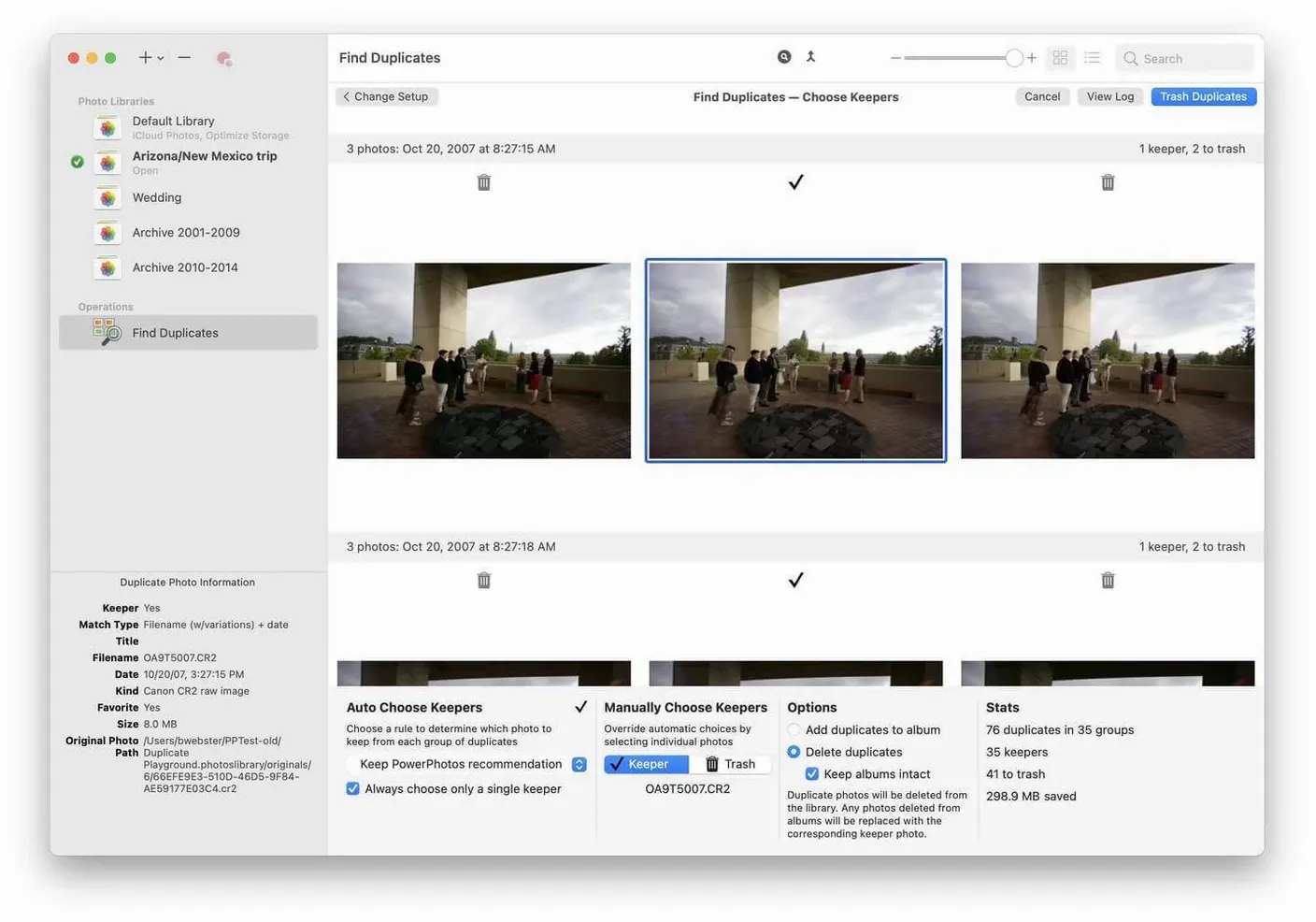
Version 3.4.8 keeps this release quiet on headline features, but the underlying workflow is the same one that appeals after a library crosses 50,000 images: split things up, clean things out, and stop treating one .photoslibrary file as a permanent monolith.
Split a large library into smaller ones
Copy photos or entire albums into a new library, then delete the originals from the old one. This is also where iCloud storage pressure drops, since smaller libraries are easier to decide what to keep out of the cloud.
Compare duplicate photos properly
PowerPhotos places suspected duplicates side by side, not just as matching metadata rows. You review the actual images and remove the extra copies you know you don't need.
Browse without opening every library
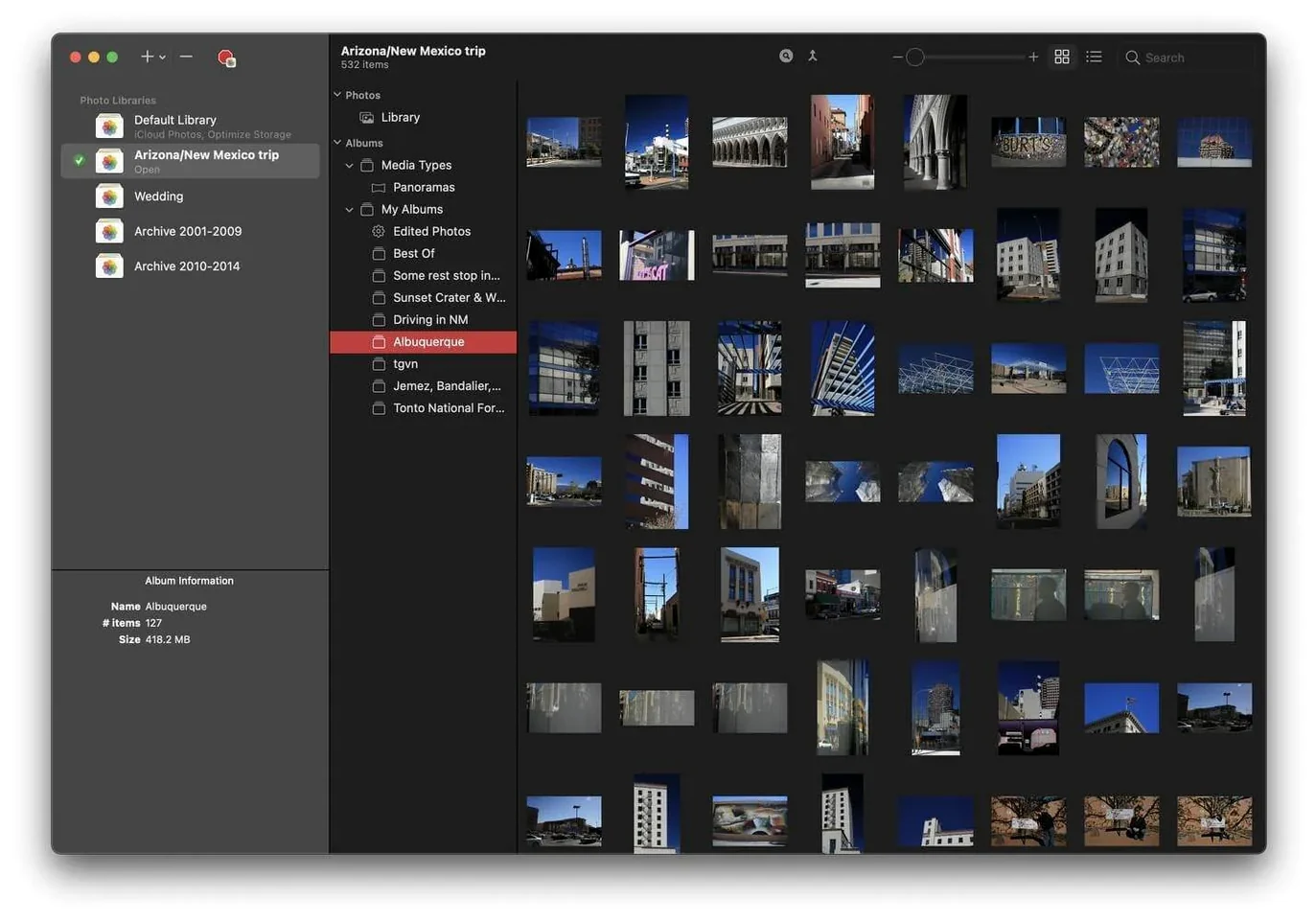
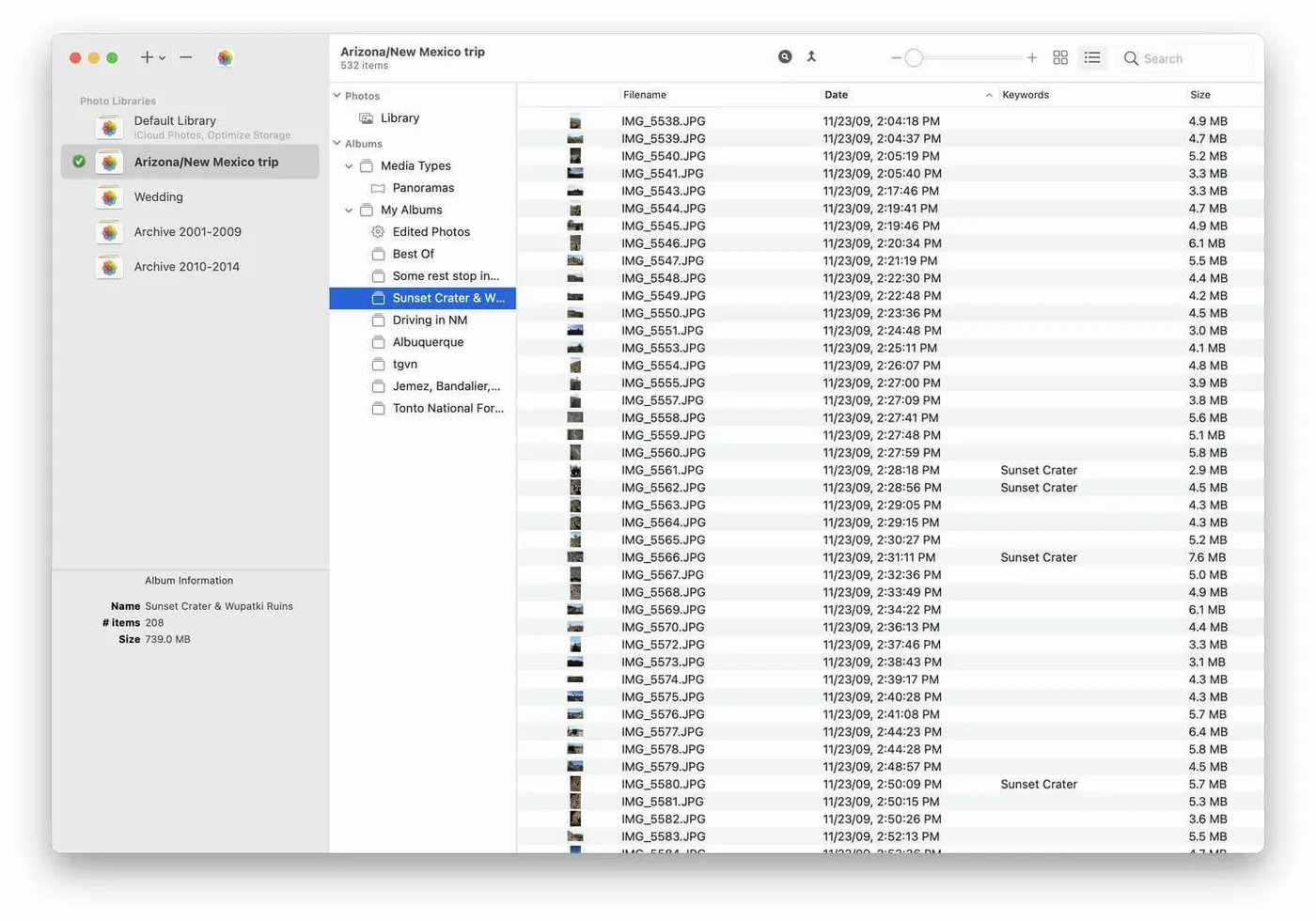
The app shows the contents of a library without launching Photos in a separate window each time. Switching between libraries is a menu action, not a quit-and-reopen routine.
How does PowerPhotos compare with similar apps?
Three tools keep coming up in the same conversation: Photos Duplicate Annihilator, Duplicate Photos Fixer Pro, and Gemini 2. They all find duplicates. The difference is what they consider a duplicate and what else they can do once they find them.
Photos Duplicate Annihilator works exclusively inside the Photos app. It scans a single library at a time and uses the Photos editing API to flag duplicates, which means it respects the "Recently Deleted" safety net. The trade-off: it cannot touch anything outside the library it is pointed at, and it offers zero library-management tools. If you have six libraries scattered across external drives, it will not help you consolidate or compare them.
Duplicate Photos Fixer Pro scans folders and Photos libraries but leans heavily on filename and EXIF matching. Its side-by-side view is functional, yet the algorithm can miss visually identical images that differ in metadata—think of a RAW file exported as JPEG and re-imported. For a single library cleanup, it does the job. For the multi-library workflow that PowerPhotos is built around, it is the wrong tool.
Gemini 2 (MacPaw) takes the broadest approach: it scans any folder, including .photoslibrary packages, and uses a perceptual hash that catches resized and slightly edited versions. It is fast and the interface is polished. The catch is that Gemini treats a Photos library as a folder of images—it does not integrate with the library structure. Delete a duplicate directly from inside a .photoslibrary package and you risk database corruption the next time Photos opens. PowerPhotos works through the library's own file management, so deletions stay safe.
None of the three can split a library, merge libraries, or search across five libraries at once. If duplicates are the only problem, Gemini 2 is the slickest single-purpose tool. If you need to restructure how you store photos across libraries, the field narrows to one.
Which slider controls how aggressively it finds similar-looking duplicates?
The defaults are sensible, but a few tweaks make daily use sharper. Open Preferences (⌘,) and look at these first:
- Duplicate comparison threshold. The slider under the Duplicates tab controls how aggressively the engine groups similar images. The default sits in the middle. Slide it one notch toward "more strict" if you regularly shoot bursts or keep RAWs alongside JPEGs—fewer false positives, less time reviewing pairs that are genuinely different frames a fraction of a second apart.
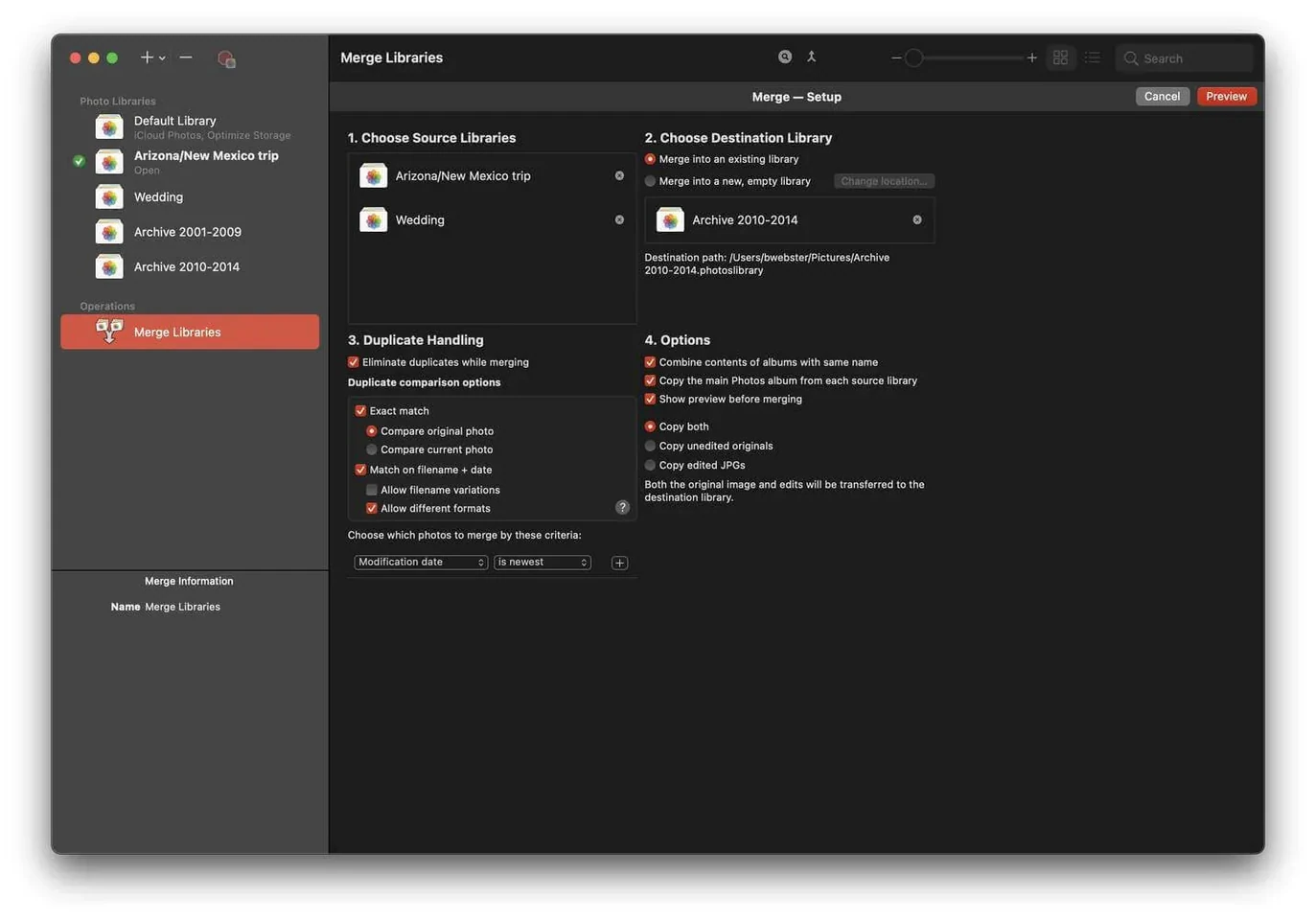
- "Keep one copy" behavior. When you batch-delete duplicates, the app chooses which copy to keep based on a rule you set: newest, oldest, largest file, or the one in a specific library. Set this before your first large cleanup. Changing it later after deleting 800 duplicates with the wrong rule is not something you want to undo.
- Library list sorting. By default, libraries appear in the order you added them. Switch it to "by modification date" in the View menu if you work with a rotating set of active and archived libraries—the one you last touched floats to the top instead of being buried fifth in a list of eight.
- External drive handling. In the General tab, enable "warn when library is on an unmounted volume." The prompt is mildly annoying until the day an ejected drive saves you from browsing a library the app cannot fully read, which would otherwise produce silent empty-album gaps you might not notice for weeks.
Can you browse another library while a duplicate scan runs?
On an Apple Silicon Mac, PowerPhotos launches in under two seconds with four libraries registered. The UI thread never blocks during a duplicate scan—you can keep browsing another library while the comparison engine churns. RAM use hovers around 300–400 MB during light browsing and climbs to roughly 1.2 GB during a full duplicate analysis of a 60,000-photo library. That is modest for the task, and the memory gets released within seconds of the scan completing.
CPU load during a duplicate scan is a deliberate spike: the app saturates all efficiency cores while leaving performance cores mostly free for other work. On an M1 Pro, a 40,000-image library finishes a full byte-level comparison in about four minutes. The same library on an Intel i5 iMac from 2019 takes closer to eleven minutes, and the fans become audible. The Apple Silicon native build matters here—there is no Rosetta translation overhead to flatten the difference.
Stability across version 3.4.x has been uneventful in the best way. No crashes during library merges, no hung scans that required a force-quit. The one quirk worth knowing: closing the main window while a duplicate scan runs does not cancel the scan—it keeps going in the background. The dock icon shows no progress indicator, so you might wonder why the CPU is warm. Check the Window menu for the scan progress panel if you lose track of it.
What made scans finish before a coffee gets cold?
Version 3.4 brought full Apple Silicon support, and that alone reshaped the experience for anyone who upgraded from an Intel Mac at the same time. Scans that previously required a coffee break now finish before the coffee is cool. The rest of the 3.4.x cycle has been refinement rather than feature drops, but a few changes affect everyday workflows:
- Memory handling during large library merges improved noticeably around 3.4.5. Earlier builds could push swap usage past 8 GB when merging libraries with tens of thousands of items; current behavior keeps the merge in physical RAM unless the library is genuinely enormous.
- Duplicate detection got a quiet accuracy bump in 3.4.6 that reduced false positives on photos with embedded GPS tracks but no visual similarity—think black frames with different geotags that earlier versions flagged as potential matches.
- macOS 14 compatibility fixes landed across 3.4.7 and 3.4.8, addressing a permissions prompt that appeared twice when accessing libraries on external APFS volumes and a redraw glitch in the duplicate side-by-side view on certain display scaling settings.
None of these are splashy release-note items, but together they make the 3.4.8 build feel like the version that finally stopped reminding you it was there. The app steps back and lets you work with your libraries, which is exactly what a utility in this category should do.
- macOS 14 or later
- Runs natively on Apple silicon and Intel Macs
- Interface language: English
$ man powerphotos | grep -A2 "?"
Is PowerPhotos the same as iPhoto Library Manager?
No. PowerPhotos is a separate product from Fat Cat Software, built specifically for the modern Photos app library format.
Can PowerPhotos help with iCloud storage?
Yes. By separating photos into multiple smaller libraries, you can keep only the ones you want synced to iCloud and reduce what gets uploaded.
Comments 0
Sign in or create an account to leave a comment.
No comments yet. A codec, a slice, a machine — they appear after moderation.