Principle for macOS
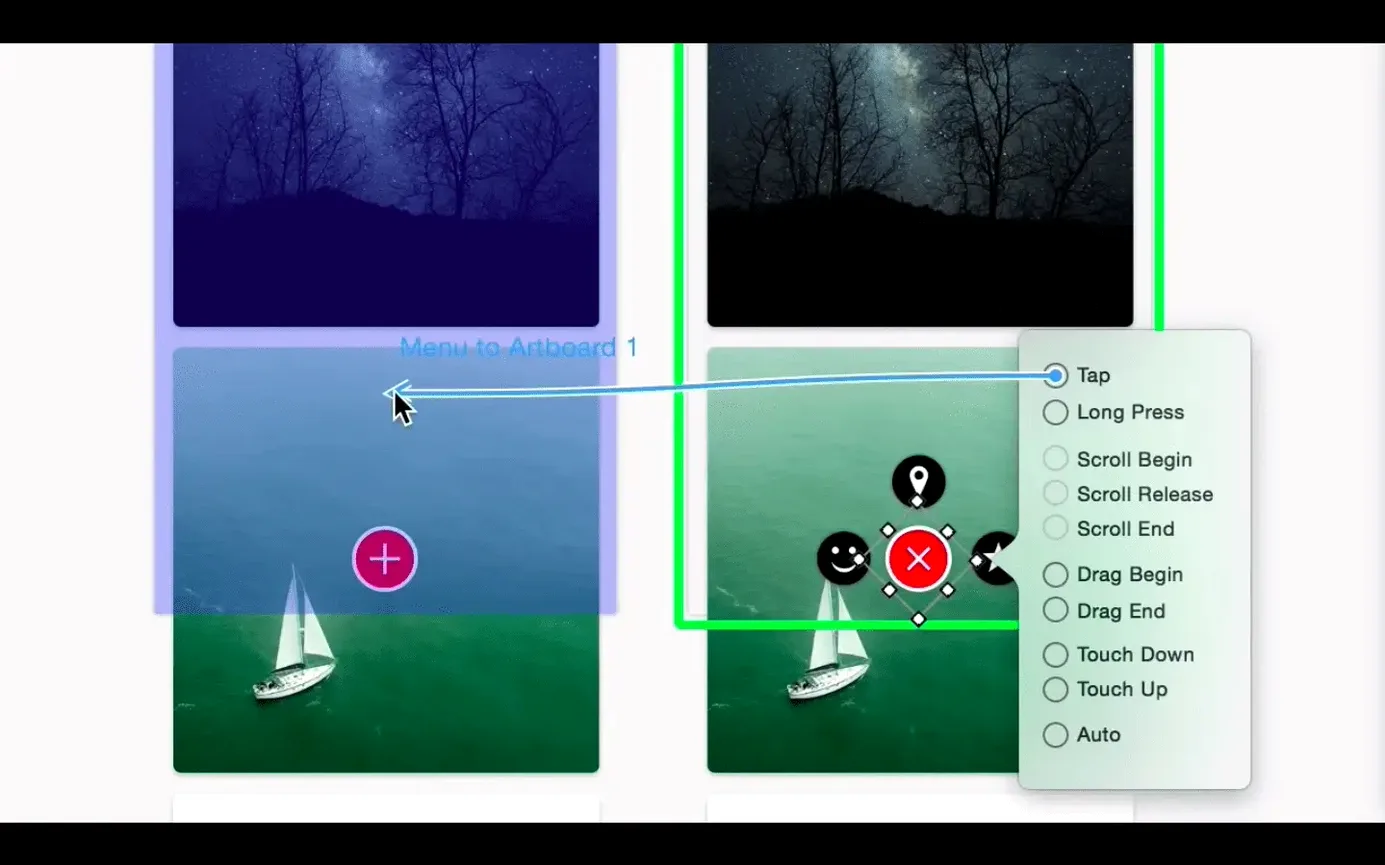
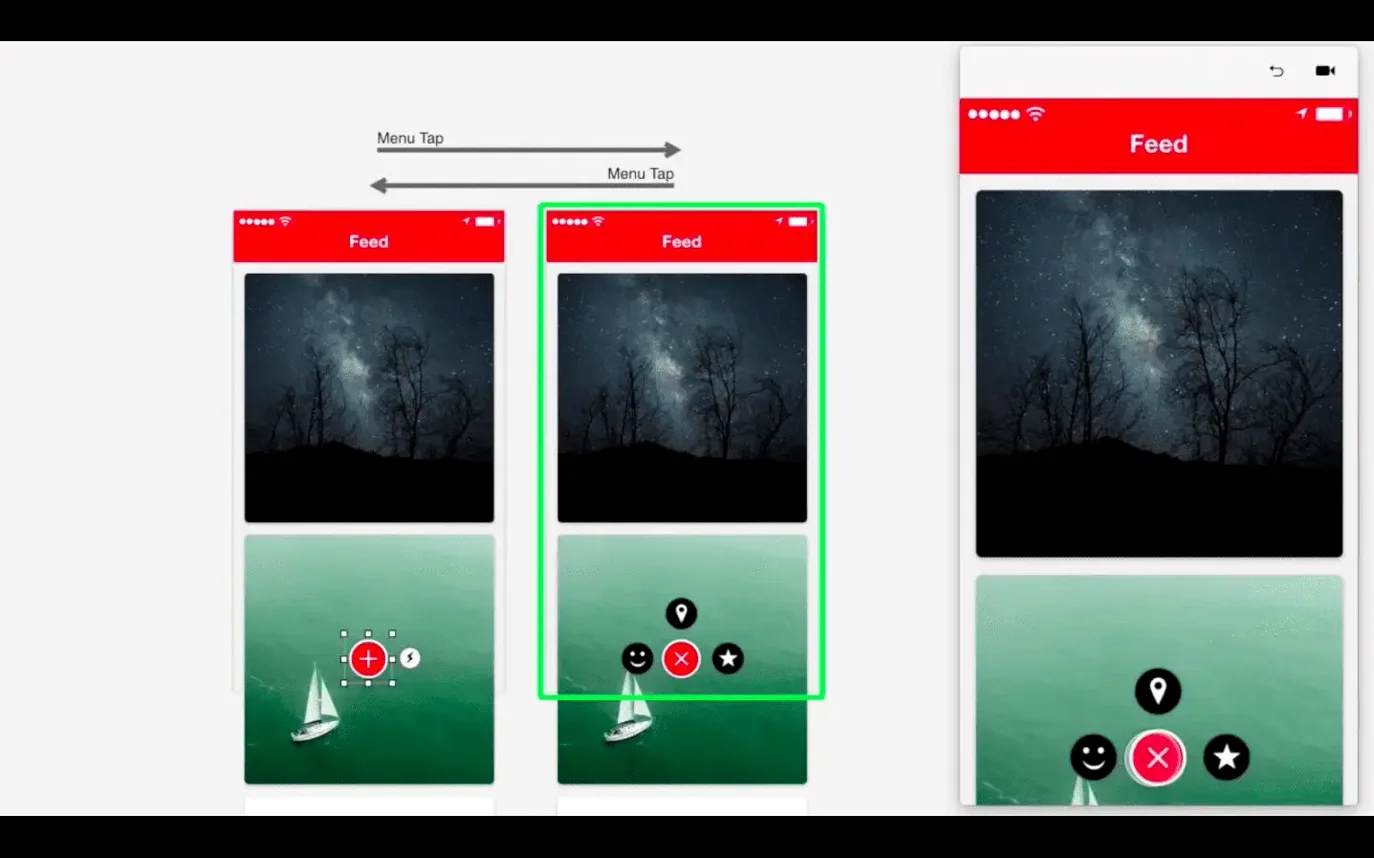
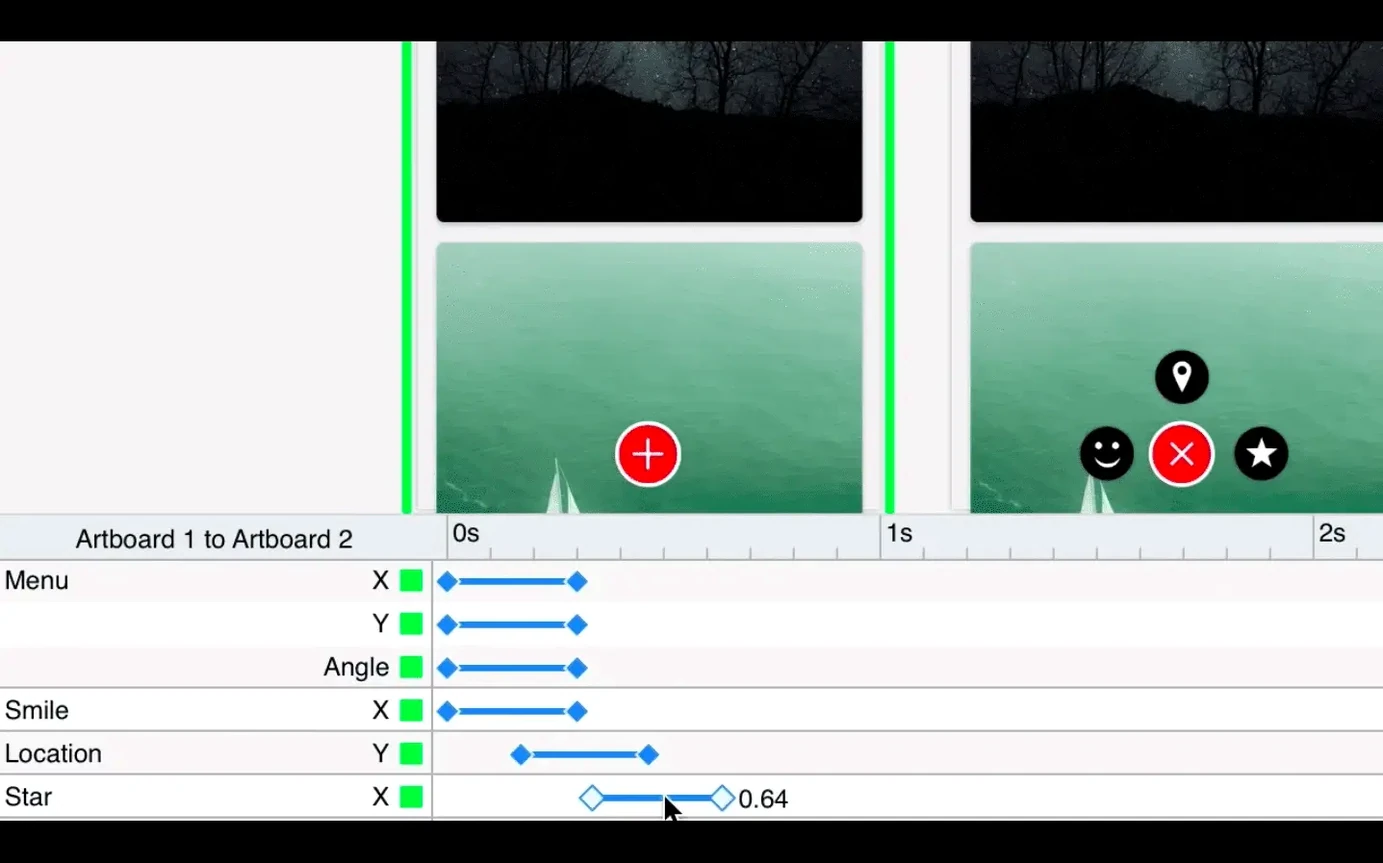
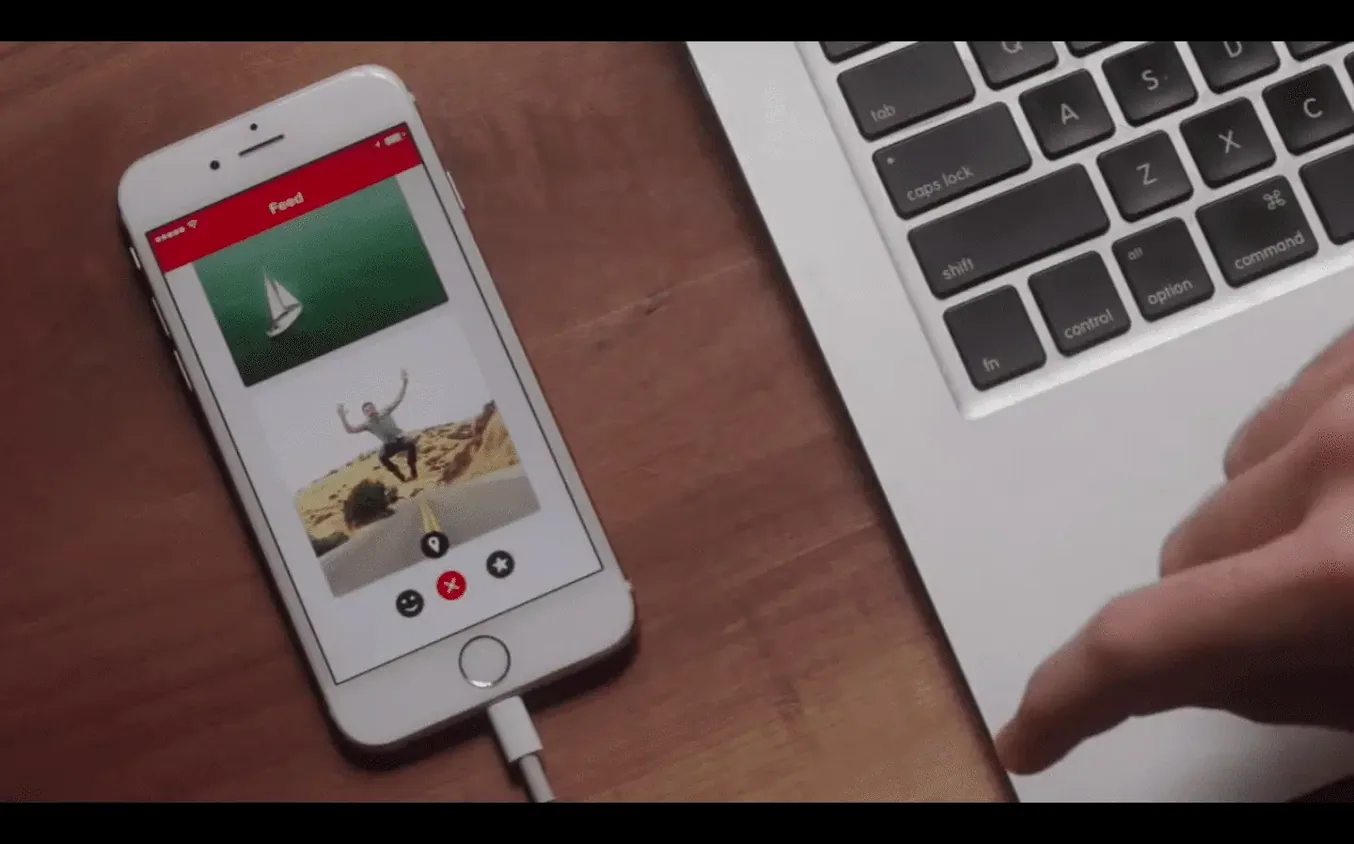
Timeline-based animation, artboards, and a Retina interface ship in version 6.43 of Principle. It is a macOS app for designing animated and interactive user interfaces across web, mobile, and desktop. The companion iOS app, Principle Mirror, lets you preview work on a device. Auto Save and full-screen mode are built in.
- Set up artboards. Each artboard represents a screen or state in your prototype. Multi-screen app flows are supported, so you can lay out several screens before adding motion.
- Animate with the timeline. Short animations and smooth interactions are driven from the timeline. You define transitions between artboards rather than hand-coding them.
- Preview and iterate. Full-screen mode gives you an unfiltered view of the interaction. Auto Save keeps the file current as you adjust timing and easing.
- Check on iOS. With Principle Mirror installed, you can preview the prototype on an iPhone or iPad while the Mac file stays the source of truth.
The editor is built for a single designer working on one Mac. It stores projects as regular files, so the workflow stays local: open, edit, preview, save. Version 6.43 runs on macOS 10.14 or later on Intel Macs, and the interface is English only. For a CS student, the interesting part is that Principle compresses the gap between static mockups and coded UI by making transitions something you draw and scrub instead of write.
Why start in a blank file, not a real project?
Don't open one of your real projects straight away. Principle's timeline and driver panels behave differently from motion-graphics timelines in After Effects or video editors, and the first hour is better spent getting a feel for the logic.
- Run through the built-in tutorial file. It ships with the app — look under the Help menu. It walks through artboards, drivers, and the animate/trigger model without making you build anything from scratch.
- Place Principle Mirror on the same Wi-Fi network. The iOS companion app finds the Mac automatically via Bonjour. If it doesn't appear within ten seconds, toggle Wi-Fi off and on — Bonjour sleep on some routers can stall discovery.
- Set Auto Save to a frequency you trust. It's on by default, but the interval lives in Preferences. If you're doing lots of micro-adjustments on the timeline, a tighter save interval saves you from losing a half-hour of keyframe nudging.
- Keep a Finder window open at ~/Library/Application Support/Principle. That's where the app stores local caches and preview renders. If things get sluggish, clearing the cache files (with the app closed) often helps on older Intel machines.
A real-world session: the indie game UI designer
Lena is building the HUD for a small strategy game. She has Illustrator mockups for the unit-selection panel, the minimap, and the resource bar — but she needs the resource numbers to count up smoothly when income ticks in, and the minimap should expand on hover.
She pulls three artboards into Principle: one for the default HUD state, one for the expanded minimap, and one for the post-income state with updated numbers. On artboard one, she draws a hot spot over the minimap area and sets it to trigger a transition to artboard two on hover. The timeline handles the scale and opacity changes — she drags the minimap layer's width property from 120 px to 240 px over 0.3 seconds with an ease-out curve.
For the resource count, she creates a text layer on artboard three and uses a driver to animate the numeric value over 0.8 seconds. A quick preview in full-screen mode confirms the count-up feels snappy but readable. She exports a standalone Mac app from File → Export so the game's producer — who doesn't have Principle — can click through the HUD prototype on his own machine.
Lena's Computer Science background pokes through when she inspects the exported app's package contents. Inside Contents/Resources/, Principle has bundled a lightweight web runtime that replays the prototype. She notes the JSON structure driving the timeline and files it away for a future blog post.
How a login flow comes together in 50 minutes
You sit down with a coffee and a loose sketch of three screens: a login flow for a mobile app. Principle is already open from yesterday; Auto Save has your back.
9:10 — Artboards. You create three artboards named "Login", "Error", and "Dashboard". You drop in PNGs exported from Figma for the background and form fields. The layers panel now shows a tree for each artboard.
9:25 — Hot spots and triggers. On the "Login" artboard, you draw a rectangle over the "Sign In" button, make it a touch area, and set it to transition to "Dashboard." A second touch area over "Forgot password" points to "Error" for now. Principle draws blue arrows on the canvas so you can trace the flow visually.
9:40 — Timeline work. You open the timeline panel and select the transition from "Login" to "Dashboard." You stagger the opacity of the dashboard elements: the greeting text fades in at 0.1 s, the card list at 0.25 s, each with a gentle ease-out. Scrubbing the playhead shows the sequence building.
10:00 — iOS preview. You open Principle Mirror on an iPhone 13 plugged into the same network. The prototype appears automatically. The touch target for "Sign In" feels a bit small on the device, so you enlarge the hot spot on the Mac — Mirror updates within a second.
10:20 — Export. The flow is ready to share. You export a standalone Mac app via File → Export and send the .app to the developer who'll build the real login screen. Session done.
What makes a hover state refuse to appear?
Principle Mirror won't connect
This is the top support issue. The iOS app and the Mac app discover each other over Bonjour, which can fail when the router suppresses multicast traffic. Fixes in order: toggle Wi-Fi on both devices, reboot the iOS app, and — if you're on a corporate or university network — try a personal hotspot from the Mac. Some firewalls block mDNS entirely; a direct USB connection isn't available yet, so Wi-Fi is the only path.
Transitions stutter on an older Intel Mac
Principle renders previews with the GPU, but complex artboards with many layers and shadows can tax integrated graphics. Lower the preview quality in Preferences to "Performance" rather than "Quality." Also, flatten imported bitmaps to 1× resolution if you're prototyping for mobile — Retina assets at 3× just consume memory during animation playback.
Imported SVGs lose their layers
Principle doesn't parse SVG groups as separate layers the way Sketch or Figma do. If you need individual elements to animate independently, export them as separate PNG or PDF files and rebuild the layout inside Principle's layer tree. It's more work, but the timeline will respect each layer's transform independently.
The exported Mac app shows a blank window
This usually means the starting artboard isn't set. Open the project, click the artboard you want as the entry point, and check the "Start" flag in the inspector. Without it, the exported runtime has no root screen to display. Also, if you've upgraded from an earlier Principle version, re-save the .principle file before exporting — older file formats sometimes confuse the bundler.
- macOS 10.14 or later
- Intel Mac
- Interface language: English
$ man principle | grep -A2 "?"
Is Principle a native macOS app?
Yes, Principle runs on macOS 10.14 or later on Intel Macs. It includes a Retina interface and full-screen mode.
Can I preview Principle prototypes on iOS?
Yes, use Principle Mirror, the companion iOS app, to preview prototypes on an iPhone or iPad. The Mac file remains the working source.
Comments 0
Sign in or create an account to leave a comment.
No comments yet. A codec, a slice, a machine — they appear after moderation.